






4 Methods Enable Spellcheck in Microsoft Edge
In this post, you will learn how to enable Spellcheck in Microsoft Edge. Microsoft Edge checks your spelling as you type in the browser. The spellcheck service is completed locally on the device.
When you add a new language to Microsoft Edge, the browser downloads the dictionary for the new language to the device using HTTPS. The dictionary is used for the built-in spellcheck service.
Deleting the language from your Microsoft Edge settings deletes the dictionary from the device. Microsoft Edge does not send info about your typing to Microsoft for spellcheck.
The spell check experience in Microsoft Edge was added at the beginning with version 83. This improvement will provide several benefits, including support for additional languages and dialects, a shared custom dictionary, and better support for URLs, acronyms, and email addresses.

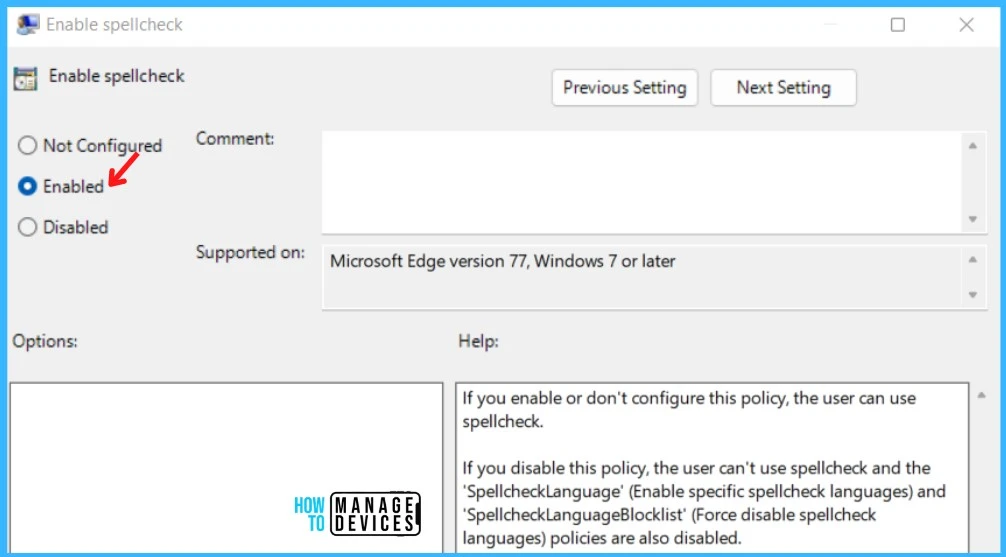
If you enable or don’t configure this policy, the user can use spellcheck. If you disable this policy, the user can’t use spellcheck and the SpellcheckLanguage and SpellcheckLanguageBlocklist policies are also disabled.
- Enable Edge Settings for Unload IE Mode Tabs Before Closing Browser Session
- How to Customize Background in Microsoft Edge Browser on Windows | Page Settings Gear Icon
SpellCheck Option and History of it with MS Edge Browser
On 8th May 2019 – Spell Check is added to the latest version of Microsoft Edge Chromium Canary Build. We have covered the details in the post – Microsoft Edge Chromium Browser Spell Check Issues? How To Fix? (howtomanagedevices.com).
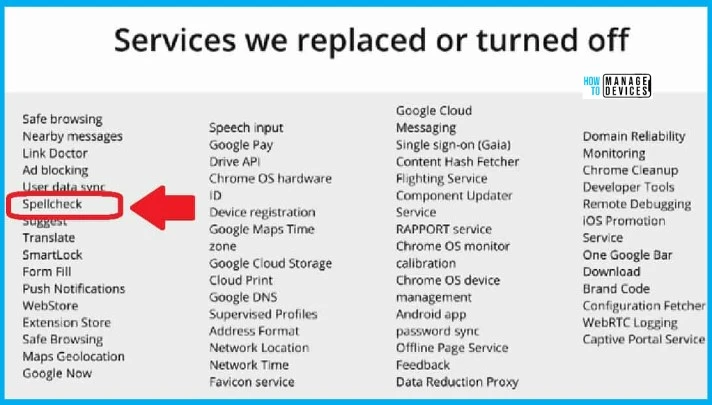
Spellcheck was one of the features that Microsoft didn’t want to use from Chromium services during the initial releases of Microsoft Edge as discussed in the post above.
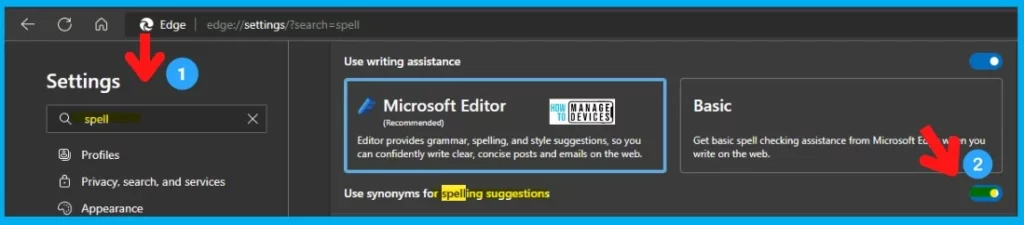
Enable Spell Check in Microsoft Edge Browser from Settings Menu
Let’s try to enable the basic spellcheck features in the Microsoft Edge browser using the Settings menu. There are some basic spellcheck options available in Microsoft Edge. You can use the following URL in Edge Browser and enable the basic spellcheck from the GUI.
edge://settings/?search=spell
Enable the spellcheck option by sliding the toggle to the RIGHT to enable spellcheck. This is the spellcheck that uses synonymous for spelling suggestions.
| Microsoft editor – Spellcheck option for Edge Browser | Basic – Spellcheck option for Edge Browser |
|---|---|
| Grammar | Spelling |
| Spelling | |
| Style |
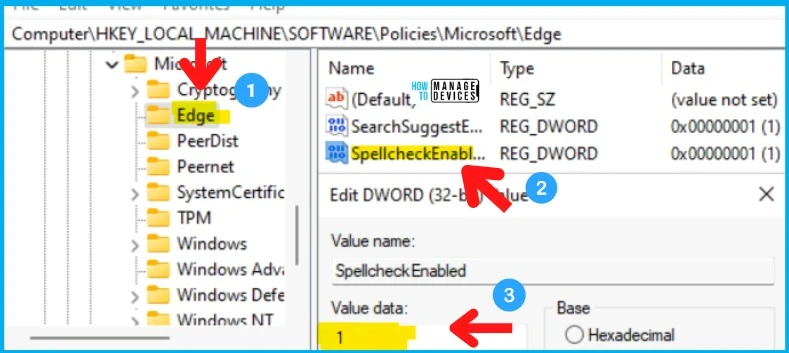
Registry Settings for Enable Spellcheck in Microsoft Edge
Let’s check the registry entries for Spellcheck in Microsoft Edge, and You must be signed in as an administrator to apply to the registry.
| Settings Name | Registry Path | Type | Value Name | Value Data |
|---|---|---|---|---|
| Enable spellcheck | HKLM or HKCU Software\Policies\Microsoft\Edge | REG_DWORD | SpellcheckEnabled | (Delete) 1 – Default enabled 0 – Always disabled |
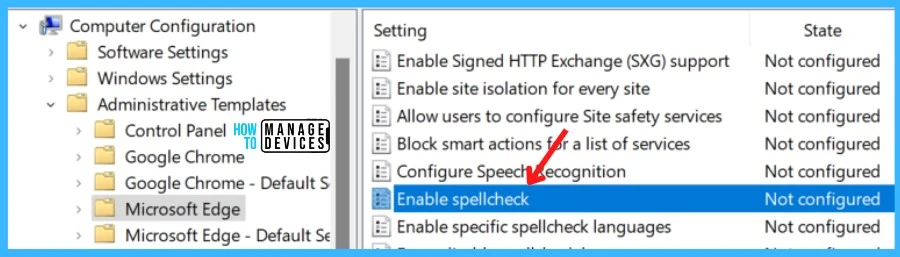
Enable Spellcheck in Microsoft Edge using Group Policy
The following group policy helps to enable the Microsoft Edge Spell Check. The Microsoft Edge spell checker helps you correct misspelled words before sending a message.
You can refer to the Microsoft Edge browser group policy post to update ADMX Templates to get the latest policies – Microsoft Edge ADMX Group Policy Settings.
- Launch Group Policy Management Console.
- Navigate Computers Configuration – Policies – Administrative Templates – Microsoft Edge.
- Open the policy setting called Enable spellcheck.
Let’s check out the steps added to Create a Group Policy for Microsoft Edge in Domain Controller. To complete this procedure, you should have delegated permissions to create new GPOs.
Note – In Local Group Policy Settings, You will locate the policy in Computer Configuration > Administrative Templates > Microsoft Edge.
On the Enable spellcheck, Click on Enabled and Apply. If you enable or don’t configure this policy, the user can use spellcheck.
Disable Spell Check in Microsoft Edge using Group Policy
The following group policy helps to disable Spell Check using Group Policy for Microsoft Edge browsers. If you don’t like it, you can disable the use of the spellchecker in Microsoft Edge.
- Launch Group Policy Management Console.
- Navigate Computers Configuration – Policies – Administrative Templates – Microsoft Edge.
- Open the policy setting called Enable spellcheck.
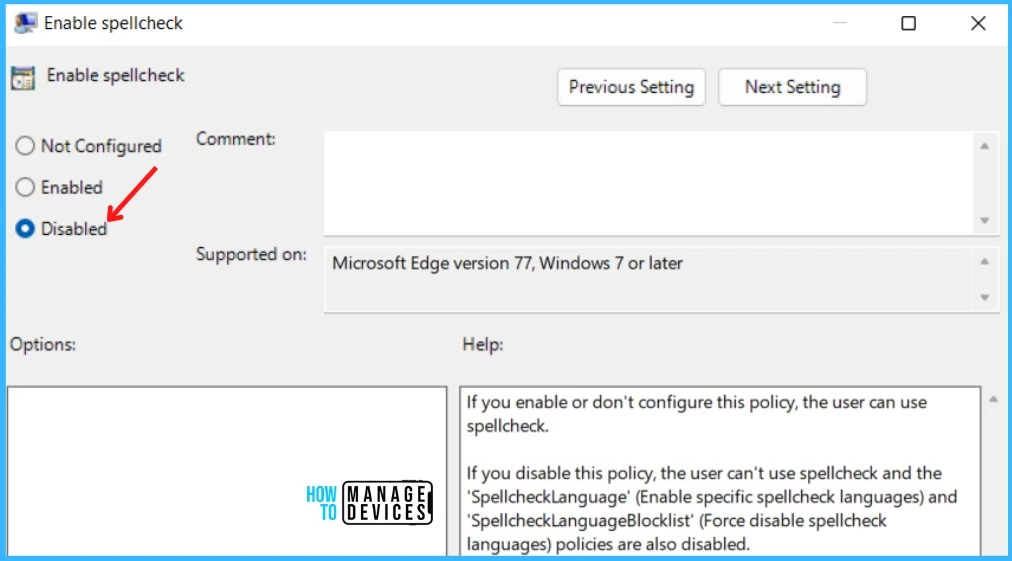
- Double click on Enable spellcheck, Click on Disabled, and Apply.
If you disable this policy, the user can’t use spellcheck and the ‘SpellcheckLanguage’ (Enable specific spellcheck languages) and ‘SpellcheckLanguageBlocklist’ (Force disable spellcheck languages) policies are also disabled.
Intune Policy Enable Spell Check in Microsoft Edge
Let’s see if there are any Intune Policy enable Edge Settings for Spell Check. Most of the administrative template policies can be configured from Intune Settings Catalog.
This policy is newly introduced into the Group Policy setting as part of the Microsoft Edge stable version Version 105.0.1343.25. Hence, this policy is unavailable under Intune Settings Catalog while writing this post.
- Sign in to the Microsoft Endpoint Manager admin center https://endpoint.microsoft.com/.
- Select Devices > Configuration profiles > Create profile.
- Select platform -> Windows 10 and Later.
- Click on Create button (and follow the guide to create Intune Settings Catalog Policy).
- Click on +Add Settings to get to Settings Picker.
There are thousands of settings available in the settings catalog. To make it easier to search specific settings, use the built-in features shown in the diagram below.
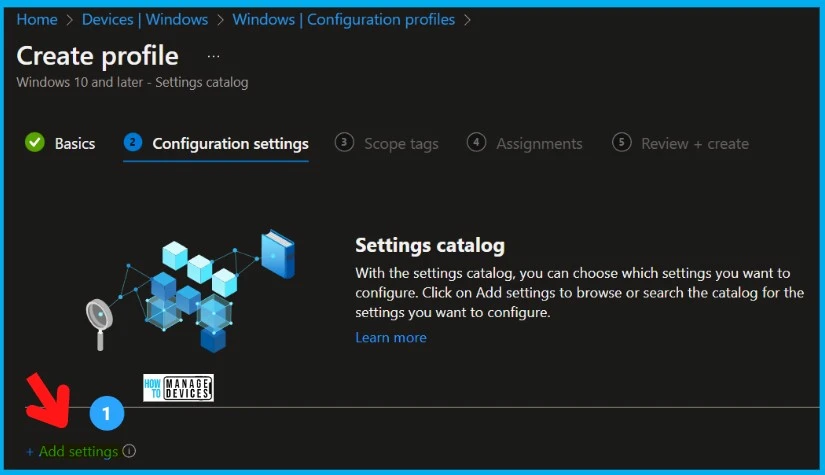
You can search for the policy and complete the wizard, I am unable to locate the policy in Intune Settings catalog resulting as you see in the following screenshot.
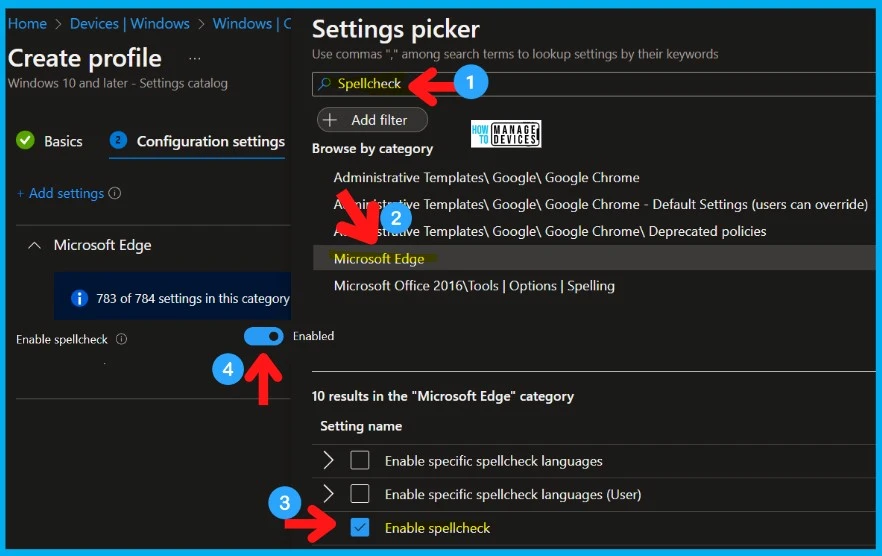
- Search with “SpellCheck” in the Settings picker search box.
- Select the Microsoft Edge Category.
- Enable Spell Check options from the Settings name section.
- Keep the policy’s settings to ENABLE or DISABLED if you want to keep it enabled.




How do you set the Writing assistance to Microsoft Editor using the InTune Policy? I want that set for everyone and not the basic one.
Cheers
Adam