






Best Way to Enforce Password History Policy using Intune
This article aims to guide you through the implementation of the Enforce Password History Policy using Intune. We will utilize Intune’s Configuration Profiles to apply this policy, emphasizing a hands-on approach to enhance your understanding of the Enforce Password History Policy through practical experience.
Enforce Password History Policy configuration dictates the quantity of newly generated, distinct passwords linked to a user account before the reuse of a previous password is permitted. The acceptable range for this policy spans from 0 to 24 passwords.
While the default value for Windows Vista is 0 passwords, the domain default is set to 24 passwords. To uphold the efficacy of this policy, it is advisable to employ the Minimum password age setting, thereby deterring users from frequently altering their passwords.
As the duration of a user retaining the same password increases, so does the vulnerability to potentially brute force attacks by attackers attempting to decipher the password. Additionally, any compromised accounts will continue to be susceptible as long as the password remains unchanged.

If mandatory password changes are enforced without preventing password reuse, or if users persistently recycle a limited set of passwords, the effectiveness of a robust password policy is significantly diminished.

- Implement Password Complexity Policy using Intune
- Don’t Allow Passwords to be Saved Policy using Intune
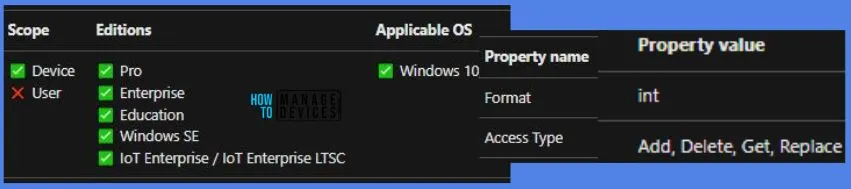
Windows CSP Details DevicePasswordHistory
We will see Windows CSP Details for this Policy setting DevicePasswordHistory. The primary consequence of this configuration is that users need to generate a new password each time they are prompted to change their existing one. When users are mandated to switch to new, unique passwords, the likelihood of them noting down their passwords to avoid forgetting them increases.
There is also a risk that users may craft passwords with incremental changes (e.g., password01, password02, etc.) for ease of memorization, inadvertently making them more susceptible to guessing. Moreover, setting an excessively low value for the Minimum password age could lead to heightened administrative burdens, as users who forget their passwords may frequently seek help desk assistance for resets.
CSP URI – ./Device/Vendor/MSFT/Policy/Config/DeviceLock/DevicePasswordHistory
Enforce the Password History Policy using Intune
Enforce the Password History Policy Using Intune, follow the steps stated below:
- Sign in to the Intune Admin Center portal https://intune.microsoft.com/.
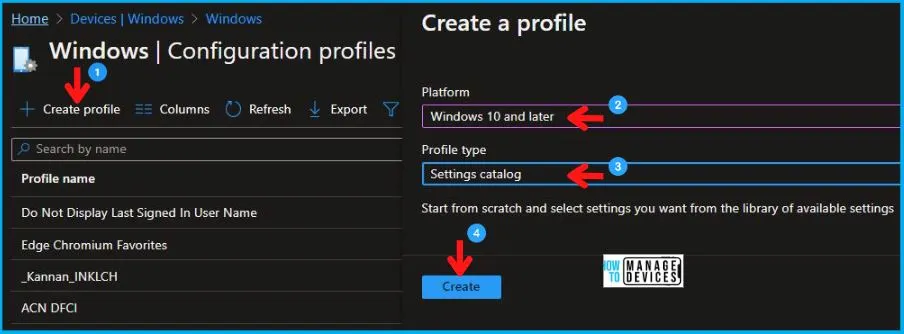
- Select Devices > Windows > Configuration profiles > Create a profile.
In Create Profile, I select Windows 10 and later in Platform, and select Profile Type as Settings catalog. Click on the Create button.
| Platform | Profile Type |
|---|---|
| Windows 10 and later | Settings Catalog |
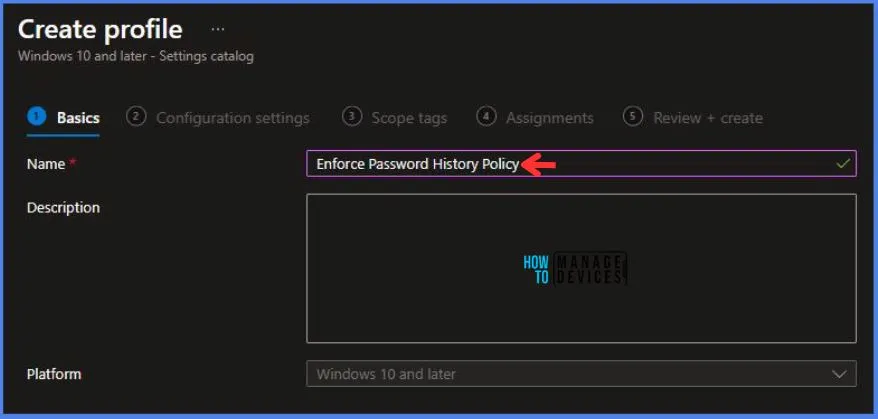
On the Basics tab pane, I provide a name for the policy as “Enforce Password History Policy.” Optionally, if you want, you can enter a policy description and proceed by selecting “Next“.
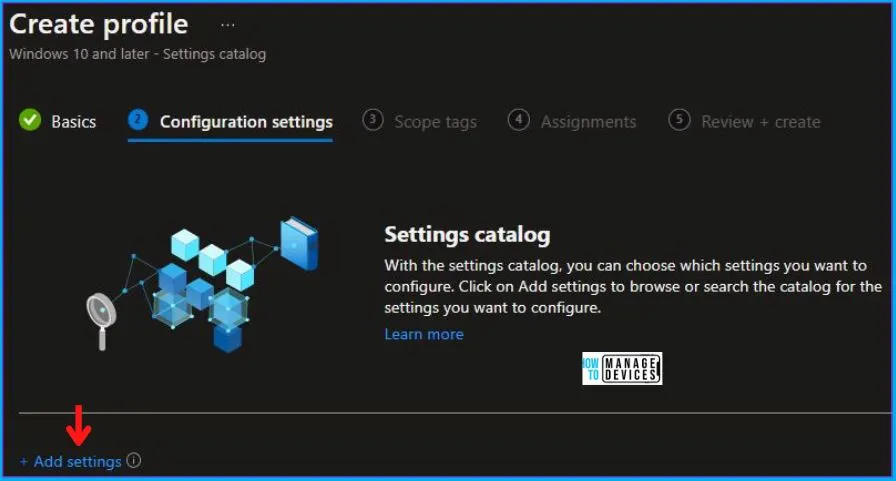
Now in Configuration Settings, click Add Settings to browse or search the catalog for the settings I want to configure.
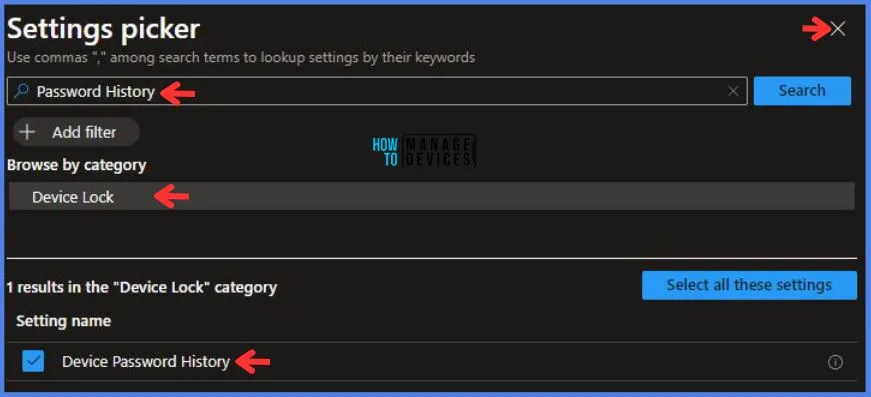
In the Settings Picker windows, I searched for the keyword Password History, I found the category Device Lock and selected this.
When I select that option as stated above, I see the sub-category Device Password History. After selecting that, click the cross mark at the right-hand corner, as shown below.
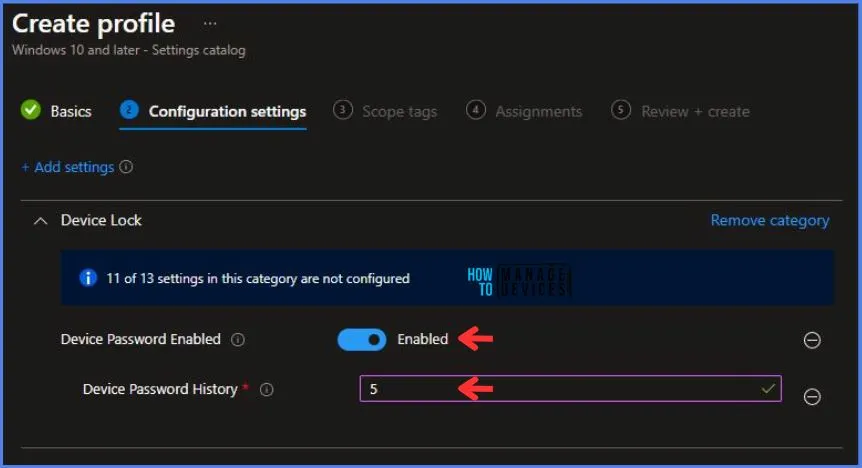
Here I enable the Device Password Enabled option. After enabling this, another option of Device Password History pops up. Here I enter the value 5. It means one can only repeat their password after using 5 different passwords.
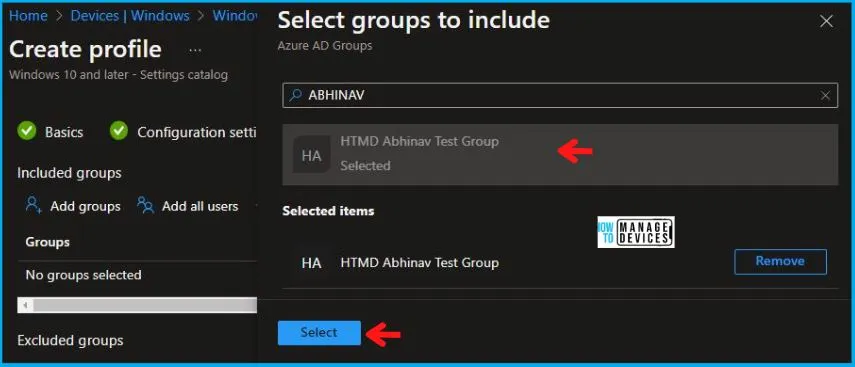
Using Scope tags, you can assign a tag to filter the profile to specific IT groups. One can add scope tags (if required) and click Next to continue. Now in Assignments, in Included Groups, you need to click on Add Groups, choose Select Groups to include one or more groups, and click Next to continue.
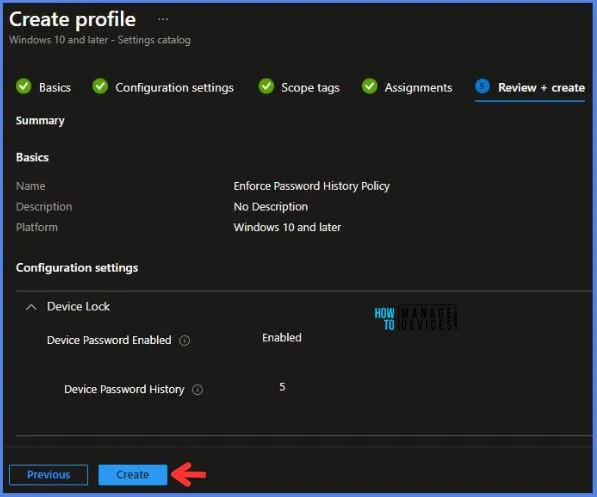
In the Review + Create tab, I review settings. After clicking on Create, changes are saved, and the profile is assigned.
After successfully creating the “Enforce Password History Policy,” a notification will appear in the top right-hand corner confirming the action. You can also verify the policy’s existence by navigating to the Configuration Profiles list, where it will be prominently displayed.
Your groups will receive your profile settings when the devices check in with the Intune service. The Policy applies to the device.
Intune Report for Enforce Password History Policy
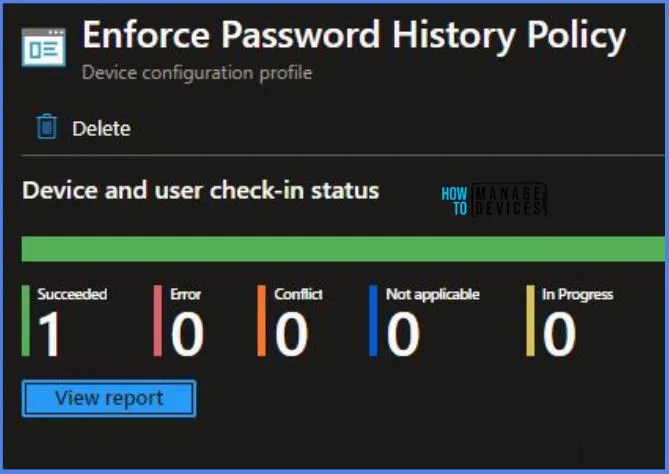
From the Intune Portal, you can view the Intune settings catalog profile report, which provides an overview of device configuration policies and deployment status.
To track the assignment of the policy, you need to select the relevant policy from the Configuration Profiles list. Then, you can review the device and user check-in status to determine whether the policy has been successfully applied. If you require more detailed information, you can click on “View Report” to access additional insights.
Intune MDM Event Log
To verify the successful implementation of String or integer policies on Windows 10 or 11 devices through Intune, you can leverage event IDs 813 and 814. These event IDs provide valuable insights into the application status of the policy as well as the specific value assigned to the policy on those devices. In the case of this particular policy, the value is an Integer and is linked to the event ID 813.
By analyzing these event IDs, you can gain a clear understanding of the policy’s application status and the corresponding value associated with it on the devices in question.
To confirm this, you can check the Event log path – Applications and Services Logs – Microsoft – Windows – Devicemanagement-Enterprise-Diagnostics-Provider – Admin.
MDM PolicyManager: Set policy string, Policy: (