






How to Troubleshoot Microsoft Enterprise SSO Plug-in on macOS using Intune
Hello! Today, we will discuss how to Troubleshoot Microsoft Enterprise SSO plug-in on macOS using Intune. We will cover the various types of extensions that Apple supports and guide you through the troubleshooting process, including steps to address deployment and application authorization issues.
Our previous blog post covered Easy Method to Deploy Microsoft 365 on MacOS using Intune. We discussed the different release channels, outlined the prerequisites necessary for deployment, and provided instructions on monitoring and validating the deployment on macOS.Additionally, we highlighted some app limitations that Admins should know before deploying the app bundle using Intune.
Also, in our earlier posts, we discussed How to set up the Microsoft Enterprise SSO plug-in for Apple macOS Devices using Intune. The post covered the definition of SSO, an explanation of the Microsoft SSO plug-in, and a detailed guide on deploying the plug-in for Apple macOS devices using Intune.
The Microsoft Enterprise SSO plug-in now supports all the applications previously supported by Apple’s built-in enterprise SSO feature. This process allows for Single Sign-On using Primary Refresh Tokens, which makes it easier for end-users to log in to sites and apps without having to go through multiple authentication prompts.

A Primary Refresh Token (PRT) is a crucial element of Azure AD authentication used on Windows, iOS, macOS, and Android devices. It’s a JSON Web Token (JWT) specifically released to Microsoft’s first-party token brokers to facilitate single sign-on (SSO) across the applications utilized on those devices.
Microsoft Enterprise SSO plug-in allows for Single Sign-On (SSO) even for older applications not yet updated with the latest identity libraries or protocols. Microsoft and Apple worked together to create a plug-in that utilizes Apple’s SSO framework, providing brokered authentication for apps integrated with MS Entra Azure AD.
Currently, the Enterprise SSO plug-in is a built-in feature in the Intune Company Portal app on macOS devices and the Microsoft Authenticator app on iOS and iPadOS devices.
- Configure Device Restriction Settings for macOS Devices using Intune
- Easy method to Manage Multiple Profiles in Outlook for Mac
SSO Extension Types
As we discussed in our previous blogs, Single sign-on (SSO) is an identification method that allows users to smoothly sign in to multiple apps or websites with a single credential over the browser. This feature streamlines the authentication process for users.
Apple ideally supports two types of SSO extensions as part of its framework, such as Redirect and Credential. The Microsoft Enterprise SSO plug-in is implemented as a Redirect type and is flawless for brokering authentication to Azure Active Directory.
| Type | Ideal For | Key Differences | Working Instructions |
|---|---|---|---|
| Redirect | This is compatible with modern authentication methods like OpenID Connect, OAUTH2, and SAML via Azure Active Directory. | Request credentials before data request. Use URLs in the MDM configuration profile. | OS intercepts the authentication request from the app to the Identity provider URLs defined in the MDM’s configuration profile. Redirect extensions receive: URLs, headers, and body. |
| Credential | Challenge and response authentication types like Kerberos (on-premises Active Directory Domain Services) | Request data, then get challenged for authentication. Use HOSTs in the MDM configuration profile. | The request is sent from the app to the auth server. Credential extensions are configured with HOSTS in the MDM configuration profile. If the authentication server returns a challenge that matches a host listed in the profile, OS will route the challenge to the extension. The extension can handle/ reject the challenge. If handled, the extension returns the authorization headers to complete the request, and the authentication server will return a response to the caller. |
Microsoft has introduced brokered authentication through Intune Company Portal for macOS. Microsoft’s broker applications use a Primary Refresh Token to acquire access tokens for applications and web resources secured with Azure AD.
Troubleshooting Model
Microsoft Enterprise SSO uses the below troubleshooting model, which provides a clear and logical approach for troubleshooting the SSO Extension. There are two main areas to focus on when troubleshooting: Deployment and Application Authentication Flow.
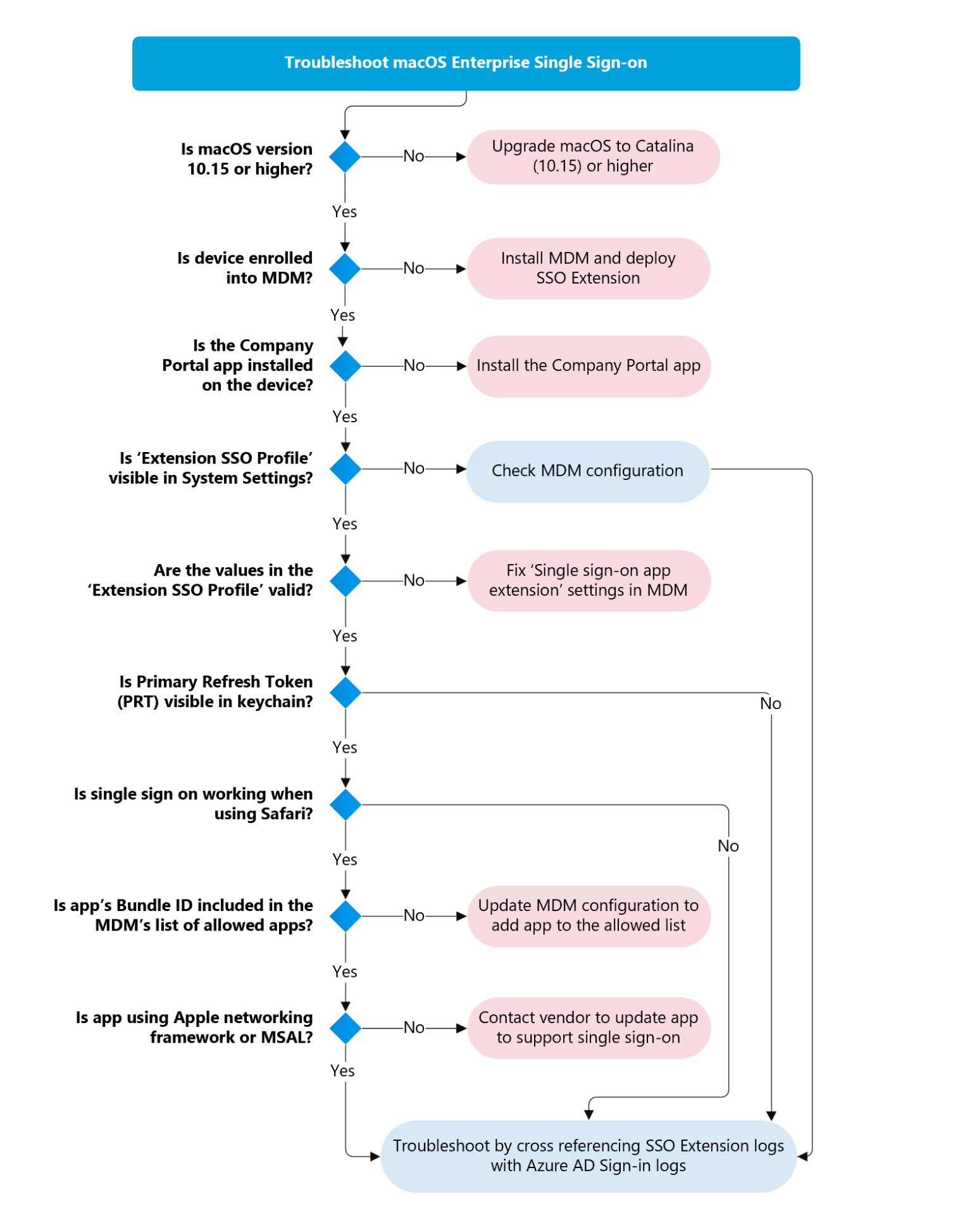
Thanks, Microsoft, for sharing the provided flow chart in detail. Source: https://learn.microsoft.com/en-us/azure/active-directory/devices/troubleshoot-mac-sso-extension-plugin
Deployment Troubleshooting
Customers often need help with incorrect Mobile Device Management (MDM) configuration of the SSO extension profile or when the Macbook cannot receive the configuration profile from the MDM. Let us review the step-by-step process and verify if the MDM profile has been correctly deployed to the Mac and has the appropriate configuration.
Pre-Requisites
Let us discuss in detail the minimum requirements before troubleshooting the Microsoft Enterprise SSO.
- macOS should run on version 10.15 or later.
- The device should be managed by Intune or any MDM Vendor.
- Intune Company Portal app must be installed on the macOS.
- The Mac Device must be included in Configuration Profile’s assignment group in Intune portal.
- As per below screenshot, we have deployed Microsoft Enterprise SSO via Intune Portal. ( Under Devices > macOS > Configuration Profiles).
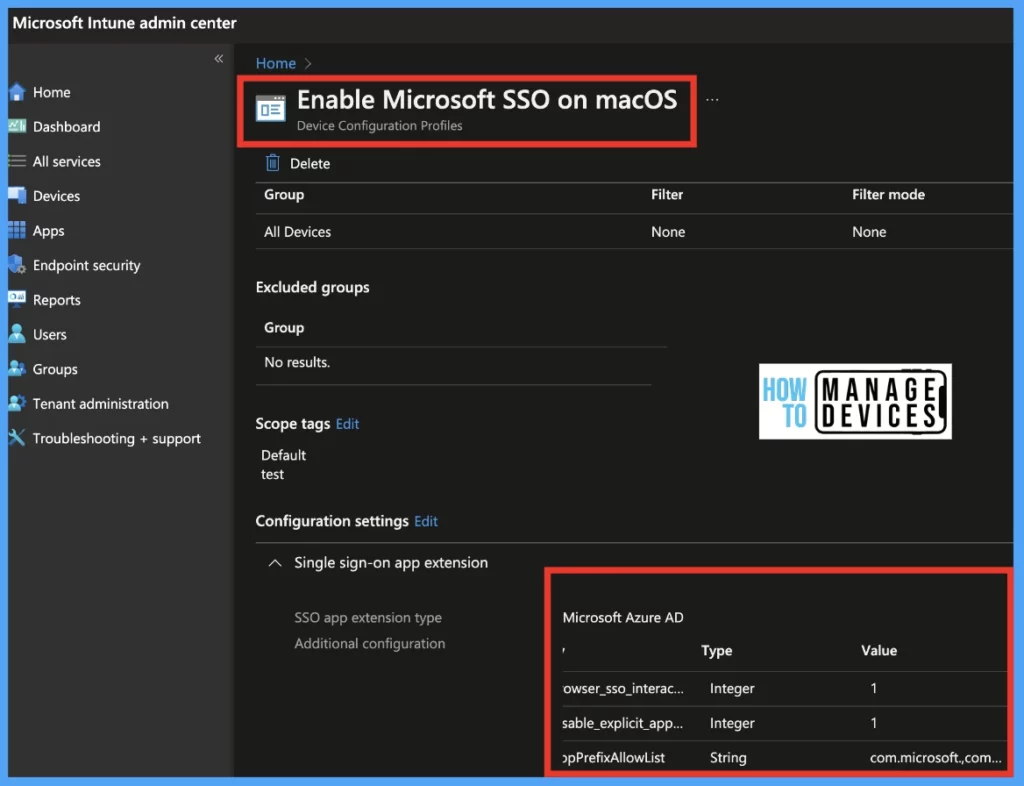
Once the requirements are validated in Intune Portal, let us go to Mac Device’s Profiles Section in System Settings and ensure the configuration profile shows in the profiles list as per the screenshot below.
- Click on the Apple icon on the left top of the menu bar> Click on System Settings.
- Go to Privacy & Security > Profiles > Search for a profile with the keyword “Extension Single Sign On Profile“.
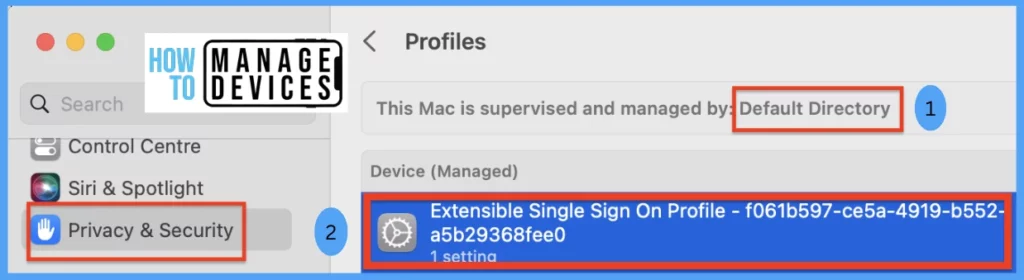
Let us review each section shown in the above screenshot we found in the profiles section and understand what each of them stands for.
| Serial No. | Description |
|---|---|
| 1 | It confirms that the device is enrolled and managed by MDM. |
| 2 | It confirms that the Microsoft Enterprise SSO Extension Profile is successfully deployed on the macOS device. |
Also, after double-clicking on the profile, we can view more profile details, as shown below.
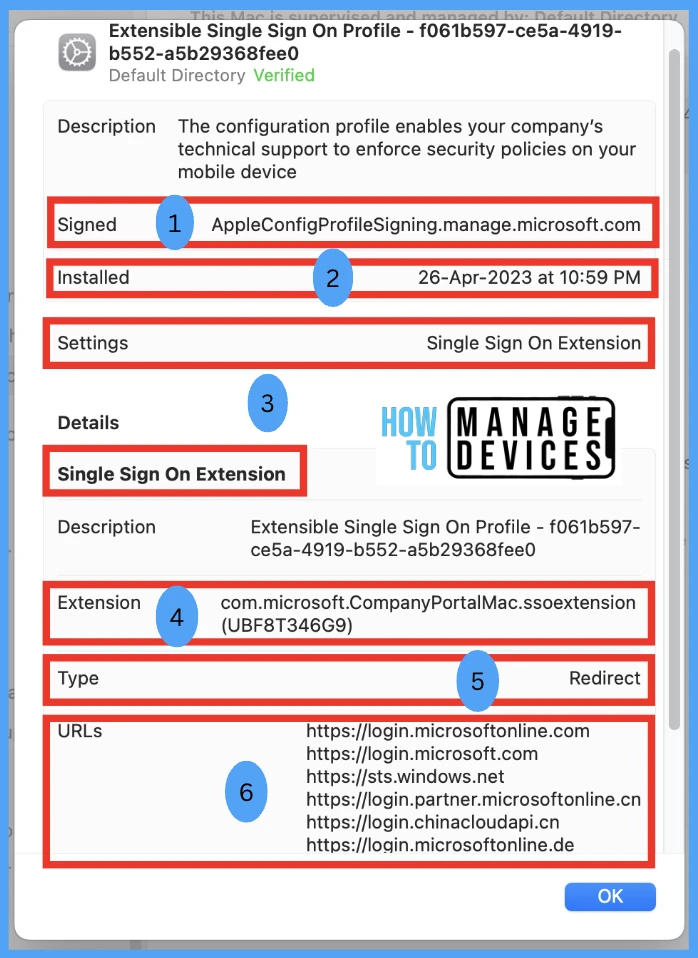
Let us review each section in sequence as shown in the above screenshot.
| Serial No. | Profile Setting | Description |
|---|---|---|
| 1 | Signed | Signing authority of MDM provider. |
| 2 | Installed | Date and Timestamp shows when the extension was installed. |
| 3 | Settings | It indicates that this configuration profile is an Apple SSO Extension type. |
| 4 | Extension | It identifies mapping to the bundle ID of the app that is running the Microsoft Enterprise Extension Plugin. , The identifier should always be set to com.microsoft.CompanyPortalMac.ssoextension. |
| 5 | Type | The Microsoft Enterprise SSO is a Redirect extension type ( as mentioned above) |
| 6 | URLs | This consists of the login URLs belonging to the Identity Provider (Azure AD) |
- How to Block MacStealer Malware Using Intune
- Manage macOS Login Background App Experience Using Intune
Steps to Force Sync All Macbooks at Once using Intune
As we all know, once any configuration profile or policy gets changed or updated in Intune Portal, it will take approx. 8 hours to be updated on the client device as per policy refresh intervals mentioned by Microsoft. However, We can override the time interval by running the sync command from Intune Portal, which should reflect the updated policies and profiles on the client device just right away.
So let’s check out the steps through which we can sync status from a particular Mac device and also can force sync bulk devices at once using simple steps in Intune Portal.
How to Sync a Single Device
Now we will discuss how can we sync a single Mac device in Intune. To sync a particular device from Intune, please follow the steps mentioned below.
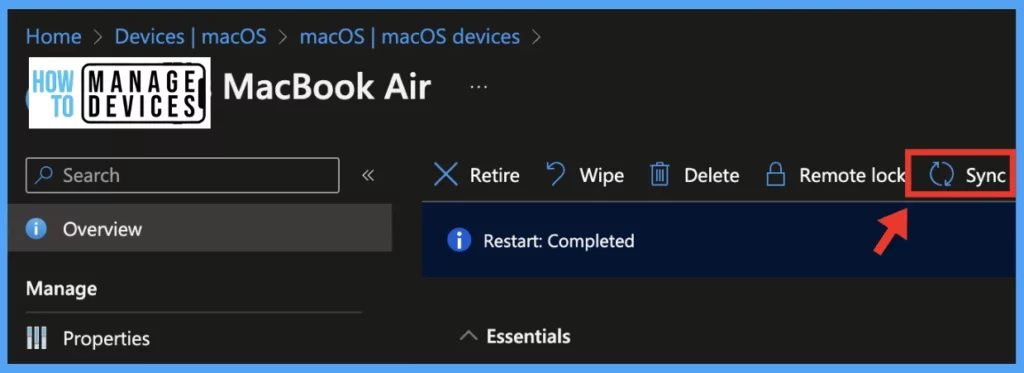
Login to Intune Portal, Under Devices > macOS > macOS Devices > Select a particular Device > Click on the Sync button as shown below to sync the device.
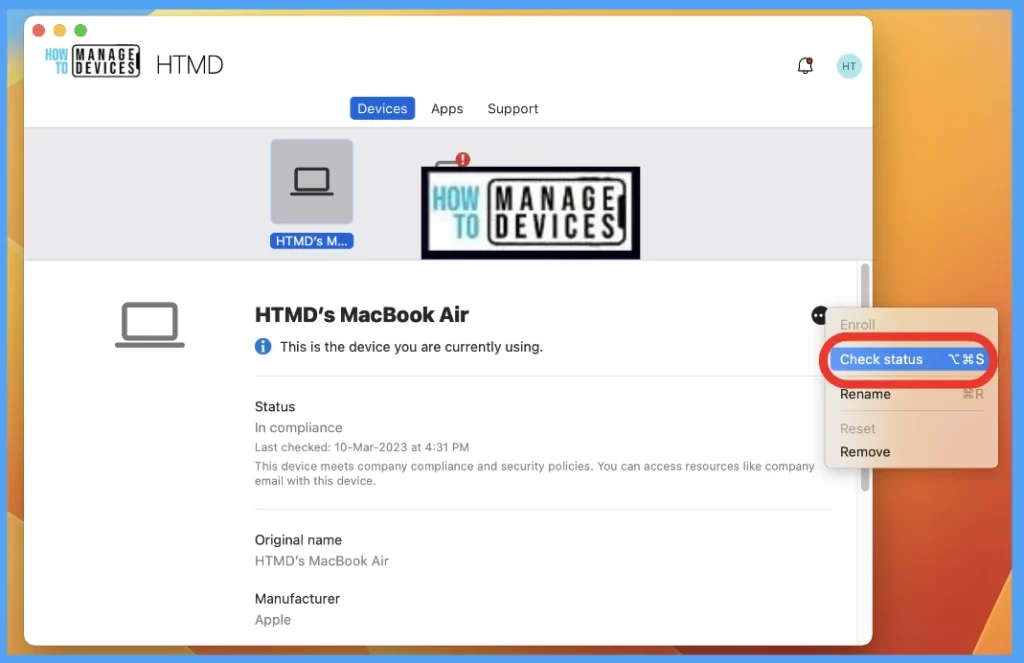
Also, the same can be performed on the MacBook by launching the company portal app and running check status, as shown in the screenshot below.
How to Sync Bulk Devices
Let’s see how can we sync bulk Mac devices in Intune portal. To sync all Mac devices in Bulk using Intune MDM platform, please follow the steps mentioned below.
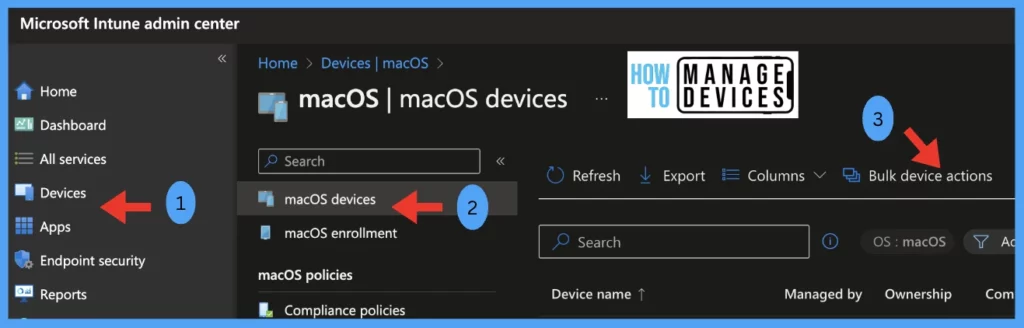
Login to Intune Portal, Under Devices > macOS > macOS Devices > Select the Option Bulk device actions.
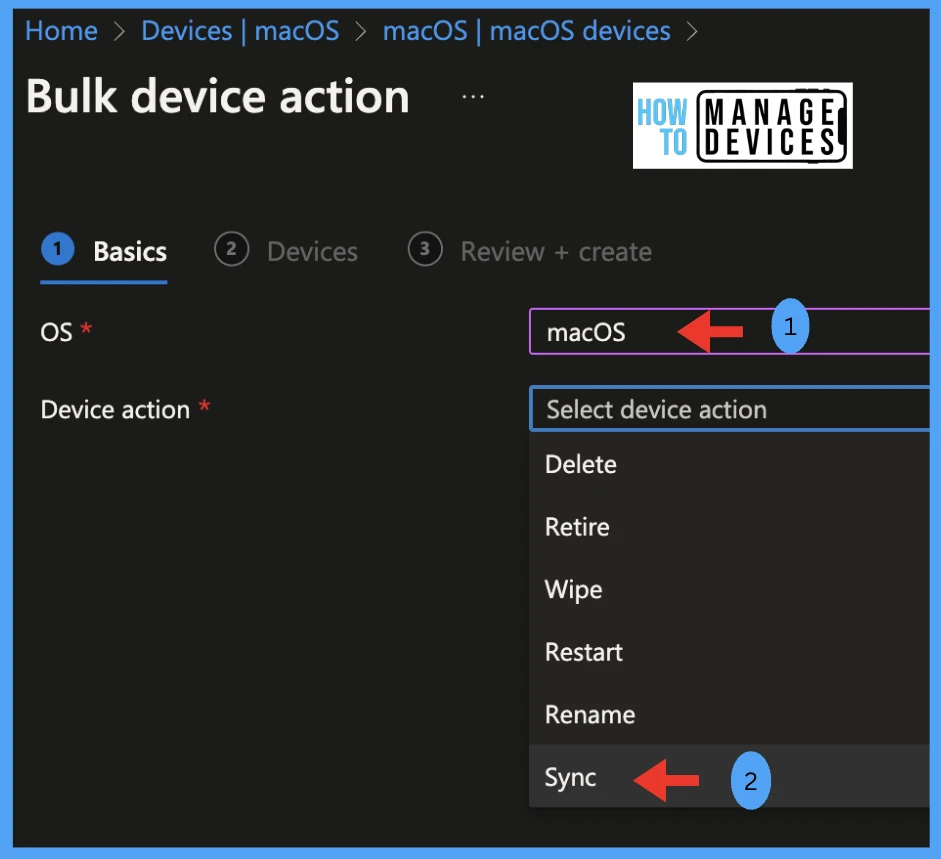
Under Basics Tab, Select OS > macOS. Under Device Action, select > Sync
Note! Using the same method, we can take action on all devices, such as Delete/ Retire/ Wipe / Restart and Rename in Intune Portal.
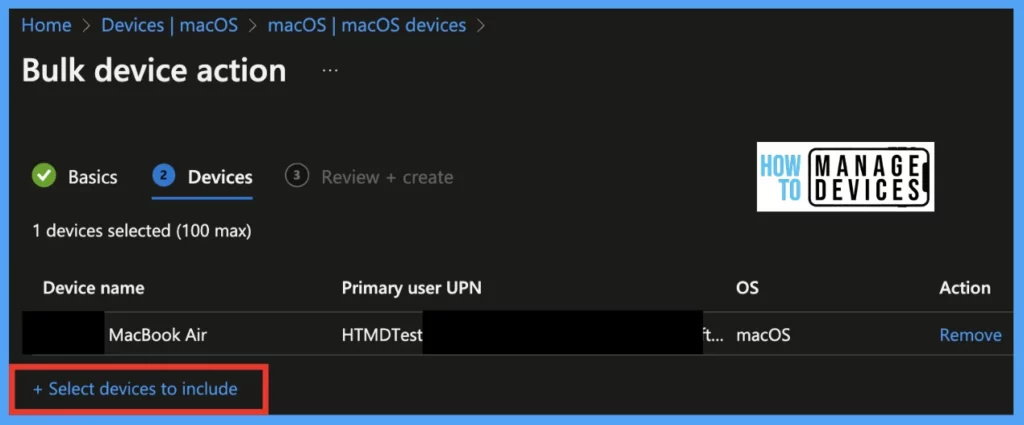
Select all the devices that needs to be synced using the option highlighted below “Select devices to include“
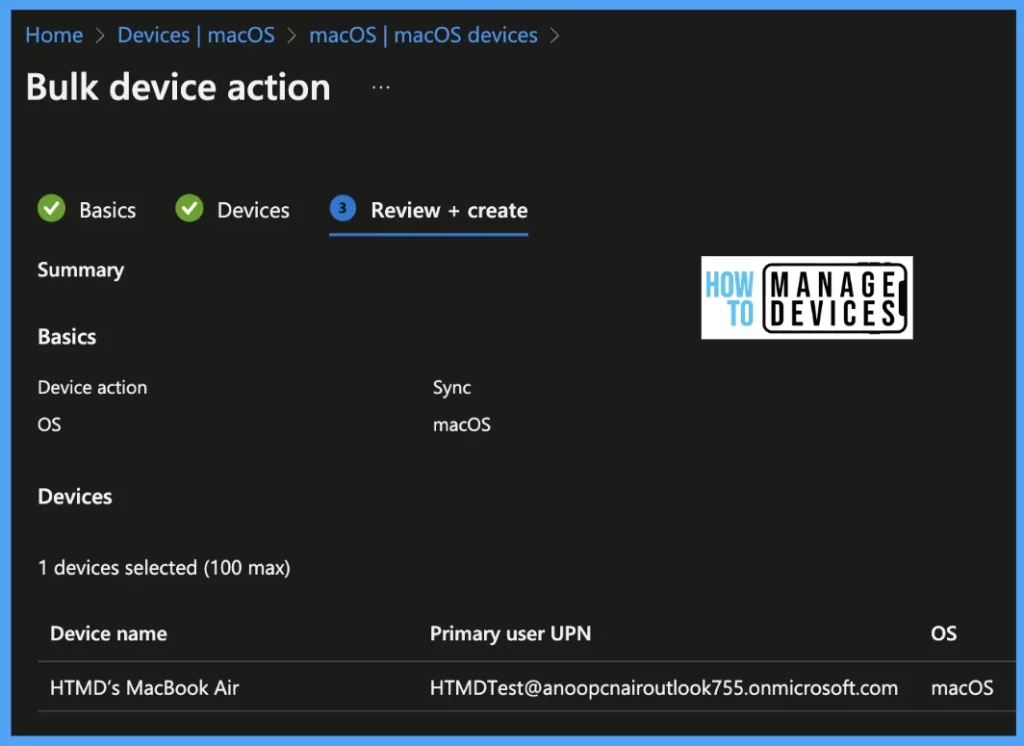
Once the policy is in the Review stage, Click on Create button, to force sync all the devices at once.
In case we do not find the SSO extension configuration profile in the Profiles list, the MDM configuration may be set up to filter out the user or device. We recommend checking with an administrator account and collecting the Console logs to confirm this.
To Collect the device logs, please do the following:
- On the macOS, launch the spotlight (Press Command+Spacebar on the keyboard).
- On Spotlight, type Console and launch the app.
- Click the Start button to enable the Console trace logging.
- Redeploy the config profile to the macOS device on the Intune Portal and force sync macOS (steps mentioned above).
- Type subsystem:com. apple.ManagedClient into the search bar and hit return.
- Where the cursor is flashing in the search bar, type message:Extensible.
- Now we should be able to see the MDM Console logs filtered on Extensible SSO configuration profile activities.
2. Application Auth Flow Troubleshooting
Once we validate a correctly deployed configuration profile, let us check the next part of troubleshooting. Microsoft Enterprise SSO Extension supports two types of application authentication flows for each application type. Native MSAL and Non-MSAL Native/Browser SSO.
| Application Type | Auth Type | Description | Examples |
|---|---|---|---|
| Native MSAL App | Can be Interactive or Silent Authorization | The Microsoft Authentication Library (MSAL) is a framework designed specifically for app developers who want to create applications using the Microsoft Identity platform (Azure AD). If the application is aware of the SSO extension, it will automatically use it without needing additional configuration. | Microsoft To Do |
| Non-MSAL Native App/ Browser SSO | Only Silent Authorization | To obtain a shared credential (PRT), applications that utilize Apple networking technologies or webviews can be configured with the SSO Extension. It is important to configure feature flags to permit each app’s bundle ID to acquire the shared credential. | MS Word Safari MS Edge Visual Studio |
The working method of the Native MSAL application.
- Applications developed using MSAL directly use the SSO extension to authenticate the user.
- The PRT is then sent to the Azure AD token endpoint along with the application’s request for a token to access an Azure AD-protected resource.
- Azure AD verifies the PRT, and an application-specific token is returned to the SSO extension broker, which then passes it to the MSAL client application.
- Finally, the MSAL client application sends the token to the Azure AD-protected resource, allowing the user to access the app and complete the authentication process.
The working method of the Non-Native MSAL application.
- When using a Non-MSAL application (e.g., Safari) to sign in to an Azure AD integrated application (e.,g Office.com), the user is directed to get a token from Azure AD.
- However, if the Non-MSAL application is allowed in the MDM payload configuration, the Apple network stack will redirect the authentication request to the SSO Extension broker.
- The SSO extension sends the PRT to the Azure AD token endpoint for validation and returns an application-specific token to the SSO Extension.
- This token is given to the Non-MSAL client application, which can access the Azure AD-protected service using the provided token.
- Once this process is completed, the user will have successfully signed in and authenticated.
Steps to Find the Bundle ID for an App
Let us check the steps to find the bundle ID for each app if we want to add each app for the macOS. please follow the steps mentioned below.
- On macOS, launch spotlight (Press Command+Spacebar on the keyboard).
- Once Spotlight appears, type Terminal.
- Once the Terminal launches, type osascript -e ‘id of app “<appname>”‘ at the prompt.
- Once the bundle ID details are retrieved, ensure that Non-MSAL Native/Browser SSO apps can utilize the SSO Extension.
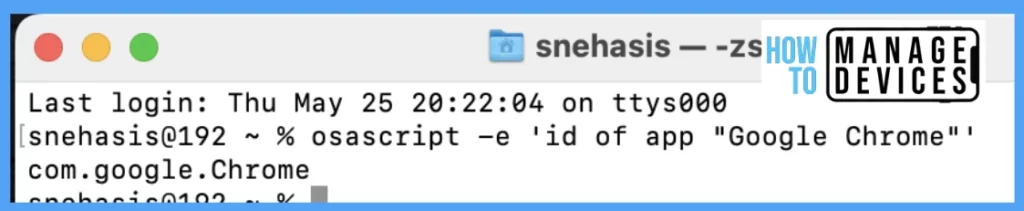
Note: All bundle IDs are case-sensitive for the Feature flag configuration.
Bootstrapping
On macOS, as we know, the keychain access app, which stores passwords and account information, the Microsoft Enterprise SSO uses the Keychain access using the shared credential Primary Refresh Token(PRT) from Azure AD. After the SSO extension acquires a PRT, it will store the credential in the user’s login Keychain.
The Keychain Access app on macOS stores user passwords and account information, which makes it easier for the user to manage and remember them.
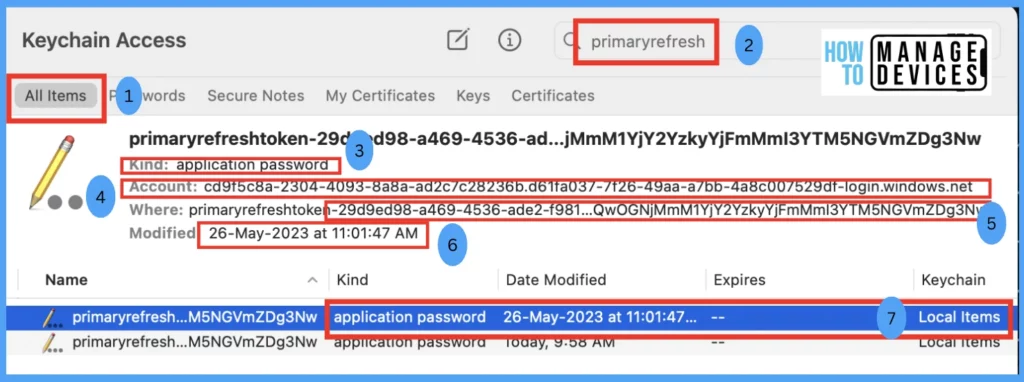
In the above screenshot shown above, we have reviewed an existing PRT in our test device, which was present in the keychain for the test user as an example, and understand what each section stands for.
| Serial No. | Components | Description |
|---|---|---|
| 1 | All Items | It displays all items of saved credentials across the app |
| 2 | Keychain Search Bar | As Microsoft Enterprise SSO uses a Primary Refresh token, hence we have filtered and found 2 for the test device |
| 3 | Kind | As part of SSO, it has been saved as an application password type |
| 4 | Account | It shows the Azure AD user object ID |
| 5 | Where | It displays the full name of the credential. |
| 6 | Modified | It shows the date the SSO has been saved/updated locally on the app |
| 7 | Keychain | It indicates that the credentials saved are locally on the app on macOS |
Once the Enterprise SSO gets deployed on the Mac and while operating the SSO, the User face issues on macOS, It is advisable to collect SSO extension Logs from the device, to collect the SSO extension logs, you can follow the steps mentioned in our previous blogs: How to collect Intune logs from MacOS devices.
- Enroll macOS in Intune with Step by Step Guide
- Configure macOS Compliance Policy in Intune for Devices
Conclusion
As we know, Organizations implement SSO on Windows devices to enhance the end-user experience, and now thanks to Microsoft’s new Enterprise SSO, in collaboration with Apple, and make it is available on Apple macOS devices as well. And the best part is the apps/websites that don’t support the MSAL feature yet, can simply be added to the Intune portal by the IT Admins.
Author
Snehasis Pani is currently working as a JAMF Admin. He loves to help the community by sharing his knowledge on Apple Mac Devices Support. He is an M.Tech graduate in System Engineering.


Discussion