





Expanding Windows 365 Frontline with Cloud Apps and User Experience Sync
Key Takeaways
- Windows 365 Enterprise gives full-time, personal Cloud PC access.
- Windows 365 Frontline is for part-time or shared use.
- Windows 365 Cloud Apps offers a simple and efficient way to deliver applications to users
- It makes it easier for organisations to move to cloud-based app delivery
Hey, let’s discuss Expanding Windows 365 Frontline with Cloud Apps and user Experience Sync. Windows 365 offers different editions to match the needs of organisations and their employees. Windows 365 Enterprise is designed for users who need continuous access to their Cloud PC, providing a dedicated environment available 24/7. Each employee gets their own license and a fully personalised Windows experience, with easy deployment and management through Microsoft Intune.
Table of Contents
Expanding Windows 365 Frontline with Cloud Apps and User Experience Sync
For more flexible use, Windows 365 Frontline supports employees who only need part-time or occasional access. It includes a Dedicated mode for regular users with shared licensing among a limited number of employees, and a Shared mode that allows multiple users to access a Cloud PC one at a time. This makes it cost-effective while still offering a consistent Windows experience and centralised management using Microsoft Intune.
- From Complex VDI to Easy Cloud Desktops with Windows 365 Frontline Shared
- How Windows 365 Frontline Shared Makes Non-Persistent Cloud PCs Easier to Manage
- How to Create Autopilot Device Preparation Policy for Windows 365 Frontline Devices using Intune
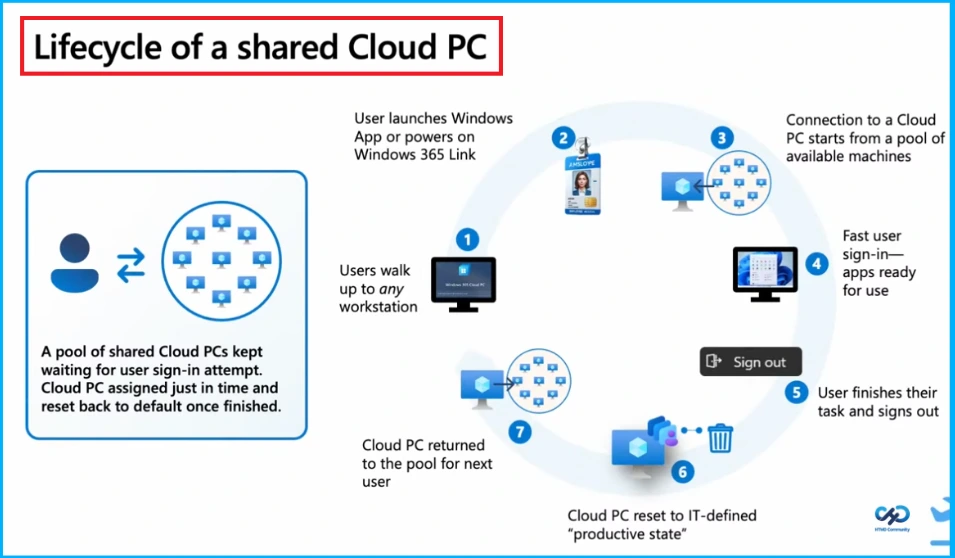
Lifecycle of a Shared Cloud PC
The lifecycle of a shared Cloud PC in Windows 365 begins when a user accesses any available workstation and signs in using the Windows app or Windows 365 Link. The system automatically assigns a Cloud PC from a shared pool, allowing quick sign-in with apps ready to use. After completing their work, the user signs out, and the Cloud PC is reset to a clean, IT-defined state. Finally, it is returned to the pool, ready to be securely used by the next user, ensuring efficiency, consistency, and data protection.
User Experience Challenges
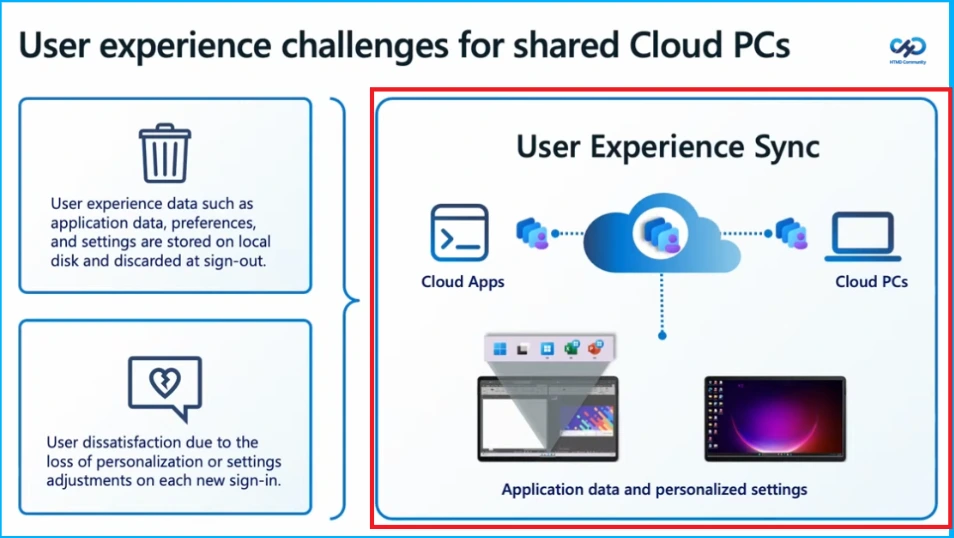
Shared Cloud PCs often face user experience challenges because user data, such as applications, preferences, and settings are stored locally and removed after sign-out. This means users lose their personalised environment each time they log in, leading to repeated setup efforts and dissatisfaction. To overcome this, user experience sync helps by storing application data and settings in the cloud, allowing users to access a consistent and personalised experience across different Cloud PCs and cloud apps.

User Experience Sync
User Experience Sync is a cloud-based (SaaS) feature designed for Windows 365 Frontline Cloud PCs that helps users get a smooth and consistent experience, even when using shared or pooled devices. It works by syncing user settings and app data based on defined policies, so users can quickly pick up where they left off without any manual setup.
Windows 365 Cloud Apps
Windows 365 Cloud Apps offers a simple and efficient way to deliver applications to users by streaming them directly from the Microsoft Cloud. Instead of providing a full Cloud PC, it focuses only on the apps users need, making it easier for organisations to move from traditional on-premises VDI setups to a more flexible cloud-based environment.
With centralised management through a single interface, IT administrators can quickly deploy and control applications, saving time and effort. This not only speeds up app delivery but also improves the overall user experience and productivity across the organisation.
How Windows 365 Cloud Apps Solve Challenges and Deliver Simpler and Smarter App Access
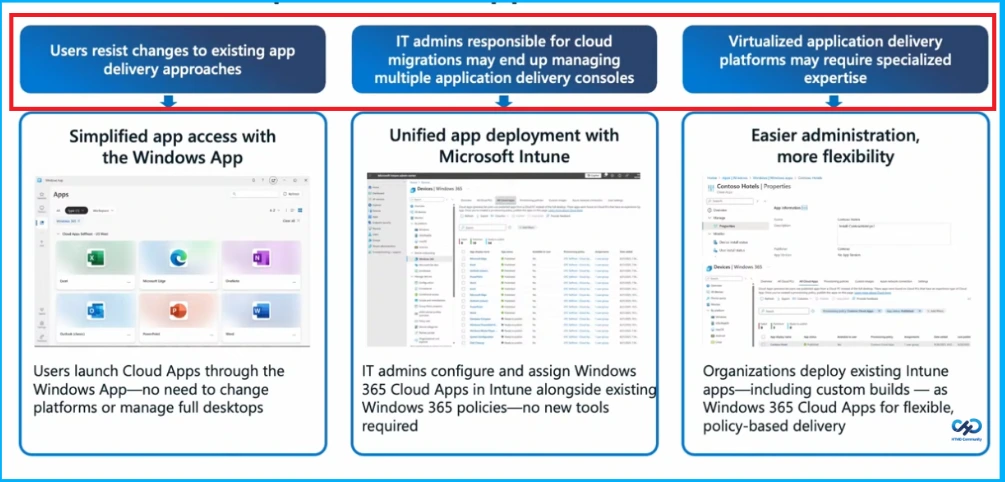
Windows 365 Cloud Apps makes it easier for organisations to move to cloud-based app delivery by solving common challenges like user resistance,complex management, and the need for special skills. With the Windows App, users can quickly open their apps without using a full virtual desktop. IT admins can manage everything in one place using Microsoft Intune, making deployment simple and faster. It also allows organisations to use their existing apps and policies, reducing effort and making the whole process more flexible.
| Challenge | How Windows 365 Cloud Apps Solves It |
|---|---|
| User Resistance | Provides a familiar interface via Windows App to access apps directly Easier adoption and better user experience. |
| Administrative Complexity | Centralized management through Microsoft Intune Simplified deployment and reduced workload. |
Need Further Assistance or Have Technical Questions?
Join the LinkedIn Page and Telegram group to get the latest step-by-step guides and news updates. Join our Meetup Page to participate in User group meetings. Also, join the WhatsApp Community and the Whatsapp channel to get the latest news on Microsoft Technologies. We are there on Reddit as well.
Author
Anoop C Nair is a Workplace Technology solution architect with 25+ years of experience. Microsoft Certified Trainer. Microsoft MVP from 2015 onwards for consecutive 11+ years! He is a blogger, Speaker, and Founder of HTMD Community and HTMD Conference. His main focus is on Device Management technologies like Intune, Windows, and Cloud PC. He writes about technologies like Intune, SCCM, Windows, Cloud PC, Entra, and Microsoft Security.




Discussion