






How to Find Wi-Fi Network Password in Windows 11
Let’s learn how to Find Wi-Fi Network Password in Windows 11. Wi-Fi is a Wireless Local Area Network (WLAN) technology and standard that uses high-frequency radio waves to provide wireless internet and network connections to your device.
When you connect for the first time, Windows adds a profile for the Wi-Fi network. The saved profile contains the SSID, security key, and connection & security properties used to connect to this specific Wi-Fi network.
If you forgot your Wi-Fi network password, you can find it if you have another Windows PC already connected to your Wi-Fi network. After you find your password, you can use it on another PC or device to connect to your Wi-Fi network.
This article covers how to find the Wi-Fi network password in Windows 11 using various methods, such as the Windows settings and control panel. With some commands, a user can find the security key for the Wi-Fi network.

- Reset Network Adapters in Windows 11 FIX Connection Issues
- Microsoft Vs Palo Alto Networks XDR and EDR Vendors as per Forrester
Methods to Find Wi-Fi Network Password in Windows 11
Microsoft provides settings that users can modify and find something according to their choice. You can also find the Wi-Fi Network Password in Windows 11. You can find the Wi-Fi network password as required.
| INDEX |
|---|
| Use Windows Settings to Find Wi-Fi Network Password |
| Use Control Panel to Find Wi-Fi Network Password |
| Use Command Prompt to Find Wi-Fi Network Password |
| Resources |
Use Windows Settings to Find Wi-Fi Network Password
You can use Windows Settings to Find Wi-Fi Network Password. Click the Windows button, select Settings, or press Win Key + I to open settings directly. Then, under settings, click on the Network & Internet option on the left panel, scroll down to find the Wi-Fi (which is used to connect and manage known networks and metered networks in your device) in the right panel and click on it.
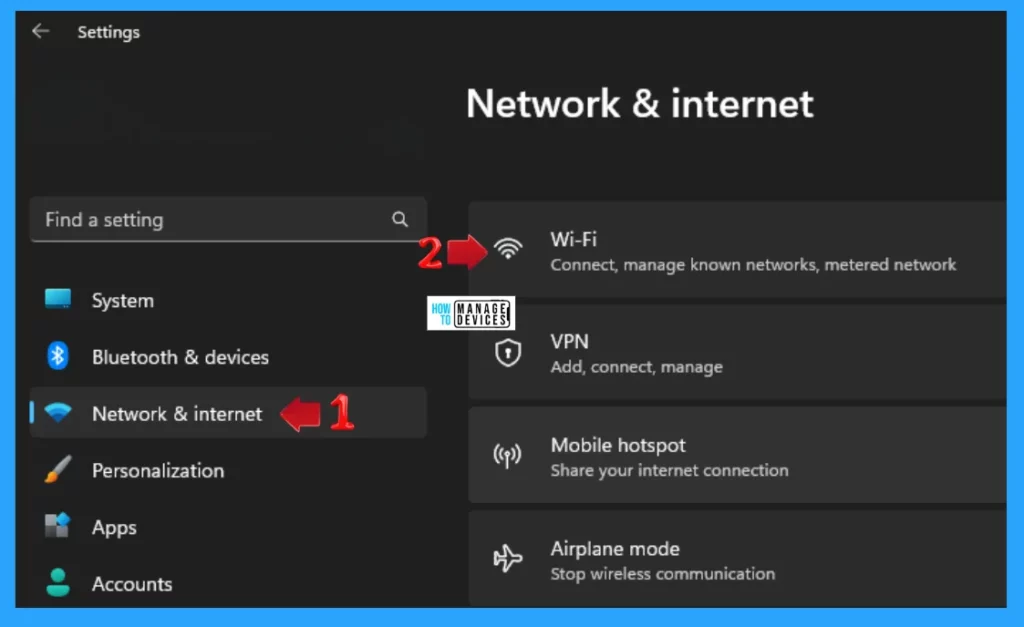
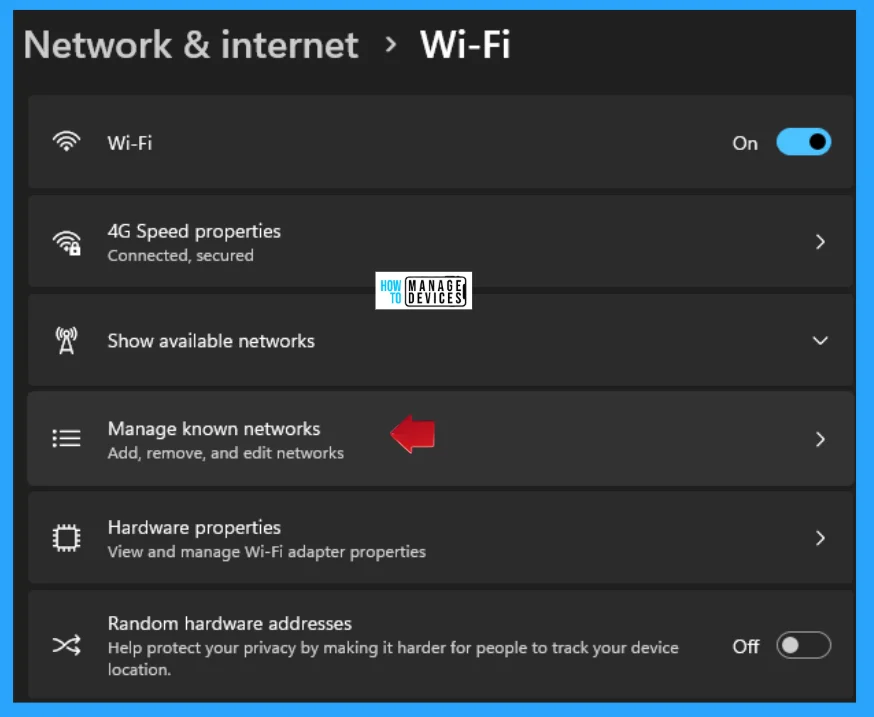
When the Wi-Fi window opens, you can see some options, then find the Manage Known Network (which is used to Add, remove, and edit networks) and click on it to open, as shown in the image below.
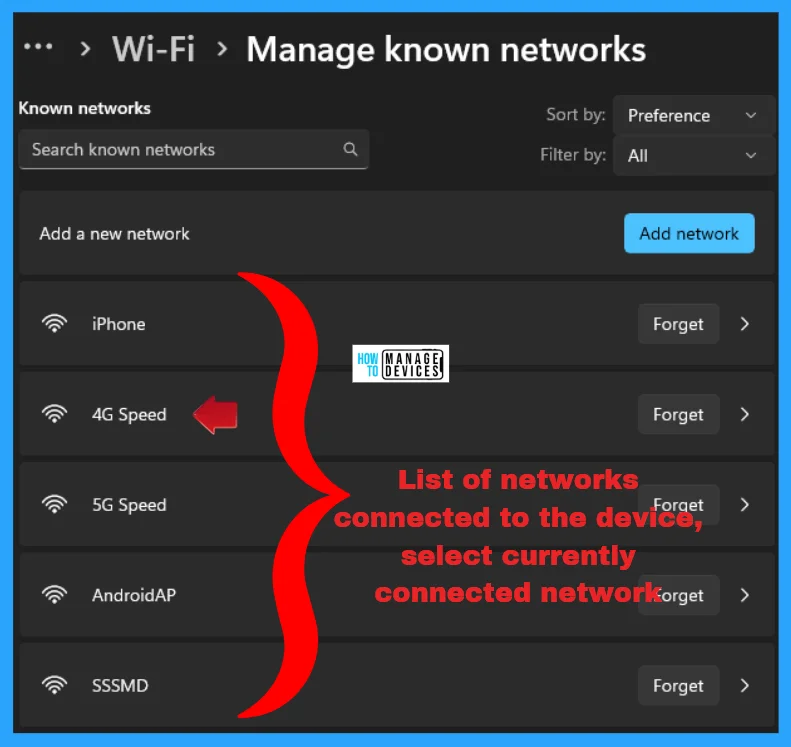
Under the Manage Known Networks, you can see a list of networks used by your device in various sectors, including the Add a new network option. Now click on the current connected network to the device, as shown below.
When you click on the currently connected network, it shows its details: driver version, network band, channel, link speed, physical address, DNS server, and all information displayed under it. There are two options: View Wi-Fi security key and Advanced Wi-Fi network properties.
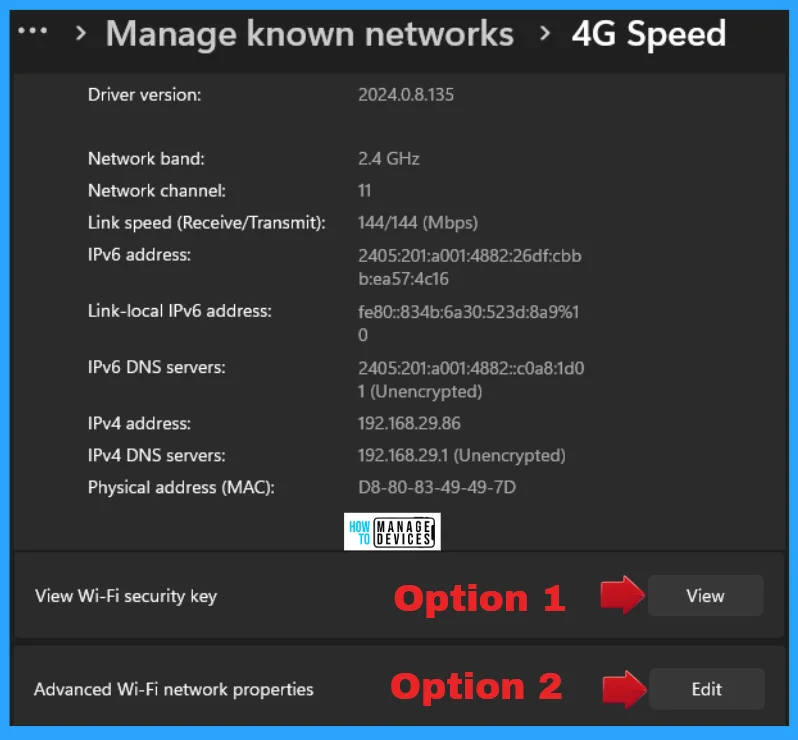
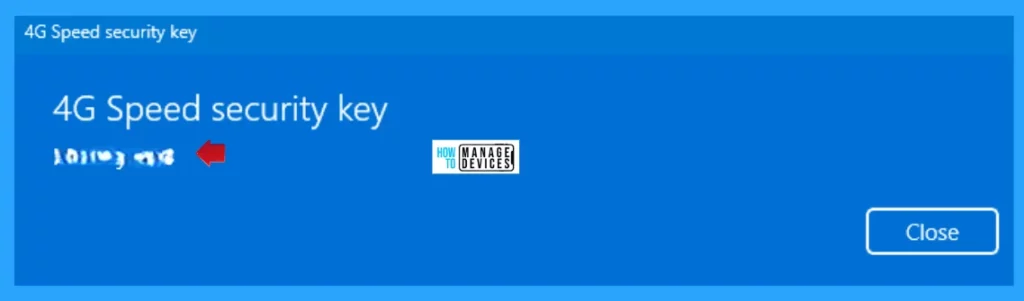
When you click on the View button beside the View Wi-Fi security key option, a pop-up shows the currently connected network’s name and password. This is option 1, as marked in the above figure.
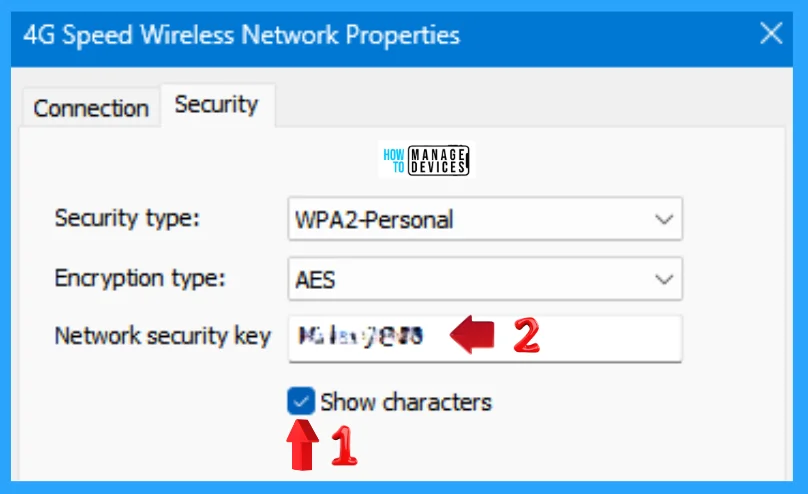
In option 2, clicking the Edit button beside the Advanced Wi-Fi network properties opens the currently connected wireless network properties window. Now tap on the security tab and check the Show characters option to see the Network Security key (password).
Use Control Panel to Find Wi-Fi Network Password
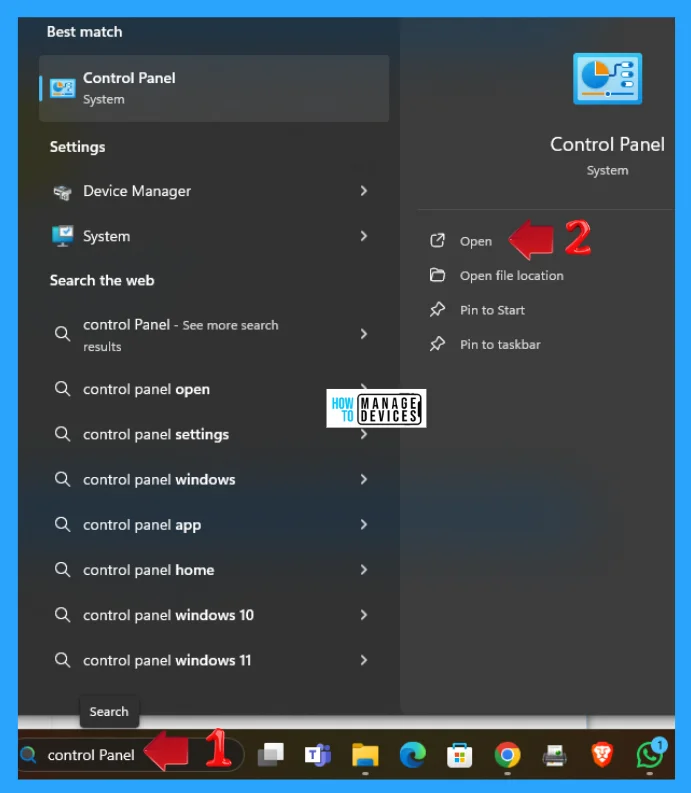
Another method involves using the Control Panel. To do so, type the control panel in the search box on the taskbar and then select the appropriate option to open the Control Panel as illustrated below.
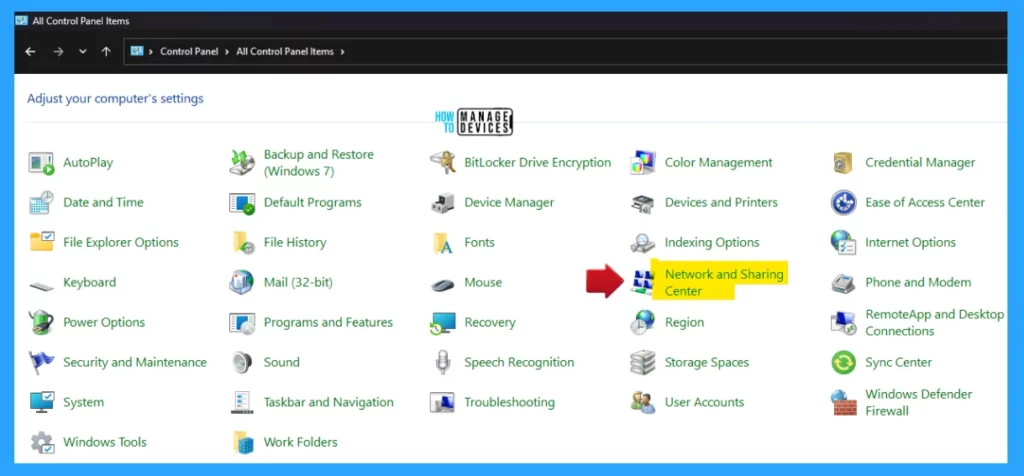
When the control panel opens, all the items listed below can be used to adjust your computer’s settings. Find the Network and Sharing Center from the list and open it for further processing.
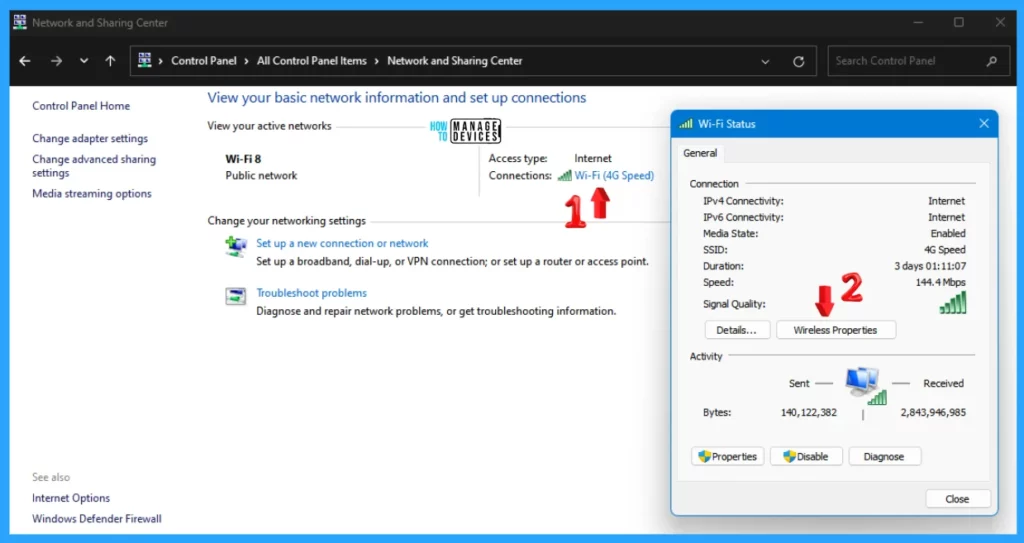
The Network and Sharing Center window shows the connection name and type below. Click on the connections to open the Wi-Fi Status window (which shows the General Connection details and General Activities of the network). Tap on the Wireless Properties button, as shown below.
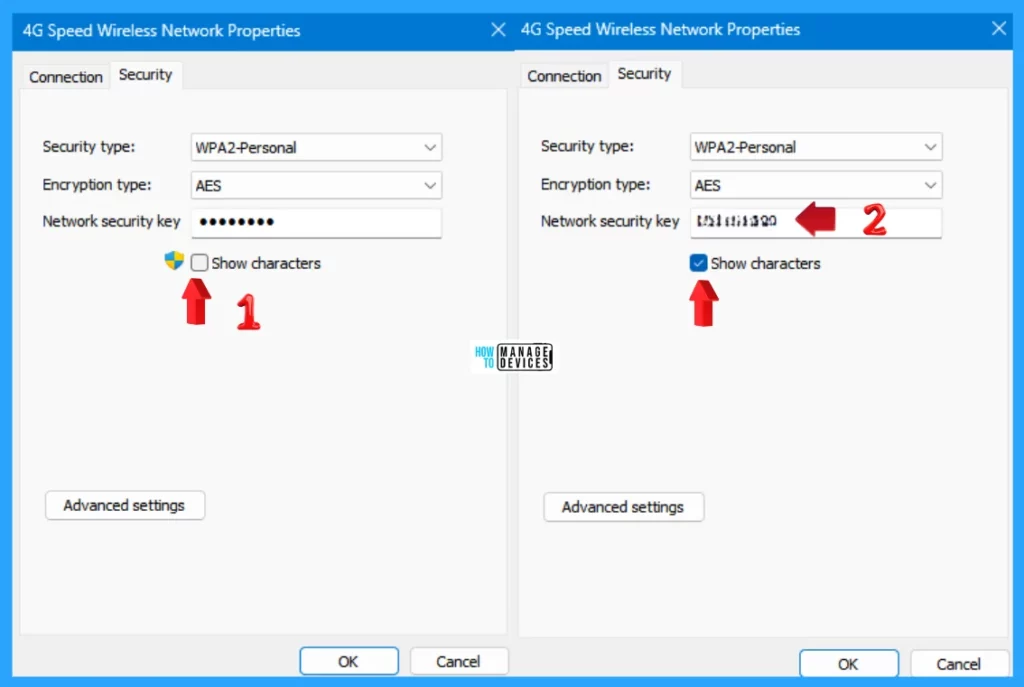
The connected wireless network properties window opens; click on the Security tab to see information about the security type, encryption type, and network security key. Check the box near show characters under the Network security key to view the given password for the network, as illustrated below.
Use Command Prompt to Find Wi-Fi Network Password
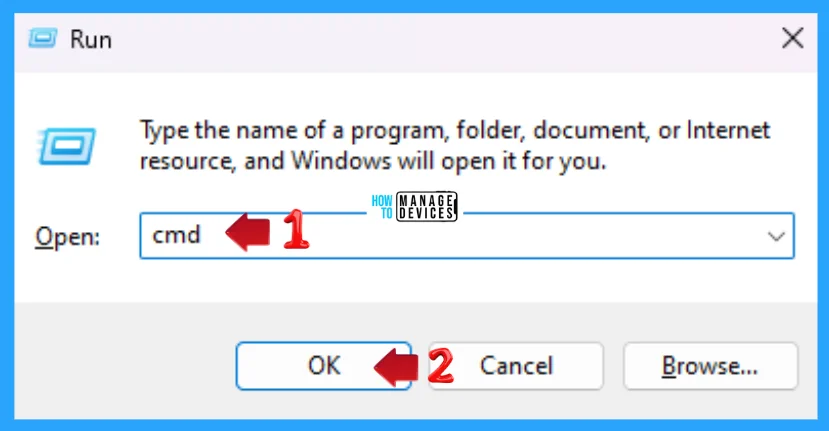
You can also view the password by using the command prompt window. Launch the command prompt, press Win Key + R, type cmd in the Run dialogue box, and press Enter.
The Command Prompt window opens, and you can run commands. This window is represented as “C:\WINDOWS\system32\cmd.exe“. Now, type the following command and then press Enter to get the list of user profiles for the Wi-Fi interface in your Windows device.
netsh wlan show profiles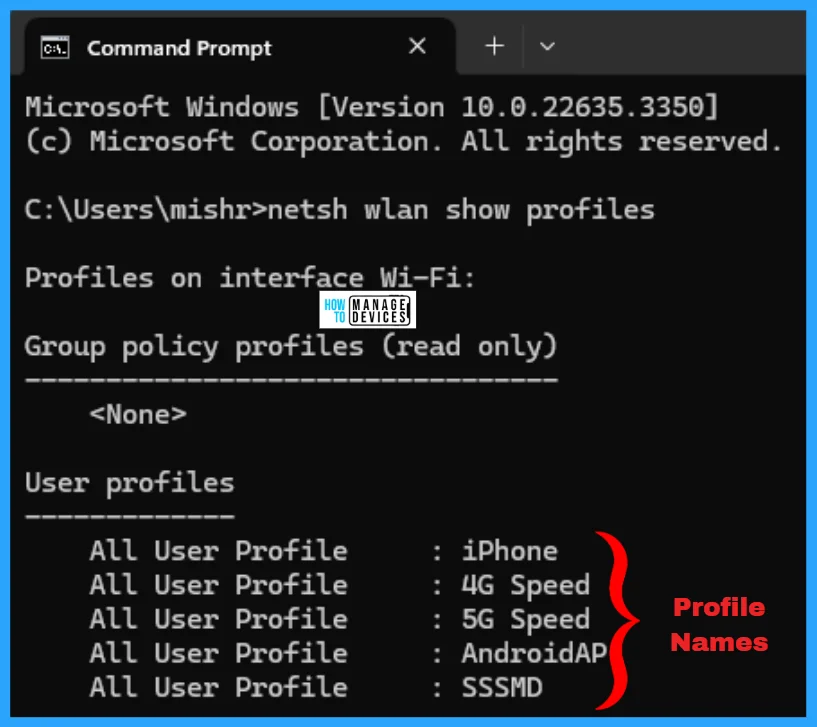
The interface is Wi-Fi, and the User profile names are listed in the above figure. Now, execute the following command to find the network’s security key (password). You can now get the details about the currently connected Wi-Fi network and the security key content (password) as well.
netsh wlan show profile name="Profile Name" interface="Interface Name" key=clearNOTE! To continue, replace the Profile Name with the currently connected Wi-Fi network, replace the Interface Name as Wi-Fi, and hit Enter.
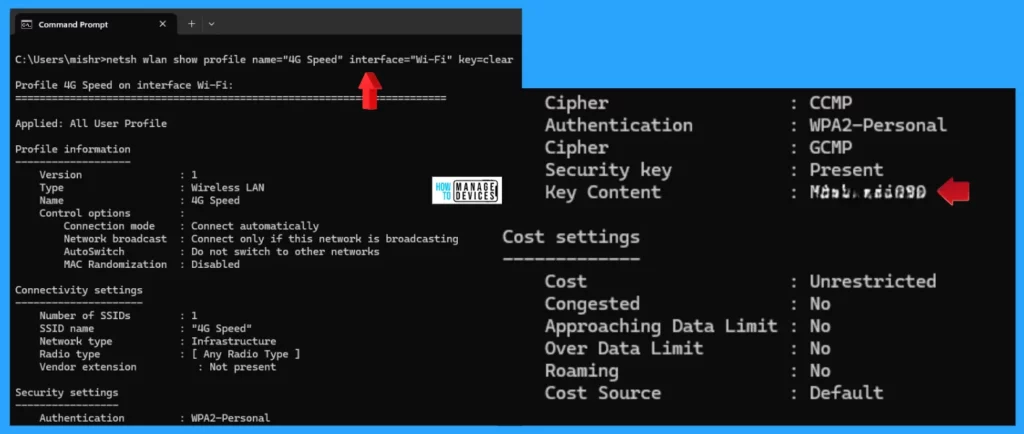
I hope the information on How to Find Wi-Fi Network Password in Windows 11 is helpful. Please follow us on the HTMD Community and visit our website, HTMD Forum, if you like our content. Suggest improvements, if any, and we would love to know which topic you want us to explore next.
Resources
We are on WhatsApp. To get the latest step-by-step guides and news updates, Join our Channel. Click here – HTMD WhatsApp.
Author
Alok is a Master of Computer Applications (MCA) graduate. He loves writing on Windows 11 and related technologies. He likes to share his knowledge, quick tips, and tricks with Windows 11 or Windows 10 with the community.




Discussion