






Fix MDM Profile Installation Failed with 401 Error during Intune Enrollment for Apple Devices
Let’s learn how to Fix the MDM Profile Installation that Failed with a 401 Error during Intune Enrollment for Apple Devices. Microsoft recognized an issue in the MDM profile installation. Microsoft Intune is a popular MDM solution that allows organizations to control their devices.
You all know about MDM (Mobile device management), which plays an important role in an organization’s security and management of CYO and BYO devices. As we know, Errors are very common and will happen at any level of technology. Let’s look at an Intune error in today’s post and fix it.
Recently, users have faced some errors with Mobile device management, showing that Profile installation has failed. We know that errors occur for many reasons. When an issue occurs in profile installation, we have to check the total process of Profile installation.
Profile installation usually fails when trying to enrol an iOS/iPadOS device. Users sometimes face these issues when installing the Intune Company Portal, especially on iOS devices. So, we must look into the issue and check for solutions in this post.

Table of Contents
What is Intune Enrollment?
Fix MDM Profile Installation Failed with 401 Error during Intune Enrollment for Apple Devices
As we mentioned above, users face issues with the Profile installation time. Many users have mentioned this issue recently. These issues occur when the user tries to enrol devices in Intune. Also, users face issues with the company portal installation time.
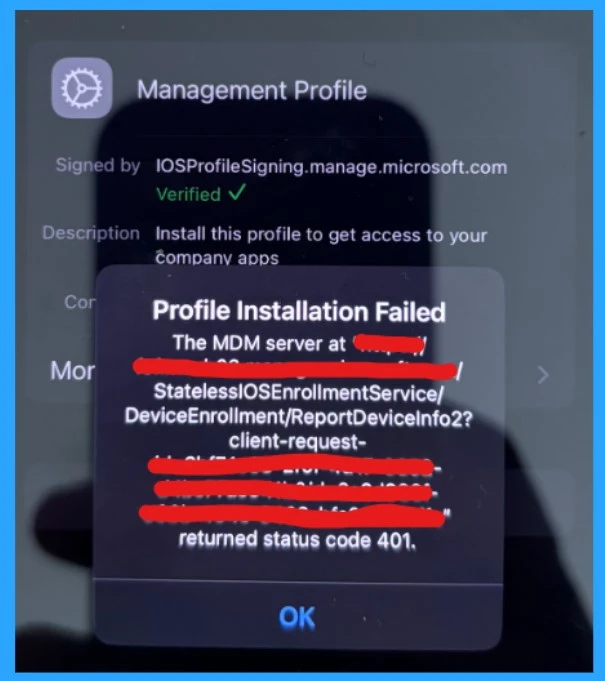
- When users face the issue, the error message shows that the profile installation failed and the MDM server returned a status code of 401.
- The status code 401 is relating to the authentication issue.
- This error happens when the user tries installing a management profile to access the company apps.
- We have recently covered many error code posts that occurred during Enrollment Time. For more details, check the link below.
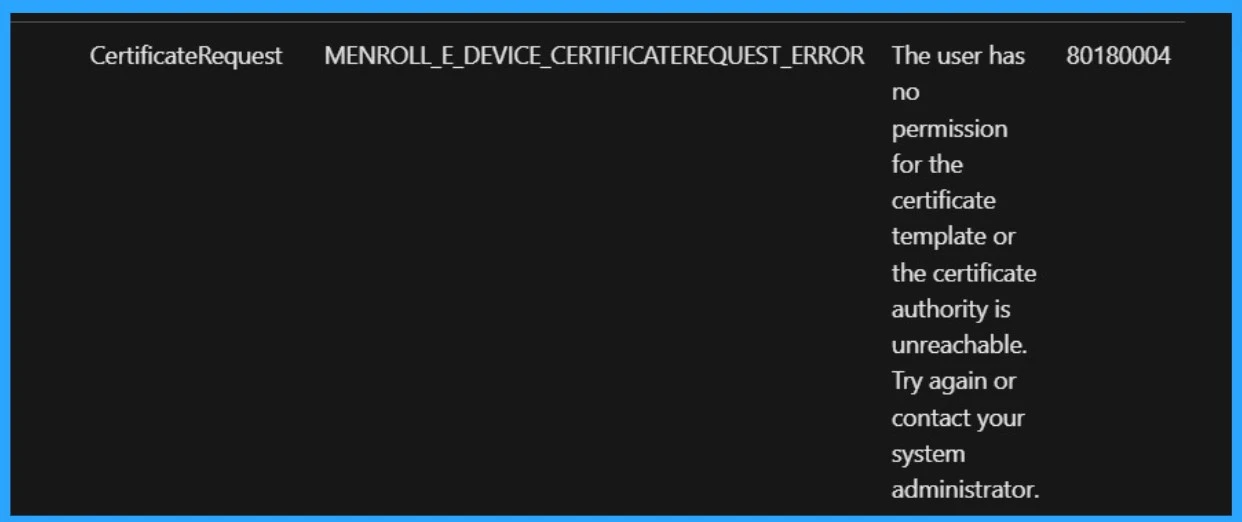
See More: Troubleshoot MDM Enrollment Error Code 80180004
- How to Configure Automatic Intune MDM Enrollment | Auto Enrollment
- Troubleshoot MDM Enrollment Error Code 80180004
- iOS iPadOS Intune Enrollment Method is Based on Web Based
- FIX Intune Windows Enrollment Invalid_Client Error
The primary solution for the Issue
When the error occurs, you have to check for a primary solution. This error is a known issue of Microsoft, and they are providing some solutions for when the profile installation fails. In the screenshot below, you can see that the server returned a status code of 401. So, it may occur due to some Authentication issues.
- So we have to Check some solutions to solve the issue.
| No. | Primary Solution for the Issue |
|---|---|
| 1 | You have to ensure the credentials used in the MDM are correct. Also, you can check the permissions. This may cause issues in Profile Installation. |
| 2 | Ensure the user has the Intune service licence |
| 3 | The next solution is to recheck the enrollment with another MDM provider if it is not already enrolled. |
| 4 | Make sure the device doesn’t already have a management profile installed. |
| 5 | Make sure Chrome is set as the default browser and cookies are enabled for Android Devices. |
| 6 | For iOS/iPadOS Devices, Safari is the default browser, and cookies are enabled. |
| 7 | After removing the old profile, try re-enrolling the device again, may this may solve the Issue. |
| 8 | The error may occur due to Network issues; always check your Internet connection |
| 9 | You must check if this error happens with 1device or multiple devices. |
| 10 | You can retry the process after a short wait to resolve the issue |
| 11 | If any solutions do not work, you can do the factory Reset; this will erase all data, so back up your data first. |
| 12 | You can also check device restrictions in the Intune |
| 13 | If the issue is not solved, contact your system administrator and IT admin |
- Fix MDM Enrollment Error Code 0x80180001
- FIX Windows Autopilot Enrollment with Error 0x801C03ED
- Fix Intune Enrollment Errors 0x80180014 80180003 Unknown Win32 Error Code Failed Issue
Management Profile
Signed by IOSProfileSigning.manage.microsoft.com Verified
Description Install this profile to get access to your company apps
Profile Installation Failed
The MDM server at StatelessIOSEnrollmentService/DeviceEnrollment/ReportDevicelnfo2?
client-request-returned status code 401.
- I think this solution will help you!
We are on WhatsApp now. To get the latest step-by-step guides, news, and updates, Join our Channel. Click here. HTMD WhatsApp.
Author
Anoop C Nair has been Microsoft MVP from 2015 onwards for 10 consecutive years! He is a Workplace Solution Architect with more than 22+ years of experience in Workplace technologies. He is also a Blogger, Speaker, and leader of the Local User Group Community. His main focus is on Device Management technologies like SCCM and Intune. He writes about technologies like Intune, SCCM, Windows, Cloud PC, Windows, Entra, Microsoft Security, Career, etc..


Hi,
Fixed it simply by adding the SIM card. Make sure the IMEI is added to the Identifiers list in Intune and the SIM is in the phone. The error then was gone!
Hope this hint helps!
Please contact me on
8378980700
Im facing this issue and unable to fix it
Need help
Can confirm adding the IMEI to the corporate identifier list helped. Thank you!
When we add IMEI to the corporate identifier ,this phone ownership will marked as corporate device. For BYOD what are the recommended options ?