






Fix Scan failed with error 0x80244022 Service is Temporarily Overloaded Issue SCCM
Let’s see how to fix scan failed with error 0x80244022 Service is temporarily overloaded issue. The error is related to SCCM patching scenarios. We received a comment asking for help to fix OnSearchComplete – Failed to end search job. Error = 0x80244022.
It’s worth going through the basics of the SCCM patching process and understand how to install WSUS before installing the SUP role. Also, learn how to Create Deploy New Software Update Patch Package using SCCM.
You can also create Automatic Deployment Rules (ADR) to deploy Windows updates to Windows 10 or Windows 11 devices. The same process can be followed for 3rd party application patching using WSUS and SUP.
Basically, Service is temporarily overloaded Issue error is related to IIS error 503. The SUP and WSUS use IIS to deliver the Windows patching functionality to the SCCM clients. As per the comment, the Windows 10 devices are getting the scan error 0x80244022.

When you have many clients having the same issues it’s most probably an issue from the server-side. We will see what are the troubleshooting steps that you can perform and fix the issue with error 0x80244022.
- Fix: Windows Update Issues For Windows 11 Errors Troubleshooting Tips
- Fixed – SCCM WSUS Sync Failed With UssInternalError SoapException Error 0x80131500
- SCCM WSUS Office Updates Sync Failed with Error 400
- Monthly Patching process using Intune
Scan failed with error 0x80244022
I always recommend starting Windows patching-related troubleshooting for SCCM clients by checking the SCCM log files and Windows Update Event logs. The following SCCM patching logs are always going to help and understand the Windows patching from the Windows 10, Windows 11, or Windows Server side.
- Locationservices.log – Check whether it’s able to find WSUS Path= and Distribution Point with patches
- WUAHandler.log to check whether scan is completed or not. You can also check ScanAgent.log.
- Updatedeployment.log – Check for deadline of the assignment and Software Updates client configuration policy, DetectJob completion received for assignment, Added update, Site_, PercentComplete, etc.
- Execmgr.log – Execution is complete for program Software Updates Program.
- RebootCoordinator.log – Reboot related issues.
In this particular issue highlighted by Sarfraz Aslam, he already checked the WUAHandler.log and shared the details with us so that we can help him. HTMD Community forum is also a good place to post questions related to SCCM, Intune, etc.
OnSearchComplete – Failed to end search job. Error = 0x80244022.
Scan failed with error = 0x80244022.
Its a WSUS Update Source type ({60FFC0D7-C5D6-43D5-B4D3-58B2E834F635}), adding it.
Failed to check enrollment url, 0x00000001:
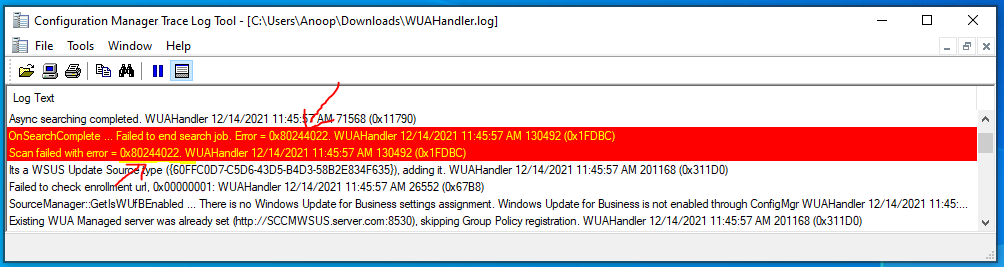
Now, let check the error 0x80244022 translation with my favorite log reader tool called CM Trace. You will need to Tools – Error Lookup tool.
HTTP status 503 – the service is temporarily overloaded. Source: Windows Update Agent
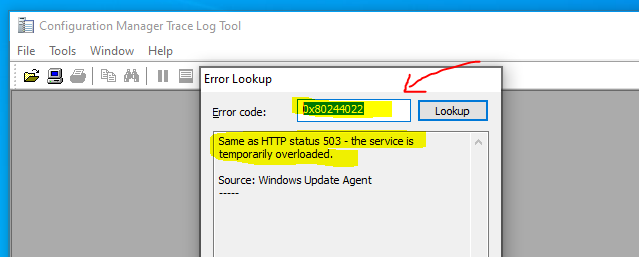
Error 503 Service is temporarily overloaded Issue
The IIS Error 503 means Service is temporarily overloaded. This means the WSUS/SUP IIS configurations are not fine-tuned as per the best practices. Or you have issues with server performance of where the WSUS/SUP ISS is configured.
NOTE – Response status codes beginning with the digit “5” indicate cases in which the server is aware that it has encountered an error or is otherwise incapable of performing the request.
How to Configure IIS WSUS Application Pool? – SCCM Best Practices Related to IIS for SCCM SUP WSUS Setup Configuration Manager ConfigMgr
- Launch Server Manager – Launch IIS Manager
- IIS Console – Click on Application Pools
- Right-click ‘WsusPool’ and select ‘Advanced Settings’
NOTE! – Make sure WSUSPool is started and running. The error 503 could be because of an overload on the IIS server. In some scenarios, you might need to increase the memory (RAM) and processing power of the IIS server. The Performance Monitor and counters going to help you.
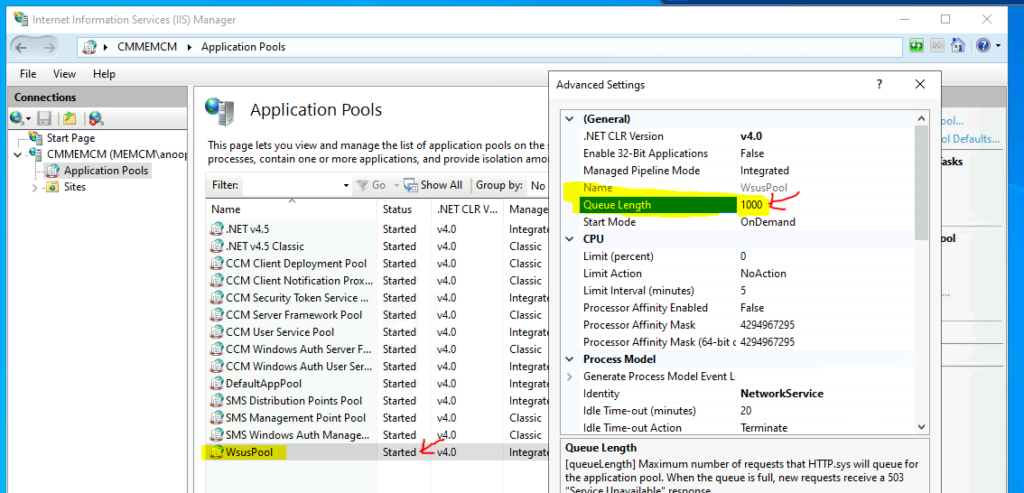
Let’s continue and fine-tune the IIS configuration for the WSUS pool as explained in the following post. SCCM Best Practices Related To IIS for SCCM SUP WSUS.
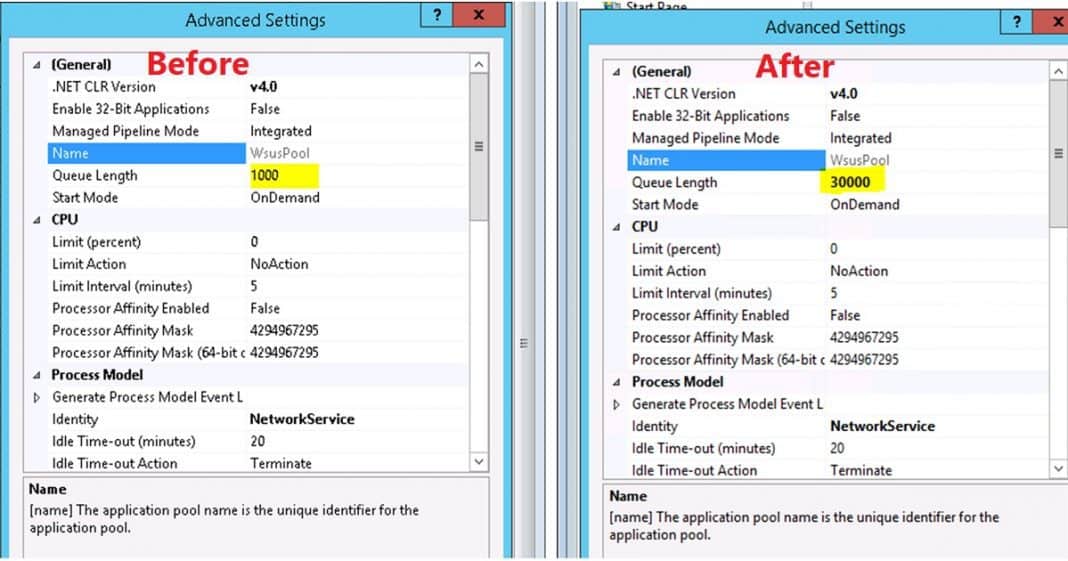
What is Queue Length? – A maximum number of requests that HTTP .sys will queue for the application pool. When the queue is full, new requests receive a 503 “Service Unavailable” response.
- Change the value of ‘Queue Length’ under the General section from the default 1,000 to 30,000
- Click OK to save and Restart the IIS or WSUS Application Pool.
NOTE! – Don’t forget to change the Private Memory Limit configuration of the WSUS Application Pool as mentioned in the best practices blog post shared in the above paragraph.
Conclusion
I think you would be able to Fix Scan failed with error 0x80244022. The IIS 503 error indicates that IIS Service is temporarily overloaded Issue. This issue caused SCCM clients to fail with Windows Update scan errors. There are two probable solutions are already shared above.
- Check and assess the over all hardware performance of the IIS server.
- Make sure to follow the best practices and configurations of IIS server.
Author
Anoop is Microsoft MVP! He is a Solution Architect in enterprise client management with more than 20 years of experience (calculation done in 2021) in IT. He is Blogger, Speaker, and Local User Group HTMD Community leader. His main focus is on Device Management technologies like SCCM 2012, Current Branch, and Intune. He writes about ConfigMgr, Windows 11, Windows 10, Azure AD, Microsoft Intune, Windows 365, AVD, etc……………




Good one, i had this issue on a client SCCM. it can also happen if server memory utilization is full for long time, fixed it after couple of reboot.
Thanks for the Article. This would help when there is server-side issue. In our case we had a small subset of machines failing the scan with this error code: 0x80244022.
Finally, we had to bypass the SCCM server in the Proxy list. commands below.
netsh winhttp show proxy
netsh winhttp set proxy proxy-server=“192.168.2.2:8080” bypass-list=“”