






Fix Windows Autopatch is Inactive Error
This post explains how you can fix Windows Autopatch is Inactive Error. You can initiate remediation action for ciritical action required alerts. If you have any critical actions in your tenant, you must take action as soon as possible, as the Windows Autopatch service might not be able to manage your tenant.
The Windows Autopatch service will get inactive due to multiple reasons, which may occur due to expired licenses, or you haven’t yet migrated to the new Windows Autopatch enterprise application required to run the service, blocked or removed the permissions required for the Windows Autopatch enterprise application.
The recommended solution is to review and resolve all actions from Tenant management to ensure the healthy operation of the Windows Autopatch service. When a critical action is active on your tenant, Windows Autopatch will consider your tenant inactive.
Windows Autopatch deploys, manages, and maintains all configurations related to the service’s operation. When Windows Autopatch detects policies in the tenant are either missing or modified, which affects the service, Windows Autopatch will raise alerts and detailed recommended actions to ensure the healthy operation of the service.

The Windows Autopatch message center will have information about schedules, update status, and details from the Windows Autopatch team. The reporting offers data on update compliance as well as device and application performance.
- Windows Autopatch Implementation Setup Guide
- Windows Autopatch Quality Updates Report In Intune Portal
Fix Windows Autopatch is Inactive Error
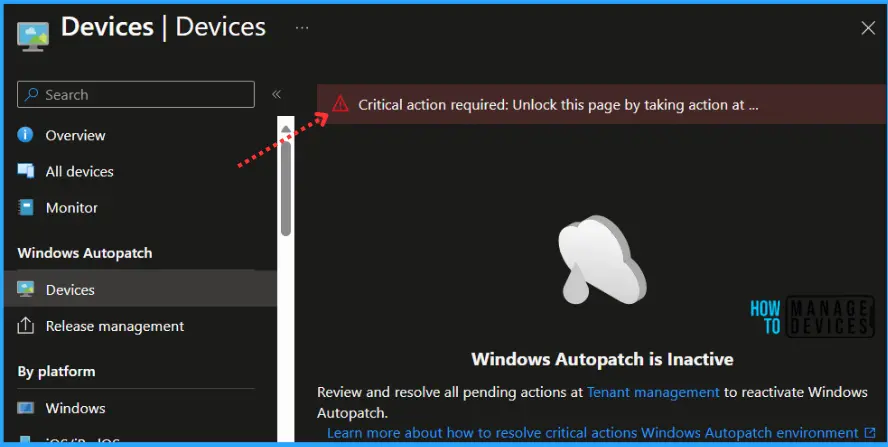
The Windows Autopatch is Inactive message appears while clicking on Devices under Windows Autopatch in Intune Admin Center. Here you see the banner message “Critical action required: Unlock this page by taking action at Tenant management“. Review and resolve all pending actions at Tenant management to reactivate Windows Autopatch.
While the message is displayed, you won’t be able to access any of the Autopatch services and will no longer be able to use them without addressing the appearing issues. Clicking Learn more returns an error message and redirects you to the Tenant management blade. You must be a Global Administrator to consent to this action. Once you provide consent, Windows Autopatch remediates this critical action for you.
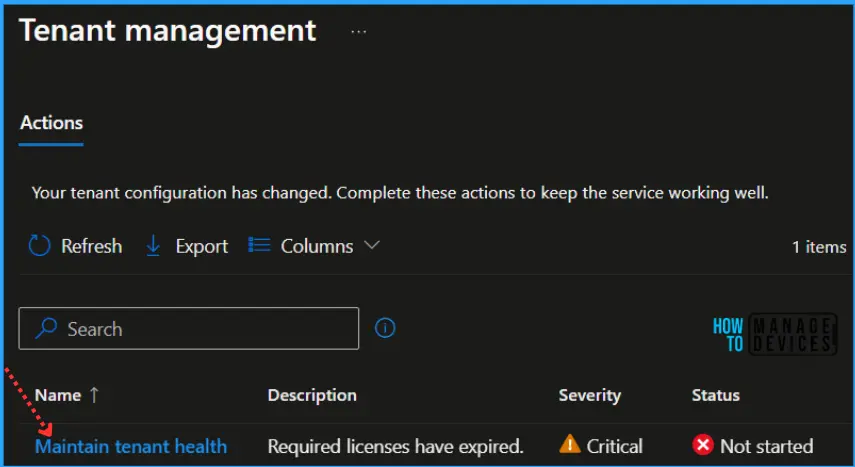
In the Tenant Management, Actions tab, you see a new critical action that’s created, “Maintain tenant health, ” which helps you resolve tenant access issues. The Status column shows whether the admin has initiated the action or not, as indicated “Not started”.
| Name | Description | Severity | Status |
|---|---|---|---|
| Maintain tenant health | Required licenses have expired. | Critical | Not started |
The reason why you see the Windows Autopatch inactive error is that the required licenses have expired. Windows Autopatch requires Windows 10/11 Enterprise E3 (or higher) or F3 to be assigned to your users. Microsoft Entra ID P1 or P2 and Microsoft Intune are required.
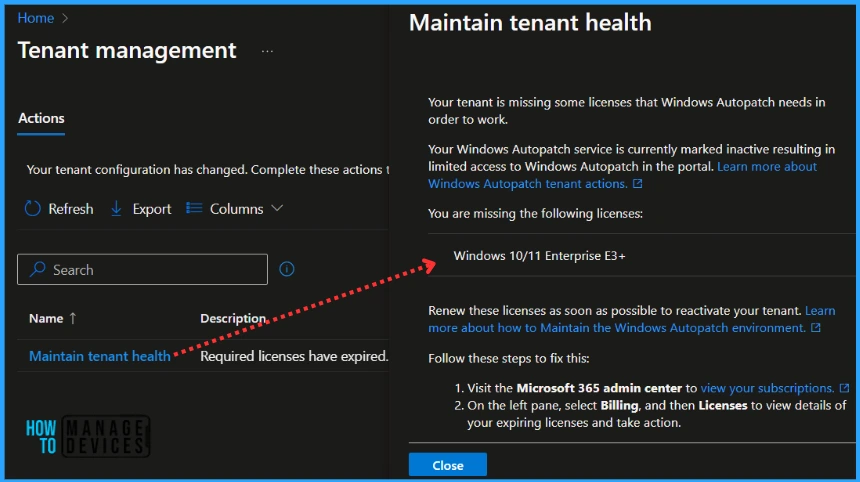
You must complete the licensing needs to ensure success with Autopatch Sevice. Clicking on the action prompts you with additional details about the license activation process.
Your tenant is missing some licenses that Windows Autopatch needs in order to work. Your Windows Autopatch service is currently marked inactive resulting in limited access to Windows Autopatch in the portal. Learn more about Windows Autopatch tenant actions. You are missing the Windows 10/11 Enterprise E3+ licenses.
Renew these licenses as soon as possible to reactivate your tenant. Learn more about how to Maintain the Windows Autopatch environment. Follow these steps to fix this:
- Visit the Microsoft 365 admin center to view your subscriptions.
- On the left pane, select Billing, and then Licenses to view details of your expiring licenses and take action.
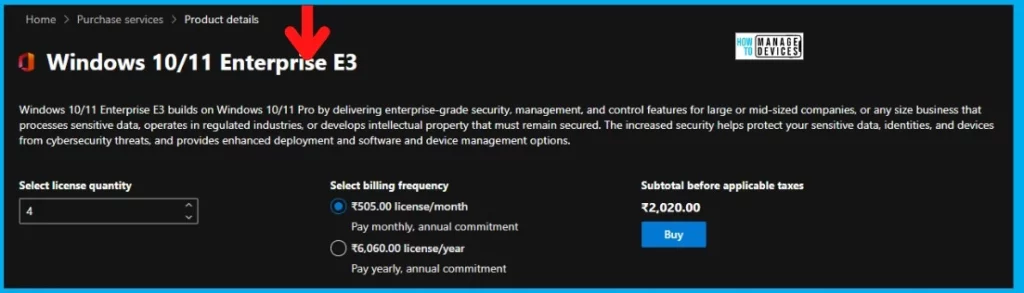
Windows Autopatch is offered as a feature to Windows 10/11 Enterprise E3 at no additional cost. Once the license purchase is completed, the licenses are renewed, and you will have to wait for Windows Autopatch to return to an active state.
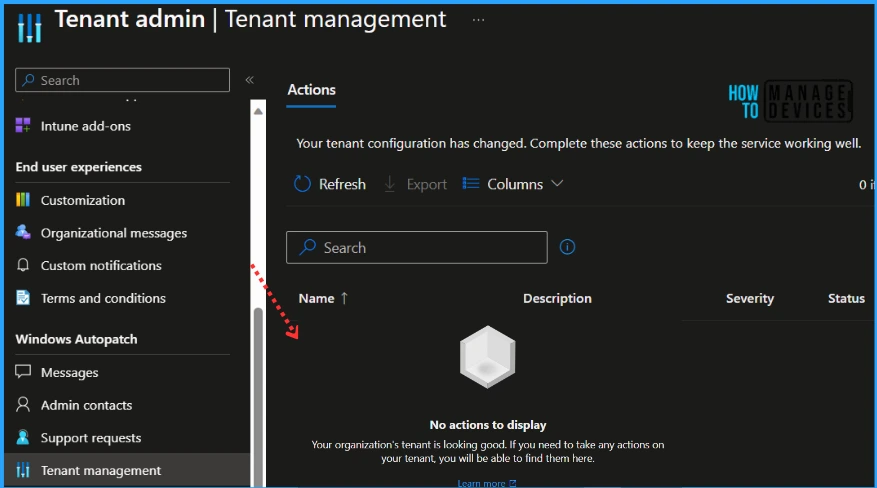
Now, Inside the action tab, No actions to display, Your organization’s tenant is looking good. If you need to take any actions on your tenant, you will be able to find them here. You have fixed and activated your Windows Autopatch services.
We are on WhatsApp. To get the latest step-by-step guides and news updates, Join our Channel. Click here –HTMD WhatsApp.
Author
About Author – Jitesh, Microsoft MVP, has over six years of working experience in the IT Industry. He writes and shares his experiences related to Microsoft device management technologies and IT Infrastructure management. His primary focus is Windows 10/11 Deployment solution with Configuration Manager, Microsoft Deployment Toolkit (MDT), and Microsoft Intune


Discussion