






Fix Windows Download Error 0x800704c7
This article fixes an issue in which you receive download error 0x800704c7 when you install or upgrade Windows 11 or Windows 10. The error 0x800704c7 occurs when downloading the Windows updates, is caused due to missing or corrupted files with the update.
The reason could be you got this error might be third-party applications, particularly antivirus programs that often block programs they deem as threats from connecting to the Internet.
The error 0x800704c7 basically prevents users from installing the latest updates available on the system. It translated to “The operation was canceled by the user” that means A command sent to the device has been aborted due to a cancellation,
If you are performing an upgrade to Windows 11, You can check for compatibility using the PC Health Check app to see if your current PC meets the minimum system requirements to run Windows 11, the recommendation for installing Windows 11 minimum system requirements.

- Windows 11 Troubleshooting Options Fixes
- Fix Windows 11 Upgrade Error 0xc11900130
- FIX Error Code 0x80070003 Windows 10 Update Failed to Install
Windows Download Error 0x800704c7
Here I was trying to upgrade Windows 10, 21H2 to Windows 11. When I checked inside Windows Update, I noticed the error showing Upgrade to Windows 11 Status: Download error – 0x800704c7.
You might received the error 0x800704c7, A missing or corrupted system file may cause this error, and background processes conflicting with the update, due to which you are not able to get the latest update.
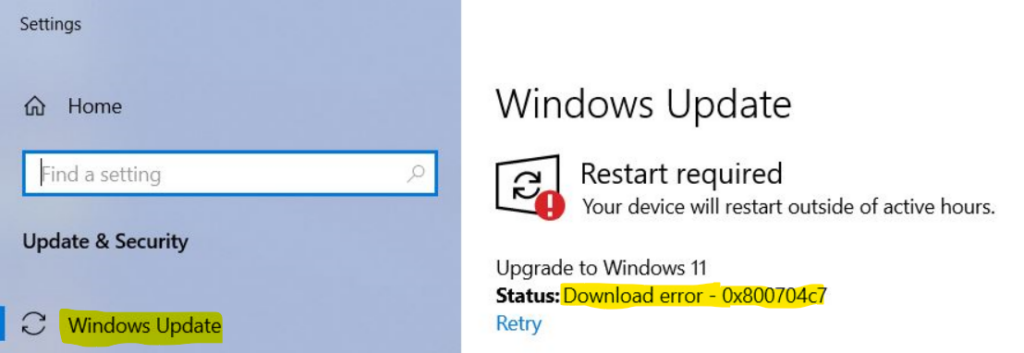
FIX Windows Download Error 0x800704c7
Let’s check the possible solutions to fix Windows Download Error 0x800704c7.
If you get an error code while downloading and installing Windows updates, the Update Troubleshooter can help resolve the problem.
Select Start > Settings > System > Troubleshoot > Other troubleshooters. Next, under Most frequent, select Windows Update > Run.
When the troubleshooter is finished running, it’s good to restart your device.
Repair Corrupted Windows System Files
For a quick check, Open Command Prompt, Run as administrator. You can use the command: sfc /scannow to scan and repair files.
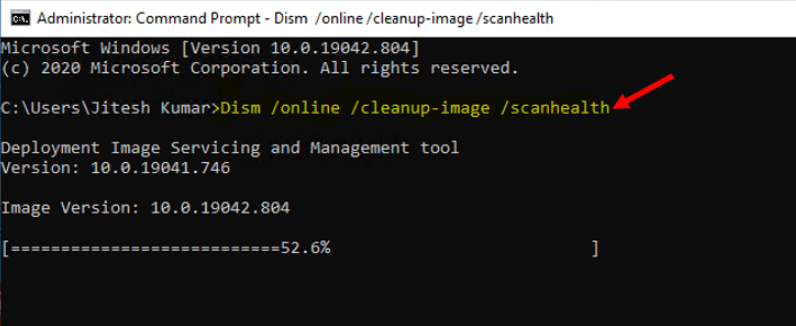
The DISM command tool helps to repair an image, including Checkhealth, Scanhealth, and Restorehealth depending on the issue. Open command Prompt and Run as administrator.
Type the following command, and then press Enter after you type each command –
Dism /online /cleanup-image /scanhealth
Dism /online /cleanup-image /checkhealth
Dism /online /cleanup-image /restorehealth
Note – Once you complete the above steps, DISM will run and verify if there’s any data corruption that may require fixing and determine whether the Windows 10 or Windows 11 image needs repairing.
If needed it will connect to Windows Update online to download and replace damaged files. The process may take several minutes for the command operation to be completed.
Reset Windows Update Components
Let’s see how you can reset Windows Update components –
- To Stop the BITS, Windows Update Services, Cryptographic, MSI Installer services.
- Open Command Prompt, Run as Administrator. Type the following commands at a command prompt. Press the ENTER key after you type each command –
net stop bits
net stop wuauserv
net stop cryptSvc
net stop msiserver
Note – SoftwareDistribution and catroot2 folders are most important in the Windows update process. When you run Windows Update, the catroot2 folder stores the signatures of the Windows Update package and the installation of the package.
- Rename the SoftwareDistribution and Catroot2 folder. You can do this by typing the following commands in the Command Prompt. Press the ENTER key after you type each command –
ren C:\Windows\SoftwareDistribution SoftwareDistribution.old
ren C:\Windows\System32\catroot2 Catroot2.old- Now, let’s Restart the BITS, Windows Update Services, Cryptographic, MSI Installer services. Type the following commands in the Command Prompt for this. Press the ENTER key after you type each command.
net start bits
net start wuauserv
net start cryptSvc
net start msiserver
- Once completed all steps, close Command Prompt and then restart the computer.
Next, After restarting the computer. Check for new updates. Select Start > Settings > Windows Update > Check for updates, and then install any available updates.




After all I have tried out,
Faulting application name: FlightSimulator.exe, version: 1.26.5.0, time stamp: 0x00000000
Faulting module name: FlightSimulator.exe, version: 1.26.5.0, time stamp: 0x00000000
Exception code: 0x80000003
Fault offset: 0x0000000001cbcd92
Faulting process id: 0x2418
Faulting application start time: 0x01d88a2acdac2871
Faulting application path: C:\Program Files\WindowsApps\Microsoft.FlightSimulator_1.26.5.0_x64__8wekyb3d8bbwe\FlightSimulator.exe
Faulting module path: C:\Program Files\WindowsApps\Microsoft.FlightSimulator_1.26.5.0_x64__8wekyb3d8bbwe\FlightSimulator.exe
Report Id: b7ddffba-3bbb-4eaa-832e-39dabc84bae4
Faulting package full name: Microsoft.FlightSimulator_1.26.5.0_x64__8wekyb3d8bbwe
Faulting package-relative application ID: App
Any suggestion?