






FIX Restricted Access to FQDN and IP Hyperlinks Issues in Outlook
Let’s learn how to FIX Restricted Access to FQDN and IP Hyperlinks Issues in Outlook. Outlook blocks opening FQDN and IP address hyperlinks after installing protections for Microsoft Outlook Security Feature Bypass Vulnerability released July 11, 2023.
Microsoft has provided a work around this issue. People using Outlook with Microsoft 365 might experience problems if their computer is affected. They might not see any messages or be warned that the website might be unsafe. Sometimes, they might even see an error message saying, “Something unexpected happened with this web address.”
This issue happens when you click on website links in emails within Outlook Desktop. It happens only if the website’s address is a long technical one (FQDN), a set of numbers (IP address), or a computer name (hostname).
We have written an article that helps you solve two common issues in the Outlook app. One problem is when Outlook asks to reopen your last session; the other is the FIX Slow Attachment Saving Issue in the Outlook App. This 2 article provides easy steps to fix these problems.

Why are FQDN and IP address Hyperlinks Blocked in Outlook?
Outlook is blocking these hyperlinks as a security measure. This action was taken after the release of protections for the Microsoft Outlook Security Feature Bypass Vulnerability on July 11, 2023.
How Does this Issue Affect your Outlook Experience?
You may experience difficulties opening hyperlinks containing Fully Qualified Domain Names (FQDN) or IP addresses in Outlook.
FIX Restricted Access to FQDN and IP Hyperlinks Issues in Outlook
Let’s discuss the Fix Restricted Access to FQDN and IP Hyperlinks in Outlook when you click on links within emails in Outlook Desktop that lead to a Fully Qualified Domain Name (FQDN) or an IP address. You might encounter the following messages or prompts.
- A warning dialogue from Outlook displays the error message, “Something unexpected went wrong with this URL.”
- Silent failure for the untrusted file
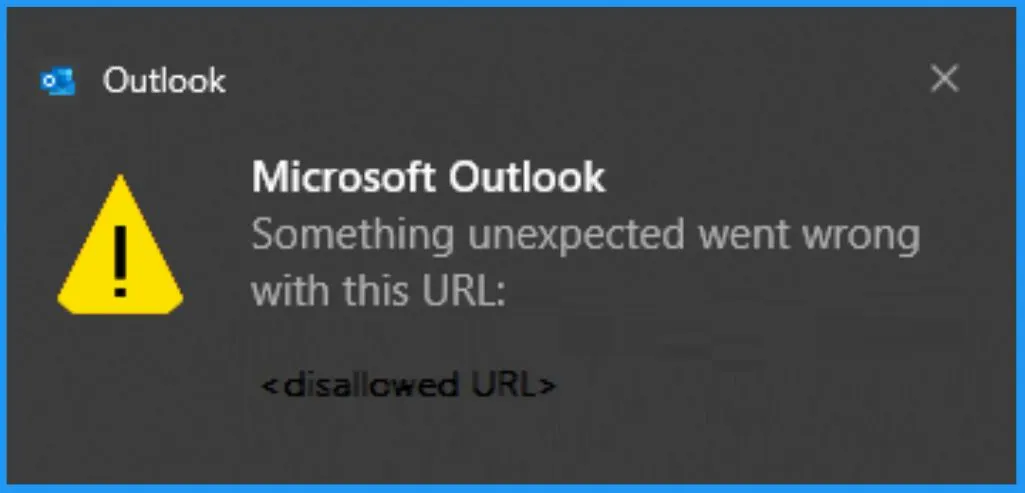
Microsoft Outlook Security Notice | Outlook Desktop Hyperlink Dialog Box
When you attempt to open links within emails in Outlook Desktop, especially when the path leads to a Fully Qualified Domain Name (FQDN), an IP address, or a hostname path, it’s normal to encounter a specific dialogue box. This dialogue serves as an expected security measure within Outlook Desktop.
- It ensures you know the potential risks of accessing links that lead to technical addresses like FQDNs, IP addresses, or hostnames.
- This additional layer of caution helps safeguard your system and data while using Outlook.
Disabling Hyperlink Warning Messages in Office Programs
You can easily disable the hyperlink warning messages in office programs. You must create a new registry subkey to turn on or off hyperlink warnings in Microsoft Office programs for addresses like https://, notes://, or ftp://.
- Click on the Start button and then select Run
- In the Run command box, type regedit and click OK
- In the Registry Editor, navigate to the following path:
HKEY_CURRENT_USER\software\policies\microsoft\office\16.0\common\security
DWORD: DisableHyperlinkWarning
Value: 1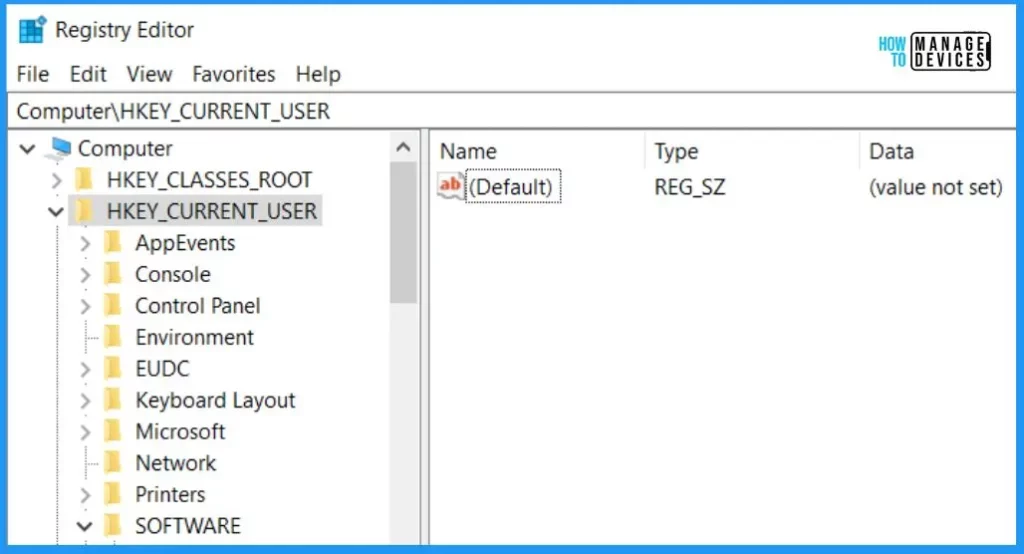
Outlook Desktop July 11th Security Updates and Related CVEs
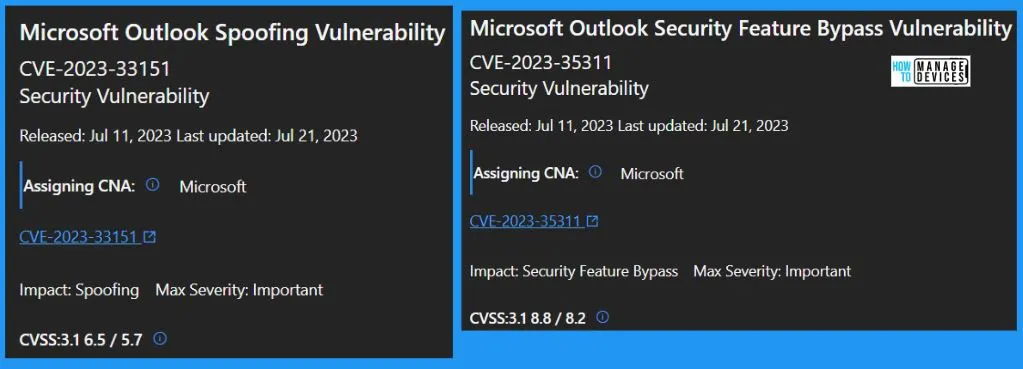
The issue arises after installing the Outlook Desktop July 11th security updates. The common Vulnerabilities and Exposures related to the issue are listed below.
- MSRC CVE-2023-33151: Microsoft Outlook Spoofing Vulnerability
- MSRC CVE-2023-35311: Microsoft Outlook Security Feature Bypass Vulnerability
Deploying the Workaround via Windows Settings
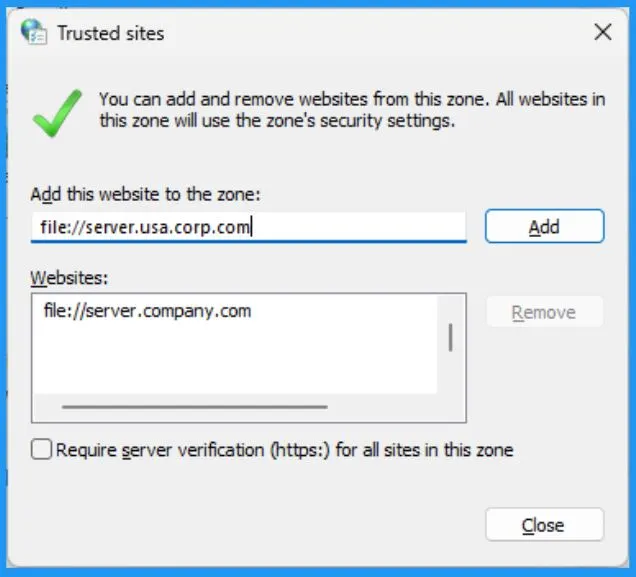
To make sure you can always reach files with complex names (FQDNs) or numbers (IP addresses), it’s important to add these web addresses to your computer’s “Trusted Sites.” This is a step recommended by Windows.
- Go to Windows Settings and Search for and open Internet options
- Click on the Security Tab
- Select Trusted Sites
- Add the URL, UNC, or FQDN path you want to allow by clicking “Add this website to the zone.” For example, add file://server.usa.corp.com.
Note! – Adding FQDNs or IP addresses to Trusted Sites can make your computer or network more vulnerable to security risks, including attacks by malicious users or malware like viruses. Ensure that any FQDN or IP address added to the Trusted Sites list is a valid and legitimate URL path relevant to your company or network’s operations.
Deploying the Workaround via Group Policy
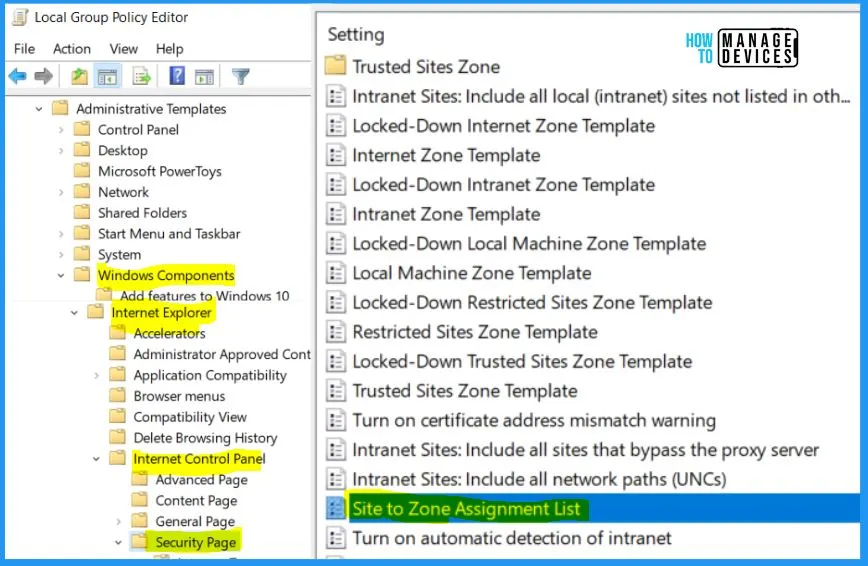
You can easily deploy the workaround through the Group Policy. The below list and screenshot show how to Deploy the Workaround via Group Policy.
- Open the Group Policy Editor by entering gpedit.msc in the Run dialog box.
- Under “User Configuration,” go to \Windows Components\Internet Explorer\Internet Control Panel\Security Page\Site to Zone Assignment List
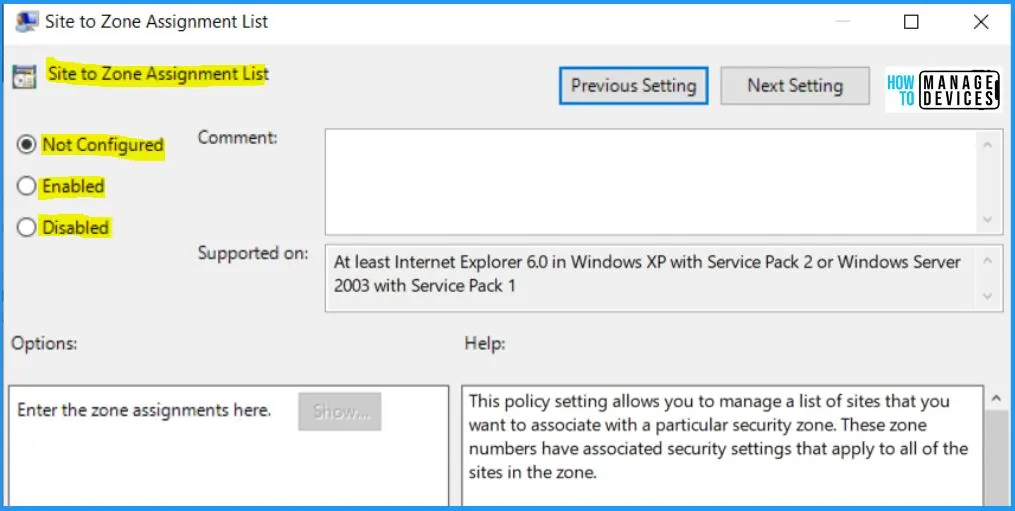
This policy allows you to manage a list of sites you want to associate with a particular security zone. These zone numbers have associated security settings that apply to all of the sites in the zone. Internet Explorer has 4 security zones, numbered 1-4, and this policy setting uses these to associate sites with zones. They are: (1) Intranet zone, (2) Trusted Sites zone, (3) Internet zone, and (4) Restricted Sites zone.
- Security settings can be set for each of these zones through other policy settings, and their default settings are Trusted Sites zone (Low template), Intranet zone (Medium-Low template), Internet zone (Medium template), and Restricted Sites zone (High template).
- (The Local Machine zone and its locked-down equivalent have special security settings that protect your local computer.)
| Enable/Disable | Description | Enabled or Disabled Value |
|---|---|---|
| If you enable this policy-setting | You can enter a list of sites and their related zone numbers. The association of a site with a zone will ensure that the security settings for the specified zone are applied to the site. | Decimal 1 |
| If you disable or do not configure this policy | Users may choose their site-to-zone assignments. | Decimal 0 |
Author
About the Author – Vidya is a computer enthusiast. She is here to share quick tips and tricks with Windows 11 or Windows 10 users. She loves writing on Windows 11 and related technologies. She is also keen to find solutions and write about day-to-day tech problems.




Discussion