






Enable or Disable Full Screen Mode Policy in Edge Browser using Microsoft 365 Admin Center Policy
Lert’s discuss how to enable or disable Full Screen Mode Policy in Edge Browser using Microsoft 365 Admin Center Policy. The latest version of Microsoft Edge includes several new policies. These policies can be used to configure how Microsoft Edge runs in your organization.
Full Screen is a feature that allows you to use your whole display to view an application or file. It makes everything bigger by hiding menus, title bars, and other items. This helps create a clean and simple view, making it great for work and entertainment.
Most applications, like word processors, spreadsheets, drawing programs, and web browsers, can be used in Full Screen mode. Some games may require a separate program to do this, but most modern operating systems already have the tools you need.
Through this blog post, I will guide you how to enable Allow Full Screen Mode (FullscreenAllowed) in Edge through Microsoft 365 Admin Center Policy.

What is Main Drawback with Full Screen Mode?
What is the Difference Between Full Screen and Maximized Modes?
Enable or Disable Full Screen Mode Policy in Edge
The way to use Full Screen mode depends on your device. On a desktop computer, you can usually press the F11 key to enter Full Screen. If you use a web browser, look for an icon in the corner to activate the Full Screen. On mobile devices like phones and tablets, you can find the Full Screen option in the settings or through a specific app icon since these smaller screens have limited space.
To enable FullscreenAllowed Policy in Edge Browser, you should first login to Microsoft 365 Admin Center. The section below shows the steps to access the policy.
- Click Settings
- Select Microsoft Edge from the dropdown arrow
- Select Configuration Policies
- Click on + Create Policy
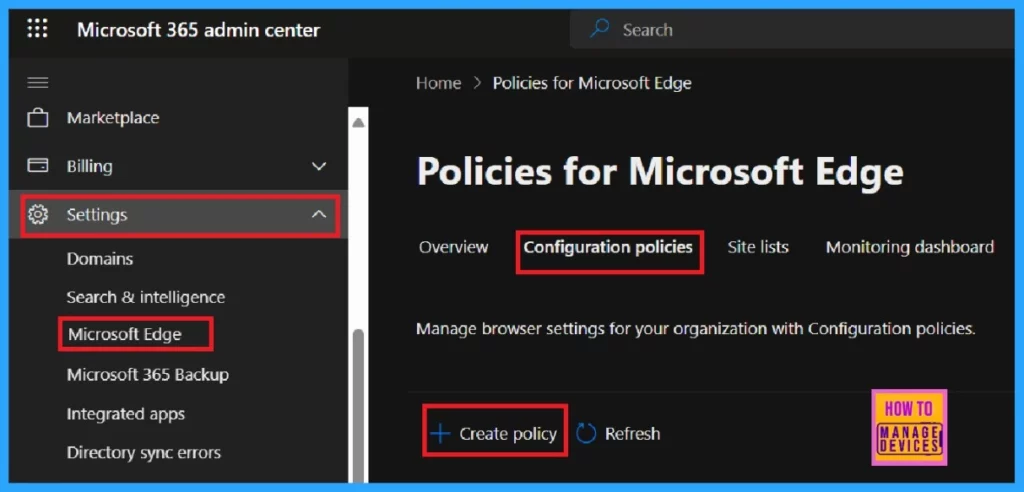
Configuration policies consist of five essential steps: Basics, Settings, Extension, Assignments, and Finish. I will explain each section step by step.
- Prevent Users From Start Screen Customization Using Intune Policy
- Enable Disable Screenshot Policies In Edge Using Microsoft 365 Admin Center Policy
- Enable Address Bar Editing in the Edge Browser using the Microsoft 365 Admin Center Policy
Basics
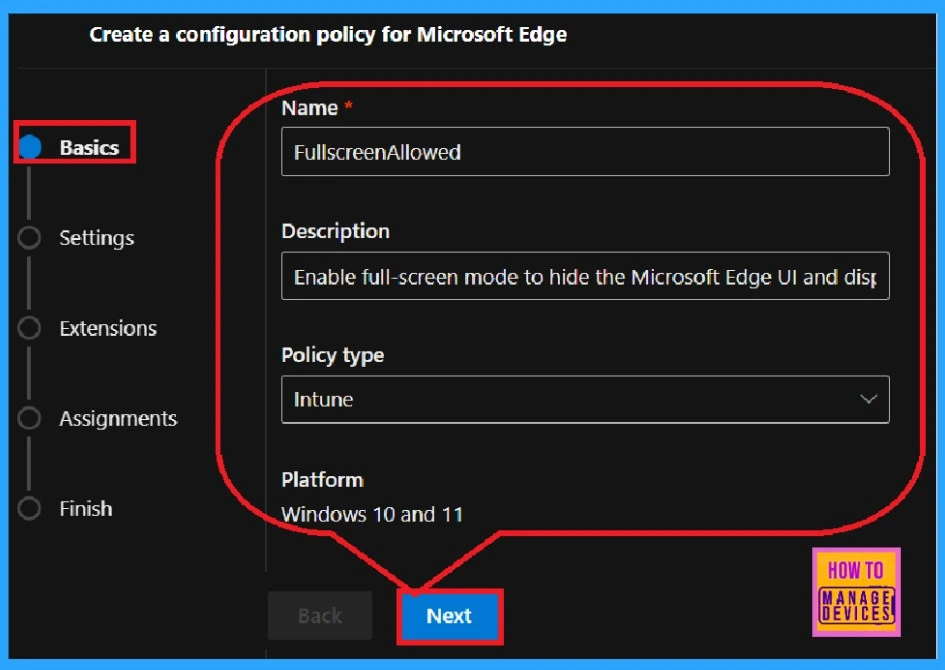
After clicking + Create Policy, you are on the Basics page. Here, you must enter the policy’s Name, Description, Type and Platform. Here,
- Policy Name: FullScreenAllowed
- Description : Enable Full Screen mode to hide the Microsoft Edge UI and display only web content.
- Policy type: Intune
- Platform : Windows 10 and 11.
- Click on the Next for further procedure.
Settings
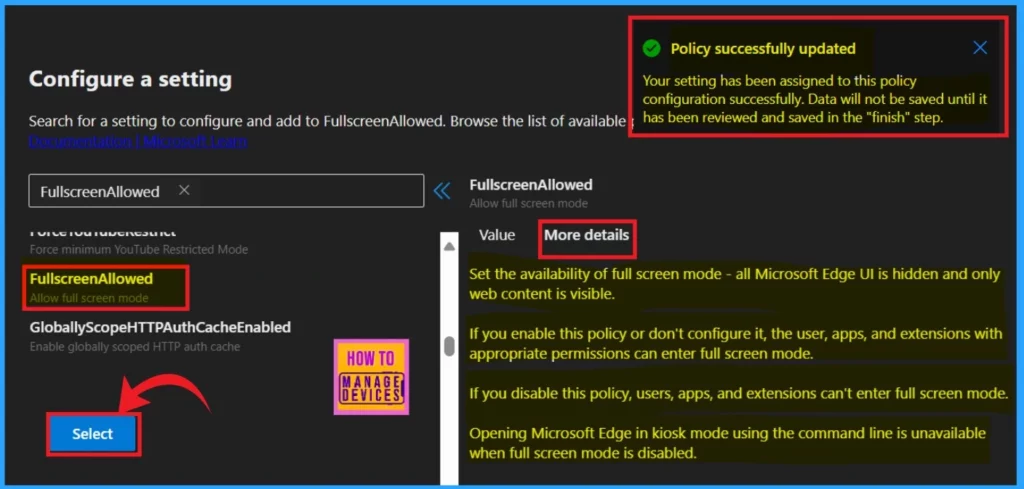
This is the important section of a configuration. From Settings, we can add Value and access the policy details. First click on the +Add Settings from the below screenshot.
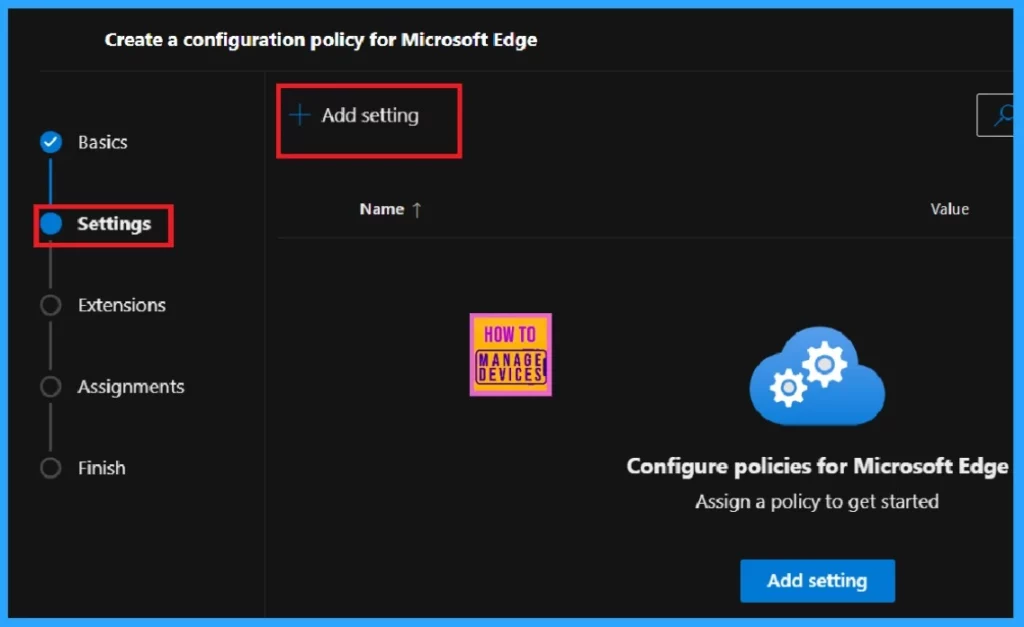
+Add Setting takes you in a new window, where you can see the Value and More Details. Value: We should add the Value which is mandatory.
- To add Value, click the drop-down arrow and select enabled or disabled for your policy requirement.
- Here I select enabled
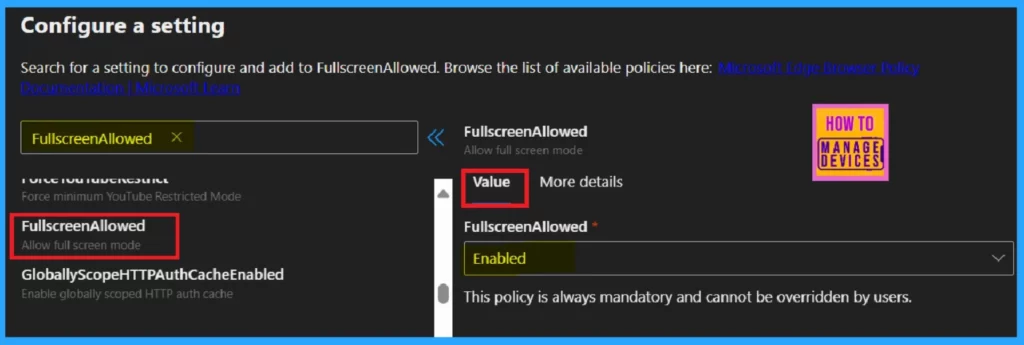
More Details: Here, you can find a detailed explanation of the particular policy which is given in the following table. You cannot launch Microsoft Edge in kiosk mode using the command line if Full Screen mode is not enabled.
| Policy Features | More Details |
|---|---|
| Enable | If this policy is enabled or not set, users, apps, and extensions can enter Full Screen mode if they have the right permissions. |
| Disable | If you disable this policy, users, apps, and extensions cannot enter Full Screen mode. |
After the review, click the Select button. You will see a notification that the policy has been updated successfully.
Note: Your setting has been assigned to the policy configuration successfully. Data will not be saved until has been reviewed and saved in the Finish step.
Extensions
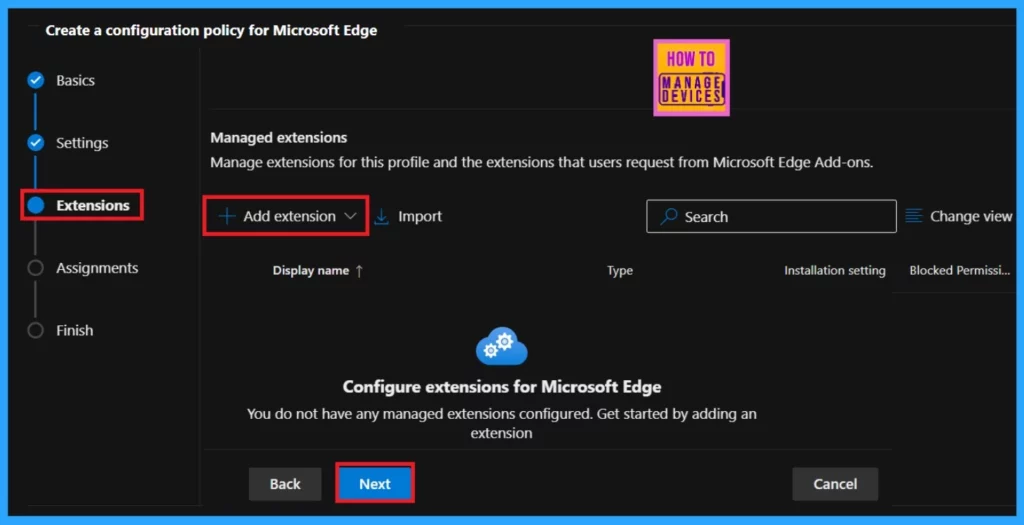
You can modify these settings for managed extensions if needed. However, this section is optional and can be skipped. To proceed to the next section, click on the Next option.
Assignments
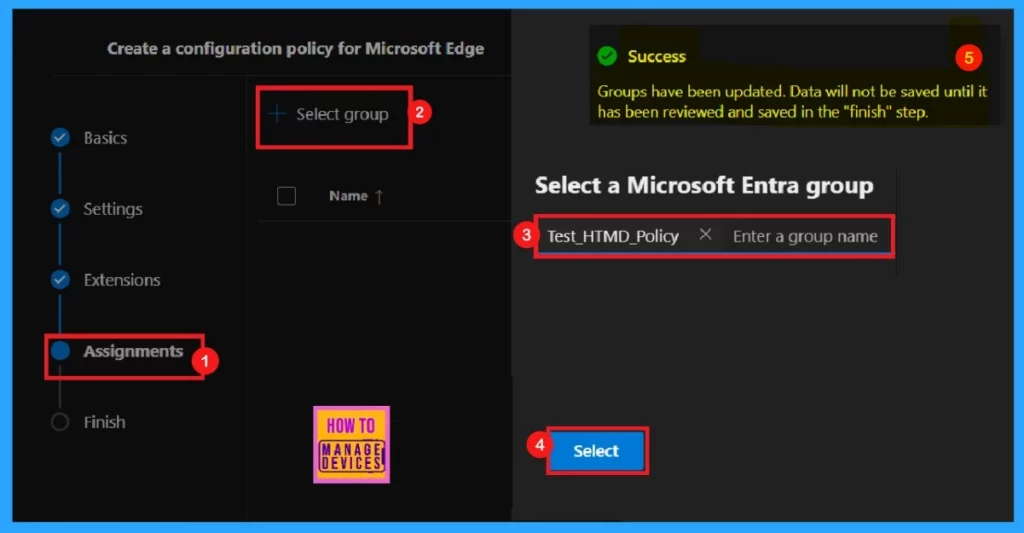
The Assignment section is an integral part of a configuration policy. In this section, you can assign the policy to a group and allow the group members to utilize the policy. For that click on the Select group.
The + Select group directs you to a pop-up window where you can choose a group. You can select from the default Microsoft Entra group. In this instance, I selected the Test_HTMD_Policy group from the list.
- Now, you will get a notification that the Groups has been updated, but data will only be saved in the Finish step.
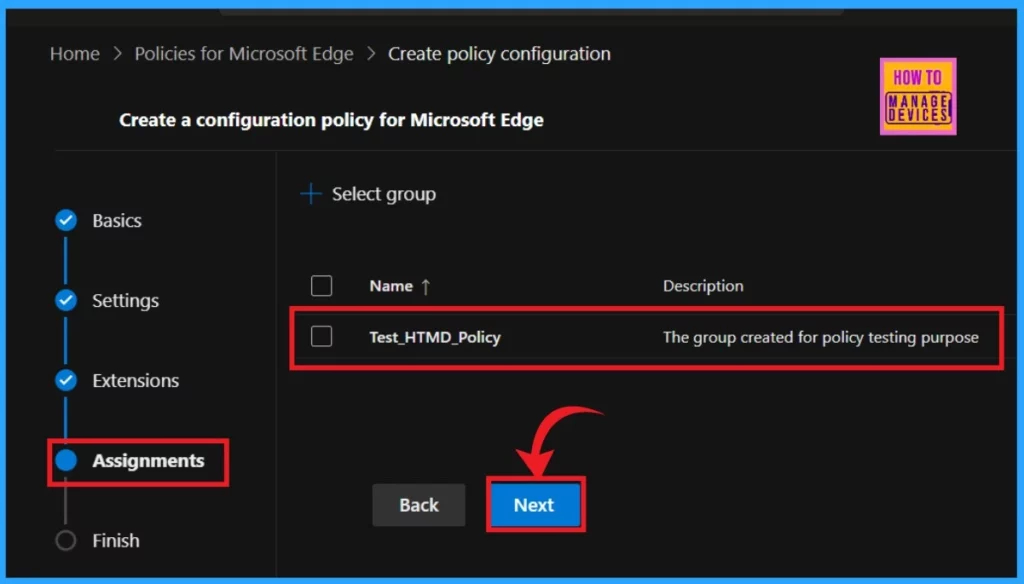
In the next page, you can see that the group has been created for policy testing purpose. For further procedure, click on Next option.
Finish
The Finish step provides a summary of the Microsoft Edge policy configuration. At this stage, you can edit the policy details if necessary. Once you have verified that all the information is correct, you can finalize the policy by clicking the Review and Create button.
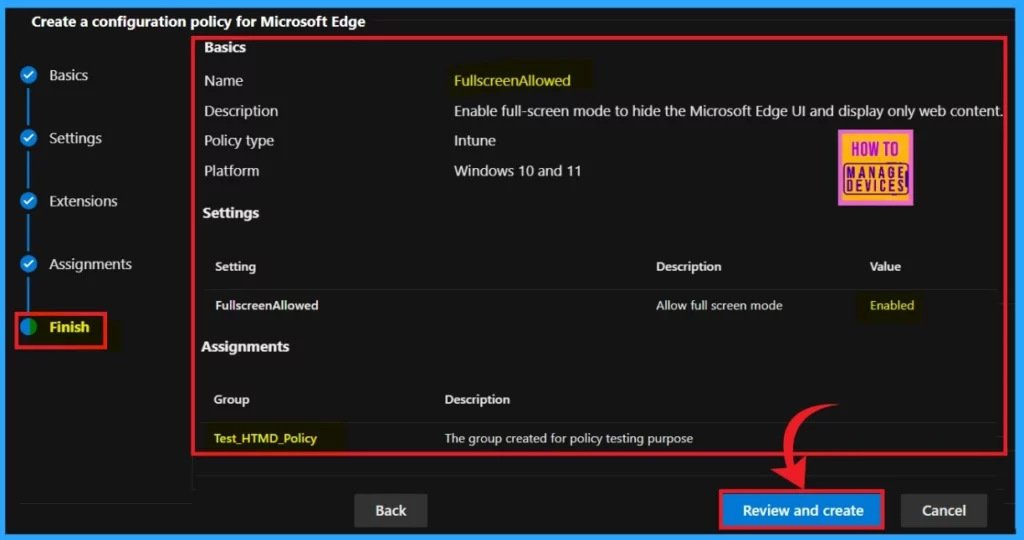
End Result – FullScreenAllowed
Once you click Review and Create, a notification will pop up to confirm that the policy has been created successfully. You may have to wait 8 hours to deploy it to the assigned groups. In the meantime, you can use the manual syncing option in the company portal. For that do the following steps.
- Go to Company Portal
- Click on Settings
- Hit to Sync
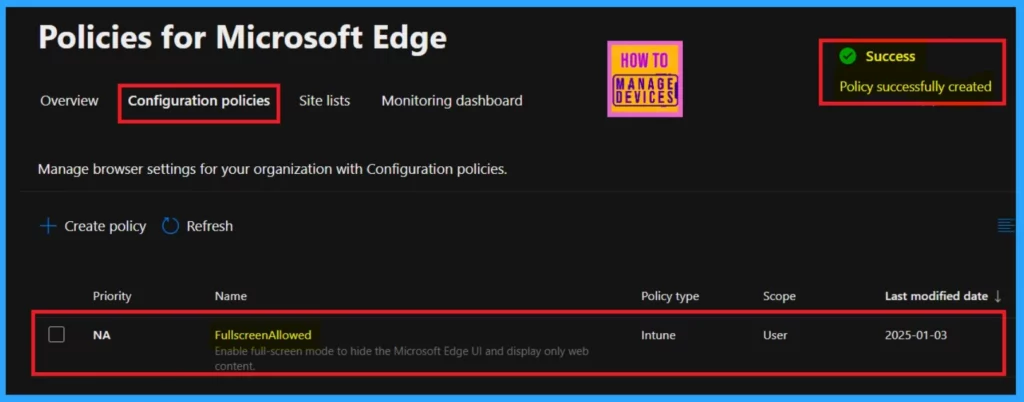
End User Experience
To see the end-user result, you should open Microsoft Edge. Then go the Settings and More (… dots) in the right upper pane.
- Scrolling down to Zoom option
- Click the Full Screen arrows icon, which looks like a diagonal arrow with two points.
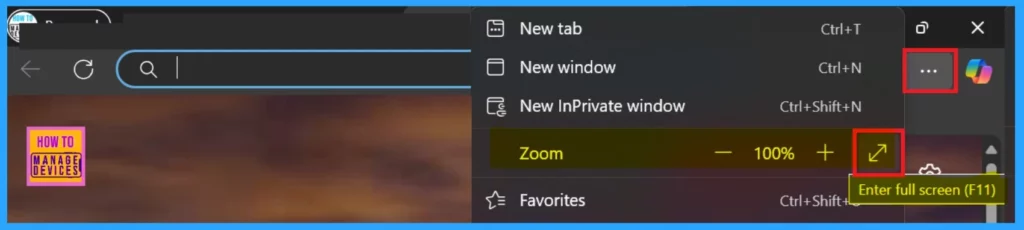
Need Further Assistance or Have Technical Questions?
Join the LinkedIn Page and Telegram group to get the latest step-by-step guides and news updates. Join our Meetup Page to participate in User group meetings. Also, Join the WhatsApp Community to get the latest news on Microsoft Technologies. We are there on Reddit as well.
Author
Anoop C Nair has been Microsoft MVP for 10 consecutive years from 2015 onwards. He is a Workplace Solution Architect with more than 22+ years of experience in Workplace technologies. He is a Blogger, Speaker, and Local User Group Community leader. His primary focus is on Device Management technologies like SCCM and Intune. He writes about technologies like Intune, SCCM, Windows, Cloud PC, Windows, Entra, Microsoft Security, Career, etc.




Discussion