






Best way to Choose the Right GPU-Enabled Cloud PC Standard Super or Max | Windows 365
Let’s discuss the best way to Choose the Right GPU-enabled cloud PC: Standard, Super, or Max. Microsoft offers two GPU-enabled Cloud PC options: one for the Enterprise edition and another for the Frontline edition. Microsoft currently provides 3 GPU-enabled Cloud PC options: Standard, Super, and Max.
Windows 365 Cloud PCs with GPU capabilities help you transform high-performance computing by offering faster processing and improved performance for demanding tasks like 3D rendering, video editing, and complex simulations.
The August 2024 update for Windows 365 Cloud PCs includes new features for the Azure Monitor Agent and Remote Session Lock Configuration. These updates help you monitor and manage your Cloud PCs more effectively, making it easier to keep track of their performance and secure remote sessions.
This post provides all the details about the Windows 365 GPU-enabled Cloud PC options for Enterprise and Frontline editions. It covers everything you need to know about these offerings, helping you choose the best option.

Table of Contents
What are the 3 GPU-Enabled Cloud PC Options Offered by Windows 365?
Windows 365 offers three options: Standard, Super, and Max.
Best way to Choose the Right Windows 365 GPU-Enabled Cloud PC Standard Super or Max
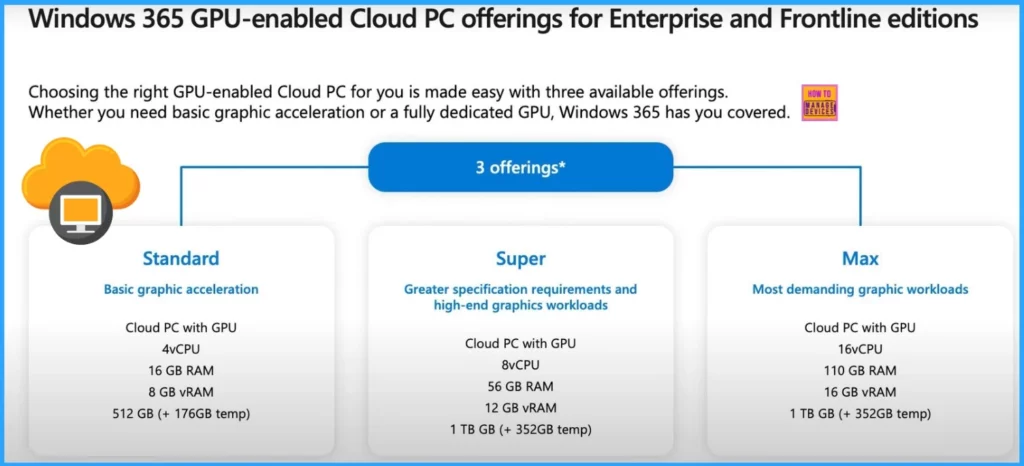
Windows 365 offers three GPU-enabled Cloud PC options: Standard, Super, and Max. The Standard option provides basic graphic acceleration for everyday tasks.
The Super option is for those needing better specifications and handling more demanding graphics. The Max option is designed for the most demanding graphic workloads, delivering top performance for the most demanding applications.
| Standard | Super | Max |
|---|---|---|
| Cloud PC with GPU | Cloud PC with GPU | Cloud PC with GPU |
| 4vCPU | 8vCPU | 16vCPU |
| 16 GB RAM | 56 GB RAM | 110 GB RAM |
| 8 GB vRAM | 12 GB vRAM | 16 GB vRAM |
| 512 GB (+176GB temp) | 1 TB GB(+352GB temp) | 1 TB GB(+352GB temp) |
- RDP Port 3389 is Disabled by Default for All Newly Provisioned Windows 365 Cloud PCs
- How to Create Cloud PC Maintenance Windows using Microsoft Intune
- New 7 Windows 365 Graph API Queries for CloudPC Management
- Configure Windows Sandbox vGPU Policy using Intune for Better Graphics Performance or Reduced Attack Surface
Cloud PC Offerings for Enterprise and Frontline Editions
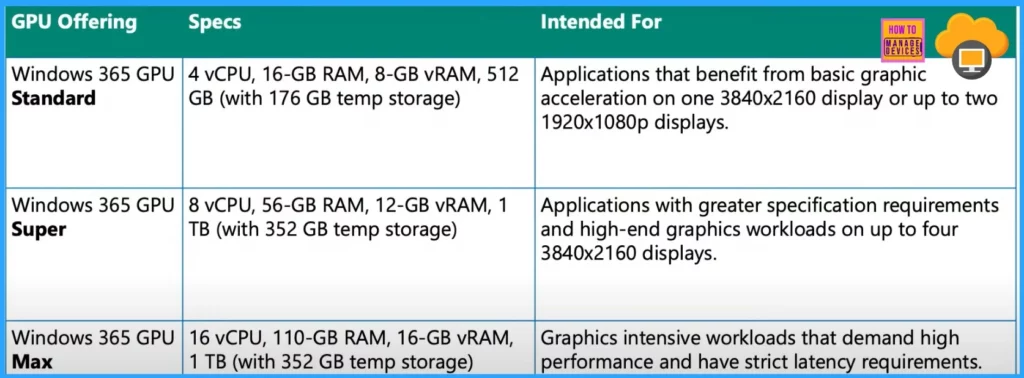
Windows 365 GPU Standard offers a powerful configuration with 4 virtual CPUs, 16 GB of RAM, 8 GB of virtual RAM, and 512 GB of storage (plus 176 GB of temporary storage). This setup is ideal for applications that need basic graphics acceleration. It supports up to one 3840×2160 display or two 1920×1080p displays, making it an excellent choice for tasks that benefit from improved graphic performance.
- Windows 364 GPU Super – 8 vCPU, 56-GB RAM, 12-GB vRAM,1 TB (with 352 GB temp storage)
- Applications with more significant specification requirements and high-end graphics workloads on up to 43840×2160 displays.
- Windows 365 GPU Max – 16vCPU, 110-GB RAM, 16-GB vRAM, I TB (with 352 GB temp storage)
- Graphics intense workloads that demand high performance and have strict latency requirements.
- Troubleshoot Windows 365 Cloud PC Connectivity Check
- Azure Monitor Agent and Remote Session Lock Configuration Windows 365 Cloud PC August 2024 Update
- Windows365 Enterprise Introduces Disk Storage Resizing for Cloud PCs with Step-Up Licenses
- Power Of Dark Mode On Windows 365 Cloud PC Web Portal
We are on WhatsApp now. To get the latest step-by-step guides, news, and updates, Join our Channel. Click here. HTMD WhatsApp.
Author
Anoop C Nair has been Microsoft MVP from 2015 onwards for 10 consecutive years! He is a Workplace Solution Architect with more than 22+ years of experience in Workplace technologies. He is also a Blogger, Speaker, and Local User Group Community leader. His primary focus is on Device Management technologies like SCCM and Intune. He writes about technologies like Intune, SCCM, Windows, Cloud PC, Windows, Entra, Microsoft Security, Career, etc.




Discussion