






Enable or Disable Hardware Acceleration Mode Policy in MS Edge Browser using M365 Admin Center
Hi everyone today we are discussing a new topic of Enable Disable Hardware Acceleration Mode in Microsoft Edge. As you all know that Microsoft 365 admin center is one of the crucial platforms to deploy policy For Edge.
You know, Hardware acceleration improves app performance by using specialized hardware like GPUs. In Microsoft 365, admins can enable or disable it using the Hardware Acceleration Mode Enabled setting for their organizations. Now why this policy is Enabled or disabled to our Edge and what is the importance of it.
If your device has a powerful GPU, turning on hardware acceleration can boost browser performance. Some software or drivers may also be incompatible, causing browser instability. In such cases, disabling hardware acceleration can restore stability and improve performance by shifting tasks back to the CPU.
you enable this policy, or leave it unconfigured, graphics acceleration will be utilized if it’s available. If you disable this policy, turns off graphics acceleration. So, in this post we can look how this policy to be disabled or enabled in Microsoft Edge.

Table of Contents
What is the Importance of Managing Hardware Acceleration?
Enable Disable Hardware Acceleration Mode in Microsoft Edge
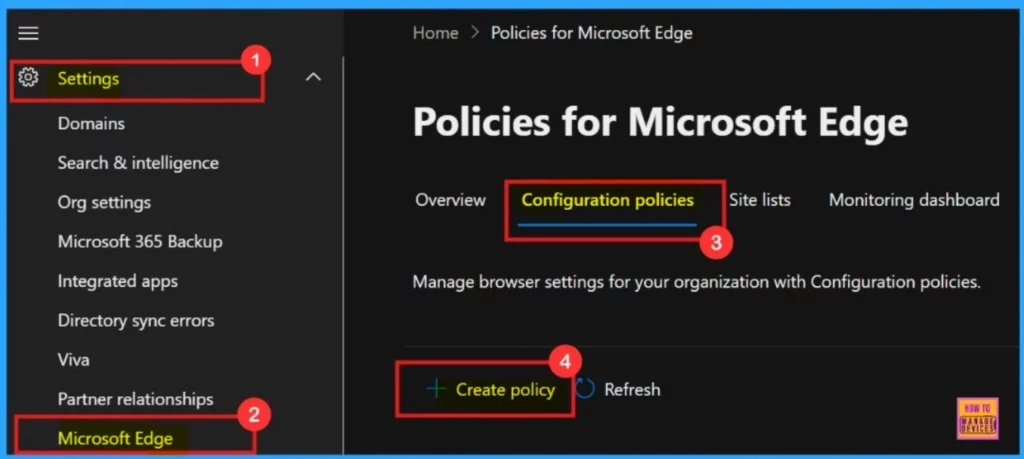
Above we discussed an overview of Hardware Acceleration Mode in Microsoft Edge. So now we can look how this policy to be deployed in Microsoft 365 admin center. For that sign in to the Microsoft 365 admin center. Then navigate through the settings > Microsoft Edge > Configuration Policies > Create Policy.
- Force Minimum YouTube Restricted Mode Policy in Microsoft Edge Browser using M365 Admin Center.
- Configure Disk Cache Size in MS Edge Browser using M365 Admin Center Policy
- Issue on Minimum PIN Length for Startup in Disk Encryption Policies in Intune
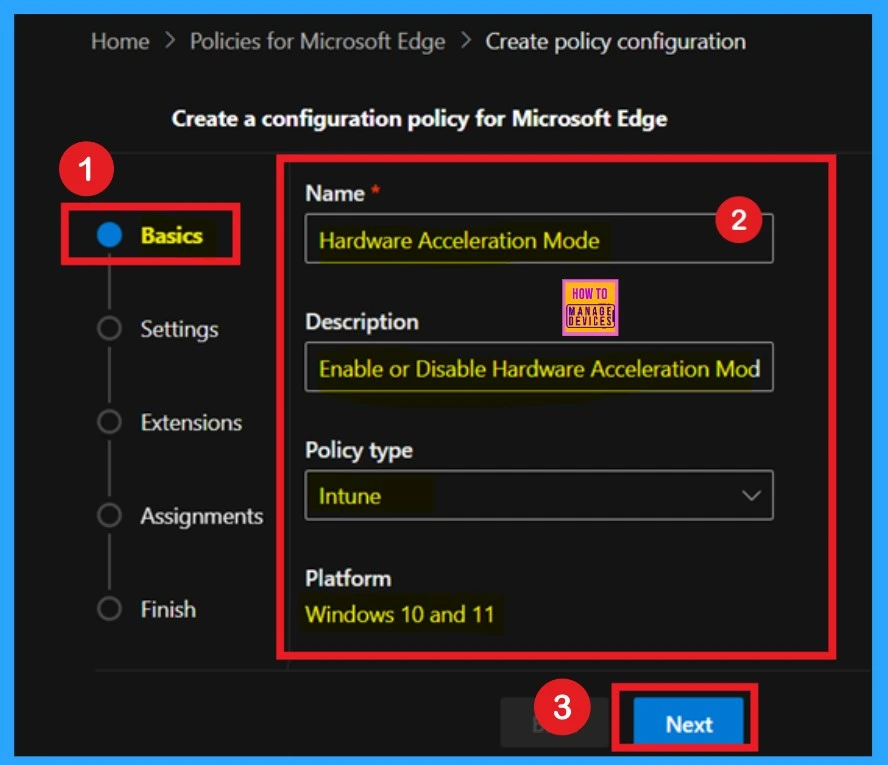
When you click on in the create policy now you have to go through some basic steps such as Basics, Settings, Extension Assignment etc. The first step is basics here you have to enter the Name, Description and policy type and platform. Then click on the Next.
| Steps for Creating Policy |
|---|
| Basics |
| Settings |
| Extensions |
| Assignments |
| Review +Create |
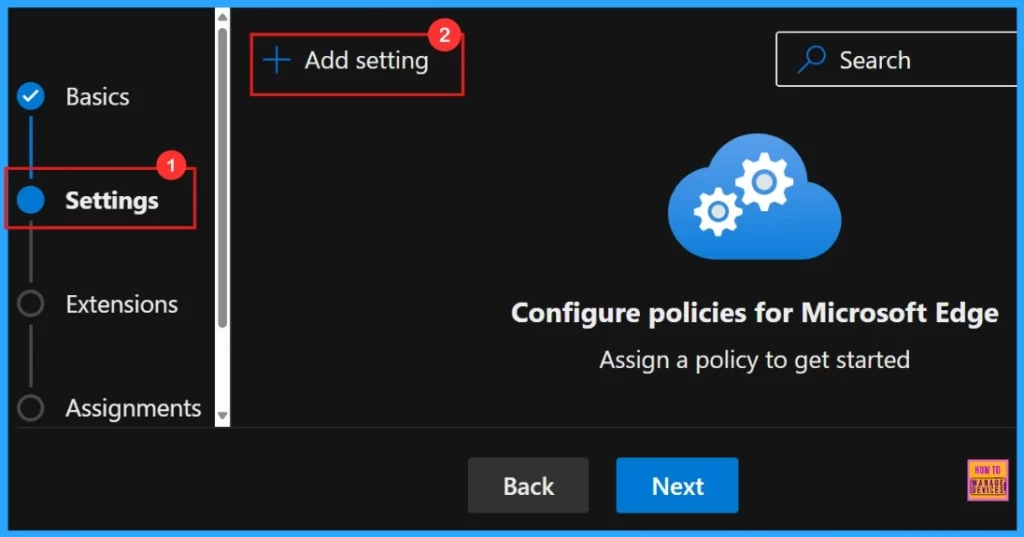
Then you have to enter the Settings page here so you can see that + Add settings. When you click on that you will get the settings option you need. You can refer the below Screenshot for more clarity.
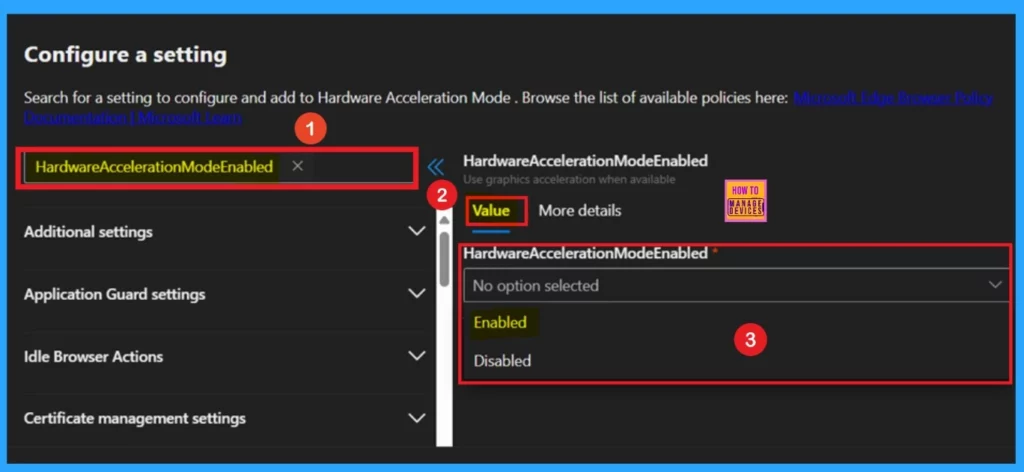
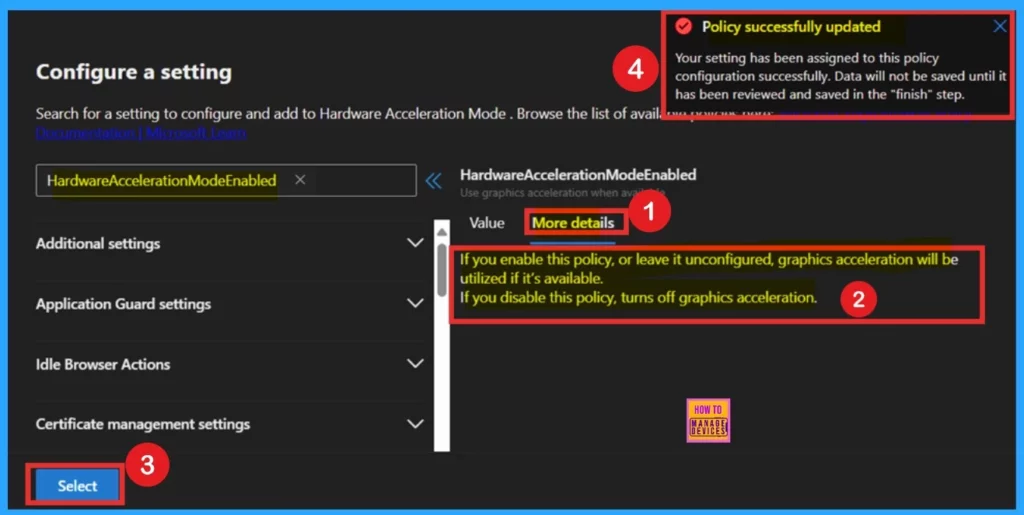
In the settings page first you have to search for the Hardware acceleration mode enabled option. When you get the policy name click on that. In the right menu you can See the value and More details options. Under the value section you will get the option for Enable and Disable. Here I need to enable that policy so I click on that.
After the value tab, you came across the More details tab. It is very important to know more about the policy. When I click on that, I get more details about the Hardware acceleration mode, such as if you enable this policy, or leave it unconfigured, graphics acceleration will be utilized if it’s available. If you disable this policy, it turns off graphics acceleration.
- After that, Click on the select and now you will get a notification that confirms that policy successfully updated.
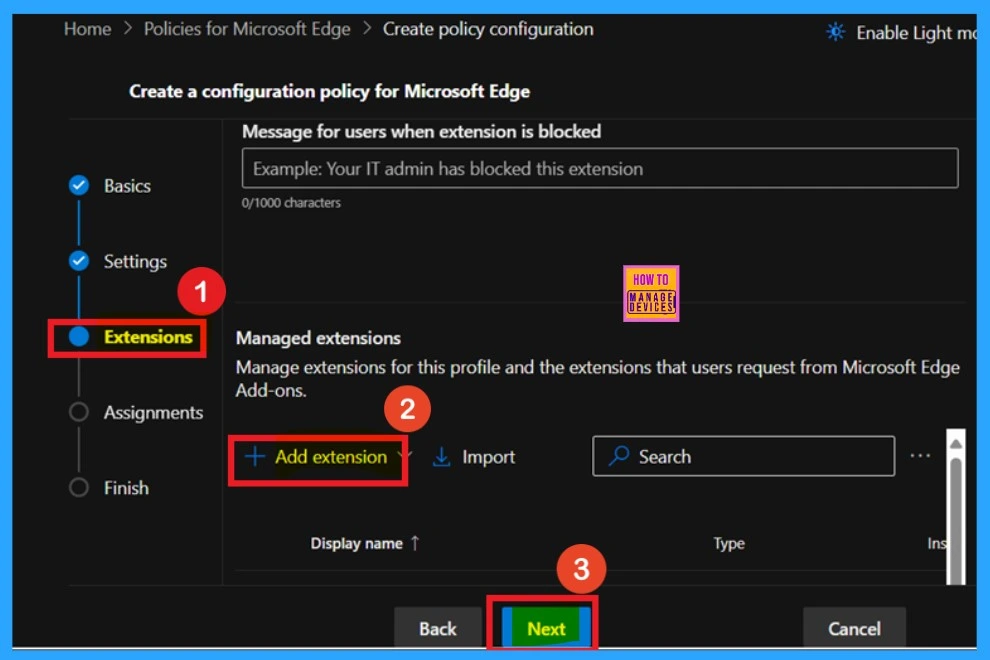
Extension
The Extensions section lets your policy by incorporating specific extensions, covering installation settings, permissions, and URLs. If additional functionality is required, simply click + Add extension to include them. Otherwise, you can proceed without adding any extensions.
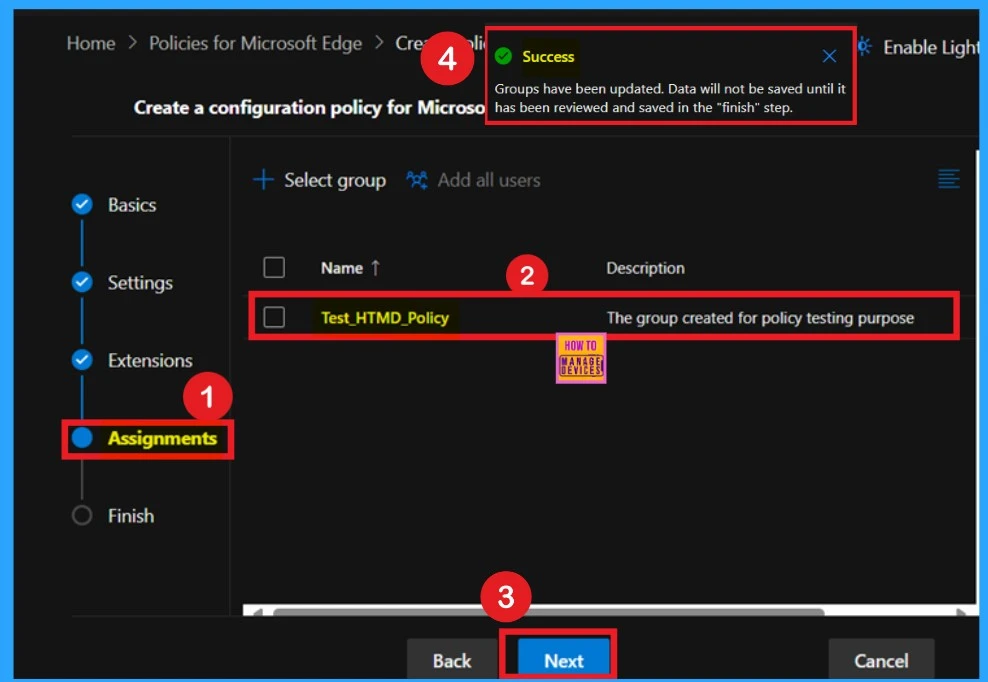
The Assignments tab acts as the central hub for managing policy deployment. By choosing a specific group, you can ensure the policy applies only to those designated users, streamlining enforcement and control. After clicking on the next you will be notified as Success.
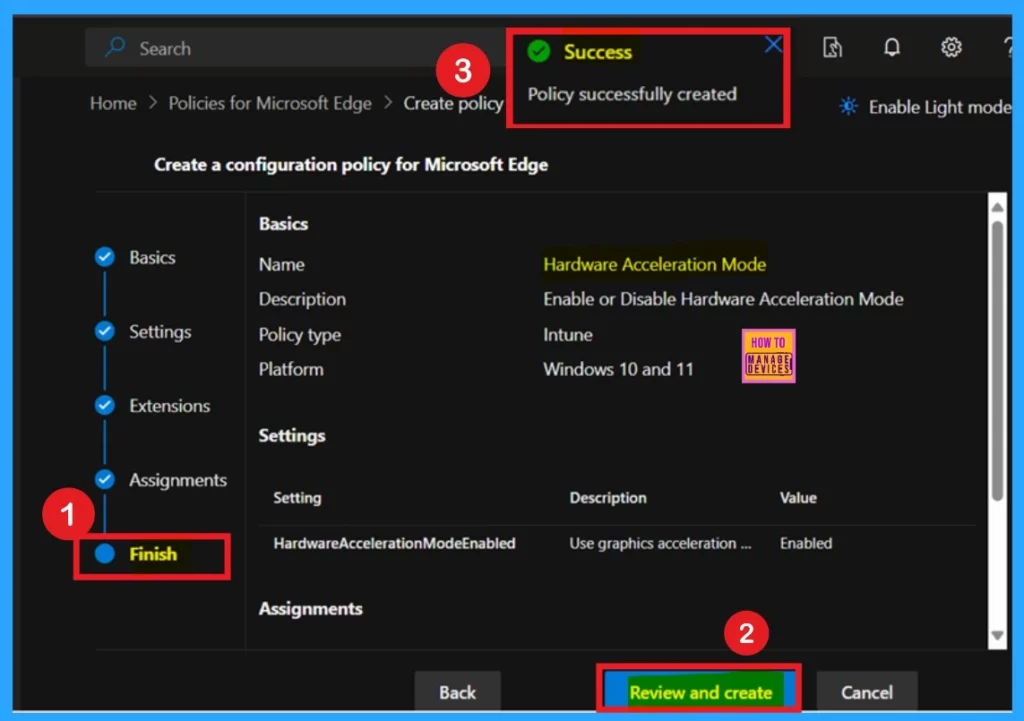
Finish
To finalize the policy setup, select Review + create to inspect all settings before deployment. The summary screen provides an overview of configured options, including assignments, rules, and exceptions, ensuring a last verification. Once everything is confirmed, click Create to implement the policy.
Clent Side Verification
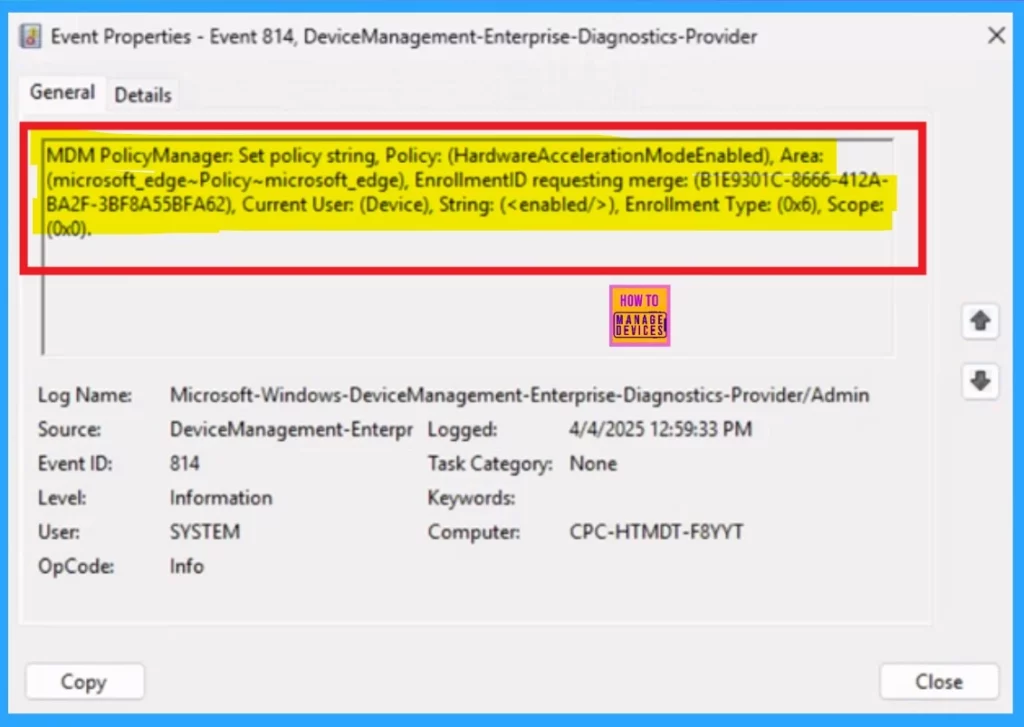
Administrators can verify policy enforcement on individual devices using Windows Event Viewer. To check client-side compliance, navigate to Applications and Services Logs > Microsoft > Windows > DeviceManagement-Enterprise-Diagnostics-Provider > Admin, then filter for Event ID 814.
| Policy Detail |
|---|
| MDM PolicyManager: Set policy string, Policy: (HardwareAccelerationModeEnabled), Area: (microsoft_edge~Policy~microsoft_edge), EnrollmentID requesting merge: (B1E9301C-8666-412A- BA2F-3BF8A55BFA62), Current User: (Device), String: (), Enrollment Type: (0x6), Scope: (0x0). |
Monitoring Status
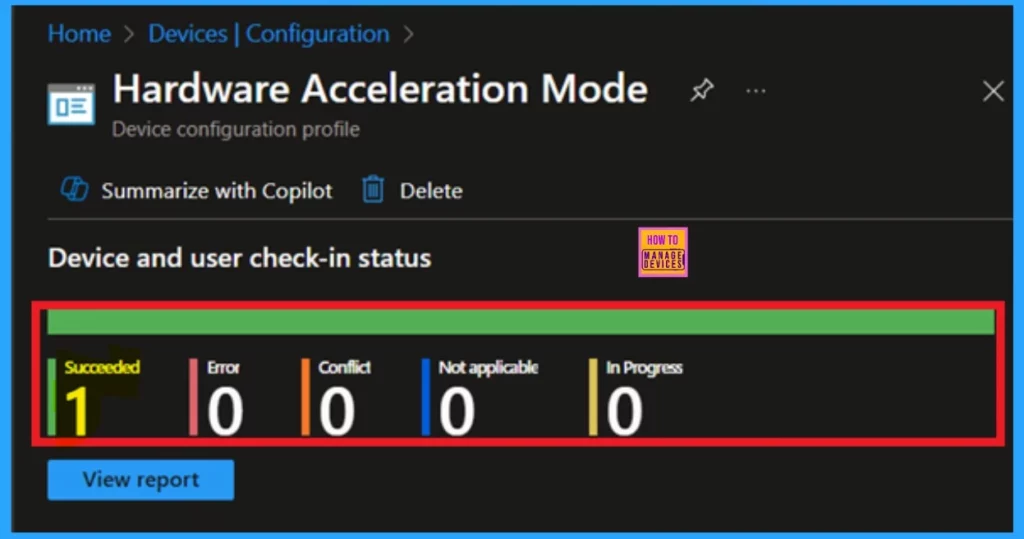
The Device and User Check-in Status offers real-time insights into policy deployment and compliance across the organization. After manually synchronizing via the company portal, you can verify successful deployment by reviewing the policy’s status in the Intune Portal.
End User Experience
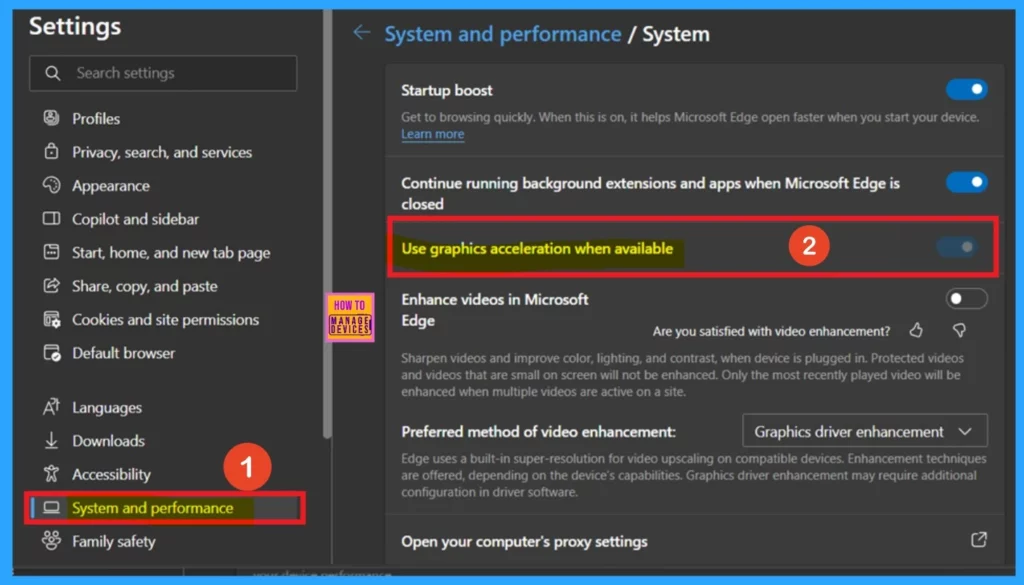
Now you can check the end user experience, for that first open your Microsoft Edge and click on the 3-dot menu for opening the settings. In the settings, you can click on the System and Performance, in the system performance you can see that the Use graphics acceleration when available option.
- Use graphics acceleration when available option is Enabled.
Need Further Assistance or Have Technical Questions?
Join the LinkedIn Page and Telegram group to get the latest step-by-step guides and news updates. Join our Meetup Page to participate in User group meetings. Also, Join the WhatsApp Community to get the latest news on Microsoft Technologies. We are there on Reddit as well.
Author
Anoop C Nair has been Microsoft MVP for 10 consecutive years from 2015 onwards. He is a Workplace Solution Architect with more than 22+ years of experience in Workplace technologies. He is a Blogger, Speaker, and Local User Group Community leader. His primary focus is on Device Management technologies like SCCM and Intune. He writes about technologies like Intune, SCCM, Windows, Cloud PC, Windows, Entra, Microsoft Security, Career, etc.




Discussion