






3 Easy Methods to Hide and Unhide Files and Folders in Windows 11
Hi, Today, we are discussing a new topic: 3 Easy Methods to Hide and Unhide Files and Folders in Windows 11. We know that Windows 11 is the latest operating system with the best features. Windows 11 always has extraordinary features that every user wants. Every day in our working lives, we deal with many Folders and Files, right?
So you know that every file and folder on our device is very important to us. Why is a folder important to us? We handle many important or official documents and files in a folder. Managing important data is crucial nowadays, and as users, we are also concerned about our privacy.
Users must know how to hide official or important data for privacy and security. Hiding folders is a great way to keep sensitive information safe from unauthorized access. I think hiding important data is an effective way to protect privacy and help the user enhance security and productivity.
We must understand that keeping Digital data is very difficult, especially when security threats are increasing daily. Do you think we need to hide a digital document only for security reasons? No, but we should also hide important data to avoid accidental deletion. So, in this post, I will here to help you hide folders (files) using some easy methods.

Table of Contents
What is a Folder in Windows 11?
Are there any Intune and Group Policy Settings to Hide or Unhide files and folders in Windows 11?
Hide these specified drives in My Computer (User)
Pick one of the following combinations (User)
3 Easy Methods to Hide and Unhide Files and Folders in Windows 11
Above, we discussed so many things related to the need to hide a folder and files. Hiding or unhiding a file is a very important step. With this method, you ensure your privacy and also show your commitment to your important document.
Critical system files or essential project documents must always be kept safe, which is very important. So, let’s look at different methods for hiding files and folders.
- How to Clear the File Explorer History in Windows 11
- How to Show or Hide Empty Drives in Windows 11
- New Update on File Explorer in Windows 11
- New Windows Update for Start Menu on Windows 11
- Windows 11 Copilot Integrates with File Explorer Context Menu
1. Hide Files and Folders in Windows 11 Through File Explorer
The first method uses the file explorer. When you decide to hide any folder or file, right-click on the folder you want. Then select the properties option from the context menu. I suggest that you give the folder an appropriate name before hiding it. This will help you to find the folders from hidden items.
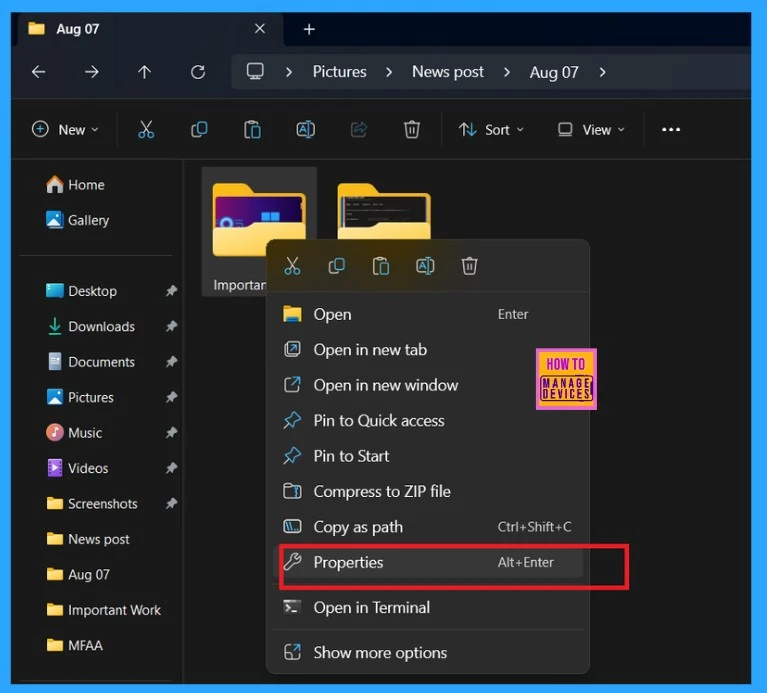
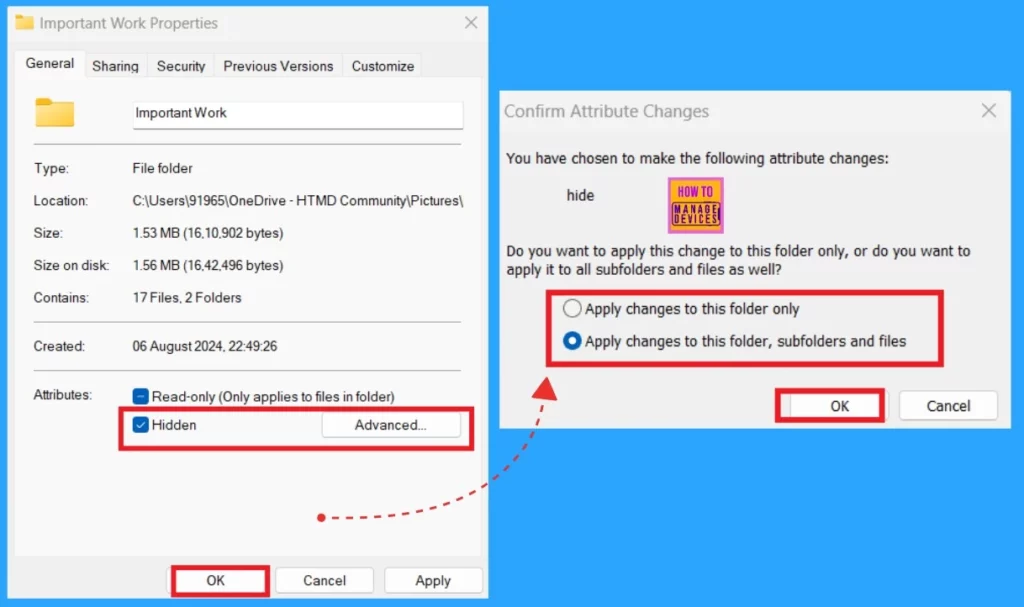
When you Right-click on a folder, you will get the Properties window. The properties window allows you to make changes and some advanced settings for files and folders. First, make sure you are in the general section of properties.
- You can see the 2 options, Read Only and Hidden, in the Attribute section.
- Select the Hidden option from that.
- After clicking on the Hidden option, you will get another Window.
- In that window, you can make changes to the attribute.
- You have 2 options: Apply changes to this folder only and Apply changes to this folder, subfolders, and files.
- Here, I selected the option Apply changes to this folder, subfolders, and files; I think this option is more effective in hiding data.
| Attribute Changes Options | Info |
|---|---|
| Apply changes to this folder only | This will make changes only to the Main folder and no changes to the subfolders. |
| Apply changes to this folder, subfolders, and files. | This option allows you to change the main folder, the inside subfolders, and files. |
- Start Menu Stop Working in Windows 11 Insider Preview Build
- Personalization Settings Option in Windows 11
- System Settings Options in Windows 11
- How to Create and Use Passkeys in Windows
- Start Menu Issues of Third-Party UI Customization Apps in Windows 11
How to Unhide Files and Folders in Windows 11 Through File Explorer
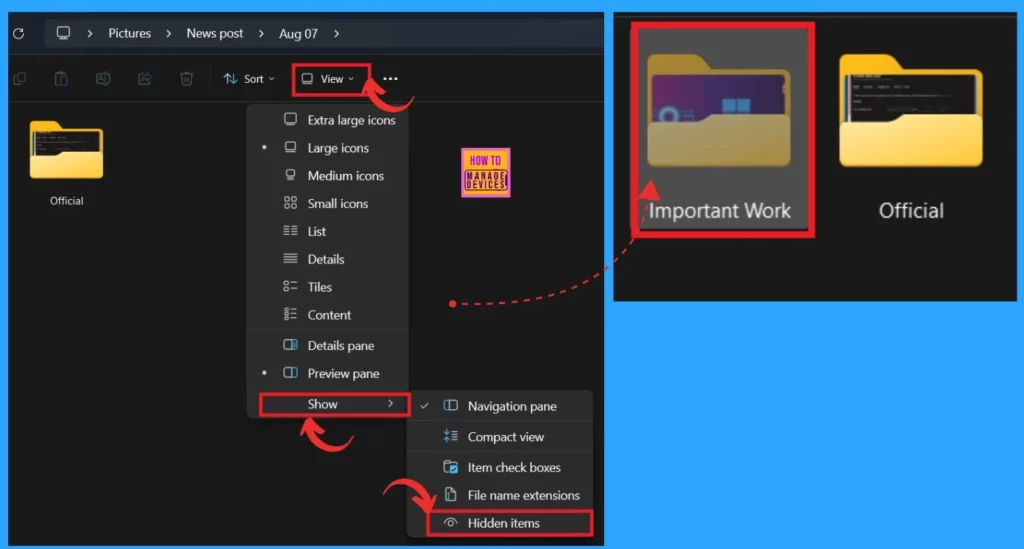
This is the important part. When you hide a file, you must know how to unhide the data (folder). Then, you can use the file explorer on the same drive where the data were kept before. You can see the View option in the file explorer(The screenshot below guides you).
- Click on the View option
- Select the option Show
- Then select the Hidden Items
- You will get the Hidden folder in just a second.
2. Hide Files and Folders in Windows 11 Through Command Prompt
This method is crucial and the most effective method for hiding files and folders. You can do this step using the command prompt. Go to the start menu and select the terminal (Admin). Open the command prompt as an administrator.
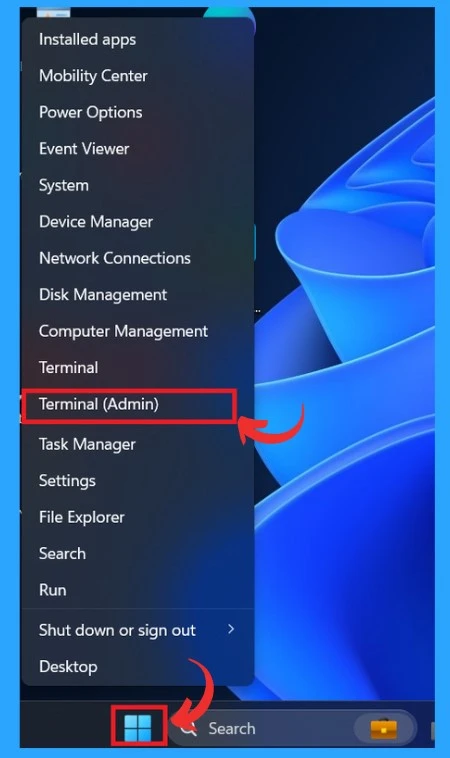
After opening the command prompt, you must enter the appropriate path. To hide and unhide the folder, you must enter a different path. When you Enter a path, you must be careful of each word and space when typing. To hide the folder, you can follow the steps below.
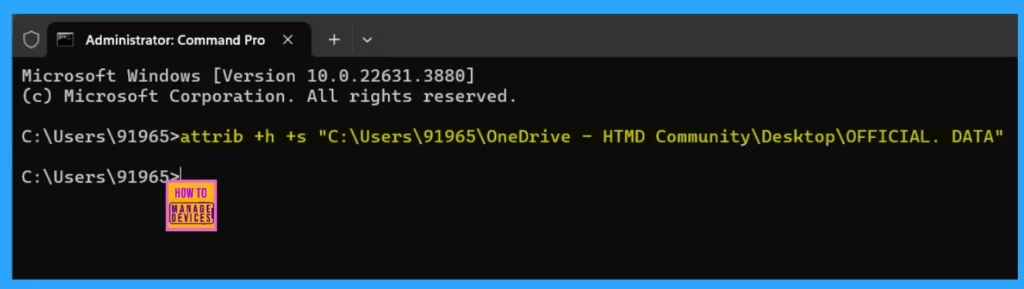
Type/Copy this: attrib +h +s “Path of the folder”
- If you don’t know how to copy a folder path, follow the screenshot below.
- First, open the folder you want to hide
- Then select the full path of the folder from the address bar.
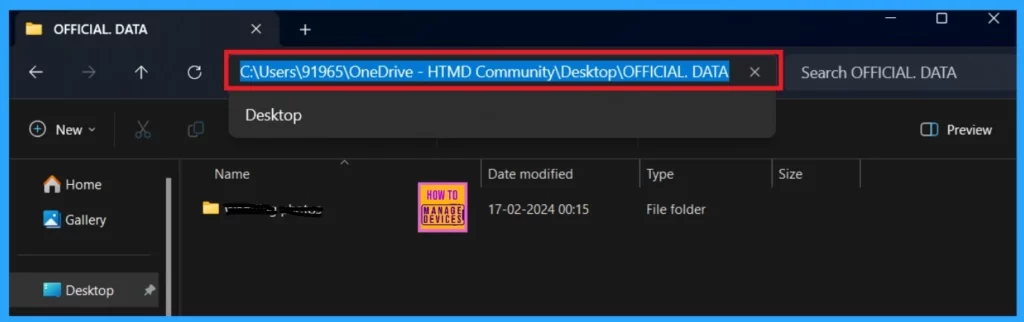
When you copy the folder path, you can paste it on a Notepad. Then, copy the above path to the Command prompt: attrib +h +s “Path of the folder. “Then put inverter coma for the path before and after, and then enter it.
- Here I entered attrib +h +s “C:\Users\91965\Desktop\OFFICIAL”.
- Now your Folder Hided
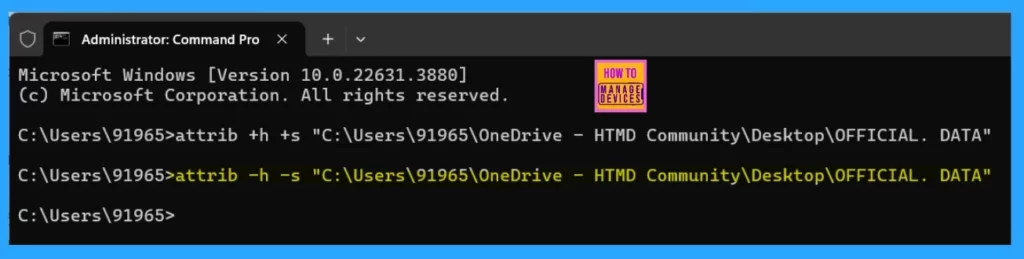
Unhide Files and Folders in Windows 11 Through Command Prompt
The next step is to unhide the folder; this is very easy. You must enter the path like attrib -s -h “full path of file”. You must follow the above rule (Space and commas must be correct when entering a path). Here I entered the Path like attrib -h -s “C:\Users\91965\OneDrive – HTMD Community\Desktop\OFFICIAL. DATA”.
Note: You don’t need to worry if you forget the folder path. You can access hidden folders using the File Explorer unhide folder method.
3. Hide Specific Folders From Windows Search
This is another method for hiding a folder from search results. Unlike the above methods, this method does not hide the Folder, but you can hide it from the Window search. For this method, first open the Settings using the Win+I key.
- In settings, select Privacy and security
- Select the Window search option from the Privacy and security
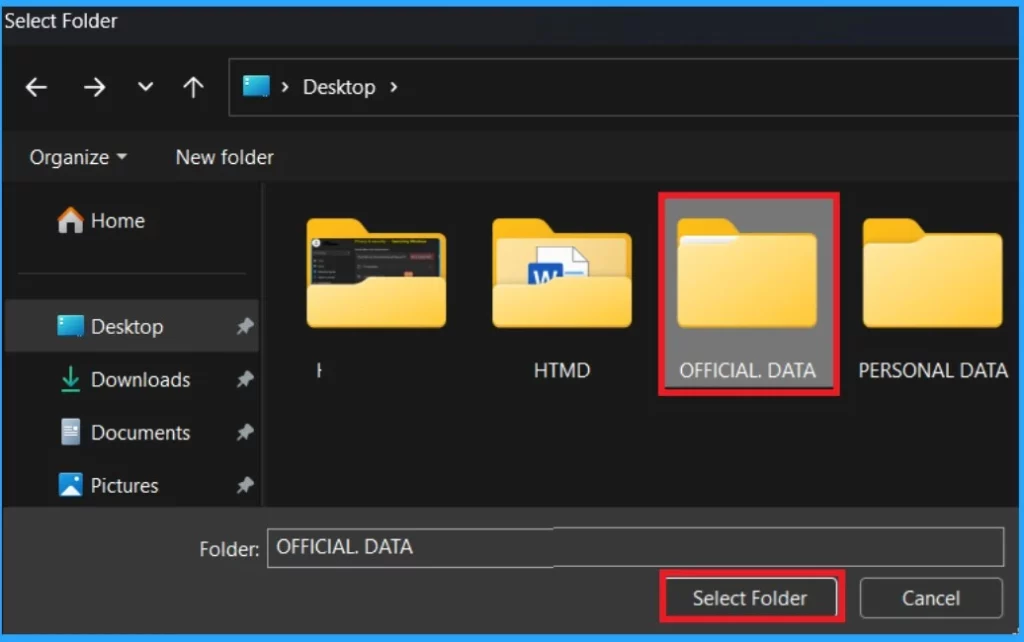
- Select add an excluded folder from the ” Exclude folders from enhanced search”
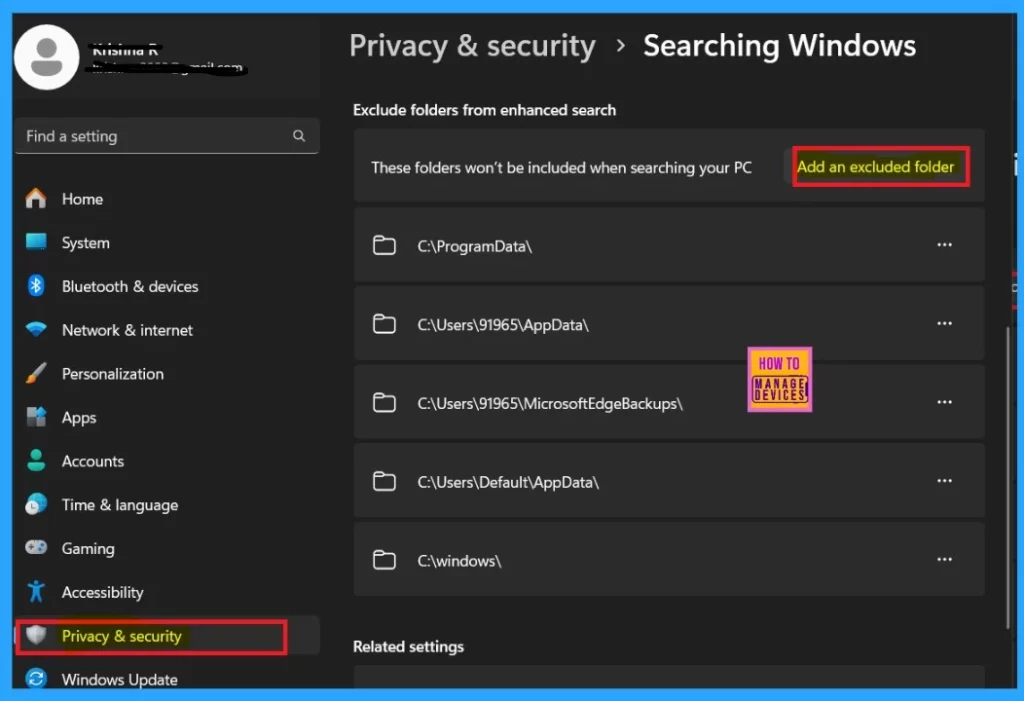
When you click on the Exclude folders from enhanced search, you can add folders that you want to hide from the Windows search. Here, I selected the folder OfficialData and clicked on the select folder.
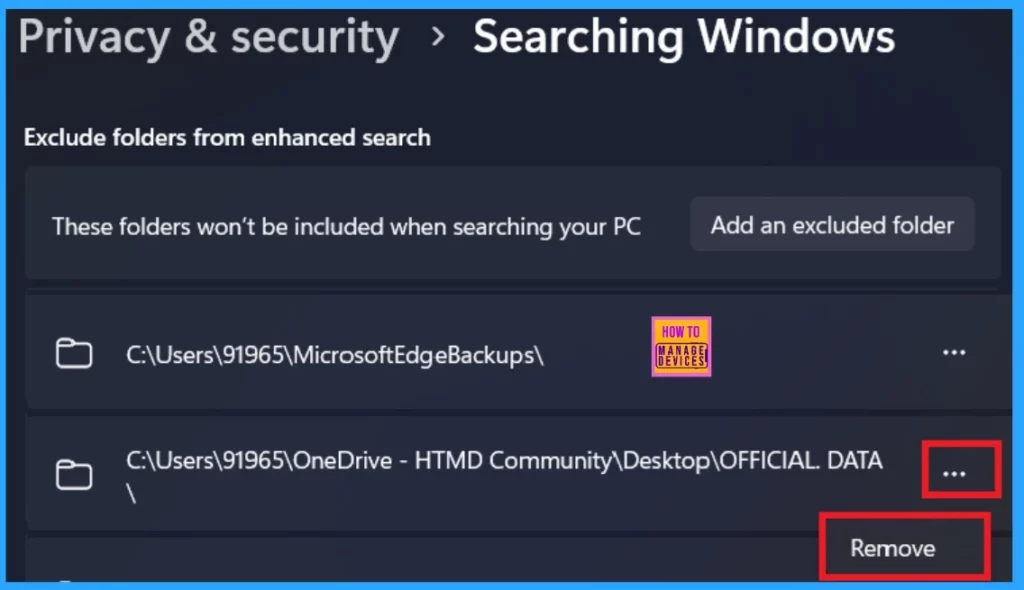
Now that the folder has been added to the excluded folder, it can’t be included when searching on your PC. You can remove the folder at any time from the excluded folder option. To do this, click on the More option (3 dot menu) to get the Remove option.
We are on WhatsApp now. To get the latest step-by-step guides, news, and updates, Join our Channel. Click here. HTMD WhatsApp.
Author
Anoop C Nair has been Microsoft MVP from 2015 onwards for 10 consecutive years! He is a Workplace Solution Architect with more than 22+ years of experience in Workplace technologies. He is also a Blogger, Speaker, and leader of the Local User Group Community. His main focus is on Device Management technologies like SCCM and Intune. He writes about technologies like Intune, SCCM, Windows, Cloud PC, Windows, Entra, Microsoft Security, Career, etc.




Discussion