






How to Allow Clipboard History using Intune Settings Catalog
Lets discuss How to Allow Clipboard History using Intune Settings Catalog. Allow Clipboard History is a policy available on the Intune Settings Catalog. This feature allows you to access multiple items that you’ve copied to your clipboard.
As you know, the Clipboard is a temporary storage area in your computer’s memory where data that you copy or cut is kept until you paste it somewhere else. This data can include text, images, files, or other types of information.
Clipboard History policy has many benefits. Instead of just being able to paste the last item you copied, you can view and paste from a list of recently copied items. This can be especially useful for tasks that require a lot of copying and pasting, like data entry or writing.
An organization also has many advantages by enabling Clipboard History Policy. It enhance your productivity and improved Data Security. Here i will share a step by step guide for Allow Clipboard History using Intune Settings Catalog.

Table of Contents
Benefits of Enabling Clipboard History Policy in an Organization?
1. It helps to copy and paste multiple items without losing previous entries.
2. It helps to Improved Workflow
3. It provides Centralized Management
4. Increased Flexibility
How to Allow Clipboard History using Intune Settings Catalog
Using Intune Settings Catalog, you can easily enable Clipboard History. Enabling this benefits your organization. Clipboard history can be synchronized across devices under the same Microsoft account, providing a cohesive experience for users who work on multiple devices.
| Steps for Allow Clipboard History |
|---|
| Go to the Intune Admin Center portal |
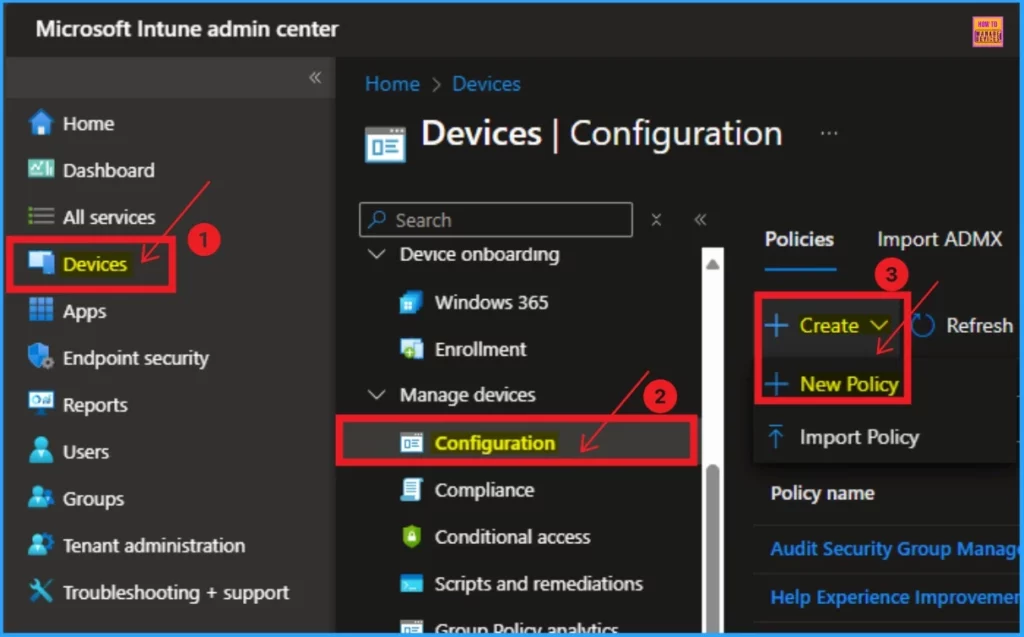
| Go to Devices > Windows >Configuration > Create > New Policy |
CSP Details of Allow Clipboard History Setting
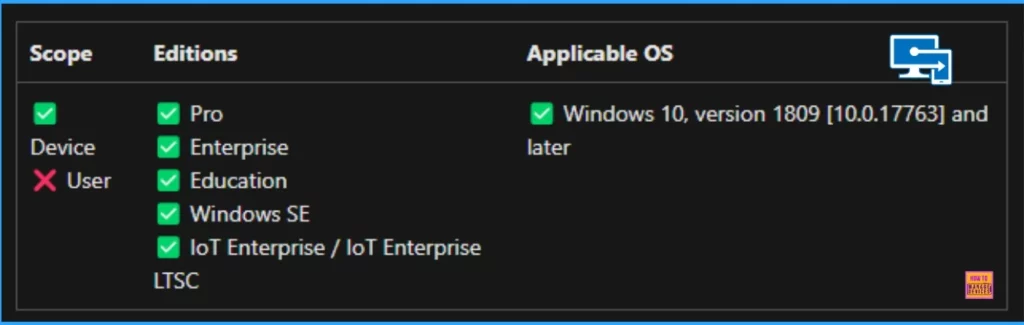
This policy setting determines whether history of Clipboard contents can be stored in memory. If you enable this policy setting, history of Clipboard contents are allowed to be stored. If you disable this policy setting, history of Clipboard contents aren’t allowed to be stored.
- Intune New Clipboard Transfer Direction Settings Now Available in Windows Settings Catalog
- Intune Configuration Profile Allow Clipboard Synchronization Across Devices
- AVD Advance Clipboard Controls Image Rich Text Format HTMD Available
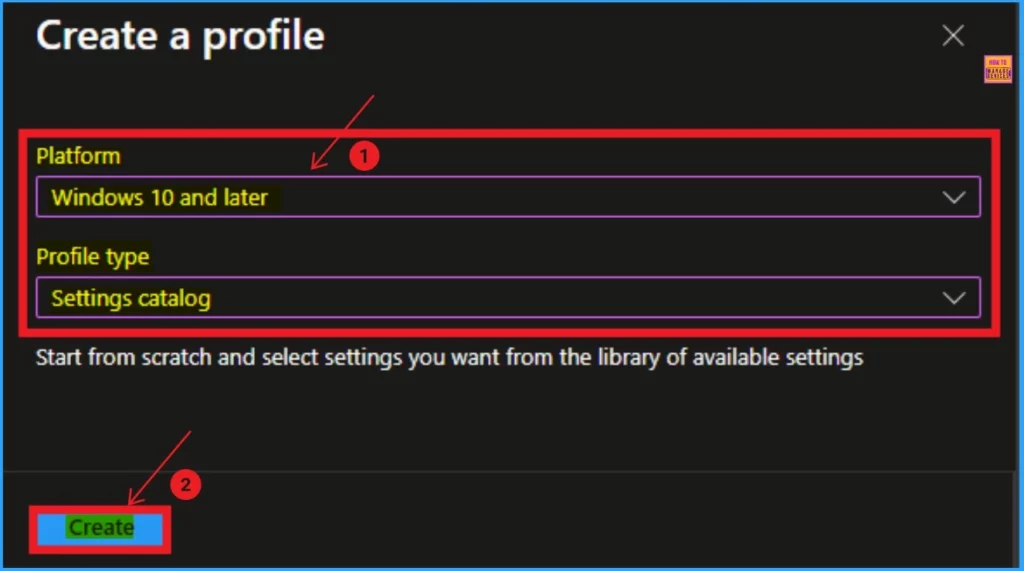
The Next step is to create a profile for your policy. To create a profile, you have to select Platform and profile type. The platform is Windows 10 and later, and the Profile type is Settings catalog. Then click on the Create Button.
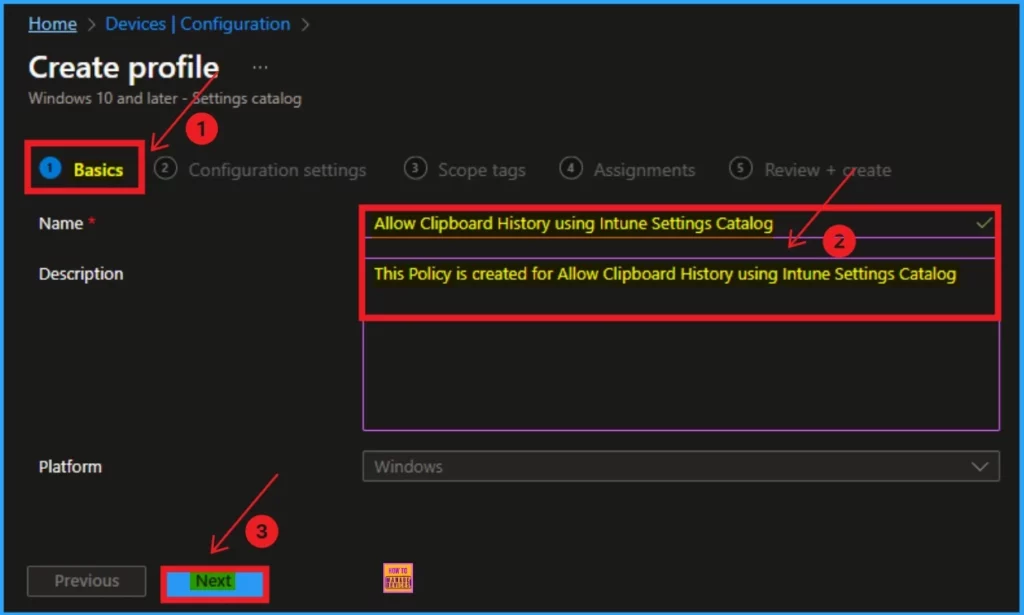
After that, you will see the Basic tab for adding the basic details of your policy. Here, you should enter the Policy Name and Description. Then click on the Next button to continue.
- Name – Allow Clipboard History using Intune Settings Catalog
- Description – This policy is created for Allow Clipboard History using Intune Settings Catalog
Configuration Profile
Next is the Configuration Profile tab, which is very important in creating profiles in Settings Catalog. On this tab, you can see the +Add settings hyperlink. Using this hyperlink, you can select settings (Policy).
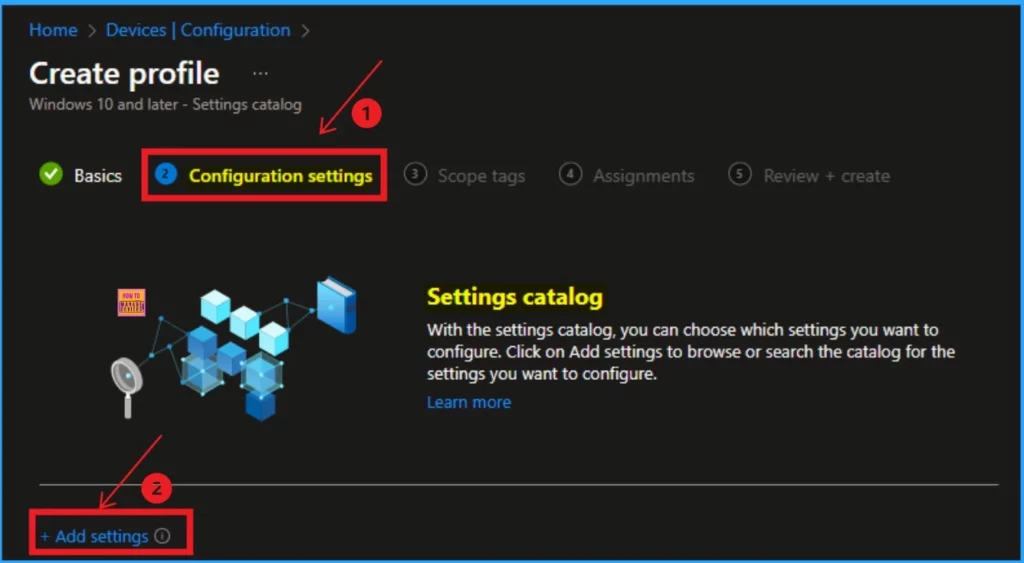
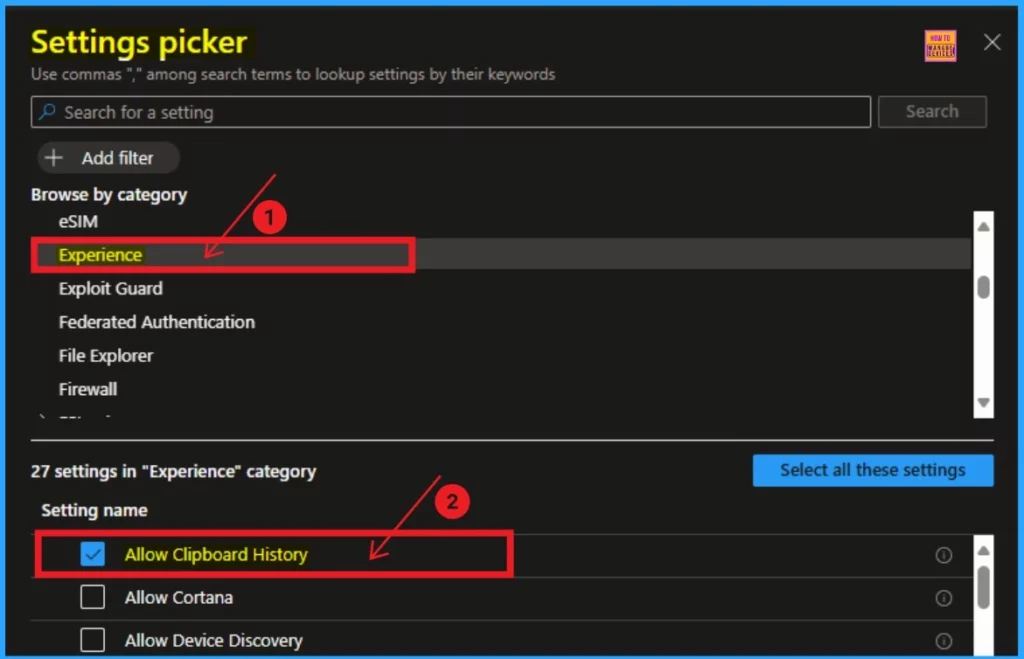
After clicking on the +Add settings hyperlink, you will get the Settings Picker. Here, you will find different types of settings. You can search for settings from this window or browse by category. Here i going to select a settings by browse by category.
- Select Experience category
- Click on the checkbox near Allow Clipboard History
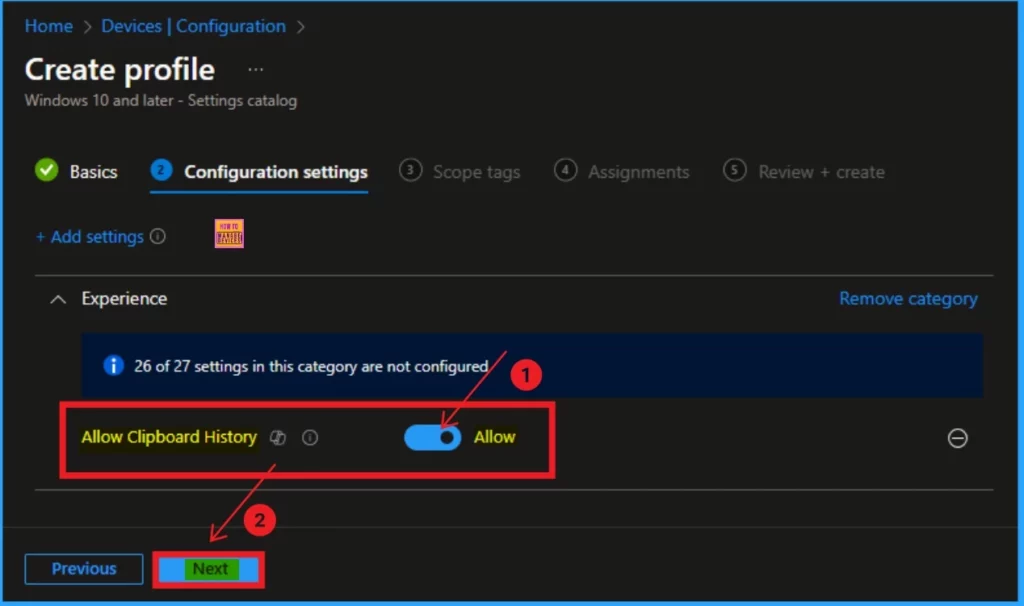
The selected policy is shown on the Configuration Profile. From this window, enable (Allow) the policy. Click on the Next button.
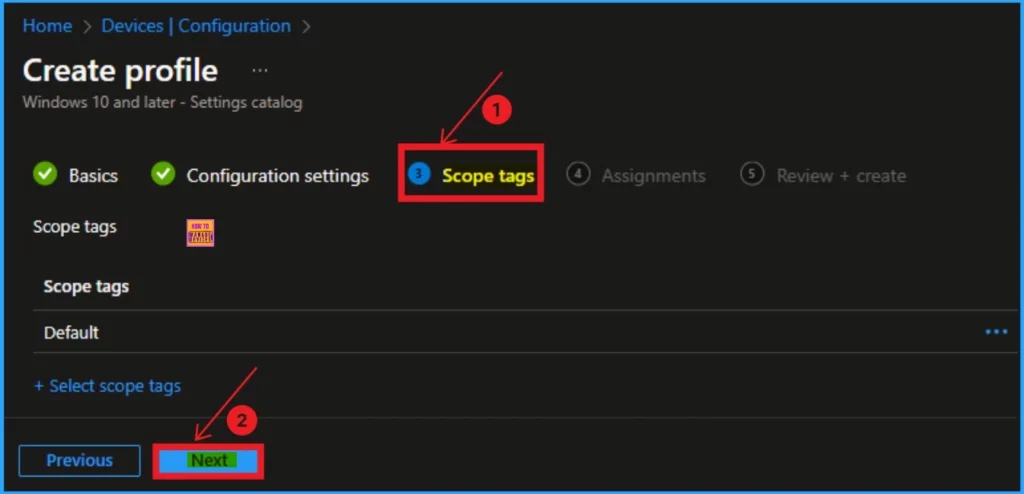
Scope Tag
Next is the Scope tags tab. You can skip this tab, and completing this section on the Intune Portal is not mandatory to create a policy. Click on the Next button to continue.
- Allow Manual Start of Microsoft Account Sign In Assistant Using Intune Settings Catalog
- How to Block Allow Toasts Notifications in Windows using Intune Settings Catalog
- How to Allow Direct Memory Access for Data Protection Through Intune Settings Catalog
Assignments Tab
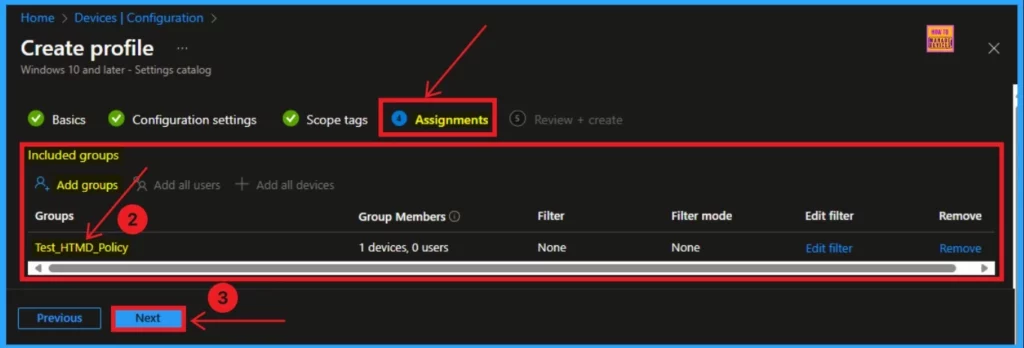
he Assignment Tab is an essential part of the Settings Catalog policy. Click on the Add Groups option from the Included Groups section. Then, you will get a new window to select groups. From this window, choose groups and click on the Select button. The selected group will be shown on the Assignments tab. Click on the Next button.
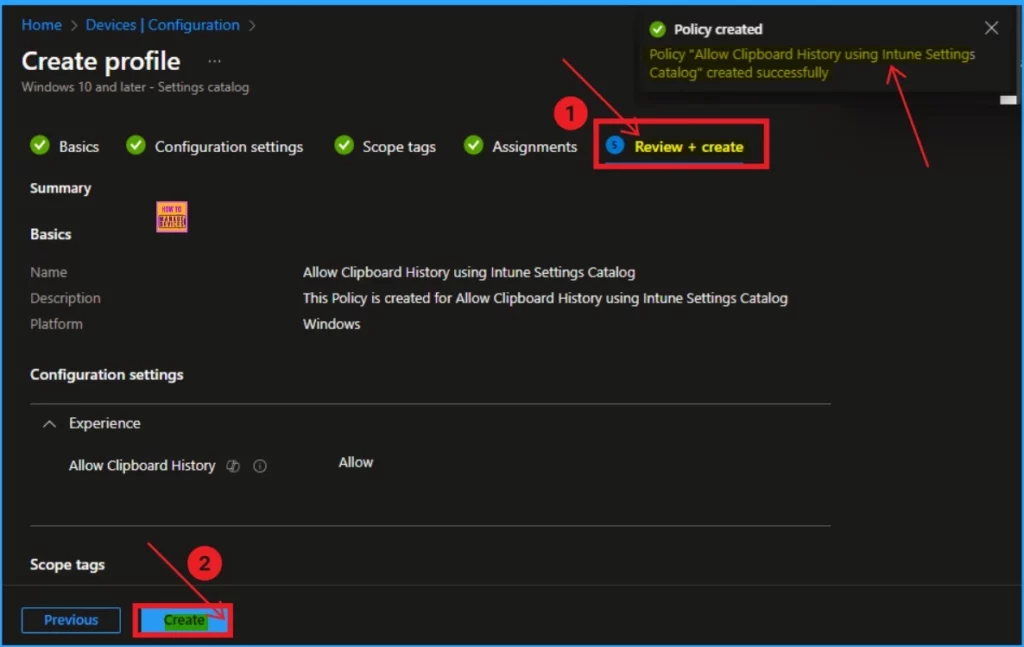
Review + Create
Review + Create is the final step for creating a policy. Here, you can quickly check all the tabs. If you want to edit any tab, click on the previous button. After that, Click on the Create button. Then, you will get a notification that the Policy has been created successfully.
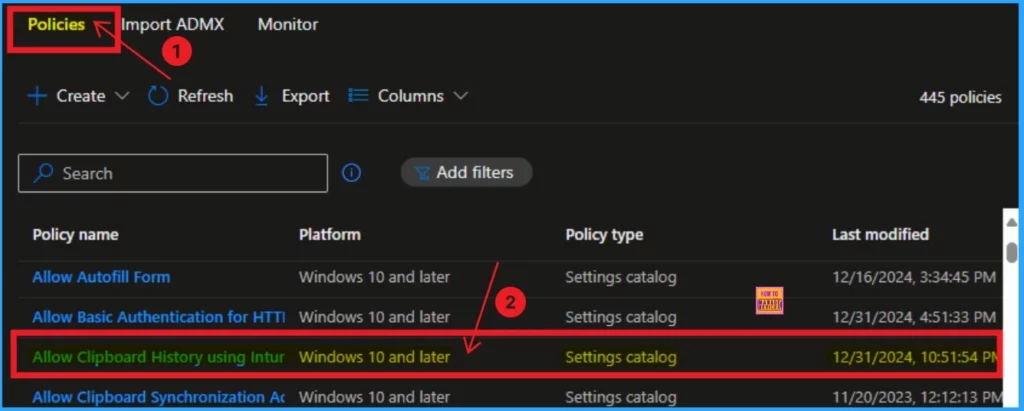
Policy Creation Status
After the policy created you can check on the Intune Portal, if the policy status is success or not. For this go to Devices and Configuration, search for your policy, and open it. Here you can see the Policy name, Platform, Policy type, Last modified date.
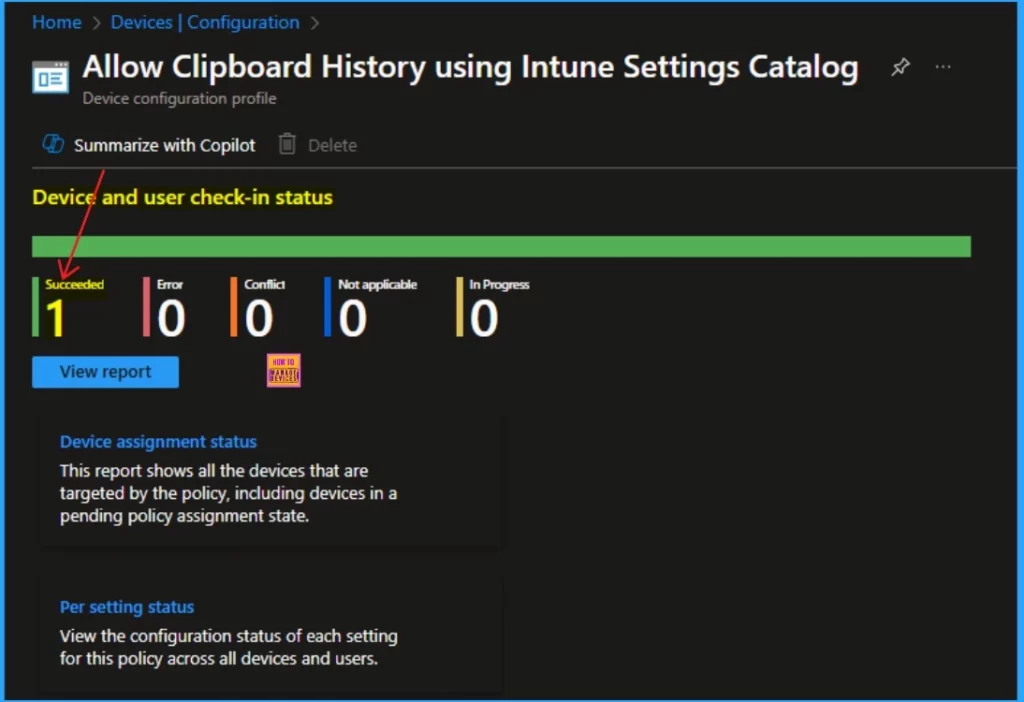
Monitor the Device and User Check-in Status
After opening the created policy, you can see the Allow Clipboard History Policy has succeeded. This report shows the selected device that are targeted by the policy. The below windows shows the details.
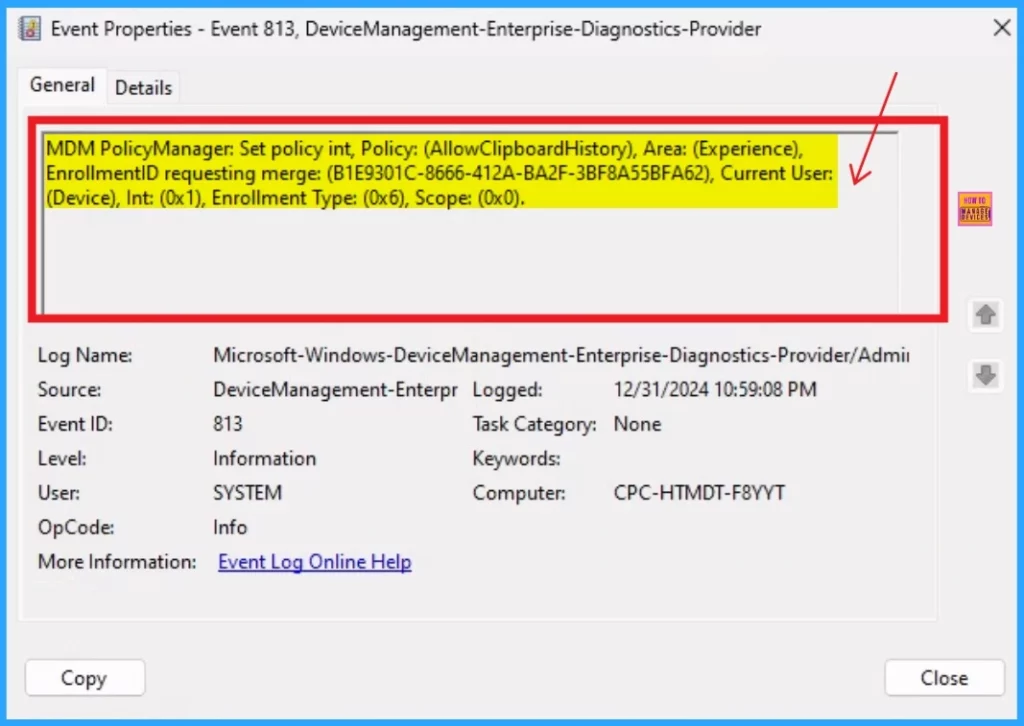
Client Side Verification – Event Log
Event Log helps you to check the client-side verification status of the created policy on the Intune Portal. To do this open the Event viewer from the Start Menu and go to Application and Services Logs > Microsoft > Windows DeviceManagement-Enterprise-Diagnostics-Provider > Admin.
- Filter for Event ID 813: This will help you quickly find the relevant logs.
MDM PolicyManager: Set policy int, Policy: (AllowClipboardHistory), Area: (Experience),
EnrollmentID requesting merge: (B1E9301C-8666-412A-BA2F-3BF8A55BFA62), Current User:
(Device), Int: (0x1), Enrollment Type: (0x6), Scope: (0x0).
Need Further Assistance or Have Technical Questions?
Join the LinkedIn Page and Telegram group to get the latest step-by-step guides and news updates. Join our Meetup Page to participate in User group meetings. Also, Join the WhatsApp Community to get the latest news on Microsoft Technologies. We are there on Reddit as well.
Author
Anoop C Nair has been Microsoft MVP for 10 consecutive years from 2015 onwards. He is a Workplace Solution Architect with more than 22+ years of experience in Workplace technologies. He is a Blogger, Speaker, and Local User Group Community leader. His primary focus is on Device Management technologies like SCCM and Intune. He writes about technologies like Intune, SCCM, Windows, Cloud PC, Windows, Entra, Microsoft Security, Career, etc.


Discussion