






How to Allow EAP Cert SSO User in Windows using Intune Settings Catalog
Let’s discuss how to Allow EAP Cert SSO User in Windows using Intune Settings Catalog. The Extensible Authentication Protocol (EAP) is a set of rules that defines how devices and networks communicate during the login process.
It’s not a single method of authentication but a framework that supports different ways to verify a user’s identity. EAP is used in various technologies, like secure Wi-Fi (IEEE 802.1X), wired network connections, and VPNs, to ensure that the right person is accessing the network.
The Intune Settings Catalog is a comprehensive list of settings in Microsoft Intune that provides a centralized way to configure and manage device settings for Windows, macOS, iOS, and Android devices. In this post, you will learn how to enable the Allow EAP Cert SSO User in Windows policy using the Intune Settings Catalog.
This guide will explain how to configure Windows devices to use EAP (Extensible Authentication Protocol) with certificates for secure Single Sign-On (SSO). With this setup, users can log in once using a certificate and automatically access various services without re-entering credentials. This not only enhances security but also simplifies the login process for users, especially in corporate networks.

Table of Contents
Windows CSP AllowEAPCertSSO
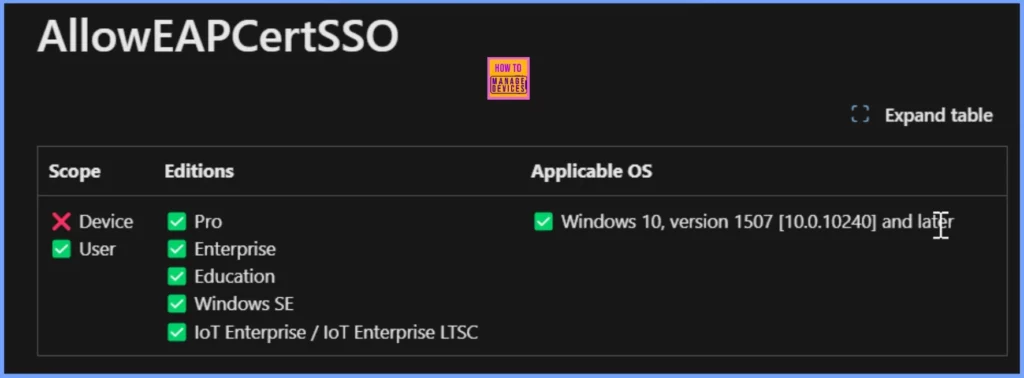
In Windows, CSP policies help manage and configure settings on devices running Windows 10 and later. These policies are applied using tools like Intune, a MDM solution. Each CSP policy has specific values to control its behavior.
- 0: The default value, meaning the policy is not allowed or disabled.
- 1: This value enables the policy, allowing the setting to be active.
- Administrators can use these settings to customize and secure devices according to their organization’s needs.
| Property name | Property value |
|---|---|
| Format | int |
| Access Type | Add, Delete, Get, Replace |
| Default Value | 0 |
./User/Vendor/MSFT/Policy/Config/Authentication/AllowEAPCertSSO
- How to Allow Entra Password Reset in Windows using Intune
- Enable Self Service Password Reset SSPR on Windows Login Screen using Intune Policy
- Best Set of Updated Windows 11 Password Policies
How to Allow EAP Cert SSO User in Windows using Intune Settings Catalog
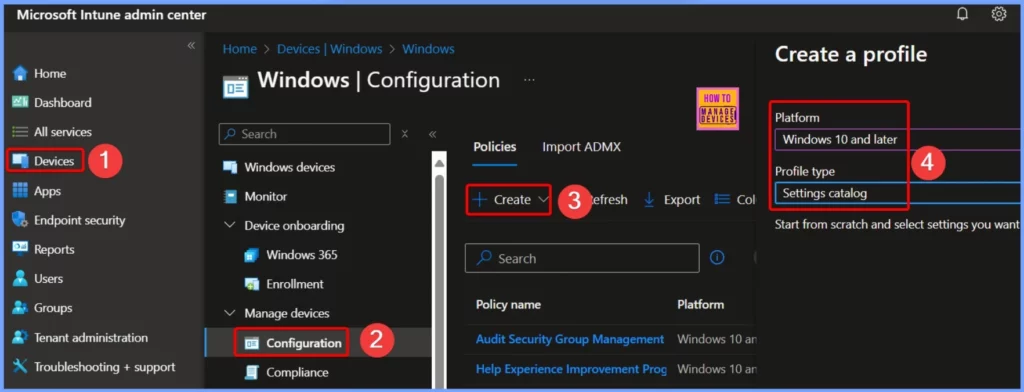
You can quickly allow or block EAP Cert SSO User in Windows through the Intune Settings Catalog. Start by opening the Intune admin center and logging in with your credentials. Navigate to Devices, then select Configuration Profiles. Click on Create Profile and choose to create a new policy using the Settings Catalog.
- Platform as Windows 10 and later
- Profile type as Settings catalog
Basic Settings
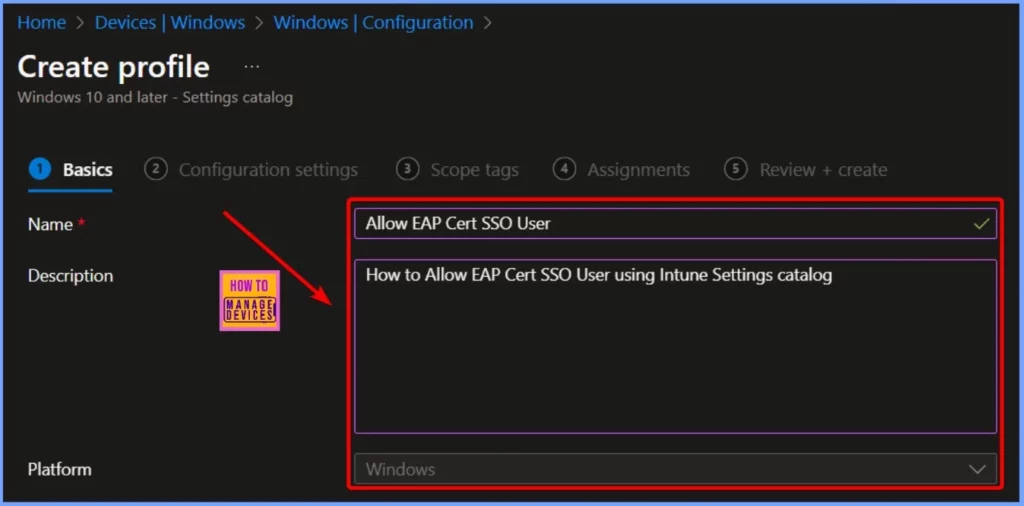
To configure the policy, start by entering the Name of the policy as Allow EAP Cert SSO User. In the Description field, you can write something simple like How to allow EAP Cert SSO user using Intune Settings Catalog. This will help you identify the policy later and provide a brief explanation of what it does.
Authentication
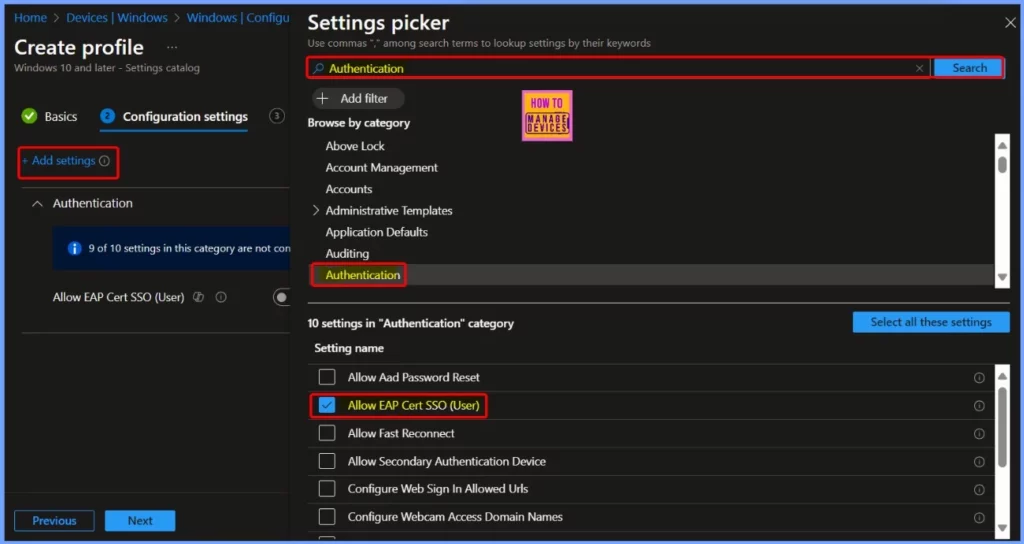
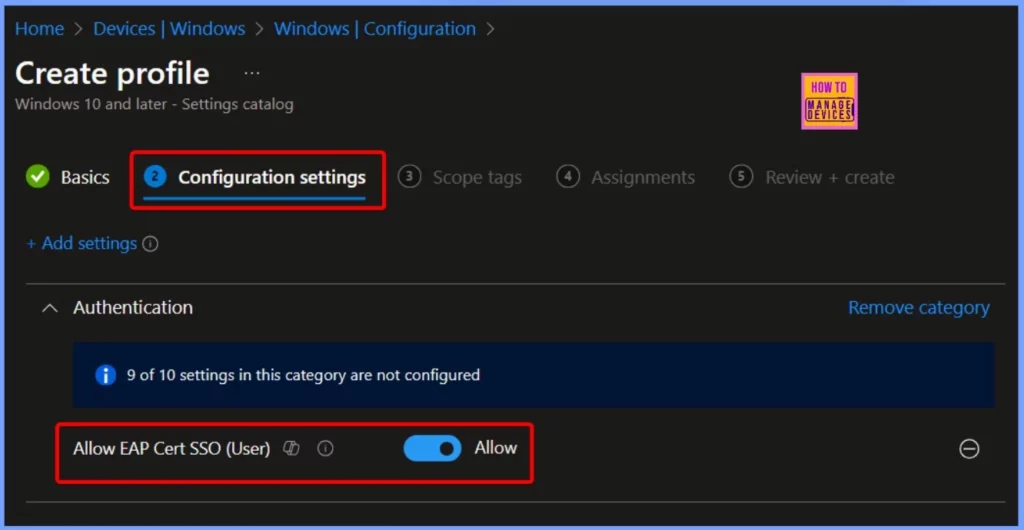
In the Configuration settings section, click the +Add settings link. In the search box, type Authentication, and you’ll see a list of more than 10 settings under this category. Look for the option called Allow EAP Cert SSO User and enable it. Once selected, close the settings window.
This step ensures that the EAP certificate-based Single Sign-On feature is applied to your policy.
Configuration Settings
You can easily allow the EAP Cert SSO user settings in windows 11. Allows an EAP cert-based authentication for a single sign on (SSO) to access internal resources. The below screenshot helps you to show more details.
| Configuration Settings | Enable | Disable |
|---|---|---|
| Allow EAP Cert SSO User | Toggle the pane to Right side | Toggle the pane to Left side |
- Entra External ID Now Supports SMS as an MFA Option
- MFA Authentication now Added to WhatsAppEntra External ID Now Supports SMS as an MFA Option
- MFA Authentication now Added to WhatsApp
Scope Tags and Assignments
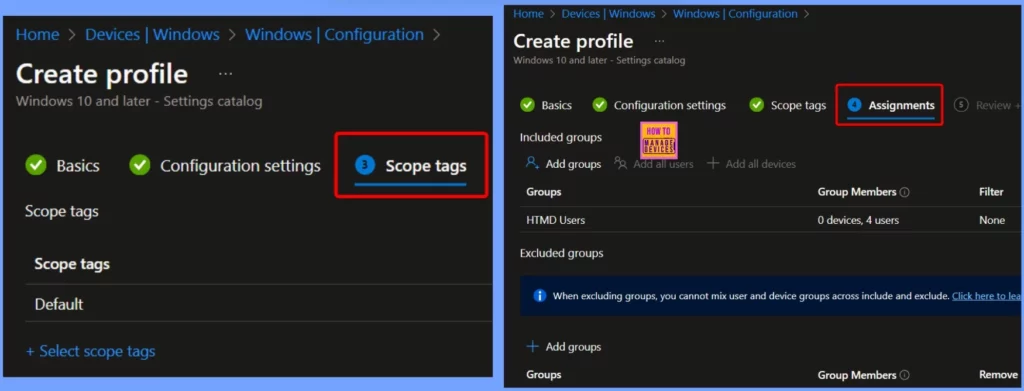
A Scope Tag is a way to filter and control which users, groups, or devices a particular configuration or policy applies to.Through the Assignment tab, you can assign the policy to specific groups, users, or devices.
Review + Create
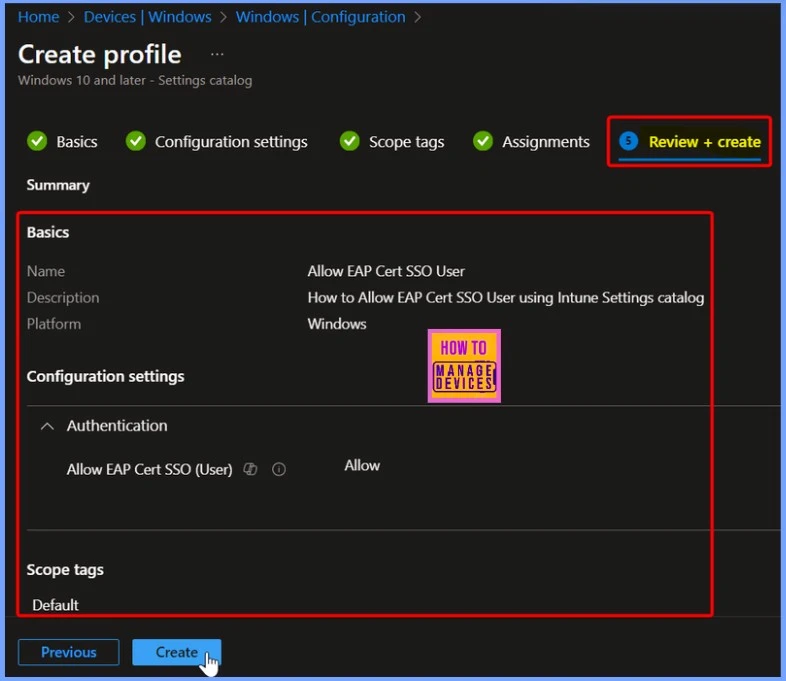
The Review + Create tab in Microsoft Intune is the final step in the policy creation process. After configuring a policy or profile, you will use this tab to review all the settings and details you’ve chosen.
Device and User Check in Status
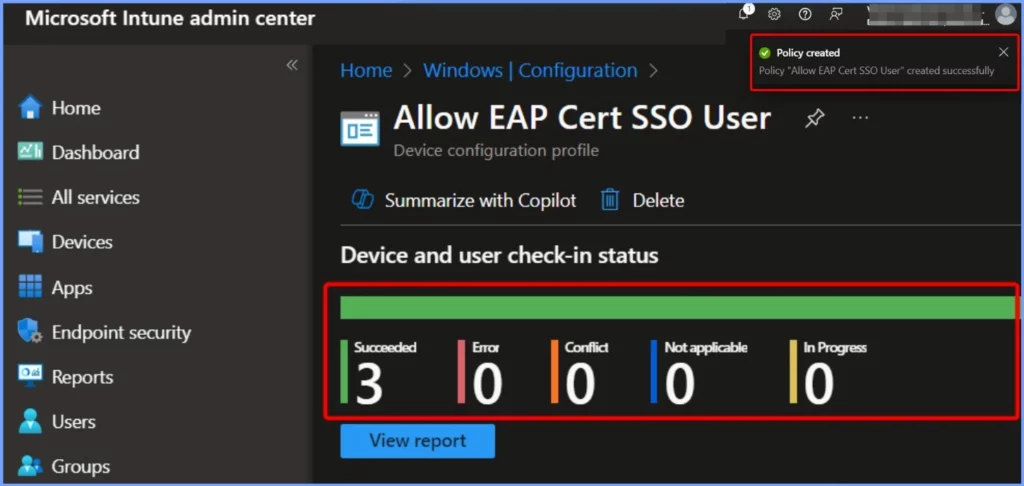
Here in the below you can see that the policy Allow EAP Cert SSO User is created successfully. The succeeded number is 3. The screenshot provides additional details, helping you understand the status and results of the policy creation process. This confirmation ensures that the policy is now ready and correctly applied to the intended devices or users.
Client Side Verification
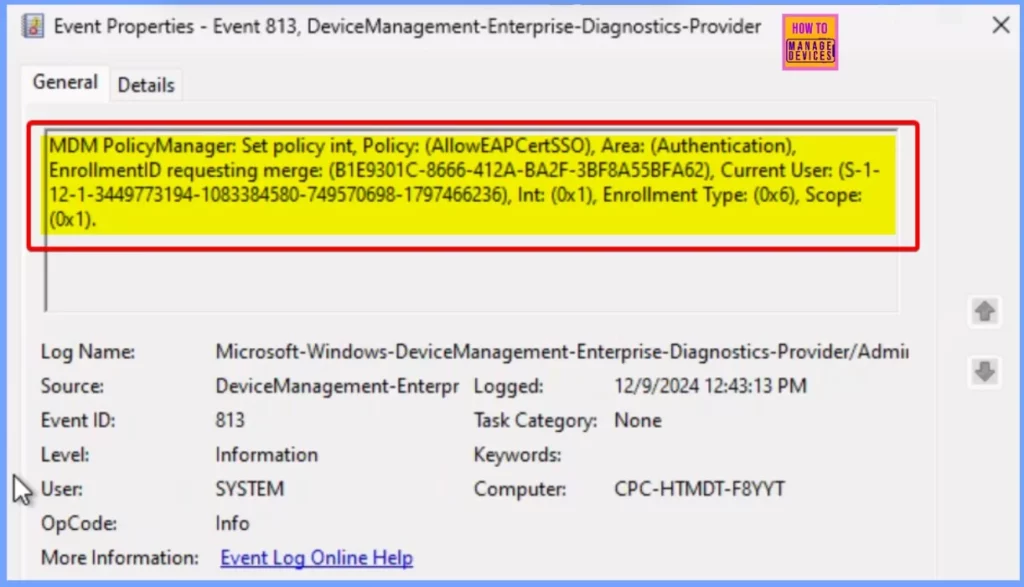
You can easily check if Intune successfully applied the Allow EAP Cert SSO User policy to a Windows device using Event Viewer. Here’s how to do it.
- Open Event Viewer: Go to Start > Event Viewer.
- Navigate to Logs: In the left pane, go to Application and Services Logs > Microsoft > Windows > DeviceManagement-Enterprise-Diagnostics-Provider > Admin.
- Filter for Event ID 813: This will help you quickly find the relevant logs.
MDM PolicyManager: Set policy int, Policy: (AllowEAPCertSSO), Area: (Authentication), EnrollmentID requesting merge: (B1E9301C-8666-412A-BA2F-3BF8A55BFA62), Current User: (S-1-12-1-3449773194-1083384580-749570698-1797466236), Int: (0x1), Enrollment Type: (0x6), Scope: (0x1).
Need Further Assistance or Have Technical Questions?
Join the LinkedIn Page and Telegram group to get the latest step-by-step guides and news updates. Join our Meetup Page to participate in User group meetings. Also, Join the WhatsApp Community to get the latest news on Microsoft Technologies. We are there on Reddit as well.
Author
Anoop C Nair has been Microsoft MVP from 2015 onwards for 10 consecutive years! He is a Workplace Solution Architect with more than 22+ years of experience in Workplace technologies. He is also a Blogger, Speaker, and Local User Group Community leader. His primary focus is on Device Management technologies like SCCM and Intune. He writes about technologies like Intune, SCCM, Windows, Cloud PC, Windows, Entra, Microsoft Security, Career, etc.


Discussion