






How to Enable Mica Effect in Microsoft Edge
Let’s learn how to Enable Mica Effect in Microsoft Edge. Mica Material helps to give a semi-transparent blur effect with UI elements like Windows, taskbar etc. It gives an attractive appearance to your Microsoft Edge Browser.
Microsoft Edge is a popular Web browser that gives many features to users. Microsoft Edge was the first browser that introduced the Mica Material Visual effect. Mica Material is in a preview version, and you can enable this feature by following some steps.
Mica Material was Introduced by Microsoft Several Months before, and this feature was removed for some reason. And now, Microsoft once again provides this feature to the Microsoft Edge browser. Mica is specifically designed for app performance as it only samples the desktop wallpaper once to create its visualization.
Mica is an opaque, dynamic material that incorporates theme and desktop wallpaper to paint the background of long-lived windows, such as apps and settings. You can apply Mica to your application backdrop to delight users and create visual hierarchy, aiding productivity by increasing clarity about which window is in focus.

This blog post will help you to understand how to enable Mica Material in Microsoft Edge. You can see the Mica Material effect in the Edge toolbar. These effects give a pretty good look to your Microsoft Edge Browser.
What are the Advantages of Mica Material in Edge Browser?
1. It gives a semi-transparent blur effect
2. It shines through the colours of the desktop background image
3. It gives an attractive appearance
How to Enable Mica Effect in Microsoft Edge
Mica Material is a wonderful feature in the Microsoft Edge browser that allows users to change the appearance of their Microsoft Edge Browser. You can easily enable this feature from the Edge browser.
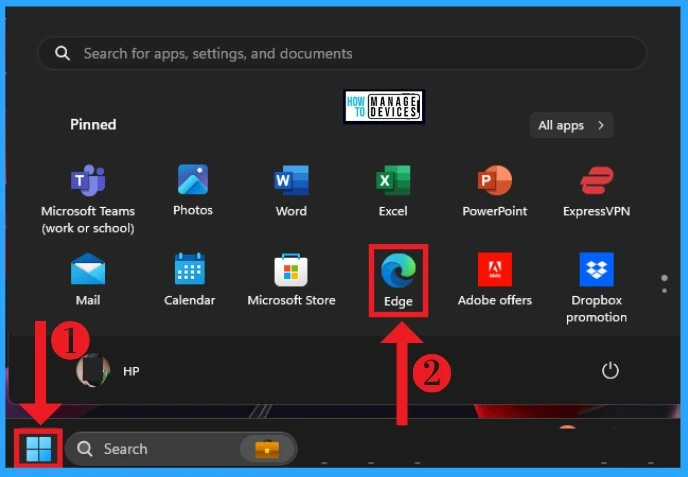
- Open Microsoft Edge from the Start Menu
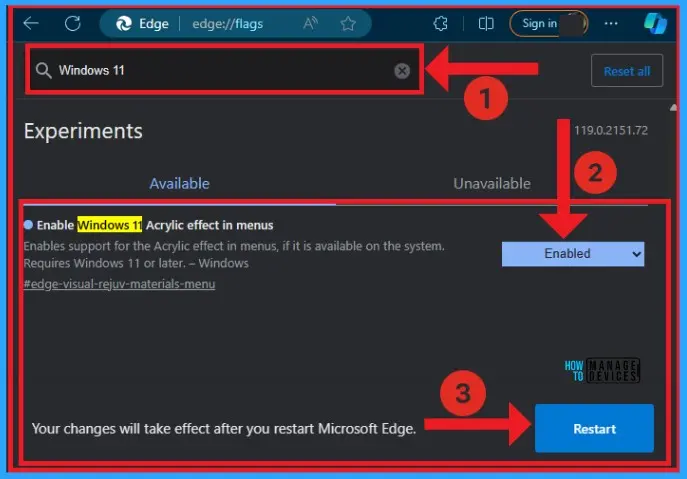
After that, search edge://flags/ on the search box of Microsoft Edge. You will get the experimental window of the Microsoft Edge browser. Seach Windows 11 in the search box of search box of Experimental window. Enable the “Enable Windows 11 Acrylic effect in menus”. After that, Click on the Restart option.
| Features of Acrylic Effect |
|---|
| Enables support for the Acrylic effect in the menu, if it is available on the system |
| Requires Windows 11 or later |
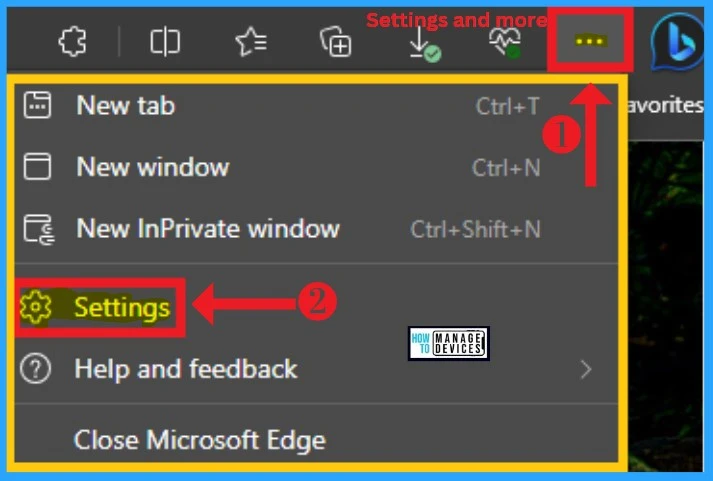
After that, the Edge browser will restart, and you can see the changes. Then click the Settings and More option of Edge browser. Then click on the Settings option.
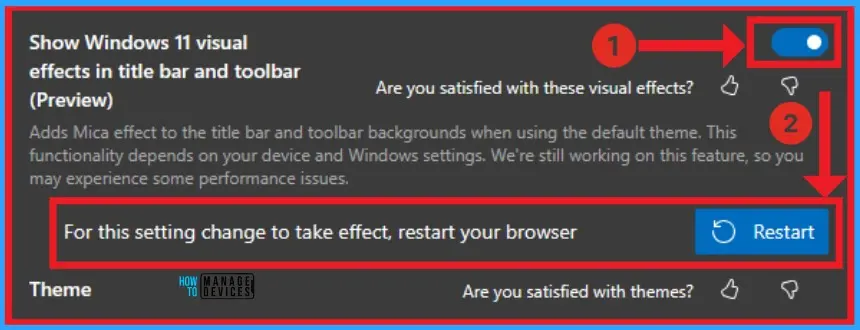
After that, Select the Appearance option from Edge browser settings. Select the default theme from the Theme section, and you can see the Show Windows 11 Visual effects in the title bar and the toolbar (preview) feature appears. You only get this feature after you select the default theme of the Edge browser.
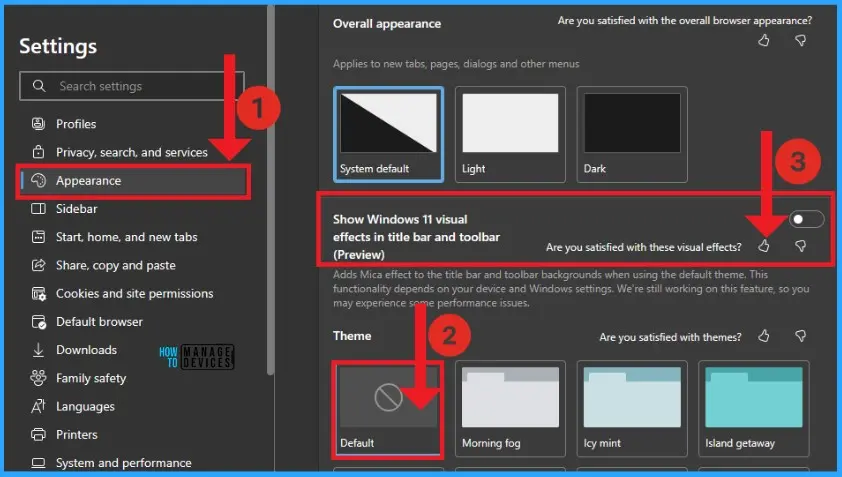
Enable the “Show Windows 11 visual effects in the title bar and toolbar (Preview) by toggling the pane to the right. The effect feature will reflect on your Edge browser after you restart. Click on the Restart option.
We are on WhatsApp. To get the latest step-by-step guides and news updates, Join our Channel. Click here for HTMD WhatsApp.
Author
Gopika S Nair is a computer enthusiast. She loves writing on Windows 11 and related technologies. She is here to share quick tips and tricks with Windows 11 or Windows 10 users. She is Post Graduate Diploma Holder in Computer Science.




Discussion