






How to Mirror Project Android iOS Windows Phone Device Screens to Windows Machine
How do you mirror Project Android iOS Windows Phone Device Screens to Windows Machines? During the demos, we may need to project or mirror the Android, iOS, and Windows mobile device screens onto our Windows desktop or laptop.
I struggled to get this working during the demos, and it’s a bit annoying. With the release of Microsoft Intune and the mobile management capabilities of SCCM 2012, we have more requirements for mirroring the screens of Android, iOS, and Windows devices. In this post, I’ll try to explain how I perform mirroring during the demo sessions.
This post provides all the details on Mirroring Project Android, iOS, and Windows Phone device Screens to a Windows Machine.
Several tools and methods are available depending on the operating system of your mobile device to mirror screens from Android, iOS, or Windows Phone devices to a Windows machine. The latest one is Mirroring360, which involves screen mirroring from devices to computers and screen sharing.

- How to Project Android Phone Screens to Windows 11 Computer
- Enable Flash Screen During Audio Notifications in Windows 11
How Do You Mirror or Project Windows Mobile Devices to Windows Machines?
For Windows mobile phone devices, it’s pretty straightforward. If you want to protect your phone screen from an external display but cannot connect to a wireless device, you can use a USB cable to connect to a Windows device. Download Project My Screen App for Windows Phone. This is a free application!!
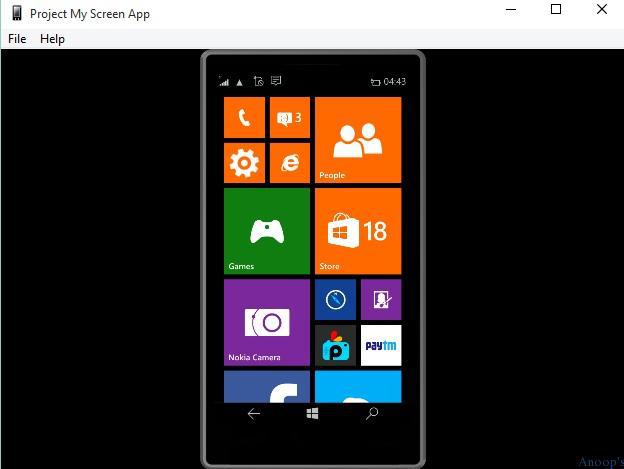
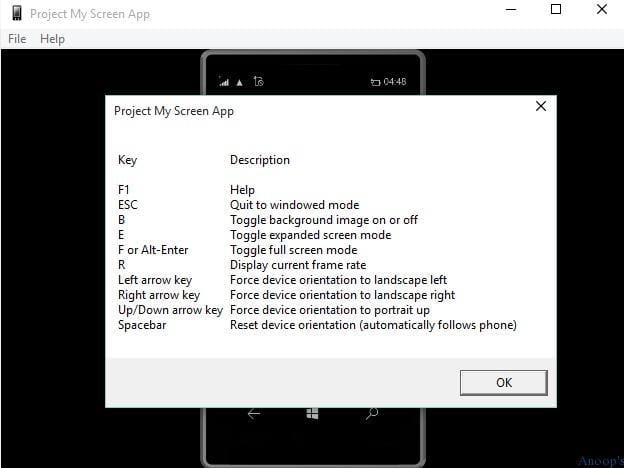
Here are some helpful shortcut critical combinations for Microsoft’s project My Screen application. The list below helps you show more details of the Mirror Project Android iOS Windows Phone device Screens to Windows Machine.
| Valid Shortcut Key Combinations of Microsoft’s Project My Screen Application |
|---|
| F1 – help |
| ESC – Quit Windowed Mode |
| B – Toggle background image on or Off |
| E – Toggle expanded screen mode |
| F or Alt-Enter –Toggle FULL Screen Mode |
| R – Display the current frame rate |
| Left Arrow Key – Force Device orientation to landscape left |
| Right arrow Key – Force Device orientation to landscape Right |
| Up/Down arrow key – Force device orientation to portrait up |
| Spacebar – to Reset Device orientation (automatically follow phone) |
How Do You Project or Mirror iOS Devices like iPads and iPhones on Windows Desktops or Laptops?
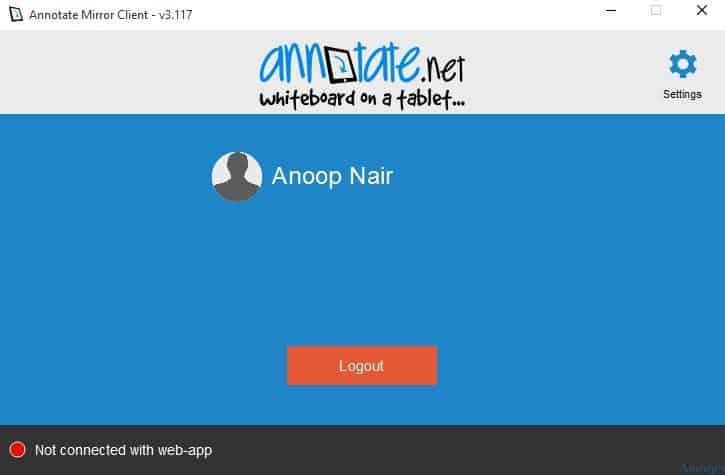
I tried a couple of other applications to mirror the iPad to a Windows machine; however, Annotate was easy to use. I must warn you that this is not a free application.
You need to pay for it. The Annotate Mirror Client must be installed on your computer to enable features such as a mobile interactive whiteboard, screen mirroring, screencast recording, and remote desktop. More details about Annotate Mirror Client are here.
- You can also try the experience with the trial version of this mirroring application.
- All these devices should be connected to the same WiFi network to have an annotated screen mirror working.
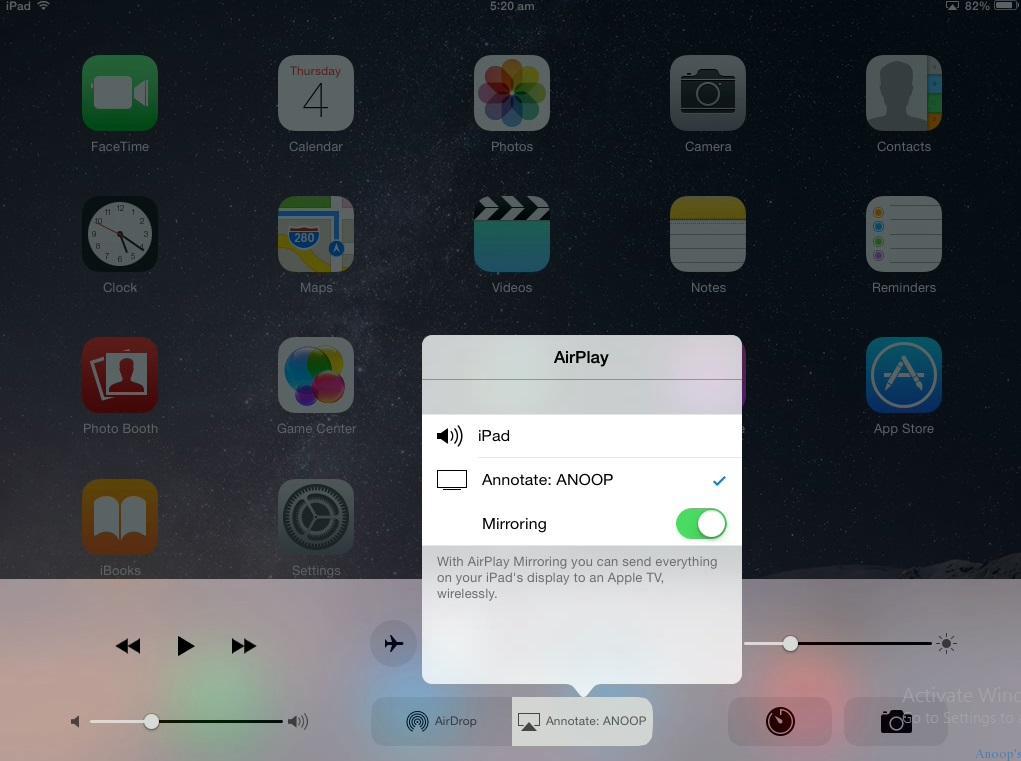
The best part of Annotate is that we don’t need to install any application on an iPad or any other iOS device to start mirroring the screen to a Windows desktop or laptop.
The process is straightforward: tap and bring up the AirPlay menu from the iPad, connect to the device name, similar to “Annotate:ANOOP,” and enable the mirroring option.
How Do You Project or Mirror Android Devices to Windows Desktops or Laptops?
I use Annotate Mirror Client to mirror Android mobile phones. As mentioned above, you need a license to project/mirror Android and iOS devices with the same application. It’s better to take a yearly license. How can I connect an Android phone to a Windows laptop using Annotate?
Tap and bring down the quick shortcut from your Android device, then tap on the “Cast Screen” option. The Cast Screen option on your Android device will show you the nearby devices you can connect to for a screencast. Select the device that starts with “Annotate:ANOOP,” and you’re done!! Your Android phone has started mirroring.
- All these devices should be connected to the same WiFi network to have an annotated screen mirror working.
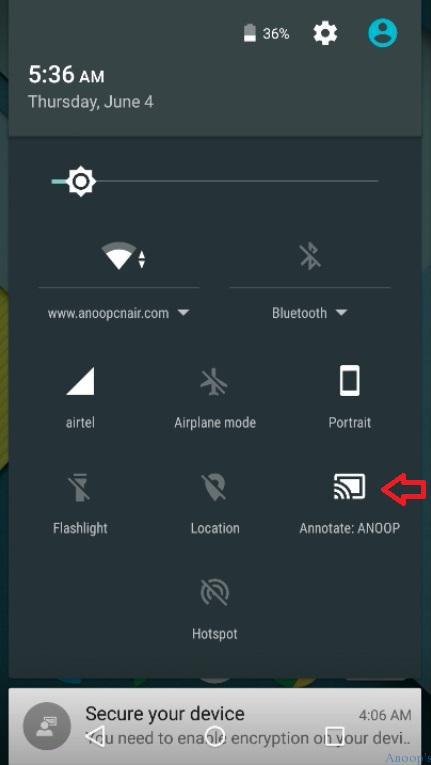
As mentioned below, if your Android phone doesn’t have the CAST option, you may need to install the Chromecast (Renamed to Google Cast :)) application from Google Play!
Resources
SCCM Related Posts Real World Experiences Of SCCM Admins (anoopcnair.com)
SCCM Video Tutorials For IT Pros – HTMD Blog #2 (howtomanagedevices.com)
We are on WhatsApp now. To get the latest step-by-step guides, news, and updates, Join our Channel. Click here. HTMD WhatsApp.
Author
Anoop C Nair is Microsoft MVP! He is a Device Management Admin with more than 20 years of experience (calculation done in 2021) in IT. He is a Blogger, Speaker, and Local User Group HTMD Community leader. His main focus is on Device Management technologies like SCCM 2012, Current Branch, and Intune. He writes about ConfigMgr, Windows 11, Windows 10, Azure AD, Microsoft Intune, Windows 365, AVD, etc.


For Android you can also use the free app “Android Screen monitor”, I believe available from Source Forge. It works over USB and you must enable USB debugging in Android settings first.