






How to Monitor SCCM DP using Job Queue Manager Tool
Let’s check how to monitor SCCM DP using the Job Queue Manager Tool. The SCCM DP Monitoring using the DP Job Queue Manager Tool is better than watching the status of distribution using the log files.
There are many ways to monitor SCCM DPs from the admin console. The SCCM console DP monitoring provides a lot of information about the Distribution Point installation and configuration status.
It’s very time-consuming to check SCCM Logs to understand what is going on with a package or application distribution when you have hundreds of remote Distribution Points. The main log file you will need to check for remote DPs is PkgXferMgr.log.
Related Post – How To Use ConfigMgr Content Library Explorer Tool and SCCM Content Library Cleanup Tool | Distribution Point | Configuration Manager

The DP Job Monitoring Tool (dpjobmgr.exe) available with SCCM source files will give a great overview of the DP Job Queue for all the remote DPs. This tool is not useful to get the DP monitoring details of DP roles on Site System Servers (Primary and Secondary).
You can’t connect to the CAS server from this DP Job Queue Manager tool. You have to connect to SCCM primary server to get the details of DP Job queues. This tool also helps to manage the DP job queues.
- How to Install SCCM DP on Windows 11 | Enable PXE Server and Troubleshooting Tips
- Install A New Configuration Manager Distribution Point
- Remove Distribution Point Role
What is DP Job Queue Manager Tool?
The DP Job Queue Manager tool helps to monitor SCCM DP. This also can be used to troubleshoot and manage ongoing content distribution jobs to SCCM remote DP.
The tool displays the list of jobs that the package transfer manager component (PkgXferMgr.log) has in its queue for remote DPs. You would be able to cancel and adjust the priorities of these content transfer jobs.

You can get the DP Job Monitoring Tool (dpjobmgr.exe) from the following folder on the primary server \Program Files\Microsoft Configuration Manager\tools\ServerTools.
The following are the tabs/features available in DP Job Queue Manager Tool.
- Connection
- Overview
- Distribution Point Info
- Manage Jobs
How to Start Monitoring SCCM DP using DP Job Queue Manager Tool
Let’s learn how to monitor SCCM distribution points using the DP Job queue manager tool. You can copy the entire Server Tools folder from SCCM primary server and launch DPJobMgr.exe from a remote server or Windows 11 PC.
I received an RPC unavailable error when I connected the DP job queue monitor tool from one of my Windows 10 PC. I have not looked into the details of the connectivity issue because it works fine from the Windows 11 PC on the same network.
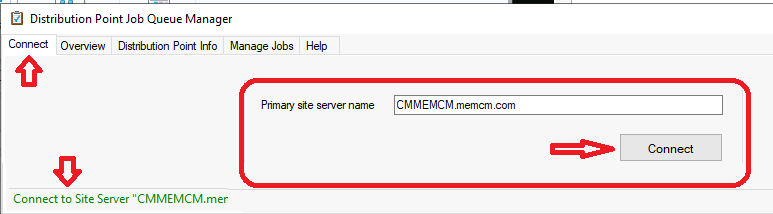
NOTE! – You can’t connect to SCCM CAS and Secondary server from DP Job Manager Tool. Connects to Primary Site Server (use FQDN) as per MS docs, but I could connect with short name/hostname as well.
Once you launch DPJobMgr.exe, you can use the FQDN or hostname of the SCCM primary server to monitor SCCM DP. Click on the Connect button to start the DP job queue management. The tool won’t show any other page after successful connection rather, and you will need to navigate to other tabs to get the DP Job details.
NOTE! – Don’t expect all the magic like modern application from this tool. It’s a very basic tool. You will need to configure the auto-refresh interval or refresh button to update the monitoring screen.
Permissions Required to Run SCCM DP Job Queue Monitor Tool
Let’s find the permissions required to Run SCCM DP Job Queue Monitor Tool. Depending on what security role the user is assigned to, the software name may or may not be displayed.
NOTE! – For the best experience, it is suggested to run this tool with a user assigned the “Full Administrator” role.
SCCM DP Monitoring Tool Symbols
Let’s understand the symbols used in the SCCM DP monitoring tool. There are three (3) symbols are used in the DP Job Queue monitor tool. You can check the PkgXferMgr.log file on the site server to understand these processes in detail.
- Running job.
- Job in the queue ready to be picked up when there is an available thread in the queue.
- Job in the retry mode and will be eligible to be re-run at the stated restart time. It may have failed or sending capacity was full.

DP Job Queue Manager – Overview
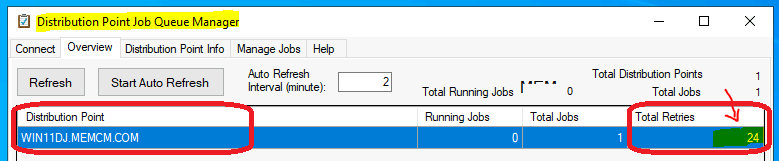
The DP job queue manager overview lists the remote distribution points and distribution job info associated with the SCCM primary site server.
NOTE! – The overview tab won’t show the SCCM distribution point job queue details if the DP is hosted on the SCCM primary or secondary server.
The overview tab gives you the end-to-end details of remote distribution points under an SCCM primary server. Such as a list of remote DPs, Running Jobs, Total number of Jobs, Total Reties for each remote DP.
This overview gives you an idea of which DP is having the issue, and you can prioritize fixing the issues with that particular remote DP. This overview tab from the Distribution Point Job Queue Manager tool gives you the details such as the Total number of Remote Distribution Points under a primary server and the total number of content transfer jobs running.
Distribution Point Info Helps to Monitor SCCM DP
The distribution Point Info tab helps system admins monitor SCCM DP health by looking at the lists of detailed job information on the Distribution Points selected. There are two right-click options available for each DP job in the queue.
- Manage Jobs – This will take to Manage Jobs tab in the same tool.
- Copy – Allow you to copy the SCCM DP Job information to text format.
Distribution Point Job Queue Manager DP Info tab shows the list of remote DPs on the left-side navigation pane and the job details of each remote DP on the right-side navigation pane.
It’s important to understand the symbols used in this tool to monitor SCCM DP successfully. The green play button symbol means all ok to proceed (queue ready mode). The black symbol (shown below) means the job in the retry mode.
NOTE! The most interesting columns in DP troubleshooting are Start/Restart Time and Retries. The maximum retry number of content distribution is 100. The DP won’t try to distribute the content after 100 tries.

DP Manage Jobs to Monitor SCCM DP Health
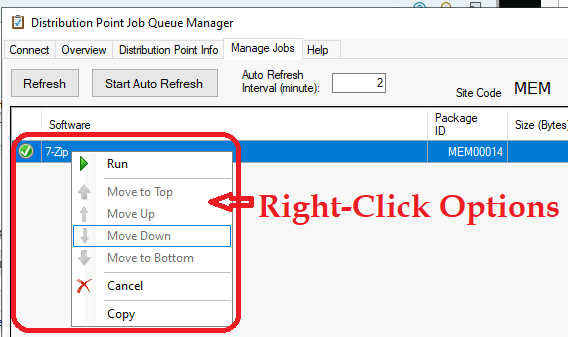
The DP Manage Jobs to Monitor SCCM DP Health helps manage the content transfer jobs pending in the system. You have the option to prioritize some critical content transfer jobs by using the Change orders right-click option.
This Manage Jobs tab gives you an overview of all the current running/pending jobs for a particular remote distribution point.

Let’s check the right-click options available in the manage jobs tab. The DP Jobs will get disappeared after the completion from this tab. So, you won’t see the historic jobs using this tool.
You can also use the cancel distribution jobs options to remove some accidental content distribution or content transfer to remote DPs. The manage jobs tab also supports the drag and drop option for the DP job queue management.
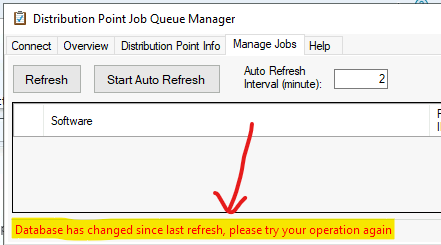
If the job is completed before your right-click request is in place, you get the “Database has changed since last refresh, please try your operation again” message. This is the problem when an SCCM DP Job monitoring tool is not able to get real-time updates automatically.
Cancel Remote DP Content Distribution Job
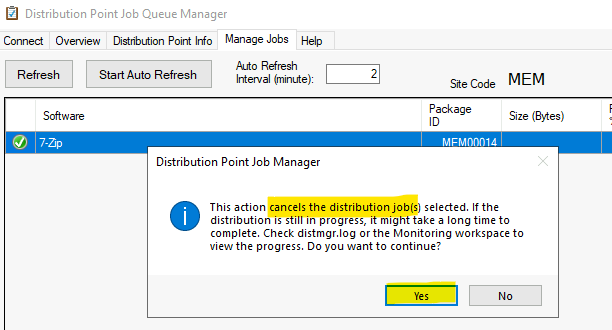
You have an option to cancel the SCCM remote DP content distribution jobs from the manage jobs tab. You can right-click on any pending or running jobs from the list and select the Cancel option. This will give you a pop window similar to the one you see in the console; click on Yes to confirm.
Related topic – How To Stop In Progress Package Content Distribution to a DP In SCCM
Copy DP Job Queue Details
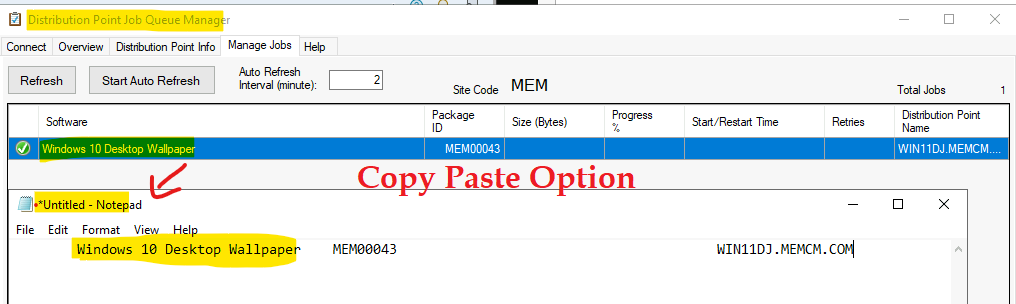
The copy option is useful to troubleshoot the package/application ID details from the log file or console etc. The Copy DP job queue option from the Manage Jobs tab is helpful to copy all the job details to a text file.
- Software Name
- Package ID, Size
- Progress, Start/Restart Time
- Retries
- Distribution Point name




So how do you monitor DPs assigned to a secondary site? I have five secondary sites and over a hundred DPs. This tool seems to be of limited use.