






How to Recover SCCM CAS Server Database
How to Recover SCCM CAS Server Database. This blog post will cover my favourite feature of ConfigMgr 2012.
Recover a CAS server without using any site backup. The CAS server will retrieve the Global and proxy data from the Primary Site Server database.
Also, the CAS reinitializes the site data from the primary site.
To learn more about primary server recovery methods, read my posts, Parts 1 and 2.

| Index |
|---|
| How to Recover the SCCM CAS Server Database |
How to Recover the SCCM CAS Server Database
Without a site backup, I can recover my Central Administration Site (CAS). Note that all these are done in the LAB environment. Perform some testing before simulating it in a production environment.
In ConfigMgr 2012, the Recovery a Site option is part of the Installation Wizard.

The recovery procedure has two parts: Site Server and Site Database recovery. TechNet documentation provides more details about recovery.
Site Database recovery behavior varies with SQL Server Change Tracking Retention Period and Site Database recovery scenarios. More details about SQL Server Change Tracking Retention Period and Site Database Recovery Scenarios.
I’ve completed rebuilding the server with the same name, path, Drive letters, and Patch level. Before starting the recovery process, I also installed and configured IIS, DotNet 4, SQL, and WSUS.
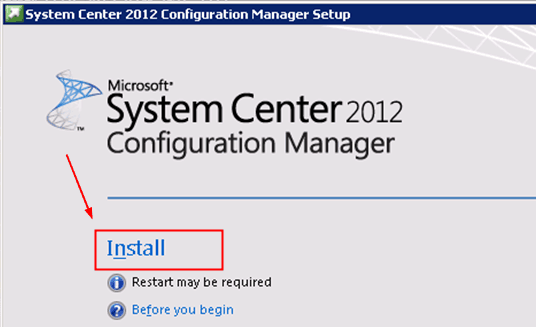
1. Start the ConfigMgr/SCCM 2012 Setup from the System Center 2012 Configuration Manager installation media. We’ll need to run this Setup from the server you want to recover.
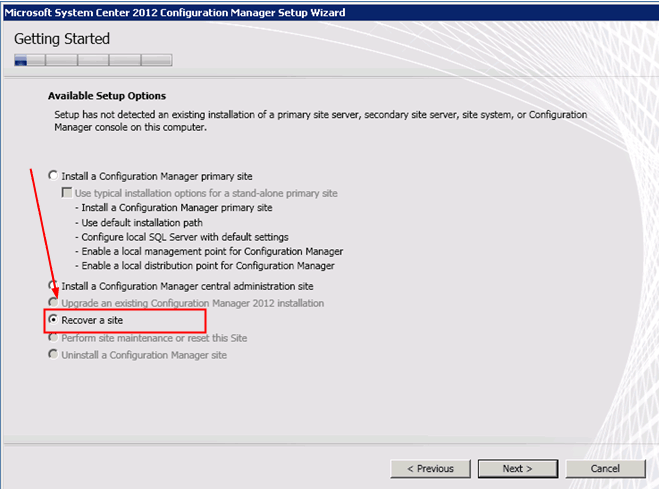
2. Select “Recover a Site” to recover your lost primary site.
Note from TechNet: When Setupp detects an existing Configuration Manager site on the server, you can start a site recovery, but the recovery options for the site server are limited. For example, if you run SeSetupn on an existing site server, you can recover the site database server when you choose recovery. Still, the option to recover the site server is disabled.
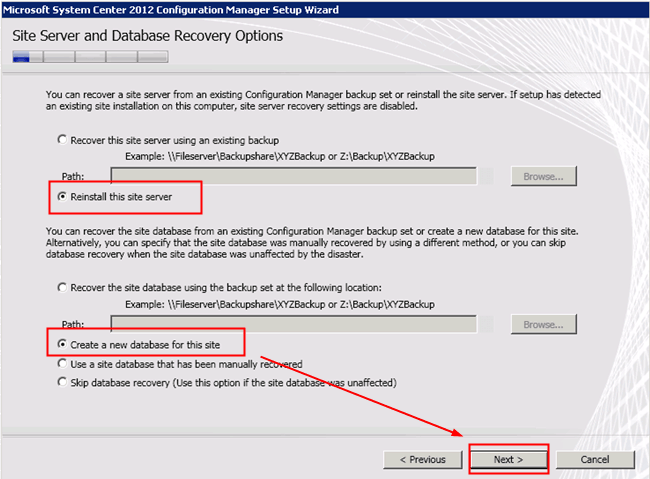
3. Site Server and Database Recovery: options are available in the following wizard.
As we don’t have a site backup, we must select the following options: “Reinstall this site server” and “Create a new database for this site.”
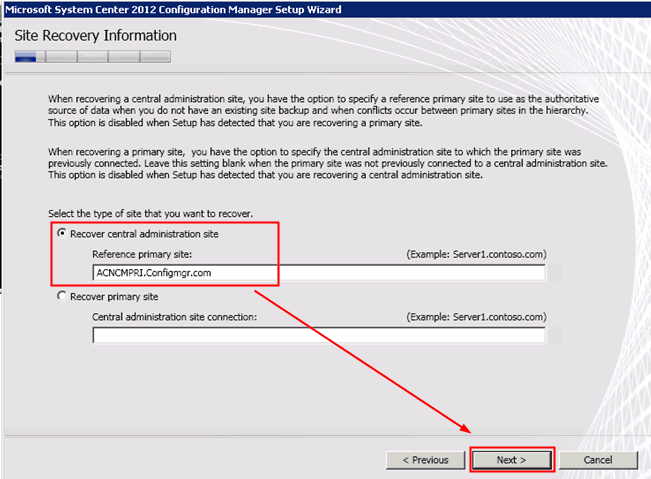
4. Site Recovery Information: We must provide the Primary Site server details to recover the Global and Global-Proxy data. The CAS reinitializes the site data from the primary site.
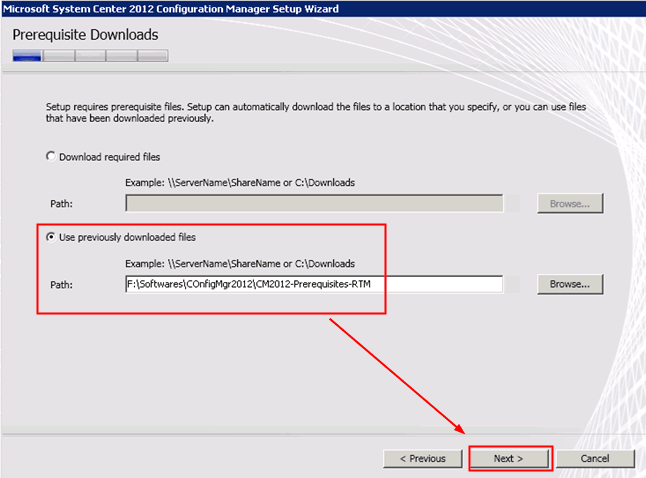
5. Prerequisites Download: Here, we must provide the prerequisite file details so that SETUP can verify the files and proceed with the recovery.
Note: We’ve skipped the following pages in this recovery wizard: product key (you need to enter the product key or select the evaluation version if you’re using the evaluation version), Microsoft Software License Terms, and Prerequisite Licenses.
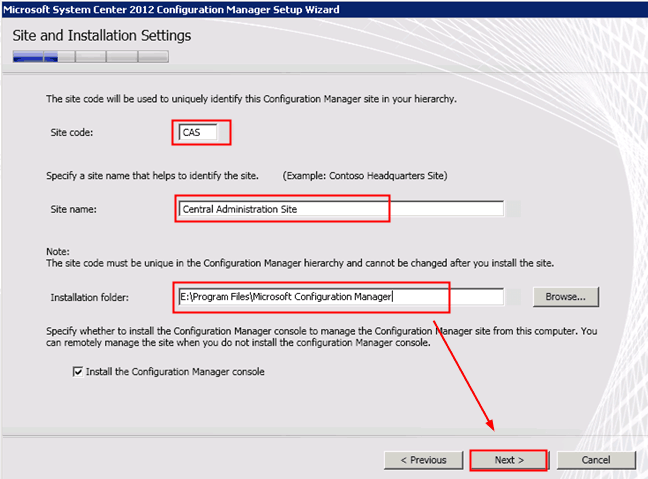
6. Site and Installation Settings: Enter the same (OLD one – the CAS server you lost) site code, Site name, and installation folder location.
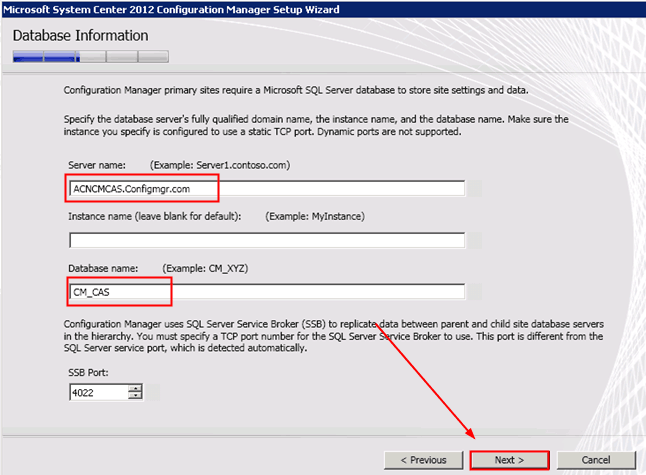
7. Database Information: Enter the SQL Database Server Name, Database Name, and SSB Port 4022. Leave the instance name blank to use the default instance.
Note: ConfigMgr primary sites require a Microsoft SQL Server database to store site settings and data.
Specify the database server’s Fully Qualified domain name, the instance name, and the database name. Ensure the instance you specify is configured to use a static TCP port. Dynamic ports are not supported.
ConfigMgr uses SQL Server Service Broker (SSB) to replicate data between parent and child site database servers in the hierarchy. You must specify a TCP port number for the SQL Server Service Broker. This port differs from the SQL Server Service port, which is detected automatically.
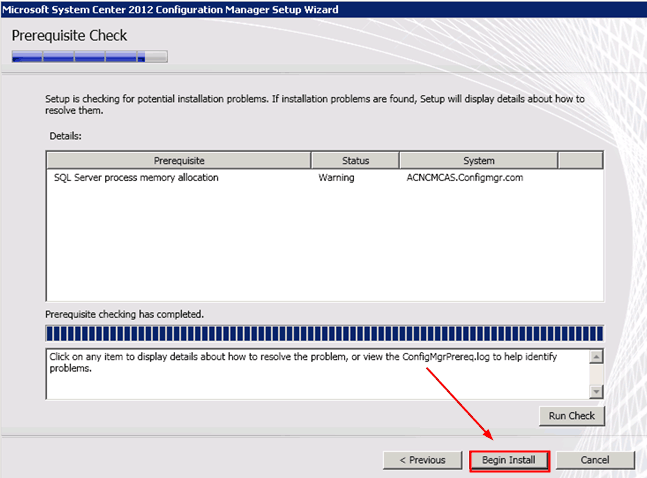
8. Prerequisites Check: This will run the check, and we can ignore the warning shown in the picture below (it’s always better to set the maximum memory allocation to the SQL server). Click on “Begin to Install” to start the recovery.
Note – We have skipped two wizard pages, “Customer Experience Improvement Program Configuration” and “Setting Summary”. Those are just default settings.
9. Install: This page shows us the Progress of the installation and recovery process.
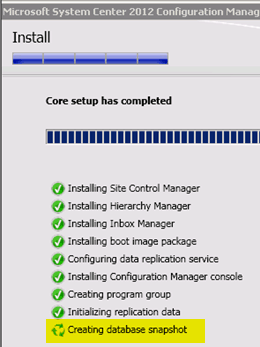
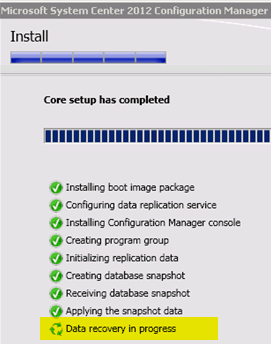
10. Verify ConfigMgrSetup.log: In ConfigMgrSetup.log, we can find detailed information about the recovery’s actions and details about the resync (BCP) from the Primary Server Database.
- RCM received a message from the “Primary Server”, and BCP initialization started
- RCM received a message from “Primary Server” BCP is in Progress
- RCM Reports Data Recovery Process has been Started
- The RCM Reports application for BCP has been completed.
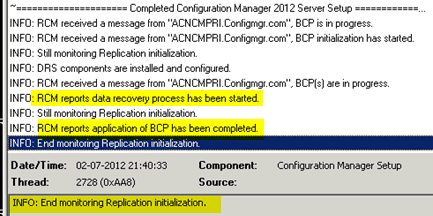
11. Verify RCMctrl.log to check whether the resync has been completed at the recovered primary site “CAS”—more details about Site-to-Site Database Replication.
- Processing application pattern global
- Processing application pattern site
- All replication links are done with recovery
- RECOVERY DONE: All the replicated data has been recovered at site CAS
- Setting site CAS to status ReplicationActive.
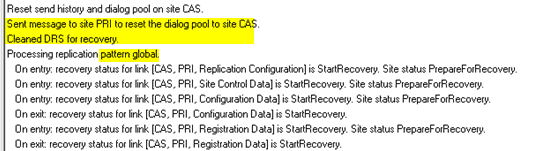

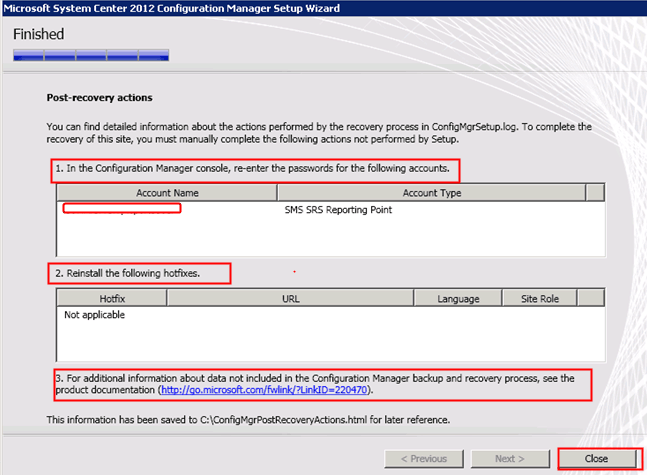
12. Post Recovery Tasks: To complete the recovery of this site, you must manually complete the following actions, which Setup does NOT perform.
- In the ConfigMgr console, re-enter the passwords for the following accounts. In our scenario, we need to re-enter the account’s password mentioned in the following pic.
- Reinstall the following hotfixes – If any hotfix needs to be installed. In our case, there is no hotfix requirement.
- More details about post-recovery activities have been saved to a file called C: ConfigMgrPostRecoveryActions. html for later reference.
More details about the recovery process (IIS configuration, Recover Content Files):: https://technet.microsoft.com/library/gg712697.aspx#BKMK_PostRecovery
We are on WhatsApp. To get the latest step-by-step guides and news updates, Join our Channel. Click here –HTMD WhatsApp.
Author
Anoop C Nair has been Microsoft MVP from 2015 onwards for 10 consecutive years! He is a Workplace Solution Architect with more than 22+ years of experience in Workplace technologies. He is also a Blogger, Speaker, and leader of the Local User Group Community. His main focus is on Device Management technologies like SCCM and Intune. He writes about technologies like Intune, SCCM, Windows, Cloud PC, Windows, Entra, Microsoft Security, Career, etc.




good. Thanks
Nice! Thanks a lot!
Dear Anoop,
I am facing a problem in one of my client site. where we have implemented CAS with remote database in a SQL server. Now the client has came up with a new requirement of making the database high available. So I am thinking of exceciting the site recovery wizard with out database backup. I just wanted to confirm that while recreating the site using this site recovery option should I give the data base to newly created SQL A/P Cluster.
Thanks in Advance
—
Best Regards
Kichu M
StaffDear Kichu ! – As per my experience in your scenario, won’t it possible to take SQL backup. Now CM 12, there is no need to take CM 12 native backup. With SQL backup we can restore CM 12 site servers (cas, primary etc..). If you’ve primary servers available in your hierarchy then without any backup also you can recover some part of CAS. So what it will do is it will recover the global data from the nearest specified primary server.
Dear Anoop,
can i translate some your posts into russian and send it to my blog?
StaffDear ! Please give proper credit. I would suggest you to copy one paragraph.And also try to use googl translator option in my blog.
Anoop –
I’m assuming the old requirement that a restore must be performed on a server with the same hardware name, but I can’t find that explicitly called out anywhere in the 2012 technet documentation. Due to our provisioning process, there is a significant delay between when a server is joined to the domain, and when the appropriate firewall rules are applied. Is it still a requirement to restore on the same server name when it is new hardware? We have separate dedicated SQL boxes for both the CAS and Primary, and the server team would like us to replace all 4 boxes simultaneously. I don’t think this is advisable, or even possible. Thoughts?
Hi Anoop… Could you please assist me to get pre & post requirement after disaster recovery in isolated environment? Need more details on customized report recovery… Thank you.. 🙂
StaffHi Manoj ! – The requirements should be provided by the business so that we can try to achieve the required LTA in case of disaster and recovery.
Regards
Anoop
Hi Anoop,
I am trying to recover our CAS database. So useing setup file to recover, i choose create new database. When i run the SCCM wizard, i get SQL server database has user defined objects, cannot configure database. From this site https://social.technet.microsoft.com/Forums/en-US/63620b37-1980-43c6-9ad2-4b3441e5cddb/sql-server-database-has-user-defined-objects-cannot-configure-database?forum=configmanagerdeployment i understand i perhaps would need to delete default MSSQL instance and then recreate it. That said, if i go ahead and recreate default instance then will my Primary site data get synched with CAS.
Thanks a lot….
Hello Anoop,
I have been assigned a task to convert our virtual (CAS & Primary) servers to physical hardware. Could you please assist me in taking up a way forward in this?
Being a newbie to SCCM i would like to take up assistance from you! Eagerly waiting for your reply!!
Staffyou can refer to my other posts. There are videos tutorials as well which you can refer You can also refer to https://www.anoopcnair.com/sccm-configmgr-2012-to-cb-1606-unofficial-upgrade-checklist/ and https://www.anoopcnair.com/perform-sccm-configmgr-cb-production-upgrade-1702-video-tutorial/