






How to Reprovision Cloud PC Windows 365
Let’s learn how to reprovision Cloud PC from the Microsoft Endpoint Manager Admin Center portal. You can also learn the exact experience of reprovisioning a Cloud PC is. How much time it’s going to take to perform the remote action called reprovision.
The Reprovision remote action should be used when a Cloud PC is in a Failed Provisioning state. For easy understanding, you can think of reprovisioning as a reset remote action for a physical PC. I don’t think the client-side process is the same as the physical device process.
During the reprovisioning process, Cloud PC will be deleted and recreated as a new Cloud PC. The important point is that all user data, applications, customizations, etc… will be deleted as part of the process. The following are some other Cloud PC provisioning-related posts.
- Create Cloud PC Azure AD Dynamic Device Group
- Fix Cloud PC Provisioning Policy Delete Button is Grayed Out Issue
- Learn How to Resize Cloud PC Windows 365
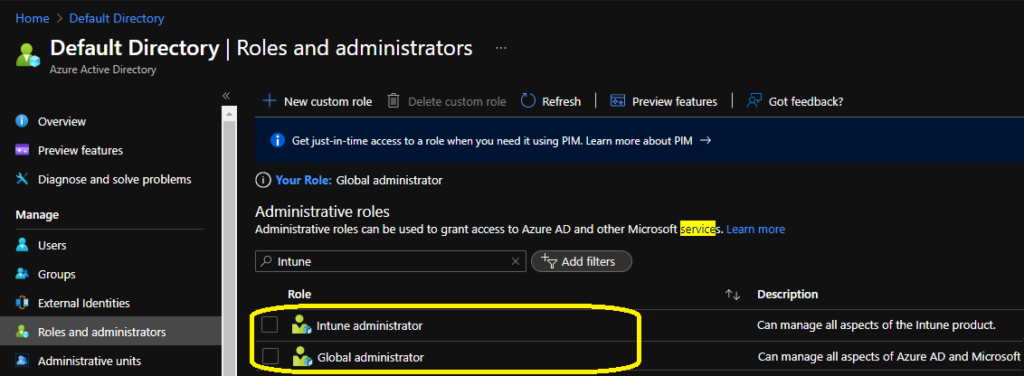
I think two roles/permissions are required to perform this remote action from Intune (a.k.a MEM Admin Center) portal:

- Global Administrator
- Intune Service Admin (a.k.a Intune Administrator)
Where is Cloud PC Reprovisioning Option
The cloud PC provisioning option is straightforward. Yes, but it can be easier for admins if this option is available in Windows 365 node within the Endpoint Manager Admin Center portal. But unfortunately, it’s not available in that node at all.
There are multiple ways to get to Reprovision Cloud PC remote action. I felt the following method is more helpful for Cloud PC admins. The other option (all devices -> search for cloud PC record) is a bit more tedious, at least from my perspective.
- Launch MEM Admin Center portal -> https://endpoint.microsoft.com/
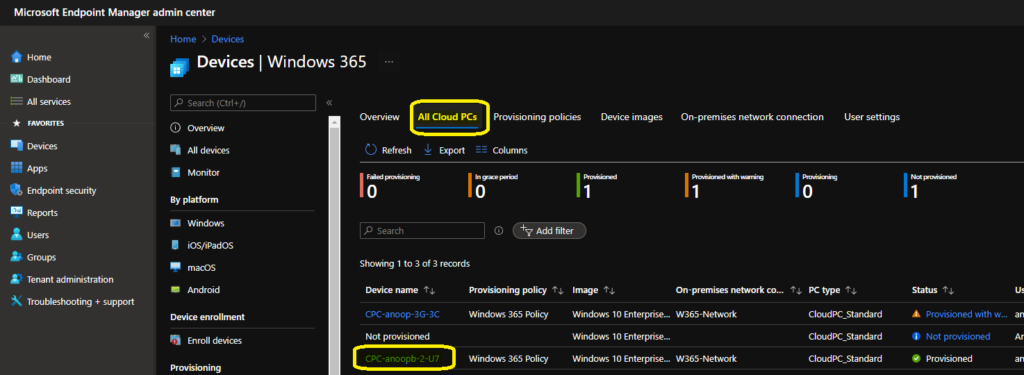
- Navigate to Devices -> Windows 365 node.
- From Windows 365 node, you can click on All Cloud PCs tab to view all the available cloud PCs.
- Click on the Cloud PC name that you want to reprovision -> CPC-anoopb-2-U7.
NOTE! – The Cloud PC reprovisioning remote action is available for both provisioned with warning, provisioning failed, and provisioned status Cloud PCs.
Once you click on the Cloud PC name from the previous page, you will get redirected to Devices -> CPC-anoopb-2-U7 -> Overview page in MEM admin center portal. This is the place you can see all the remote actions, including reprovision Cloud PC.
Reprovision – CPC-anoopb-2-U7 – Are you sure you want to reprovision this Cloud PC? Users will be logged off immediately, and all user data will be removed. A new Cloud PC instance will be provisioned.
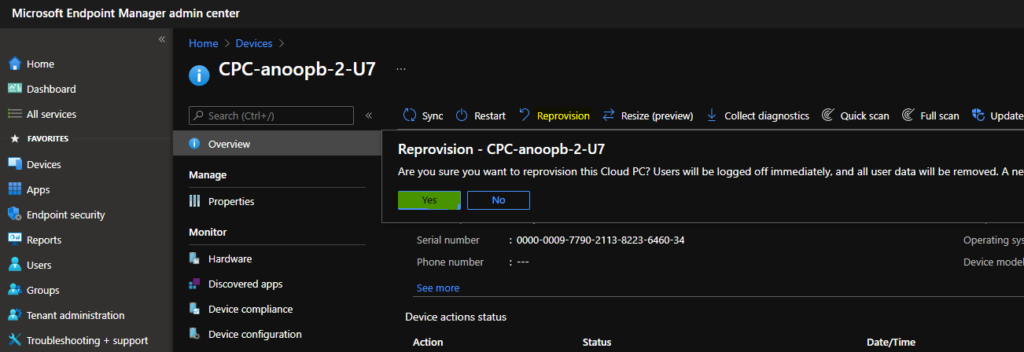
There will be a confirmation notification – reprovision initiated.

Cloud PC Reprovisioning Process
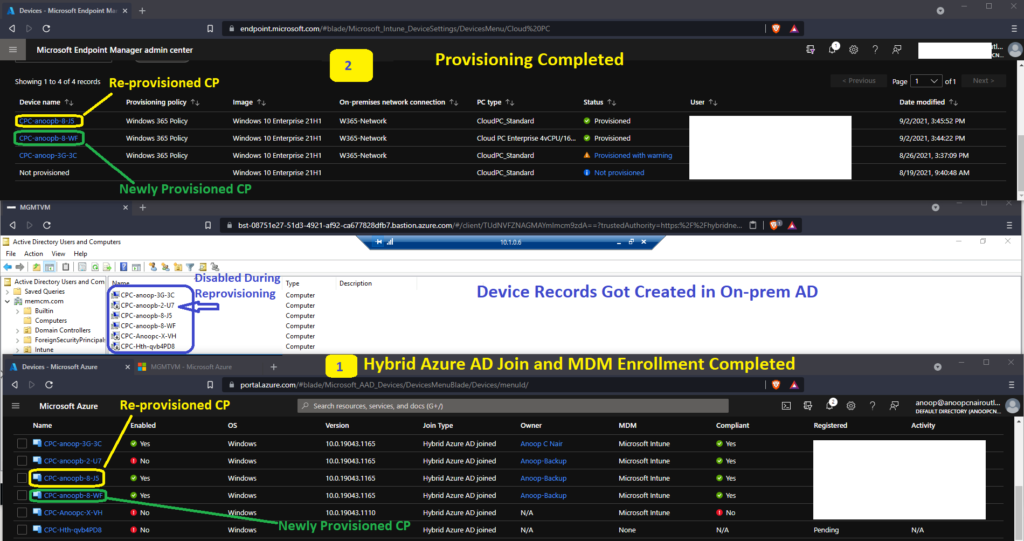
The Windows 365 service initiates the reprovisioning process. The first change that you notice from Windows 365 -> All Cloud PCs tab is that the provisioning status is changed from Provisioned to Provisioning.
The second change that you notice is that the Cloud PC device record is getting Disabled in Azure AD and also in on-prem Active Directory.
The third change that you can notice is creating new cloud PC device records in the on-prem Active directory. This device record gets replicated to Azure AD as part of the Hybrid Azure AD join scenario (this normally takes 20-30 minutes).
NOTE! – Azure AD and Intune Cloud PC device record clean-up should be part of the default maintenance tasks? The process creates a new VM with the same hardware SKU. The cloud PC managed device record deletion from Intune is pretty quick.
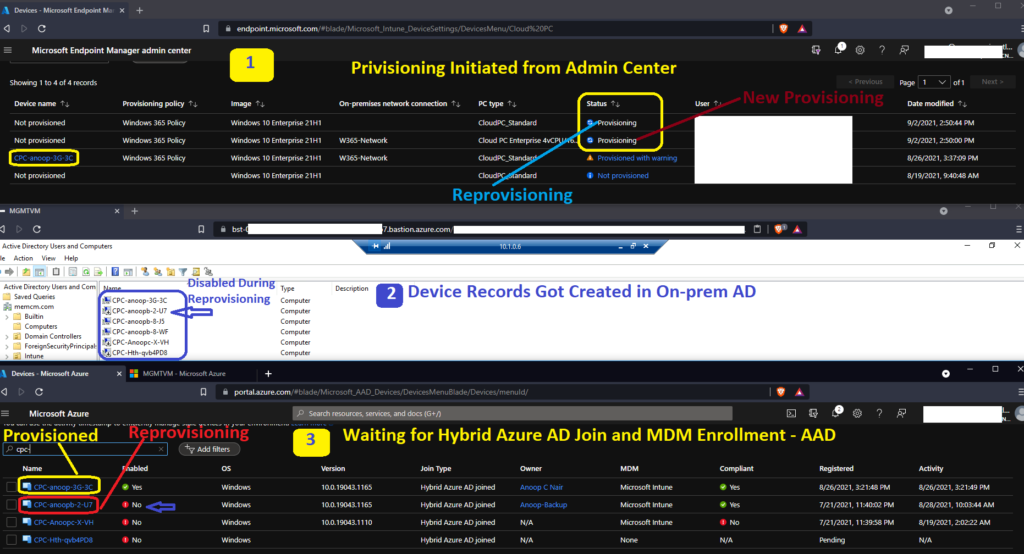
Results – Reprovisioning of Cloud PC
Once the reprovisioning is completed, you notice that the status is changed to provisioned. The new Cloud PC device records are available in the Azure AD and MEM admin center (Intune) portal.
NOTE! – The old cloud PCs records are not immediately deleted after reprovisioning. But the good news is that these records are immediately disabled from Azure AD.
Resources
- Learn How To Resize Cloud PC Windows 365 HTMD Blog (anoopcnair.com)
- Windows 365 – How To Manage Devices (anoopcnair.com)




Discussion