






How to Turn Off Microsoft Edge Notifications
Let’s discuss how to Turn off Microsoft Edge Notifications. We all know about Microsoft Edge, which was developed by Microsoft in 2015. Microsoft Edge is a popular web browser known for its features and speed. As an Edge user, I can say that it’s the best user-friendly browser with exciting features.
Edge is famous not only for its speed but also for its security. Its advanced features always protect users from online threats. Web browsers have become essential in daily life. The Edge browser offers customization in settings, and the Notification settings are the best part of Edge.
You all know about Notifications, which are crucial in keeping users informed. Notifications always help the user stay informed of any updates from any application and alerts from apps and messages. Also, you can track downloads. This information is beneficial in enhancing the user experience.
Sometimes, the notification area is too much, distracting your Workflow. A notification on your screen will distract you and affect your job, which will always affect productivity. In this post, I will share the details of the Edge Notification setting and how it turns off.

- Enable Disable Secure DNS over HTTPS in Microsoft Edge
- Turn On or Off Tab Performance Detector in Microsoft Edge
- How to Enable and Use the New Screenshot Tool in MS Edge
How to Turn off Microsoft Edge Notifications
Today, time is very precious for everyone. Notifications are distractions while we are working, so minimizing these distractions will increase productivity and efficiency and always help us achieve our goals. Disabling notifications is up to you, but I believe it will increase productivity, improve focus, and safeguard your privacy and security.
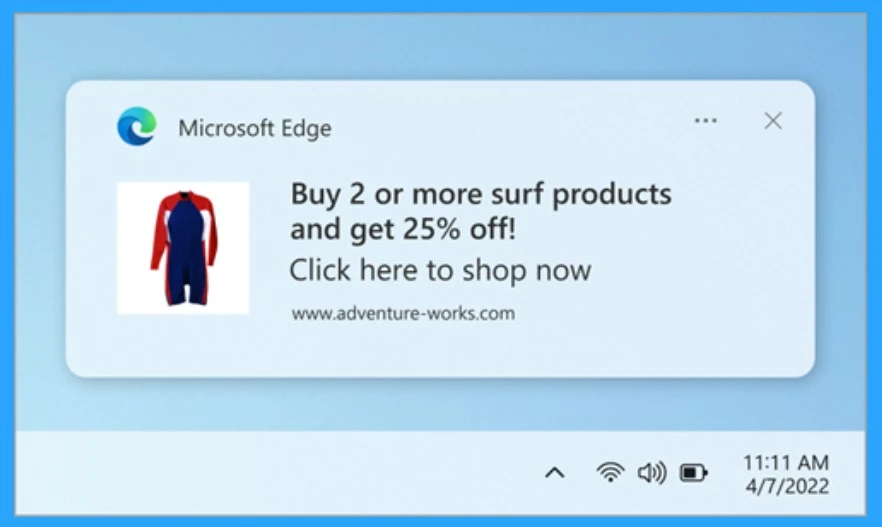
How to Turn Off Notifications for Specific Websites
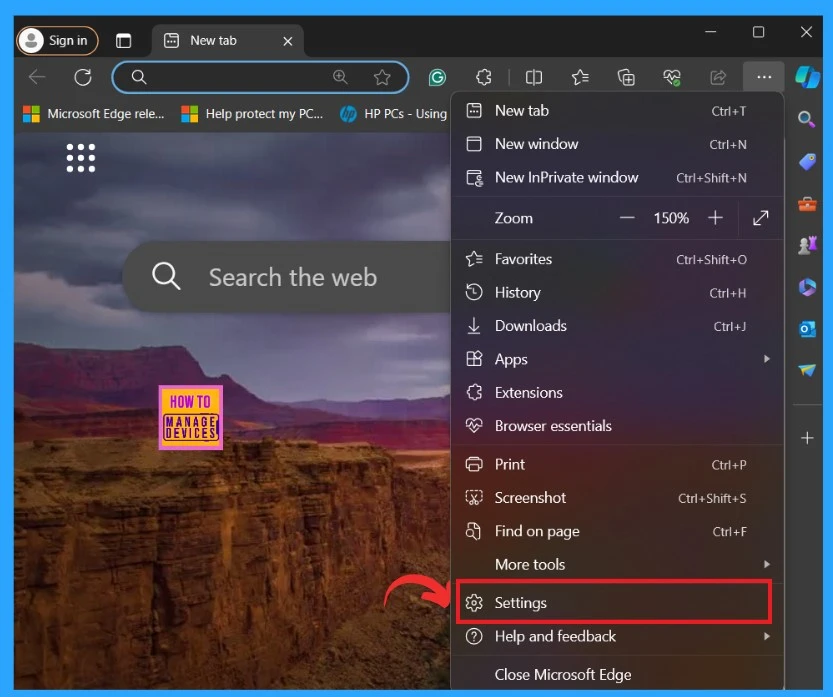
Turning off Notifications on Microsoft Edge is easy; you must follow the instructions. First, open Microsoft Edge. Click the More option (…) in Microsoft Edge. Select Settings from the Menu.
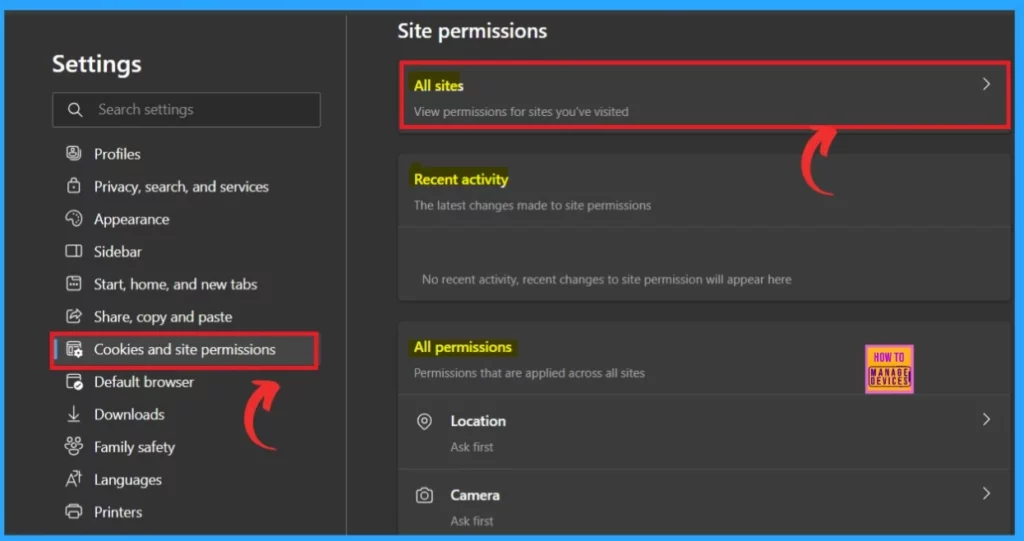
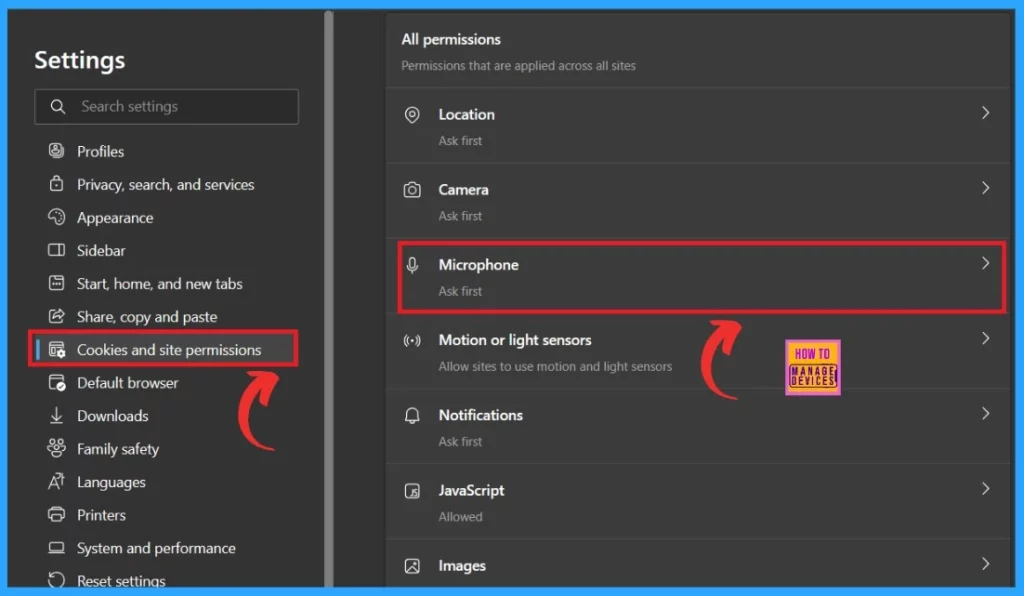
After opening the Edge settings, you may get many settings options. You have to select the cookies and the site permissions and select that option. In this option, you can manage cookies and site permissions.
You can get cookies settings windows when you click on the cookies and permissions. There, you can see 3 sections: All Sites, Recent Activities and All Permissions.
| Site Permission Options | Info |
|---|---|
| All Sites | You can view permission settings for the sites you visited |
| Recent Activity | The latest changes made to site permissions |
| All permissions | Permissions that are applied across all sites |
- You have to select the option called All Sites.
- There, you can manage the permissions for the website that you are visiting.
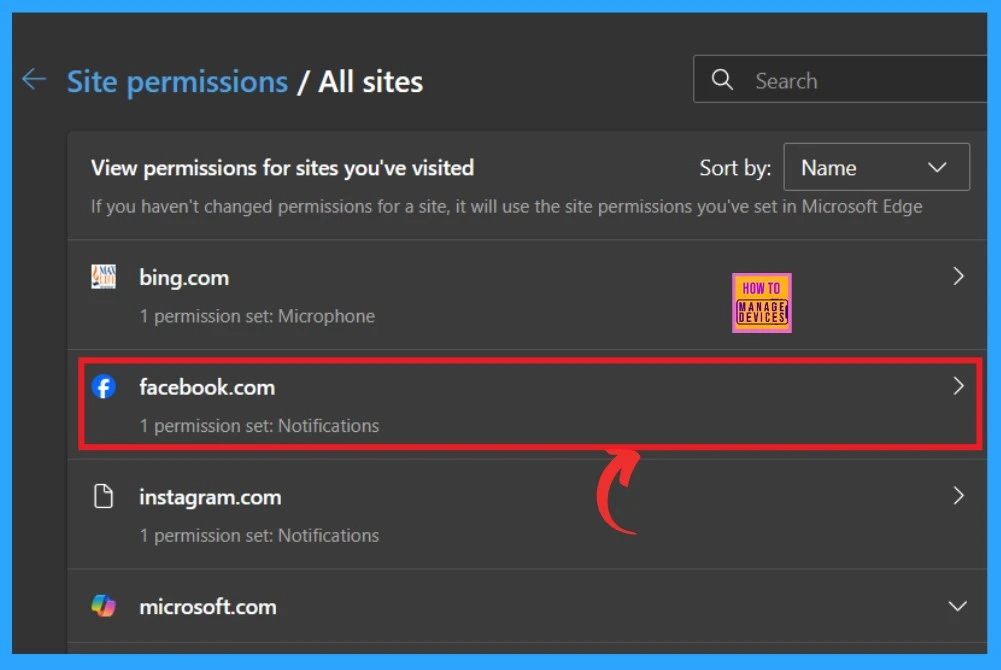
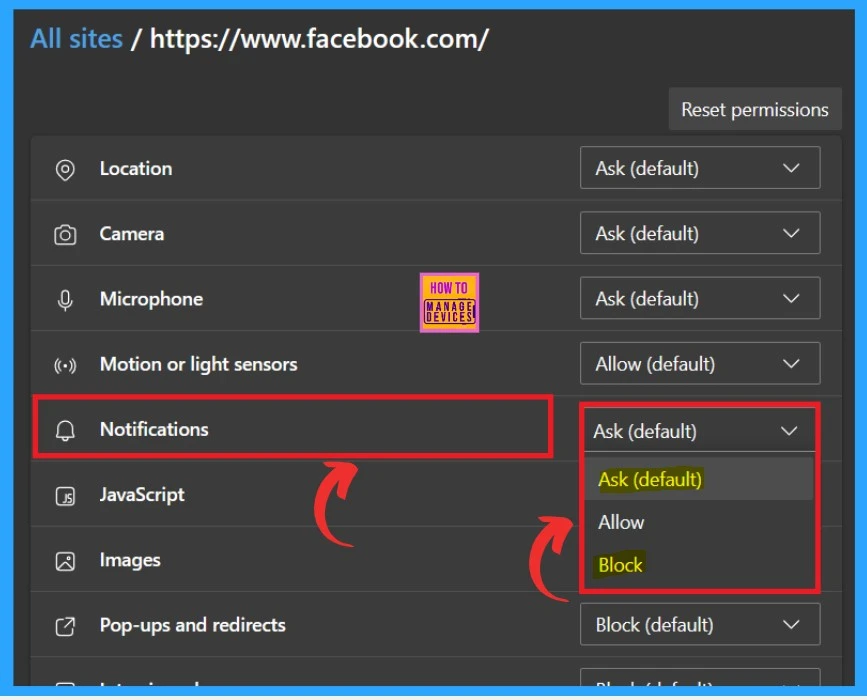
Now, you can see all the websites you can use to manage permissions. We want to turn off notifications, so select the website from which you wish to do so. For example, I selected Facebook, a Social media platform.
- Click on the Facebook.com
After clicking on Facebook, you will get many permissions for Facebook, like accessing location permissions, camera, microphone,e etc. In the screenshot, you can see the Notification option. Click on that. There are 3 options available for notification settings: either you can choose Ask (default), or you can choose Block.
- Ask (default) – It always asks when you get a Notification
- Allow- It allows the Notification on your browser
- Block– It will permanently block Notifications
- Turn On or Off Show Action Hint for Mouse Gesture in Microsoft Edge
- Enable Disable Let Copilot Use Content from Microsoft Edge in Windows 11
- Turn On or Off Microsoft Defender SmartScreen for Microsoft Edge in Windows 11
Turn Off Permissions that are Applied to All Sites
In the cookies and site permission sections, you can go to the All permission section( you can scroll down the Cookies and settings for this section). Under All permissions, you can get many site access settings. I selected a Microphone, for example.
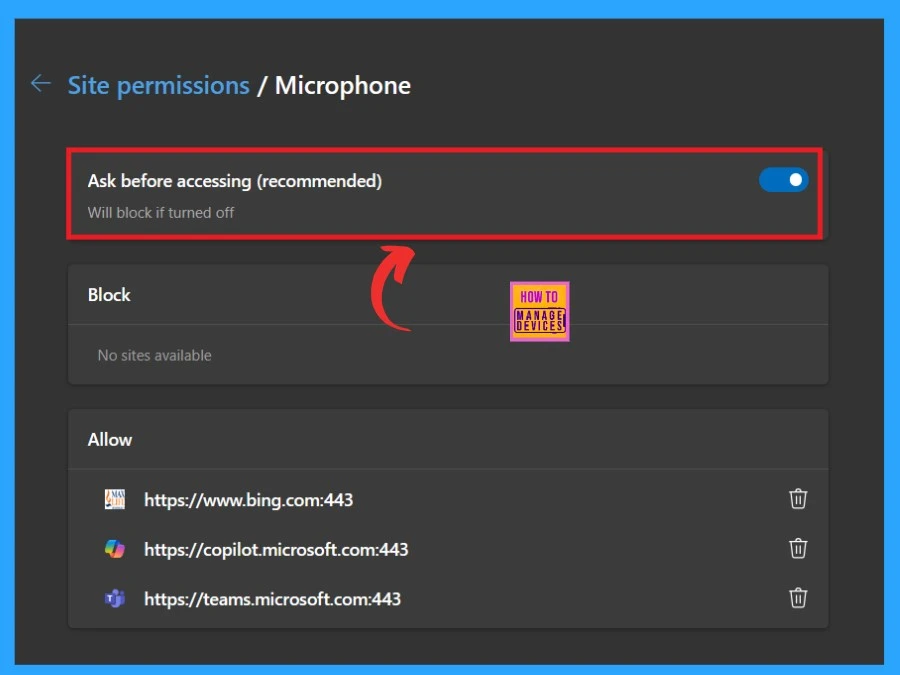
You will get the Site permission settings when you click on the Microphone. In this option, you can manage any sites that access your microphone. Here, you can see the option called ”Ask before accessing (recommended). This will block all browser notifications within Microsoft Edge.
Reference
The sound of silence: how to turn off or block browser notifications
We are on WhatsApp. To get the latest step-by-step guides and news updates, Join our Channel. Click here –HTMD WhatsApp.
Author
Krishna. R is a computer enthusiast. She loves writing about Windows 11 and Intune-related technologies and sharing her knowledge, quick tips, and tricks about Windows 11 or 10 with the community.




Discussion