






How Idle Time Controls Kiosk Browser Session Restart using Intune Policy
Let’s discuss how Idle Time Controls Kiosk Browser Session Restart using Intune Policy. This policy setting helps you to control how long a kiosk browser session can remain idle before it automatically restarts in a fresh state.
The idle timer begins when no user interaction, such as mouse movement, keyboard input, or touch activity, is detected. Once the configured idle period is reached, the kiosk browser session is reset, clearing any activity, data, or open sessions.
This helps ensure that the kiosk environment remains secure and ready for the next user without retaining the previous user’s data. The Restart on Idle Time policy helps IT admins maintain security and consistency in shared kiosk environments. When users leave sessions open or forget to log out, the browser can automatically restart after a set idle period.
This prevents unauthorized access to the previous user’s information and guarantees that every new user starts with a clean, secure session. In this post, you will get a complete overview of how idle time controls the kiosk browser session restart using Intune policy. We’ll cover how the policy works, how to configure the idle timeout, and the benefits it brings for both IT admins and organizations.

Table of Contents
How Idle Time Controls Kiosk Browser Session Restart using Intune Policy
This policy helps you understand how setting an idle period ensures kiosks automatically restart in a fresh state, protecting user data, maintaining a consistent user experience, and reducing administrative effort.
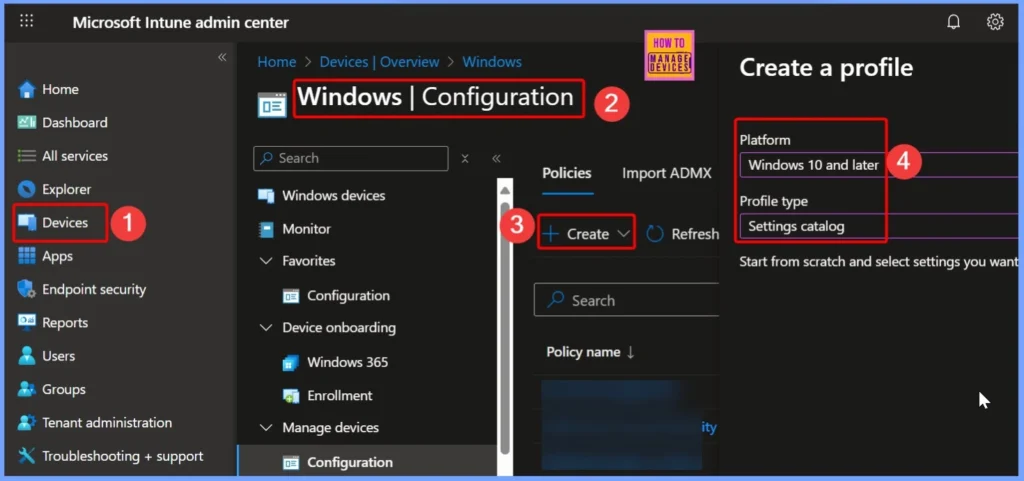
- First Log in to the Microsoft Intune Admin Center with administrator credentials.
- Go to Devices > Windows > Manage Devices> Configuration.
- Click +Create and then select +New Policy to begin configuring the required settings.
| Steps | Details |
|---|---|
| Platform | Windows 10 and later |
| Profile Type | Settings Catalog |
- Instant Reset Or Permanent Lock To Fine-Tuning The Home Button On Kiosk Browser With Intune
- Best Guide to Transforming iOS Devices into a Dedicated Kiosk with Intune
- How Intune Simplifies Shared Device Management in Retail with Multi-App Kiosk Mode
Configuring Basics for Restart On Idle Time Kiosk Browser Policy in Intune
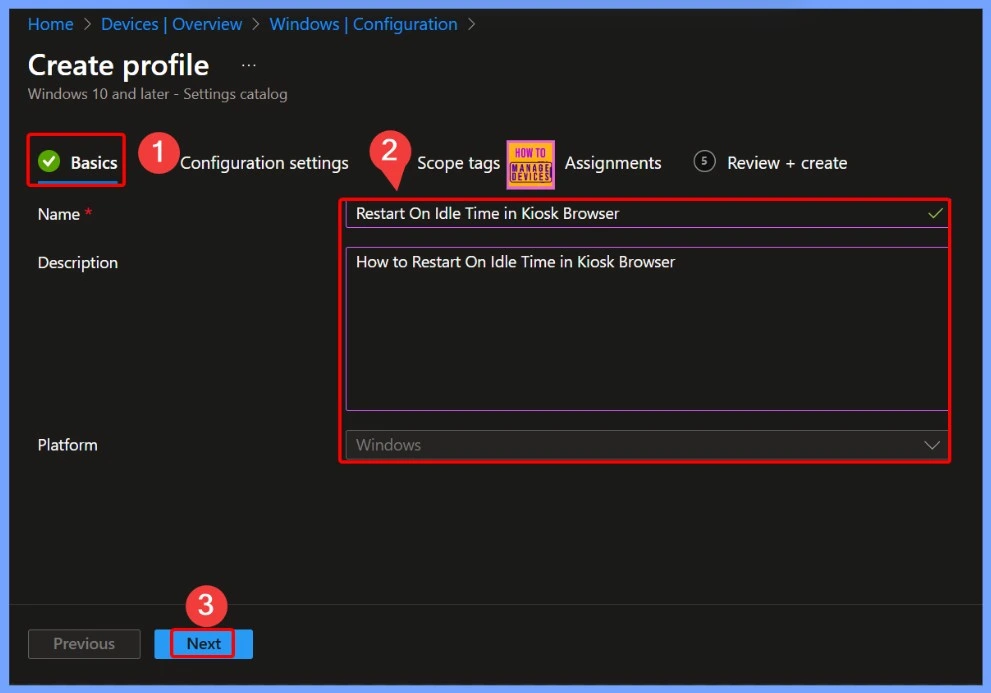
In the Basics tab of the Intune policy for Restart On Idle Time in Kiosk Browser, you provide the essential details to define and identify the policy. This includes giving the policy a Name that clearly represents its purpose, such as “Restart On Idle Time in Kiosk Browser,” and a Description that explains what the policy does, for example, how it automatically restarts the kiosk browser after a period of inactivity to ensure a fresh session.
Configuring Restart On Idle Time in Kiosk Browser Settings
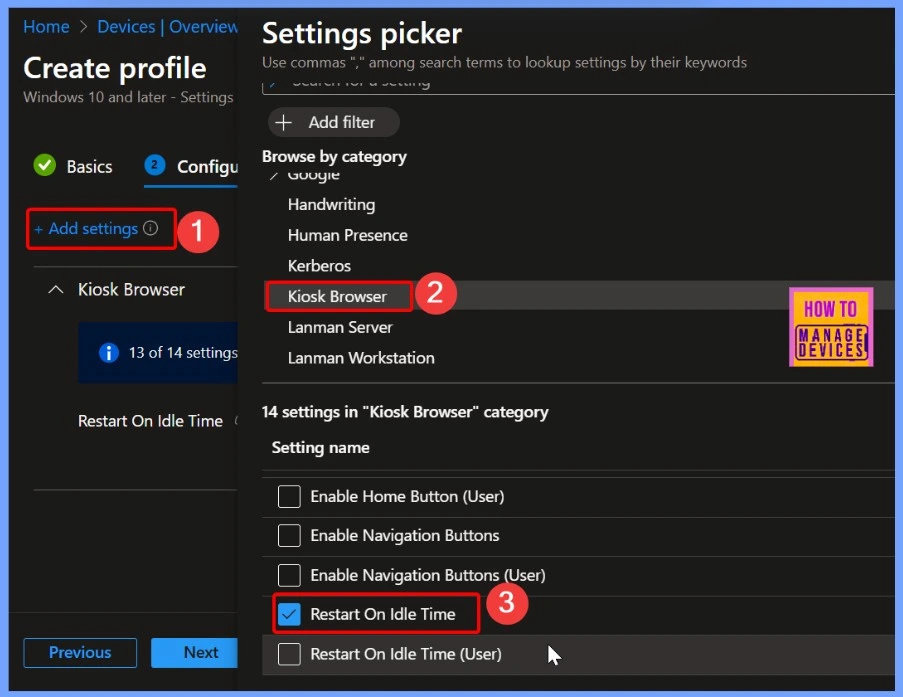
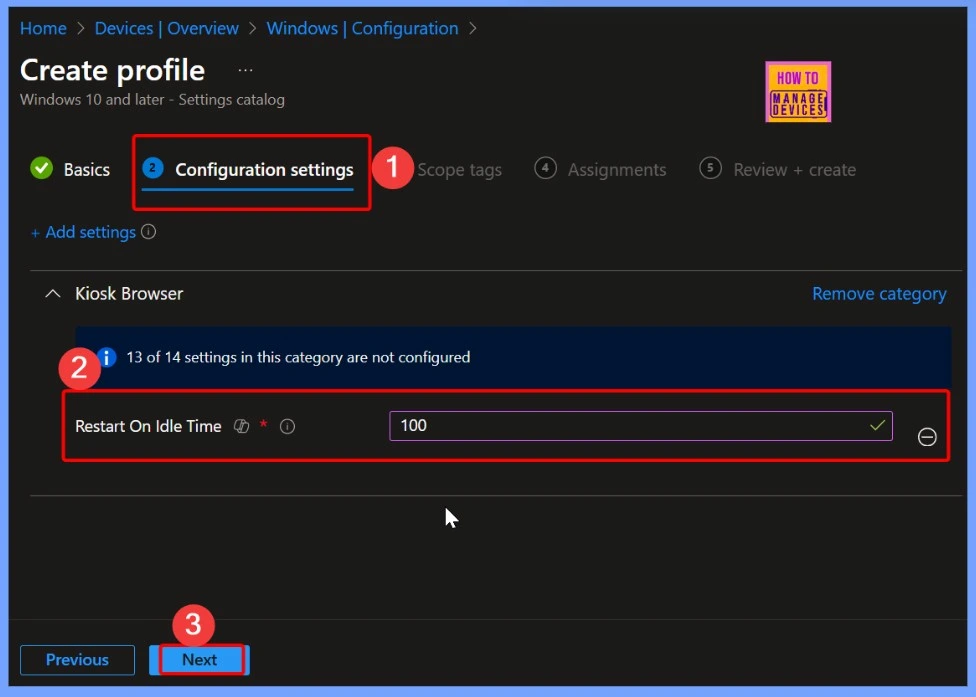
In the Configuration Settings tab of the Intune policy, click + Add settings and search for the keyword “Kiosk Browser.” This will display a list of 14 available settings related to kiosk browser management. From this list, select the option “Restart on Idle Time” to configure the browser to automatically restart after a specified period of inactivity, ensuring that each session begins in a fresh state.
Default Setting for Restart On Idle Time Policy
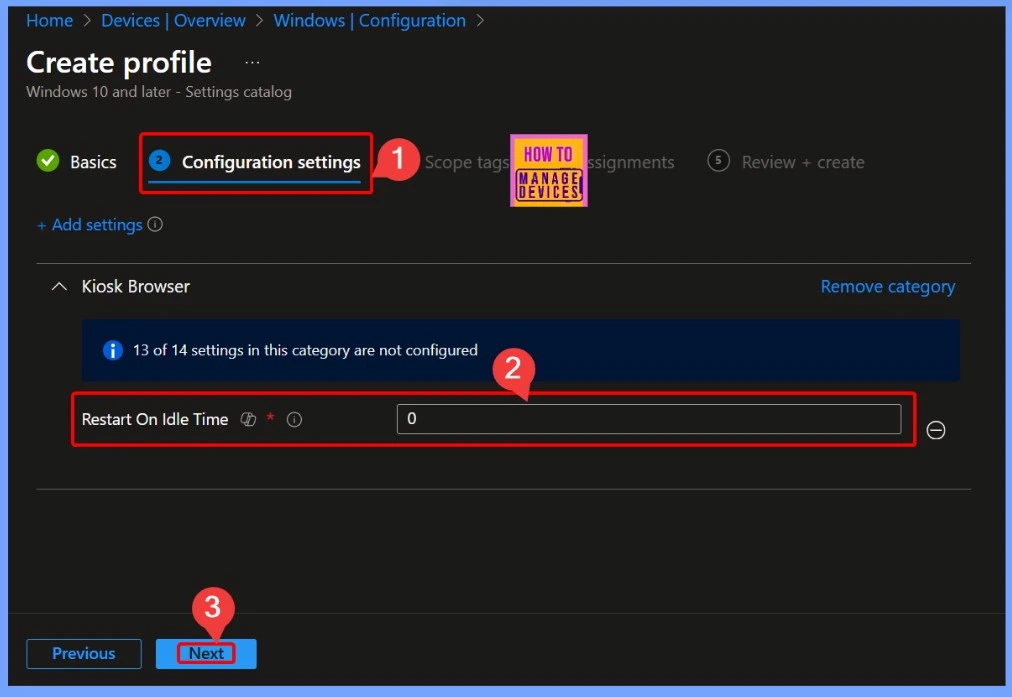
The Restart on Idle Time policy has a default value of 0, which means that there is no idle timeout configured by default. In this default value, the kiosk browser will not automatically restart after inactivity, and sessions will remain active until manually reset or closed. Administrators need to configure a specific value (between 1 and 1440 minutes) to enable automatic restarts and ensure that each user session begins in a fresh state.
Setting a Custom Idle Time for Kiosk Browser Restart
The Restart on Idle Time value is set to 100 minutes as shown in the below screenshot. If the kiosk browser remains inactive for 100 minutes, it will automatically restart in a fresh state. Setting a specific idle time ensures that sessions do not remain open indefinitely.
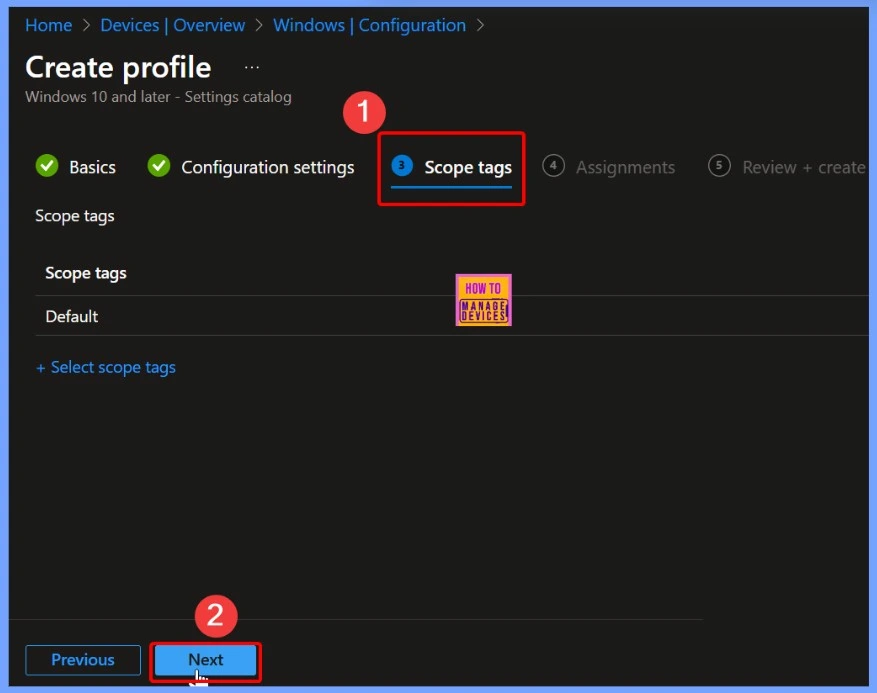
Assigning Scope Tags for Restart On Idle Time Policy
The Scope Tag for the Restart on Idle Time policy allows IT administrators to define which groups within the organization can view or manage this policy in Intune. By assigning appropriate scope tags, organizations can ensure that only designated teams have access to configure or monitor the kiosk browser idle timeout settings.
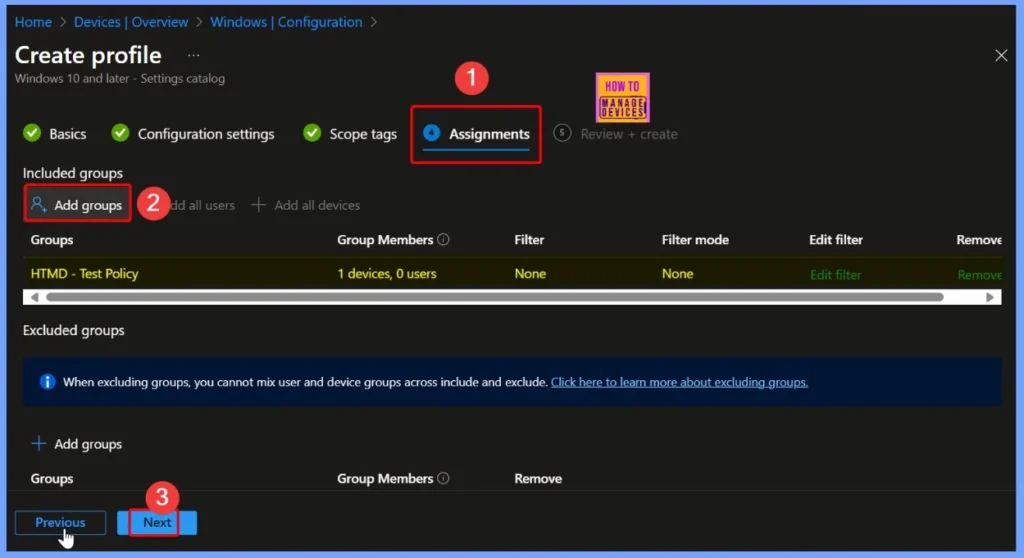
Assigning the Restart On Idle Time Policy
The Assignments section of the Restart On Idle Time policy determines which devices or user groups the policy applies to. Proper assignment ensures consistent policy enforcement and helps maintain security and usability across all designated kiosk devices.
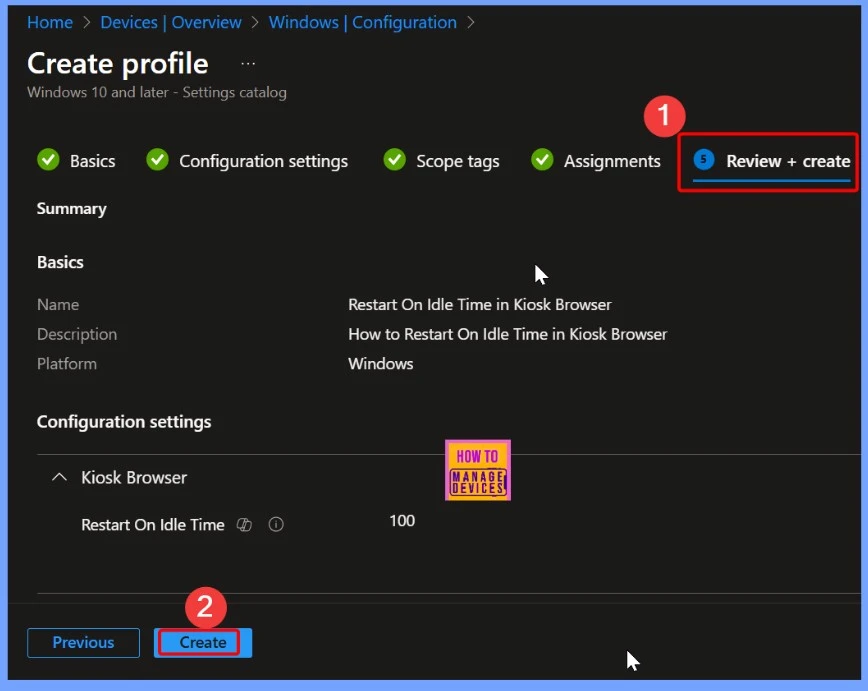
Reviewing and Creating the Restart On Idle Time Policy
In the Review + Create step, IT administrators can verify all the configurations set for the Restart On Idle Time policy, including the name, description, idle timeout value, scope tags, and assignments. The below screenshots give more details.
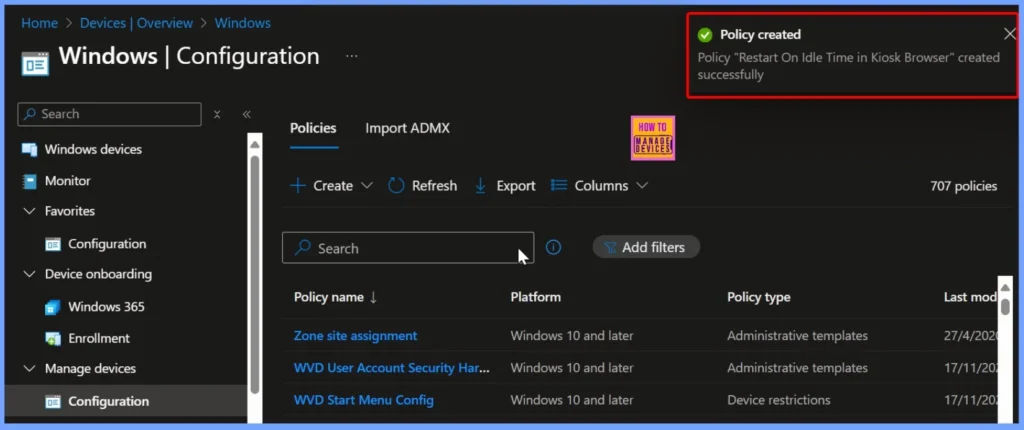
Restart On Idle Time Policy Created Successfully
The Restart On Idle Time policy for the kiosk browser has been created successfully. Once deployed, administrators will receive a notification confirming that the policy is active and ready to enforce the configured idle timeout.
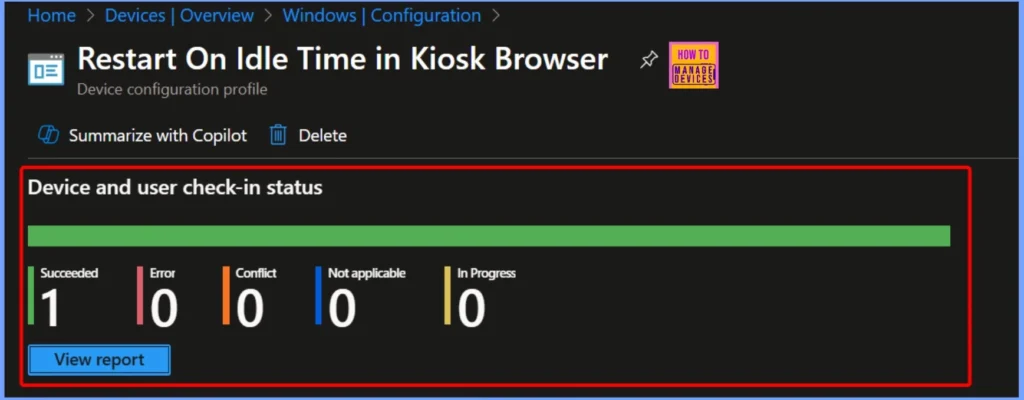
Device and User Check-In Status for Restart On Idle Time Policy
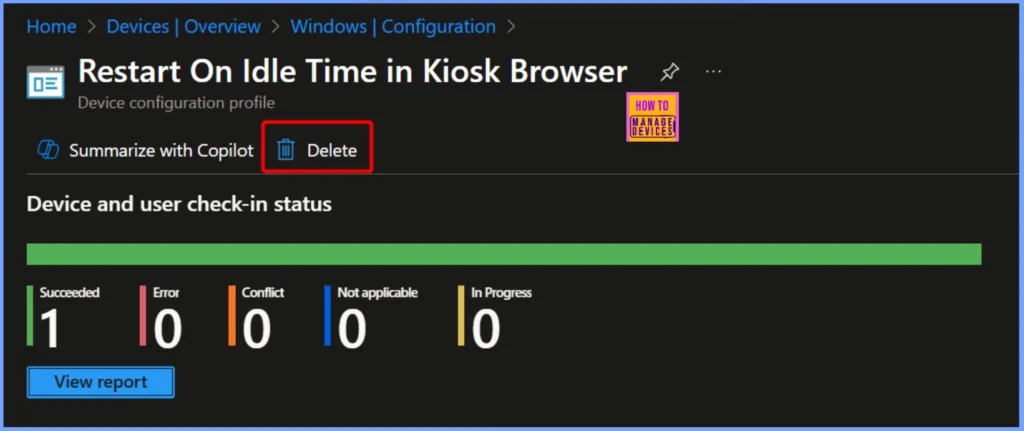
The Restart On Idle Time policy in the kiosk browser shows the current deployment status for devices and users. The check-in status indicates that 1 device has successfully applied the policy (Succeeded), with 0 errors, 0 conflicts, 0 not applicable, and 0 in progress.
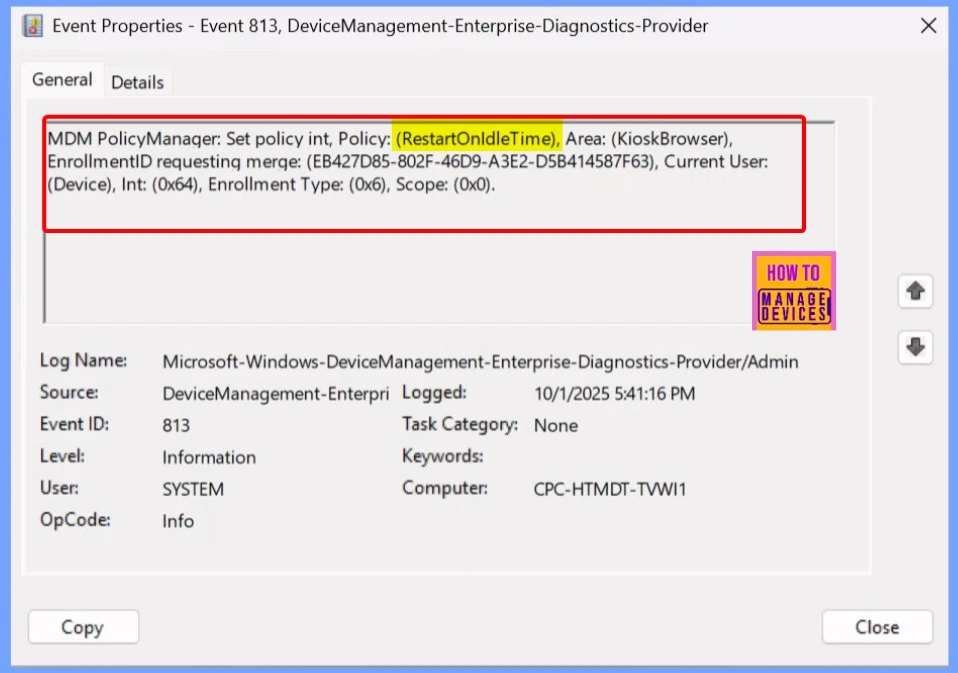
MDM PolicyManager Log for Restart On Idle Time
The MDM PolicyManager log provides detailed information about the application of the Restart On Idle Time policy in the kiosk browser. In this entry, the policy identified as (RestartOnIdleTime) under the (KioskBrowser) area is being merged for the device with the specified Enrollment ID (EB427D85-802F-46D9-A3E2-D5B414587F63).
- Event Viewer > Applications and Services Logs > Microsoft > Windows > DeviceManagement-Enterprise-Diagnostics-Provider > Admin
The MDM PolicyManager log provides detailed information about the application of the Restart On Idle Time policy in the kiosk browser. In this entry, the policy identified as (RestartOnIdleTime) under the (KioskBrowser) area is being merged for the device with the specified Enrollment ID (EB427D85-802F-46D9-A3E2-D5B414587F63).
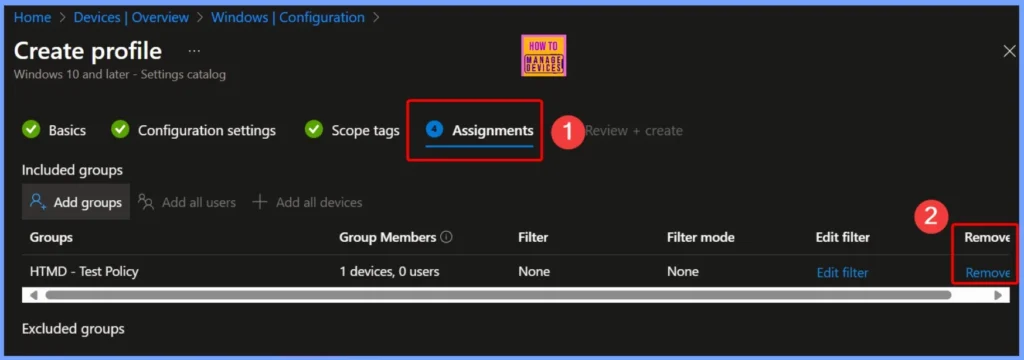
How to Remove the Assigned Group from the Policy
To remove an assigned group from a policy, navigate to the policy’s Assignments section in your Intune management console. Locate the group you want to remove, select it, and choose the Remove. Read more – How to Remove Assigned Group from Energy Saver Battery Threshold Policy in Intune Settings Catalog.
How to Delete the Restart on idle Time in Kiosk browser
To delete the Restart On Idle Time policy in the kiosk browser, navigate to the policy list in Intune and locate the specific policy by its name. Select the policy, and then choose the Delete option to remove it from the assigned devices.
Read more – How to Delete Allow Clipboard History Policy in Intune Step by Step Guide.
Need Further Assistance or Have Technical Questions?
Join the LinkedIn Page and Telegram group to get the latest step-by-step guides and news updates. Join our Meetup Page to participate in User group meetings. Also, join the WhatsApp Community to get the latest news on Microsoft Technologies. We are there on Reddit as well.
Author
Anoop C Nair has been Microsoft MVP for 10 consecutive years from 2015 onwards. He is a Workplace Solution Architect with more than 22+ years of experience in Workplace technologies. He is a Blogger, Speaker, and Local User Group Community leader. His primary focus is on Device Management technologies like SCCM and Intune. He writes about technologies like Intune, SCCM, Windows, Cloud PC, Windows, Entra, Microsoft Security, Career, etc.


Discussion