






Block Executables Impersonating or Copying System Tools and Binaries using Intune ASR Rules
Block Executables Impersonating or Copying System Tools and Binaries using Intune ASR Rules. The “Block executables that impersonate or are copies of system tools and binaries” ASR rule in Intune is a security policy that helps you to stop malicious programs that try to act like trusted Windows system tools.
Your Windows computer has many important system tools, such as cmd.exe and PowerShell.exe. These are built-in and safe. However, hackers sometimes create fake versions of these tool files that appear identical but actually contain harmful code. For example, they might make a fake “PowerShell.exe” and use it to attack your computer.
This Intune ASR rule helps you stop those fake files. It checks if a program pretending to be a system tool is real or not. If it’s a fake copy, the rule blocks it from running, keeping your device safe. This ASR rule is very helpful for IT admins and organisations because it adds an extra layer of protection against advanced cyberattacks that are often hard to detect.
For IT admins, it reduces the risk of malware spreading through fake system files. They don’t have to manually check every executable. Intune automatically blocks any program pretending to be a Windows tool. This saves time, and keeps endpoint security consistent across all managed devices.

Table of Contents
Block Executables Impersonating or Copying System Tools and Binaries using Intune ASR Rules
For the organization, it strengthens overall security by preventing attackers from using trusted Windows utilities for malicious purposes. This rule helps maintain a clean, trusted environment where only genuine system files can run, keeping both devices and company data safe.
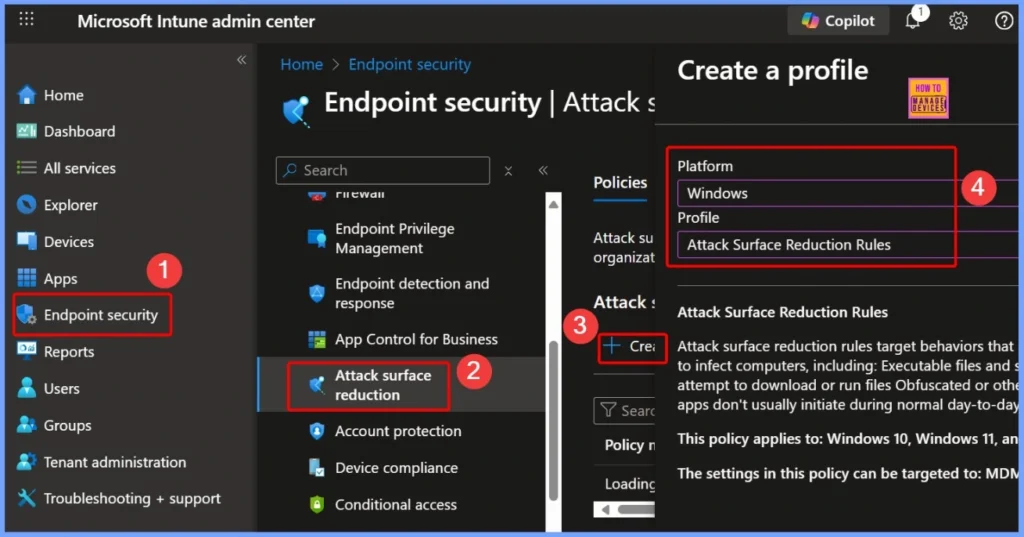
- To block the use of copied or impersonated system tools, start by signing in to the Microsoft Intune Admin Portal using your admin credentials.
- Once logged in, go to Endpoint security and select Attack surface reduction.
- From there, click on Create Policy to set up a new ASR rule.
| Platform | Profile |
|---|---|
| Windows | Attack Surface Reduction Rules |
- Block Executable Files with Prevalence Age or Trusted List Criteria using Intune ASR Rules
- Microsoft Defender ASR Rules to Block Rebooting Machine in Safe Mode
- MDE Microsoft Defender for Endpoint Telemetry Issues
- Unable to Join Teams Meetings Using Links from Outlook Because of ASR Rules
Basic Settings – Block Use of Copied or Impersonated System Tools
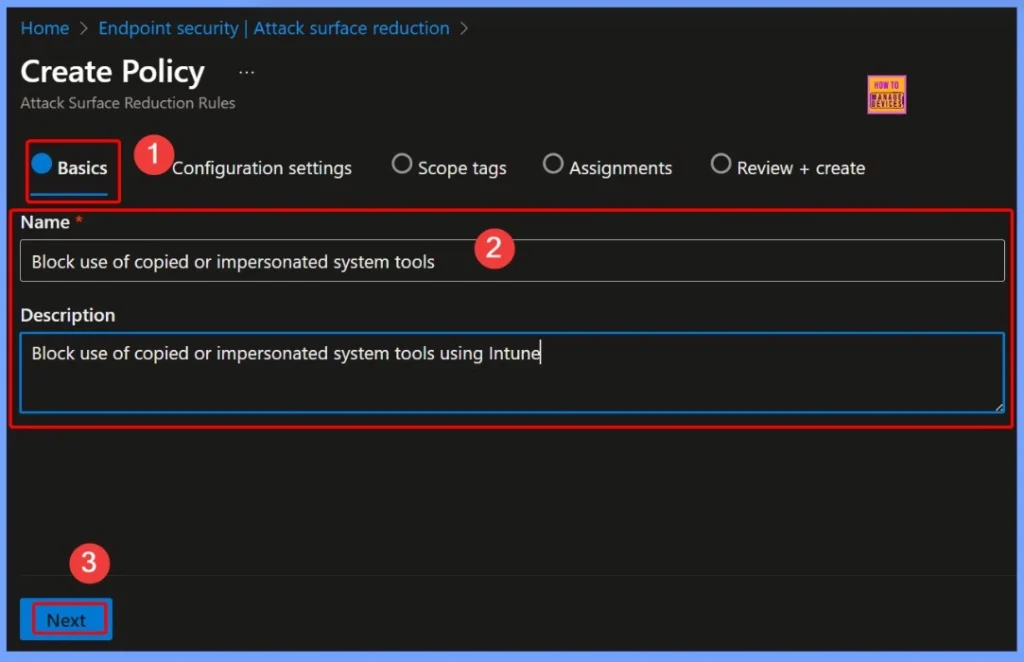
In the Basics tab, provide the necessary details for your ASR policy. These details help identify the purpose of the policy clearly within the Intune console. Giving a meaningful name and description makes it easier for IT admins to manage, track, and update the rule as part of the organization’s endpoint protection strategy.
- Name: Block use of copied or impersonated system tools.
- Description: Block use of copied or impersonated system tools using Intune.
Configure Rule Settings – Block Use of Copied or Impersonated System Tools
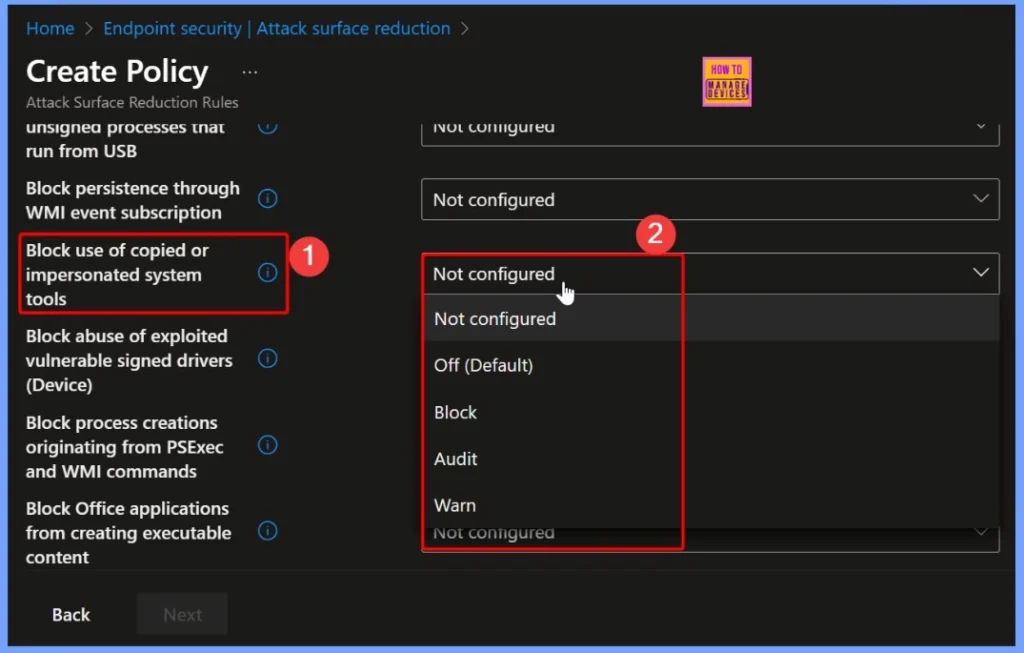
In this section, choose how the ASR rule should behave on managed devices. You will see the following options available for configuration: To ensure maximum protection, select Block, which prevents fake or unauthorized copies of system tools from running on devices managed through Intune.
| Policy Name | Available Options |
|---|---|
| Block Use of Copied or Impersonated System Tools | Not Configured Off (Default) Block Audit Warn |
Set Policy to Audit Mode
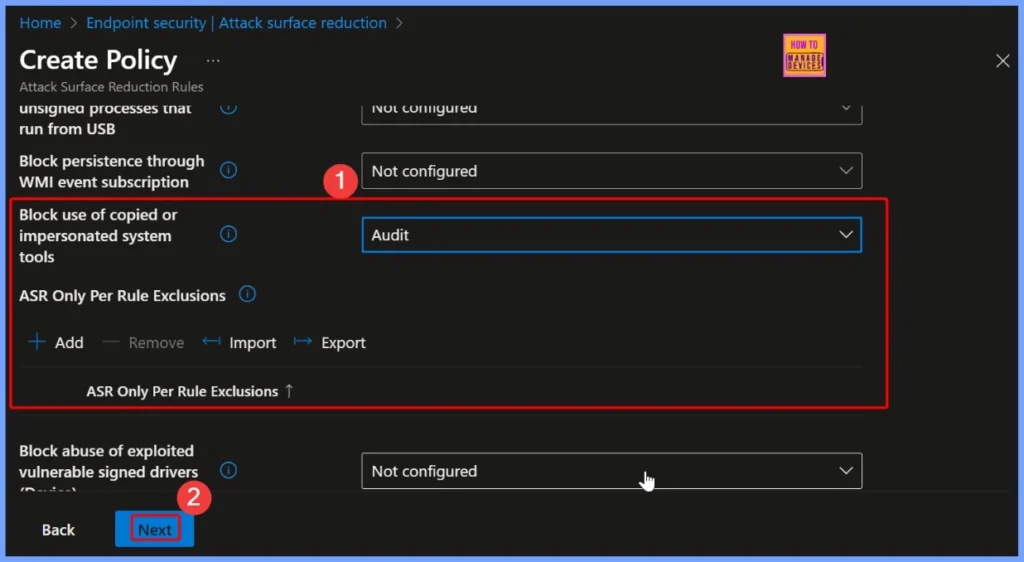
In this policy, the Audit mode is selected to monitor how the rule behaves before fully enforcing it. When in audit mode, the policy does not block any executables but instead records all detection events where copied or impersonated system tools are identified.
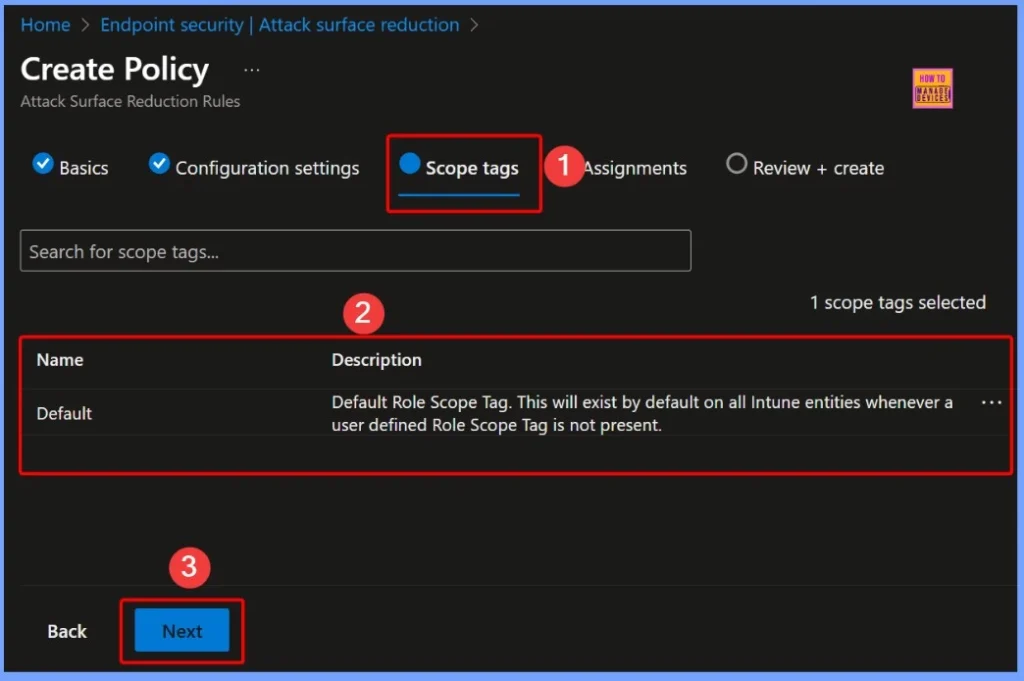
Scope Tag – Default
The Scope Tag defines which admins or groups can view and manage a specific policy in Intune. In this case, the default tag named “Default” is automatically applied. This tag is used when no custom or user-defined scope tags are assigned.
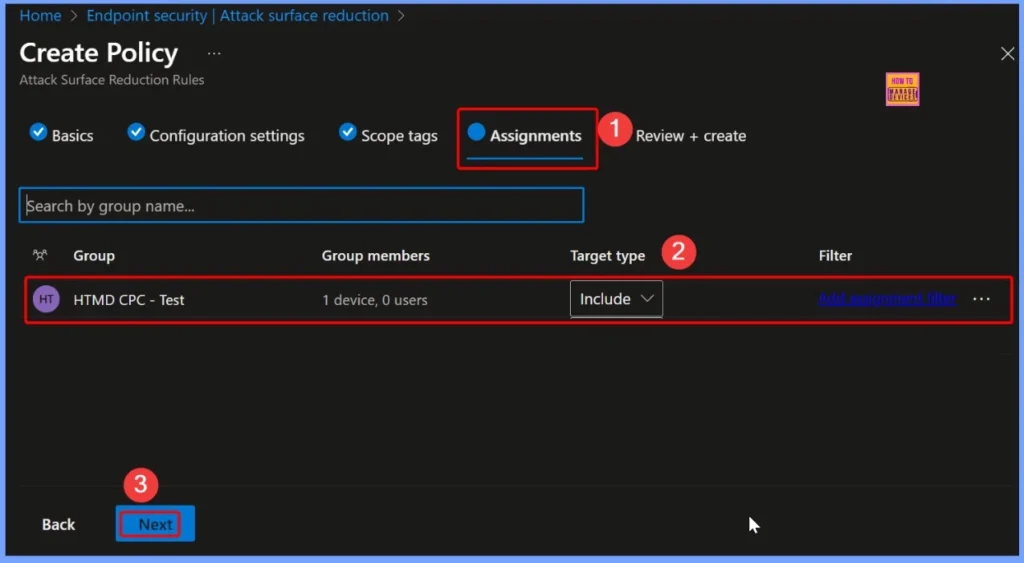
Assign Policy to a Group – HTMD CPC Test
In the Assignments section of the policy, the target group HTMD CPC Test is selected. Assigning the policy to this specific group ensures that the ASR rule applies only to the devices included in that group. This allows IT admins to test and monitor the policy’s behavior in a controlled environment before deploying it widely across the organization.
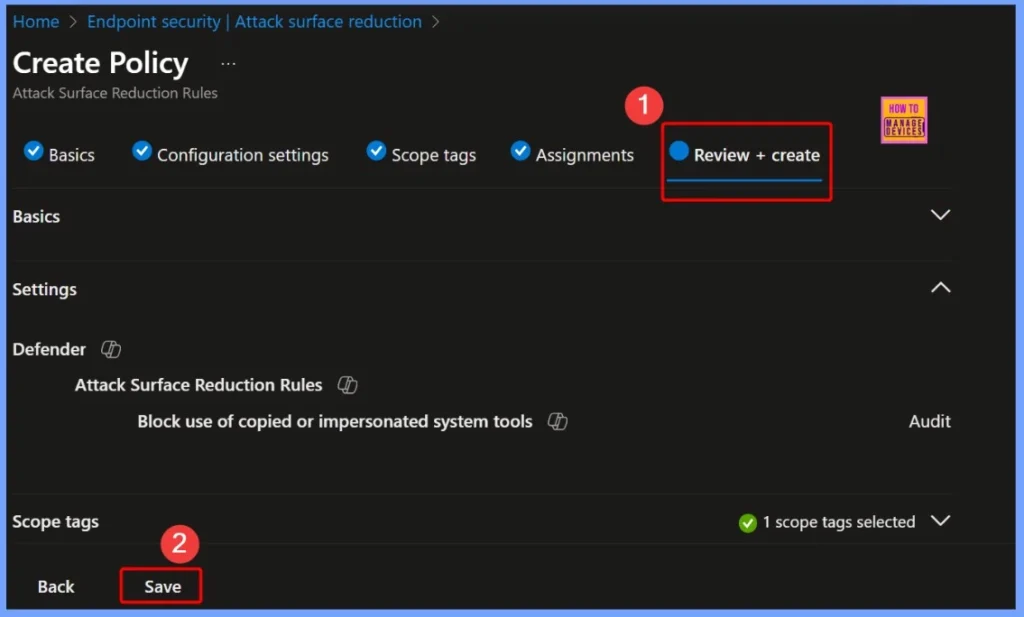
Review + Create Step
This final step allows you to ensure that everything is accurate before deployment. Once you’ve reviewed and confirmed the details, click Create to finalize and deploy the policy. The screenshot below helps you to show more details.
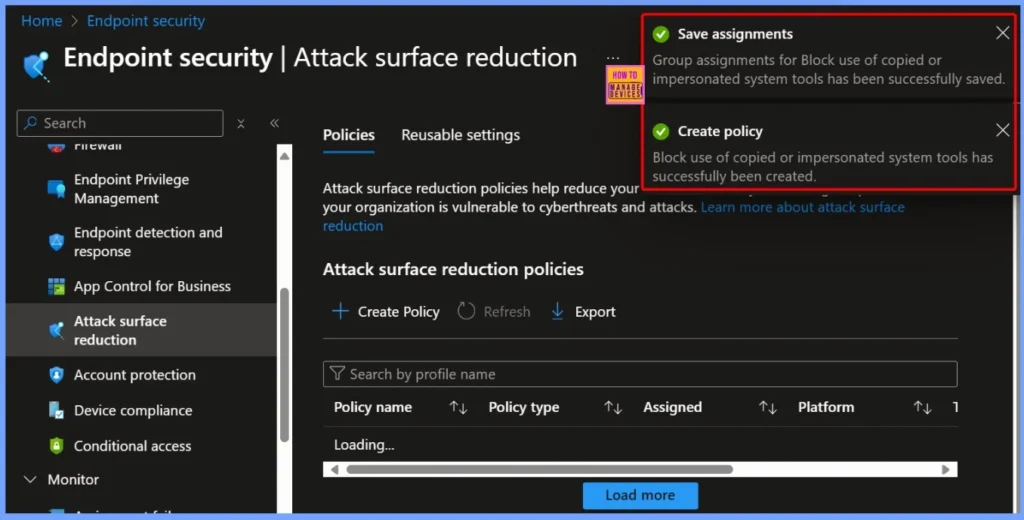
Policy Creation and Assignment Confirmation
After completing the setup, you will see two confirmation notifications in the Intune portal. The first message, “Create policy – Block use of copied or impersonated system tools has successfully been created,” confirms that the policy has been created successfully. The second message, “Save assignments – Group assignments for Block use of copied or impersonated system tools has been successfully saved,” indicates that the policy has been correctly assigned to the selected group.
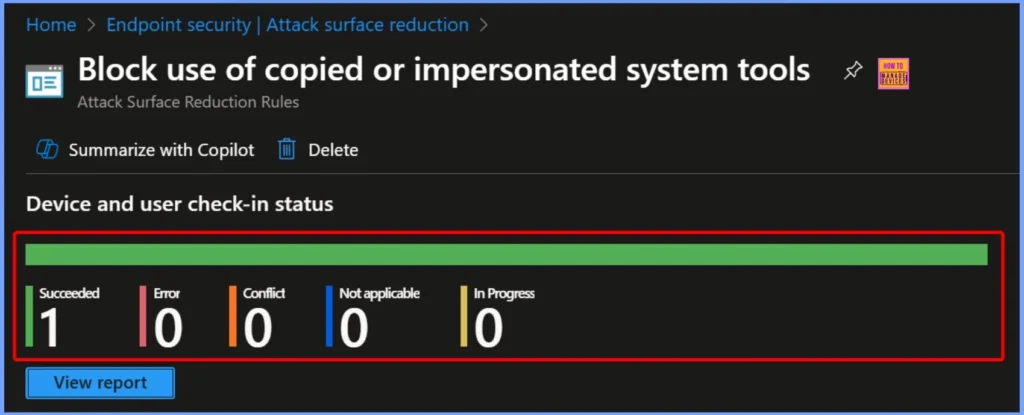
Device and User Check-In Status
After deploying the policy, the Device and User Check-In Status shows the results of how the policy was applied across targeted devices. The device and user check in status is shown below.
- Succeeded: 1
- Not applicable: 0
- In Progress: 0
- Error: 0
- Conflict: 0
Verify Policy Deployment in Event Logs
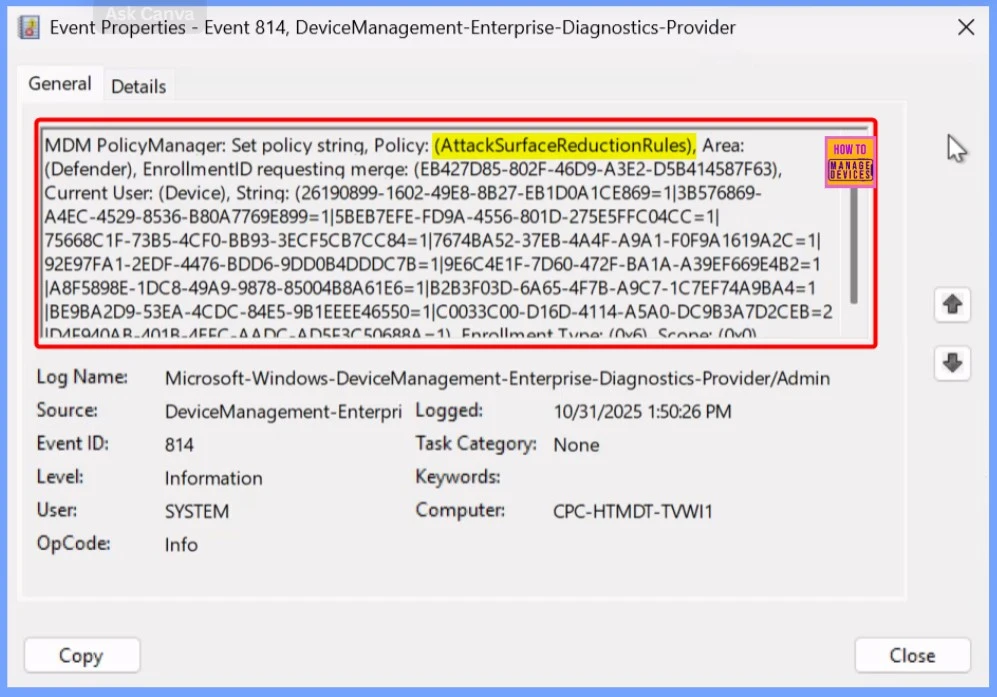
To confirm that the Block use of copied or impersonated system tools policy has been applied successfully, you can check the device’s Event Viewer. Navigate to the following path: Applications and Services Logs → Microsoft → Windows → DeviceManagement-Enterprise-Diagnostics-Provider → Admin
Need Further Assistance or Have Technical Questions?
Join the LinkedIn Page and Telegram group to get the latest step-by-step guides and news updates. Join our Meetup Page to participate in User group meetings. Also, Join the WhatsApp Community to get the latest news on Microsoft Technologies. We are there on Reddit as well
Author
Anoop C Nair has been Microsoft MVP from 2015 onwards for 10 consecutive years! He is a Workplace Solution Architect with more than 22+ years of experience in Workplace technologies. He is also a Blogger, Speaker, and Local User Group Community leader. His primary focus is on Device Management technologies like SCCM and Intune. He writes about technologies like Intune, SCCM, Windows, Cloud PC, Windows, Entra, Microsoft Security, Career, etc


Discussion