






Install AVS Media Player App using Intune Enterprise App Catalog App
Let’s discuss the Install AVS Media Player App using Intune Enterprise App Catalog App. AVS Media Player installation is easy with the Enterprise App Catalog app. In this blog post, I will share my experience of installing the AVS Media Player app.
AVS Media Player is a versatile media player for Windows. It allows you to watch videos, play audio, and view pictures. AVS Media Player supports different formats. The interface is intuitive and easy to navigate, making it accessible for users of all experience levels.
There are many advantages for AVS Media Player. It is a customizable application that provides different facilities. It is one of the famous Media Player. You can choose AVS Media Player app for your personal or professional uses.
As a free media player, it reduces the need for purchasing costly media software licenses. In this post you will get each and every steps of app installation. You can suggest this app for your organization to enhance the experience.

Table of Contents
What are the Advantages of AVS Media Player?
Install AVS Media Player App using Intune Enterprise App Catalog App
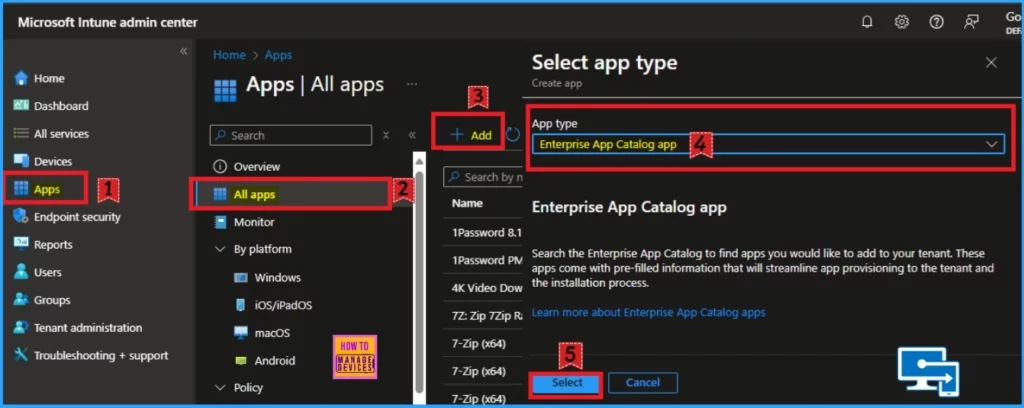
Installation of AVS Media Player can be easy with the Intune Enterprise App Catalog App. To start the installation, open the Microsoft Intune Portal. Then go to Apps > All apps. Then click on the +Add button and select Enterprise App catalog app from the app type. Then click on the select button.
- PDF24 Creator Deployment using Intune Enterprise App Catalog App
- How to Install Frame App using Intune Enterprise App Catalog App
- Best Method to Deploying Free Countdown Timer App using Intune Enterprise App Catalog
App Information Tab
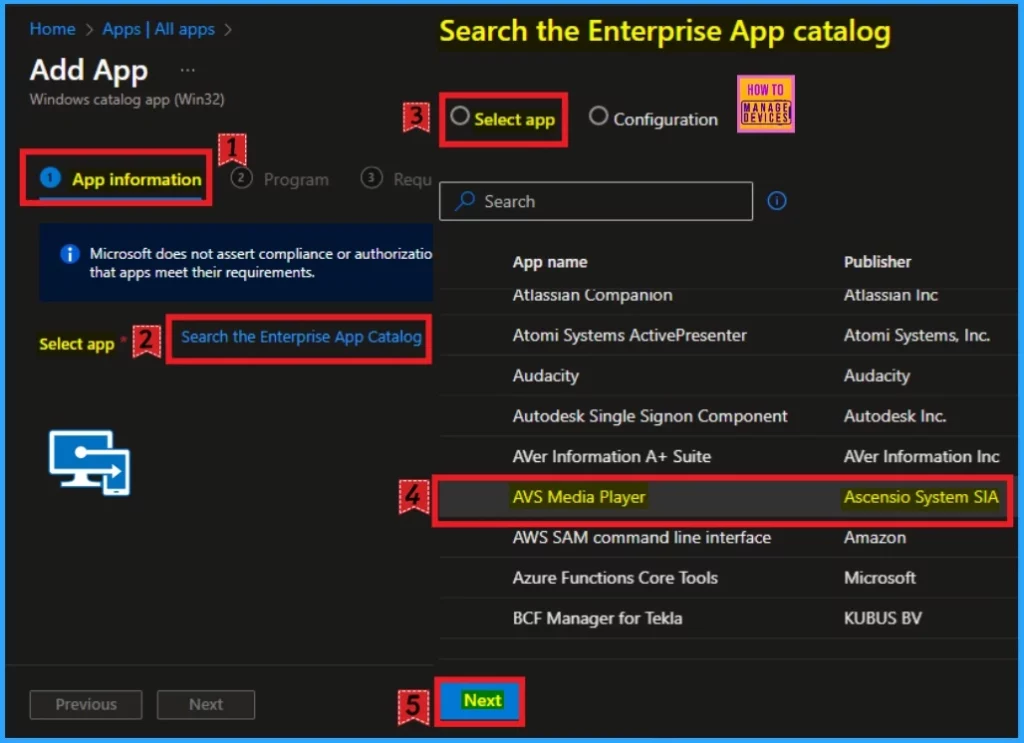
After that, you will see the App Information tab. You can see the Search the Enterprise App Catalog hyperlink on this tab. Click on this hyperlink, and you will see the select app window. From this window, I select AVS Media Player App. Click on the Next button.
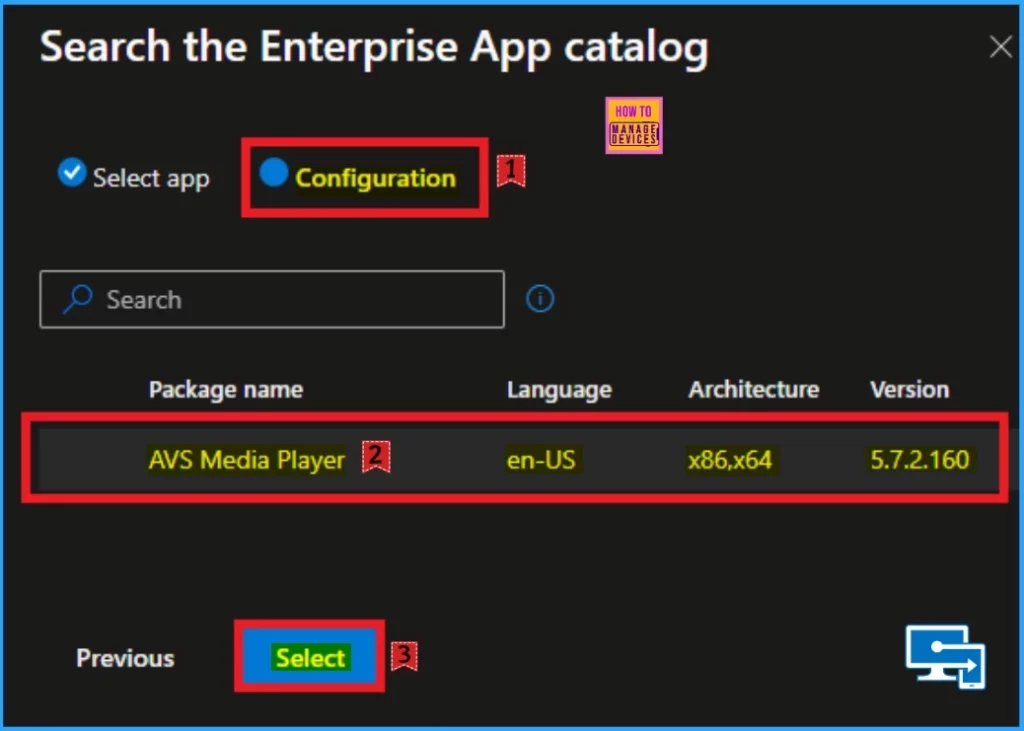
After Clicking on the Next button from the Select App tab, you will get the Configuration tab that shows details of the AVS Media Player App which includes package name, language, architecture and version. Look at the below screenshot.
| Package Name | Language | Architecture | Version |
|---|---|---|---|
| AVS Media Player | en-US | x86,x64 | 5.7.2.160 |
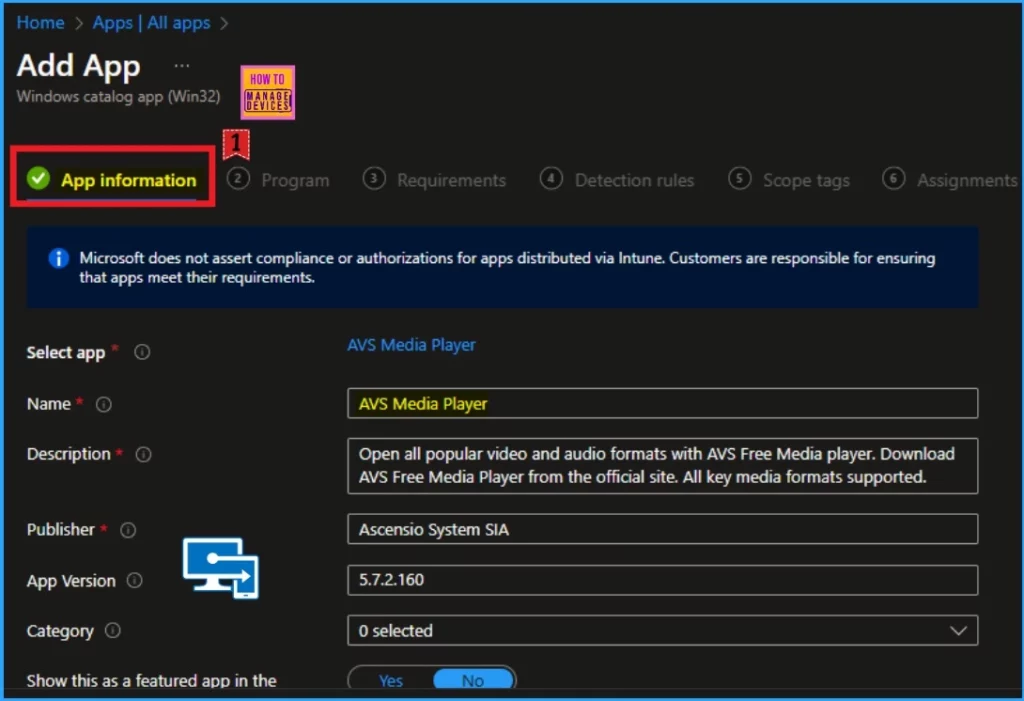
You can see important information about the selected app in the app information includes , Name, Description, Publisher, App version, category etc. From this window you can understand more about AVS Media Player.
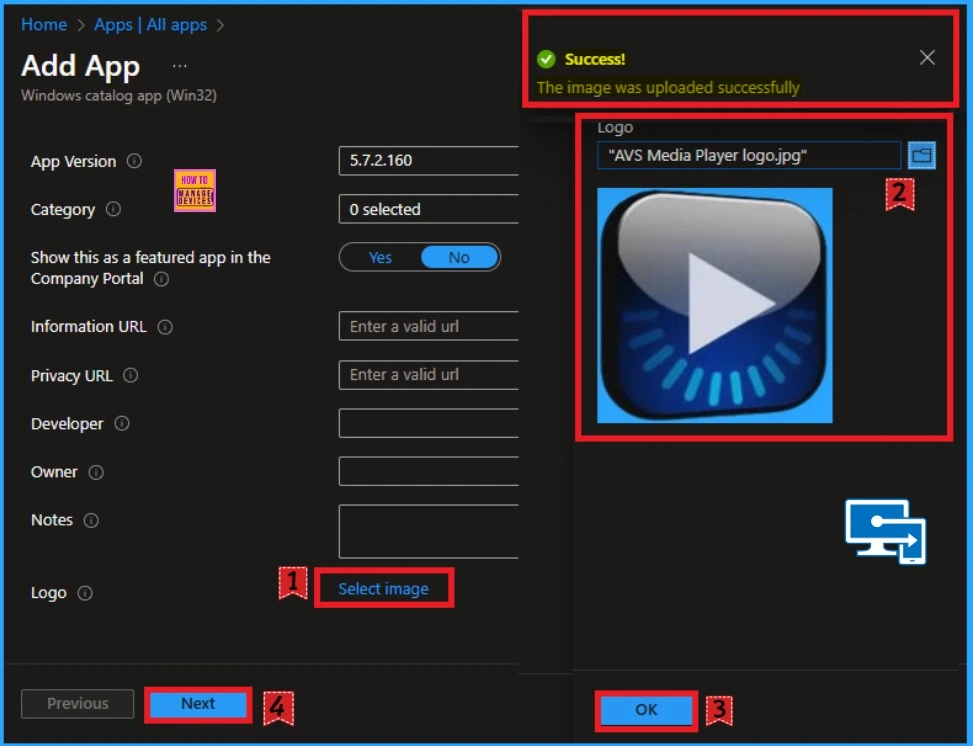
Then, slightly scroll down the App information window and see the Add image hyperlink near the logo field. Click on the hyperlink and select the File Explorer icon. Select the image, and you will get the success notification. Click on the Ok button, and you will get another success notification. Click on the Next button to continue.
Program Tab
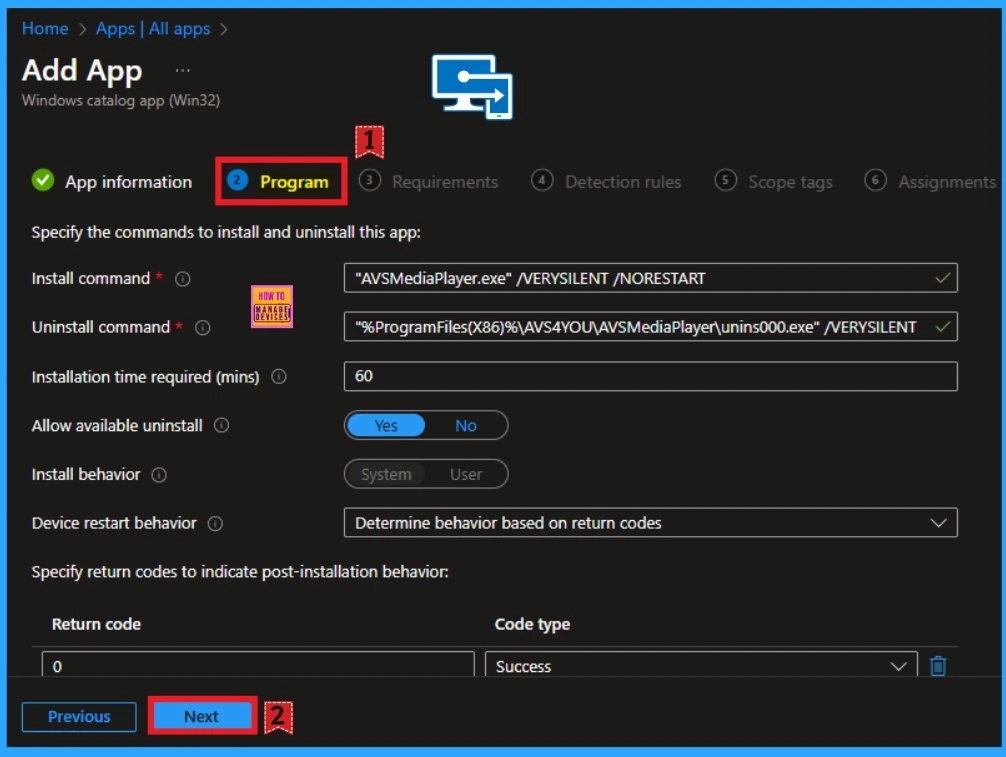
The program tab shows various commands that are essential for completing the Installation. It includes the Install command, the Uninstall Command, the Installation time required (minutes), and more. Here, you can see the Allow Available uninstall field. You can enable or disable this field. Click on the Next button to continue.
Requirements Tab
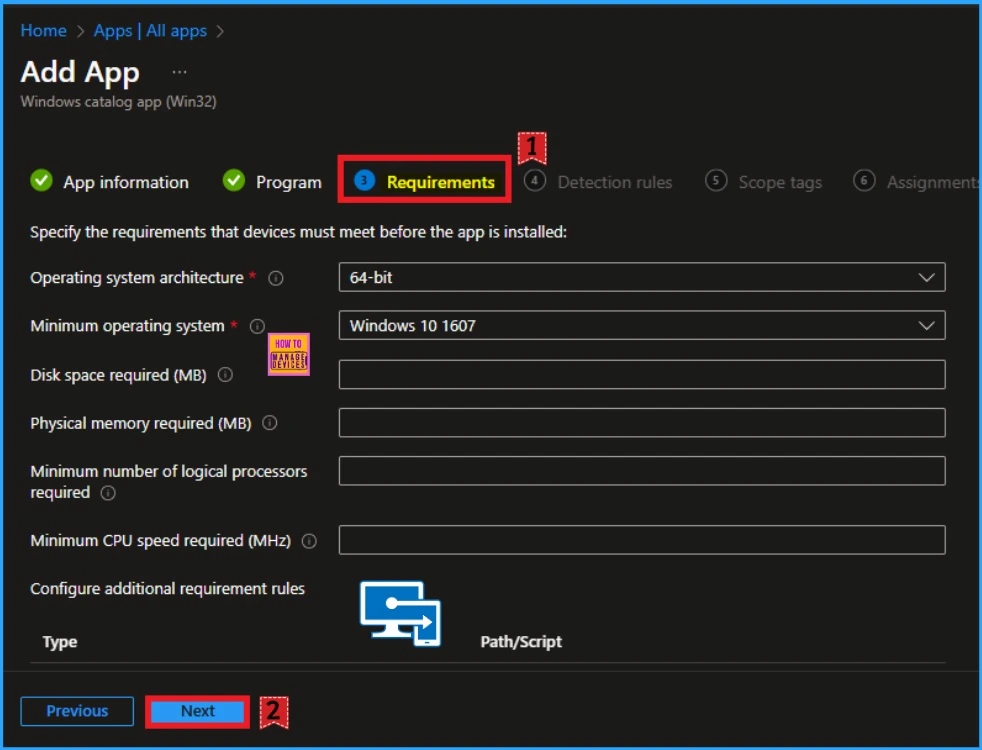
The Requirements tab shows various requirements you must consider during installation. These include operating system architecture, minimum operating system, Disk space required, and more. You can verify these details before proceeding with the installation based on your organizational requirements. Click on the Next button.
Detection Rules
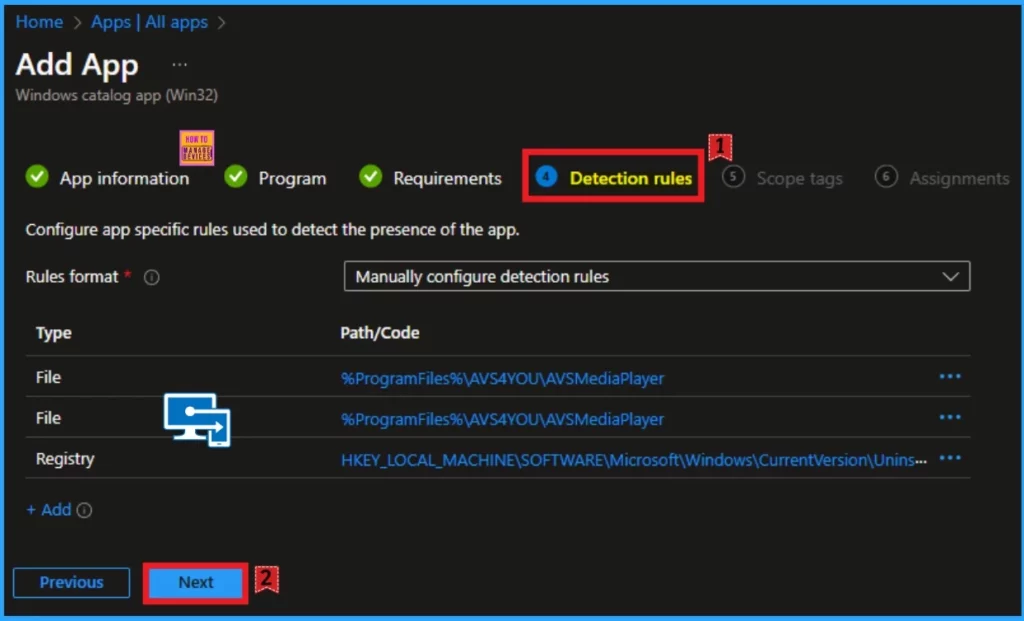
The Detections Rules help you to determine the presence of the selected app. Intune has some specific rules for this and Detection Rules window shows that. It includes Files, Registry, etc. Click on the Next button.
Scope Tags
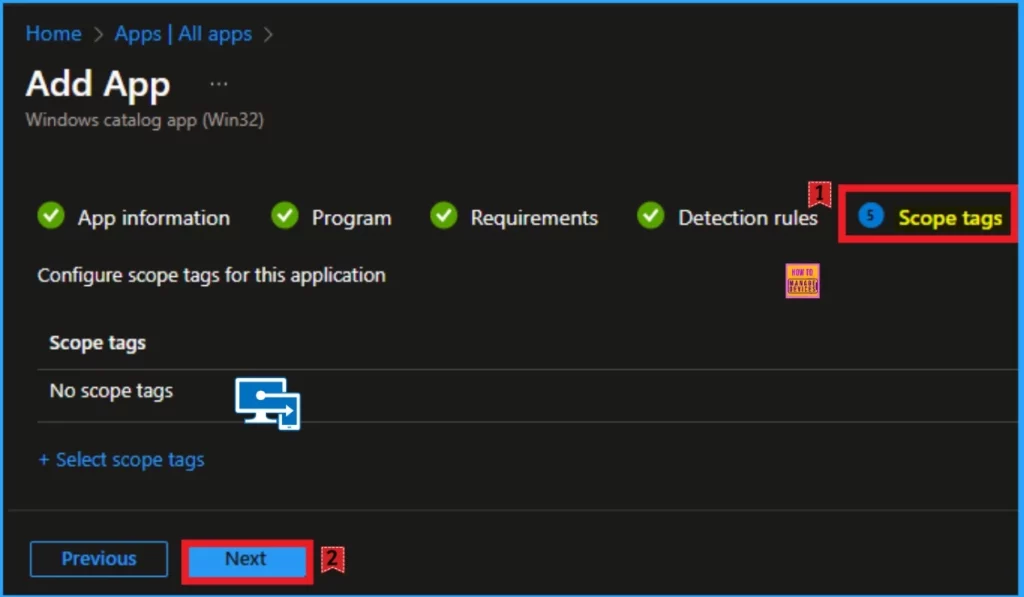
As you know, the Scope tag section is not mandatory in app installation. So, I am going to skip this section. Click on the next button to continue. Look at the below window.
Assignments Tab
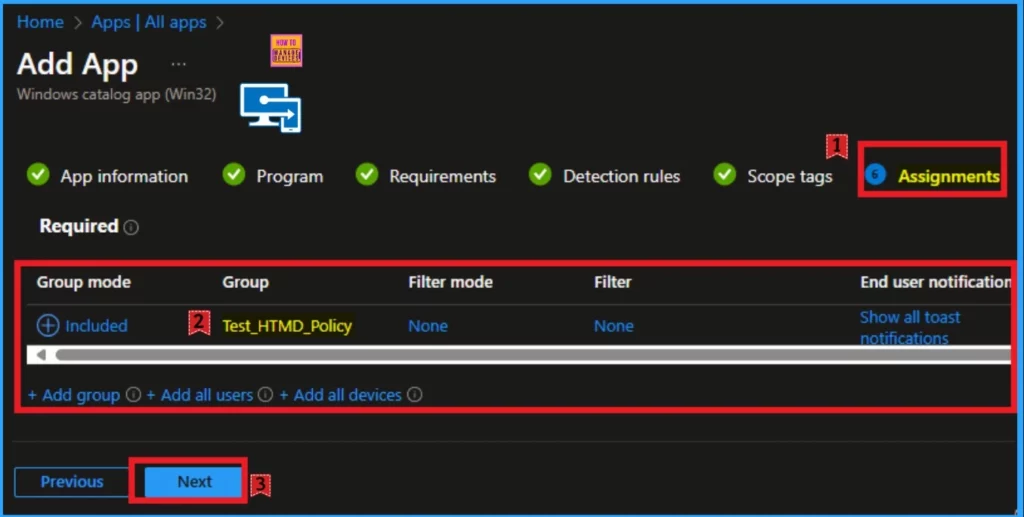
The assignments tab is a very important section in app installation. In this section, you can assign the app installation to specific groups. To do this, click on the add groups hyperlink under included. Select the group from the list of groups. Click on the select button and Next button.
Review + Create Tab
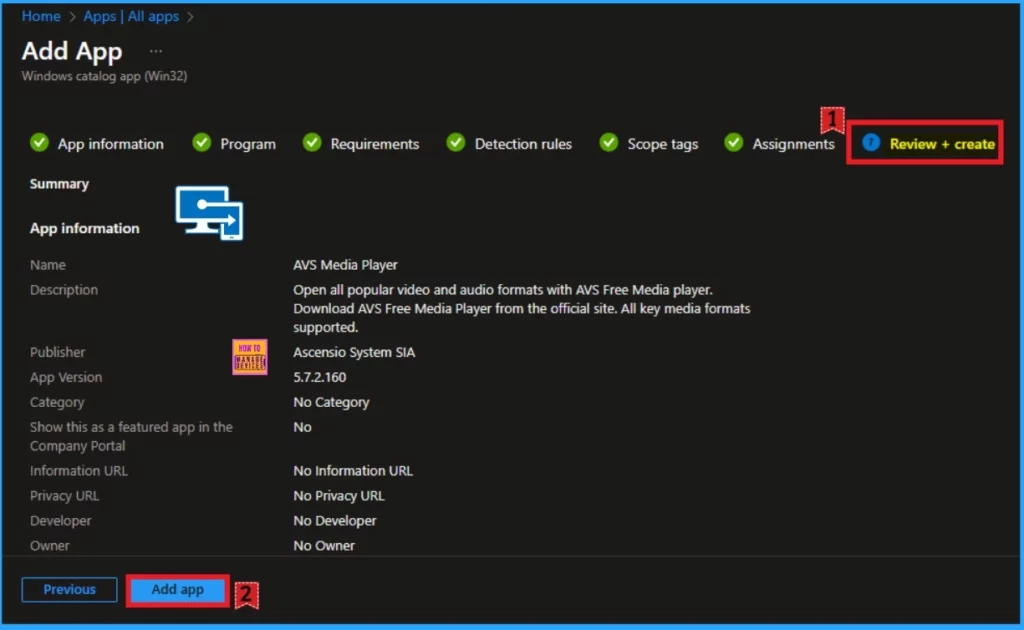
The Review + Create tab shows all the AVS Media Player app information. It includes app information, program, requirements, detection tabs, scope tags, and Assignment tab details. After verifying the details, click on the Next button.
Monitoring Status
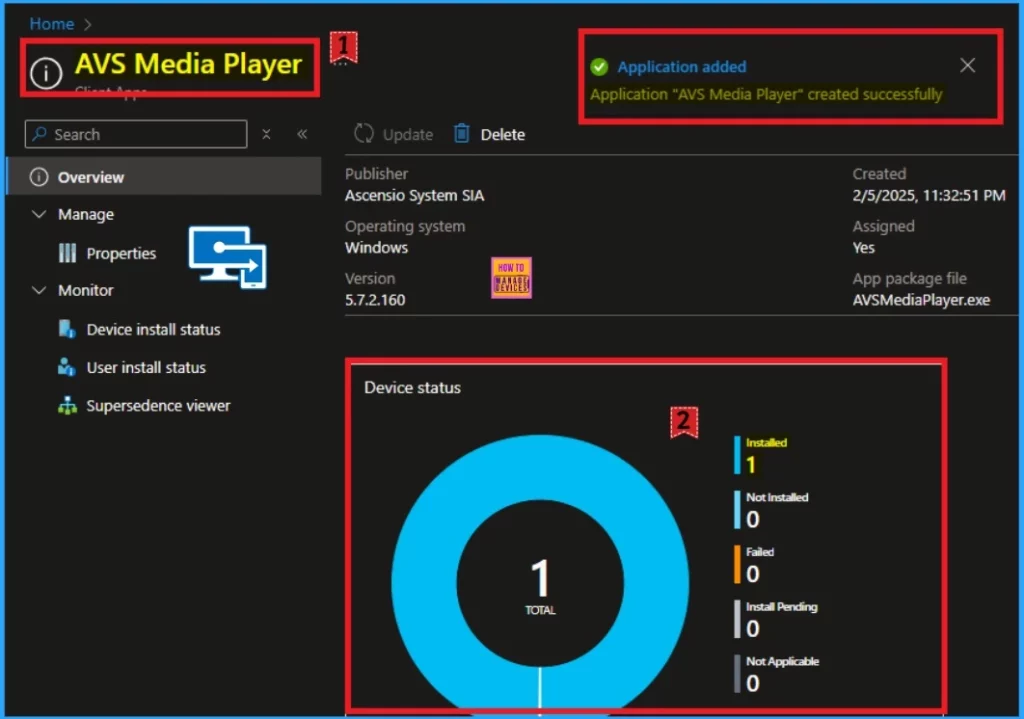
After clicking on the add app button, you will get a success notification. Then, sync your device on the company portal. After that, you can check the Monitoring status. Here, the Installed number is 1.
End User Experience
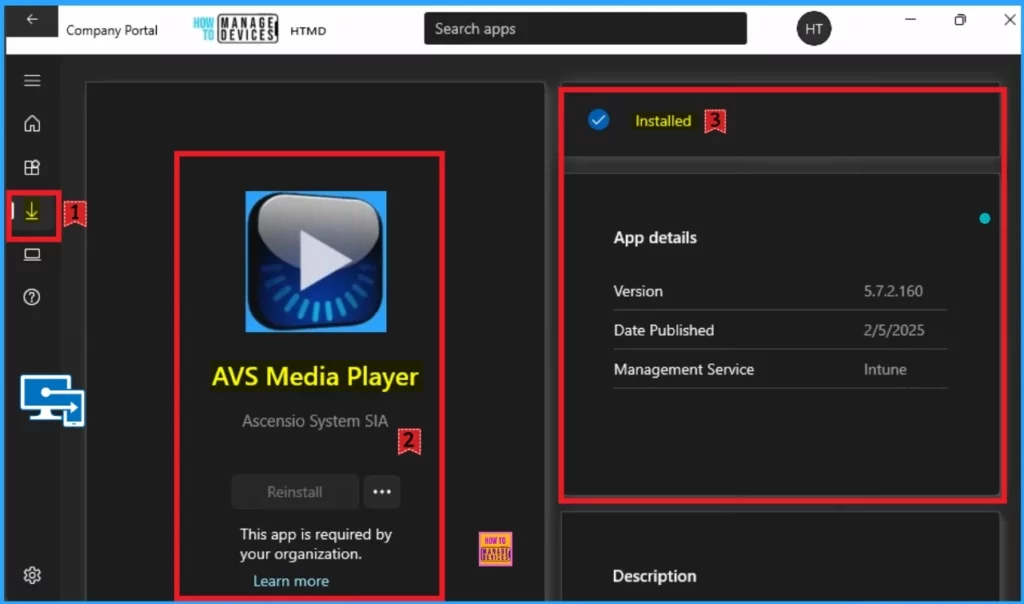
After checking the Monitoring status, you can check the End-user experience on the Company Portal. To check the end-user experience, open the company portal and go to downloads and updates. Look at the window below; the app is installed.
Need Further Assistance or Have Technical Questions?
Join the LinkedIn Page and Telegram group to get the latest step-by-step guides and news updates. Join our Meetup Page to participate in User group meetings. Also, Join the WhatsApp Community to get the latest news on Microsoft Technologies. We are there on Reddit as well.
Author
Anoop C Nair has been Microsoft MVP for 10 consecutive years from 2015 onwards. He is a Workplace Solution Architect with more than 22+ years of experience in Workplace technologies. He is a Blogger, Speaker, and Local User Group Community leader. His primary focus is on Device Management technologies like SCCM and Intune. He writes about technologies like Intune, SCCM, Windows, Cloud PC, Windows, Entra, Microsoft Security, Career, etc.


Discussion