






Install Cloud Compare App using Intune Enterprise App Catalog App
Let’s learn how to Install Cloud Compare App using Intune Enterprise App Catalog App. As you all know, the Enterprise app catalog is one of the important features in Microsoft Intune. This is a prepackaged application deployment feature that will reduce the workload of IT admins by ensuring they don’t need to add anything special for app deployment.
We have already discussed various app installation processes, and today, we are going to install one of the best tools for working with 3D point clouds and triangular meshes, called CloudCompare. CloudCompare is a free software tool that offers visualization capabilities and can handle large datasets effectively.
CloudCompare is an essential tool for professionals and a helpful app for data workers. It began in 2003 with Daniel Girardeau-Montaut’s research on detecting changes in 3D data. The primary feature of CloudCompare is its capability to compare two dense 3D point clouds.
It also supports triangular meshes, enabling users to create, edit, and analyze 3D models. This application benefits organizations and is easy to install in MS Intune using the Enterprise App Catalog. In this post, we will look at how to install the application using Intune.

Table of Contents
What are the Benefits of Cloud Compare App?
Install Cloud Compare App using Intune Enterprise App Catalog App
The previous discussion covered various aspects of Cloud Compare and enterprise app catalog app. Now, we need to focus on selecting an app type in Microsoft Intune. So, let’s get started with sign in to the Microsoft Intune admin center.
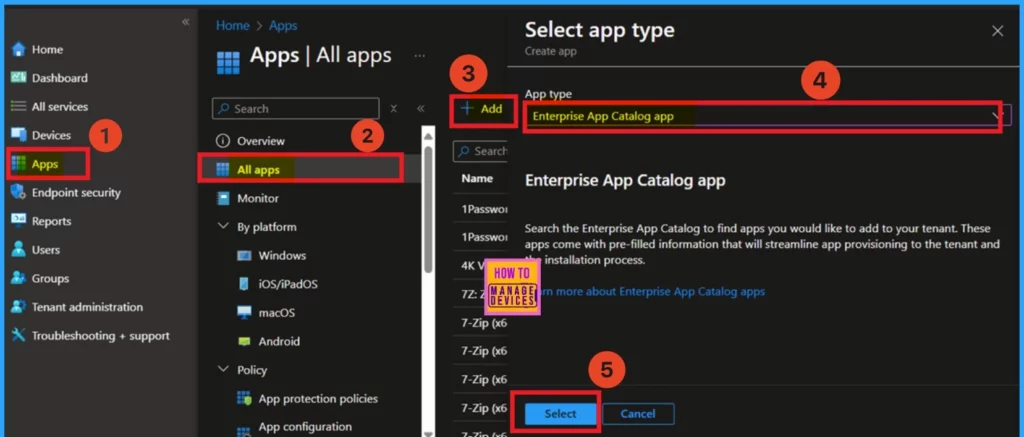
Next, click on “Apps,” then select “All Apps.” When you click on “All Apps,” then you can see +Add option. Clicking on this will open a new window where you can choose the app type as Enterprise app catalog app. After making your selection, click on “Select.”
- Best way to Install Bullzip PDF to Word App using Intune Enterprise App Catalog App
- Deploy Windows Catalog App type using Intune Enterprise Application Catalog
- How to Deploy Adobe AIR Using Enterprise App Catalog App with Intune
App Information
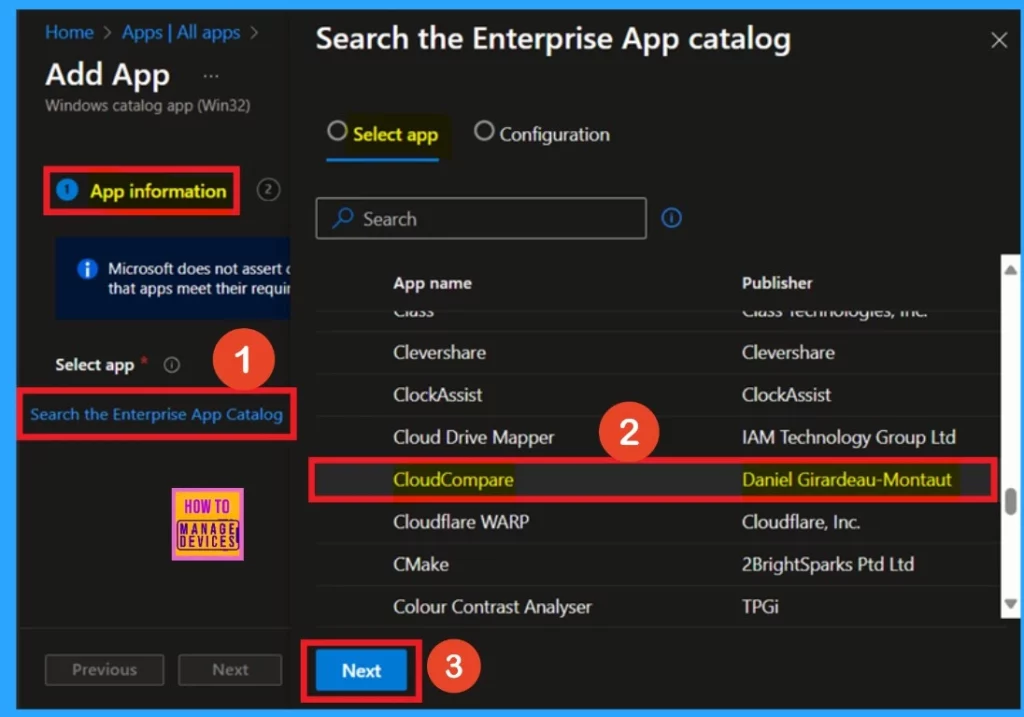
After creating the app type, you will be directed to the app information page. Here, you can see that the option in the hyperlink “Search the Enterprise App Catalog.” Click on this option. Then you will see a variety of apps available. You can search for the CloudCompare app; click on that and then click “Next.”
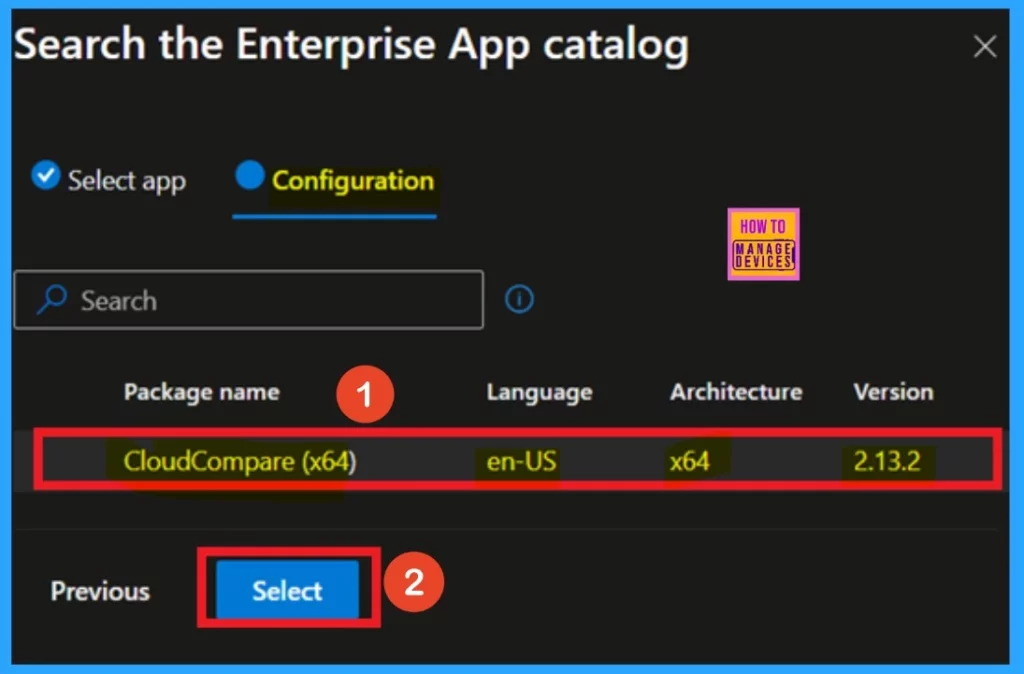
After clicking next, you will be on the configuration tab. This tab allows you to select the app version. Here, only one version is displayed, so click on that and then select the option.
| Package Name | Language | Architecture | Version |
|---|---|---|---|
| CloudCompare (x64) | en-US | *64 | 2.13.2 |
Add a Logo
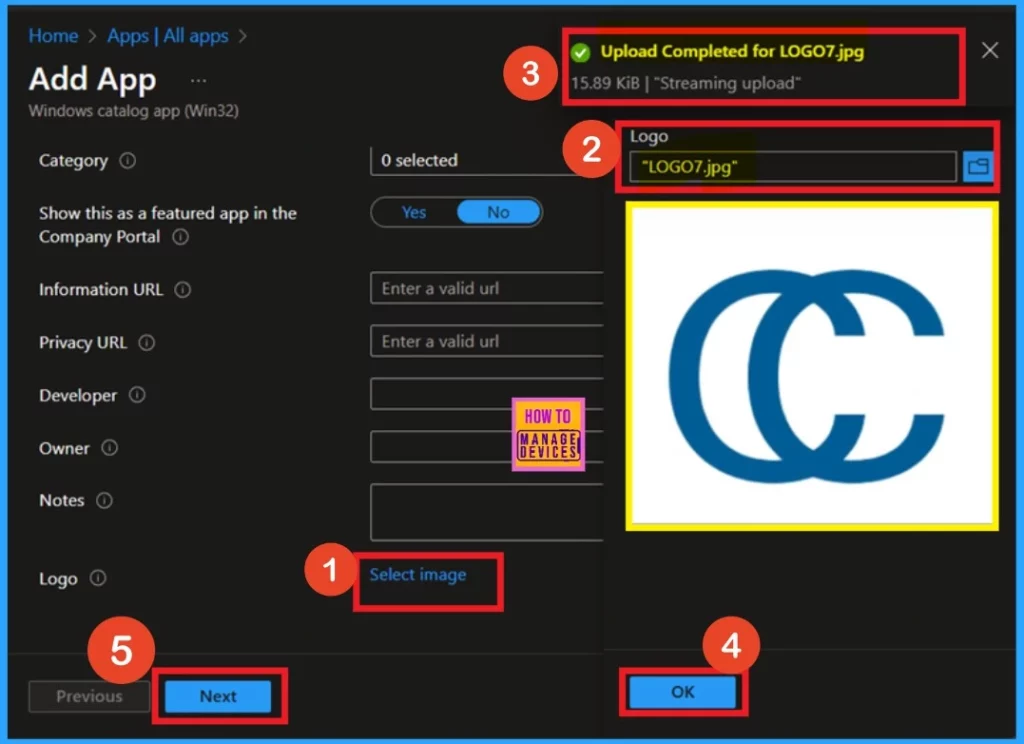
After the configuration, you are still on the app information page, where you can find much information about the app. Scroll down to proceed to the next step, adding a logo to the app. You’ll see a hyperlink option at the bottom of the page (Select Image).
- Click on this link to upload the logo file you downloaded.
- Once the image is uploaded, you will receive a notification indicating that the upload is complete.
- Click “OK” to continue.
Program
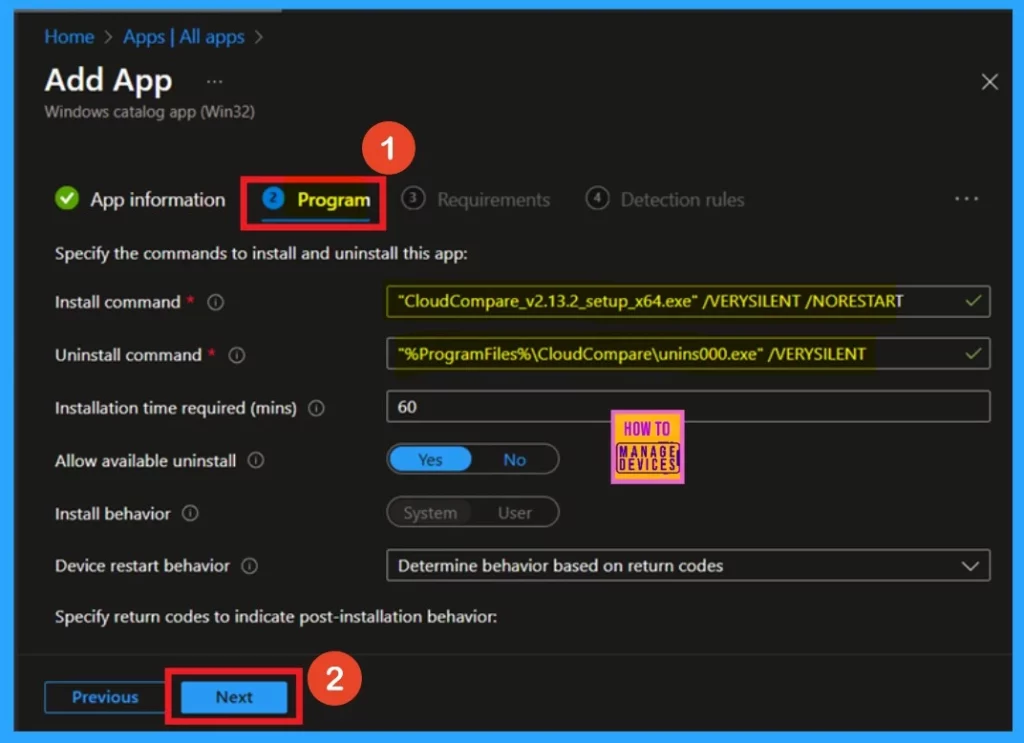
Next is the program page, on this page, you will find a lot of information regarding the install command, device information, restart behavior, and more. You don’t need to take any action here due to the nature of the enterprise app and catalogue policy. Once you’ve reviewed the information, click Next to proceed.
Requirements
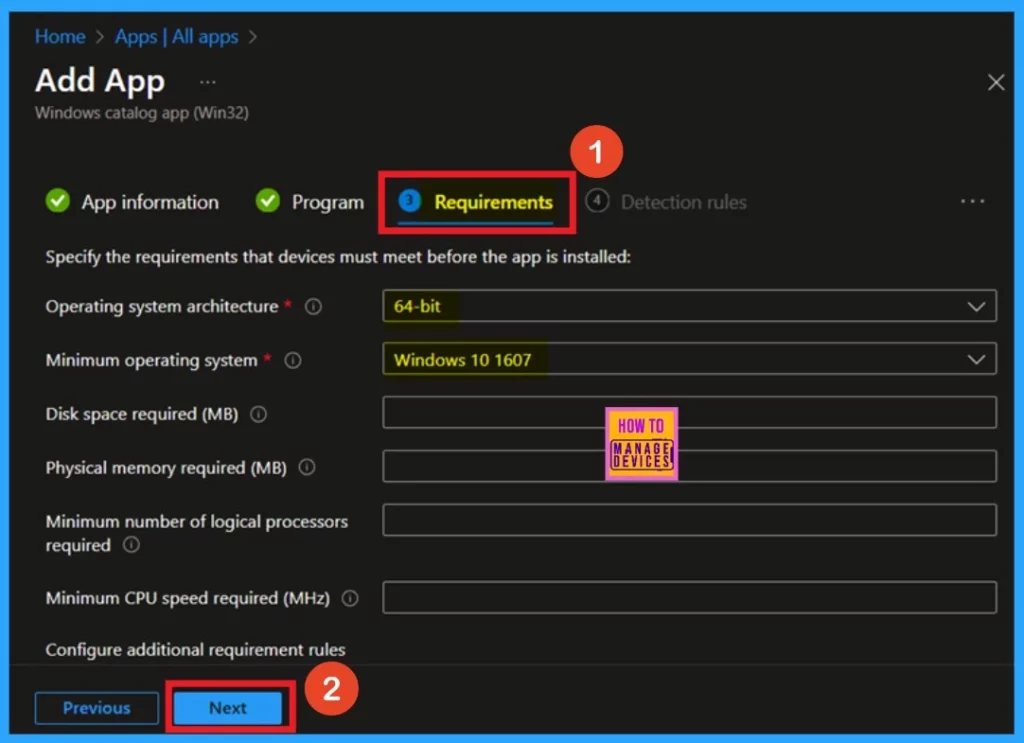
The next section is the Requirements tab. In this tab, you can find information about the operating system architecture, including the minimum requirements for the operating system. Please note that this page is not mandatory. You can click Next to proceed further.
Detection Rule
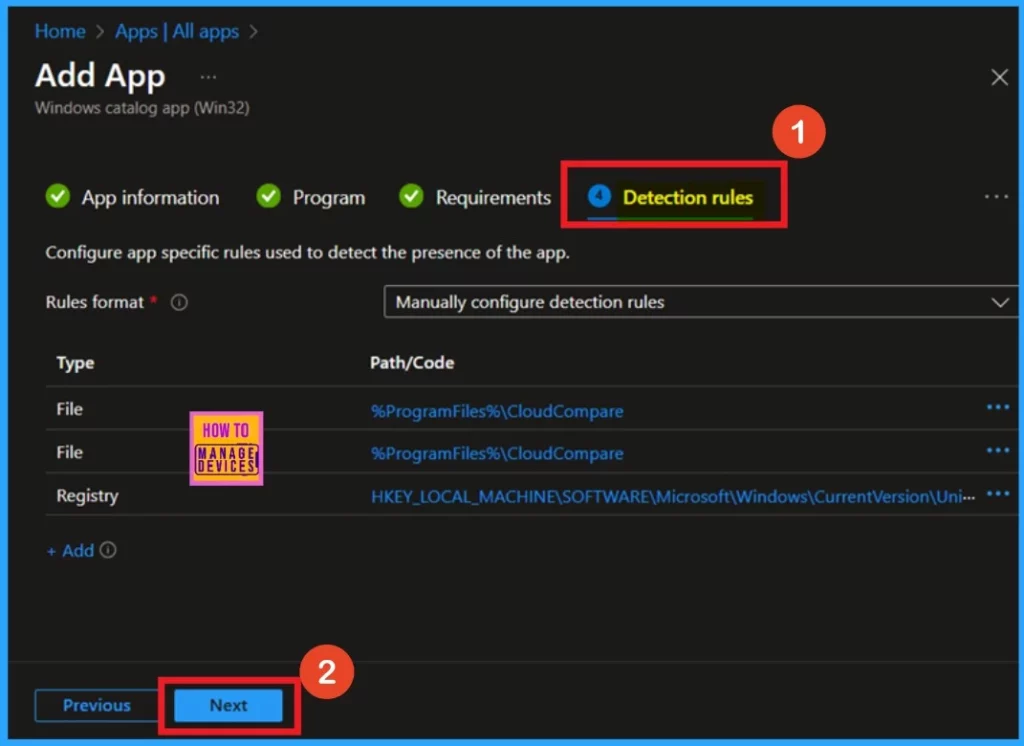
The next section is the Detection Rule. Here, you will find the rules, formats, and types of path codes. You will discover file paths, registry paths, and more. This section is not mandatory, so I skipped this section.
Scope Tags
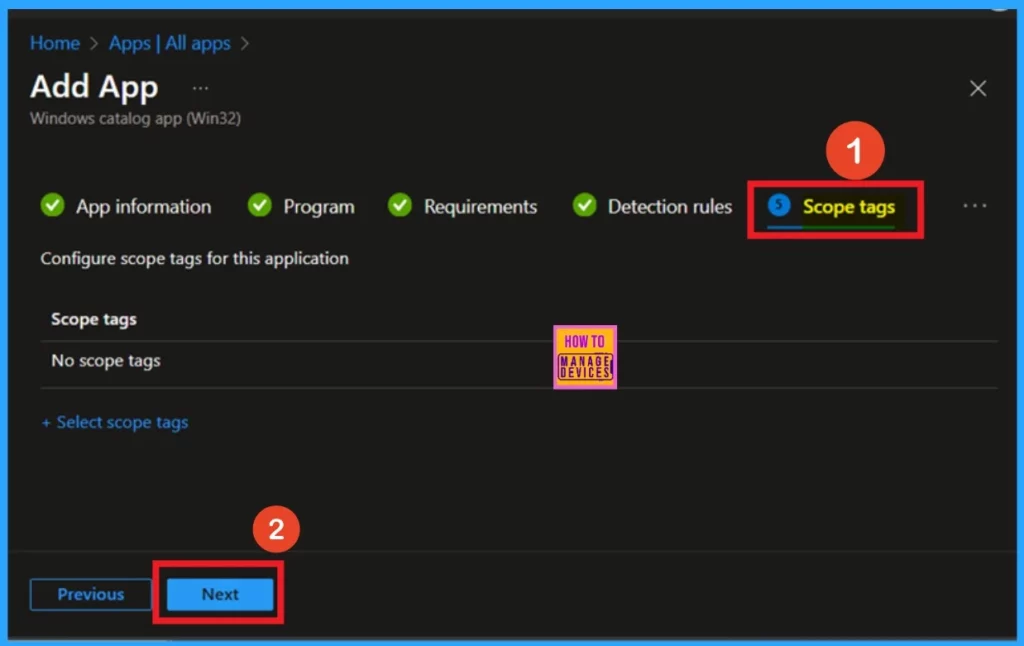
The next section is Scope Tags, an important part of every deployment. However, adding a Scope Tag is optional. To include a Scope Tag, click the Select the Scope Tag option. If you do not need a Scope Tag, skip this section and click Next.
Assignments
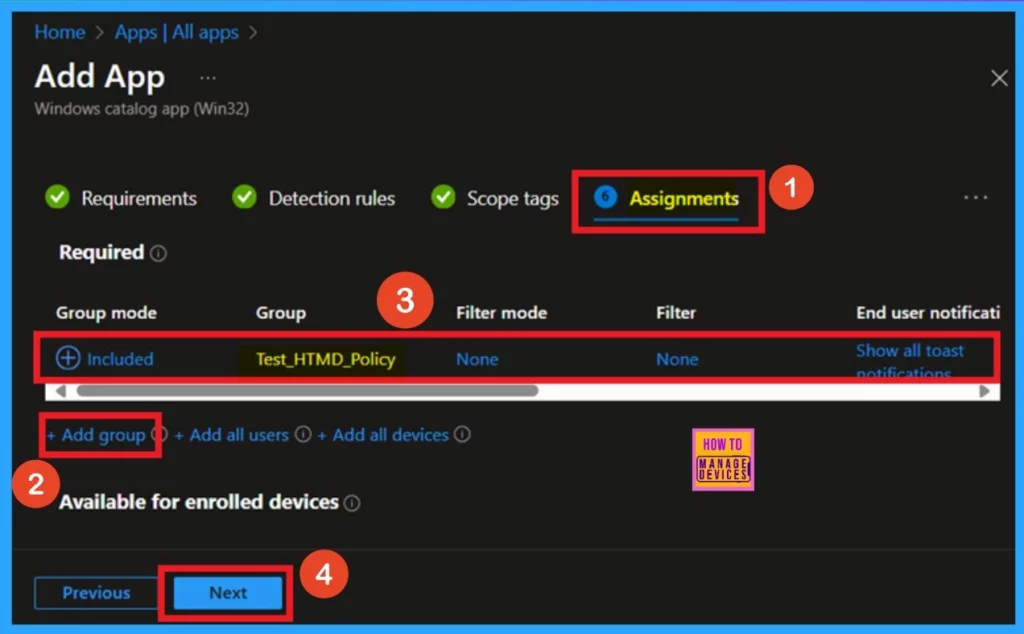
The assignments tab is a very important section in app installation. In this section, you can assign the app installation to specific groups. To do this, click on the add groups hyperlink under included. Select the group from the list of groups. Click on the Select button and Next button.
Review+ Create
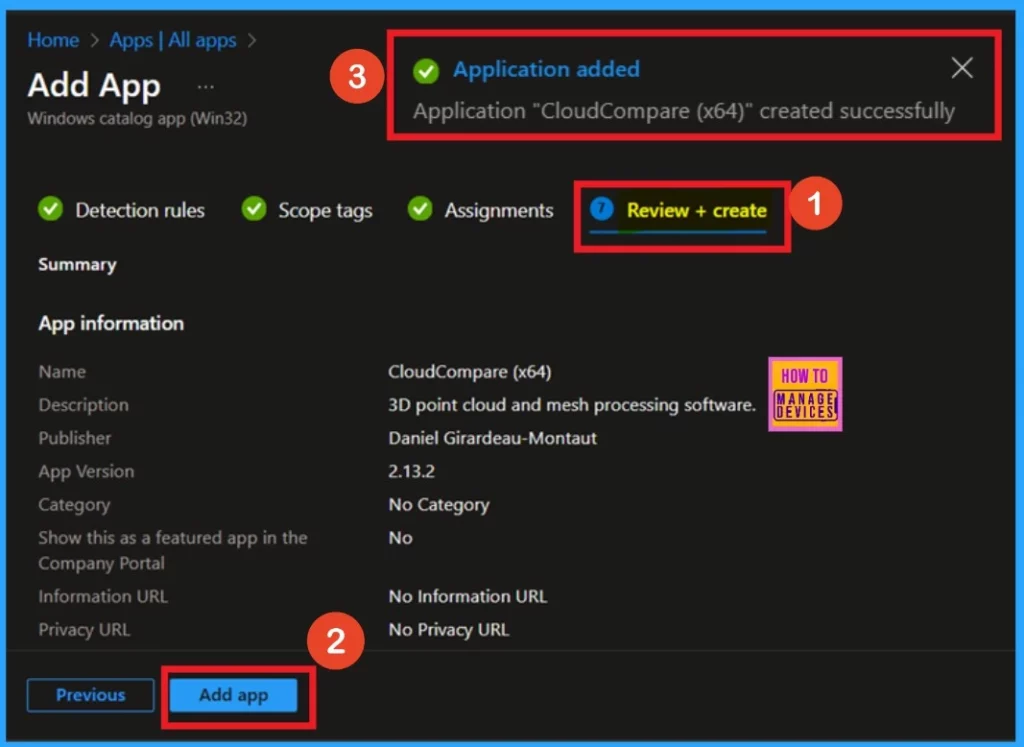
The “Review + Create” option is the final step in the process. This page summarises all the details related to the app deployment, including the app’s name, description, publisher, version, and any other related information.
After verifying all the details are correct, click the “Add App” button. You will then receive a notification confirming the application has been successfully added.
Device Status
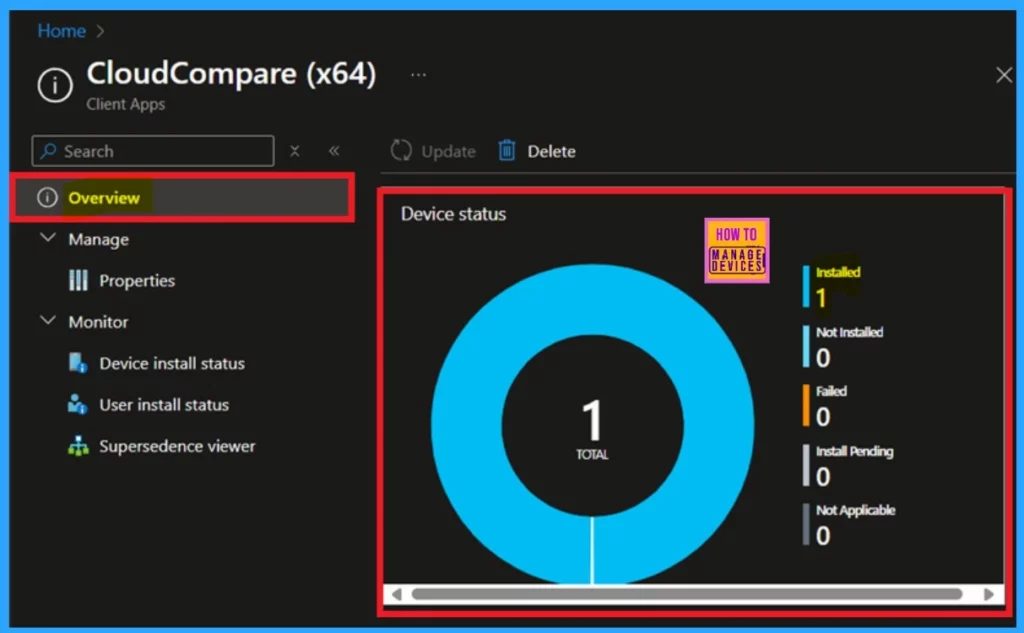
The next step is to check the Device status to confirm whether the policy was created successfully. After waiting for 8 hours, navigate to “Apps” and select “All Apps.” Then, search for the specific policy you created to view its details.
- In this section, you will find the device status.
- If it indicates that 1 device is installed, this means that the policy was successfully applied to the specified groups.
End User Experience
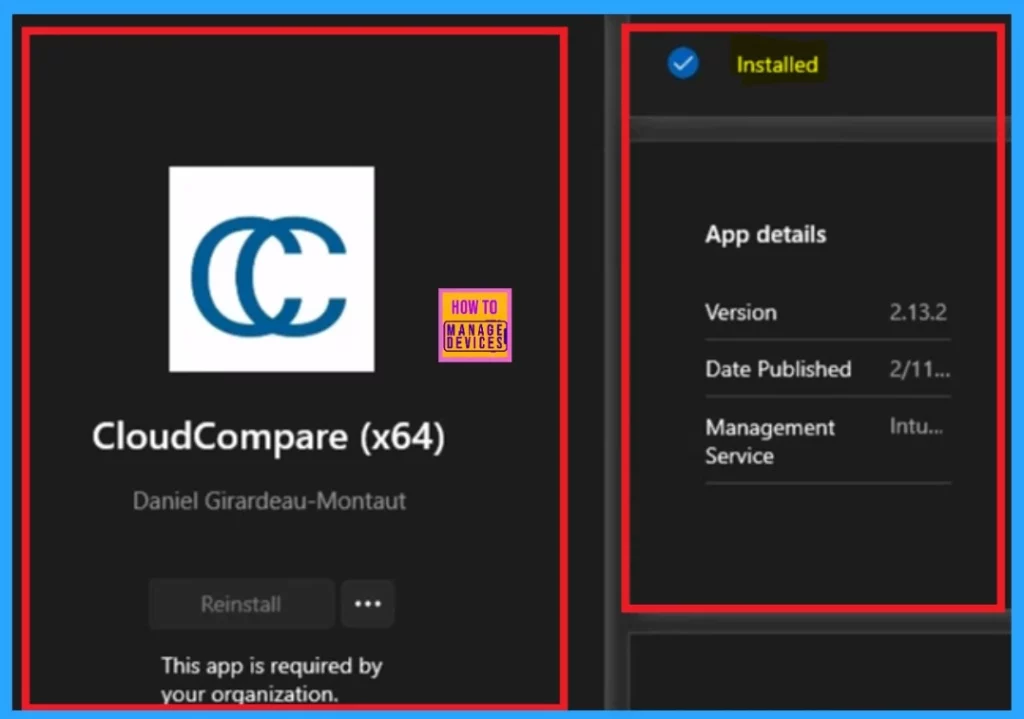
To review the end-user experience in the Company Portal, check the Device status first. Open the Company Portal and go to Downloads and Updates. In the window below, you’ll see that the app is installed.
Join the LinkedIn Page and Telegram group to get the latest step-by-step guides and news updates. Join our Meetup Page to participate in User group meetings. Also, Join the WhatsApp Community to get the latest news on Microsoft Technologies. We are there on Reddit as well.
Anoop C Nair has been Microsoft MVP for 10 consecutive years from 2015 onwards. He is a Workplace Solution Architect with more than 22+ years of experience in Workplace technologies. He is a Blogger, Speaker, and Local User Group Community leader. His primary focus is on Device Management technologies like SCCM and Intune. He writes about technologies like Intune, SCCM, Windows, Cloud PC, Windows, Entra, Microsoft Security, Career, etc.


Discussion