






How to Control Internet Traffic Routing for Remote Clients using Intune Policy
Key Takeaways
- Internet Traffic Routing for Remote Clients
- Improves security by routing all internet traffic through the company network
- Allows better monitoring and control of remote user activity
- Ensures company security policies and filtering rules are applied outside the office
- Reduces security risks when users connect from public or home networks
Let’s discuss Improving Remote Access Security with Traffic Control Using Intune Policy. This policy controls how internet traffic is handled when a computer connects to your organization’s network using DirectAccess. When users are working remotely, their device connects to the company network through a secure tunnel. At that point, internet traffic can either go through the company’s internal network or go directly through the user’s local internet connection.
Table of Contents
Table of Contents
How to Control Internet Traffic Routing for Remote Clients using Intune Policy
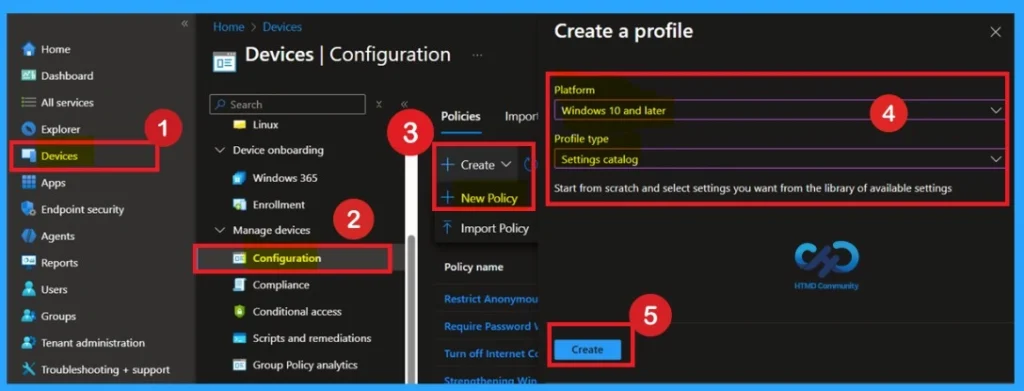
This policy setting determines whether a remote client computer routes Internet traffic through the internal network or whether the client accesses the Internet directly. When a remote client computer connects to an internal network using DirectAccess. To deploy the policy First, sign in to the Microsoft Intune admin center. Then navigate to Devices > Configuration > + Create. You will see a window titled Create a Profile.
- Managing Network Visibility by Disabling User Access to Connection Status using Intune Policy
- Enable or Disable Microsoft Account Connection Policy using Intune
- Intune Allow Microsoft Accounts to be Optional Policy
What is the Basics Tab in Policy Configuration
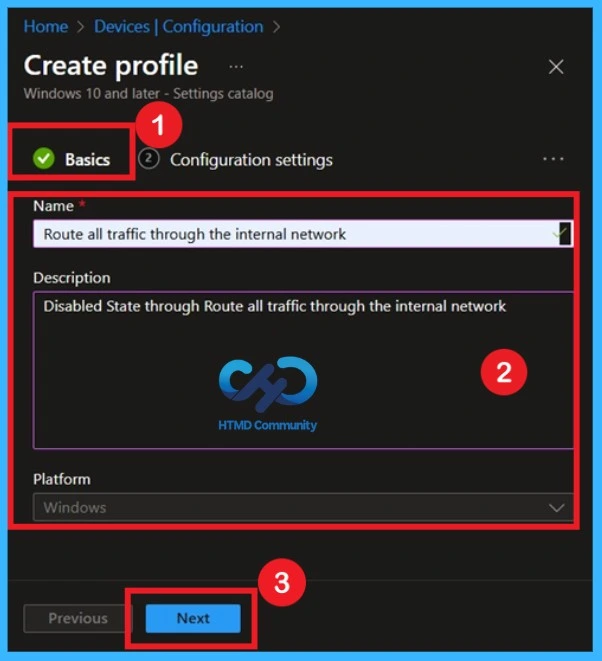
Now you are on the first tab called Basics. Here, you need to enter the basic details such as the Name and Description of the policy. The policy name is very important because it act as the identifier for the policy after it is created. Once you’ve filled in the basic details, click Next to move to the next tab.
| Basic Details | Info |
|---|---|
| Name | Route all traffic through the internal network |
| Description | Disabled State through Route all traffic through the internal network |
| Platform | Windows |
Configuration Settings
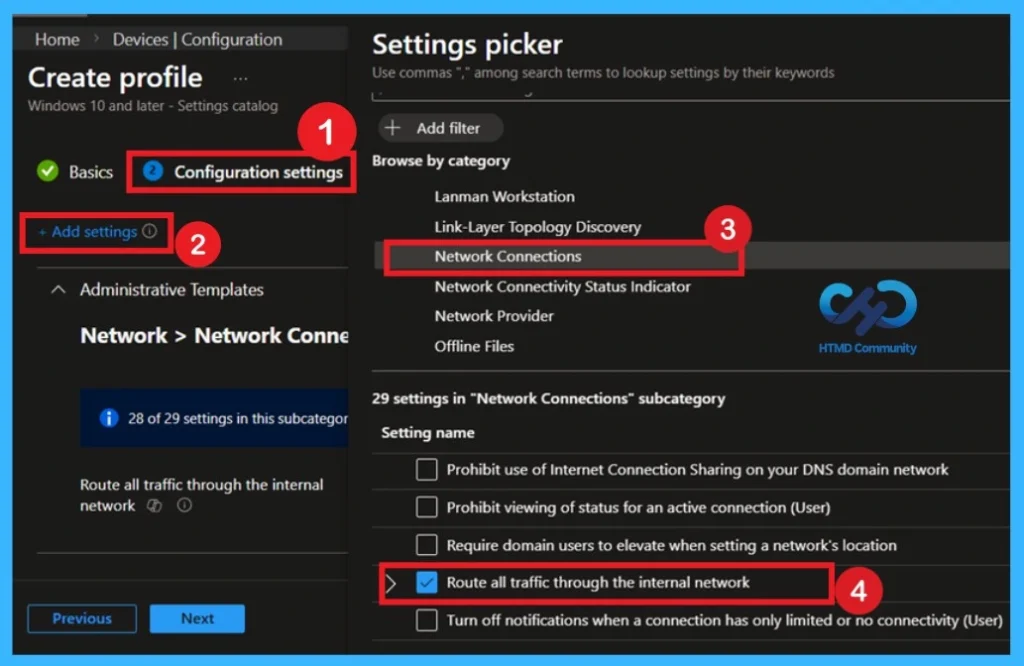
In the next step, go to the Configuration settings section. Here, you will see the+ Add settings option. Click on it to open the Settings picker window. In the Settings picker, use the search bar or manually browse through the categories. Navigate to Administrative Templates > Network >Network Connections. Under Network Connections, locate the policy named” Route all traffic through the internal network”.

- Select the policy, then close the Settings picker window to continue with the configuration.
Disable State of the Policy
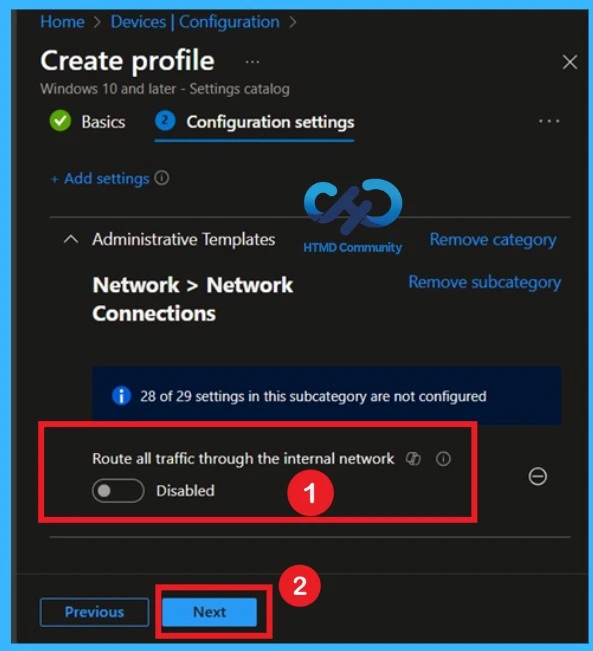
If this policy is disabled or not configured, internet traffic does not go through the internal network. Only traffic meant for company resources uses the secure DirectAccess tunnel, while normal internet browsing goes directly through the user’s local internet provider. This can improve internet speed for users but gives less centralized control to the organization.
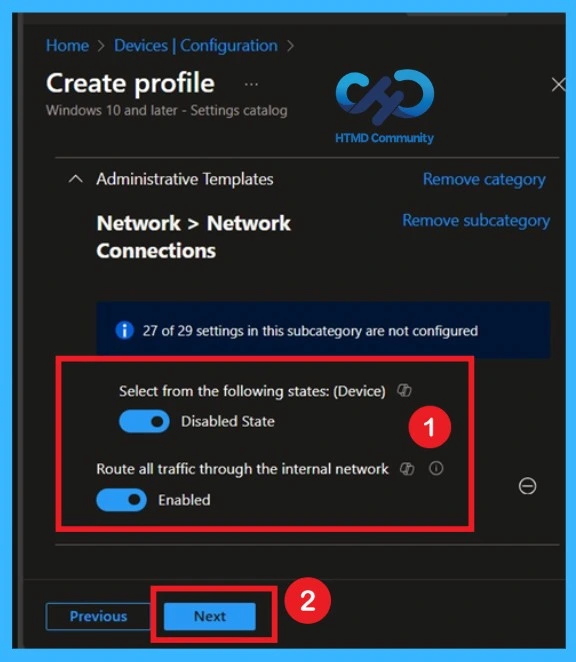
After selecting the policy, you can close the Settings picker window. You will now return to the Configuration settings tab. Here, you’ll see that the selected policy is disabled by default. If you want to proceed with the default setting, simply click Next to continue.
Enable the Policy to Activate the Settings
If this policy is enabled, all internet traffic from the remote computer is forced to go through the company’s internal network. This means both company resources and general internet browsing pass through the organization’s network. This setup gives IT teams better visibility and control over internet usage, and ensures company security policies are applied even when users are outside the office
Know the Scope Tag Details
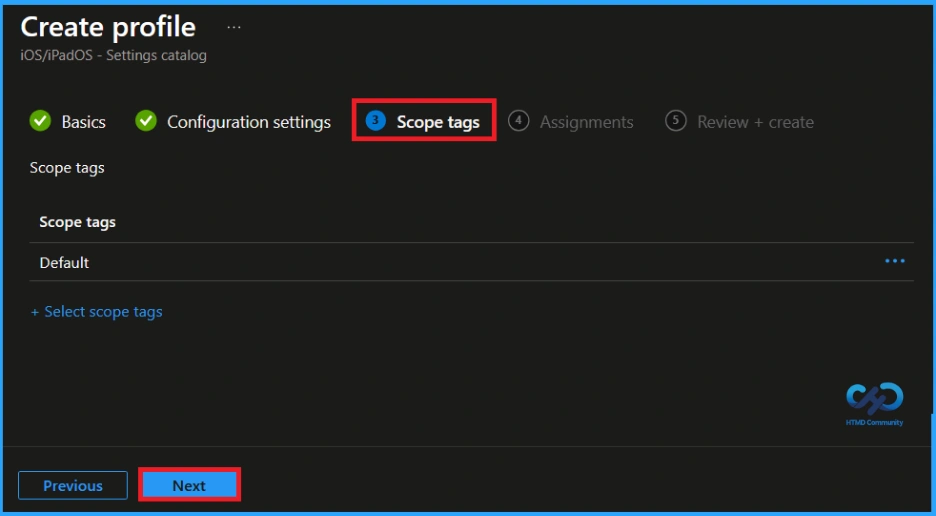
By using scope tags, you can give control to which admin can see and manage specific settings. This is not a mandatory setting, so you can skip this. Here, I skip these settings and click on the Next button to continue.
Assignments
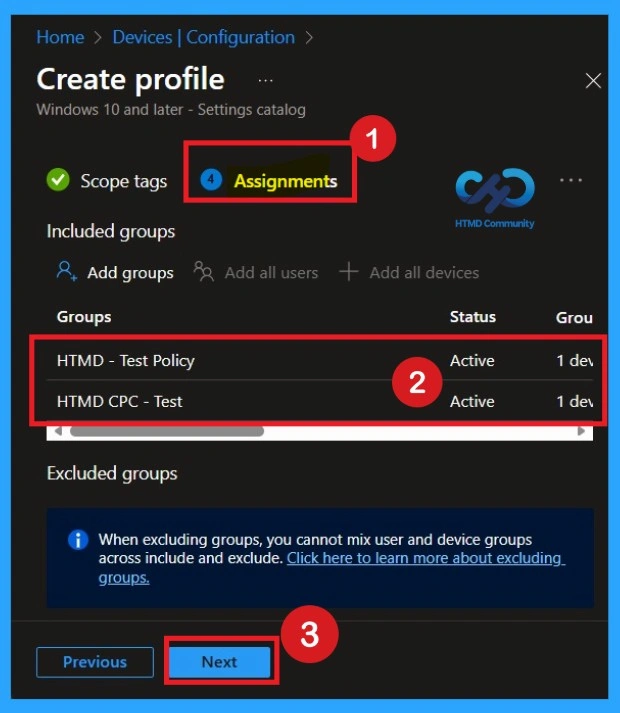
The next step the is the Assignment tab, which plays a key role in deploying policies. In this section, you can define the specific group or groups to which you want the policy to be applied. To do this, I clicked on Add Groups under the Include Groups option. Once I selected the appropriate group, I clicked Next to continue with the policy setup and move on to the next steps in the deployment process.
- This allowed me to select the desired group for the policy deployment.
Review + Create Tab
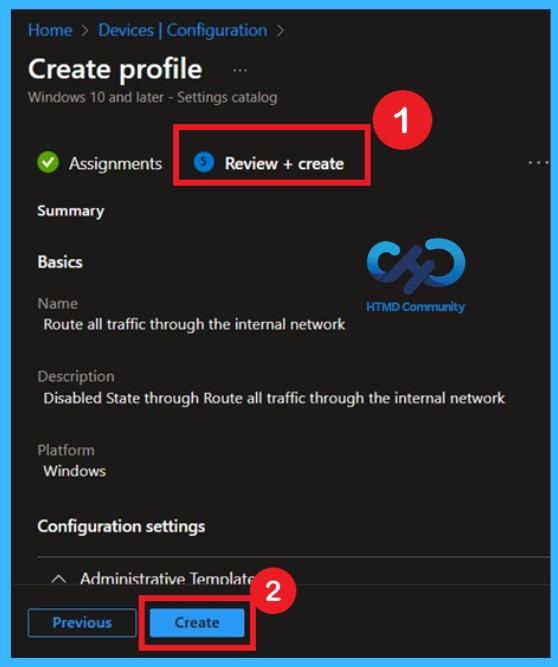
Before completing the policy creation, you can review each tab to avoid misconfiguration or policy failure. After verifying all the details, click on the Create Button. After creating the policy, you will get a success message.
Monitoring Status
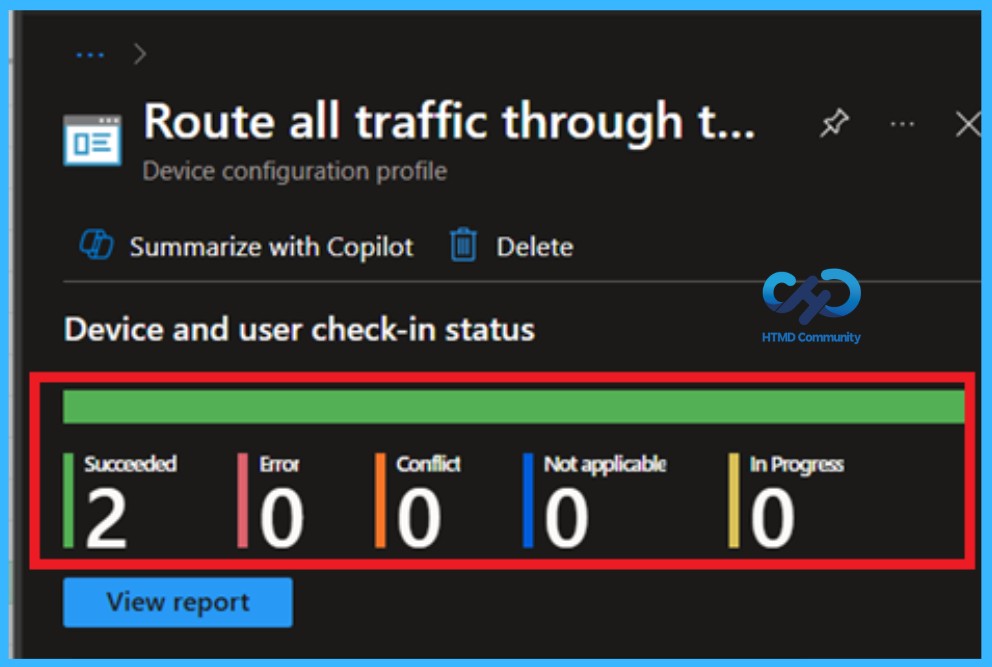
The Monitoring Status page shows whether the policy has succeeded or not. To quickly configure the policy and take advantage of the policy sync the assigned device on Company Portal. Open the Intune Portal. Go to Devices > Configuration > Search for the Policy. Here, the policy shows as successful.
Client Side Verification Report
To check the monitor the status, you can use Event Viewer. Start by opening the Start menu and typing “Event Viewer.” Then, navigate to the following path: Application and Services Logs > Microsoft > Windows > Device Management-Enterprise-Diagnostics-Provider > Admin. In the right pane, click on Filter Current Log, enter 814 or 813 in the Event IDs field, and click OK.
How to Delete the Policy that You Created
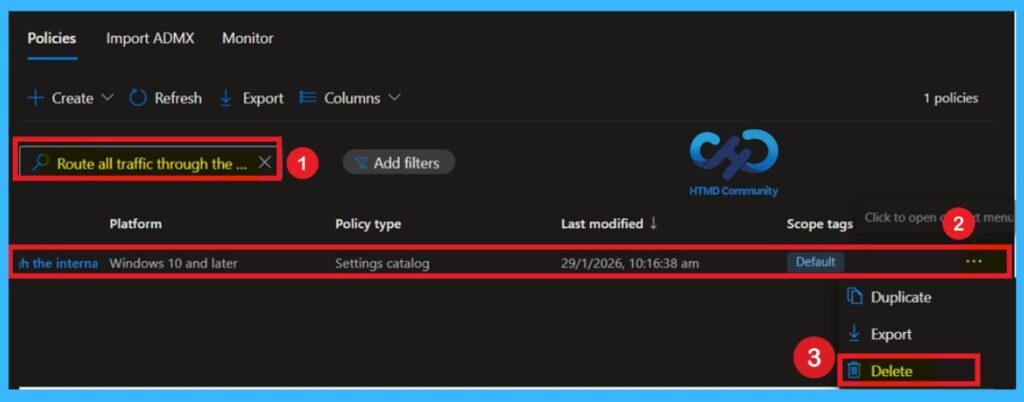
To delete a policy in Intune first sign in to the MS Intune Navigate to Devices and then select Configuration. Locate and select the specific policy you want to remove. Once you’re on the policy details page, click the three -dot menu in the top right corner and choose Delete from the available options.
For detailed information, you can refer to our previous post – How to Delete Allow Clipboard History Policy in Intune Step by Step Guide.
How to Remove Assigned Groups from this Policy
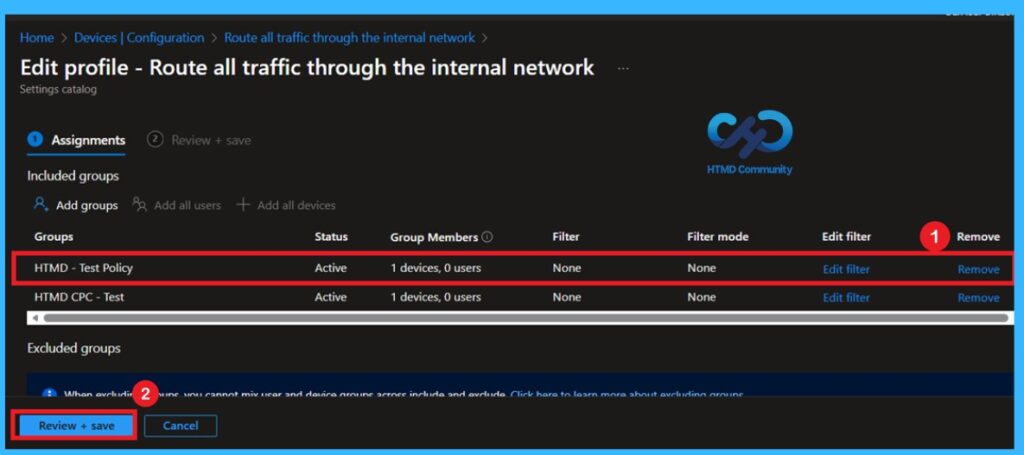
If you want to remove the specific group that you previously selected, you can easily do that. First, go to Devices > Configuration policies. In the Configuration policy section, search and select the policy. In the Assignment section, you will find an Edit option and click Remove option. Then, click the Review+ Save option.
For detailed information, you can refer to our previous post – Learn How to Delete or Remove App Assignment from Intune using by Step-by-Step Guide.
Need Further Assistance or Have Technical Questions?
Join the LinkedIn Page and Telegram group to get the latest step-by-step guides and news updates. Join our Meetup Page to participate in User group meetings. Also, Join the WhatsApp Community to get the latest news on Microsoft Technologies. We are there on Reddit as well.
Author
Anoop C Nair has been Microsoft MVP for 10 consecutive years from 2015 onwards. He is a Workplace Solution Architect with more than 22+ years of experience in Workplace technologies. He is a Blogger, Speaker, and Local User Group Community leader. His primary focus is on Device Management technologies like SCCM and Intune. He writes about technologies like Intune, SCCM, Windows, Cloud PC, Windows, Entra, Microsoft Security, Career, etc.


Discussion