






Intune App Assignment Include Exclude Azure AD Groups Microsoft Intune
Intune App Assignment Include Exclude Azure AD Groups Microsoft Intune. The Microsoft Intune team depreciated the application assignment type “Not Applicable” for good reasons. So, you do not need to worry when you don’t see the “Not Applicable” assignment type for your Intune tenant.
“Not Applicable” will no longer be an option in the console but will be replaced by “Excluded Groups.” The Exclude Group option was already available for Configuration policies and is useful.
Do you remember the Groups in the Intune Silverlight portal? There was exclusion logic used in Intune groups in the Silverlight portal. I think the excluded Azure AD groups used in-app assignments do not use nested group logic (Implicit Exclusion Groups).
I’m trying to explain two application assignment scenarios using Intune’s “Excluded Groups” logic in this post.

Table of Contents
What are the New Features of Intune’s “Excluded Groups”
New app assignment process in Intune with an “Excluded Groups” option. Using the unique ” Excluded Groups ” option, you can now easily manage app assignments to groups with overlapping members or targeted with conflicting app assignment types by using the new “Excluded Groups” option.
- Assign Azure AD Roles to Azure AD Groups for Effective Role Based Access Control
- Assign Azure AD Roles Using Privileged Identity Management PIM
- Configure Multiple Admin Approvals In Intune For Apps And Scripts
How does the depreciation of “Not Applicable” effect?
Previously, the app assignment process in the Intune on Azure console allowed targeting groups with the “Not Applicable” assignment type. This will no longer be the case. The “Not Applicable” option will replace the “Excluded Groups” option.
This new feature manages app assignments, allowing an app to target a large group of users or devices while restricting it to a subset of the same group.
- https://blogs.technet.microsoft.com/intunesupport/2018/02/02/new-feature-new-app-assignment-process-in-intune-with-an-excluded-groups-option/
What Do I Need to Do to Prepare for this Change?
Start using the new app assignment process and update your documentation if needed. Click on Additional Information to see screenshots and to read about different scenarios where this new feature can help you manage your app assignments.
I will try briefly explaining the new feature of excluded groups in Intune using the following two scenarios. I also have a video tutorial that explains both of these scenarios.
| What Do I Need to Do to Prepare for this Change? |
|---|
| Scenario A – Facebook is available for All Users Except “Mumbai Users” |
| Scenario B – WhatsApp is available for All Bangalore Users Except the “L1 Team” |
Scenario A
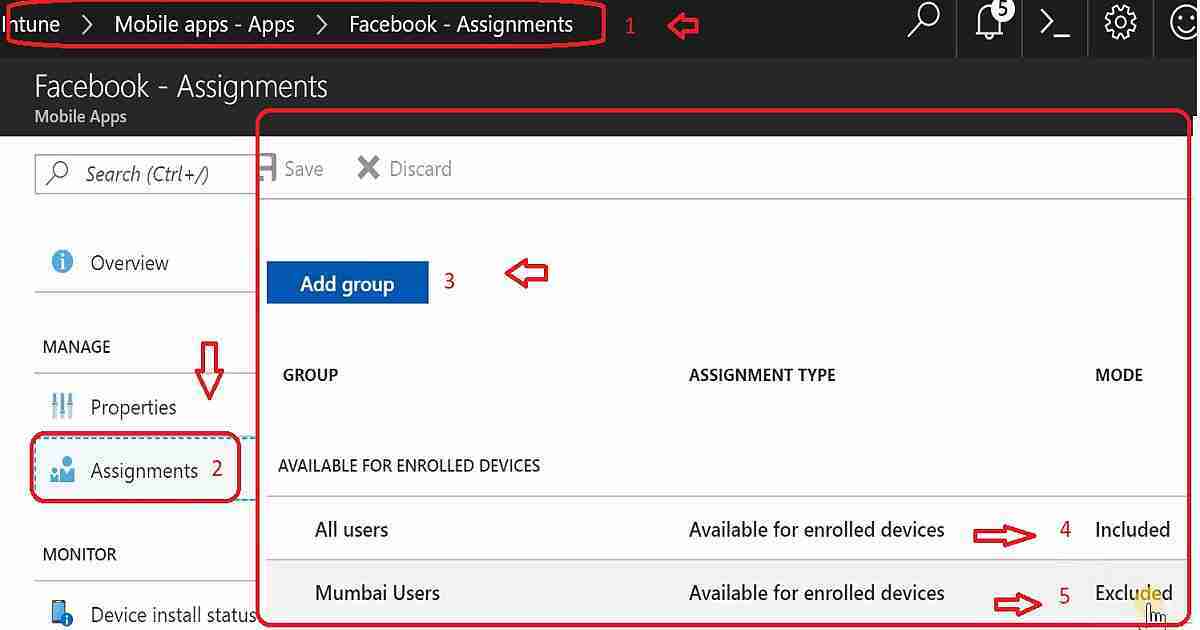
I want to make the Facebook application available to “All Users” in the organization, but it should not be available for “Mumbai Users.”
Launch Azure Portal and navigate to Microsoft Intune—Mobile Apps—Apps. Select the Facebook app that you want to assign. A dashboard related to the app is displayed.
- Select Assignments under the Manage section.
- Select Add Group to add the groups of users who are assigned the app.
- Select an Assignment type from the available types on the Add group blade. The available app assignments are “Available for enrolled devices,” “Available with or without enrollment,” and “Required.”
- Select “Available for enrolled devices” as the assignment type.
- Select Included Groups to select the group of users you want to make the Facebook app available.
- Select Yes to make “this app available to all users with enrolled devices”.
- Click OK to set the group to include.
- Select Excluded Groups to select the groups of users you want to make the Facebook app unavailable.
- Select the groups “Mumbai Users” to exclude, which makes this Facebook app unavailable for the users in Mumbai Users Azure AD groups.
- Click OK on the Add group blade. The app Assignments list is displayed.
- Click Save to make your group assignments active for the Facebook app.
Scenario B
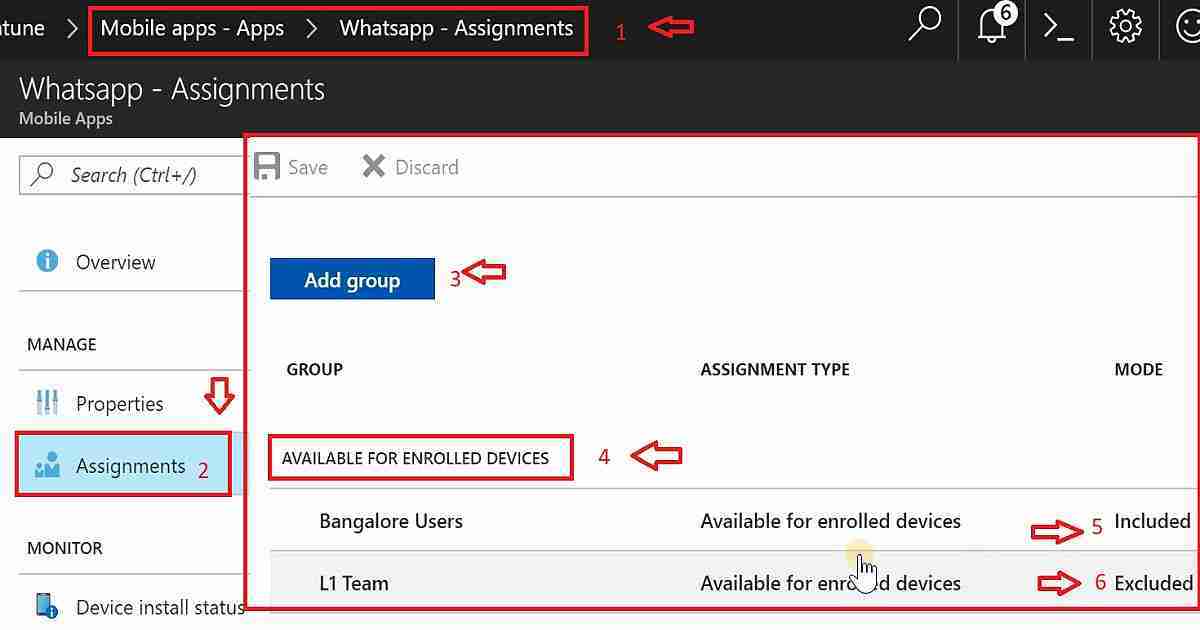
I want to make the WhatsApp application available to “All Bangalore Users” in the organization, but it should not be available for the “L1 Team.” The video tutorial Intune App Assignment includes more details: Include Exclude Azure AD Groups.
- We need to follow the above steps from 1 to 7.
- Select Included Groups to select the groups of users that you want to make the WhatsApp application available.
- Select the “All Bangalore Users” Azure AD group to include, making this WhatsApp app available to users in that group.
- Click OK on the Add group blade to include the users. The app Assignments list is displayed to All Bangalore Users.
- Select Excluded Groups to select the groups of users that you want to make the WhatsApp app unavailable.
- Select the “L1 Team” group to exclude, making this WhatApps app unavailable for the L1 Team Azure AD group users.
- Click OK on the Add group blade. The app Assignments list is displayed.
- Click Save to activate your group assignments for the WhatApps app.
Resources
- New feature: New app assignment process in Intune with an “Excluded Groups” option
- Include and exclude app assignments in Microsoft Intune
We are on WhatsApp now. To get the latest step-by-step guides, news, and updates, Join our Channel. Click here. HTMD WhatsApp.
Author
Anoop C Nair is Microsoft MVP from 2015 onwards for consecutive 10 years! He is a Workplace Solution Architect with more than 22+ years of experience in Workplace technologies. He is a Blogger, Speaker, and Local User Group Community leader. His main focus is on Device Management technologies like SCCM and Intune. He writes about technologies like Intune, SCCM, Windows, Cloud PC, Windows, Entra, Microsoft Security, Career etc…


Discussion