






Targeting Intune Win32 apps and PowerShell Scripts based on the Enrollment Date
In this post I am going to detail a way of deploying Intune Win32 apps and PowerShell scripts so that they are installed automatically on new Windows devices whilst not impacting any existing devices. However, first of all… why would you want to do this in the first place?
I have hit this scenario a few times and usually it is because I need to install a required app or run a script during Windows Autopilot enrollment in order to fix an issue or customise the enrollment experience. In order to ensure it is installed automatically, it’s normally targeted at an Azure AD dynamic group or maybe the virtual “All Devices” group with an appropriate filter – however that same scope also includes some or all existing devices.
As the app or script is only needed during enrollment, installing it on existing devices could have a negative impact on the users (depending on what it does). So how do we avoid applying any changes to existing devices?
One method would be to add all existing Windows devices to an Azure AD group and then use that group as an exclude on the assignment. However, the downside of that is that if one of those existing devices were ever to be reset and re-enrolled, then it would need to be removed from the exclusion group first – otherwise, the app/script won’t get installed during the next enrollment.

If you have co-management with ConfigMgr (a.k.a SCCM), then you may have other options by creating AAD dynamic groups based off a collection. However, in my case, I am dealing with a pure cloud deployment with Intune so the options are more limited.
This requirement came up again for me recently, so I did some investigation to find a better way of handling it. Hopefully, in the future, the device enrollment date might become a filter property so you can filter out devices enrolled before a specific date. However, in the meantime, we have to find our own way :-).
Enrollment Date Win32 Requirement Rule in Intune | MEM – PowerShell Script to get Intune Enrollment Date
I have written a PowerShell script which gets the device enrollment date from the registry on the client, this can then be used as a requirement rule on a Win32 app. Here is the script:

Function GetRegDate ($path, $key){
    function GVl ($ar){
        return [uint32]('0x'+(($ar|ForEach-Object ToString X2) -join ''))
    }
    $ar=Get-ItemPropertyValue $path $key
    [array]::reverse($ar)
    $time = New-Object DateTime (GVl $ar[14..15]),(GVl $ar[12..13]),(GVl $ar[8..9]),(GVl $ar[6..7]),(GVl $ar[4..5]),(GVl $ar[2..3]),(GVl $ar[0..1])
    return $time
}
$RegKey = (@(Get-ChildItem "HKLM:\SOFTWARE\Microsoft\Enrollments" -recurse | Where-Object {$_.PSChildName -like 'DeviceEnroller'}))
$RegPath = $($RegKey.name).TrimStart("HKEY_LOCAL_MACHINE")
$RegDate = GetRegDate HKLM:\$RegPath "FirstScheduleTimestamp"
$DeviceEnrolmentDate = Get-Date $RegDate
$DeviceEnrolmentDate
The script reads the following registry value to get the enrollment date:
HKEY_LOCAL_MACHINE\SOFTWARE\Microsoft\Enrollments\{GUID}\DeviceEnroller\FirstScheduleTimestamp
The enrollment GUID will be different for each client, so the script will search for the value to find the correct registry key. There is another registry value which includes the enrollment date, but this is created by the Autopilot enrollment status page and would only work in scenarios where the ESP is used.
The FirstScheduleTimestamp value will be present on all MDM enrolled devices, including both Azure AD joined and hybrid domain joined devices, irrespective of whether Autopilot/ESP was used or not.
The Autopilot ESP registry value was a lot easier to deal with as it’s stored in FILETIME, but I wanted to use something that would work in all scenarios. I found the function for converting the registry value in this post on stackoverflow.com, so full credit to “Garric” :-).
Using the Script in an Intune Win32 Application – Targeting based on the Enrollment Date
The script returns the enrollment date as a PowerShell DateTime object, so this can then be used within a Win32 application requirement rule. Just add the script as a requirement rule on a Win32 app. In the requirement rule configuration set it to check for a date/time value as required.
For example, if you wanted the app to only install on devices enrolled on or after 1st February 2022, you would configure the rule like this:
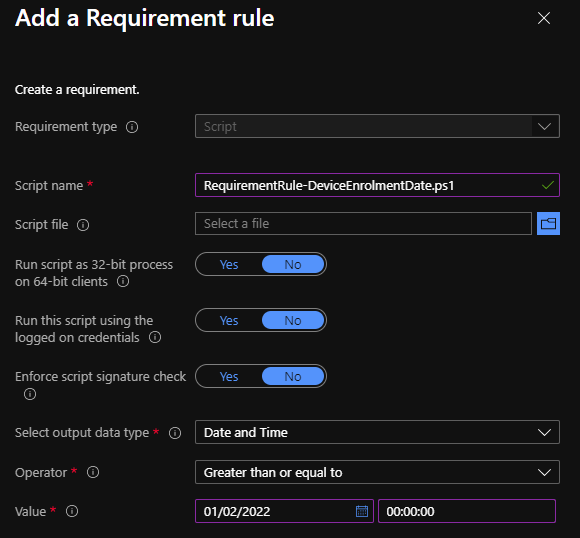
Once the app is assigned as required, you should see that any existing devices in the scope of the assignment and enrolled prior to the date you have configured report back with the status “not applicable.” However, any new devices that fall into that assignment scope should successfully install the required app during enrollment – as they will meet the requirement rule.

If you ever update the app with a new version which should only be installed on new clients enrolled from that date onwards, you just need to amend the requirement rule as needed.
Other Scenarios – Targeting Intune Win32 apps and PowerShell Scripts based on the Enrollment Date
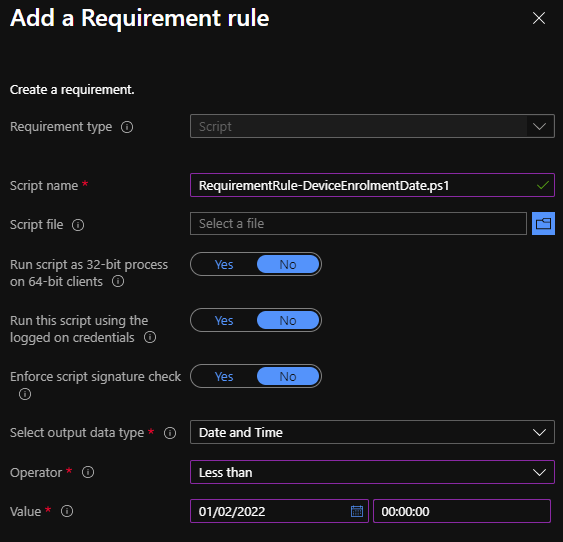
You can also use this script for the opposite scenario if you wanted to… let’s say you want to deploy a required app to all existing devices to fix an issue, but you don’t want that to install on any new devices. In this case, just change the requirement rule to check that the enrollment date is less than a specific date:
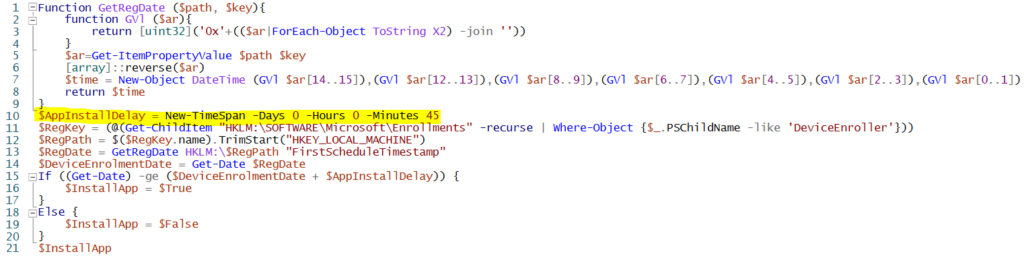
UPDATE: Another scenario which @BruceSaaaa mentioned on Twitter was delaying required app installs until after Autopilot enrollment has completed. I haven’t fully tested this yet but this should work :-). The script below will get the enrollment date and compare that to the current date/time including a specified delay. It will allow you to set a requirement rule which will mean the app will not install until x hours/mins after enrollment into Intune. You will need to experiment with this by adjusting the $AppInstallDelay TimeSpan object in the script to control how long after Intune enrollment to wait before the requirement rule is met. In the example below I have set it to 45 mins which is usually enough time for Autopilot to complete in my deployments.
Function GetRegDate ($path, $key){
    function GVl ($ar){
        return [uint32]('0x'+(($ar|ForEach-Object ToString X2) -join ''))
    }
    $ar=Get-ItemPropertyValue $path $key
    [array]::reverse($ar)
    $time = New-Object DateTime (GVl $ar[14..15]),(GVl $ar[12..13]),(GVl $ar[8..9]),(GVl $ar[6..7]),(GVl $ar[4..5]),(GVl $ar[2..3]),(GVl $ar[0..1])
    return $time
}
$AppInstallDelay = New-TimeSpan -Days 0 -Hours 0 -Minutes 45
$RegKey = (@(Get-ChildItem "HKLM:\SOFTWARE\Microsoft\Enrollments" -recurse | Where-Object {$_.PSChildName -like 'DeviceEnroller'}))
$RegPath = $($RegKey.name).TrimStart("HKEY_LOCAL_MACHINE")
$RegDate = GetRegDate HKLM:\$RegPath "FirstScheduleTimestamp"
$DeviceEnrolmentDate = Get-Date $RegDate
If ((Get-Date) -ge ($DeviceEnrolmentDate + $AppInstallDelay)) {
    $InstallApp = $True
}
Else {
    $InstallApp = $False
}
$InstallApp
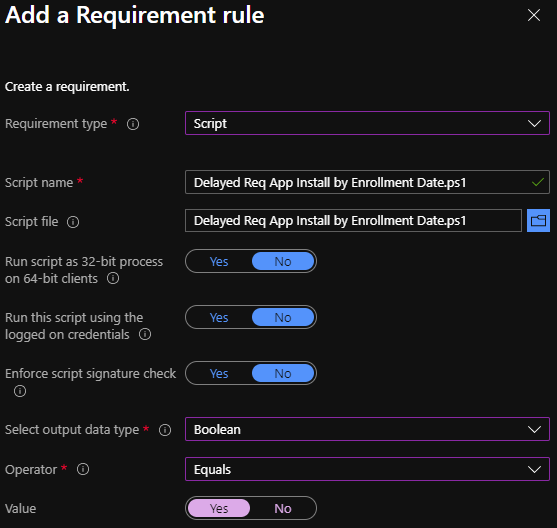
The script will output True or False depending on whether the requirement rule has been met. So when adding the app into Intune you will need to set the requirement rule to check for a Boolean value equal to True (or “Yes” in the case of the Intune UX ;-)).
PowerShell Scripts – Targeting PowerShell Scripts based on the Enrollment Date
If you want to do the same thing with a PowerShell script rather than an app, you can just use the same code in your own PowerShell script. However, you will need to define the requirement date inside the script in this scenario. Here is a sample script you can use:
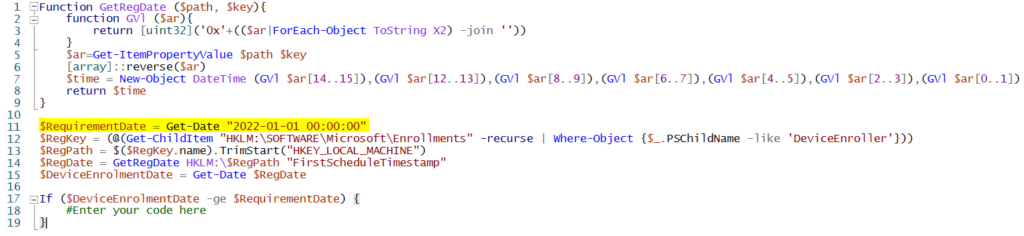
Function GetRegDate ($path, $key){
    function GVl ($ar){
        return [uint32]('0x'+(($ar|ForEach-Object ToString X2) -join ''))
    }
    $ar=Get-ItemPropertyValue $path $key
    [array]::reverse($ar)
    $time = New-Object DateTime (GVl $ar[14..15]),(GVl $ar[12..13]),(GVl $ar[8..9]),(GVl $ar[6..7]),(GVl $ar[4..5]),(GVl $ar[2..3]),(GVl $ar[0..1])
    return $time
}

$RequirementDate = Get-Date "2022-01-01 00:00:00"
$RegKey = (@(Get-ChildItem "HKLM:\SOFTWARE\Microsoft\Enrollments" -recurse | Where-Object {$_.PSChildName -like 'DeviceEnroller'}))
$RegPath = $($RegKey.name).TrimStart("HKEY_LOCAL_MACHINE")
$RegDate = GetRegDate HKLM:\$RegPath "FirstScheduleTimestamp"
$DeviceEnrolmentDate = Get-Date $RegDate

If ($DeviceEnrolmentDate -ge $RequirementDate) {
    #Enter your code here
}
To deploy the script, you, first of all, need to adjust the $RequirementDate variable to set the date from which devices should be considered “new.”
For example, if you are deploying the script on 1st February 2022 and want to ensure it only takes some action on new devices enrolled from that date, just set the date to 2022-02-01 00:00:00. The date format is YYYY-MM-DD HH:MM:SS, which will work irrespective of the date format used on the client.
Then just add whatever code you want to execute within the IF statement. You can also change it from -ge (greater than or equal to) to -lt (less than) or -le (less than or equal to) depending on the scenario.
Obviously, in this case, the PowerShell script will execute on all clients in the scope of the assignment; however, it will only take the required action on the clients matching the enrollment date logic you have set.
I recommend you test this solution out in a separate dev/test tenant or on a group of dedicated test devices in your prod tenant before full deployment. Hope this helps… :-).
Author
Mark is a Modern Workplace Solutions Architect based in the UK with more than 23 years of experience working in IT. He has been working in enterprise desktop management since the start of his IT career with a focus on OS deployment with SCCM/MDT. Since 2015 he has been working on Enterprise Mobility and modern management of Windows with EndPoint Manager/Intune. Twitter -> https://twitter.com/Mark_Thomas73.


Is it important to add the .tolocaltime() modifier to the below line to allow for local time to be taken into consideration?
$DeviceEnrolmentDate = Get-Date $RegDate.tolocaltime()
I encountered a problem recently where there are two entries for the ‘FirstScheduleTimestamp.’ It appears this might be a recent change on Microsoft’s end.
For the time being, I adjusted the script to iterate through both values and return the earlier date in case anyone is wondering why their requirement script is no longer functioning correctly.
@Ed can you post your script please? thanks
@Greg
If you want to return the earliest date, you can try the following:
$RegKeys = Get-ChildItem “HKLM:\SOFTWARE\Microsoft\Enrollments” -Recurse | Where-Object { $_.PSChildName -like ‘DeviceEnroller’ }
$DeviceEnrollmentDate = [datetime]::MaxValue
foreach ($key in $RegKeys) {
$RegDate = Get-RegDate -Path ($key.PSPATH) -Key “FirstScheduleTimestamp”
if ($RegDate -lt $DeviceEnrollmentDate) {
$DeviceEnrollmentDate = $RegDate
}
}
$DeviceEnrollmentDate