






Step-by-Step Guide to Configuring Intune Compliance Policies for iOS
Key Takeaways
- Understand the purpose and benefits of Intune Compliance Policies for iOS devices.
- Learn how to create and configure an iOS compliance policy in Microsoft Intune.
- Configure compliance settings, including password requirements, device health, OS version, and system security.
- Deploy the compliance policy to the appropriate Microsoft Entra user groups.
Let’s discuss setting up an Intune Compliance Policy for iOS Devices. This post will explain how to do so. An Intune Compliance Policy ensures that iOS devices accessing company data meet specific security standards. Enforcing these policies can help protect your organization’s data from unauthorized access and potential security threats. The organization must ensure that the devices that access company apps and data comply with specific rules.
Table of Contents
Table of Contents
Step-by-Step Guide to Configuring Intune Compliance Policies for iOS
These rules might include using a password/PIN to access devices and encrypting data stored on devices. This set of such rules is called a compliance policy. The best option is to use a compliance policy with Intune Conditional Access. A compliance policy is a set of guidelines that devices must meet to access organizational resources. It ensures that only secure and compliant devices can access company data, reducing the risk of data breaches or unauthorized access.
- How to Configure Android Compliance Policies in Microsoft Intune
- Intune Compliance policy setup for Windows 10 Devices
- Intune Compliance policy setup for Android Devices
- Send Notifications For Noncompliant Devices In Intune
How to Setup Intune Compliance Policies for iOS
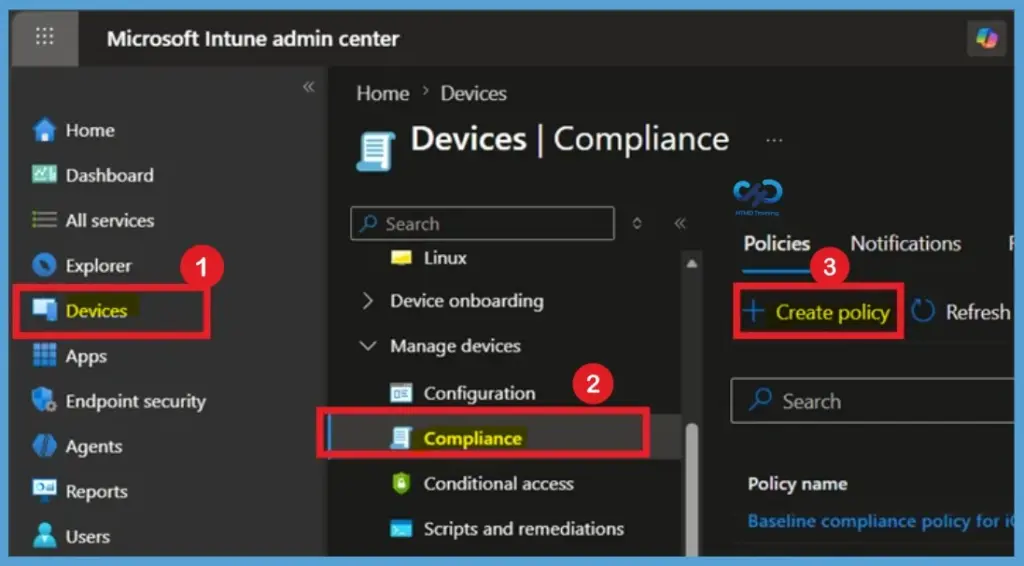
Sign in to the Microsoft Intune admin center and navigate to Devices > Compliance > Policies. Click + Create Policy to create a new compliance policy.
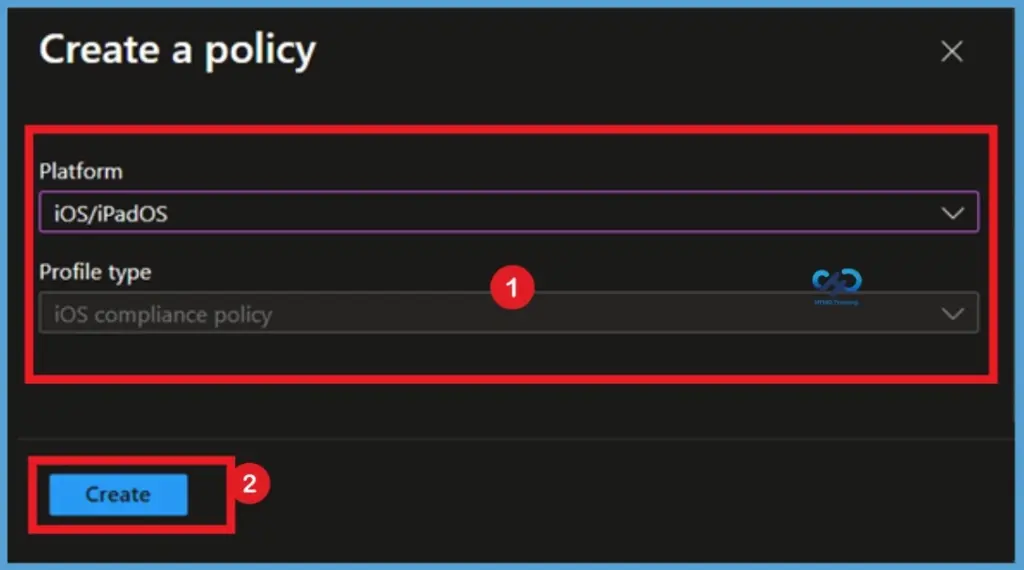
Select iOS/iPadOS as the platform, and then click Create. This opens the policy creation wizard, where you can define the compliance requirements that iOS devices must satisfy before accessing organizational resources.

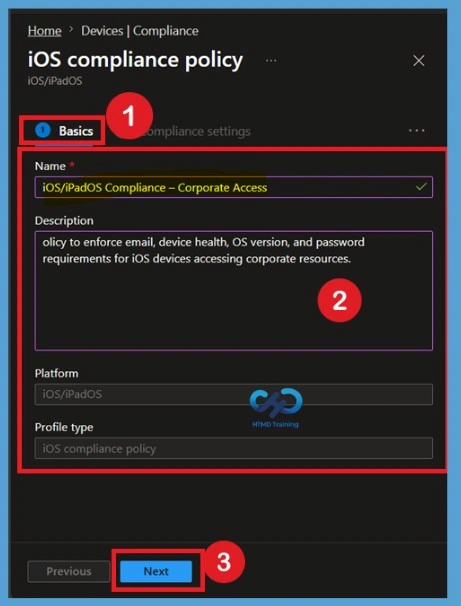
Start with Basic Tab
On the Basics page, enter a descriptive Name and an optional Description for the compliance policy. Using a meaningful name, such as iOS Compliance Policy – Corporate Devices, makes it easier to identify and manage the policy in environments with multiple compliance policies. After entering the required information, click Next.
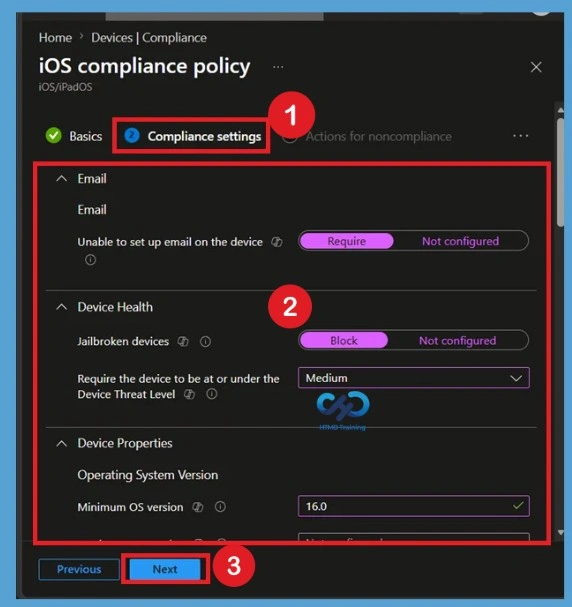
How Do you Set up the Intune Compliance Policy for iOS?
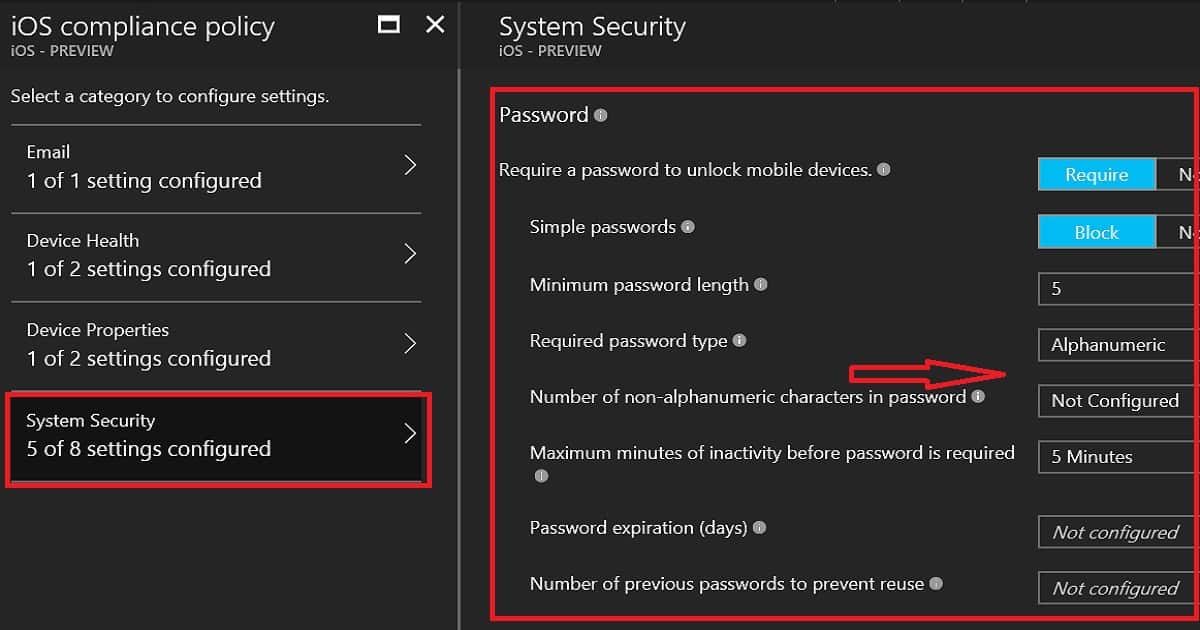
The Compliance Settings page allows you to define the security requirements that iOS and iPadOS devices must meet to be considered compliant. Configure the settings according to your organization’s security policies. The available categories include:
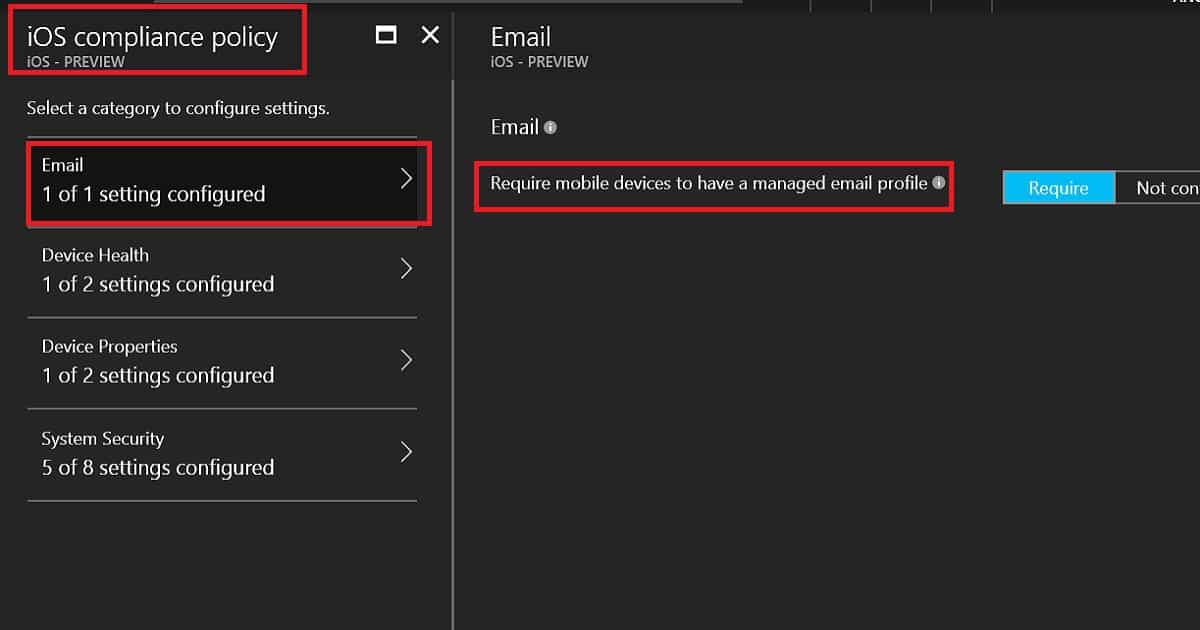
- iOS compliance policies have 4 categories: Email, Device Health, Device Properties, and System Security.
- Email settings require mobile devices to have a managed email profile to access corporate resources.
- The device Health setting will check whether the device is jailbroken or not. If the iOS device is Jailbroken, it won’t provide mail access to that device.
- The device Properties setting will check the OS version of the device and the minimum version of the iOS OS.
- The System Security setting is based mainly on password settings. There are some improvements over the Intune Silverlight portal here. We can have the option not to configure some of the settings, like “Number of non-alphanumeric characters in password.” This was not possible with the Intune Silverlight portal.
| How to Setup Intune Compliance Policy for iOS? |
|---|
| Require a password to unlock mobile devices. |
| Simple passwords |
| Minimum password length |
| Not ConfiguredAlphanumericNumeric |
| Number of non-alphanumeric characters in the password |
| Maximum minutes of inactivity before a password is required |
| Password expiration (days) |
| Number of previous passwords to prevent reuse |
Actions for Noncompliance
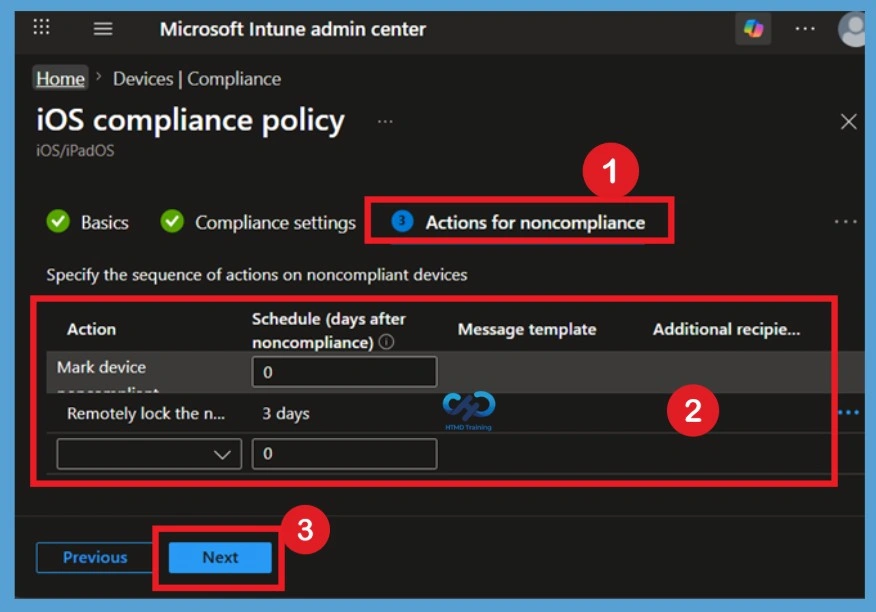
On the Actions for Noncompliance page, specify what happens when a device fails to meet the compliance requirements. By default, Intune marks the device as non-compliant immediately, which can be used together with Microsoft Entra Conditional Access to block access to corporate resources.
The first action, Mark device noncompliant (0 days), flags the device immediately so Conditional Access can restrict corporate access. The second action, remotely lock the noncompliant device (3 days), automatically locks the device if it remains noncompliant for three days, forcing the user to re‑enter their passcode before regaining access.
- This combination gives users time to fix issues while maintaining security. Once these actions are configured, click Next
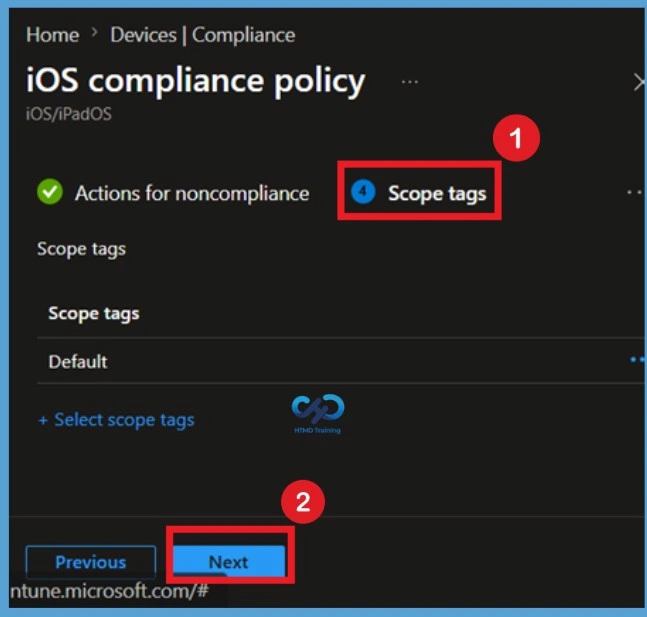
Scope Tags
The Scope tags page is optional and is used to control which administrators can view and manage the compliance policy. If your organization does not use custom scope tags, leave the Default scope tag selected and click Next to continue.
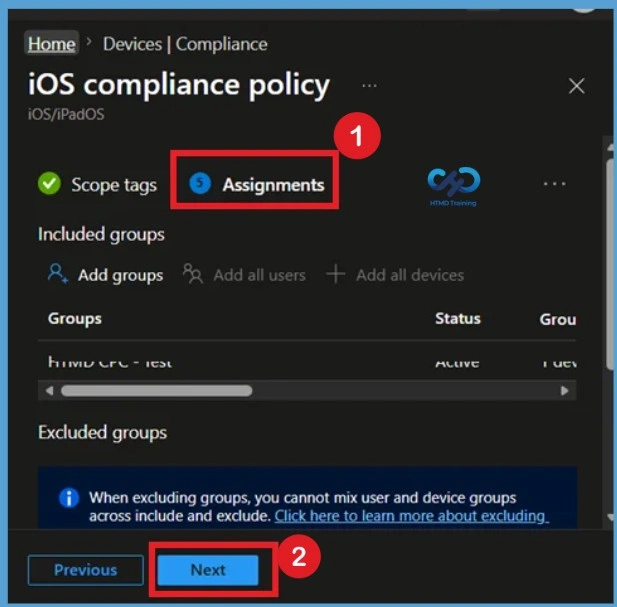
Assignment Section
On the Assignments page, select the Microsoft Entra user groups that will receive the compliance policy. Assigning the policy to user groups ensures that all eligible iOS devices enrolled by those users are evaluated against the configured compliance settings.
- Review the selected groups carefully before proceeding, and then click Next.
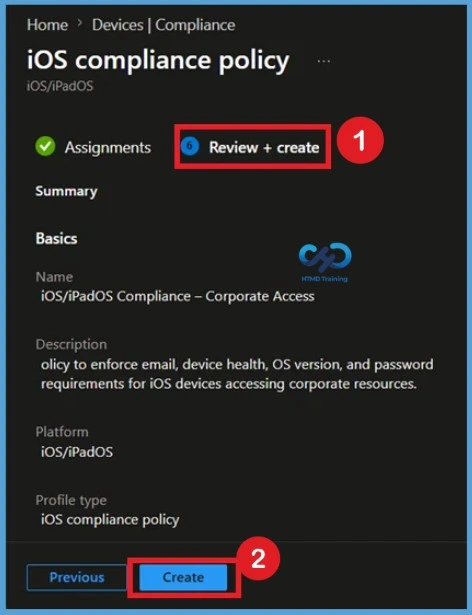
Review + Create
The Review + Create page displays a summary of all configured settings, including the policy name, compliance rules, noncompliance actions, and assignments. Review the configuration to verify that it matches your organization’s security requirements. Once you have confirmed that everything is configured correctly, click Create to deploy the compliance policy. Intune will begin applying the policy to the targeted users.
How to Find Out the Compliance Policy
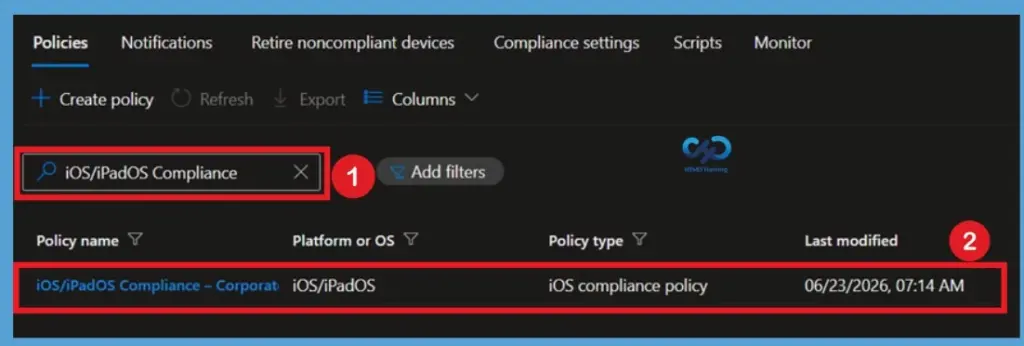
Navigate to Devices > Compliance in the Intune Admin Center. Use the search box to locate the required iOS/iPadOS Compliance policy by entering its name. Once the policy appears in the list, select it to open the policy details.
Review the Policy Status
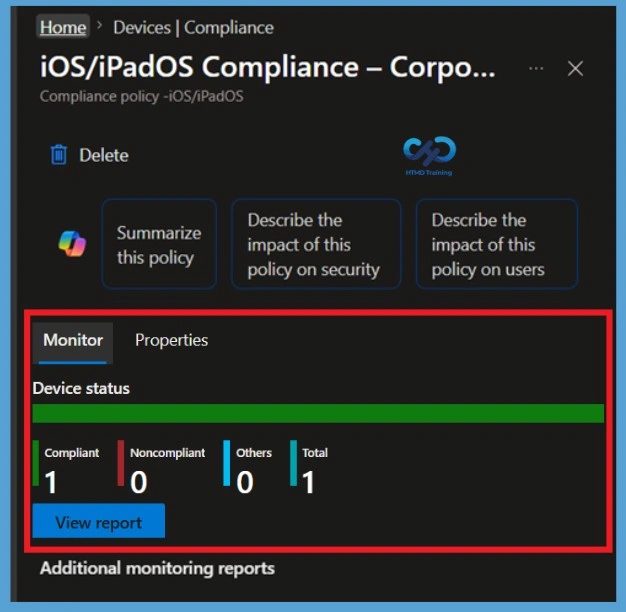
After opening the compliance policy, the Monitor tab displays the deployment status. Here, administrators can review the number of Compliant, Noncompliant, and Other devices assigned to the policy. Select View report to access detailed compliance information for individual devices.
Delete the Compliance Policy
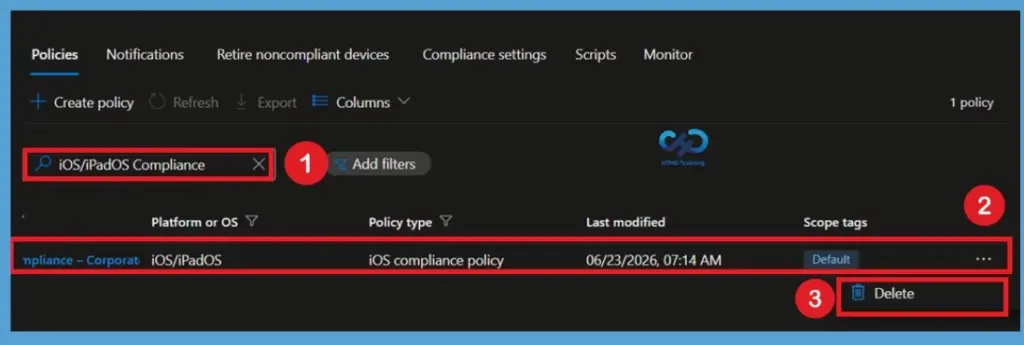
Go to Devices > Compliance and search for the compliance policy. From the policy list, locate the required policy, select the 3-dot (More) menu next to it, and choose Delete. Confirm the deletion when prompted to permanently remove the compliance policy from Intune.
Video
In this video, you will learn all the details on how to set up Intune compliance policies for iOS devices. We’ll guide you through creating and configuring these policies to ensure your company’s data remains secure.
Need Further Assistance or Have Technical Questions?
Join the LinkedIn Page and Telegram group to get the latest step-by-step guides and news updates. Join our Meetup Page to participate in User group meetings. Also, Join the WhatsApp Community and WhatsApp Channel to get the latest news on Microsoft Technologies. We are there on Reddit as well.
Author
Anoop C Nair has been Microsoft MVP from 2015 onwards for 10 consecutive years! He is a Workplace Solution Architect with more than 22+ years of experience in Workplace technologies. He is also a Blogger, Speaker, and Local User Group Community leader. His primary focus is on Device Management technologies like SCCM and Intune. He writes about technologies like Intune, SCCM, Windows, Cloud PC, Windows, Entra, Microsoft Security, Career, etc.


i’m trying to set PIN on iOS Device with the simple password not permitted. Why the combination 307989 is considered too simple? thanks
StaffIt’s simple because it just has number so special characters.
Great writeup but should include images of the end user experience on the phone.
Thanks Anoop! Great articles.
I get “This Action is not allowed by your organisation” when trying to open a document attachment in Outlook for Android.
StaffCheck the event logs to get more details? Any group policy/security restriction in place?