






Intune Enrollment Failure Report for Device | Endpoint Manager
Let’s check the Intune device enrollment failure report from the MEM Admin portal. This report details the enrollment failure, and recommended steps for users not completing the enrollment process.
Device enrollment enables you to access your work’s internal resources from your managed device. During device enrollment: Your device enrolls in Microsoft Intune, a mobile device management provider, and registers with your organization.
You can use the following reports in the Microsoft Endpoint Manager admin center to monitor and troubleshoot issues with enrollment restrictions and enrollment status page assignments:
- Enrollment failures report
- Troubleshooting + support page
- Device enrollment page
We have a list of Intune Default Reports that provides more details about Intune default reports in a series of posts. You can refer to Intune default posts from HTMD Blog.

- How to Start Troubleshooting Intune Issues | Fix Intune Issues with Easy Steps MEM
- Intune Enrollment Status Page Troubleshooting
Intune Device Enrollment Failure Report
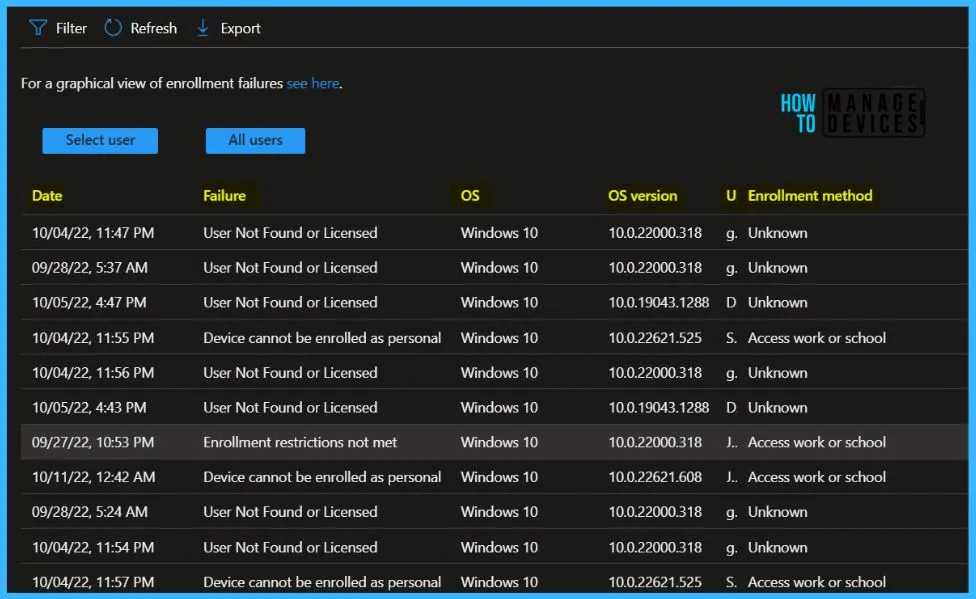
Use the enrollment failures report to view enrollment failures for all users or select users. This report shows each failed enrollment attempt along with the date, the reason for failure, OS, OS version, username, and enrollment method.
- Sign in to the Microsoft Endpoint Manager admin center https://endpoint.microsoft.com/
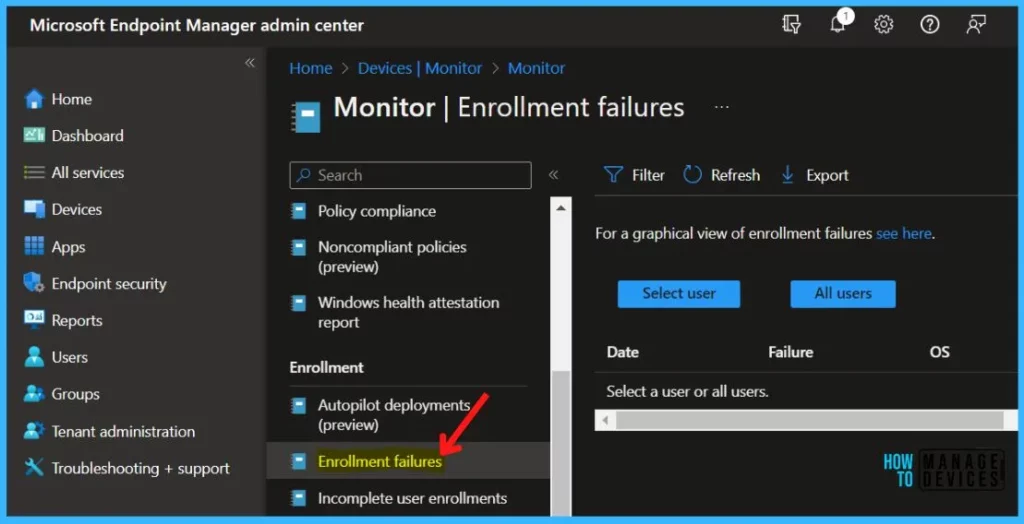
- Select Devices > Monitor > Enrollment failures.
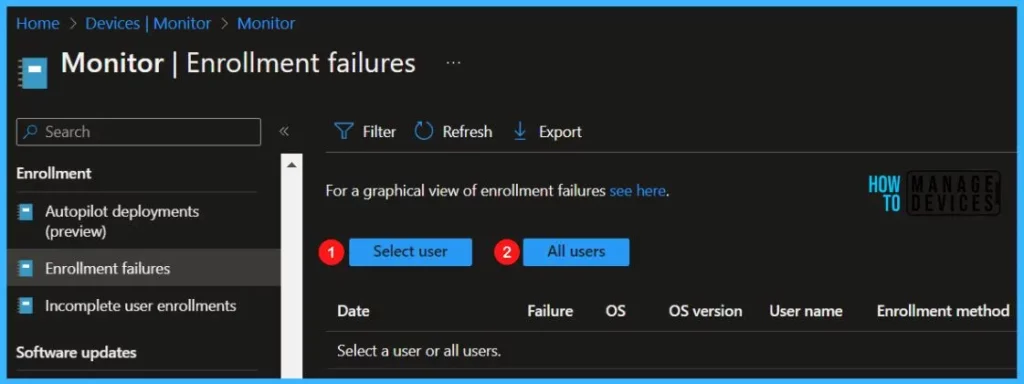
Select All users or Select user, depending on the scenario you’re troubleshooting.
Here you can see the details about the enrollment failure. Select a row in the for more information aboutout the failure and recommended remediation steps. You can get the following details.
- Date
- Failure
- OS
- OS version
- User
- Enrollment method
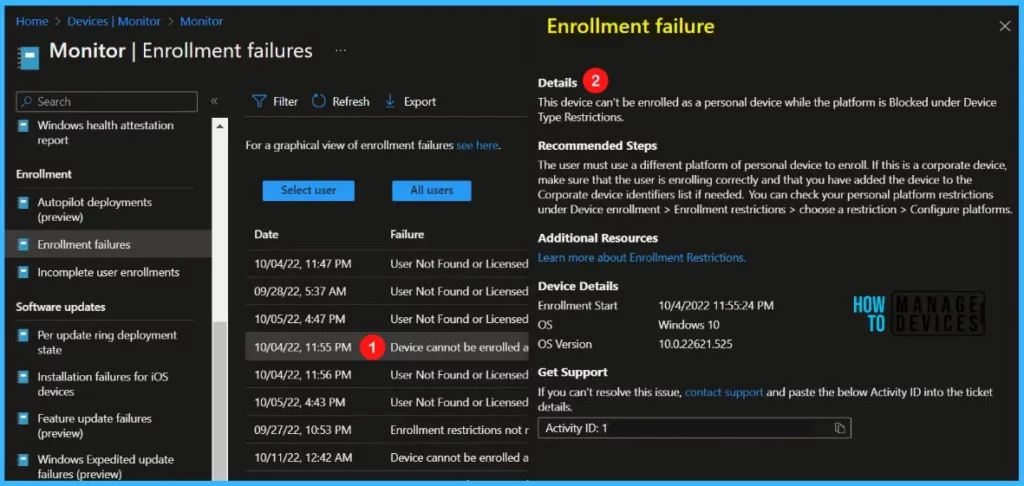
The Enrollment failure for the selected user, You can get more details about the failure and recommended steps. The device details, Enrollment Start, OS, and OS version wilalso beso listed here to help you perform troubleshooting.
Details – This device can’t be enrolled as a personal device while the platform is Blocked under Device Type Restrictions.
Recommended Steps – The user must use a different platform or personal device to enroll. If this is a corporate deviensuresure that the user is enrolling correctly and that you have added the device to the Corporate device identifiers list if needed. You can check your personal platform restrictions under Device enrollment > Enrollment restrictions > choose a restriction > Configure platforms.
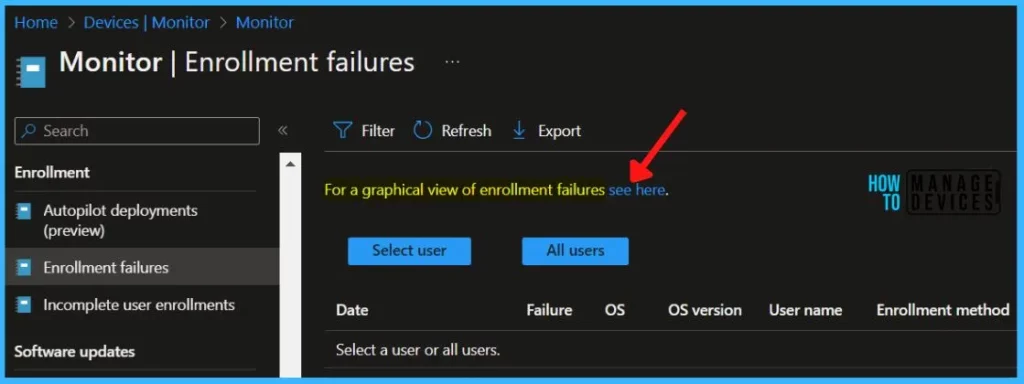
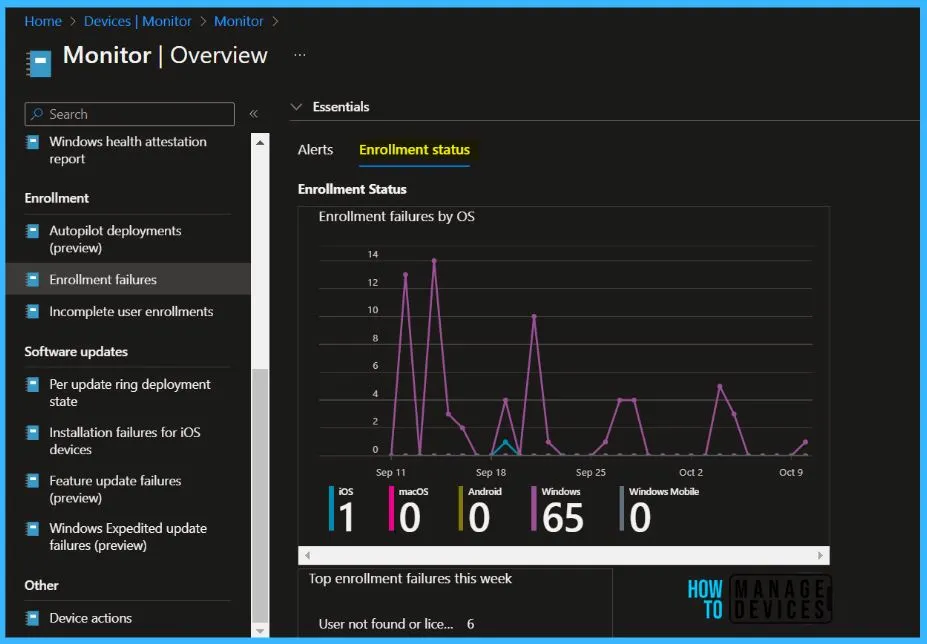
For a graphical view of enrollment failures click on the link at the top bar in the Monitoring.
The Enrollment status shows the failure by OS from the last 1 month, You can click the date range to know the exact count of devices.
- Intune Report for AAD Joined Vs Hybrid AAD Joined Devices using KQL Query
- Intune Device Encryption Status Report
Export Intune Enrollment Failure Report for Device
You can quickly export reporting data generated for enrollment failures. Click on the Export all. The popup will appear with the following message when exporting all devices, Click Download.
A notification will appear automatically in the top right-hand corner with the message Export is in progress. You can also see the status by selecting the notification icon.
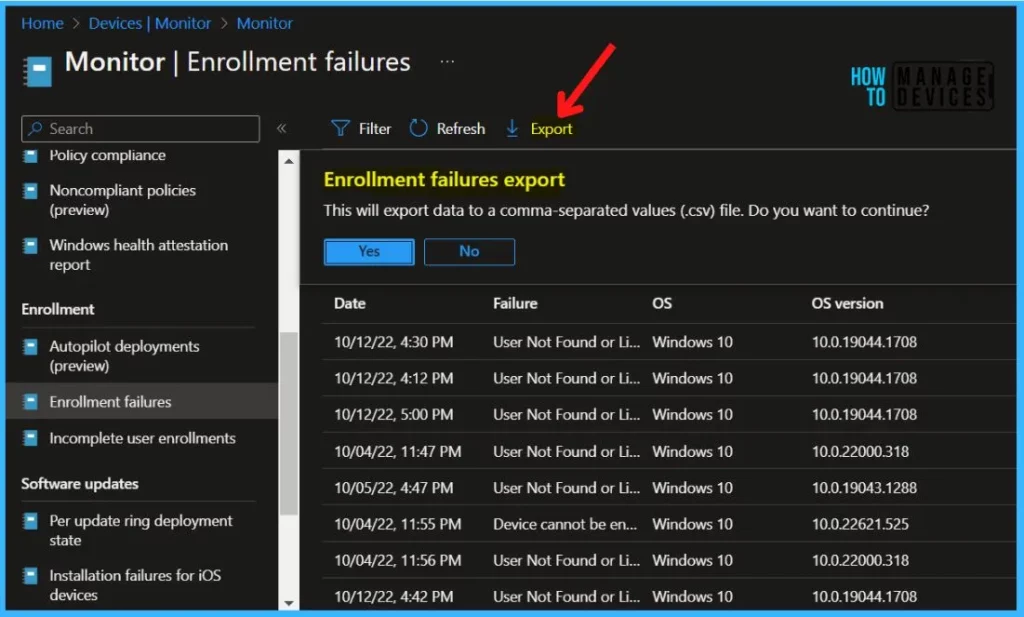
This will export data to a comma-separated values (.csv) file. The report file is added to your download tray and automatically saved to your computer, and a notification message will appear Export completed. Open the downloaded file to view the enrollment failures details.


Discussion