






Intune Enrollment Status Page Troubleshooting
Let’s learn how to troubleshoot the Intune Enrollment Status Page (ESP). Some of us are new to it. The enrollment status page policy is global, and once enabled, it applies to all users. I hope Microsoft will allow us to deploy different enrollment status screen policies to different users.
The enrollment page is a status update screen for end-users during Windows 10 setup. The Intune enrollment status page displays installation status information. This status screen updates the subset of applications, profiles, and certificates that might not be fully installed when a user is enrolled.
This enrollment status page explains the installation progress of some applications, profiles, and certificates. This screen is used to get the real-time progress of the enrollment process while the user waits for their device.
This post will show the troubleshooting options for the enrollment status page and application deployments.

Table of Contents
Video Tutorial – Enrollment Status Page Application Deployment Troubleshooting
The following video will explain how to troubleshoot the Intune Enrollment Status Page (ESP).
How to Setup Intune Enrollment Status Page?
In my end-to-end autopilot guide, I explain setting up the Intune enrollment status page (ESP). I recommend reading the autopilot post for more details.
End-User Experience – Intune Enrollment Status Page
The Intune enrollment status page has 3 (three) parts.
- Device Preparation
- Device Setup
- User Account Setup
Supportability of Windows Enrollment Status Page
Do you know all the application installation statuses and profile statuses displayed on the enrollment status screen or page? I don’t think all the statuses can be tracked with the enrollment status page. It would help if you also remembered this page is still in Preview.
Device Setup Tracking
- Security policies
- One configuration service provider (CSP) for all enrollments.
- Actual CSPs configured by Intune are not tracked here.
- Applications
- Per machine Line-of-business (LoB) MSI apps.
- LoB store apps with installation context = Device.
- Offline store and LoB store apps with installation context = Device.
- Connectivity profiles (VPN & Wi-Fi) are not tracked yet, so these will say “0 of 0”.
- Certificates are not tracked yet, so these will always say “0 of 0”.
User Account Setup Tracking
- Security policies
- One CSP for all enrollments.
- Actual CSPs configured by Intune are not tracked here.
- Applications
- Per-user LoB MSI apps are assigned to All Devices, All Users, or a user group in which the user enrolling the device is a member.
- Per machine LoB, MSI apps are assigned to All Users or a user group where the enrolling user device is a member.
- LoB stores apps assigned to All Devices, All Users, or a user group in which the user enrolling the device is a member with installation context = User.
- Online store apps are assigned to all devices, all users, or a user group in which the user enrolling the device is a member with installation context = User.
- Offline store apps are assigned to All Devices, All Users, or a user group in which the user enrolling device is a member with installation context = User.
- Connectivity profiles
- VPN or Wi-Fi profiles are assigned to all users or a user group in which the user enrolling in the device is a member.
- Certificates
- Certificate profiles are assigned to all users or to a user group of which the user enrolling in the device is a member.
How to Troubleshoot the Intune Enrollment Status Page for Windows?
The status screen or page troubleshooting options will be changed depending on the configuration on the settings page.
The above section already discusses setting up this Windows enrollment status page. I recommend reading the Microsoft doc for more details about tracking it.
I have done the following setup for the Windows enrollment status page. If you get different options, check your enrollment status page policy setting.
Remember that this is a global setting, and these changes will impact all the devices and users.
- Show app and profile installation progress – Yes
- Block device use until all apps and profiles are installed – Yes
- Allow users to reset the device if an installation error occurs – Yes
- Allow users to use the device if an installation error occurs – Yes
- Show error when installation takes longer than the specified number of minutes – 60 Minutes
- Show custom message when an error occurs – Yes
- Allow users to collect logs about installation errors – Yes

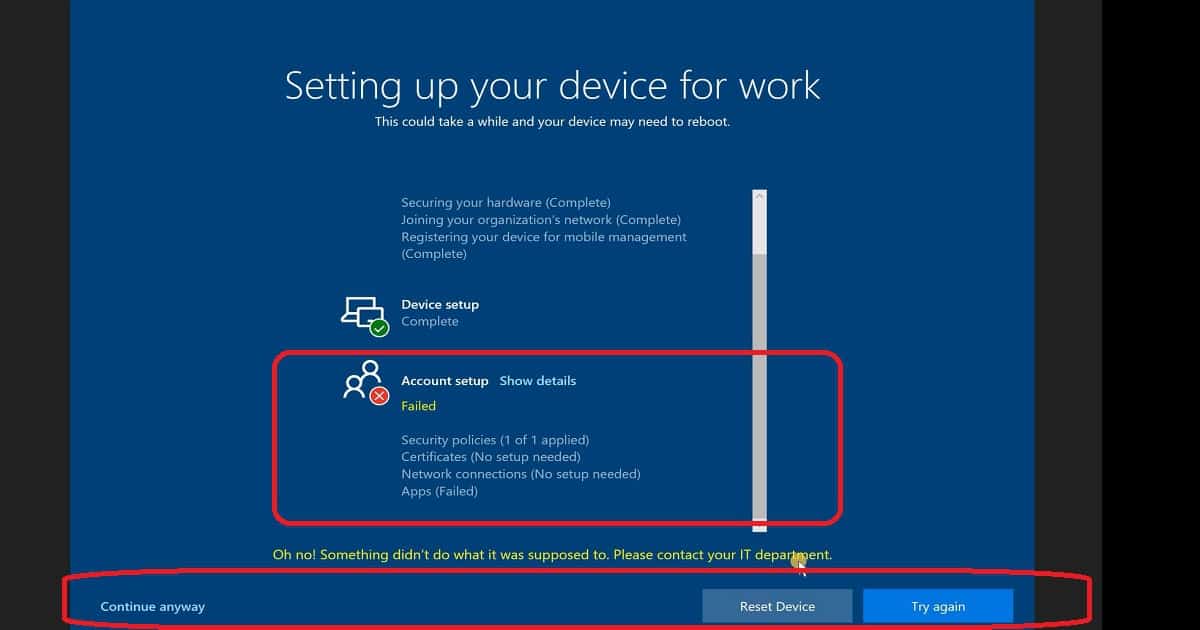
The following are the troubleshooting options you will get if you have a policy setting like the one mentioned above.
- CONTINUE – This is the best option for System Admins. The end-user should not have this option. Click this button to continue troubleshooting with failed apps or configurations.
- COLLECT LOGS—This is the best option for the end-user to collect the logs. The collected logs can be sent to the system admin to troubleshoot further.
- RESET DEVICE—This is the option to restart the process from scratch. It will reset Windows, remove all the settings, and reinstall it. I have seen the device prompt for an admin account or local user and password, then click on the RESET button.
- RETRY – This is an option to retry the failed application or Configurations. This option won’t help us re-install the previously installed apps/configurations. This won’t go back to the completed stages.
How to Troubleshoot Windows 10 Intune Application & Security Deployment?
You can try again with the ” RETRY ” option when you get a Failed message on the Windows Enrollment status page; you can try again with the “RETRY” option.
The next option is to click the Continue button. Log in to the Windows 10 device and troubleshoot to determine the cause of the failure.
In the previous post, I explained how to troubleshoot Windows 10 devices using event logs, registry settings, and WMI explorer. I recommend reading the Windows 10 troubleshooting guide post to get more details. The following are the topics covered in that post.
- Understand Windows 10 MDM Architecture
- Video Tutorial – Windows 10 MDM Troubleshooting
- Troubleshoot with Windows 10 Event Logs
- Troubleshoot Windows 10 with WMI Explorer
- Troubleshoot Windows 10 with Registry Entries
- Troubleshoot Windows 10 with MDMDiagReport
We are on WhatsApp. To get the latest step-by-step guides and news updates, Join our Channel. Click here –HTMD WhatsApp.
Author
Anoop C Nair is Microsoft MVP! He is a Device Management Admin with more than 20 years of experience (calculation done in 2021) in IT. He is a Blogger, Speaker, and Local User Group HTMD Community leader. His primary focus is Device Management technologies like SCCM 2012, Current Branch, and Intune. He writes about ConfigMgr, Windows 11, Windows 10, Azure AD, Microsoft Intune, Windows 365, AVD, etc.


Discussion