






How to Fix Intune Error 65000 when Deploying Intune Policy using Settings Catalog
Let’s discuss how to Fix Intune Error 65000 when Deploying Intune Policy using Settings Catalog. Some users reported running into Error 65000 while testing a configuration profile aimed at disabling the News and Interests feature on the Windows taskbar.
This type of issue is common for people who are new to Intune, especially when trying out detailed policy settings. The “News and Interests” feature depends on a specific setting that only works with certain versions of Windows. It can also run into problems if other group policies or local settings are already in place on the device.
One of our blog posts explains Intune Error Code 80192EE7, a common issue that occurs when device management cannot be enabled. It often blocks users from adding work or school accounts or signing into apps like Outlook or OneDrive.
In this post, you’ll find all the details on how to fix Intune Error 65000 that happens when trying to disable News and Interests from the taskbar using the Settings Catalog. The steps are explained in simple terms to help you understand why the error occurs and what you can do to solve it.


Table of Contents
What could be the Cause of Error 65000?
Error 65000 usually occurs when the selected setting isn’t supported by the device’s current Windows OS version, making the policy inapplicable. It can also happen if there are conflicting Group Policies or local settings already in place that override the Intune configuration.
Additionally, the error might appear if the device hasn’t synced properly with Intune, preventing the policy from being applied successfully.
How to Fix Intune Error 65000 when deploying Intune policy using Settings Catalog
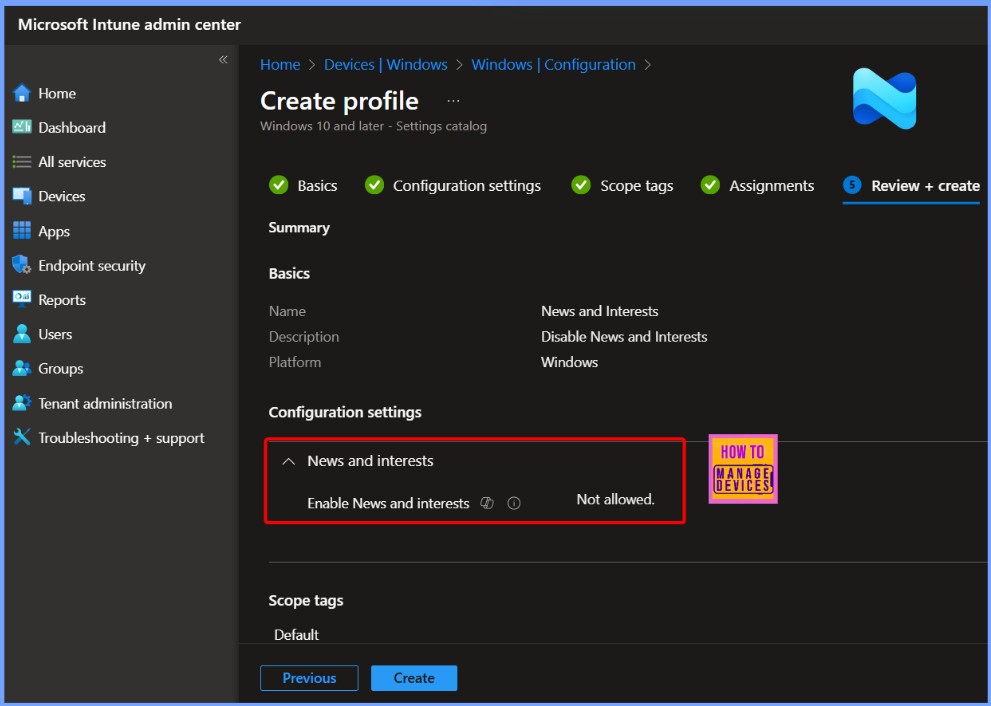
If you created a configuration profile in Intune using the Settings Catalog to disable the News and Interests feature on the taskbar. This profile was assigned to a testing group to check how the setting applies to targeted devices. After deployment, monitor the test machines to verify the result. The screenshot below shows the exact settings configured in the policy.
- Sign in to Microsoft Intune Admin Center
- Go to https://intune.microsoft.com and log in with the appropriate admin credentials.
- Create a New Configuration Profile
- Navigate to Devices > Configuration profiles
- Click + Create profile
- Platform: Windows 10 and later
- Profile type: Settings catalog
- Configure Profile Settings
- Click + Add settings hyperlink
- In the search bar, type: News and Interests
- Select the setting: Enable News and Interests
- Add it to your configuration
- Set the value to Disabled
- Assign the Profile
- Click Next
- Under Assignments, choose the user or device group to which this setting should apply
- Review the settings summary
- Click Create to deploy the profile
- Monitor Deployment Status
- Go back to the Configuration profiles section
- Select your profile to monitor its status
- Check if devices show “Succeeded” or “Error 65000“
- How To Fix Intune AI Policy Conflicts That Prevent Third-Party Browser Access
- Fix Intune Enrollment Errors 0x80180014 80180003 Unknown Win32
- Troubleshoot MDM Enrollment Error Code 80180004
- FIX Intune Error 0x80180013
- How to Start Troubleshooting Intune Issues | Fix Intune Issues with Easy Steps MEM
- Troubleshoot and Fix Company Portal Enrollment Your Device Is Already Connected Error
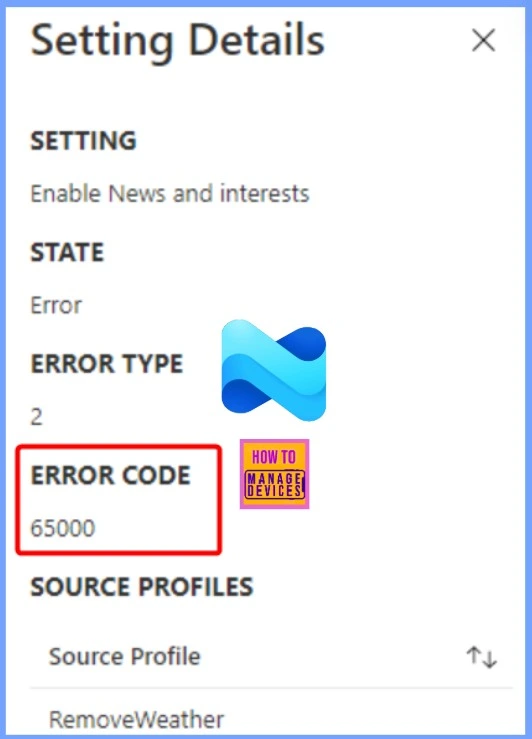
After the policy is pushed to the device, it fails to apply and returns an error. When you check the device details, you see specific error information related to the failure. The table below helps you to show more details,
| Settings Details | STATE | ERROR TYPE | ERROR CODE |
|---|---|---|---|
| Enable News and interests | Error | 2 | 65000 |
Workarounds
Let’s look at some possible workarounds to fix Intune Error 65000 when trying to disable News and Interests from the taskbar using the Settings Catalog. More details are explained in detail below.
Check Event Logs for Detailed Error Information
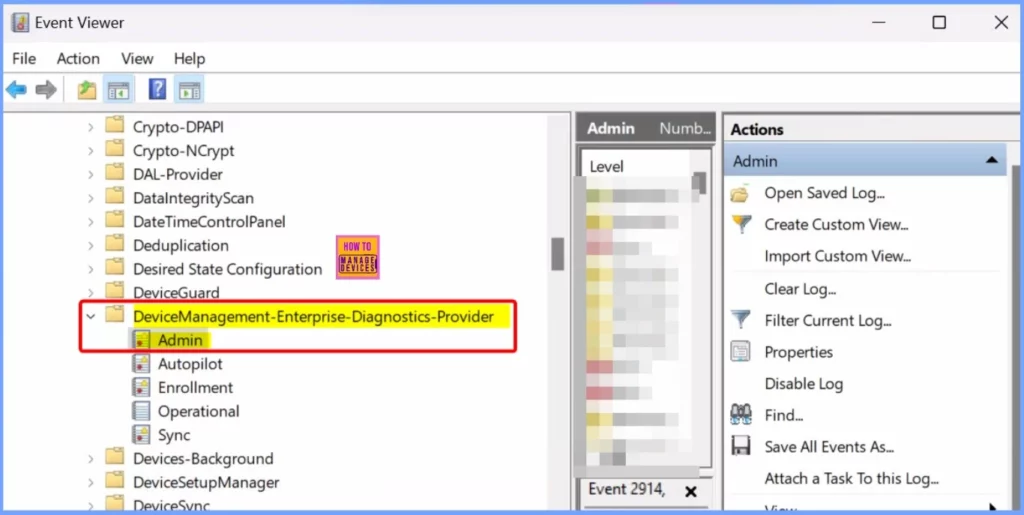
To get more insight into the issue, it’s helpful to check the Event Viewer on the affected device. Navigate to:
Applications and Services Logs > Microsoft > Windows > DeviceManagement-Enterprise-Diagnostic-Provider > Admin.
This section often contains detailed logs that can point to the exact reason why the policy failed, including any specific conflicts, unsupported settings, or device-related issues. Reviewing these logs can be a crucial step in troubleshooting Intune Error 65000 or similar deployment problems.
Check Task Scheduler for Confirmation
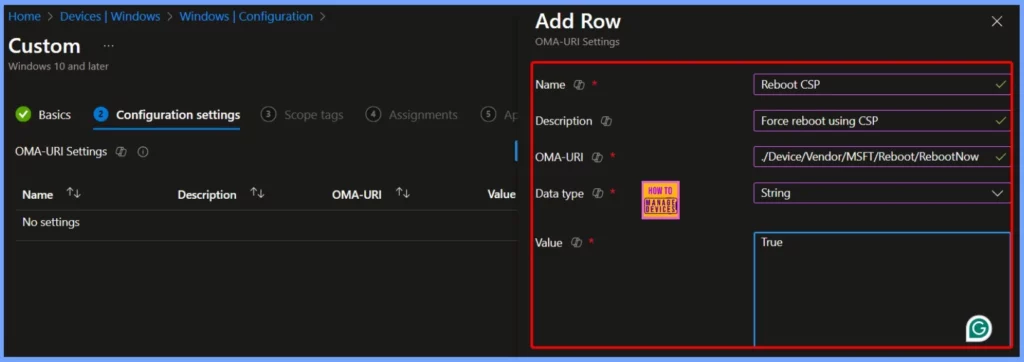
Even though Error 65000 was reported during deployment, it is important to check the Task Scheduler on the target machine. Sometimes the policy may still have applied successfully. In one case involving the Reboot CSP via Intune, every device showed a 65000 type 2 error, despite being fully updated and missing the required ADMX files at first.
The reboot policy still applied, and the devices rebooted as expected. This suggests the error might be triggered during the initial attempt, when the ADMX file isn’t available yet. Once the file is installed, the policy works, but the error remains logged from the earlier failure.
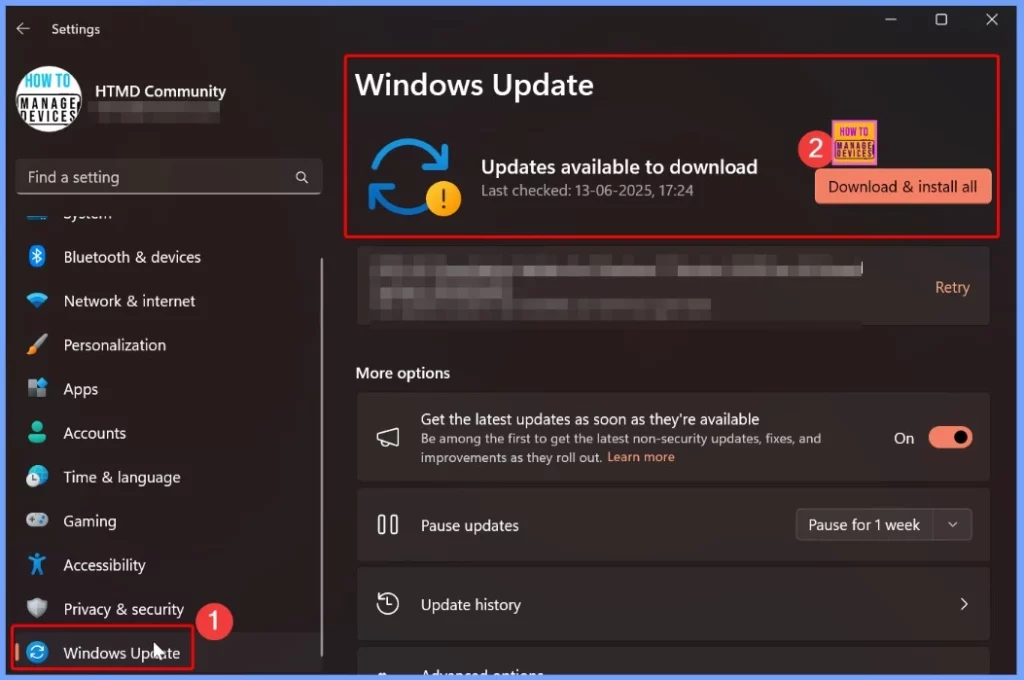
Check for the Required Update
Before applying certain Intune policies, it’s important to ensure that the target device has all the necessary Windows updates installed. Some settings depend on specific ADMX files that are only available after particular cumulative or quality updates. If these files are missing, the policy may fail to apply and return an error like 65000.
Manually Verify ADMX File
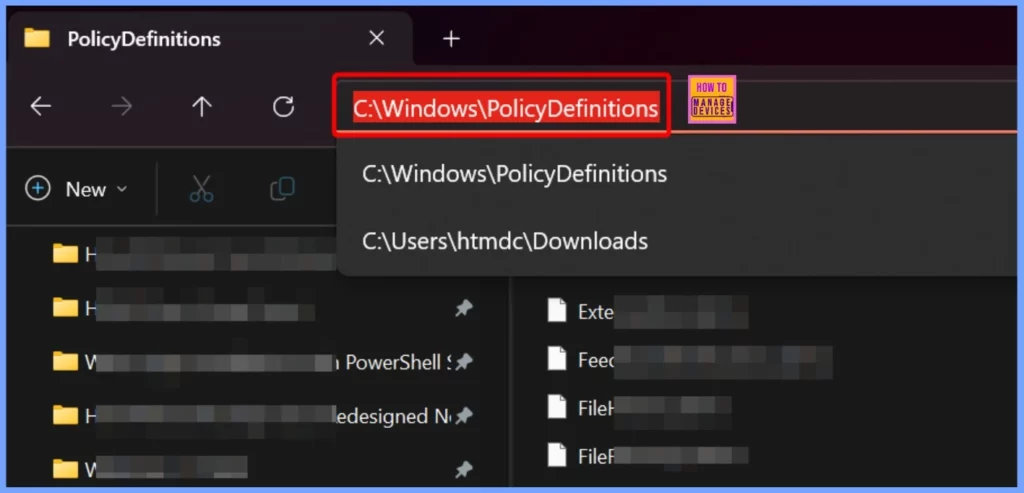
To manually verify if the required ADMX file is present, go to the device and navigate to C:\Windows\PolicyDefinitions. In this folder, look for a file named Feeds.admx. This file is essential for applying certain policies, such as disabling the News and Interests feature via Intune. If the Feeds.admx file is missing, the setting will fail to apply and result in Error 65000.
- If the file Feeds.admx is present: The required administrative template exists.
- If the file is missing: This may be the reason for Intune Error 65000, and you will need to update Windows to a build that includes it.
Restricted to Enterprise Editions
The Feeds.admx file is present on your device, which means that the necessary policy template is available. However, since you are using Windows 10 Pro (as part of your Microsoft 365 Business Premium subscription), the policy fails to apply because it’s restricted to Enterprise editions. This is why you’re seeing the message that the policy was “rejected by licensing.”
While you might be able to apply the same configuration manually via the registry editor, this method isn’t officially supported for Pro editions and may not deliver consistent results. For full compatibility and reliable policy enforcement through Intune, it’s recommended to upgrade the device to Windows 10 or 11 Enterprise.
Need Further Assistance or Have Technical Questions?
Join the LinkedIn Page and Telegram group to get the latest step-by-step guides and news updates. Join our Meetup Page to participate in User group meetings. Also, join the WhatsApp Community to get the latest news on Microsoft Technologies. We are there on Reddit as well.
Author
Anoop C Nair has been Microsoft MVP for 10 consecutive years from 2015 onwards. He is a Workplace Solution Architect with more than 22+ years of experience in Workplace technologies. He is a Blogger, Speaker, and Local User Group Community leader. His primary focus is on Device Management technologies like SCCM and Intune. He writes about technologies like Intune, SCCM, Windows, Cloud PC, Windows, Entra, Microsoft Security, Career, etc.


Discussion