





Microsoft Intune Expands Windows Settings Catalog with Silent Printing Geolocation and Windows Restore Settings
Key Takeaways
- Microsoft Intune added new settings in the Windows Settings Catalog.
- New policies help manage Microsoft Edge features, including update information pages and silent printing.
- Admins can control which websites can access or block location data.
- A new Windows Restore policy allows users to restore settings and Microsoft Store apps from the cloud.
In this post we are discussing, Microsoft Intune Expands Windows Settings Catalog with Silent Printing Geolocation and Windows Restore Settings. Microsoft Intune has introduced many new settings in the Windows Settings Catalog to give administrators more control over browser behavior and device recovery features. These updates mainly focus on improvements related to Microsoft Edge and the Windows restore experience.
Table of Contents
Microsoft Intune Expands Windows Settings Catalog with Silent Printing Geolocation and Windows Restore Settings
With these new policies, organizations can manage how Edge acts after the updates, control automatic printing, and manage how websites access location information on managed devices. Another important addition is a new Windows Restore policy that allows users to restore their Windows settings and Microsoft Store apps from the cloud when setting up a new or reset device. This new setting Applies to Windows.
- Enable Additional Search Box in Edge Browser using Microsoft 365 Admin Center Policy
- Enable AI Gen Themes in Edge Browser using Microsoft 365 Admin Center Configuration Policy
- Brand Identity Advanced Customization Options for Microsoft Edge Browser for Business
New Microsoft Edge Policies
New policies have been added for Microsoft Edge in the Windows Settings Catalog of Microsoft Intune. These settings help administrators manage how the Edge browser works on managed devices. The new settings under the Edge are:
- Microsoft Edge Update Information Page
- Silent Printing in Edge
- Allow precise geolocation on these sites
Microsoft Edge Update Information Page
A new policy allows administrators to control whether users see an informational page after major updates in Microsoft Edge. When the setting is Enabled or not configured, users who sign in with Microsoft Entra ID will see a page that explains new Edge for Business features after a major browser update. This helps users understand what has changed in the browser. If the setting is Disabled, the informational page will not appear after updates. This policy only works for Entra ID profiles and does not apply to personal Microsoft accounts.

- Starting in Microsoft Edge version 145, users with Microsoft Entra ID profiles will see an informational page about new Edge for Business features after major browser updates.
- This page highlights recent enhancements designed to promote secure and productive browsing.
- This policy controls whether users with Microsoft Entra ID profiles see this informational page.
- This policy applies only to Microsoft Entra ID profiles and does not apply to Microsoft account (MSA) profiles.
- This policy is available starting in Microsoft Edge version 144 to allow configuration ahead of the changes introduced in version 145.
- First, sign in to the Microsoft Intune admin center. Then, go to Devices > Configuration > Create > New policy. In the next window, select the platform (Windows and 10 later) and profile type (Setting Catalog). Then click Create to continue.
- In the configuration page click on the add setting and search Microsoft Edge.
- From the settings select” Control whether an informational webpage for Edge for Business is shown in the new tab after major browser updates“

Allow Precise Geolocation on these Sites
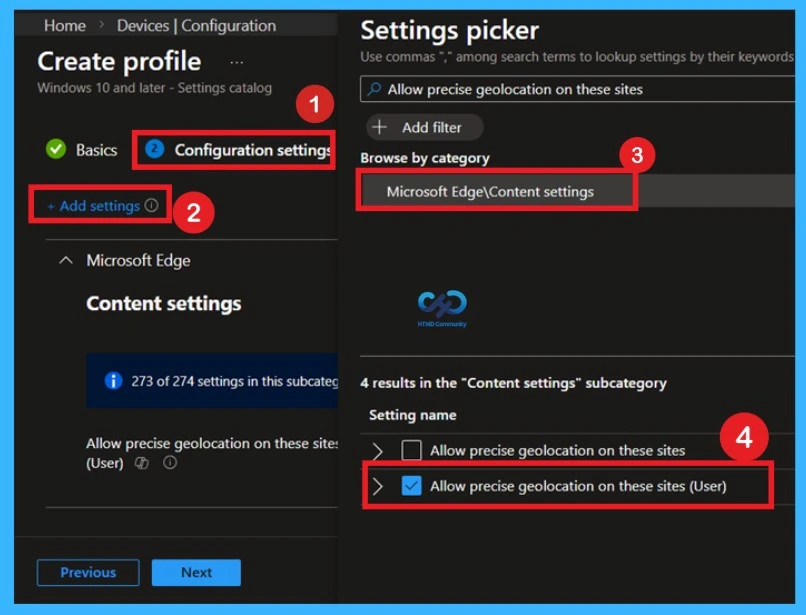
New settings allow administrators to control how websites access a user’s location. With the Allow precise geolocation on specific sites setting, admins can add a list of websites that are allowed to access the user’s exact location without asking permission.
Another setting, Block geolocation on specific sites, allows admins to block certain websites from requesting or accessing location information. These settings help organizations manage location access for websites on managed devices.
- In the configuration page click on the add setting and search Microsoft Edge.
- search for the Geolocation. It is under the Microsoft Edge\Content settings.
| Allow Precise Geolocation on these Sites Details |
|---|
| This policy lets you specify a list of URL patterns for sites that are allowed to access the user’s high-accuracy geolocation without prompting for permission. If you leave this policy unset, DefaultGeolocationSetting applies to all sites (if configured). Otherwise, the user’s personal setting is used. |
Silent Printing in Edge
This policy controls whether Microsoft Edge uses silent printing. If you enable this policy, Edge automatically closes the print preview window and prints to the default printer using its default settings. If the default printer is Save as PDF, the file is saved to the user’s Downloads folder. If you disable or don’t configure this policy, silent printing is disabled. The print preview window stays open, and the user must choose print settings as usual.
- In the configuration page click on the add setting and search Microsoft Edge.
- search for the Silent Printing. It is under the Microsoft Edge

Windows Restore Policy
A new Windows Restore policy allows users to restore their previous Windows settings and Microsoft Store apps from the cloud. When this setting is enabled in Microsoft Intune, the restore process can start during device setup or when the user signs in with their Microsoft Entra ID account for the first time after enrollment.
You can search this policy through the below path in the configuration page clicks on the add setting and search Windows Backup and Restore then select the Windows Restore Policy.

Need Further Assistance or Have Technical Questions?
Join the LinkedIn Page and Telegram group to get the latest step-by-step guides and news updates. Join our Meetup Page to participate in User group meetings. Also, Join the WhatsApp Community to get the latest news on Microsoft Technologies. We are there on Reddit as well.
Author
Anoop C Nair has been Microsoft MVP for 10 consecutive years from 2015 onwards. He is a Workplace Solution Architect with more than 22+ years of experience in Workplace technologies. He is a Blogger, Speaker, and Local User Group Community leader. His primary focus is on Device Management technologies like SCCM and Intune. He writes about technologies like Intune, SCCM, Windows, Cloud PC, Windows, Entra, Microsoft Security, Career, etc.


Discussion