






Fix Intune macOS Enrollment User Name Not Recognized
This post helps you to resolve and troubleshoot the error message User Name Not Recognized when enrolling macOS, iOS/iPadOS devices in Intune. While enrolling the macOS in Intune, you may encounter the error, User Name Not Recognized.
If you register macOS devices with Intune, you may encounter various enrollment errors. Fortunately, the new Intune Troubleshooting pane provides details about the user’s devices, policies, applications, and status in the dashboard, allowing you to look quickly and perform actions.
There are multiple ways to find Intune license details. You can quickly check the available option on the Tenant details page in Intune Admin Center and the PowerShell method to extract the details, How To Check Intune License In Intune Admin Portal.
You can give administrators access to Microsoft Intune Admin Center without requiring an Intune license, Intune supports up to 350 unlicensed admins per security group and only applies to direct members, check the option to Allow Unlicensed Admin To Access Intune.

- New Features In Intune Service Release 2306 June Update
- Intune Supported Enrollment Methods For Windows IOS Android MacOS Linux ChromeOS
macOS enrollment errors User Name Not Recognized
The error appeared while Enrolling MacOS In Intune, logging in to a Mac device, and downloading the Company Portal installer .pkg file, once downloaded, execute CompanyPortal-Installer.pkg file and continue through the steps. Ensure your device must be running macOS 10.15 or later.
During initial setup, the Company Portal app requires you to sign in and authenticate yourself with your organization. Company Portal then informs you of any device settings you need to configure to meet your organization’s requirements.
The error “User Name Not Recognized. This user account is not authorized to use Microsoft Intune. Contact your system administrator if you think you have received this message in error.”
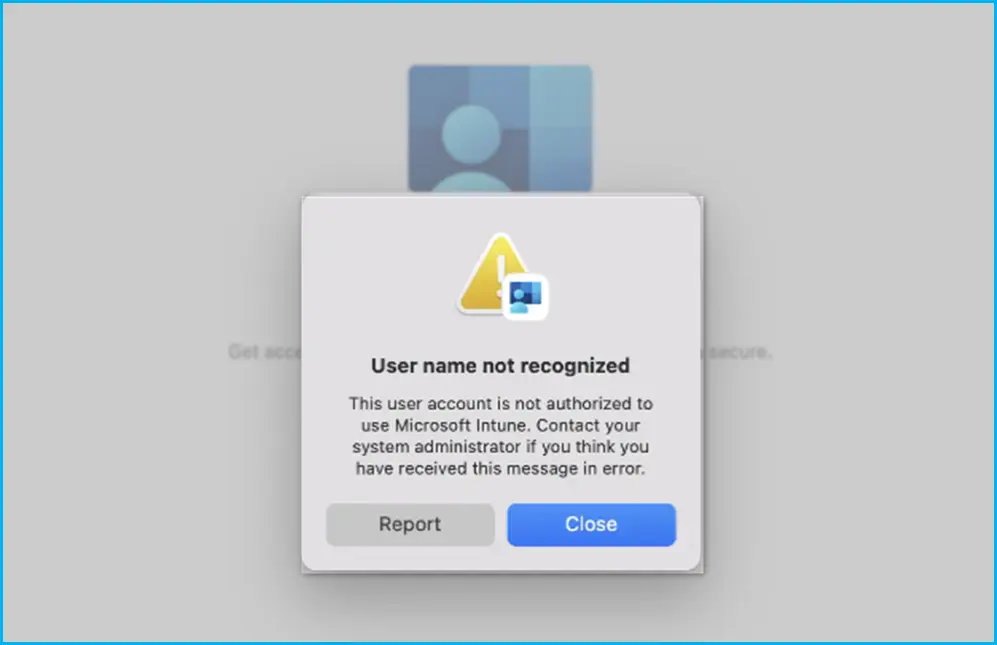
There are a few prerequisites for enrolling macOS devices to Intune that you need to follow, Let’s check new Troubleshooting Experiences from Intune for checking user and device issues.
- Sign in to the Microsoft Intune admin center https://intune.microsoft.com.
- You can find the troubleshooting pane by selecting Troubleshooting + support > Troubleshoot.
To begin the troubleshooting process, select a user from the drop-down list or type in a display name or email. Once a user is selected, their information is loaded into a new tabbed format that starts with an overview of their licensing, device status, and assigned apps and policies.
Once a user is selected, their information is loaded into a new tabbed format that starts with an overview of their licensing and account status. Here you can see No Intune license found for the users trying to sign in during the enrollment process.
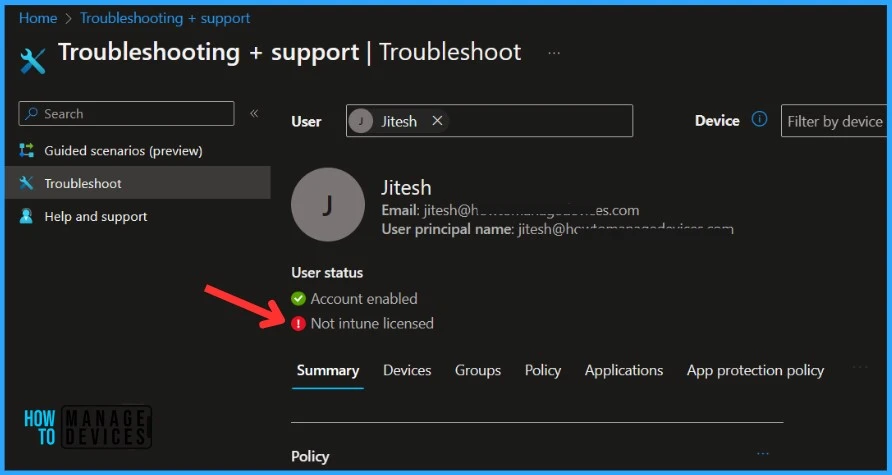
The first step is to validate the license assignment for the users. You must select the available license for the user. If you don’t assign the user a license, they’ll be unable to connect the device in Intune.
To log in to the company portal, you will need a user account with an Intune license. Before performing the installation of the Company Portal, make sure to assign the appropriate Intune license to the user, which consists of the following licenses, Device-Only Subscription.
- Microsoft Enterprise Mobility + Security (EMS)
- Enterprise Mobility + Security E3
- Enterprise Mobility + Security E5
- Microsoft 365
- Microsoft 365 E3
- Microsoft 365 E5
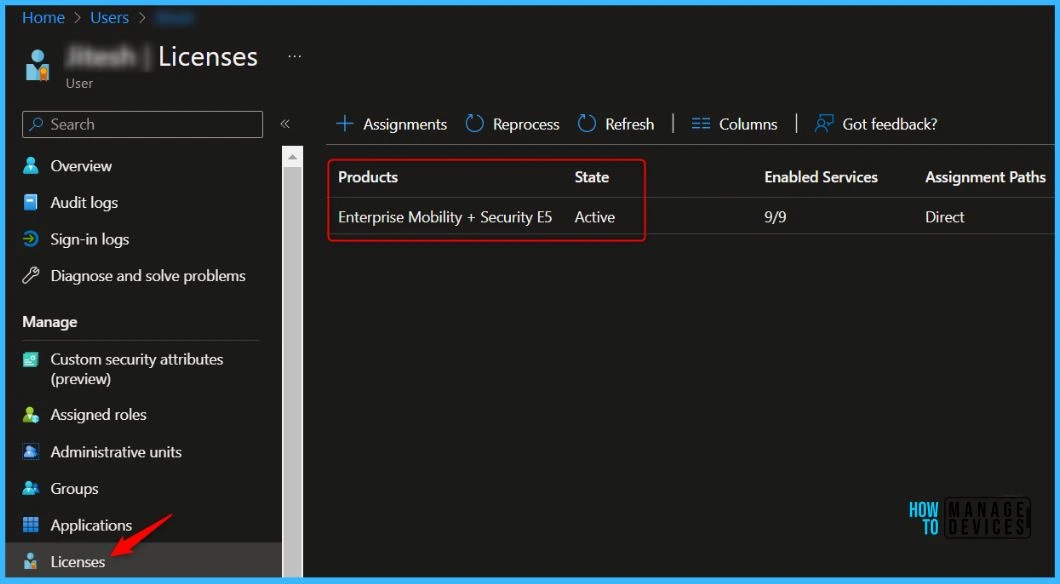
In Azure AD Node, Navigate to All users and search for the user. In the left pane, select Licenses and click on Assignments. Select the available license, I chose Enterprise Mobility + Security E5 and, selected all default license options, clicked on Save.
Once the license has been assigned, you should be able to perform macOS Enrollment with Intune without any issue specific to licensing.
| Error message | Issue | Resolution |
|---|---|---|
| User name not recognized | The device can’t be enrolled because the user’s account isn’t yet a member of a licensing group or the user does not have valid Intune license. | Users must have a valid Intune license type for the device enrollment in Intune. |
Once the macOS device is enrolled with Intune app Company Portal, the device can securely gain access to all the work-related resources, files, and apps. Once the device status is shown as managed, it can apply company policies.
Author
About Author – Jitesh, Microsoft MVP, has over six years of working experience in the IT Industry. He writes and shares his experiences related to Microsoft device management technologies and IT Infrastructure management. His primary focus is Windows 10/11 Deployment solution with Configuration Manager, Microsoft Deployment Toolkit (MDT), and Microsoft Intune.


Discussion