






Intune MSI Application Deployment Video Guide Microsoft Endpoint Manager Step-by-Step Guide
Let’s discuss the Intune MSI Application Deployment Video Guide Microsoft Endpoint Manager Step-by-Step Guide. How to upload and deploy MSI applications to Windows 10 machines with Intune via Azure console? MSI application deployment could be one of the most used features in Intune (at least for a couple of years).
This video post will show the step-by-step process of MSI application deployment (Intune LOB application deployment).
NOTE! – Do not include the msiexec command or arguments, such as /i or /x, as they are automatically used. For more information, see Command-Line Options. If the .MSI file needs additional command-line options, consider using Win32 app management.
This post is also an end-to-end guide to creating MSI applications in Intune via the Azure portal. In the following post, “How to Deploy MSI App to Intune MDM Using SCCM CB and Intune“, I already blogged about MSI MDM deployment via the MDM channel. This will include:-

- Uploading the MSI LOB app to Intune
- Deployment or Assignment options
- End-User Experience on Windows 10 machine
- How to Troubleshooting with event logs and Pending Sync
- How to get application installation status messages back to the Intune console
- Deploy Slack using Intune MSI Application Deployment Guide
- How to Get Intune Managed Apps Details for Device
- Override Intune GRS: Trigger IME to retry failed Win32 App Deployment
- Learn about Slack Deployment Using the SCCM Application model
- Configure Windows Sandbox Video Input to Balance Security and Functionality using Intune
Table of Contents
How to Deploy MSI LOB App from Intune Azure Console End-to-End Guide
In this video, you will learn how to deploy an MSI Line-of-Business (LOB) application using the Intune Azure Console from start to finish. The guide provides a detailed, step-by-step process covering everything you need.
Intune MSI Application Deployment Video Guide Microsoft Endpoint Manager Step-by-Step Guide – Upload MSI LOB Application to Intune
Uploading the MSI LOB app to Intune is a very straightforward process. Log in to the Azure portal, navigate via Microsoft Intune -> Mobile Apps -> Apps -> + Add button, and select the app type as “Line-of-Business app.” Click on “App package file,” browse to the MSI source file location, and click on the OK button, as you can see in the video here.
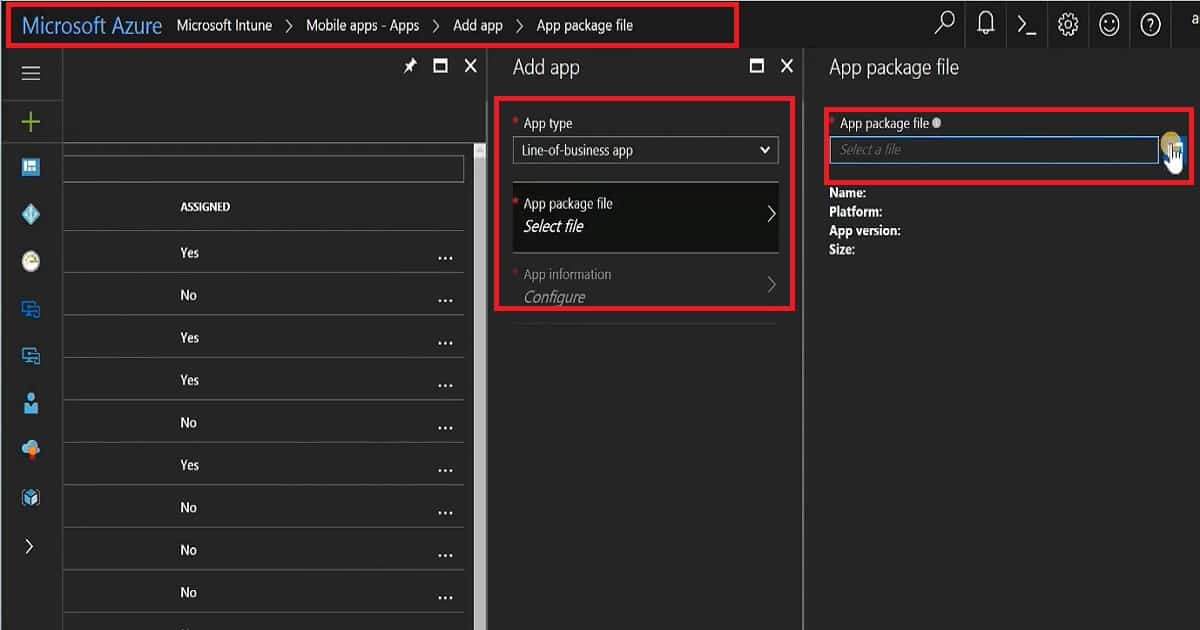
You must complete the “App information” section before you can proceed with uploading the MSI to Intune. There are a couple of mandatory fields. Command-line options are also available in this section. However, as I have experienced, you can also see in the video.
I have not used any silent switch for MSI, but by default, Intune/MDM on Windows 10 will install the app as silent (without any user interaction or input). Click on the ADD button to complete the MSI app creation process in Intune on the Azure portal.
Deployment or Assignment options of MSI Intune LOB application deployment
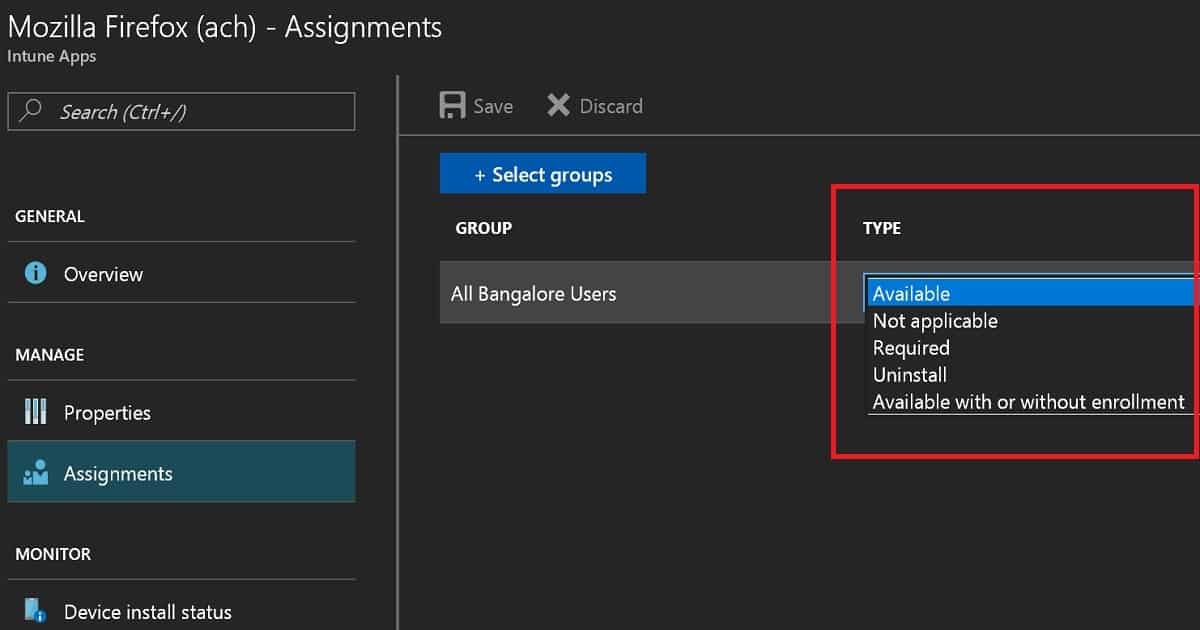
It would be best to wait until the application is successfully uploaded to Intune before you can create an assignment (or deployment). An assignment is a method that we use to deploy MSI applications to Windows 10 devices. You can deploy applications to Azure AD dynamic user groups or device groups. In this video/scenario, I used the AAD dynamic user group to target the MSI LOB apps.
- More details are available in the video here. There are different deployment types available in Intune.
Available – The user needs to go into the company portal and trigger the installation.
Not applicable – Won’t get installed
Required – Forcefully get installed without any user interaction
Uninstall – Remove the application from the device
Available with or Without enrollment – Mobile Application Management (MAM) without MDM enrollment scenarios.
End-User Experience on Windows 10 machine
Windows 10 machines will get the new application deployment policy once the assigned user is logged into that machine. What is the option to speed up the application deployment to the machines? You need to sync with Intune services using the following method (manually).
You can go to “Settings—Access Work or School—Work or School Account—Info (click on this button)” and click on Sync. This will initiate a Windows 10 machine sync with Intune services, and after a successful sync, the machine will get the latest application policies.
How to Troubleshooting with Event Logs and Pending Sync
Unlike SCCM/ConfigMgr deployments, we don’t have log files to look at the application installation status via the MDM channel on Windows 10 machines. So, it would be best if you relied on the Company portal for troubleshooting the MSI application troubleshooting.
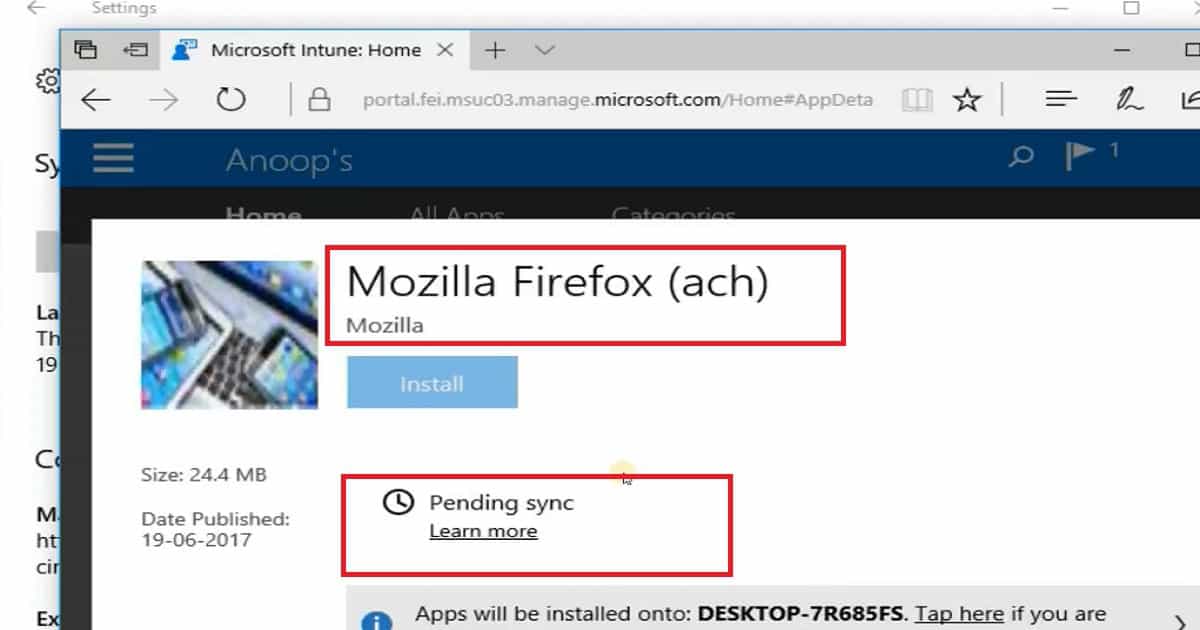
- As you can see in the following picture, the installation is waiting for “Pending Sync.”
- As mentioned above, you can immediately initiate a manual sync to kick-start the installation process.
- Event logs – Windows Logs – Applications are where you can get the status of MSI application installation via MDM or Intune channel on to Windows 10 machine.
How to get application installation status messages back to the Intune console
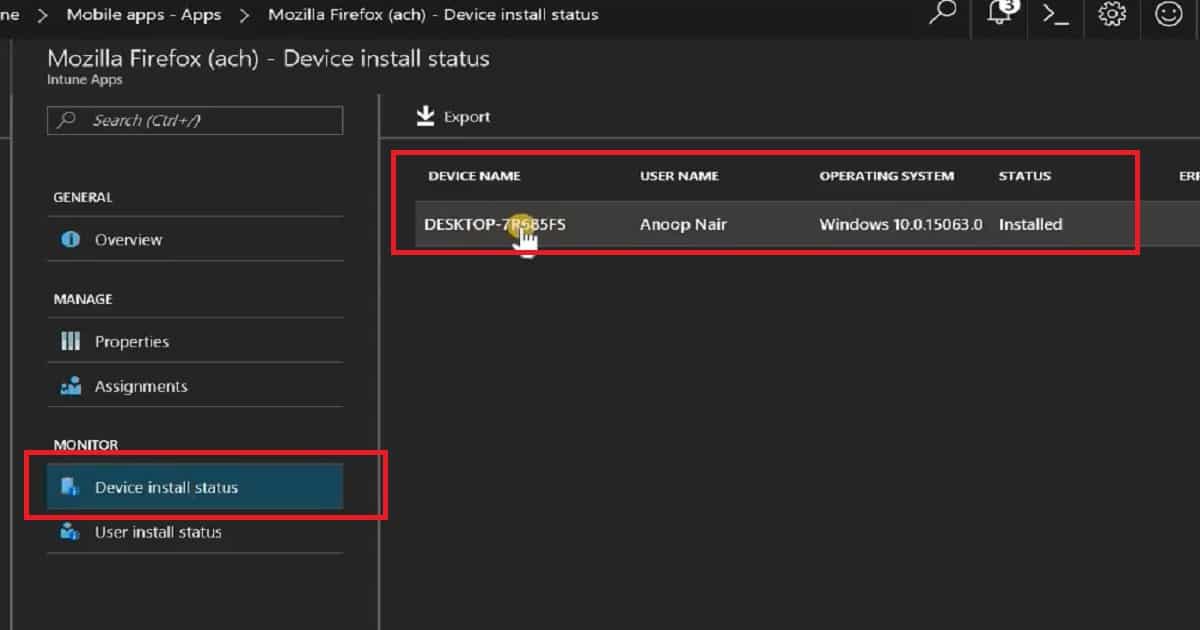
To get the installation status of the MSI LOB apps to Intune on the Azure portal, you need to sync your work or school accounts with Intune services. The installation status will be blank in the Intune blade unless the device is synced with Intune after the application is installed on the Windows 10 machine.
Initiate thSyncnc via “Settings – Access Work or School – Work or School Account – Info (click on this button)” and click on Sync. Once thSyncnc is completed successfully, you can try to check the Intune Device Install Status in Intune to check the status.
Reference:-
- How to add an app to Microsoft Intune
- How to add Windows line-of-business (LOB) apps to Microsoft Intune
We are on WhatsApp now. To get the latest step-by-step guides, news, and updates, Join our Channel. Click here. HTMD WhatsApp.
Author
Anoop C Nair is Microsoft MVP! He is a Device Management Admin with more than 20 years of experience (calculation done in 2021) in IT. He is a Blogger, Speaker, and Local User Group HTMD Community leader. His main focus is on Device Management technologies like SCCM 2012, Current Branch, and Intune. He writes about ConfigMgr, Windows 11, Windows 10, Azure AD, Microsoft Intune, Windows 365, AVD, etc.


Hi,
There is a way to monitor installation status of LOB App deployed as ‘Required’ on the client machine? (not in intune azure portal)
StaffIt’s there in the device or user status https://www.anoopcnair.com/intune-enrollment-status-page-troubleshooting/
is it possible to change the location where the LOB app is installed. currently my app is installed at C:/Program Files/XXX I want to change the location to C:/XXX
StaffIt’s something the application (MSI) should take care. Nothing from Intune’s side on that.
Is there a way to update the existing msi file for an app and auto deploy the updated version.?
Having the same question since it is not clarified in the docs if an updated LOB app will also automatically push the updated version to all clients which have the old one installed.
Would be highly interested in a clean update process and options for LOB apps.
StaffI have seen that if you update the existing Intune application with the new MSI then the clients will automatically update the application to the next version (hoping the new MSI can handle the upgrade correctly)
Will try and get back here if it worked or not. Unfortunately I removed the assignment but it kept the installed devices status so hopefully it will work.
The only workaround I can think of right now is force removing all installed apps and then making the app available again which is a dirty approach I think but should do the job.
Just to clarify I am speaking about app which are available and not required to install. For apps which are required the update process is quiet easy and clear in my opinion.
StaffI think the available and already installed app works a similar way as required apps in my experience (If I can remember it correctly).