






Windows 365 Snapshot Health Indicator and Enhancement in Point-in-Time Restores using Intune
Let’s discuss the Windows 365 Snapshot Health Indicator and Enhancement in Point-in-Time Restores using Intune! Yes, Windows 365 now offers a generally available snapshot health indicator for point-in-time restores in Intune Admin Center. This enhancement empowers IT administrators to gain vital insights, leading to more reliable Cloud PC recovery.
Snapshots are like taking a picture of your computer at a specific moment to help you back up and restore everything. Snapshots are of two types: healthy and unhealthy. Healthy snapshots are more likely to restore correctly. Unhealthy snapshots have a higher chance of failing.
This new feature emphasizes making disaster recovery more reliable and easier to understand. By providing clear information about snapshot health, it helps IT administrators feel more confident when they need to restore Cloud PCs.
This blog post will explore the generally available snapshot health indicator for point-in-time restores in Windows 365, highlighting its role in enhancing disaster recovery capabilities. Let’s delve into the blog post.

Table of Contents
What is the Use of Snapshots?
Snapshots are used to take an exact picture of your computer’s operating systems, applications, or disks at a specific time. This picture saves all the settings and is essential for backing up and restoring your system.
What is the Difference Between Healthy Snapshots and Unhealthy Snapshots?
Healthy snapshots are more likely to restore correctly. Unhealthy snapshots have a higher chance of failing. Even though you can use unhealthy snapshots, the system warns you about the risks to help avoid restoration failures and keep things running smoothly.
What is Point-in-time Restore for Windows 365 Enterprise?
Point-in-time Restore allows administrators to rewind a Cloud PC to how it looked at a specific time in the past. Admins can set up automatic save points regularly or create one whenever needed. They can even let users restore their own Cloud PCs if they need to go back to a previous state.
Windows 365 Snapshot Health Indicator and Enhancement in Point-in-Time Restores using Intune
Snapshot health is assessed by looking at two main indicators: the status of the virtual machine (VM) agent and the status of the session host. The VM agent’s health indicates about the agent itself, and the session host’s health tells us about the server running the sessions.
| Snapshot Health Indicators | Status |
|---|---|
| Virtual machine (VM) agent | This indicates whether if the software that manages the virtual machine itself is working correctly. |
| Session host | This tells us if the server that runs the user sessions is working well. |
- Microsoft Offering Ultra High Speed Backup and Recovery for OneDrive, SharePoint and Exchange Data
- Most Asked 54 Windows 365 Cloud PC Interview Questions and Answers
- How Windows App Enhances File and Folder Access on Azure Virtual Desktop and Windows 365
Clear Health Indicator for Point-in-Time Snapshots in Microsoft Intune Admin Center
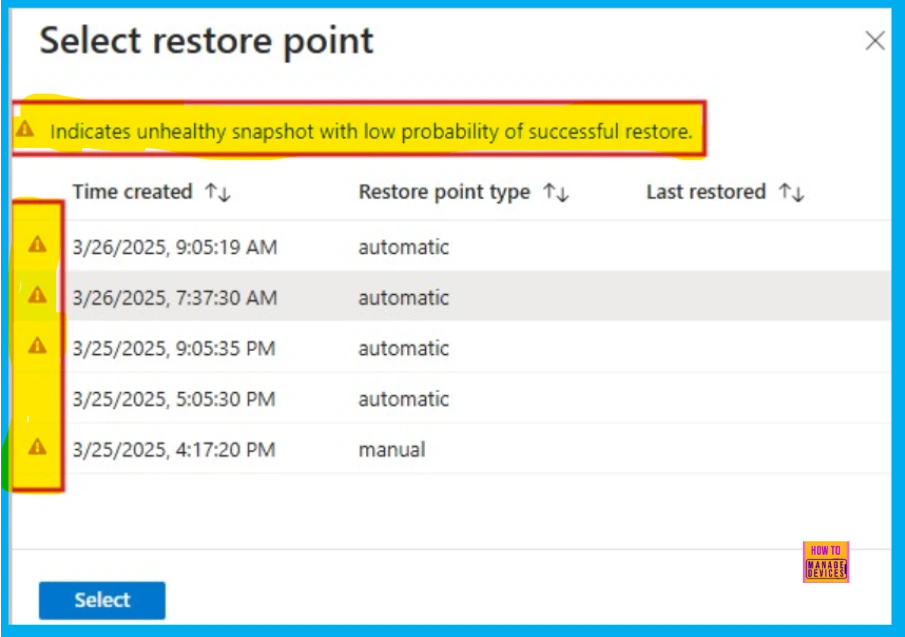
In the Microsoft Intune admin center, we can now see a clear health indicator for point-in-time snapshots. This indicator marks unhealthy snapshots while all unmarked snapshots are considered healthy, based on the specific parameters mentioned above.
- Sign in to the Microsoft Intune admin center
- In the left navigation pane, select Devices.
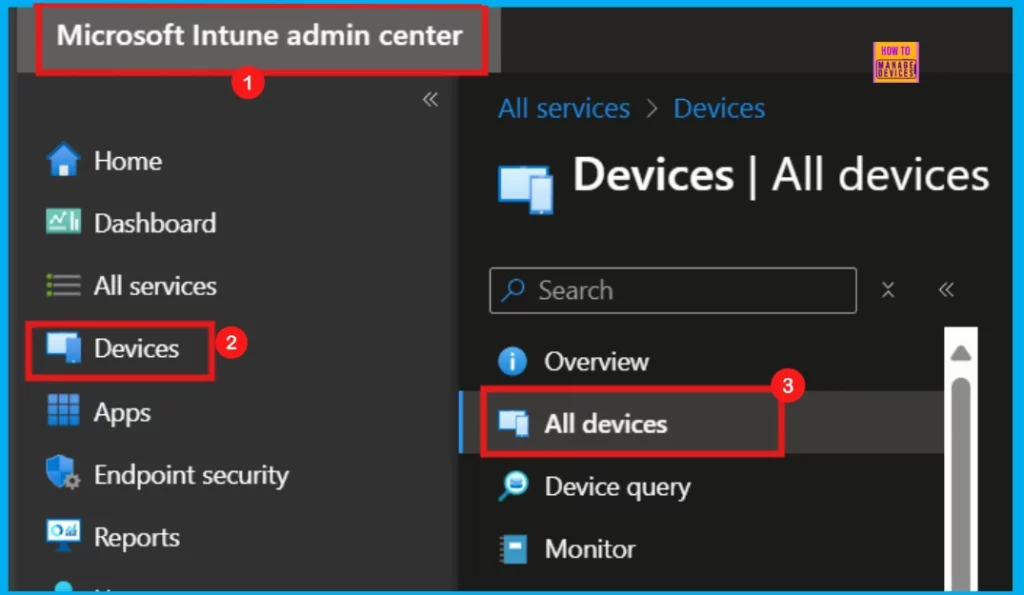
Within the Devices section, locate the Point-in-time restore feature. The point-in-time snapshot health indicator is integrated into this area, allowing you to see the health status of your snapshots.
- Unhealthy snapshots are marked.
- Those not marked are considered Healthy.
Resource
Need Further Assistance or Have Technical Questions?
Join the LinkedIn Page and Telegram group to get the latest step-by-step guides and news updates. Join our Meetup Page to participate in User group meetings. Also, Join the WhatsApp Community to get the latest news on Microsoft Technologies. We are there on Reddit as well.
Author
Anoop C Nair has been Microsoft MVP for 10 consecutive years from 2015 onwards. He is a Workplace Solution Architect with more than 22+ years of experience in Workplace technologies. He is a Blogger, Speaker, and Local User Group Community leader. His primary focus is on Device Management technologies like SCCM and Intune. He writes about technologies like Intune, SCCM, Windows, Cloud PC, Windows, Entra, Microsoft Security, Career, etc.


Discussion