






Intune Remote Assistance for Managed Windows Device
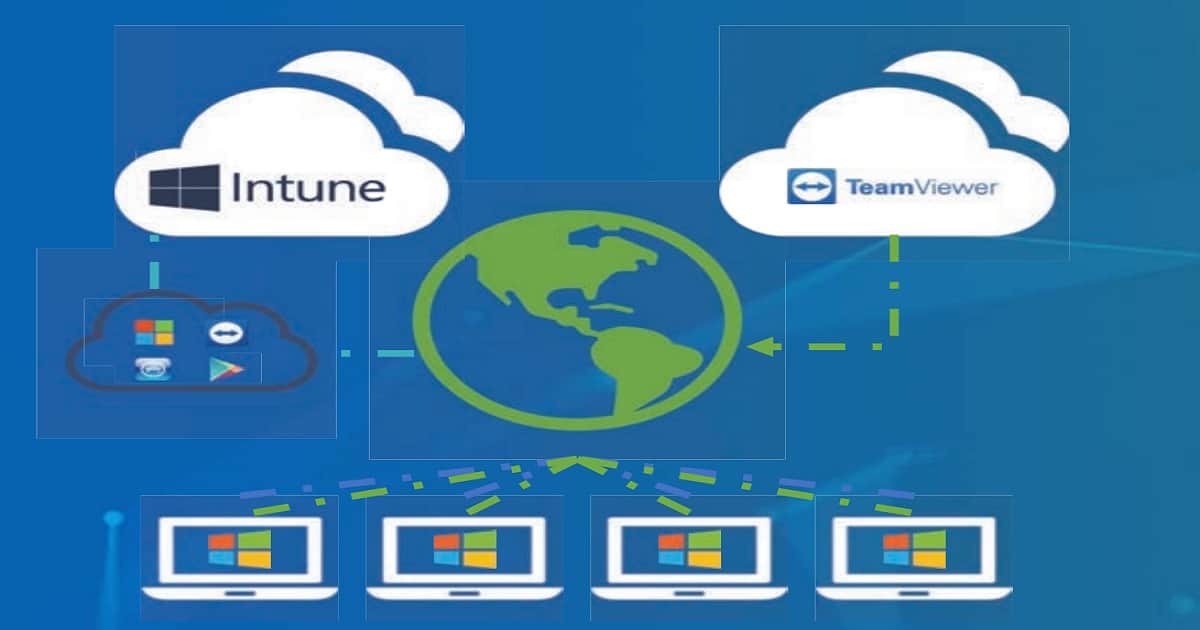
In this post, I want to explore Intune Remote Assistance for Managed Windows Devices. iOS, Windows, and Android Devices managed by Intune can be administered remotely using TeamViewer.
TeamViewer has options integrated with Intune. This TeamViewer integration gives an out-of-the-box experience from the Intune console.
TeamViewer integration with Intune helps IT Pro provide remote assistance for Windows, iOS, and Android devices. You will see more details about Intune remote assistance.
Microsoft announced a native remote assistance solution. This new remote help solution uses the Intune MEM Admin Center. Microsoft already announced that it comes with an additional premium price over existing EMS or M365 E3/E5 licenses.

Table of Contents
Intune Remote Assistance with TeamViewer Prerequisites
The Intune administrator within the Azure portal must have the following Intune roles. I would recommend reading Microsoft documentation about the prerequisites and Intune RBAC roles.
- Intune Remote Assistance for MacOS Devices
- Latest Intune Admin Portal Walkthrough Guide | Microsoft Intune Admin Center
- Update Remote Assistance: This allows administrators to modify the TeamViewer connector settings.
- Request Remote Assistance: This allows administrators to start a new remote assistance session for any user. Any Intune role within a scope does not limit users to this role. Also, the user or device groups assigned an Intune role within a scope can request remote assistance.
- The Trial version of TeamViewer or TeamViewer license to integrate Intune. Also, these license requirements are the same for Windows, iOS, and Android remote assistance.
Video Experience – TeamViewer Intune Remote Assistance
Learn how to remotely assist an Intune-managed Windows device. For more comprehensive guidance, refer to the instructional video tutorial below.
Intune Integration with TeamViewer
As I mentioned above, Intune integration with TeamViewer is not an experience for Intune admins. Microsoft and TeamViewer integrated TeamViewer’s API with Intune and Azure AD.
The Intune Integration with TeamViewer is available in the Azure portal. I would recommend taking a free trial version of TeamViewer for fourteen (14) days.
To integrate with TeamViewer from the Azure portal Intune devices blade, follow the below steps. The video tutorial provides more details.
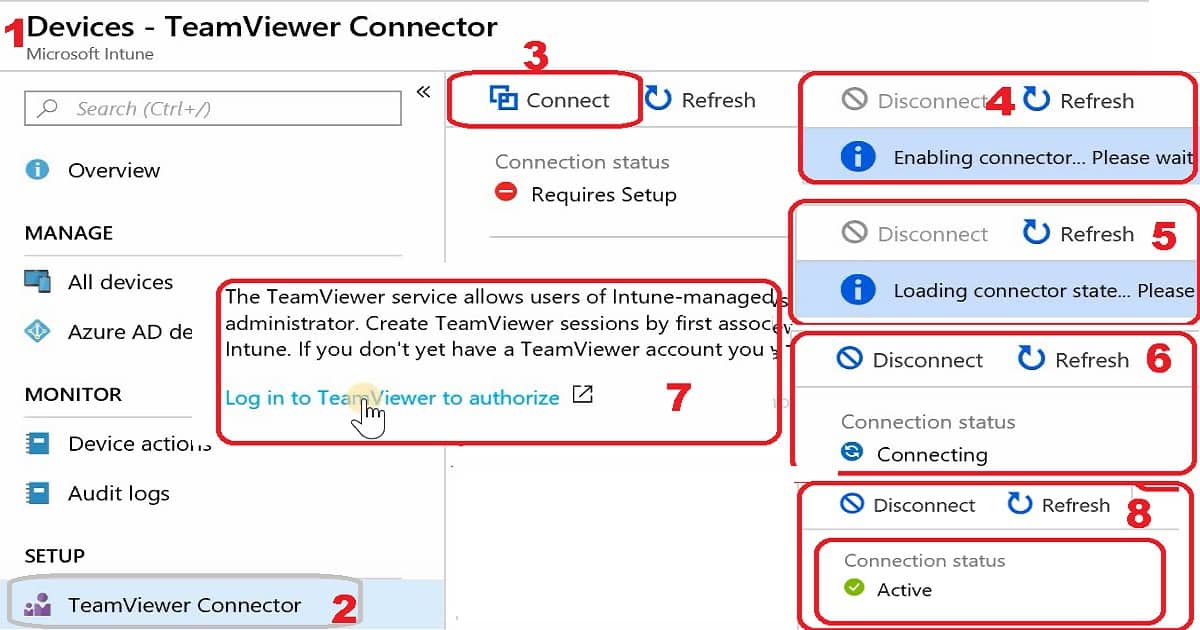
To provide Intune remote assistance to Windows 10 devices, configure the Intune TeamViewer connector using the following steps:
- In the MEM Admin center, select All Services, and search for Microsoft Intune.
- In Microsoft Intune, select Devices, and then click on TeamViewer Connector.
- Select Connect (connection status will be set as required) and accept the license agreement.
- Connection Status changes – Enabling connector…please wait
- Connection Status changes – Loading connector…please wait
- Connection Status changes – Connecting
- Select Log in to TeamViewer to authorize.
- A web page opens to the TeamViewer site. Enter your TeamViewer trial of full license credentials, and then Sign In. Close the web page.
- Click on Refresh to change the connection status to Active.
Enable Intune Remote Assistance for All Devices
After configuring the TeamViewer connector, you’re ready to administer a device remotely. Use the following steps to enable all devices to receive Intune remote assistance. The video tutorial provides more details.
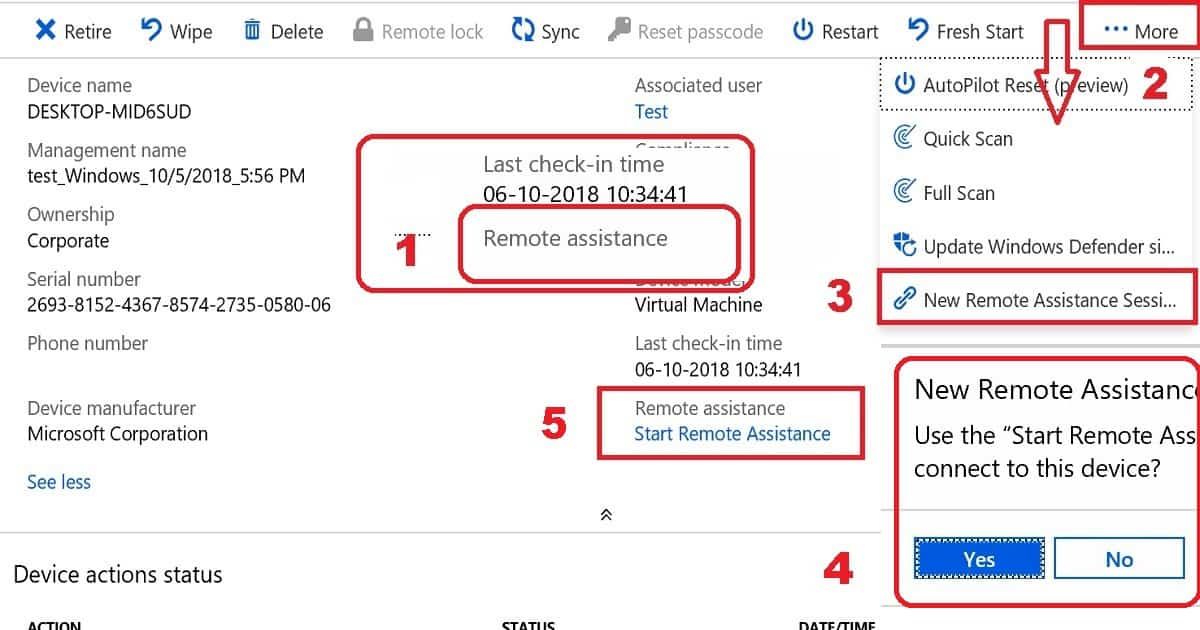
- In the Azure portal, select All Services, and search for Microsoft Intune.
- In Microsoft Intune, select Devices, and then select All devices.
- From the list, select the device that you want to administer remotely. In the device properties, select New Remote Assistance Session.
- Click on Yes on New Remote Assistance Session in the popup. Use the “Start Remote Assistance” link in the Essentials session to start remote assistance for this device.
- Now all your devices are ready for Intune remote assistance.
How to Start Intune Remote Assistance
Once you complete the following two sections, 1. Intune Integration with TeamViewer and 2. Enable Intune Remote Assistance for All Devices; you can take Intune Remote assistance for Windows devices (Android and iOS devices) with TeamViewer. More details are available in the video tutorial.
Actions – Intune Admin Experience
- In the MEM Admin Center, select All Services, and search for Microsoft Intune.
- In Microsoft Intune, select Devices and select the device you want to take remote assistance from Intune.
- Click on the Remote Assistance button to start the remote assistance.
- A web page opens to the TeamViewer site. The TeamViewer application will be downloaded. Run the TeamViewer application.
- Wait for the remote device to get ready for the remote assistance connection.
Actions – End User Experience
As TeamViewer remote assistance policy flows from Intune, reaching the device may take around 1 minute. Ensure this Intune Remote assistance policy reaches the device from the Intune Company Portal.
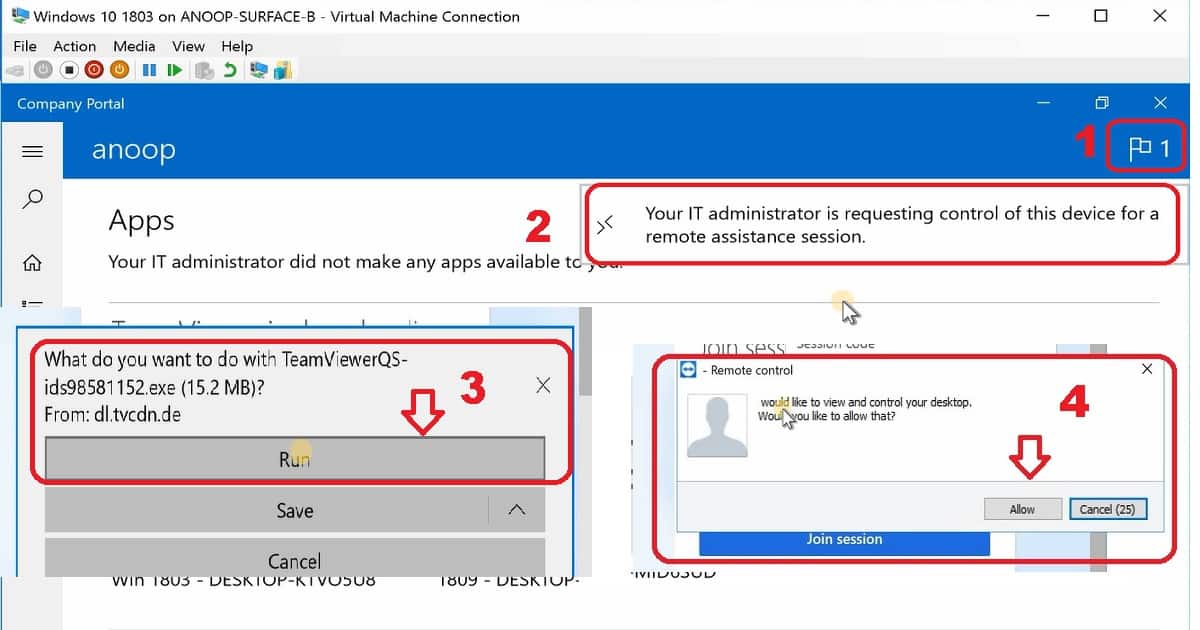
- Launch the Intune Company Portal.
- Select the notification “Your IT administrator is requesting control of this device for a remote assistance session.”
- A web page opens to the TeamViewer site. The TeamViewer application will be downloaded. Run the TeamViewer application (TeamViewerQS-id*.exe).
- TeamViewer Remote control pop windows and select the Allow button.
TeamViewer Intune Remote Assistance Experience for Windows Devices
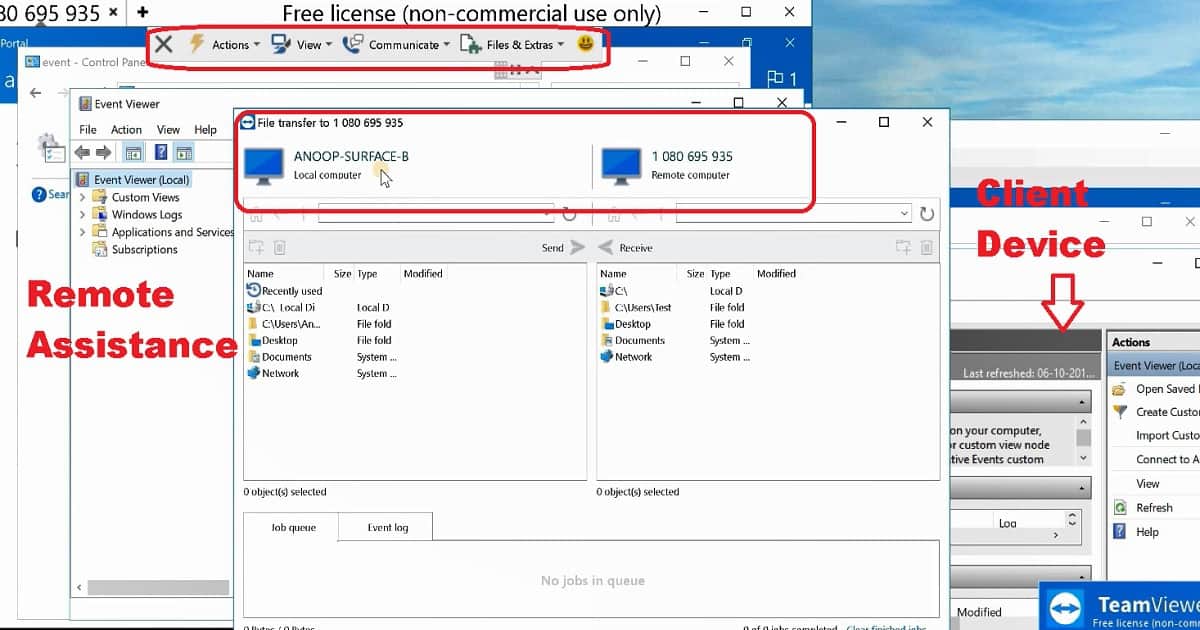
You have many rich TeamViewer Intune Remote Assistance controls when you control the remote Windows machine. You can transfer files, enable remote printing, etc… More details are available in the video tutorial.
Resources
- https://www.teamviewer.com/en/integrations/microsoft-intune/
- Use TeamViewer to remotely administer Intune devices
We are on WhatsApp. To get the latest step-by-step guides and news updates, Join our Channel. Click here –HTMD WhatsApp.
Author
Anoop C Nair is Microsoft MVP! He is a Device Management Admin with more than 20 years of experience (calculation done in 2021) in IT. He is a Blogger, Speaker, and Local User Group HTMD Community leader. His primary focus is Device Management technologies like SCCM 2012, Current Branch, and Intune. He writes about ConfigMgr, Windows 11, Windows 10, Azure AD, Microsoft Intune, Windows 365, AVD, etc.


It does not work with basic or business teamviewer license. You jeed enterprise license for this.
StaffDo you have any references pls?
I searched all over for this information as well and found nothing. Contacted Teamviewer sales and they said I had to purchase the Corporate edition as it is the minimum required for InTune use.
StaffYes TeamViewer is not that much IT community friendly to give feedback and answers ? Does that what you mean ?
Hi, there is a way to deploy the TeamViewer client across all the machines so the user doesn’t need to interact with the installation? or approval of admin credentials?
Hi Anoop,
I completed all the steps but when I click start remote session in endpoint portal popup is not coming up in client company portal I searched for docs for troubleshooting but not getting it.
Kindly help me on this…