






Intune Security Baseline Microsoft Defender Policy Troubleshooting Tips for Cloud PCs
Let’s have a quick look at how you can start Intune security baseline Microsoft Defender policy troubleshooting. In the previous blog post, I have already shared the options to deploy Windows 365 Security Baseline Policies to Cloud PCs. You can learn how to start troubleshooting on security baseline policy deployment in this post.
Security baselines are the best recommended set of policies and configurations templates from the Microsoft product group. You have options to edit and apply the configurations that are relevant for the use cases. You have a lot of default Intune reports that can also help with basic troubleshooting.
You will need to perform the basic troubleshooting from the MEM admin center portal. One example is given below How To Start Troubleshooting Intune Issues from the server side. The next level of troubleshooting is with MDM Diagnostics Tool to collect the log and information from the client-side.
Managed by Default Directory – Areas Managed
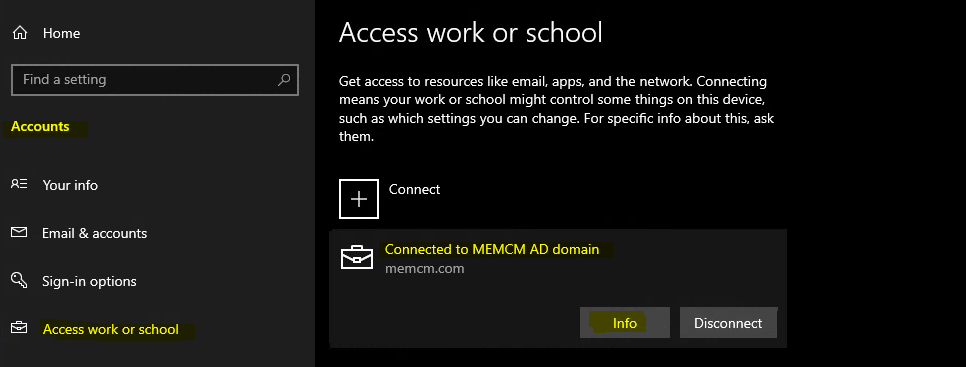
Let’s check Intune management connection app from the settings app for Windows 10 and Windows 11 to confirm whether the security baseline policies are already applied to a Cloud PC or physical device or not.

- Open Settings app from Windows PC.
- Click on Accounts -> Access work or School.
- Select the connection where you can see the INFO tab.
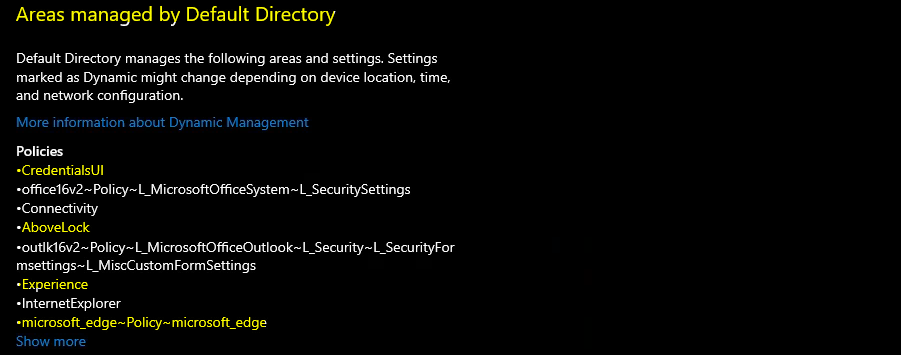
The managed by the Default Directory page and Area managed by default directory show you all the policies and applications installed using MEM Intune. So this is your starting point to troubleshoot Intune security baseline policy deployment.
You can open the MEM Intune admin center portal and check one of the policies from the security baseline and confirm whether that policy is listed down here in the lost or not.
Troubleshoot Microsoft Defender Exclude Processes Issue
Let’s now go to the next level of troubleshooting in a scenario where you cannot find the policy already applied in the areas managed by the default directory page. The next level of troubleshooting step I normally take is quickly updating one of the settings from Intune security baseline.
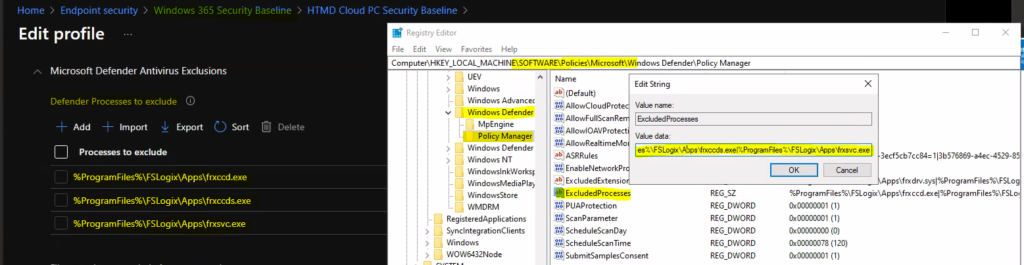
In this scenario, I’m going to change the settings from Windows 365 security baseline. I’m trying to change the Microsoft defender configuration for Cloud PCs. Let’s simulate an issue Microsoft defender -> exclusion processes registry as mentioned below.
- Registry Entry for Computer\HKEY_LOCAL_MACHINE\SOFTWARE\Policies\Microsoft\Windows Defender\Policy Manager -> ExcludedProcesses
- Value – > %ProgramFiles%\FSLogix\Apps\frxccd.exe|%ProgramFiles%\FSLogix\Apps\frxccds.exe|%ProgramFiles%\FSLogix\Apps\frxsvc.exe
You can see the same list of EXCLUDED PROCESSES configurations for Microsoft Defender are present on the server-side (MEM Admin Center portal).
Fix Microsoft Defender Exclude Processes Issue using Intune Security Baseline
It’s time now to change, and exclusion list from the Microsoft defender exclude processes policy. This test is to show how you can troubleshoot policies for Cloud PC Intune security baseline configurations. Also, I don’t think the Cloud PCs use the FSlogix agent.
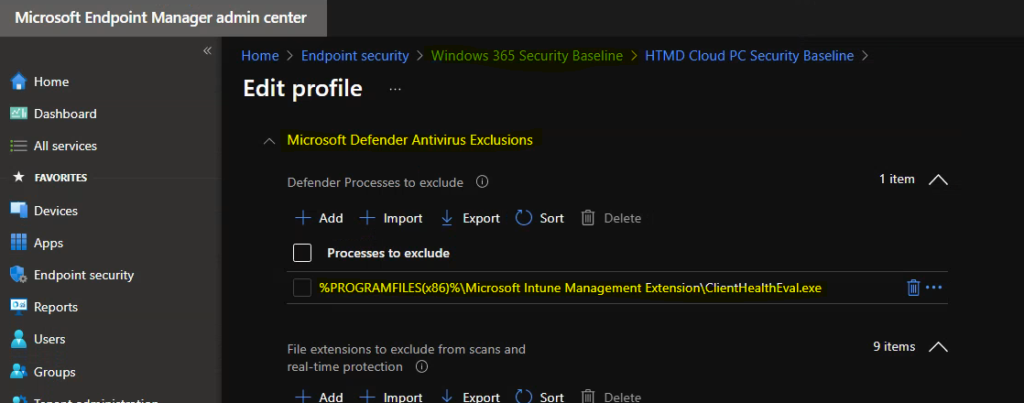
Let’s try to change the policy configuration from the admin center. I have removed all the excluded processes related to FsLogix and added ClientHealthEval.exe (Intune Win32 app health check tool) into excluded process list.
New Value added to Excluded processes list is -> %PROGRAMFILES(x86)%\Microsoft Intune Management Extension\ClientHealthEval.exe
Microsoft Defender Exclusion Policy Verification Process
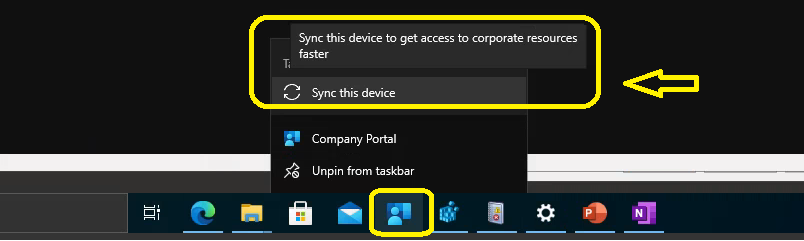
Let’s now verify the Microsoft defender exclusion processes policy from the Windows PC. The first thing you need to perform for quick troubleshooting is manually initiating sync from Company Portal or Managed by Default Directory – Areas Managed location mentioned above.
Right-click on the company portal taskbar icon – Sync this device -> Sync this device to get access to corporate resources faster
Check Event Logs to Review Microsoft Defender Policy Changes
Once the sync is initiated, you will need to check the Event logs. The Intune related event logs are available in the following path:
Event Log path for Intune logs – > Applications and Services -> Microsoft->Windows->DeviceManagement-Enterprise-Diagnostics-Provider->Admin
The client is contacting Intune Service to check whether there is any new policy or not.
Event ID – 208 -> MDM Session: OMA-DM session started for EnrollmentID (D0892524-D50E7CA19DBF) with server: (MS DM Server), Server version: (4.0), Client Version: (1.2), PushRouterOrigin: (0xB), UserAgentOrigin: (0x8), Initiator: (0x0), Mode: (0x2), SessionID: (0x3D), Authentication Type: (0x1).
Received an update Microsoft Defender exclusion policy.
Event ID – 814 -> MDM PolicyManager: Set policy string, Policy: (ExcludedProcesses), Area: (Defender), EnrollmentID requesting merge: (D0892524-C388-D50E7CA19DBF), Current User: (Device), String: (%PROGRAMFILES(x86)%\Microsoft Intune Management Extension\ClientHealthEval.exe), Enrollment Type: (0x6), Scope: (0x0).
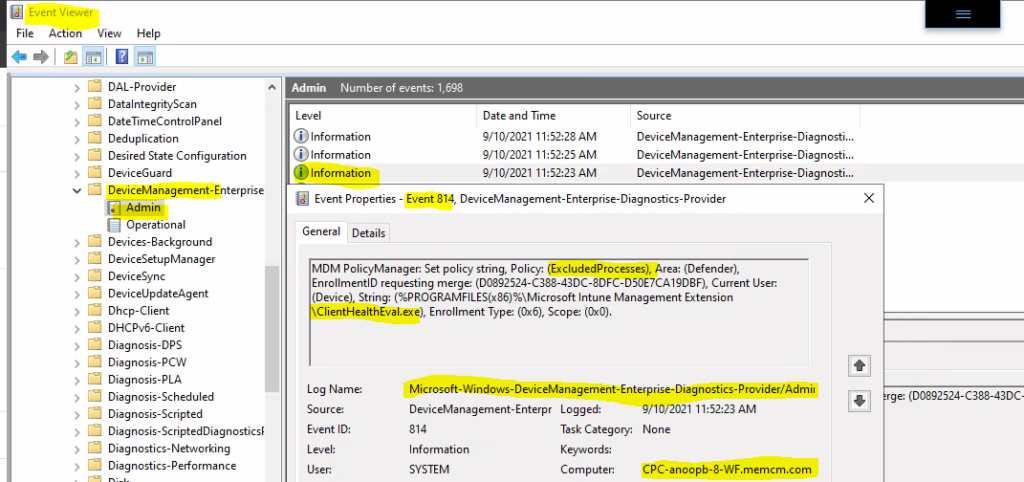
You can now confirm the updated policy is already received from event logs. It’s time to check whether the policy is already applied in the registry or not.
Check Registry Values to Review Microsoft Defender Exclusion Policy Changes
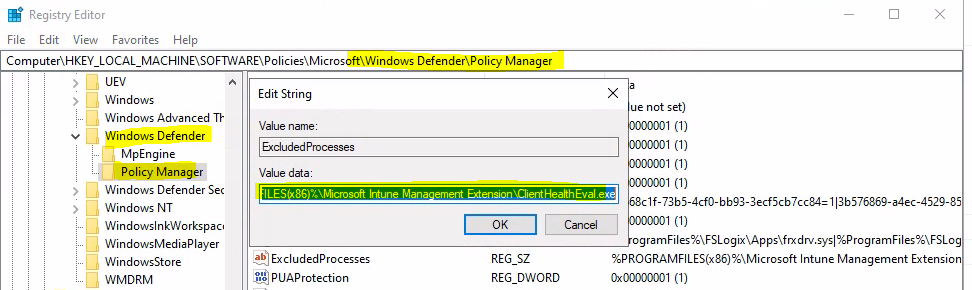
Let’s look into the registry where you can find out the new updated excluded processes for Microsoft defender. Most of the Microsoft related application MEM Intune policy configuration goes to the following path:
Registry Path for Microsoft Defender Policies deployed using MEM Intune -> Computer\HKEY_LOCAL_MACHINE\SOFTWARE\Policies\Microsoft\Windows Defender\Policy Manager
Ensure you have REFRESHED the registry key from the view menu before confirming the excluded processes policy update for the defender. As you can see in the screen capture below, the registry key -> value data got updated after the quick Intune policy sync.
Intune Server Side Vs. Client Side Responsibilities
If you think the registry entries are present. However, the Microsoft defender still behaves; differently it’s time to check with the defender team to check and confirm whether there is any other policy that should be implemented to get this exclusion working.
- Intune’s (server side) duty is to deliver the policies to the device along with instructions (how to get this policy applied).
- MDM Client (Windows 10 or Windows 11) duty is to apply/configure these policies as per the instructions from the server.
- Once the policies are configured. it’s Microsoft defender applications duty to behave accordingly.


Discussion