






How Intune Settings Catalog Profile Report Supports IT Admins
Key Takeaways
- Gives an overall view of device configuration policies in Microsoft Intune
- Shows policy status in a single summary chart
- See detailed device and user reports
- Instantly shows Success, Error, Conflict, Not Applicable, and In Progress status
- Helps you confirm whether the policy deployment is working as expected
- Saves time compared to checking devices individually
Let’s check the Intune Settings Catalog Profile Report in the Intune portal. This report gives a clear overview of your device configuration policy, helping with easy monitoring and reporting. From the overview page, you can quickly see the status of your Settings Catalog policy, including deployment results and key properties all in one place.
Table of Content
How the Intune Settings Catalog Profile Report Supports IT Admins
The Intune Settings Catalog Profile Report helps IT admins by providing instant validation of whether a policy is successfully deployed or if any errors exist. It speeds up troubleshooting by identifying failed or conflicting settings without the need to check devices individually. The report offers better visibility with both device-level and setting-level status details, saving time by reducing manual verification efforts.
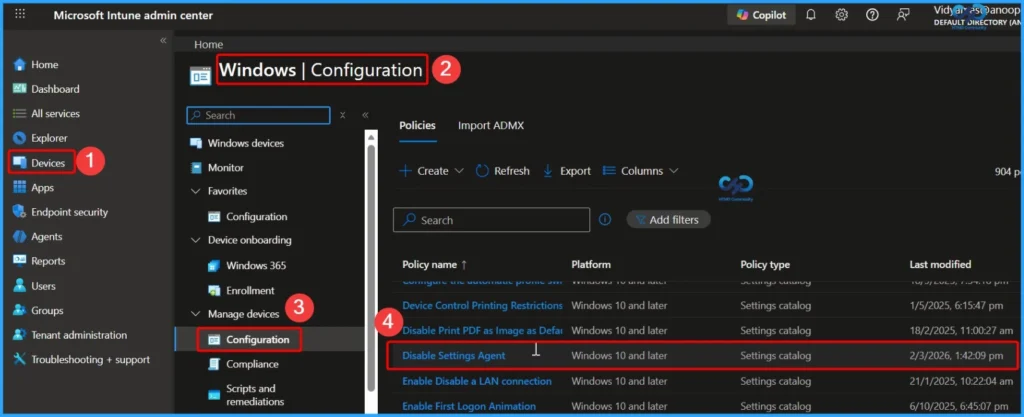
- Login to Intune admin center – https://intune.microsoft.com/
- Navigate to Devices > Windows > Configuration
- In the list, select the policy you created using the Settings Catalog to check the report.
- The Profile type column shows Settings Catalog.
- For Example – We are selecting the Disable settings agent policy. To make it easier to find specific settings, you can search for a keyword.
- Intune Policy Device Assignment Status Report to View Latest Deployment Status for Each Managed Device
- Learn How to Collect Windows 10 Diagnostics Information from Intune Portal
- Intune User Policy Troubleshooting Tips for Prevent Changing Theme MEM
- Disable PST Access to Outlook Profile using Intune MEM
- Easily Duplicate Settings Catalog Policy in Intune
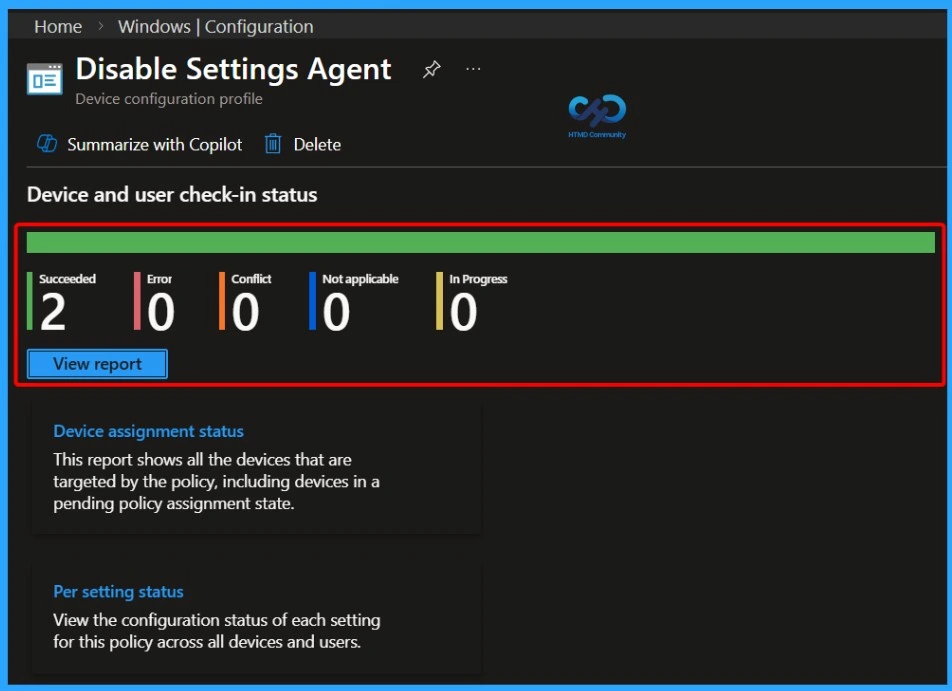
Intune Policy Deployment Status
When you select the policy in the Intune portal, the Device Status section displays a clear summary of the policy state along with its properties. By selecting View Report, you can see detailed deployment results. In this case, 2 devices have successfully checked in and applied the policy.
There are 0 errors reported, no conflicts detected, and no devices marked as not applicable. Additionally, there are no deployments in progress. Overall, the report confirms a 100% successful deployment for all targeted devices, giving admins confidence that the policy is working as expected.

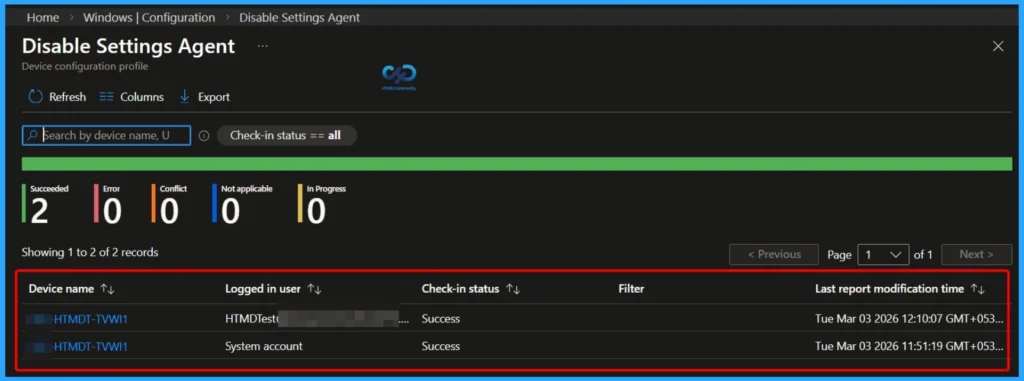
Device Level Details in the Intune Report
After clicking View Report, you will see detailed information for the two targeted devices. The report displays the device name, logged-in user, check-in status, and last report modification time. Both devices show a Success check-in status, confirming that the policy has been applied correctly.
- This view helps admins verify which specific devices received the policy and when they last reported their status, making monitoring and validation much easier.
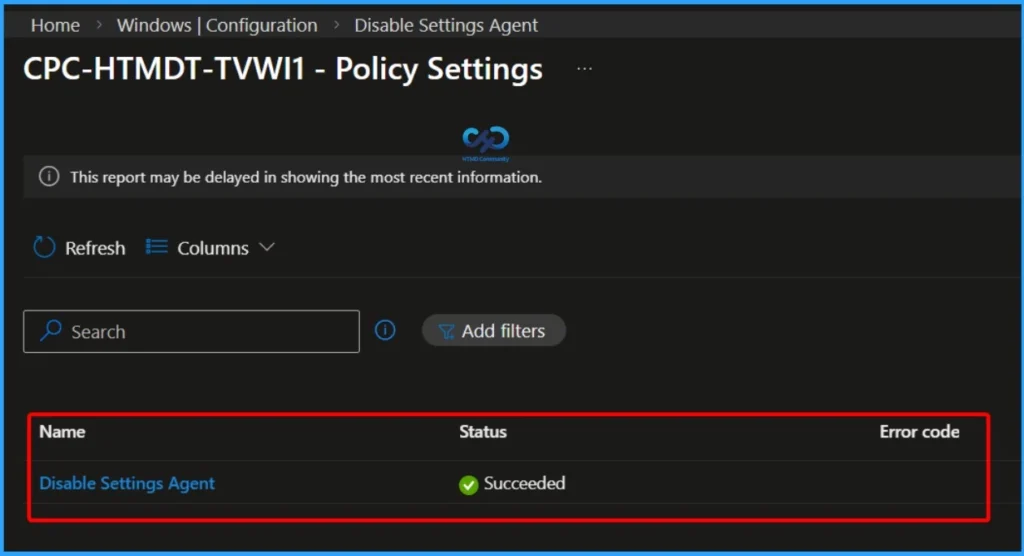
Detailed Device Status and Error Information
After clicking on one of the device names in the report, you can view more detailed information about that specific device. This includes the device name, deployment status, and any associated error code if applicable. This detailed view helps IT admins quickly understand whether the policy was successfully applied or if there were issues that need troubleshooting, providing deeper insight into individual device compliance.
Filter Devices by Check-In Status
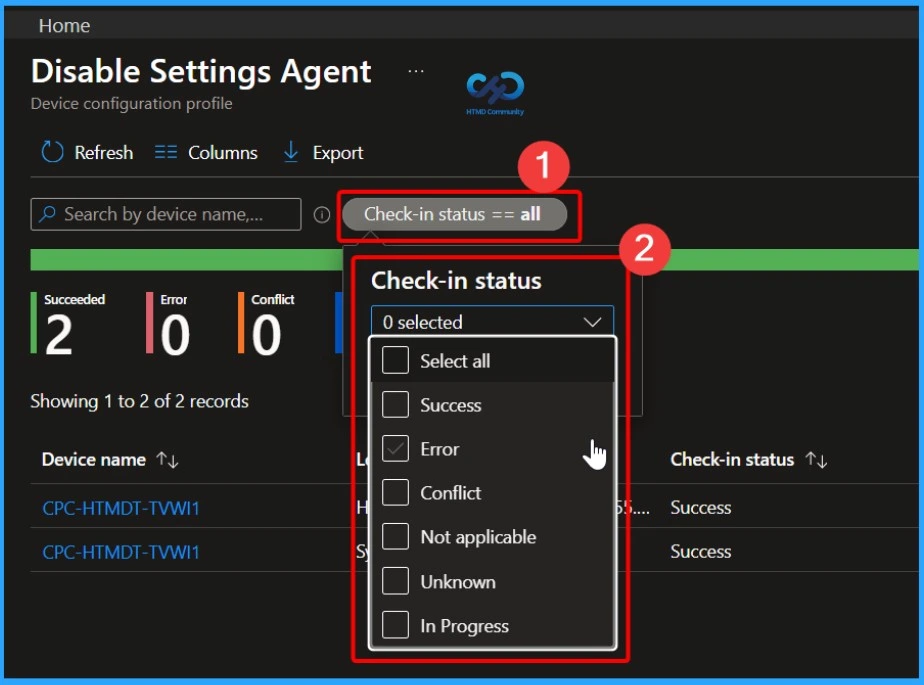
The report also provides a Check-in Status filter that allows you to refine the results based on deployment state. This filtering capability helps IT admins focus only on problematic or required statuses, making troubleshooting and monitoring more efficient without scrolling through all devices.
| Check in Status |
|---|
| Select All Success Error Conflict Not Applicable Unknow In progress |
Customize Report View using Column Filter
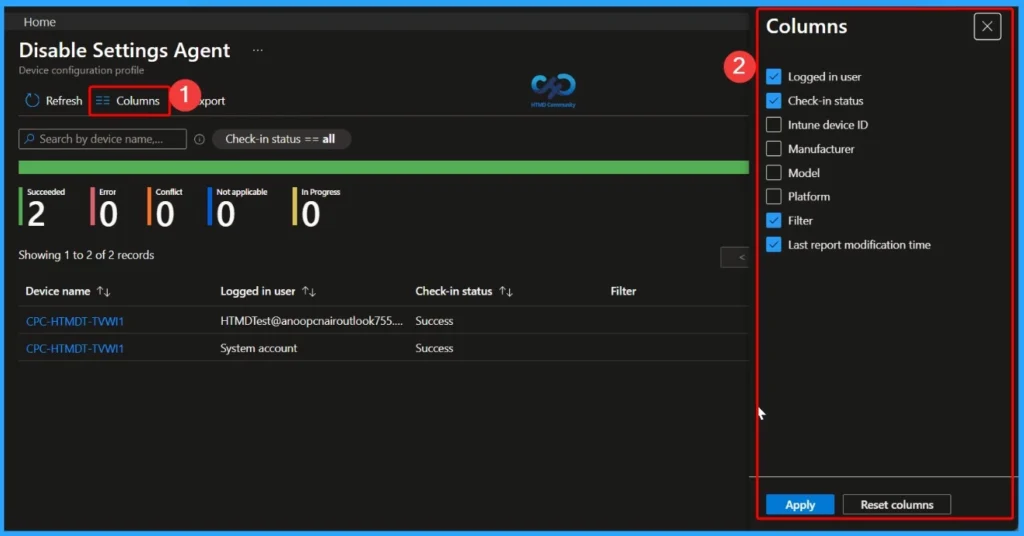
The Columns option in the report allows you to customize the information displayed in the device status view. This column filter feature helps IT admins focus only on relevant details, making the report cleaner, more organized, and easier to analyze.
| Columns |
|---|
| Logged in user |
| Check-in status |
| Manufacturer |
| Model |
| Platform |
| Filter |
| Last report modification time |
Export Configuration Policy Devices Report
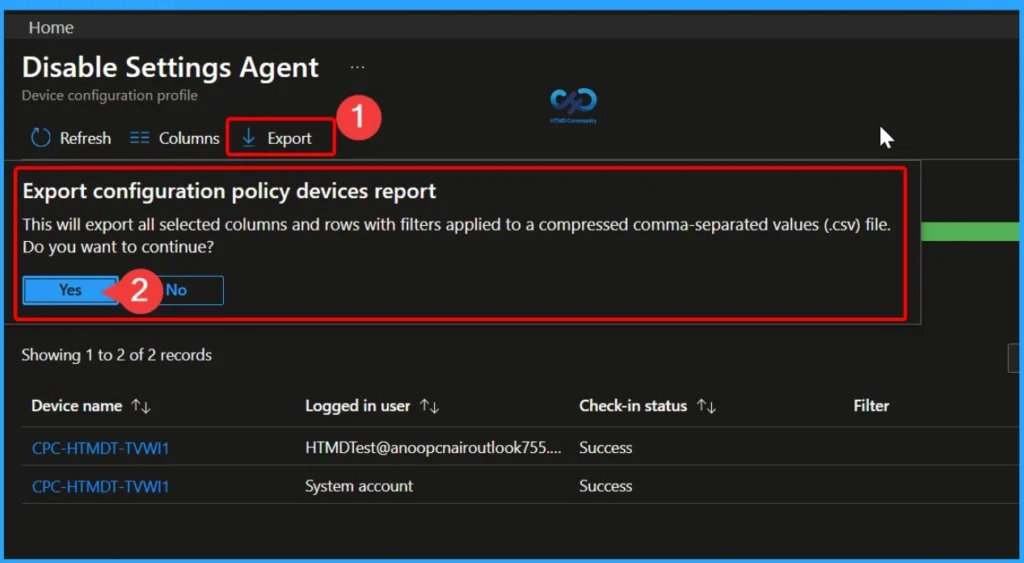
The Export option allows you to download the configuration policy devices report as a compressed CSV (.csv) file. When you select Export, the report includes all the currently selected columns and any applied filters. This makes it easy for IT admins to share deployment results, maintain documentation, perform deeper analysis in Excel, or keep records for audit and compliance purposes.
| Export | Details |
|---|---|
| The Export configuration policy devices report will export all selected columns and rows with filters applied to a compressed comma-separated values (.csv) file. Do you want to continue? | Yes |
Download and Access the Exported Report
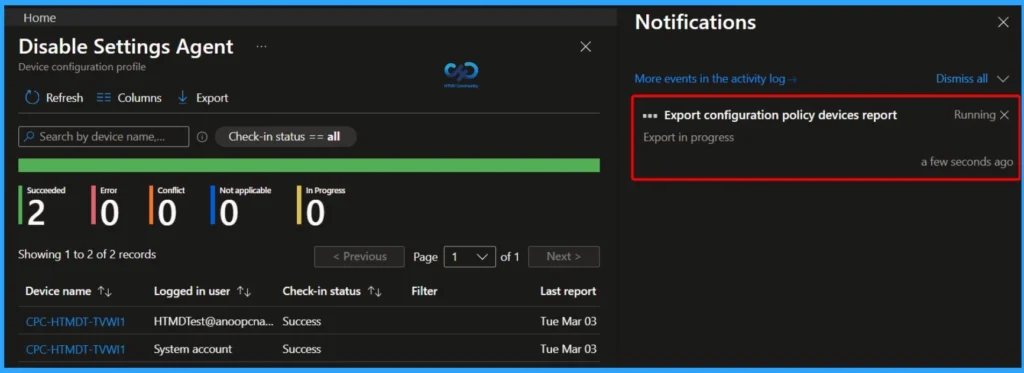
Once you export the configuration policy devices report, a compressed CSV file is added to your download tray and automatically saved to your computer. After the export is completed, a notification message appears confirming “Export completed.” You can then extract the downloaded ZIP file to access and view the detailed report for further analysis or documentation.
CSV Report Device Deployment Details
The downloaded CSV file displays detailed information for the two targeted devices. It includes key columns such as Device Name, User Principal Name (UPN), Report Status, Check-in Status, Assignment Filter, and Last Modification Time.

Need Further Assistance or Have Technical Questions?
Join the LinkedIn Page and Telegram group to get the latest step-by-step guides and news updates. Join our Meetup Page to participate in User group meetings. Also, join the WhatsApp Community and the Whatsapp channel to get the latest news on Microsoft Technologies. We are there on Reddit as well.
Author
About Author – Jitesh, Microsoft MVP, has over six years of working experience in the IT Industry. He writes and shares his experiences related to Microsoft device management technologies and IT Infrastructure management. His primary focus is Windows 10/11 Deployment solution with Configuration Manager, Microsoft Deployment Toolkit (MDT), and Microsoft Intune.


Discussion