






Let’s discuss the Intune Shared Device Mode for Android and iOS Devices. This innovative feature offers a multi-user experience within a simplified single sign-in and sign-out process.
Intune Shared Device Mode allows users to have their own space without interfering with others. App developers can use a unique toolkit to make their apps work smoothly for everyone sharing the device.
This mode works on iPhones and Androids, making it convenient for people to use the same device without headaches. This post provides all the information about Intune Shared Device Mode for Android and iOS Devices.
If you use an Android or iOS device, Intune Shared Device Mode ensures a user-friendly and efficient shared environment. You can enjoy the benefits of a multi-user experience without the difficulty of complex sign-in procedures, making it a valuable addition for both developers and users across different platforms.

- Best Guide for Multi-App Kiosk Mode for Corporate-Owned Devices in Intune
- Best Enhancements in Microsoft Intune to Manage Apple Devices
What is Intune Shared Device Mode?
Intune Shared Device Mode is an innovative feature that helps you to provide a multi-user experience on Android and iOS devices. It simplifies the sign-in and sign-out process for users sharing a single device.
Intune Shared Device Mode for Android and iOS Devices
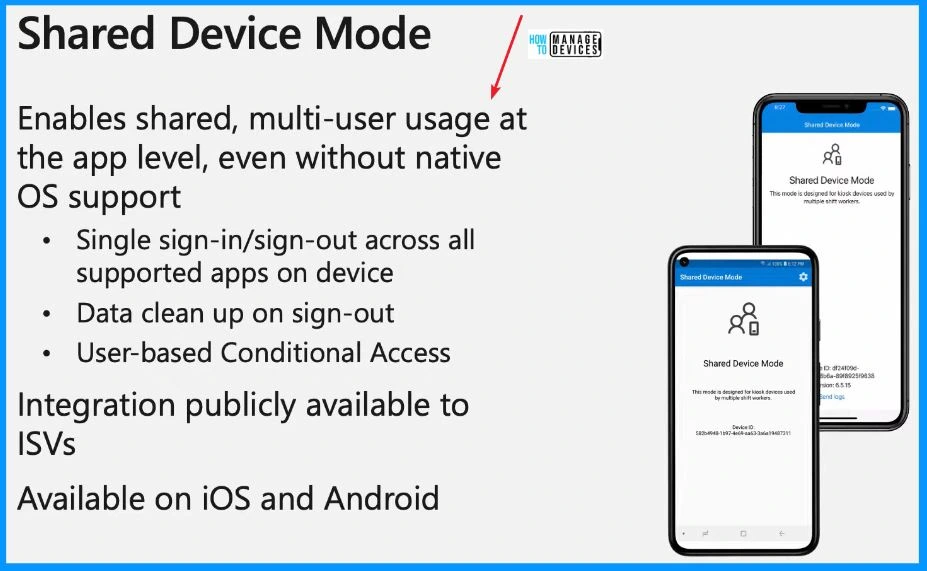
Shared Device Mode is a feature that lets multiple people use the same app on a device, even if the operating system doesn’t directly support it. Different users can share an app without any confusion.
The important part is that you only need to sign in and out once, which applies to all supported apps on the device. When someone signs out, the data gets cleaned up, keeping things tidy.
- It also brings user-based conditional access, meaning certain features or access can be controlled based on the user.
- Since integration tools are publicly available, developers can easily add this feature to their apps.
- It works simply on iOS and Android devices, making it convenient for everyone sharing the device.
Managed Home Screen Improvements
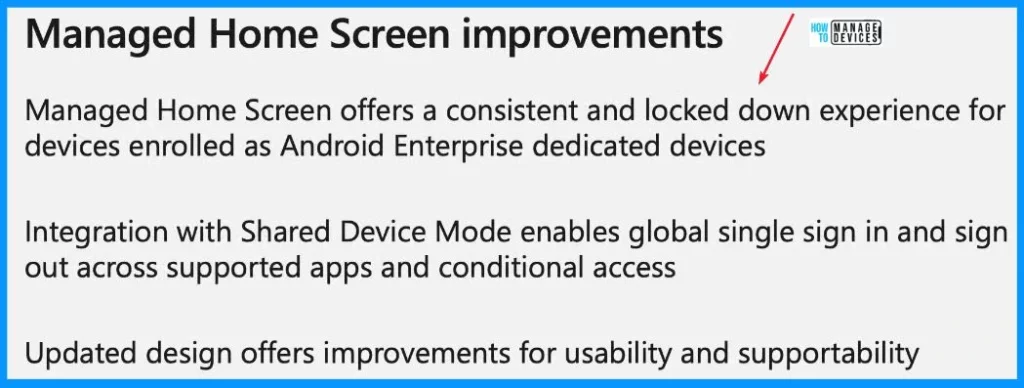
Managed Home Screen is a feature that ensures a reliable and secure experience for devices enrolled as Android Enterprise dedicated devices. Integrating with Shared Device Mode brings a convenient global single sign-in and sign-out system across all supported apps and the added benefit of conditional access.
The recent design updates enhance the look and improve usability and supportability. In simpler terms, it makes your device consistent, secure, and easier to use, ensuring a smooth and trouble-free experience.
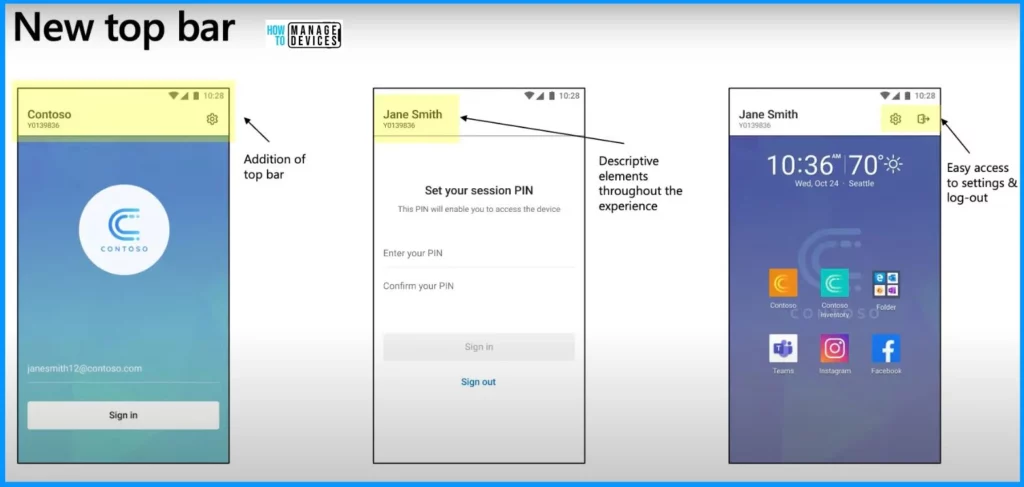
The Managed Home Screen got better with a brand-new customizable top bar. Now, you can see your username and tenant name up there, making it personalized. It gives you quick access to settings and a sign-out button.
- It is like having your control centre at the top, making things more convenient and tailored to your preferences.
- So, managing your device is secure and more user-friendly with these handy additions.
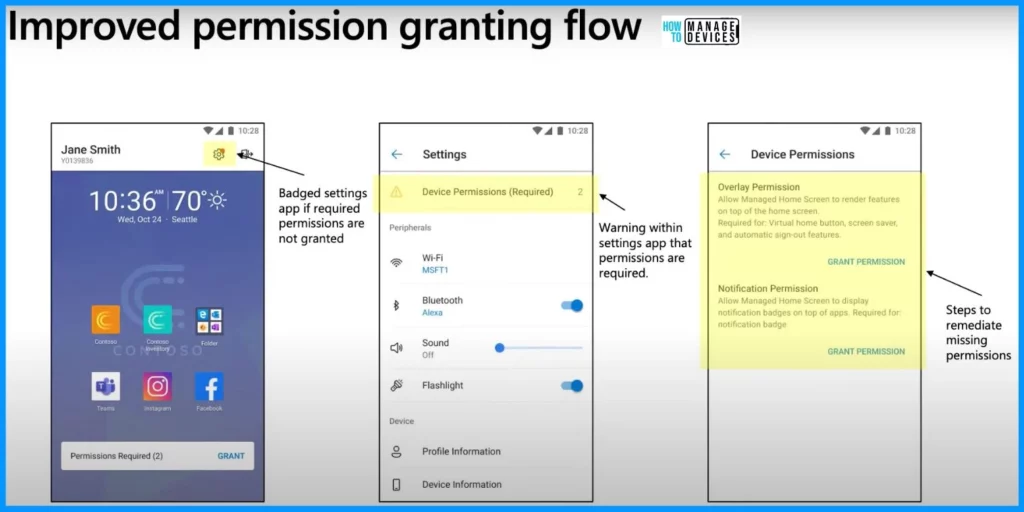
Microsoft upgraded the permissions work in the Managed Home Screen to ensure users never miss out on essential permissions. When you launch the app, a dialog pops up asking for permissions. If someone says no, a little message with a red dot shows up on the settings app icon.
Just tap on that or the message, and it will take you to the settings screen. Here, you can easily grant the permissions needed to unlock all the cool features in your productivity apps. This simple process ensures you get the most out of your apps without any difficulties.
Enhanced Troubleshooting Flows
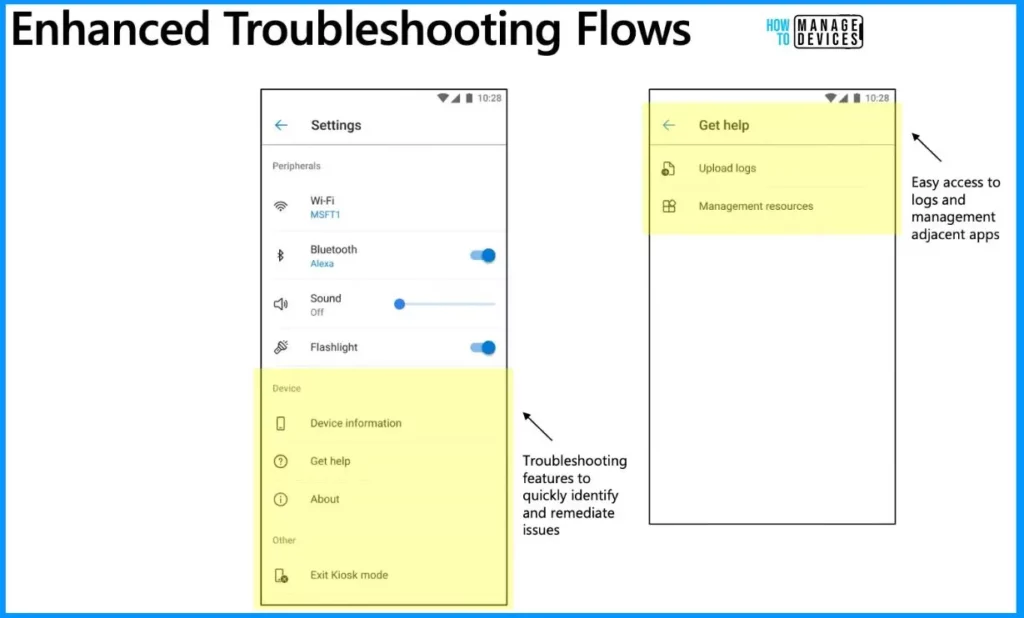
Microsoft also updated the settings screen and created a new troubleshooting menu accessible to Frontline workers. Now, on the “Get Help” page, users can easily upload logs, and in the management resources section, they can launch apps related to device management.
- Users now have all the tools they need to help troubleshoot device issues and access important information about Managed Home Screen.
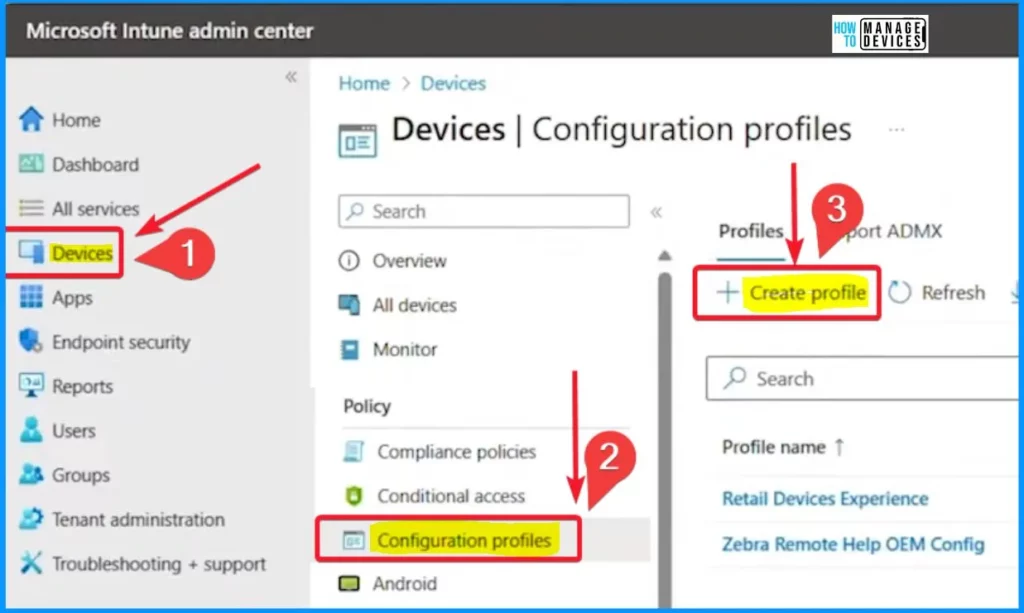
Let’s check out the upgrades when using Shared Device Mode and Managed Home Screen. Sign in to the Intune Admin Center portal https://intune.microsoft.com/. Once logged in, navigate to the “Devices” section on the left side of the Intune admin center.
- Under “Devices,” select “Configuration profiles.”
- On the configuration page, you will find a set of menus, including options like Create, Refresh, Export, and more.
- Select the Create menu from the below window.
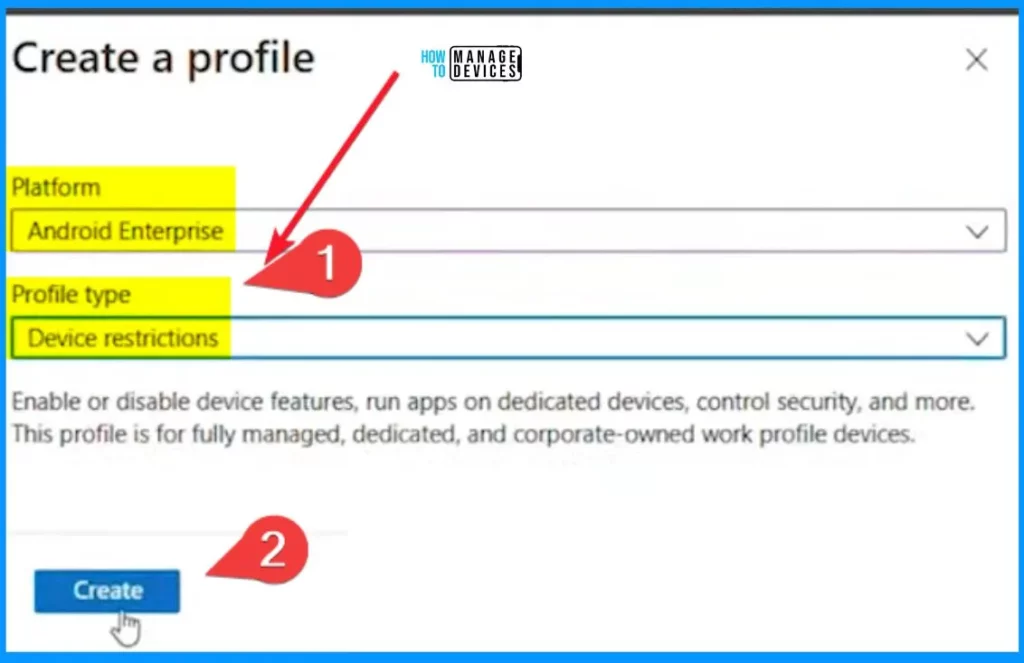
You can enable or disable device features, run apps on dedicated devices, control security, and more. This profile is for fully managed, dedicated, and corporate-owned work profile devices. Select the Platform as Android Enterprise and Profile type as Device restrictions.
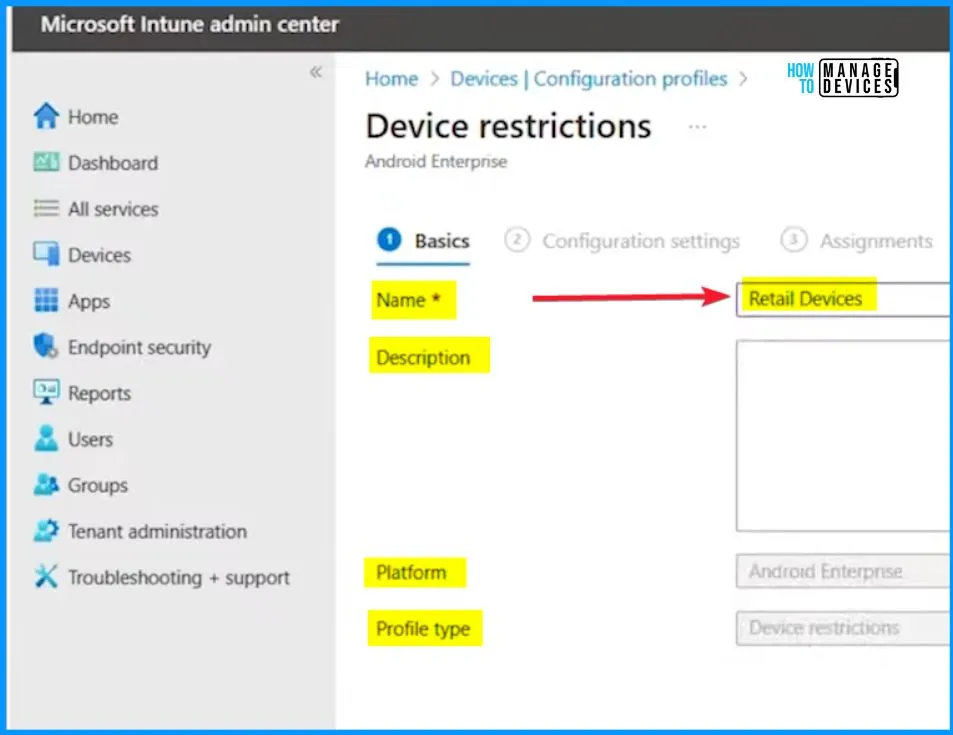
In the Basic tab, type the name Retail Device. You can add a description (totally optional). The platform and profile type will pop up automatically. It is a quick and easy way to set up your device without getting into complicated details.
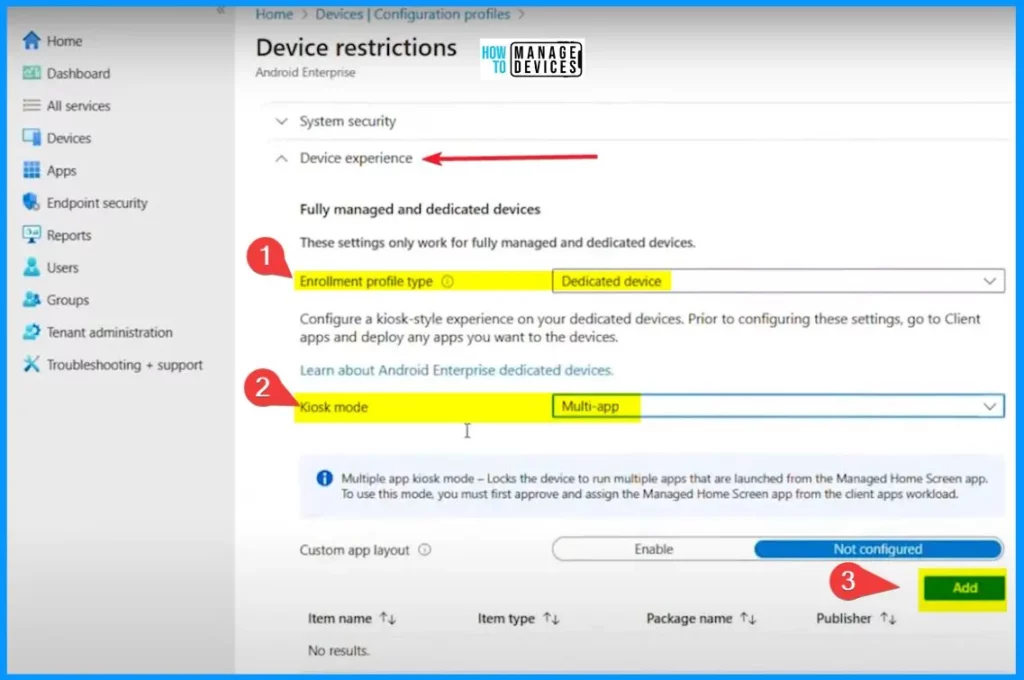
In the Configuration settings page, there are some settings under Device Experience. Choose “Dedicated device” as the Enrollment profile type. Then, pick “Multi-app” for the Kiosk mode. You can easily add the Custom app layout by clicking the Add button from the below window.
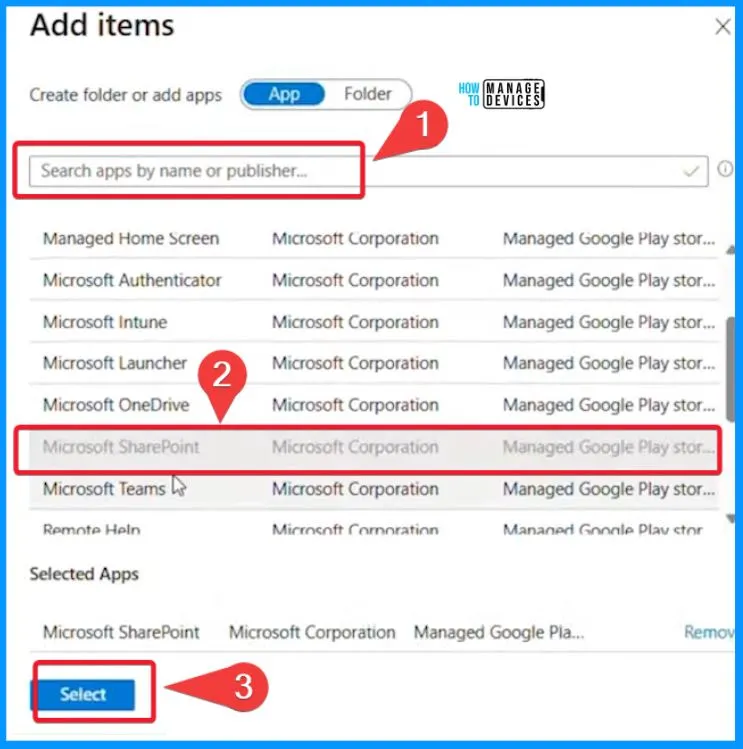
Here, you can easily add the Custom app layout. In the search box below, you can search for apps by name or publisher. The selected app is shown in the Selected Apps section. After that, click the select button.
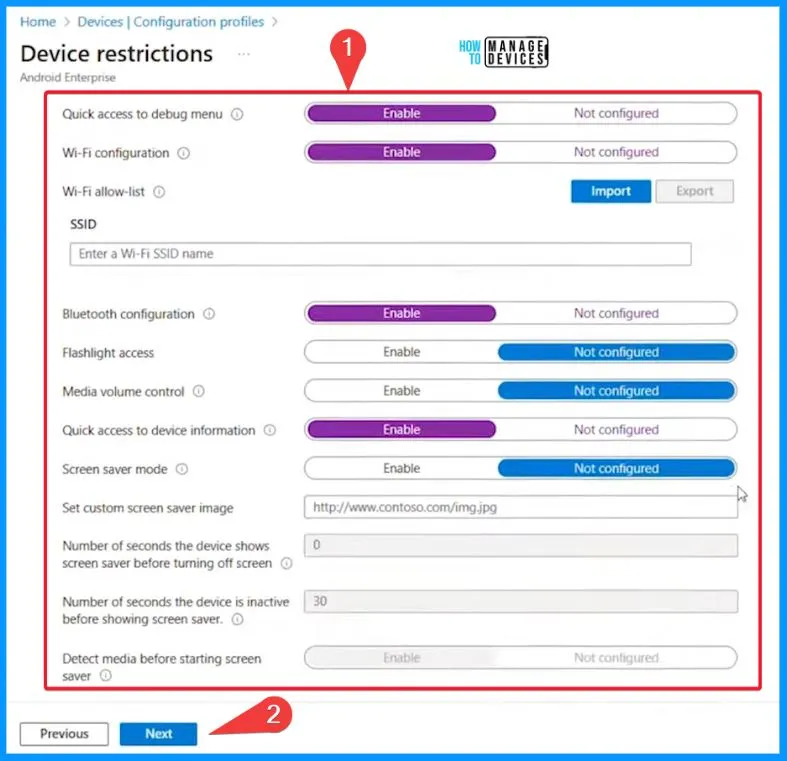
Now let’s go and enable some managed settings, which will allow the admin to configure the Wifi and Bluetooth settings, device information, and troubleshooting tools. Enable the “Exit Kiosk mode, which lets us switch back from the Managed Home Screen to the original device launcher.
- It’s like having an emergency exit – proper if we need to take additional troubleshooting steps on the device.
- So, with these settings, we are all set to manage and troubleshoot effectively.
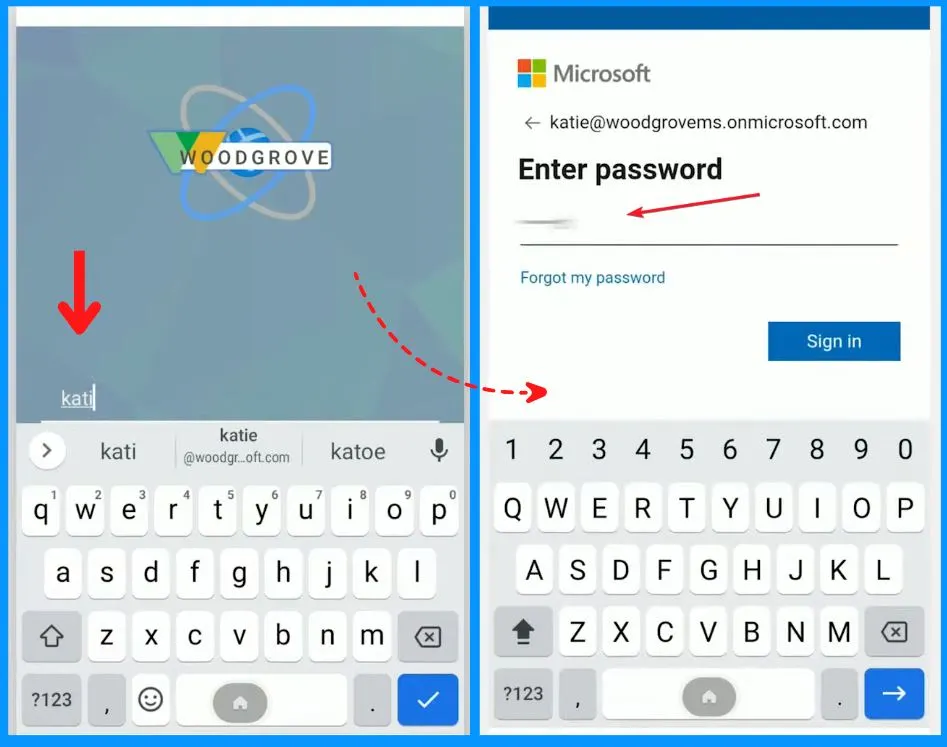
Now, let’s look at the device experience of a frontline worker on an Android enterprise device with shared device mode. The Zebra TC 52 device enrolled with Intune using the QR code. Katie is the Frontline worker here. She tries to pick up the device and is presented with a login screen at the beginning of her shift.
- Katie enters her email ID and Password.
This is the section where you must provide a PIN to access the device. Enter the PIN under the Enter your PIN section. And is then logged into the device. The 2ns screenshot shows the Managed Home screen. You can easily access the Teams, PowerPoint, and inventory apps here. You can easily access the managed settings to adjust the Bluetooth and Wifi settings.
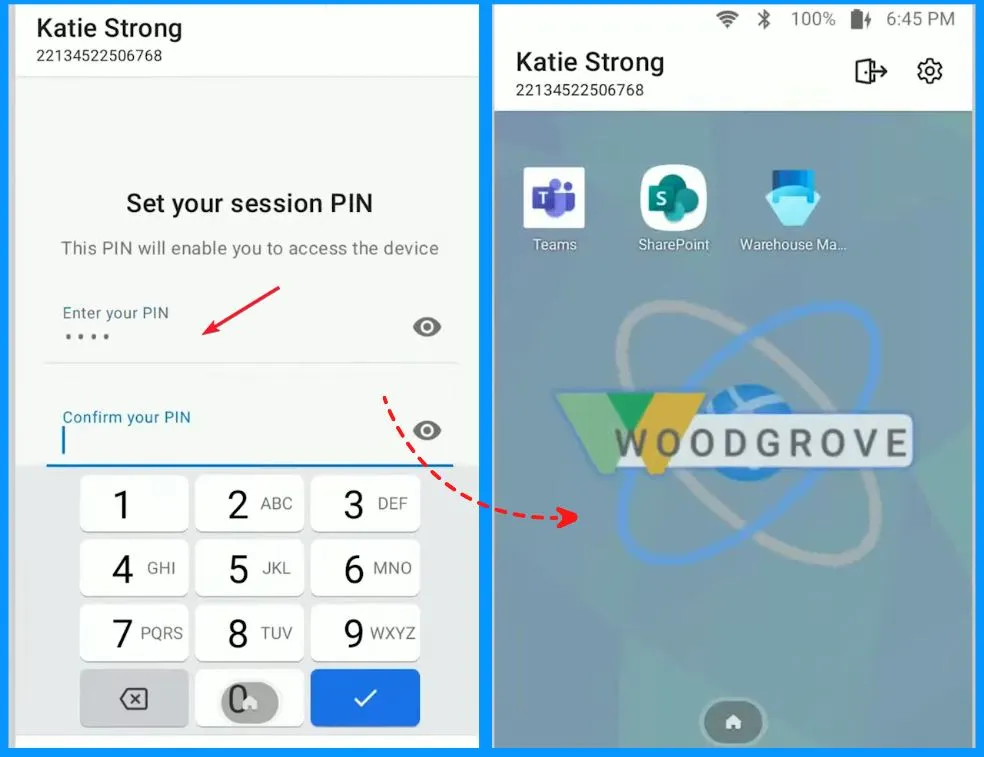
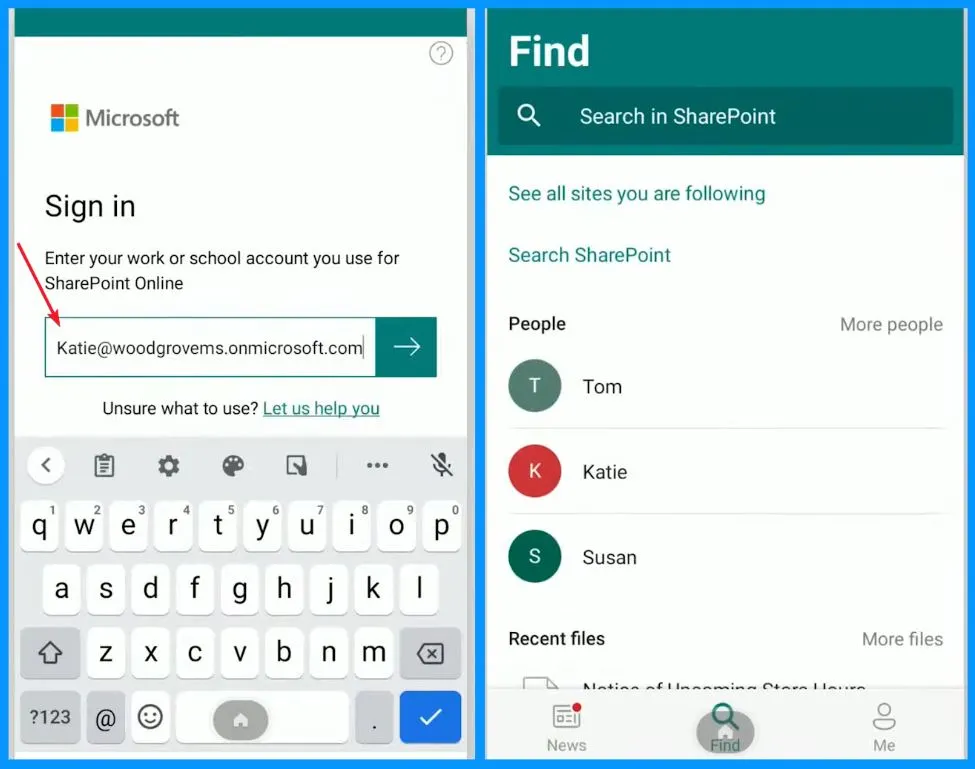
Here, you can quickly launch Teams and easily collaborate with coworkers. You can easily open Sharepoint and access relevant documents to her role. You do not need to enter the password since single sign-on is enabled.
NOTE! Microsoft shared detailed information on Intune Shared Device Mode for Android and iOS Devices with Matt Yandek’s latest Technical Takeoff session.
We are on WhatsApp now. To get the latest step-by-step guides, news, and updates, Join our Channel. Click here. HTMD WhatsApp.
Author
About the Author: Vidya is a computer enthusiast. She is here to share quick tips and tricks with Windows 11 or Windows 10 users. She loves writing about Windows 11 and related technologies. She is also keen to find solutions and write about day-to-day tech problems.


Can you do a write up on this for iOS?
yes i would also appreciate if you could write up for iOS, as my experience was until now not really good (SSO, manually sign out of used app before hand over device etc) but maybe i forgot something to configure, even i used the published How To’s from Microsoft.
Hi is there any way to set dfferent apps for each user. For example, when User A login and on his/her session the available apps only outlook mobile, after the shift ended she/he sign out from the device. User B shift comes, she/he login to the same device, but the available apps are Teams and onedrive.
Let me know if you know about this, appreciate if you can answer this. Thank you
Hi – Is anyone lse coming across the issue where it wont auto sign out of the OneDrive app when user signs out of their session, it behaves differently to Outlok, it logs Outlook out fine as I would expect it to