






Learn How to Collect SCCM Client Logs Using ConfigMgr Console
Let’s learn how to collect SCCM client logs using the ConfigMgr Console. This log collection feature was introduced in Configuration Manager version 2002. Client logs are part of the Configuration Manager’s client diagnostics feature, which helps SCCM admins enable and disable verbose logging.
So, you don’t need to have admin access right on client devices to collect ConfigMgr client logs. Also, no registry hacks to enable and disable verbose logs. Let’s see how the collection of SCCM logs from the console works in the background of this post.
You can check the results from the SCCM resource explorer tool. You can download the log files from the resource explorer tool -> Diagnostic node. You can save the log files or directly open them with the support center tool.
| Index |
|---|
| Requirements to Collect SCCM Client Logs |
| How does this Work? |
| Client Diagnostics – Collect Client Logs |
| Process |
| Results |
| Resources |
Requirements to Collect SCCM Client Logs
You can check the requirements to collect SCCM client logs from the following list.

- ConfigMgr Server and Console version should be 2002 or later version.
- Update the target client to the 2002 version (minimum version 5.00.8968.1008) or later.
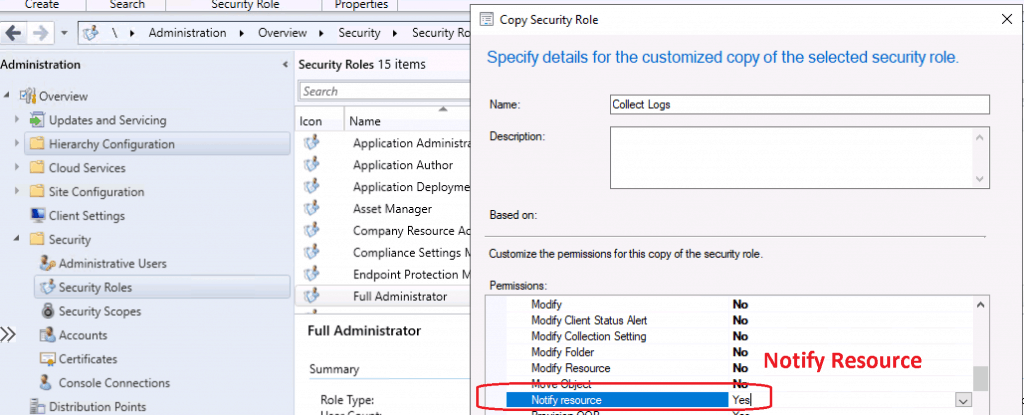
- Your Configuration Manager administrative user needs the Notify resource permission.
- The client should be ONLINE.
How does this Work?
Let’s see how the collection of SCCM logs from the console works in the background from the following points. This collection of the SCCM client logs process is very helpful in troubleshooting the issue and remotely collecting the logs without disturbing end-users and remote support folks in case the user is in the remote office.
- A client notification message is sent to the selected clients via the fast channel to gather the ConfigMgr Client logs.
- The logs are returned using software inventory file collection.
- Get Logs Files from Resource Explorer (more details below).
- The maximum size limit for the compressed client logs is 100 MB.
Client Diagnostics – Collect Client Logs
Let’s see how to collect logs from SCCM clients using Console.
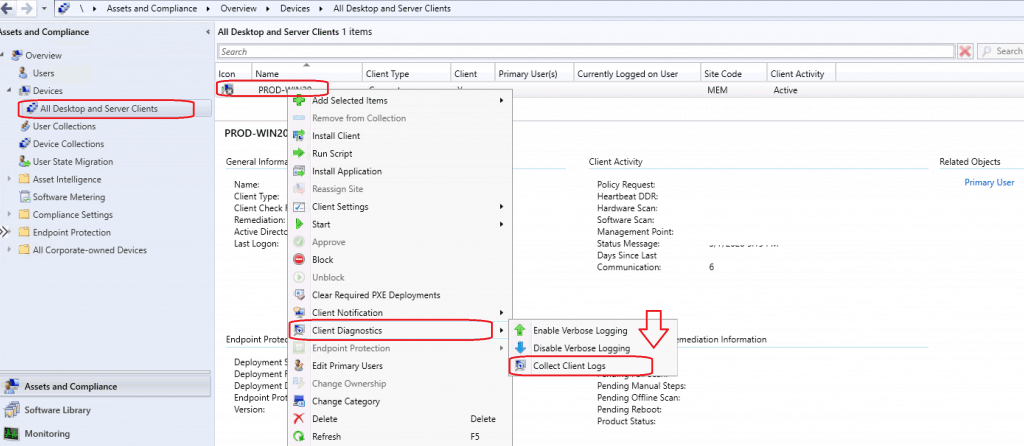
- Right-click on the device collection (or a particular device record).
- Select Client Diagnostics and then click on Collect Client Logs.
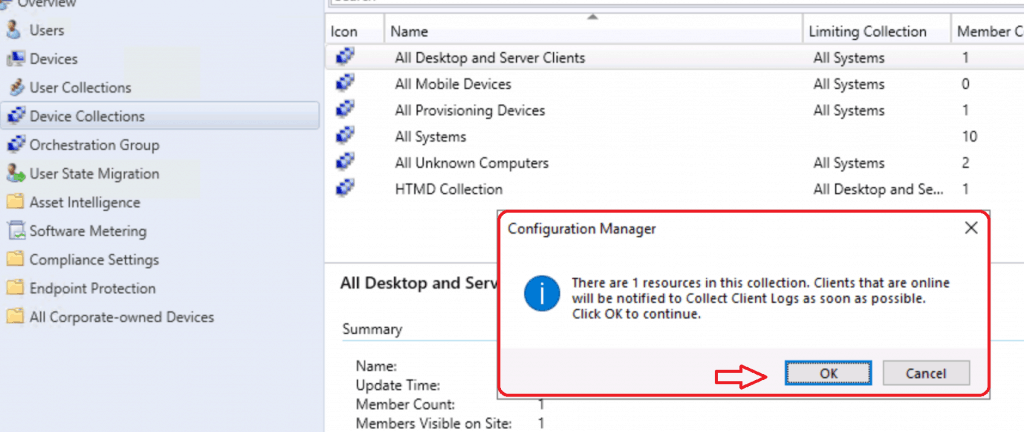
- Click on the OK button to continue.
Process
Let’s now understand the end-to-end background process of SCCM log file collection using the diagnostic file collection feature.
- Client-Side – Check the client logs to understand the process via Diagnostics.log.
LOG[Collecting log files …]LOG
LOG[PowerShell path: C:\windows\system32\WindowsPowerShell\v1.0\PowerShell.exe]LOG]!> component="DiagnosticsEndpoint" context="" type="1" thread="7736" file="DiagnosticsEndpoint.cpp:363"
FileCollection: Successfully sent report. Destination:mp:MP_SinvCollFileEndpoint, ID: {AF9598A4-B17E-4BF5-928C-15DA70F2B0F8}, Timeout: 10080 minutes MsgMode: Signed, Not Encrypted
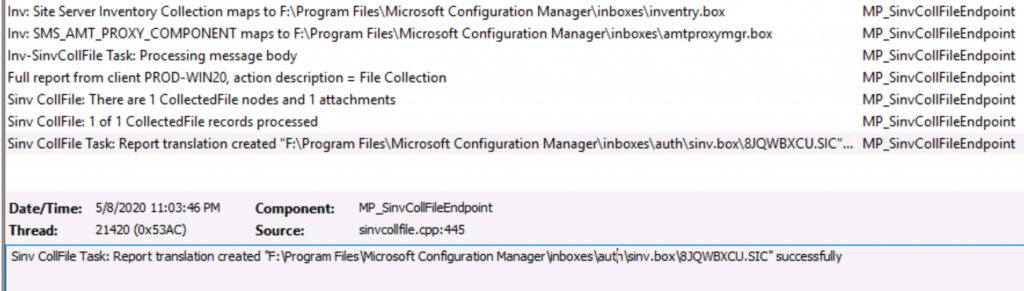
- MP Server – Check the MP server log MP_SinvCollFile.log.
Inv-SinvCollFile Task: Processing message body
Full report from client PROD-WIN20, action description = File Collection
Sinv CollFile: There are 1 CollectedFile nodes and 1 attachments
Sinv CollFile: 1 of 1 CollectedFile records processed
Sinv CollFile Task: Report translation created "F:\Program Files\Microsoft Configuration Manager\inboxes\auth\sinv.box\8JQWBXCU.SIC" successfully
- Site Server – Check the site server log sinvproc.log.
Processing file: F:\Program Files\Microsoft Configuration Manager\inboxes\auth\sinv.box\8JQWBXCU.SIC
Processing Inventory for Machine: PROD-WIN20 ResId: 16777219 [OpCode=8 Sinv=0 FC=1 Resync=0]
Transactions: Total FC=1
Report for Machine PROD-WIN20 took 0 secs. for 1 recs, FP=0, P=0, F=0, FC=1
Successfully Processed file F:\Program Files\Microsoft Configuration Manager\inboxes\auth\sinv.box\8JQWBXCU.SIC !!!
Cycle Completed. 1 files out of 1 processed. 1 secs for 1 threads.
Scan Completed.
Results
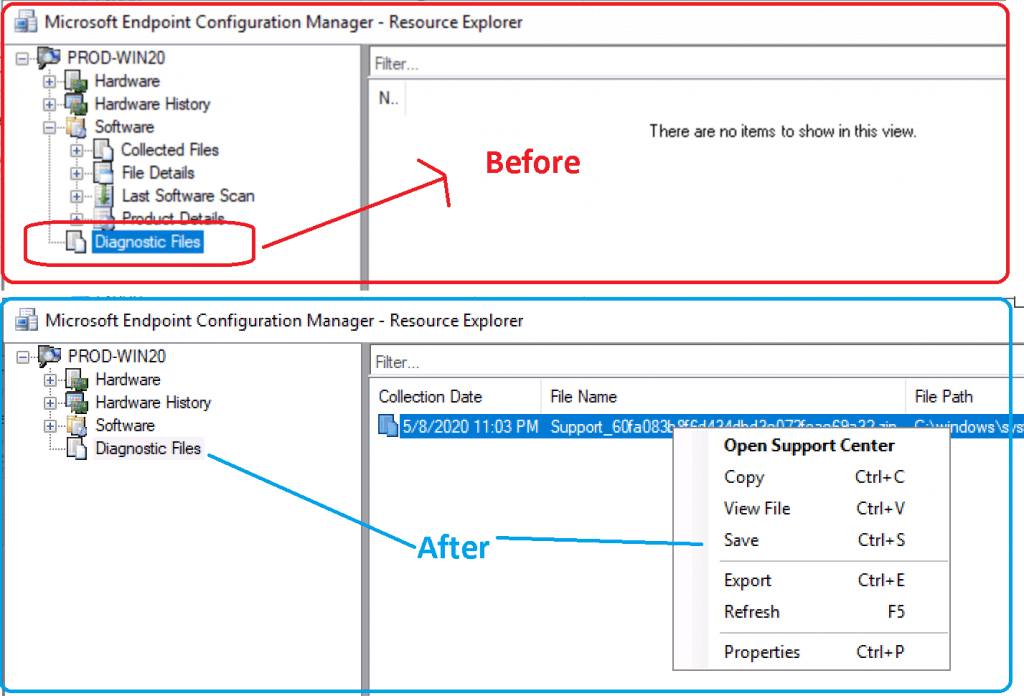
You can check the results from the SCCM resource explorer tool. You can download the log files from the resource explorer tool -> Diagnostic node. You can save the log files or directly open them with the support center tool.
SCCM version 2010 and later uses the Delete Aged Collected Diagnostic Files site maintenance task to delete diagnostic files. So the schedule of maintenance tasks can be configured from the console itself.
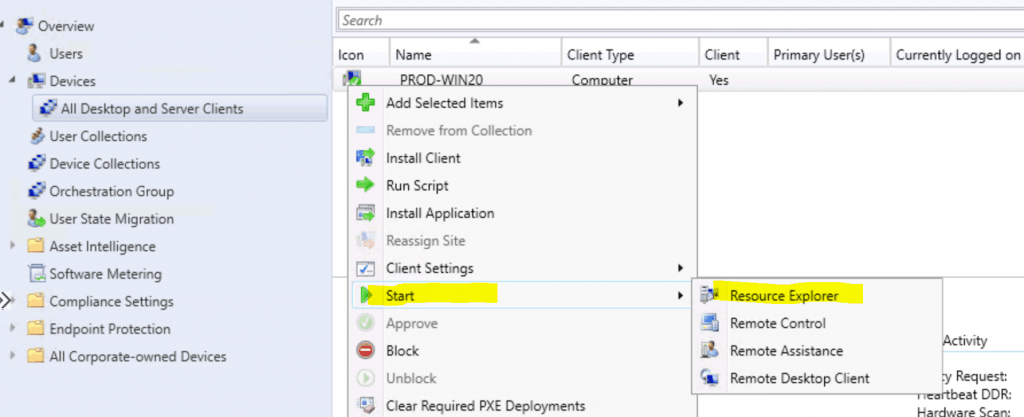
- Right-Click on Device.
- Select Start – Resource Explorer.
Click on Diagnostic Files. Right-click Support<>.Zip file
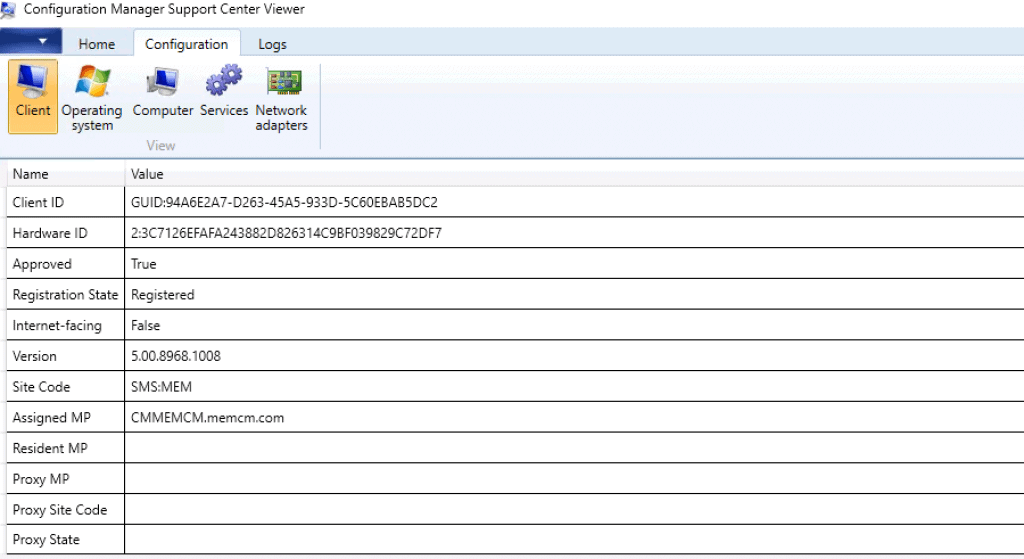
- Select Open Support Center to open the log file.
Verify the client details from the Configuration Manager Support Center
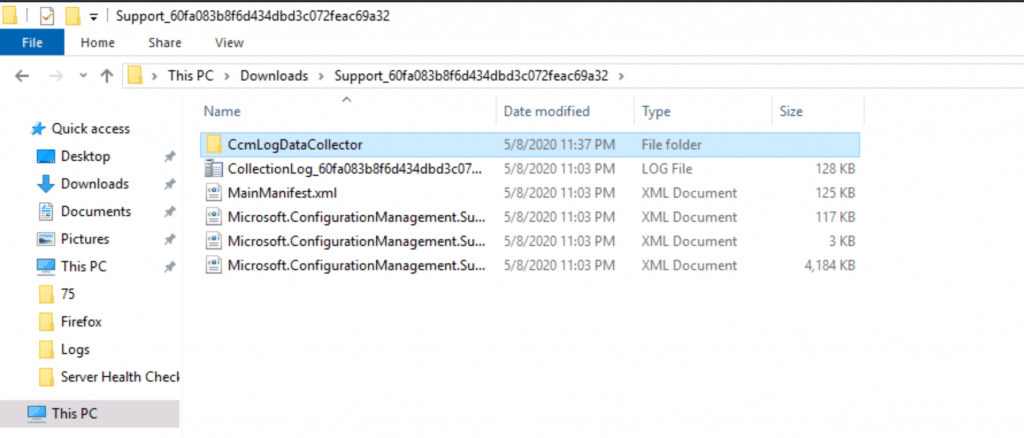
You can also SAVE the log files to a local drive.
Resources
- Overview of Client Online Status in SCCM Console
- SCCM Troubleshooting Tool -Support Center ConfigMgrSupportCenter.exe
- SCCM 2002 Installation Step-by-Step Guide | MEMCM | ConfigMgr
We are on WhatsApp. To get the latest step-by-step guides and news updates, Join our Channel. Click here –HTMD WhatsApp.
Author
Anoop C Nair is Microsoft MVP! He is a Device Management Admin with more than 20 years of experience (calculation done in 2021) in IT. He is a Blogger, Speaker, and Local User Group HTMD Community leader. His main focus is on Device Management technologies like SCCM 2012, Current Branch, and Intune. He writes about ConfigMgr, Windows 11, Windows 10, Azure AD, Microsoft Intune, Windows 365, AVD, etc.




During how much time the log retain available in the SCCM db ?
StaffSccm logs collected are not stored in DB at all
Hello Sir,
Please share the full SCCM topic doucement
Murthy
StaffWhat you mean ?
I just used it few minutes ago and worked perfectly. I think it’s new feature and very good one. I don’t have access to Workstations and was running behind engineers to collect logs for troubleshooting but now i am the king and my word is law 🙂
HI Anoop. Where is the zip file actually stored? I see a file path of c:\windows\system32\config\systemprofile\AppData\Local\Microsoft\ConfigMgrSupportCenter.Common\Temporary\ and that’s on the client. Does it actually get copied to one of the CM servers? Just trying to figure out if there is any cleanup that needs to be done when using this feature.
StaffHello Scott – I don’t know where it’s stored. I didn’t check that piece. I assume that it is stored in the same inbox where software inventory data is stored. But I could be wrong.
I never got any prompt when trying to collect files. And when opening resource explorer i do not have anything under Diagnostic files.
StaffDoes that mean you need to start troubleshooting with the help of the log files and check the inbox as well
Hi Michael, I might be late to this but ensure you initiate the “Collect Client Logs” action on the client within the “Devices” node. It does not work for me for a client within the “Device Collections” node for instance.
Just to add – does anyone know if you can add an addition none-SCCM folder locations i.e. Windows\Logs to be collected with these?
Hi Frank C,
have you ever found an answer for this?
br Bernhard