






Enable Legacy Web App Compatibility in MS Edge Browser using Intune
Let’s discuss Enable Legacy Web App Compatibility in MS Edge Browser using Intune. Microsoft Compatibility list also known as Enterprise Mode Site List helps to manage how websites are rendered in Microsoft Edge and Internet Explorer.
Compatibility List feature uses a Microsoft-provided list to ensure that any sites with known compatibility issues are displayed correctly when a user navigates to them. This policy use XML file that acts as a central list of websites. XML file is a text-based document that serves as the Enterprise Mode Site List.
Website compatibility issues, often referred to as “cross-browser compatibility issues,” occur when a website or web application does not function or display correctly and consistently across different web browsers, versions, or devices. The core purpose of the Microsoft Compatibility List policy is to bridge the gap between modern web browsers and legacy web applications. This is really useful for users, admins and organization.
With this policy, users can use all company websites, both modern and legacy, from a single browser (Microsoft Edge) without having to manually switch back and forth. Organizations can still use the existing, business-critical legacy applications.

Table of Contents
Enable Legacy Web App Compatibility in MS Edge Browser using Intune
This policy provide centralized management for Admins across your organization. Overall Security of your organization can be easily ensured with this policy. With Microsoft Intune Settings Catalog policy, you can easily configure the policy.
- Sign in to the Microsoft Intune Portal.
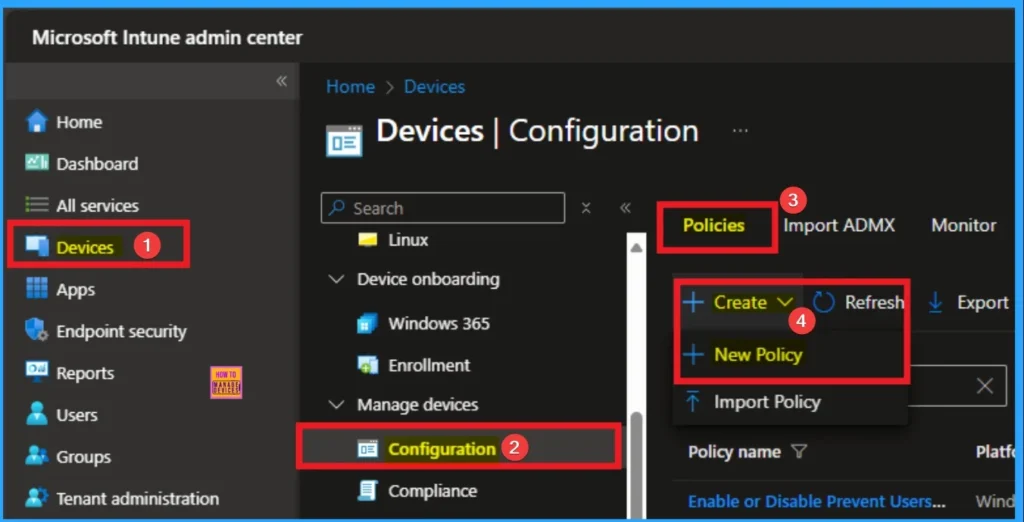
- Then go to Devices > Configurations > Create > New Policy.
- Windows Update Compatibility Intune Report For App and Driver
- How to Run Program Compatibility Troubleshooter on Windows 11
- IntuneWinAppUtil.exe Windows 11 Compatibility
Creating Profile
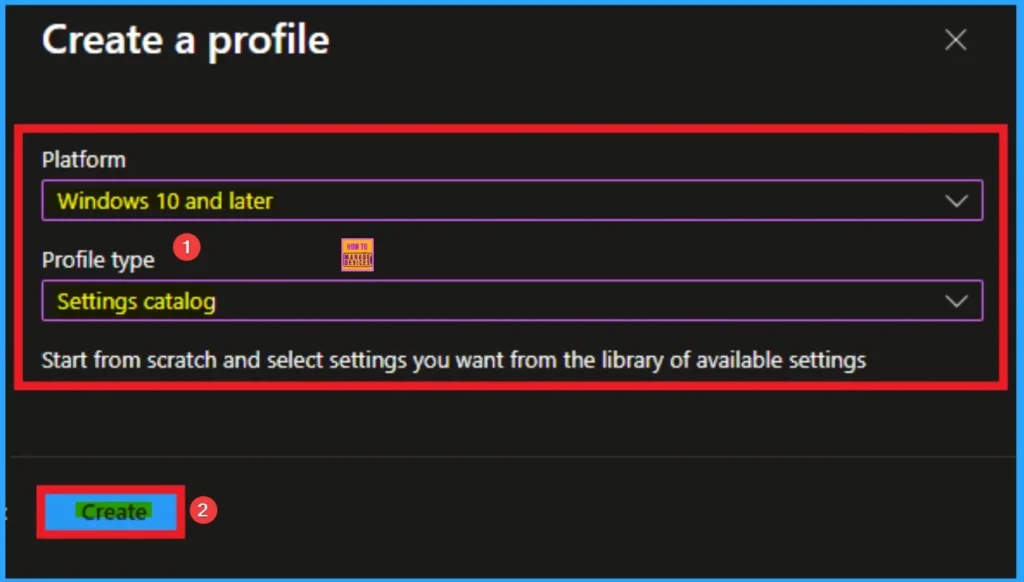
Selecting platform and profile is the Next step to take before creating policy. This necessary step, and you cannot skip this. Here, I selected Windows 10 and later as the Platform and Settings catalog as the profile type. Then click on the Create button.
Basic Tab
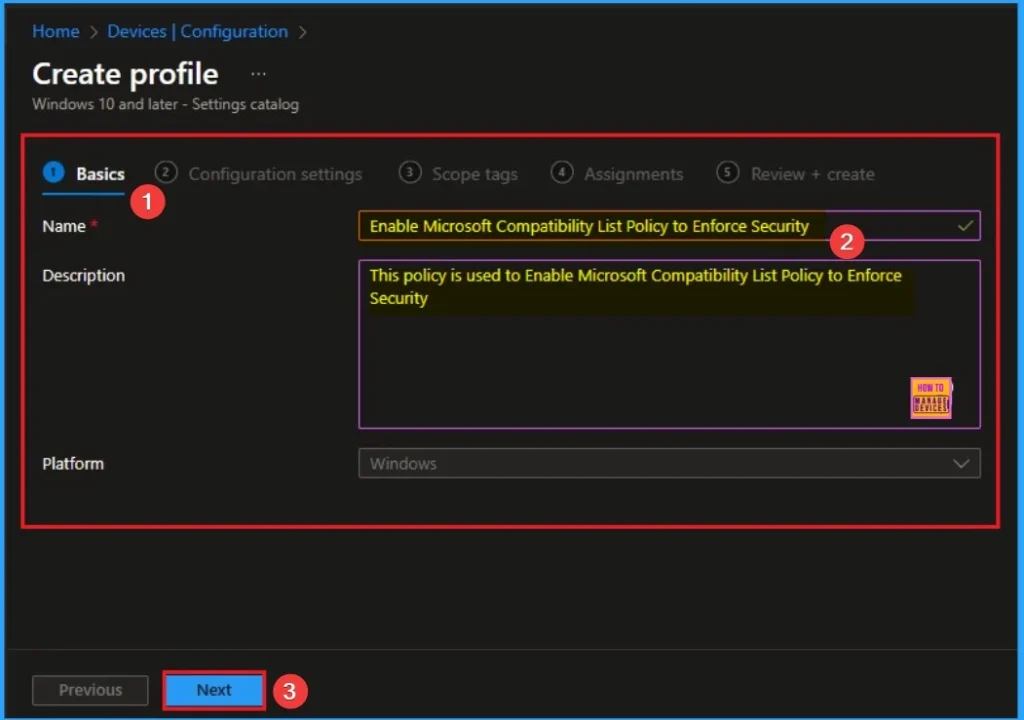
Basic Tab provides to add a Name for the settings you want to choose fore policy creation. You can give a name for the policy according to your choice. But, should try to add the name according to the settings. You can also add description for the policy to know the purpose. After adding this, click on the Next button.
Configuration Settings
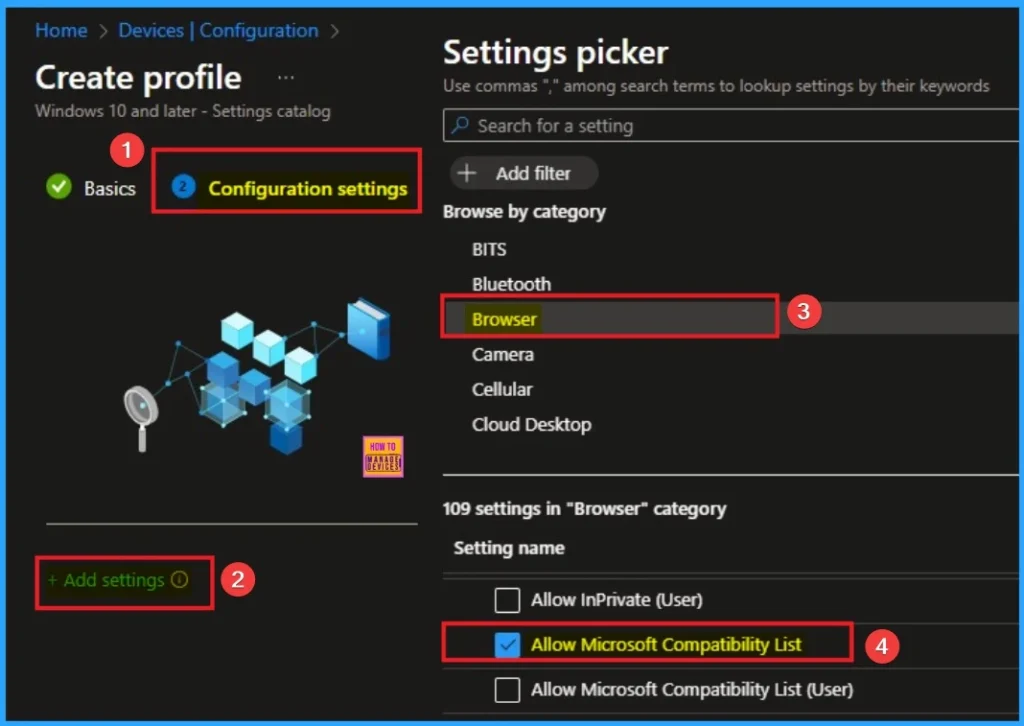
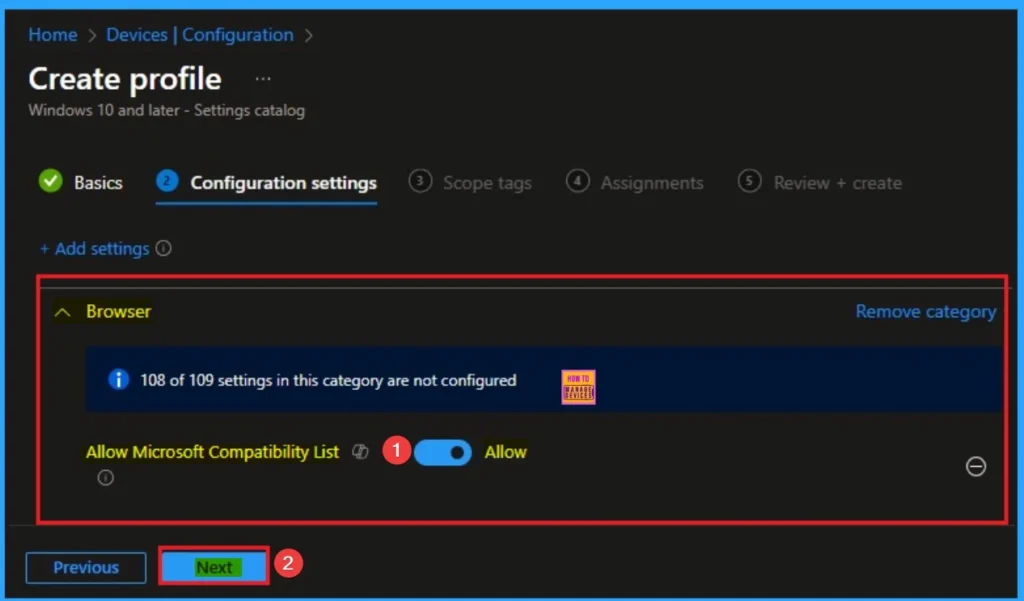
After that, you can click on the +Add settings hyperlink, which shows on the Configuration Settings tab. Then you will get the Settings Picker to choose settings. Here, I would like to select the settings by browsing by Category. I choose Browser. From this sub-category, I choose Allow Microsoft Compatibility List settings.
Enable Microsoft Compatibility List
By enabling this policy you can enance security and manual switching between browsers can be avaoid. Te Default value of this policy is enable. If you like to go with this value, click on the Next button.
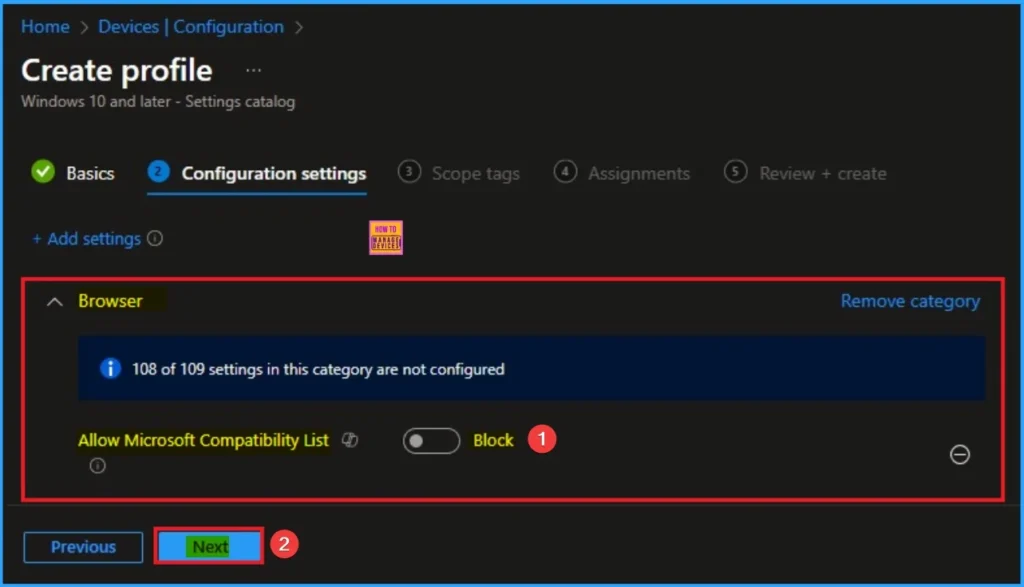
Disable Microsoft Compatibility List
Disabling the policy ensures all websites are rendered using Microsoft Edge’s modern Chromium engine. Here I would like to disable this policy so I choose block option. Ten click on the Next button.
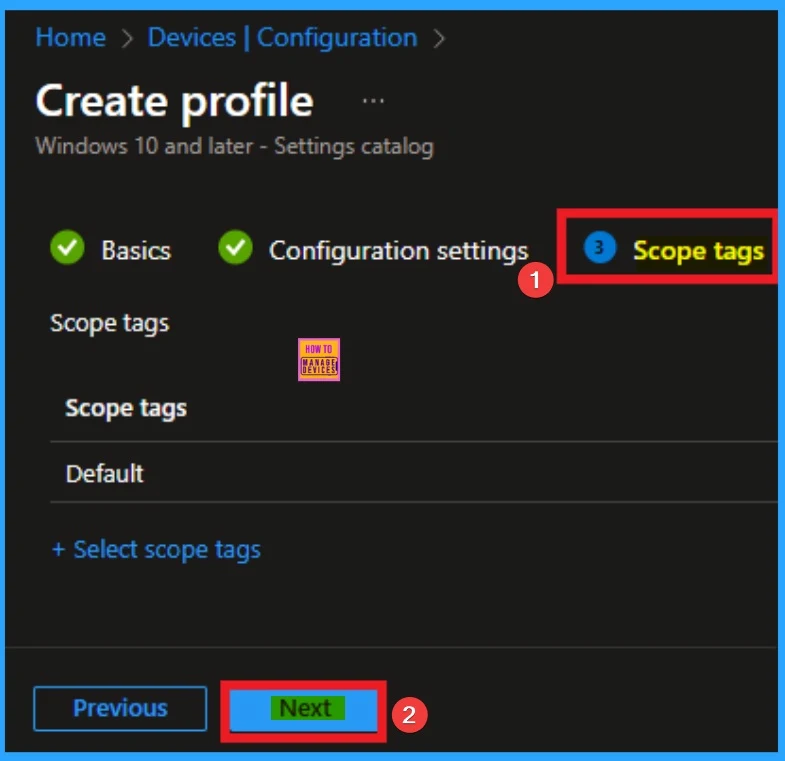
Adding Scope Tags
Scope Tags help you to give restrictions for the policy. Here, you can easily create restrictions by clicking on the +Add scope tags hyperlink. Here, I would like to skip this section, because it is not mandatory. Click on the Next button.
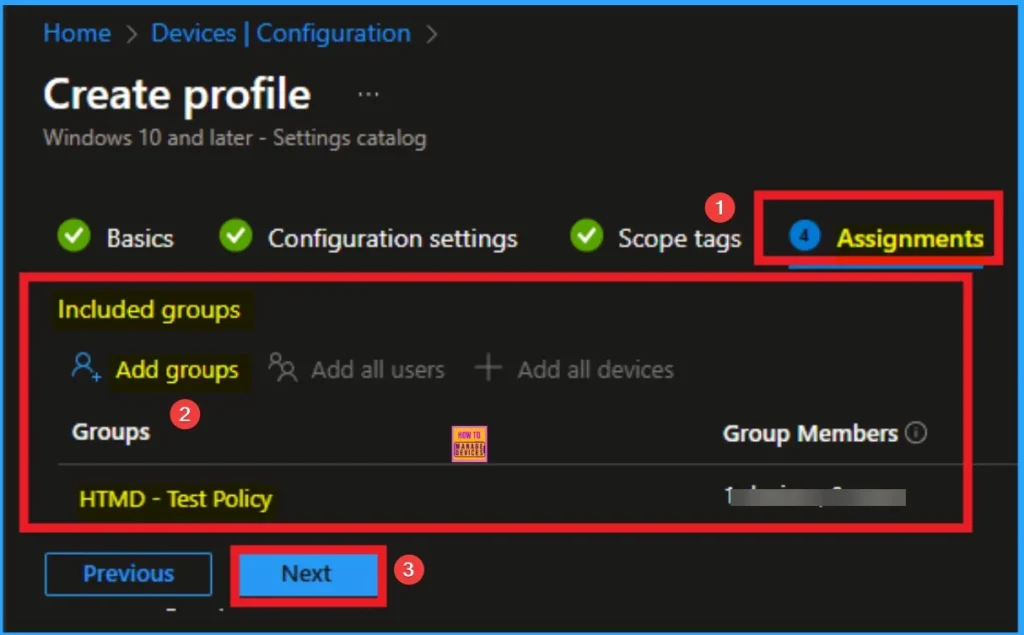
Assign the Groups
To assign the policy to specific groups, you can use the Assignment Tab. Here I click, +Add groups option under Included groups. I choose a group from the list of groups and click on the Select button. Again, I click on the Select button to continue.
Review +Create Tab for Finalise Policy Creation
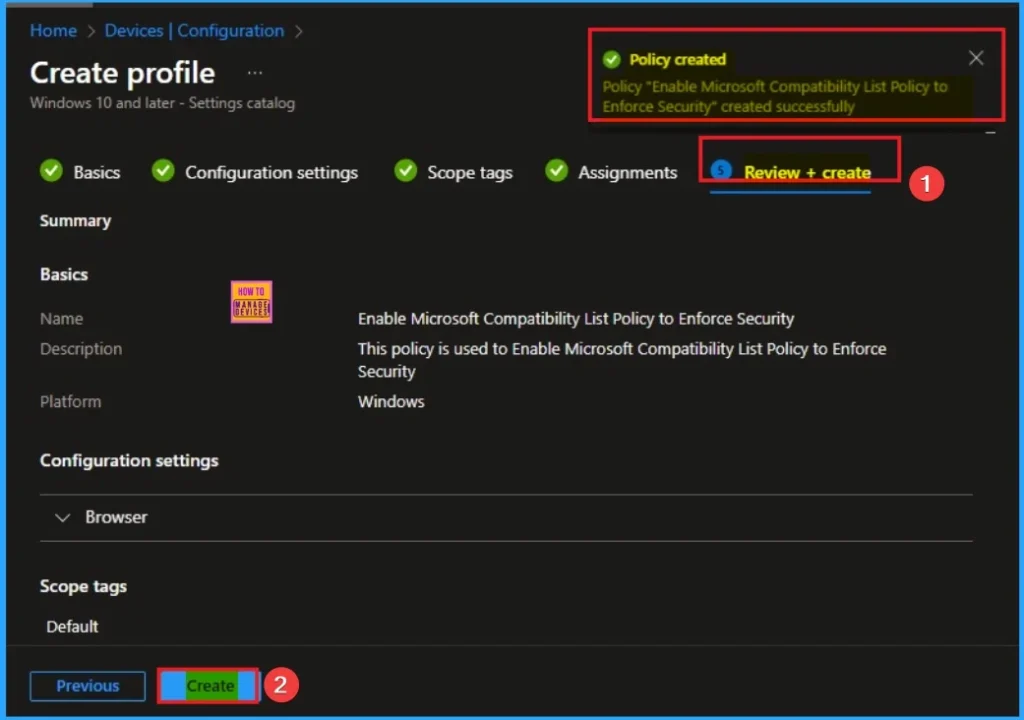
With the Review + create tab, you can varify all the policy details before complete the policy creation. After verifying all the details, click on the Create Button. After creating the policy, you will get a success message.
Monitoring Status
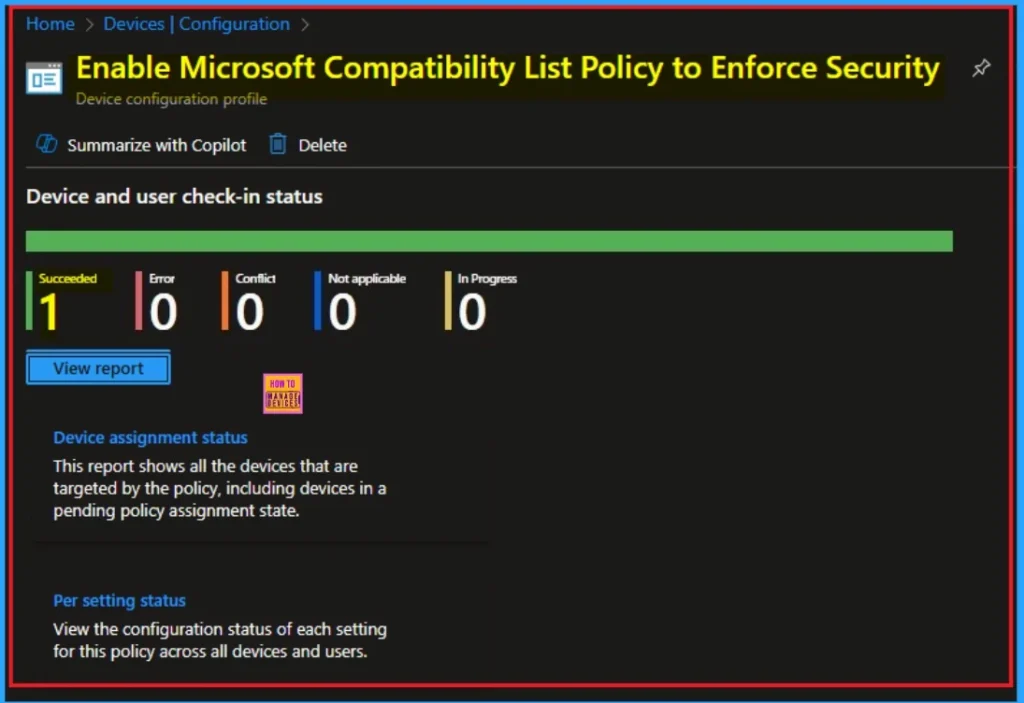
The Monitoring Status page shows if the policy is succeeded or not. o quickly configure the policy and take advantage of the policy sync the assigned device on Company Portal. Open the Intune Portal. Go to Devices > Configuration > Search for the Policy. Here, the policy shows as successful.
Event Viewer Details
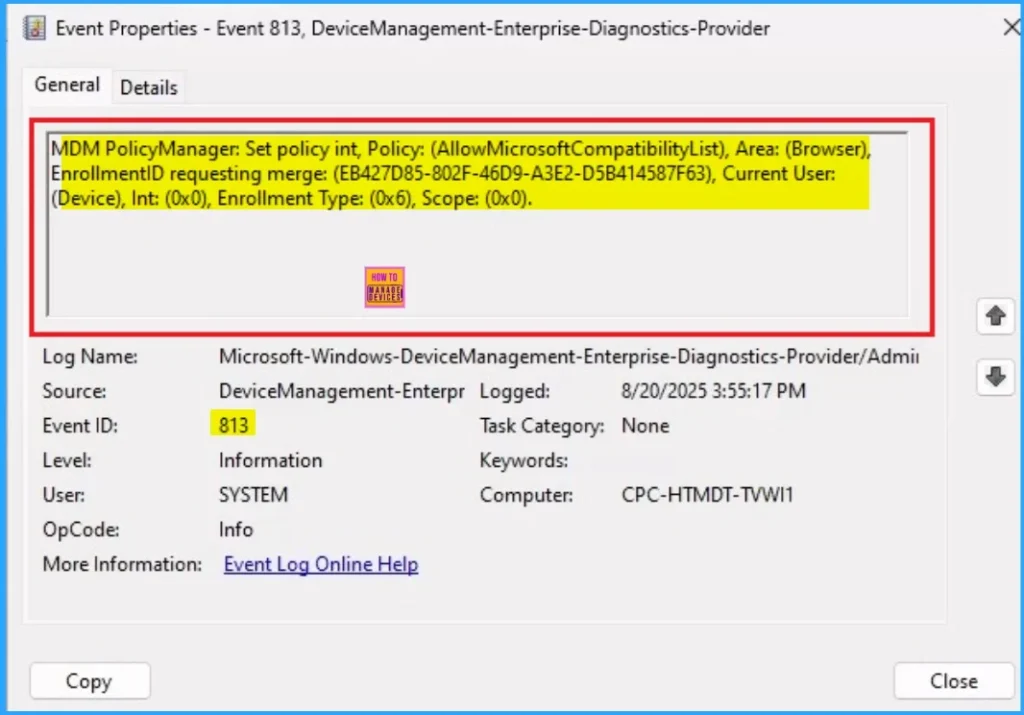
Event Viewer helps you check the client side and verify the policy status. Open the Client device and open the Event Viewer. Go to Start > Event Viewer. Navigate to Logs: In the left pane, go to Application and Services Logs > Microsoft > Windows > DeviceManagement-Enterprise-Diagnostics-Provider > Admin.
- Filter for Event ID 813: This will help you quickly find the relevant logs.
MDM PolicyManager: Set policy int, Policy: (AllowMicrosoftCompatibilityList), Area: (Browser),
EnrollmentID requesting merge: (EB427D85-802F-46D9-A3E2-D5B414587F63), Current User:
(Device), Int: (0x0), Enrollment Type: (0x6), Scope: (0x0).
Removing the Assigned Group from these Settings
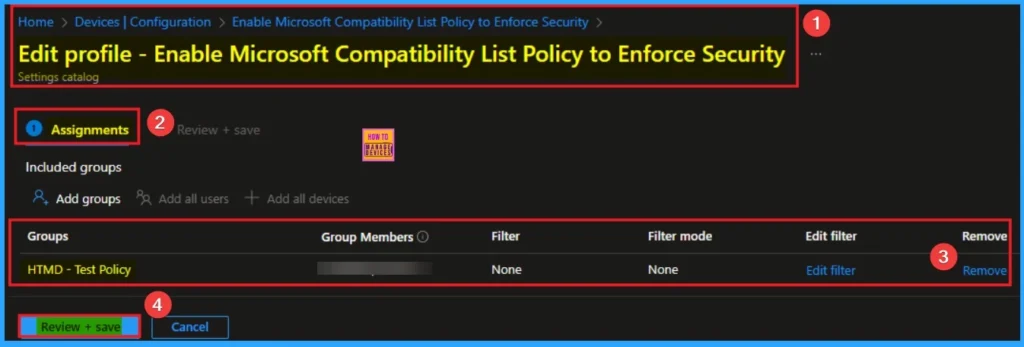
If you want to remove the Assigned group from the policy, it is possible from the Intune Portal. To do this, open the Policy on Intune Portal and edit the Assignments tab and the Remove Policy.
To get more detailed information, you can refer to our previous post – Learn How to Delete or Remove App Assignment from Intune using by Step-by-Step Guide.
How to Delete Microsoft Compatibility Settings
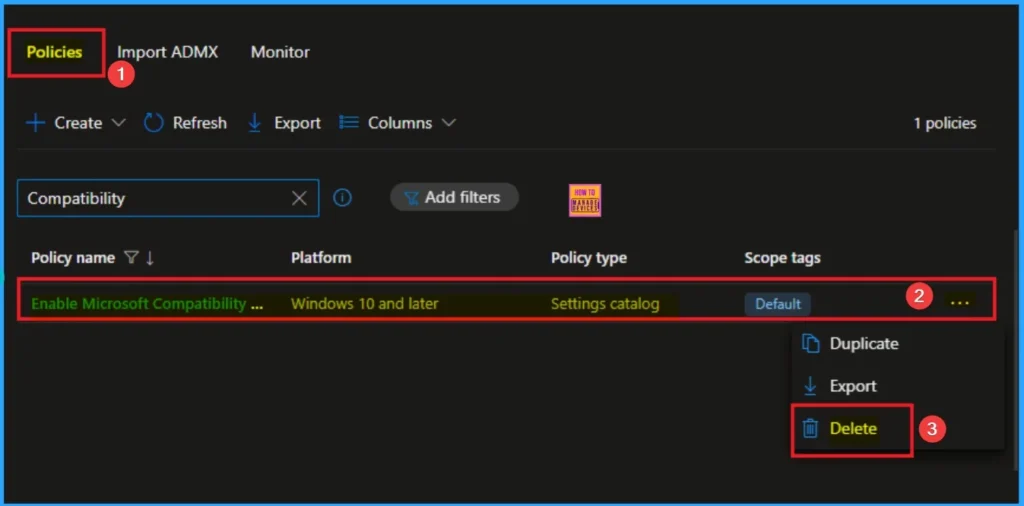
You can easily delete the Policy from the Intune Portal. From the Configuration section, you can delete the policy. It will completely remove it from the client devices.
For detailed information, you can refer to our previous post – How to Delete Allow Clipboard History Policy in Intune Step by Step Guide.
Windows CSP Details
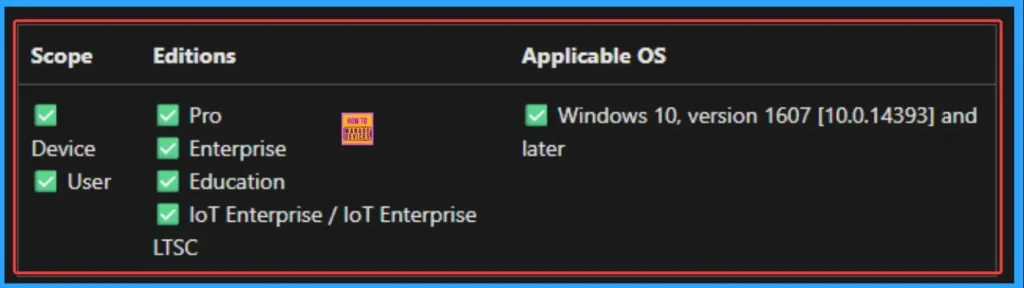
This policy setting lets you decide whether to use the Microsoft Compatibility List (a Microsoft-provided list that helps sites with known compatibility issues to display properly) in Microsoft Edge. By default, the Microsoft Compatibility List is enabled and can be viewed by visiting about:compat.
| Property name | Property value |
|---|---|
| Format | int |
| Access Type | Add, Delete, Get, Replace |
| Default Value | 1 |
Need Further Assistance or Have Technical Questions?
Join the LinkedIn Page and Telegram group to get the step-by-step guides and news updates. Join our Meetup Page to participate in User group meetings. Also, Join the WhatsApp Community to get the latest news on Microsoft Technologies. We are there on Reddit as well.
Author
Anoop C Nair has been Microsoft MVP for 10 consecutive years from 2015 onwards. He is a Workplace Solution Architect with more than 22+ years of experience in Workplace technologies. He is a Blogger, Speaker, and Local User Group Community leader. His primary focus is on Device Management technologies like SCCM and Intune. He writes about technologies like Intune, SCCM, Windows, Cloud PC, Windows, Entra, Microsoft Security, Career, etc.


Discussion