





How to Enable LLTD Responder for Network Diagnostics using Intune
Key Takeaways:
- Responder helps Windows devices participate in network diagnostics and topology mapping.
- Useful for IT admins diagnosing network problems in enterprise environments.
- It enables better visibility for troubleshooting connectivity issues.
- Helps visualize device connectivity and detect issues faster.
Let’s discuss How to Enable LLTD Responder for Network Diagnostics using Intune. This Intune policy setting controls the Link-Layer Topology Discovery (LLTD) Responder, a component of the Windows Rally technologies. It is an OSI Layer 2 (Link Layer) protocol used by Windows to discover and visually map other devices on the same local network segment.
There are multiple reasons for enable this policy. It allows Windows to perform Quality-of-Service (QoS) activities, such as estimating available bandwidth and analyzing network health, which is useful for media streaming or VoIP troubleshooting.
If an organization still has legacy devices (like Windows XP or older industrial hardware) that need to be seen on the network for management purposes, this protocol is often the only way to “find” them without specialized tools.

In environments where IT staff need to quickly visualize how local devices (printers, switches, workstations) are physically and logically connected, the “Network Map” feature is invaluable. This blog post will guide you to configure this policy.
Table of Contents
How to Enable LLTD Responder for Network Diagnostics using Intune
A small company with five offices has a “turn on when needed” policy. If a remote office reports that “the printer keeps disappearing,” the IT admin pushes a temporary Intune policy to Enable the Responder and Mapper.
The admin can then use the Windows Network Map to see exactly which switch port the printer is connected to and if there is a “hidden” unmanaged hub in between that is causing the dropouts. Once fixed, they disable it again for security.
- Enable or Disable Microsoft Account Connection Policy using Intune
- Intune Allow Microsoft Accounts to be Optional Policy
- Managing Network Visibility by Disabling User Access to Connection Status using Intune Policy
Configure Policy with Intune Admin Center
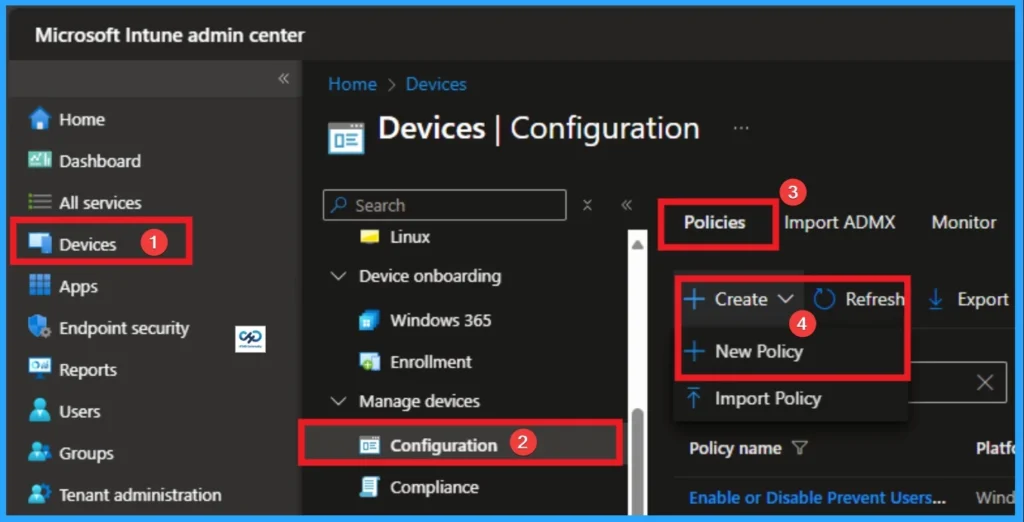
To start SLLTD Responder policy creation, sign in with Microsoft Intune Admin center. Go to Devices > Configuration > +Create >+ New Policy. Look at the below screenshot.
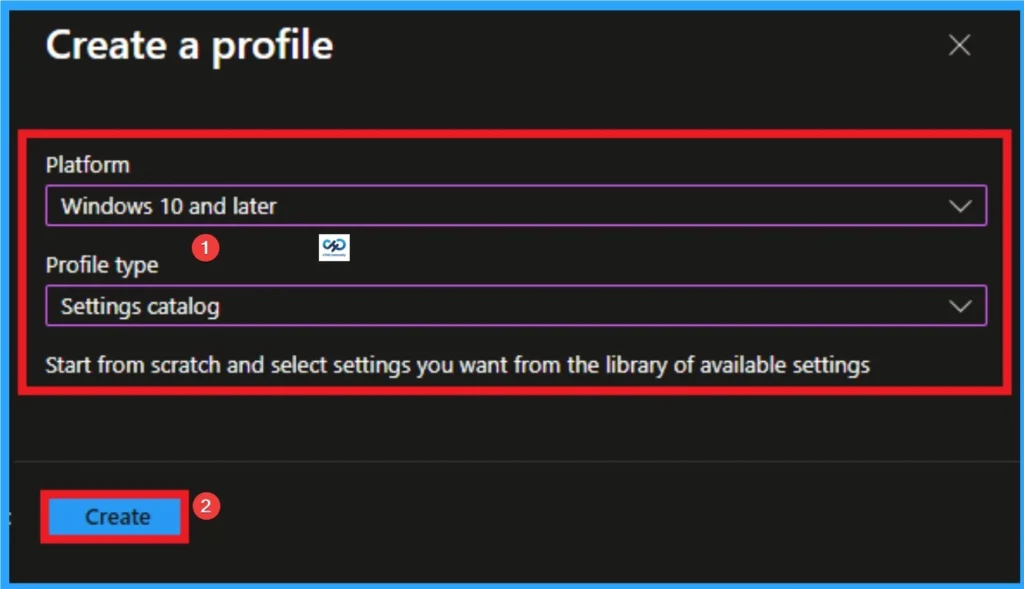
Choosing Platform and Profile Type
On this page, you can select Platform and Profile before configuring the policy. It is a necessary step and youcannot skip it. Here I would like to configure the policy to Windows 10 and later platform and settings catalog profile. Then click on the Create button.
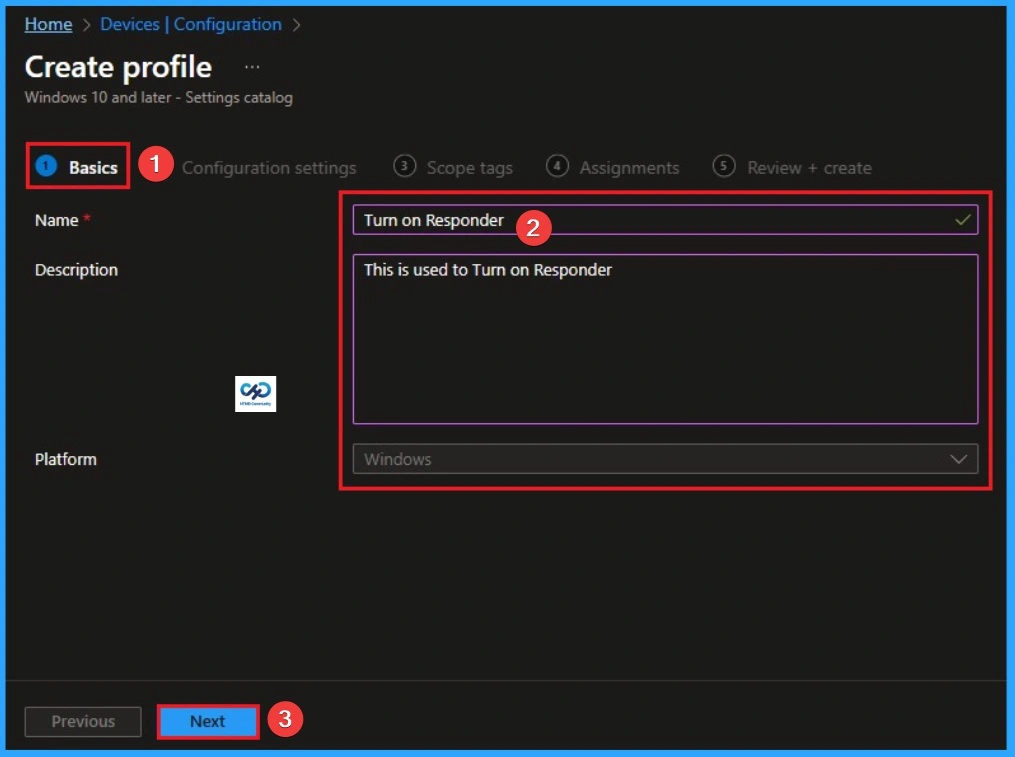
Filling Basic Details
Basic tab helps you to give an identify for the settings you have to select for policy creation. You should add appropriate name and description for policy. Here is Name is mandatory and description is optional. After adding this click on the Next button.
Configure LLTD Responder
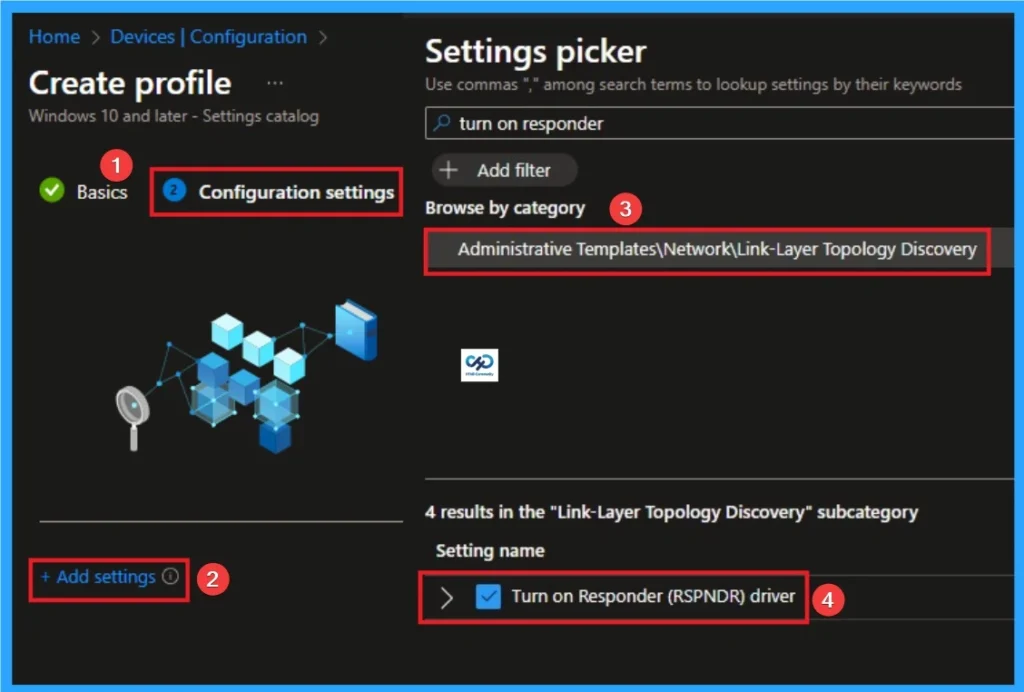
From the Configuration Tab, you can see the +Add settings hyperlink to access specific settings. When you click on this hyperlink, you will get Settings Picker. Here, I would like to select the settings by browsing by Category. Administrative Templates\Network\Link-Layer Topology Discovery\Turn on Responder settings.
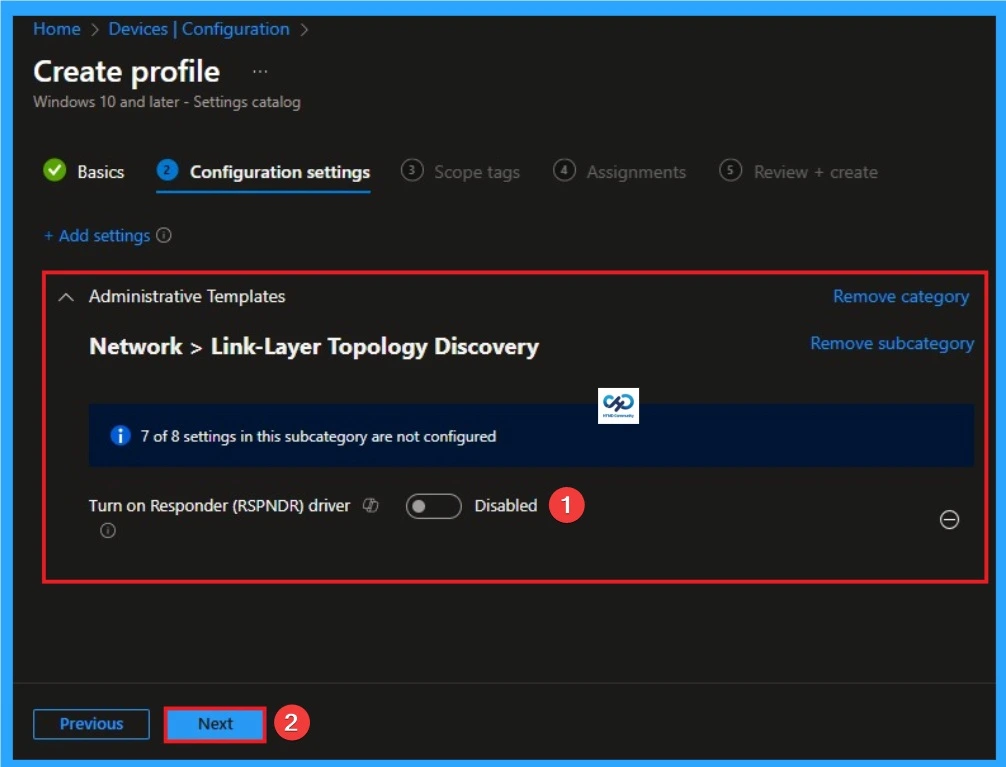
Disable LLTD Responder
If you disable or don’t configure this policy setting, the default behavior for the Responder will apply. Disable is the default value of this policy. Click on the next button to continue.
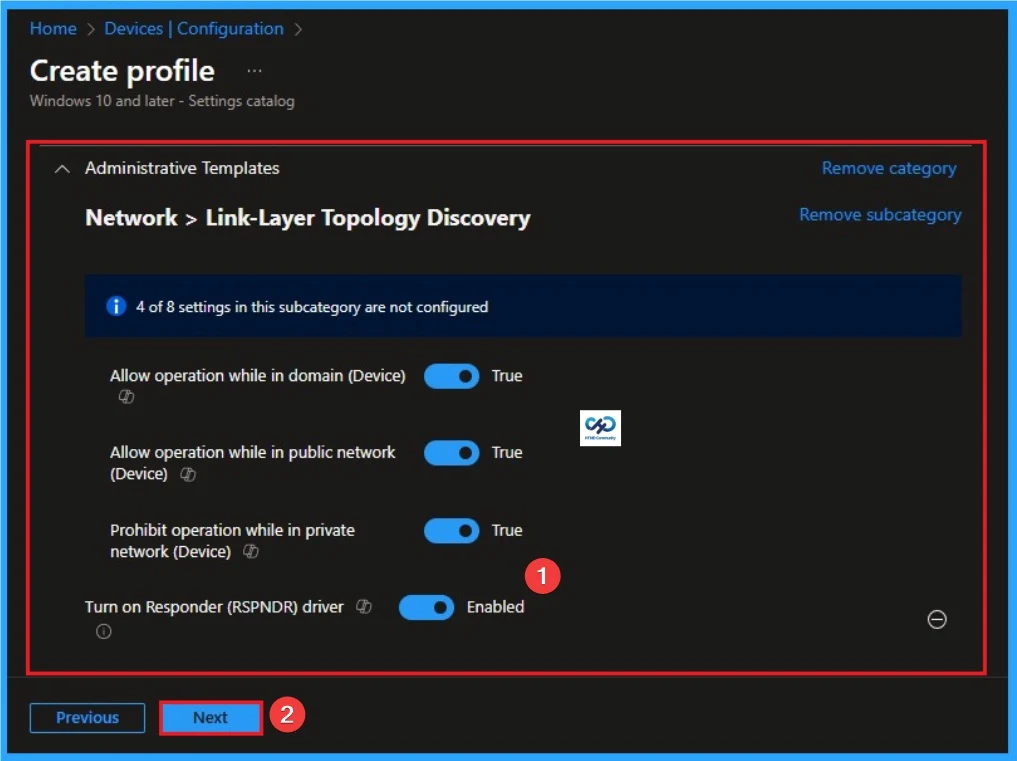
Enable LLTD Responder
If you enable this policy setting, additional options are available to fine-tune your selection. You may choose the “Allow operation while in domain” option to allow the Responder to operate on a network interface that’s connected to a managed network. On the other hand, if a network interface is connected to an unmanaged network, you may choose the “Allow operation while in public network” and “Prohibit operation while in private network” options instead.
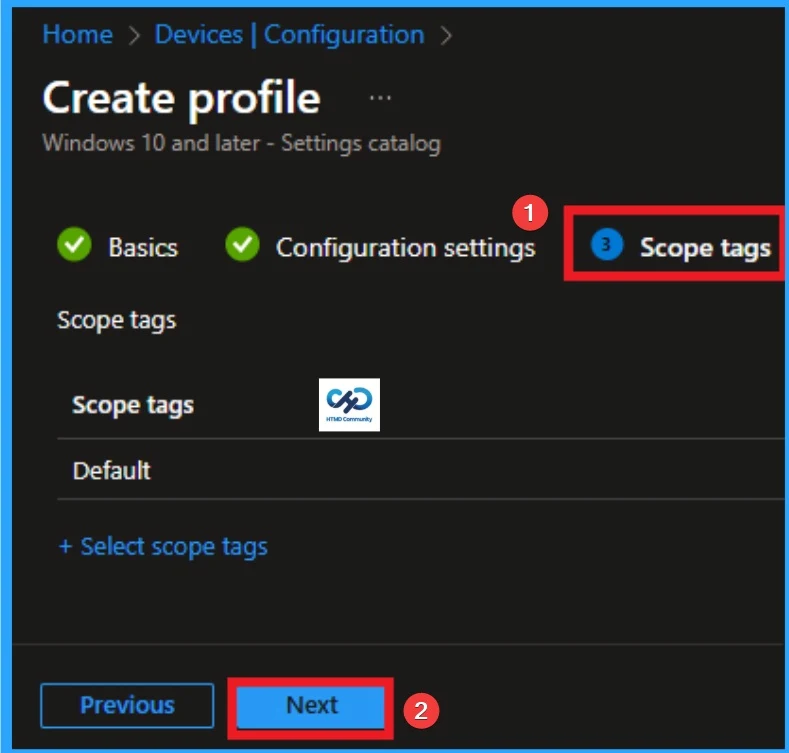
Adding Scope Tags
Scope Tags sections help you add restrictions to the visibility of the Policy. But it is not a mandatory step, so you can skip this step. Here, I don’t add scope tags for LLTD Responder Policy. Click on the Next button.
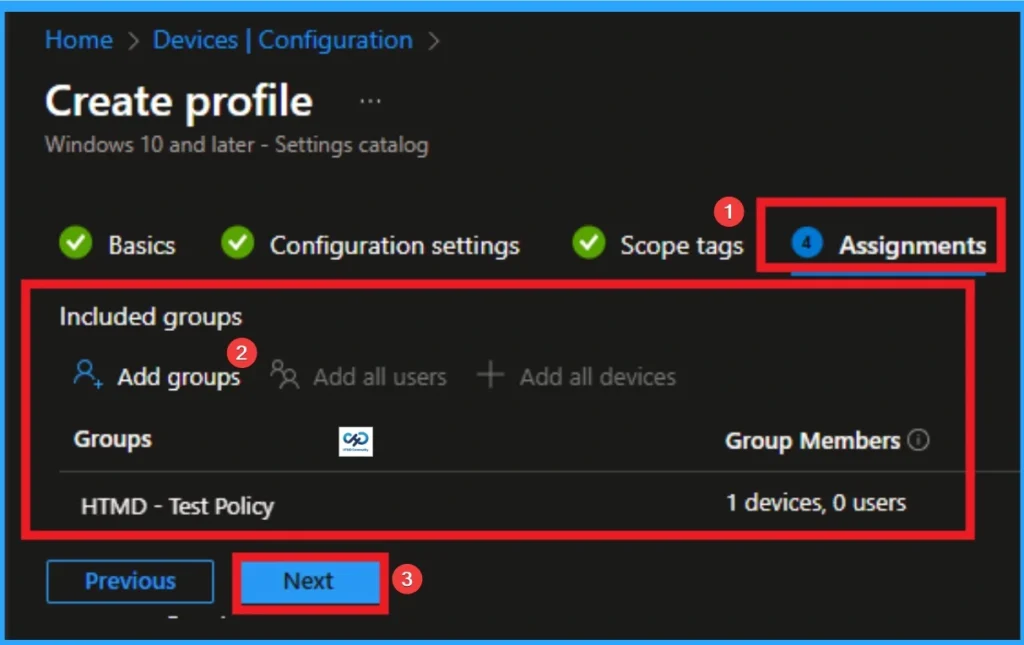
Selecting Group from the Assignment Tab
To assign the policy to specific groups, you can use the Assignment Tab. Here I click, +Add groups option under Included groups. I choose a group from the list of groups and click on the Select button. Again, I click on the Select button to continue.
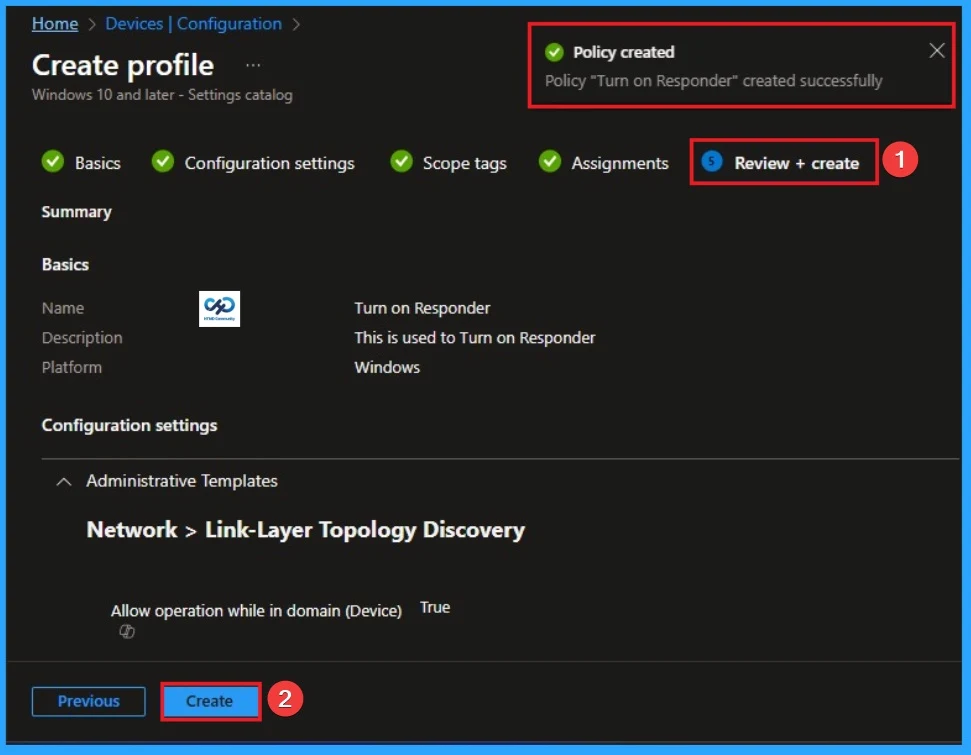
Review + Create Tab
Before completing the policy creation, you can review each tab to avoid misconfiguration or policy failure. After verifying all the details, click on the Create Button. After creating the policy, you will get a success message.
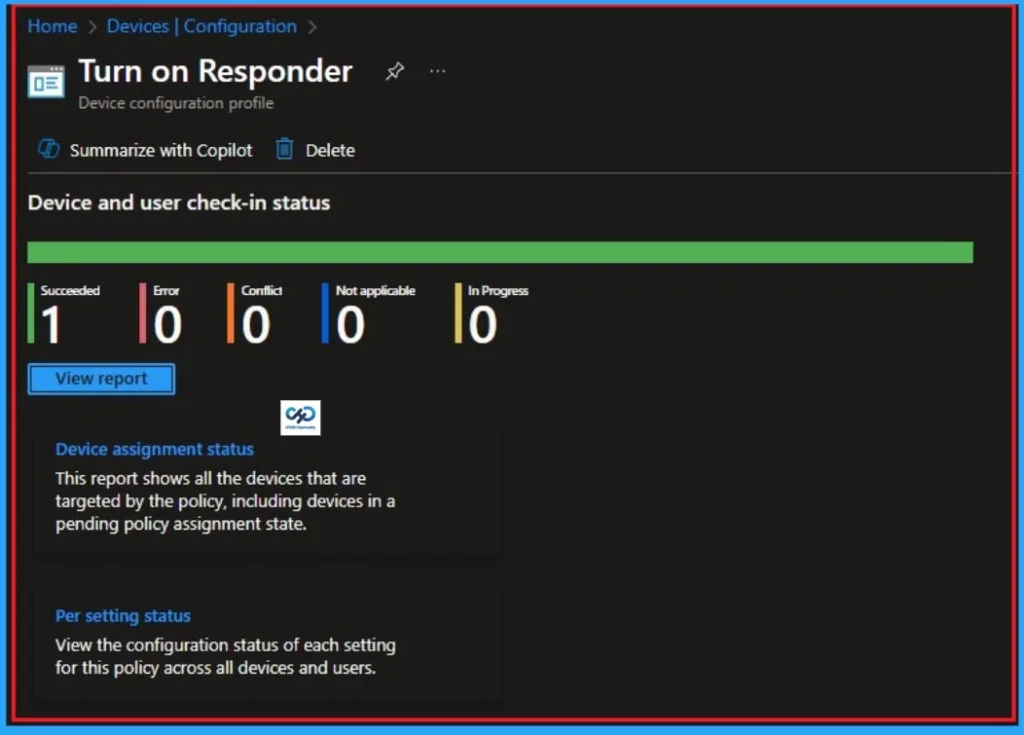
Monitoring Status
The Monitoring Status page shows whether the policy has succeeded or not. To quickly configure the policy and take advantage of the policy sync, the device on the Company Portal, Open the Intune Portal. Go to Devices > Configuration > Search for the Policy. Here, the policy shows as successful.
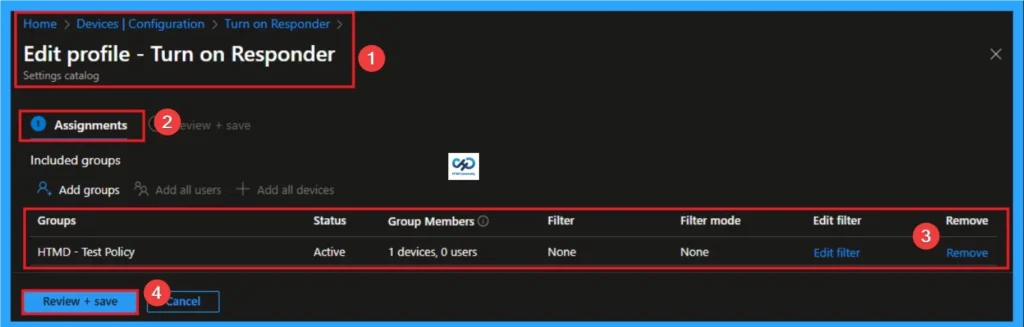
Removing the Assigned Group from LLTD Responder Settings
If you want to remove the Assigned group from the policy, it is possible from the Intune Portal. To do this, open the Policy on Intune Portal and edit the Assignments tab and the Remove Policy.
To get more detailed information, you can refer to our previous post – Learn How to Delete or Remove App Assignment from Intune using by Step-by-Step Guide.
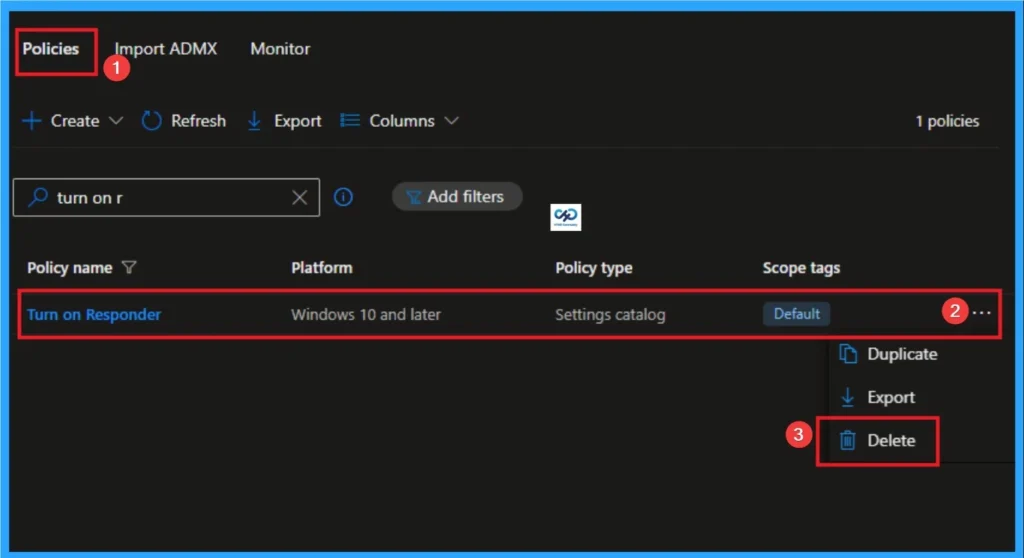
How to Delete LLTD Responder
You can easily delete the Policy from the Intune Portal. From the Configuration section, you can delete the policy. It will completely remove it from the client devices.
For detailed information, you can refer to our previous post – How to Delete Allow Clipboard History Policy in Intune Step by Step Guide.
Windows CSP Details
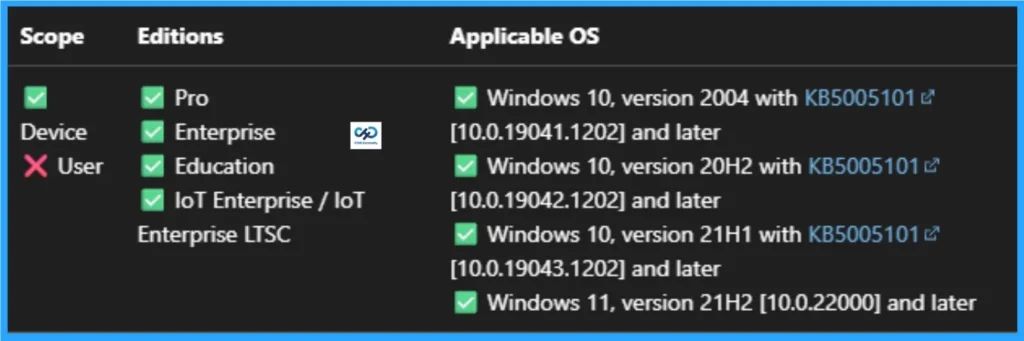
This policy setting changes the operational behavior of the Responder network protocol driver. This policy is applicable for Windows 10, version 2004 with KB5005101 [10.0.19041.1202] and later, Windows 10, version 20H2 with KB5005101 [10.0.19042.1202] and later, Windows 10, version 21H1 with KB5005101 [10.0.19043.1202] and later, Windows 11, version 21H2 [10.0.22000] and later.
Need Further Assistance or Have Technical Questions?
Join the LinkedIn Page and Telegram group to get the step-by-step guides and news updates. Join our Meetup Page to participate in User group meetings. Also, Join the WhatsApp Community to get the latest news on Microsoft Technologies. We are there on Reddit as well.
Author
Anoop C Nair has been Microsoft MVP for 10 consecutive years from 2015 onwards. He is a Workplace Solution Architect with more than 22+ years of experience in Workplace technologies. He is a Blogger, Speaker, and Local User Group Community leader. His primary focus is on Device Management technologies like SCCM and Intune. He writes about technologies like Intune, SCCM, Windows, Cloud PC, Windows, Entra, Microsoft Security, Career, etc


Discussion