






How to Install Logi Tune App using Intune Enterprise App Catalog App
Let’s discuss how to Logi Tune App using Intune Enterprise App Catalog App. In this blog post, I will guide you through the installation procedure of Logi Tune with the Enterprise App Catalog App, a software application developed by Logitech.
Do you want to know more about the Logi Tune app? Logi Tune software application developed for users to manage their webcams and headsets more effectively. It includes features like adjusting webcam settings (zoom, field of view, color filters).
It also allows you to customize audio settings (equalizer, sidetone, mic level) and integrate with Logitech’s desk and room booking services. This application provides some benefits for your organization and will be helpful for your day-to-day activities.
Logi Tune will give you a voice at home, in the office, or elsewhere. In this blog post, I will share my experience installing the Logi Tune app and provide more information about it.

Table of Contents
How to Install Logi Tune App using Intune Enterprise App Catalog App
As mentioned above Logi Tune app will give you a better experience for your organization. IT departments can centrally manage and update device settings, ensuring consistency and compliance with organizational policies.
- Best way to Install Shotcut Application using the Intune Enterprise App Catalog App
- How to Deploy Citrix Receiver using Intune Enterprise App Catalog App
- Deploy the ClockAssist App Via Enterprise App Catalog App in Intune
Installation of Logi Tune App
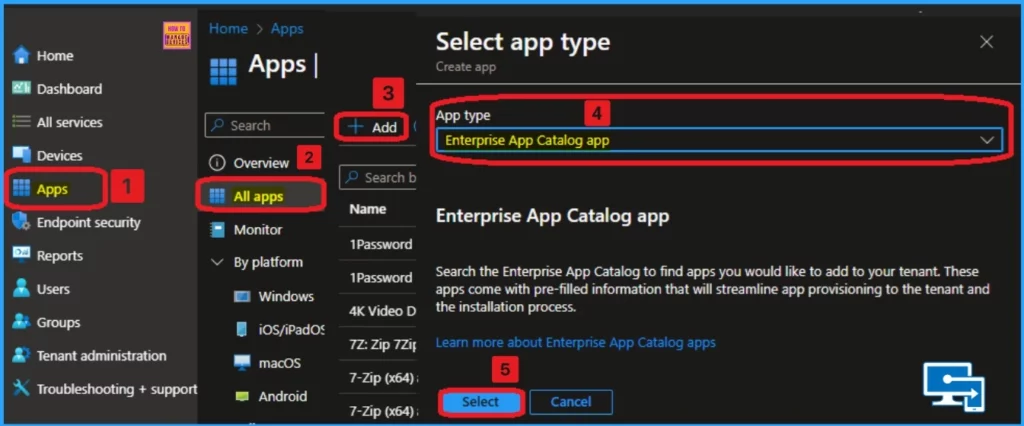
You can easily install the Logi Tune App from the Microsoft Intune Portal. As you know, Enterprise App provides around 400 applications with the latest version. So, you can install the Logi Tune App’s latest version from the Intune Portal.
- Open the Microsoft Intune Portal
- Go to Apps > All apps >+Add
- Select Enterprise App Catalog App from the App type
- Click on the Select button
App Information
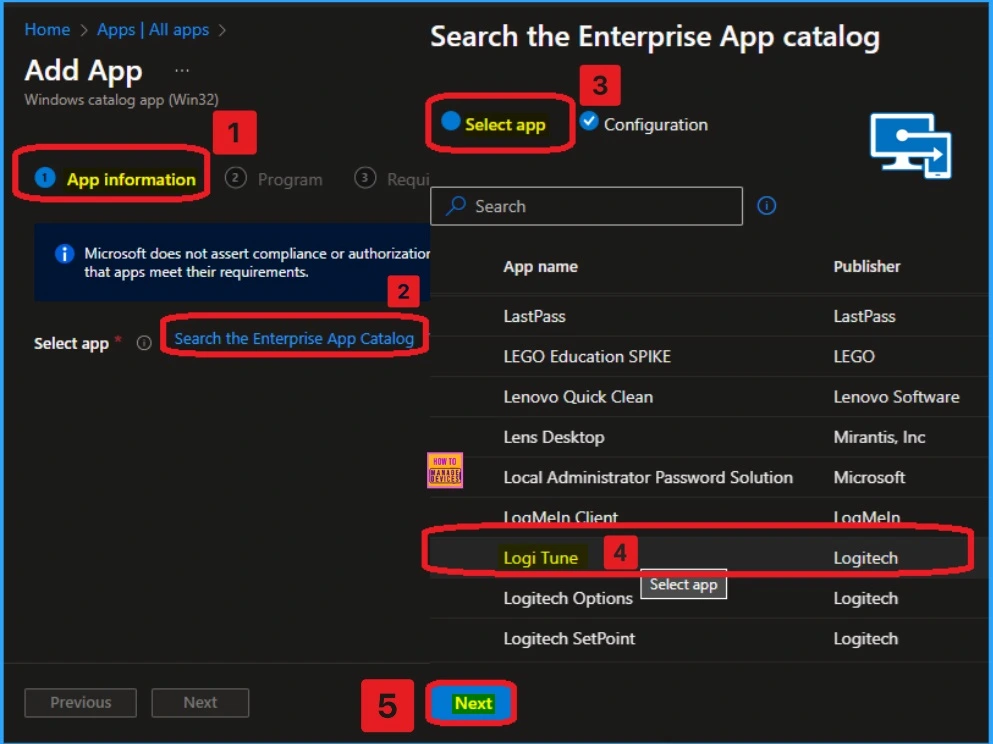
The app information tab helps you select an app from the list, and the Enterprise App catalog app automatically provides different information about the chosen app, easing the installation procedure.
- Click on the Search the Enterprise App Catalog hyperlink
- Select the Logi Tune app
- Click on the Next window
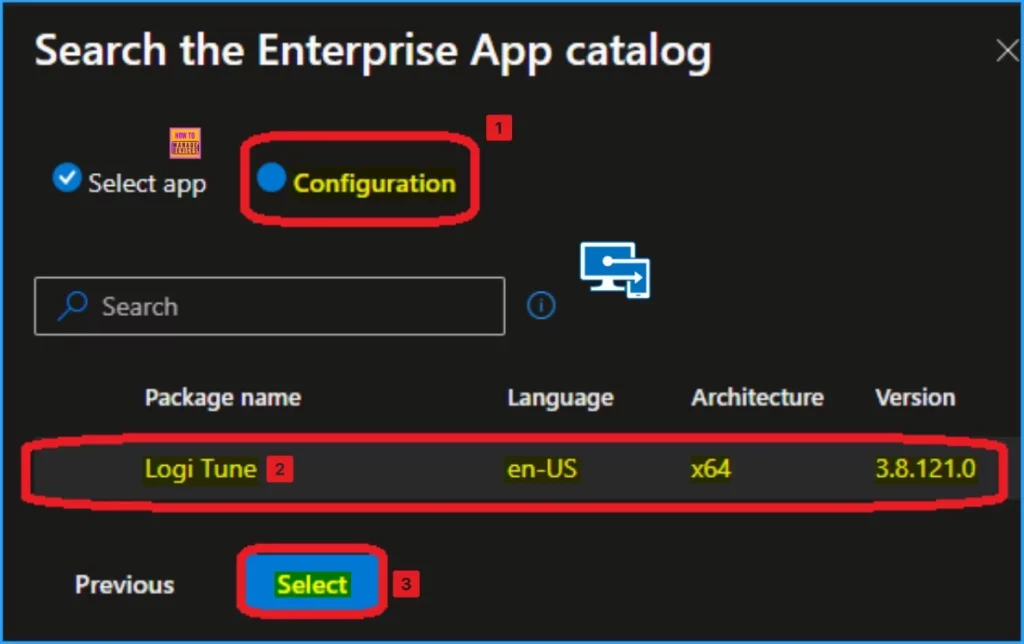
After clicking on the Next window, you will see the Configuration tab of the selected app. The Package name, Language, Architecture, and version are here. Click on the window, and the Select button will be enabled. Click on that Select button.
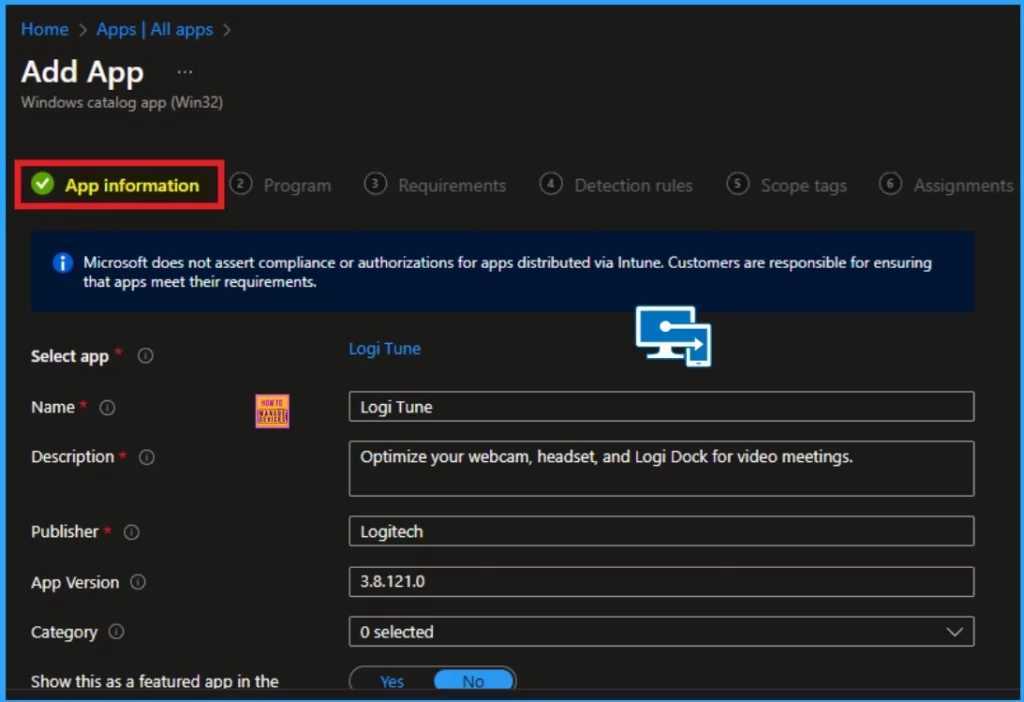
As mentioned above, after selecting the App, you can see some information on this tab, which is automatically generated. It includes the App Name, Description, Publisher, App version, etc. Here, you can also see red colored * near some fields (Name, Description, etc.), which shows that each field is mandatory.
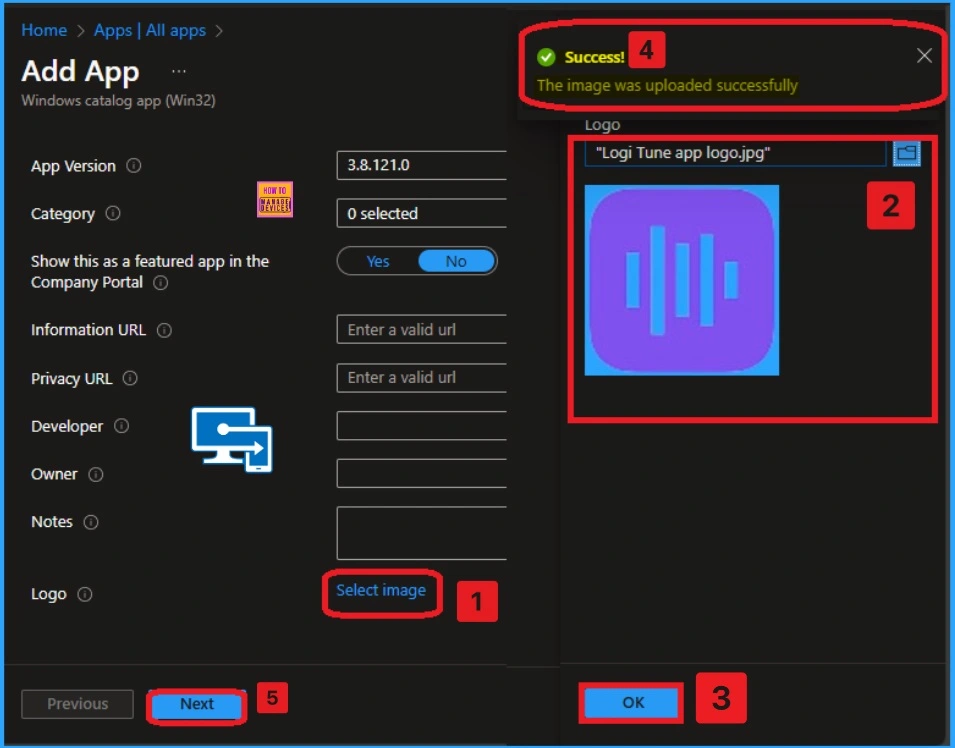
On the same App information, you have the option to add the Logi Tune app logo. This helps you recognize the app easily on the client’s device, but adding the logo is not compulsory. To add the logo, click on the select image hyperlink.
- Click on the File Explorer button.
- Open the Logo image which is already uploaded on your device.
- You will get the Upload success message on the portal
- Click on the OK button
- Then you will get the Success Message
- Click on the Next button
Program Tab
The program tab shows different commands for the application installation and removal process. Commands are necessary to install and uninstall an app in Intune. These commands are automatically created using the Enterprise App Catalog App. Click on the Next button.
| Install Command | Uninstall Command |
|---|---|
| “LogiTuneInstall.exe” /install /quiet /norestart | “%SystemRoot%\System32\msiexec.exe” /X {9A8165C4-EC0C-4AD8-B71F-8F28E5630791} /qn |
Requirements Tab
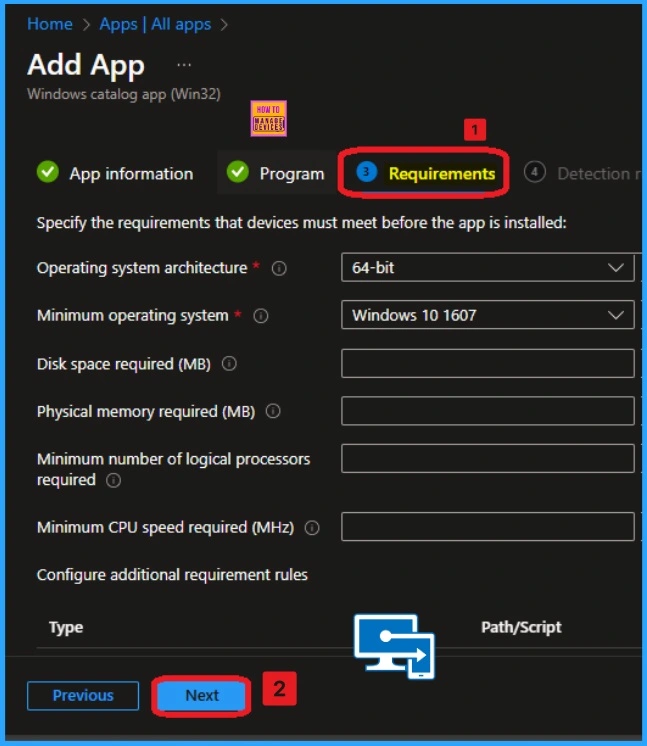
The requirement tab in the Intune Enterprise app shows different requirements for installing the specific app. Here, Logi Tune installation also has some requirements. These include OS architecture, Minimum OS, Disk space required, etc.
- Click on the Next button
Detection Rules
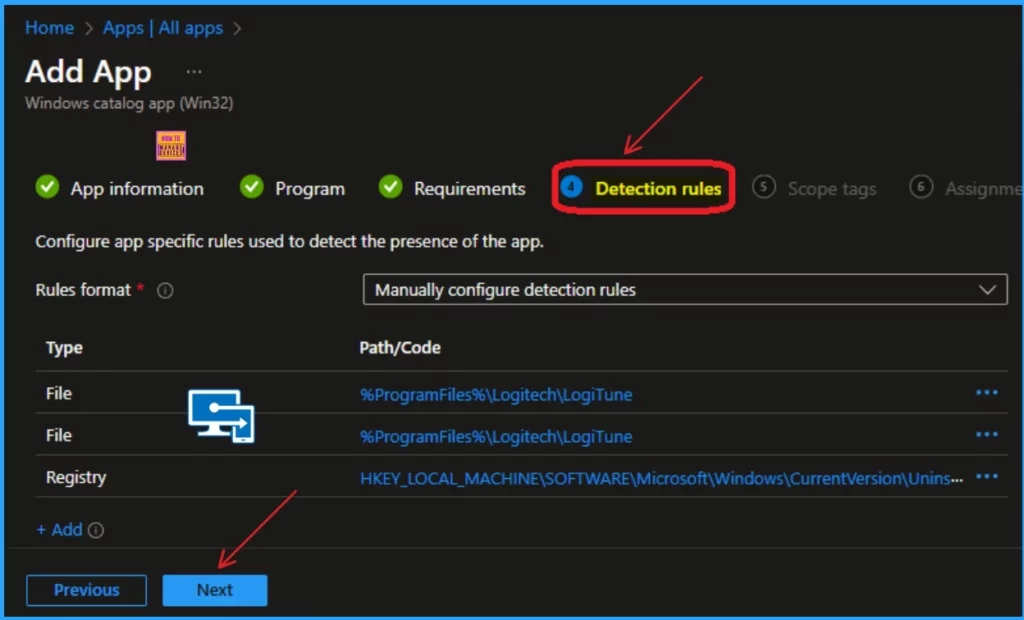
The Detection Rules tab is where you configure how the system will verify whether an application is already installed on a device. This will help you avoid multiple installations of the same app on the same device. Click on the Next button.
Scope Tags
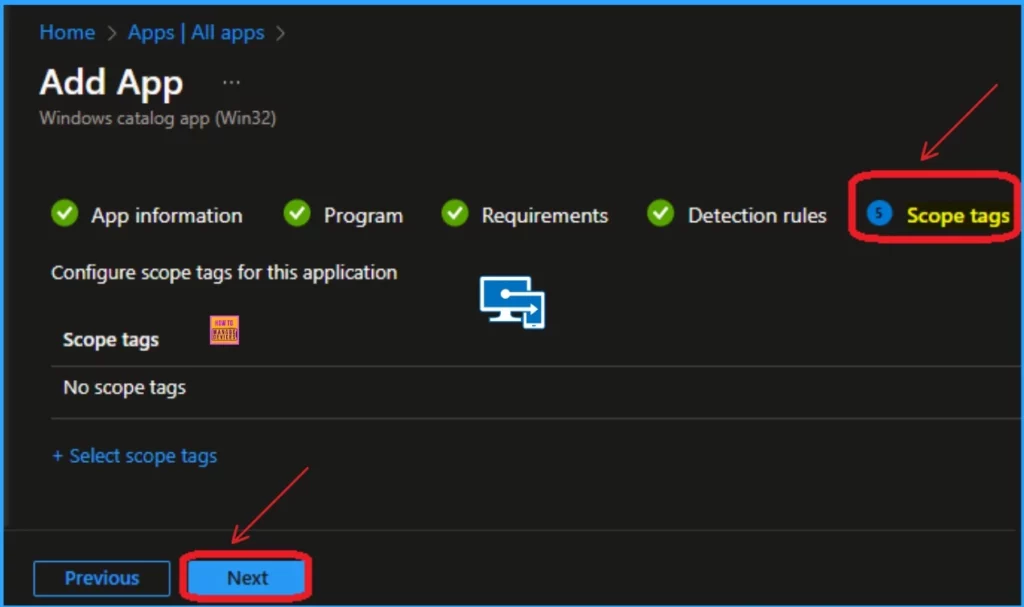
Scope Tags are not a mandatory section in the Enterprise app catalog app. Adding Scope tags will help you restrict which admins can view and manage them based on their assigned roles. Here, I am skipping this section. Click on the Next button.
Assignment Tab
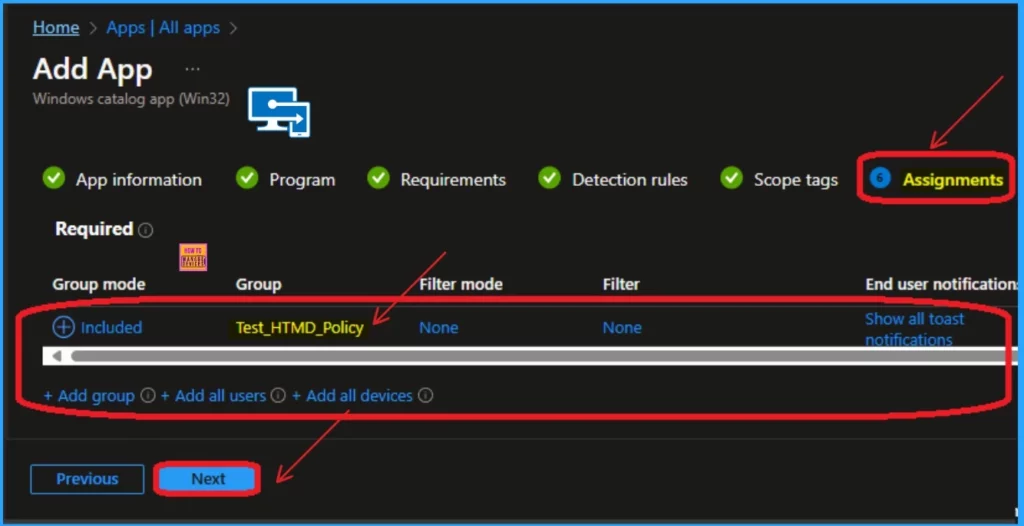
The Assignment tab is a very important section that cannot be skipped. This section determines which user or device will be selected for app installation. To do this, click on the add groups button near the Included or Excluded hyperlink.
- Click on the +Add group’s hyperlink under included
- Select the group from the list of groups on your tenant and click on the select button
- The selected group will be shown on the Portal
- Click on the Next button
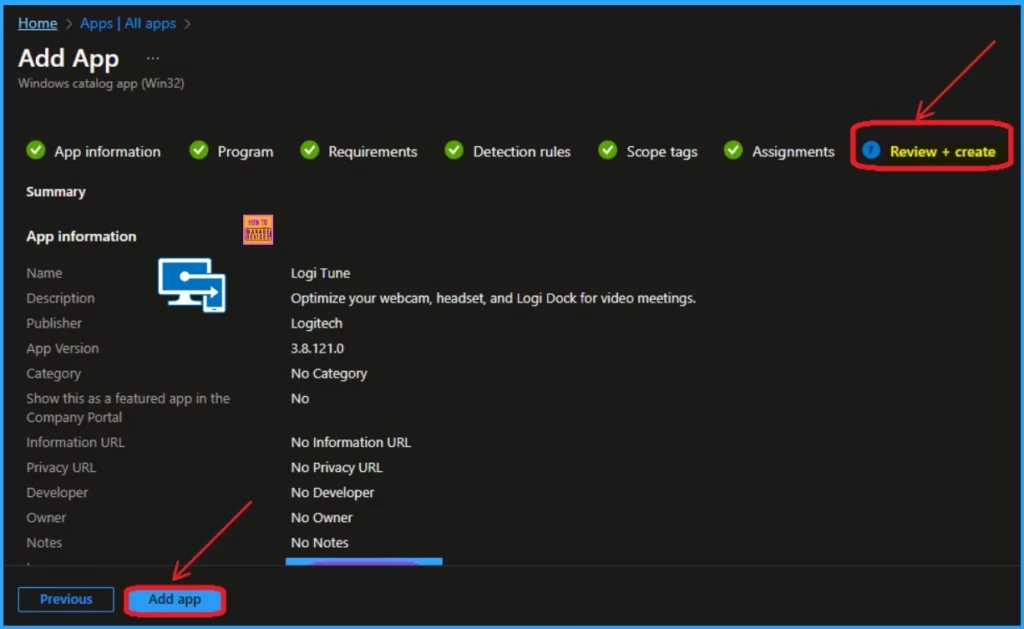
Review + Create Tab
The Review + Create Tab is used to verify the procedures completed on the previous tabs. It is better to verify each tab before completing the installation. After verifying all information, click on the Create button.
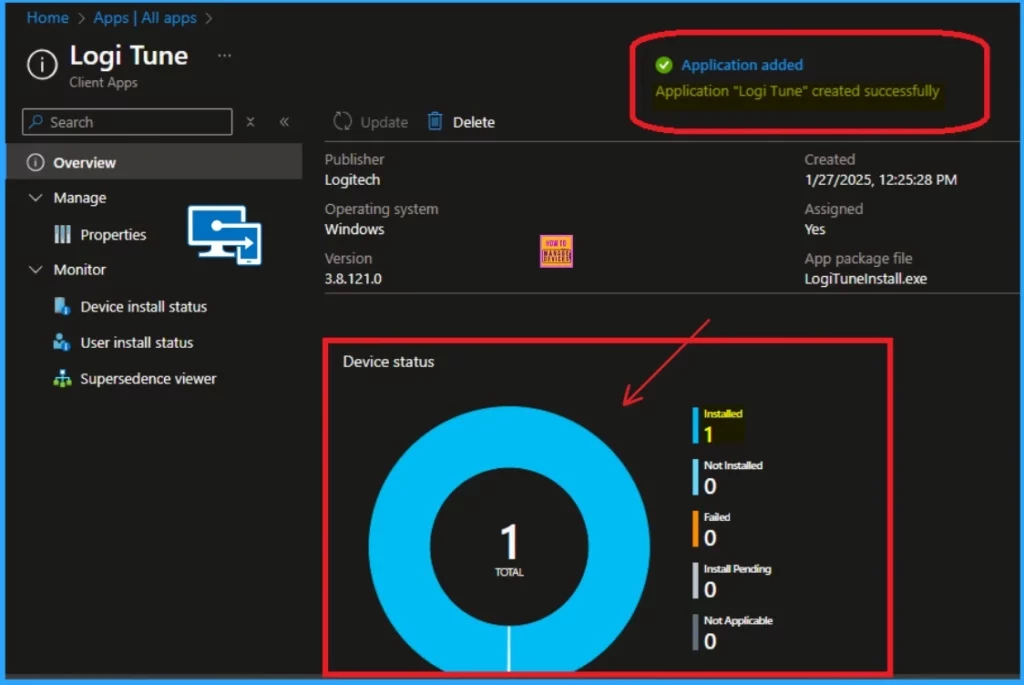
Device Installation Status
The Device installation shows the current status of the Installed app in Intune. If the app is installed, this page shows it as installed. Otherwise, it shows options such as Not installed, Failed, Install Pending, Not Applicable, etc. Here, the App is installed.
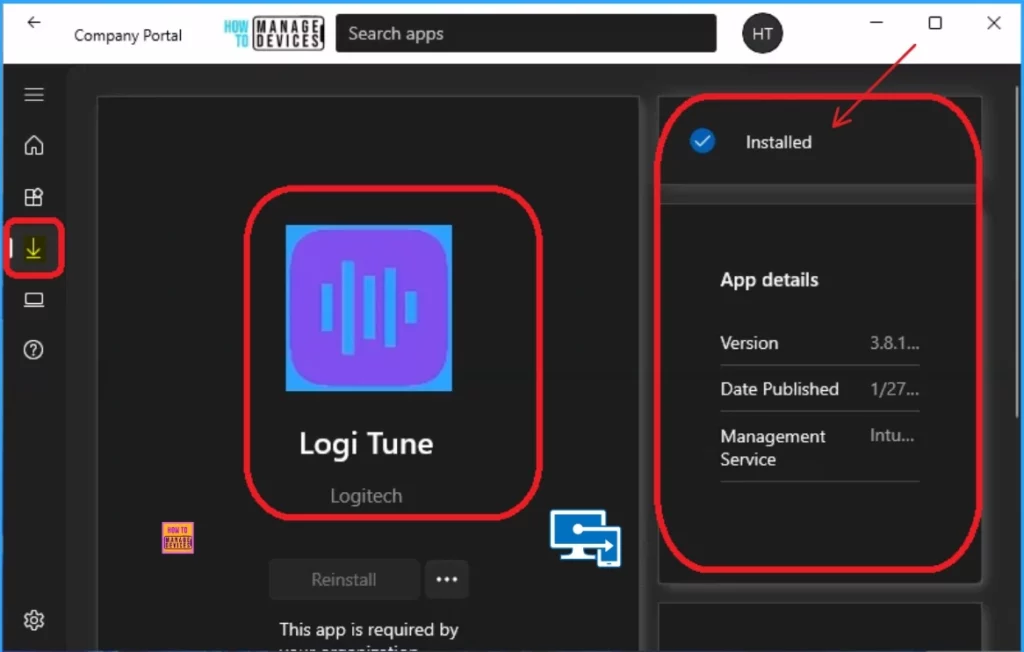
End User Experience
To check the End user experience, you can access the Company portal of the client Device. To check the Status, open the Company Portal and go to the Downloads and Updates section. There, you can see the App is installed. Look at the window below.
Need Further Assistance or Have Technical Questions?
Join the LinkedIn Page and Telegram group to get the latest step-by-step guides and news updates. Join our Meetup Page to participate in User group meetings. Also, Join the WhatsApp Community to get the latest news on Microsoft Technologies. We are there on Reddit as well.
Author
Anoop C Nair has been Microsoft MVP from 2015 onwards for 10 consecutive years! He is a Workplace Solution Architect with more than 22+ years of experience in Workplace technologies. He is also a Blogger, Speaker, and Local User Group Community leader. His primary focus is on Device Management technologies like SCCM and Intune. He writes about technologies like Intune, SCCM, Windows, Cloud PC, Windows, Entra, Microsoft Security, Career, etc.


Discussion