






Manage Automatic Drivers Installation with Windows Updates in Windows 11
Let’s learn how to manage Automatic Drivers Installation with Windows Updates in Windows 11. Users sometimes do not want to install driver updates during Windows Updates. Microsoft rolls out Windows updates regularly to deliver new features and improvements.
Some device driver updates are also included with the Windows update and are automatically installed on your Windows computer. The drivers are delivered by Windows Update and verified for compatibility and functionality.
To configure this setting from Group Policy, Enable the Windows Update policy to exclude drivers from Windows quality updates. If you disable or don’t configure this policy, Windows Update includes updates with a Driver classification.
You can download and install drivers manually from the device manufacturer’s website. If some driver updates cause issues with your computer, you can disable automatic driver updates in Windows 11. You can freely enable or disable automatic driver updates in Windows 11.


- Enable Disable Windows Update Delivery Optimization in Windows 11
- How to Show Hide Updates in Windows 11
Methods to Manage Automatic Drivers Installation with Windows Updates
Microsoft provides settings that users can modify according to their choice. You can also modify the Including Drivers with Windows Updates. You can enable or disable Including Drivers with Windows Updates as per your requirement. The methods to change the settings are listed below.
- Enable Disable Including Drivers with Windows Updates Using Settings App
- Enable Disable Including Drivers with Windows Updates Using Local Group Policy
- Enable Disable Including Drivers with Windows Updates Using Registry File
NOTE! You must be signed in as an Administrator to Enable Disable, Including Drivers with Windows Updates.
Enable Disable Including Drivers with Windows Updates using Settings App
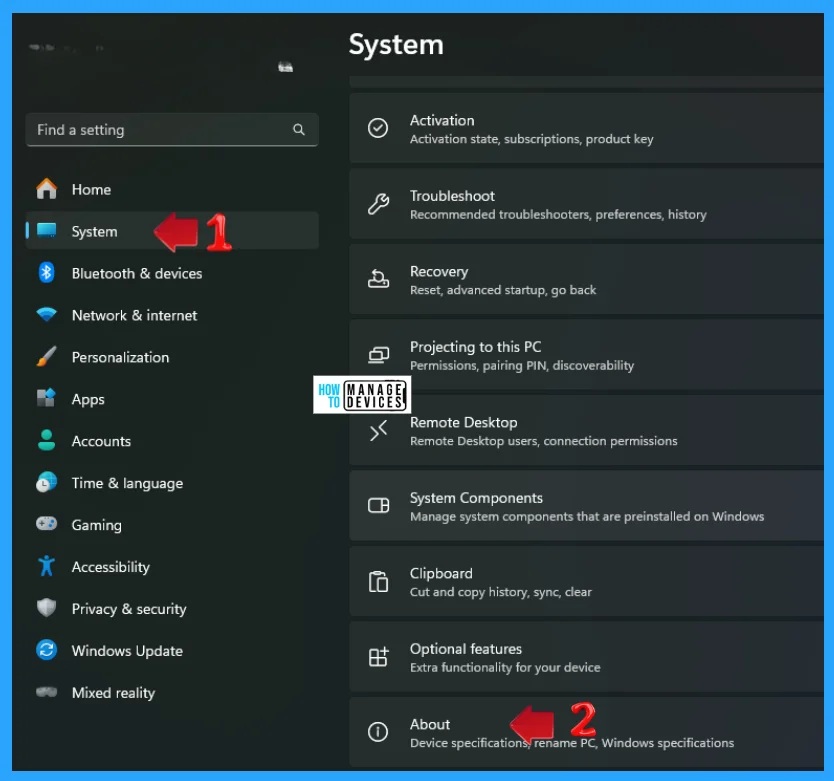
You can use Windows Settings to View the Including Drivers with Windows Updates. Click on the Windows button, select Settings, or press Win Key + I to open settings directly. Then, under settings, click on the System option on the left panel and scroll down to find About in the right panel.
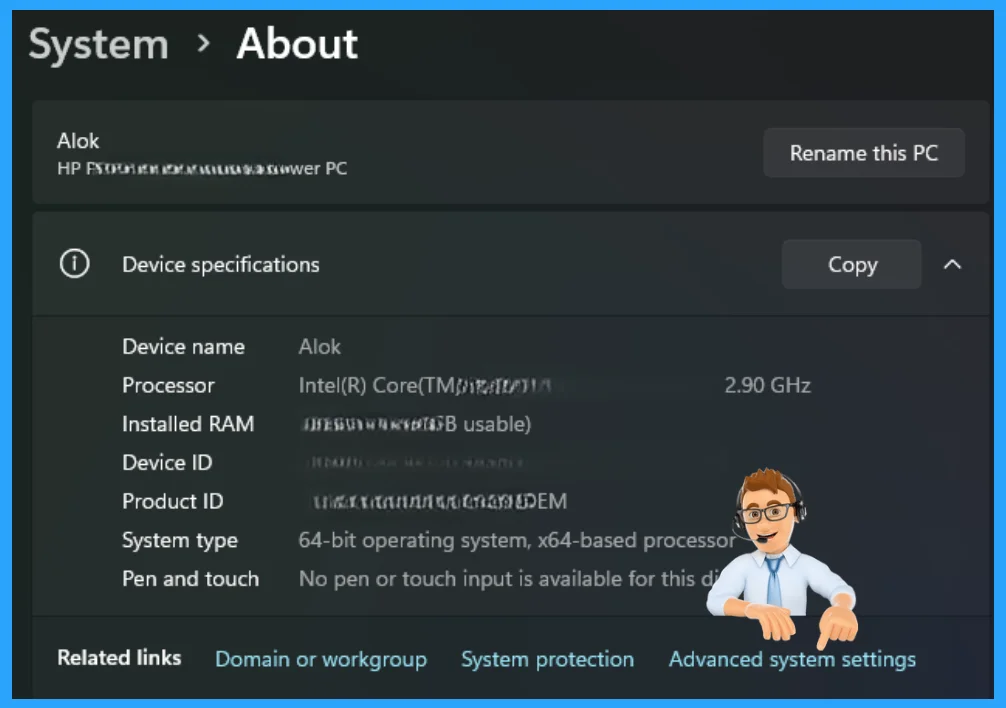
The About window opens. Scroll down to find the Advanced System Settings option. This option sets device specifications and renames PC and Windows specifications. Now click on Advanced System Settingst o open it.
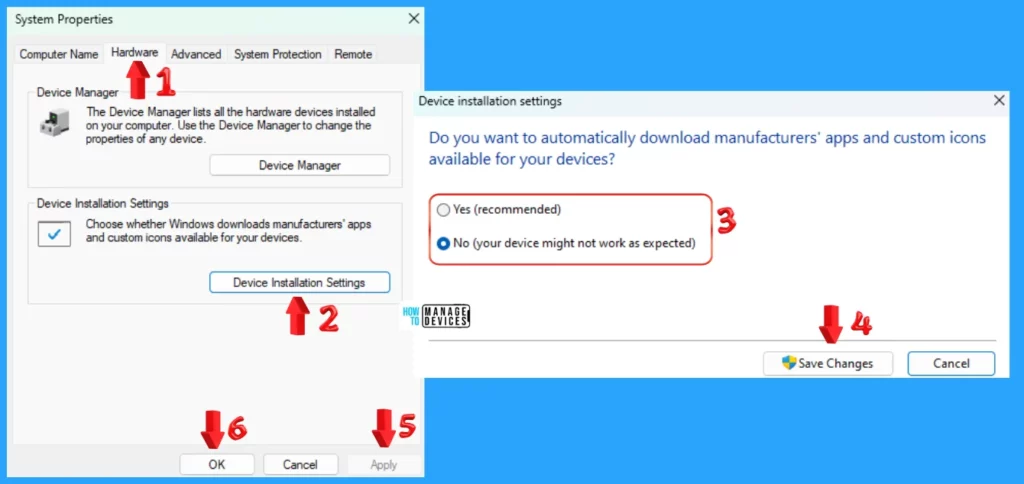
Now the System Properties window is open, tap on the Hardware tab, and under the Device Installation Settings, tap on the Device Installation Settings button.
Another pop-up asks: Do you want to automatically download manufacturers’ apps and custom icons available for your devices? You can select Yes (recommended) or No (your device might not work as expected) and then tap on the Save Changes button, then in System Properties, click on Apply, then OK.
Enable Disable Including Drivers with Windows Updates using Local Group Policy
You can also enable or disable including drivers with Windows updates using the Local Group Policy Editor. Open the Local Group Policy to enable or disable Including Drivers with Windows Updates, and follow the process.
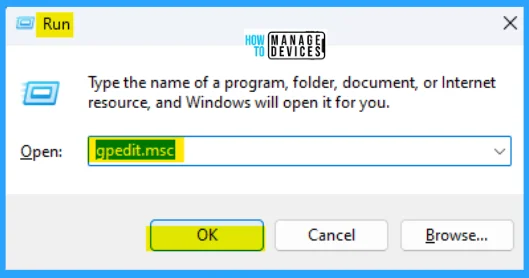
- Open the Run command, press Win Key + R
- Type gpedit.msc
- Click OK or press Enter
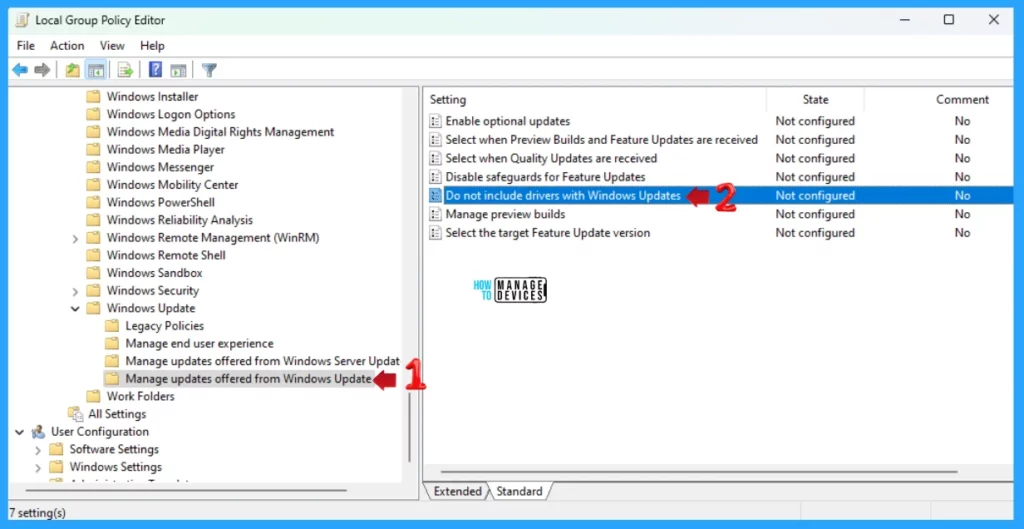
When the Group Policy Editor opens, navigate to the following path to access the required policy settings. To make changes, select Do not include drivers with Windows Updates.
Computer Configuration>Administrative Templates>Windows Components>Windows Update>Manage updates offered from Windows Updates
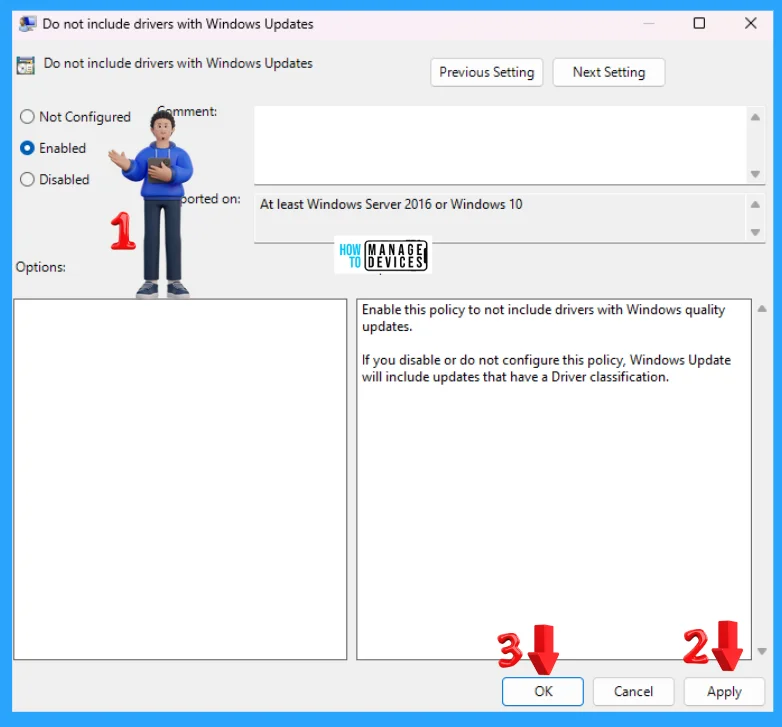
The following window appears when you double-click on the Do not include drivers with Windows Updates option. Here, the Not Configure and Disabled options work to disable the option. If you choose the Enabled option, this policy to not include drivers with Windows quality updates.
Enable Disable Including Drivers with Windows Updates using Registry File
You can also use the Registry file to enable Including Drivers with Windows Updates. For Including Drivers with Windows Updates, use the .reg file. To create a .reg file, open NotePad, type the following code, and name it as per its work. Then, save it on the desktop using the .reg extension.
Windows Registry Editor Version 5.00

[HKEY_LOCAL_MACHINE\SOFTWARE\Policies\Microsoft\Windows\WindowsUpdate]
"ExcludeWUDriversInQualityUpdate"=-

[HKEY_LOCAL_MACHINE\SOFTWARE\Microsoft\Windows\CurrentVersion\DriverSearching]
"SearchOrderConfig"=dword:00000001

[HKEY_LOCAL_MACHINE\SOFTWARE\Microsoft\WindowsUpdate\UpdatePolicy\PolicyState]
"ExcludeWUDrivers"=dword:00000000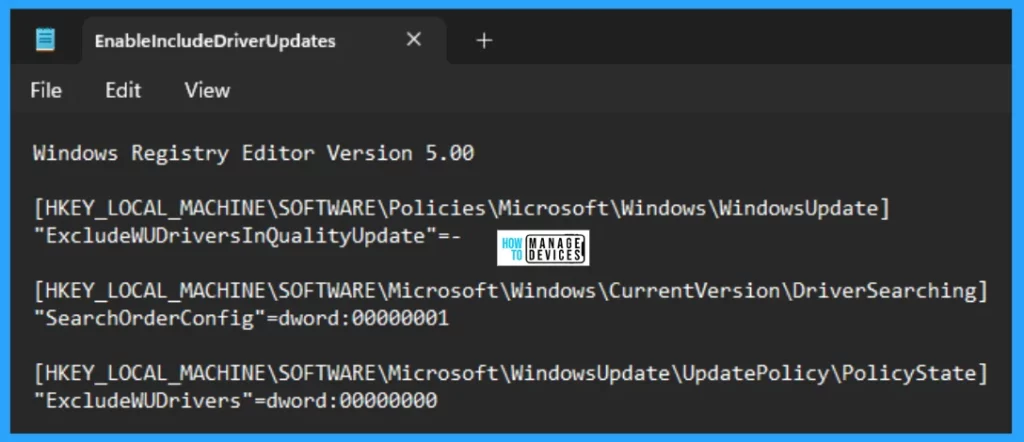
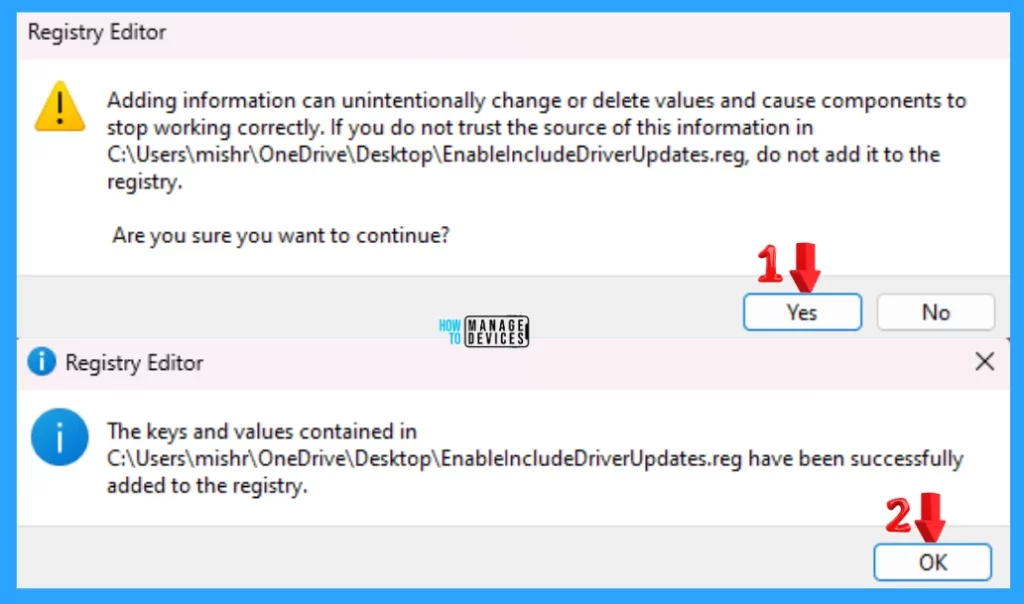
When the file is saved at your selected location, double-click on it. The User Account Control Window will open; click Yes to continue. Then, the Registry Editor Waring window will open.
Adding information can unintentionally change or delete values and cause components to stop working correctly. If you do not trust the source of this information in the path you created, do not add it to the registry; otherwise, click on Yes to continue.
The next window shows that the key and value you added have been successfully added to the registry editor. Now click on OK and restart your PC to add the applicable test.
NOTE! Restart your device after performing the changes.
You can also use the Registry file to disable including drivers with Windows Updates. To Include Drivers with Windows Updates, use the .reg file. To create a .reg file, open NotePad, type the following code, and name it as per its work. Then, save it on the desktop using the .reg extension.
Windows Registry Editor Version 5.00

[HKEY_LOCAL_MACHINE\SOFTWARE\Policies\Microsoft\Windows\WindowsUpdate]
"ExcludeWUDriversInQualityUpdate"=dword:00000001

[HKEY_LOCAL_MACHINE\SOFTWARE\Microsoft\Windows\CurrentVersion\DriverSearching]
"SearchOrderConfig"=dword:00000000

[HKEY_LOCAL_MACHINE\SOFTWARE\Microsoft\WindowsUpdate\UpdatePolicy\PolicyState]
"ExcludeWUDrivers"=dword:00000001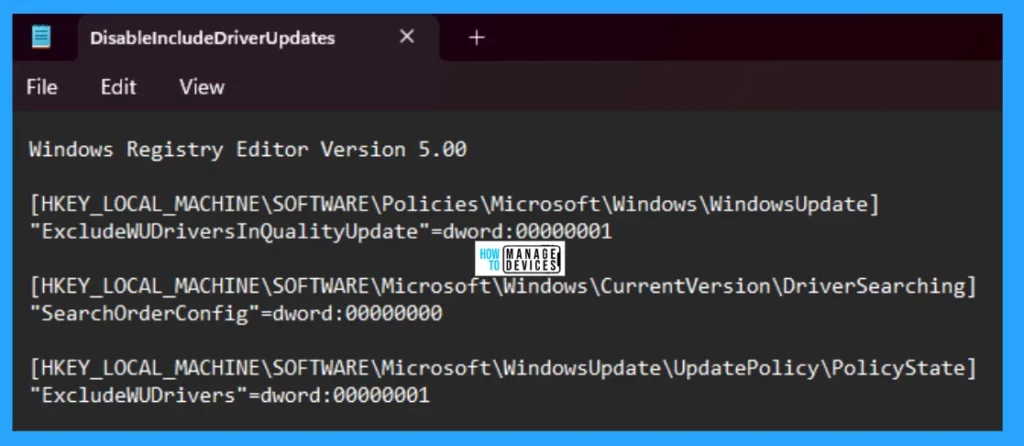
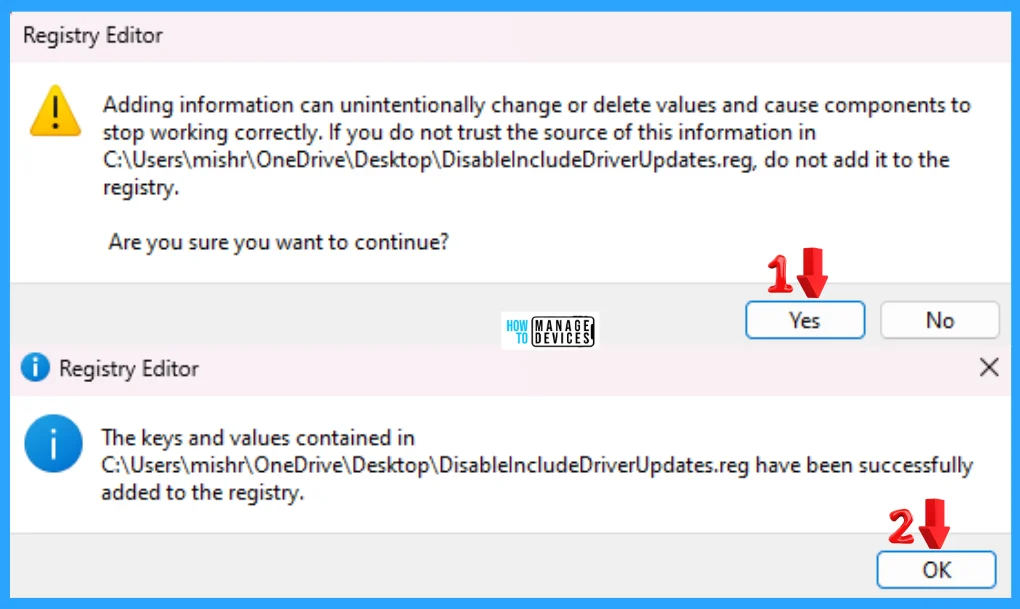
When the file is saved at your selected location, double-click on it. The User Account Control Window will open; click Yes to continue. Then, the Registry Editor Waring window will open.
Adding information can unintentionally change or delete values and cause components to stop working correctly. If you do not trust the source of this information in the path you created, do not add it to the registry; otherwise, click on Yes to continue.
The next window shows that the key and value you added have been successfully added to the registry editor. Now click on OK and restart your PC to add the applicable test.
NOTE! Restart your device after performing the changes.
I hope the information on Manage Automatic Drivers Installation with Windows Updates in Windows 11 is helpful. Please follow us on the HTMD Community and visit our website, HTMD Forum, if you like our content. Suggest improvements, if any, and we’d love to know which topic you want us to explore next.
We are on WhatsApp. To get the latest step-by-step guides and news updates, Join our Channel. Click here –HTMD WhatsApp.
Author
Alok is a Master of Computer Applications (MCA) graduate. He loves writing on Windows 11 and related technologies. He likes to share his knowledge, quick tips, and tricks with Windows 11 or Windows 10 with the community.




Discussion