






Learn How to Manage Office 365 Client Upgrade from SCCM
This post will provide details about enabling Office 365 client updates, creating collections for Office 365 upgrades?, and Office 365 Client Upgrade.
Managing Office 365 client updates is challenging for many organizations, as Microsoft releases Office 365 updates very frequently, based on the channels you have used in your organization.
Many organizations do it via an auto-update to update their clients, some have not used it, and some use the legacy method to create an application/package and deploy it to their clients.
SCCM can manage Office 365 client updates by using Software Update management. First, we need to confirm all the requirements and prerequisites are in place to deploy the Office 365 updates.

If you have to create the Office365 Package in SCCM, you can follow th steps How to Install Office 365 ProPlus Client package with all the steps.
Related Posts – How to Install Office 365 ProPlus Client Package, How to Change Office 365 Update Channel with SCCM Run Script, and SCCM to Deploy and Install Office 365 ProPlus Updates
IMP – Office 365 ProPlus Bandwidth Consideration Posts – Lean/Hybrid – Building dynamic, lean & universal packages for Office 365 ProPlus & Office 365 ProPlus Deployment and Proxy Server Guidance!
Office 365 Client Upgrade from SCCM
In this blog post, I will describe the setup of the ADR used for the Deployments of the Office 365 ProPlus Semi-Annual Channel.
Before starting the Office 365 client update, you must have to verify the requirements for using SCCM to manage Office 365 client updates:
Requirements – Office 365 Client Upgrade
- SCCM update 1602 or later
- An Office 365 client
- Supported channel version for Office 365 client
- Windows Server Update Services (WSUS) 4.0
You need to enable office 365 clients to receive the updates from SCCM, you can allow it via SCCM client setting or Group policy, and in SCCM, you need to enable the office 365 client updates.
Enable Office 365 clients
After configuring this setting and deploying Office 365 updates, the SCCM client agent communicates with the Office 365 client agent to download and install the updates from a distribution point.
SCCM takes inventory of Office 365 ProPlus Client settings.
- In the SCCM console, click Administration > Overview > Client Settings.
- Click default client settings Properties, then go to Software Updates and select Yes for the Enable management of the Office 365 Client Agent setting.
Another method is to Enable Office 365 clients to receive updates from SCCM by using the Office Deployment Tool or Group Policy.
Enable Classification and Product for Office 365
To manage Office 365 updates via SCCM, we must enable the following classification and product.
- Navigate to SCCM console – \Administration\Overview\Site Configuration\Sites. Click on Settings – Configure Site Components – Software Update point component – Properties.
- Go to the Classification tab and enable Updates. Once updates from the classification tab are allowed (to support Office 365 updates), you can go to the Products tab to help “Office 365 Client“.
Create Collections for Office 365 ProPlus
First, we will create collections for Office 365 updates. Each Collection is defined by the CDNBaseURL, which gets populated upon installation.
This property is leveraged over other options as it provides the Office Channel’s most consistent and accurate definition.
The following query rule should be used for each of the Channels. Be sure to update each with the proper CDNBaseURL value.
select SMS_R_SYSTEM.ResourceID,SMS_R_SYSTEM.ResourceType,SMS_R_SYSTEM.Name,SMS_R_SYSTEM.SMSUniqueIdentifier,SMS_R_SYSTEM.ResourceDomainORWorkgroup,SMS_R_SYSTEM.Client from SMS_R_System inner join SMS_G_System_OFFICE365PROPLUSCONFIGURATIONS on SMS_G_System_OFFICE365PROPLUSCONFIGURATIONS.ResourceID = SMS_R_System.ResourceId where SMS_G_System_OFFICE365PROPLUSCONFIGURATIONS.CDNBaseUrl = "http://officecdn.microsoft.com/pr/7ffbc6bf-bc32-4f92-8982-f9dd17fd3114"- Monthly Channel (Current Channel): CDNBaseUrl = http://officecdn.microsoft.com/pr/492350f6-3a01-4f97-b9c0-c7c6ddf67d60
- Semi-Annual Channel (Deferred Channel): CDNBaseUrl = http://officecdn.microsoft.com/pr/7ffbc6bf-bc32-4f92-8982-f9dd17fd3114
- Monthly Channel (Targeted) (First Release for Current Channel): CDNBaseUrl = http://officecdn.microsoft.com/pr/64256afe-f5d9-4f86-8936-8840a6a4f5be
- Semi-Annual Channel (Targeted) (First Release for Deferred Channel): CDNBaseUrl = http://officecdn.microsoft.com/pr/b8f9b850-328d-4355-9145-c59439a0c4cf
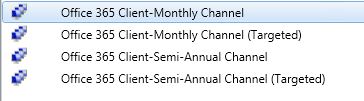
Semi-Annual Channel Updates
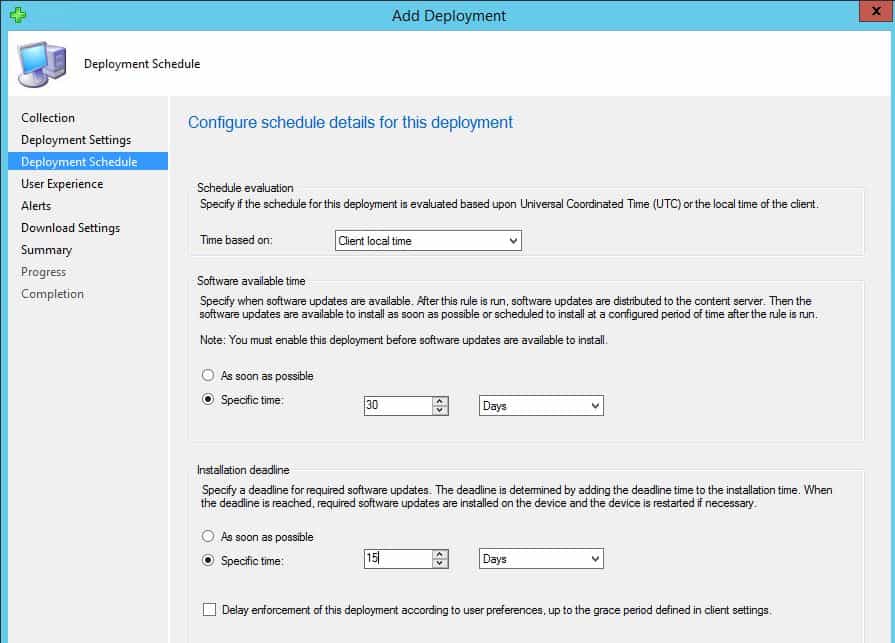
The number of deployments will differ depending on the organizations and their needs. The following deployments are my own and will showcase three (3) servicing deployments, each allowing 15 days of deployment availability.
This allows an Administrator to delay a deployment if an issue is identified. The availability date is based on when the new version of the Semi-Annual Channel is released (Every six months, in January and July) and when the ADR rule is scheduled to run.

Create Automatic Deployment Rule
This ADR will run every month on the 2nd Wednesday of the month. This option allows the IT Administrator to update this rule to reflect the most recent version of the Semi-Annual Channel released build.
In the SCCM, click Software Library >Software Updates > Automatic Deployment Rules> Create Automatic Deployment Rule.
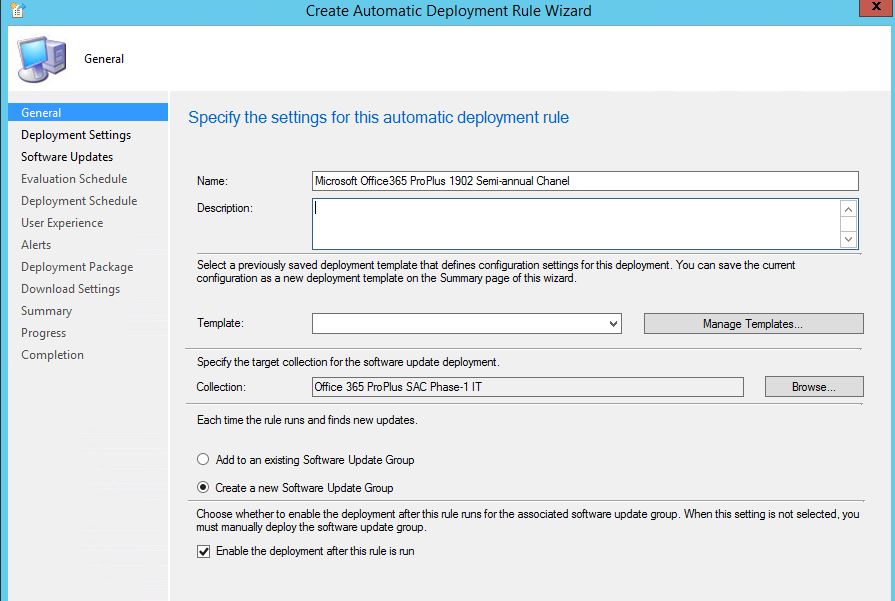
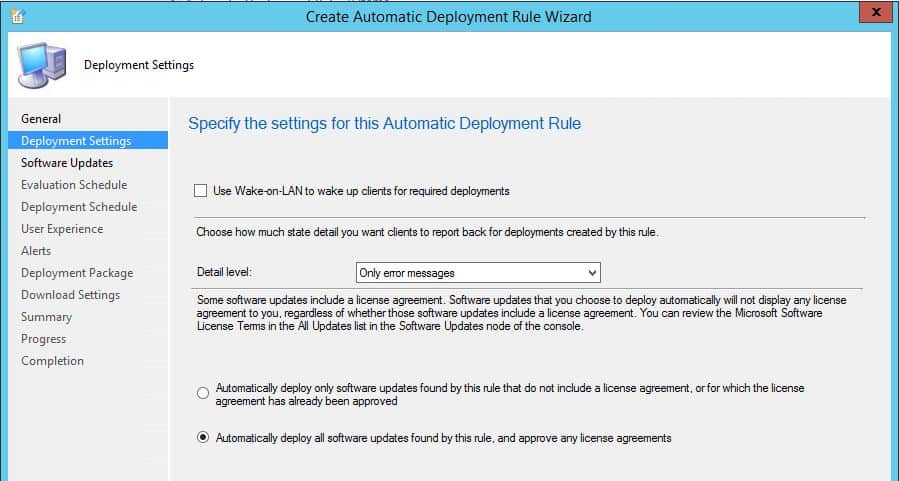
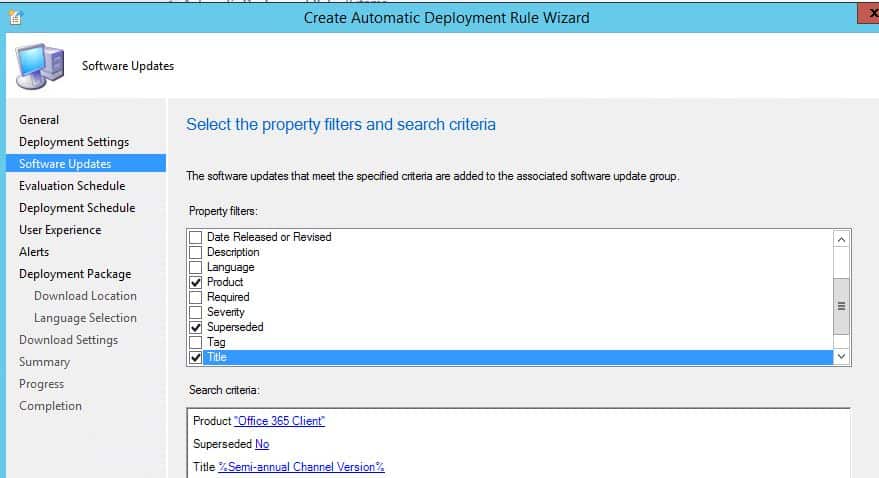
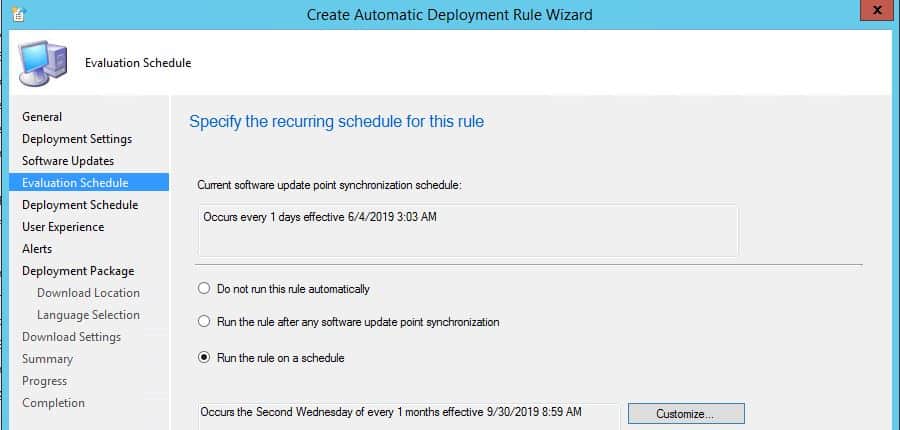
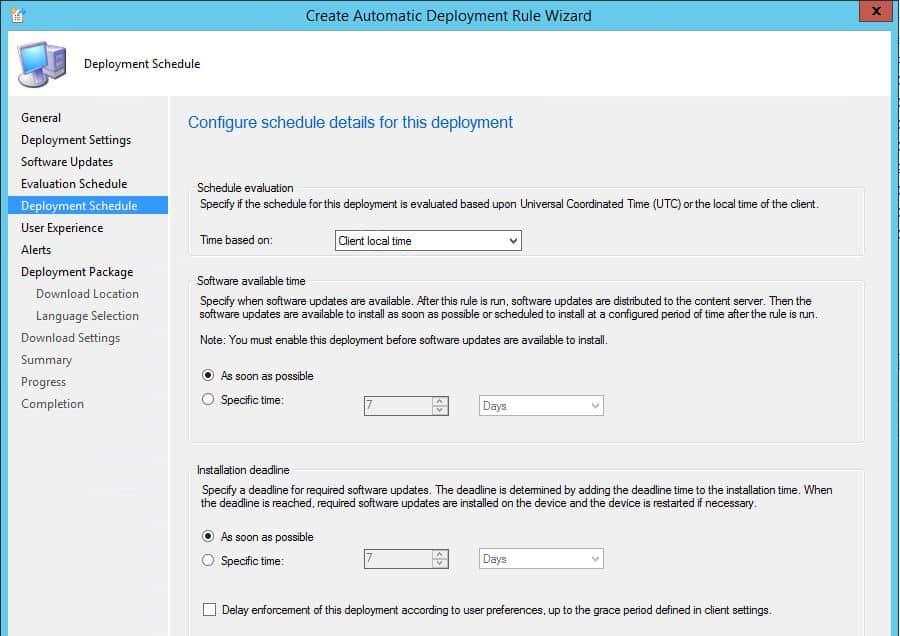
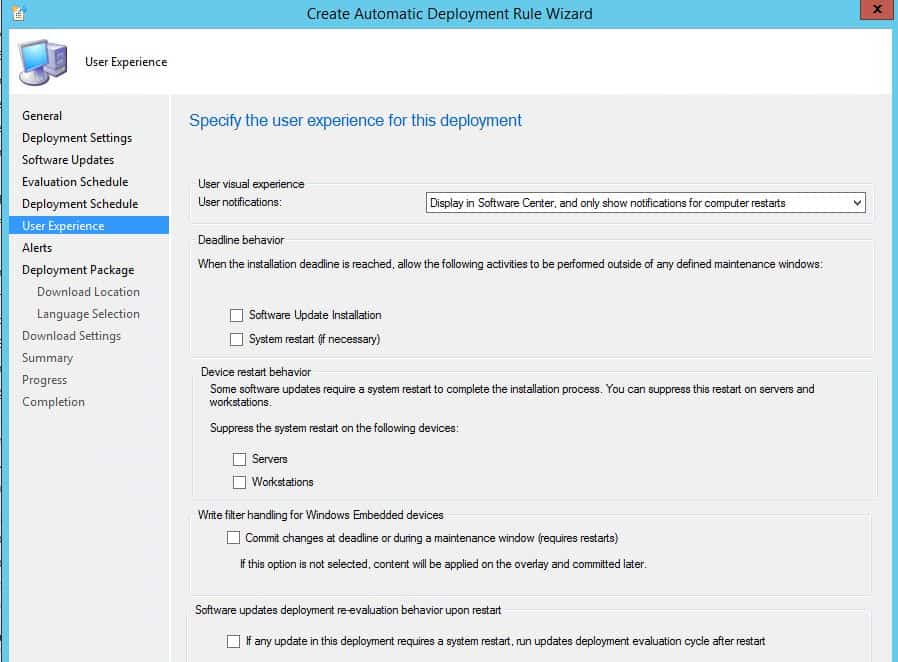
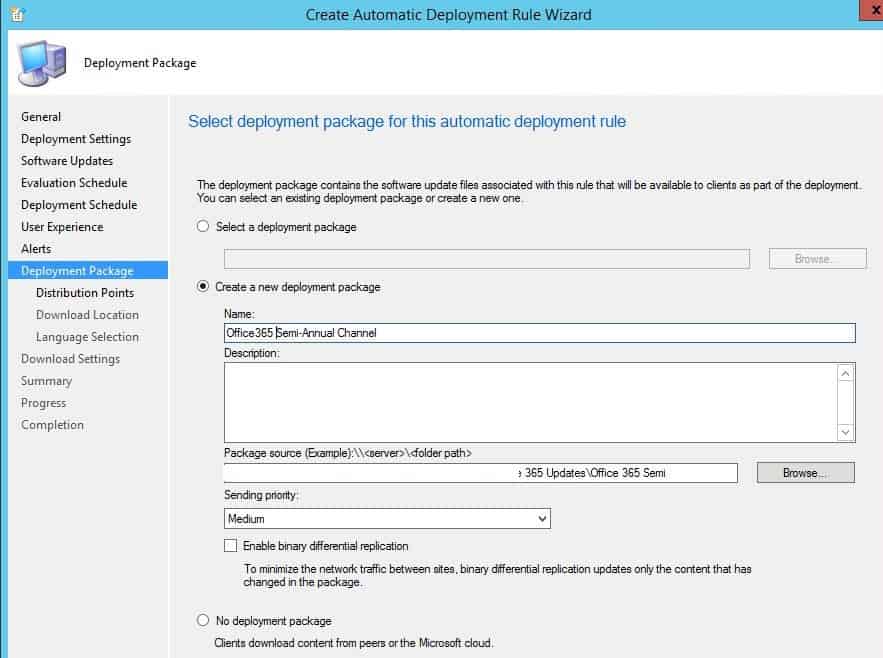
Then next, add the distribution points and download location and languages.
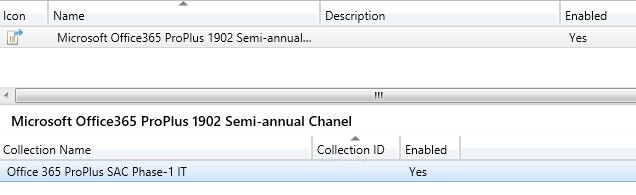
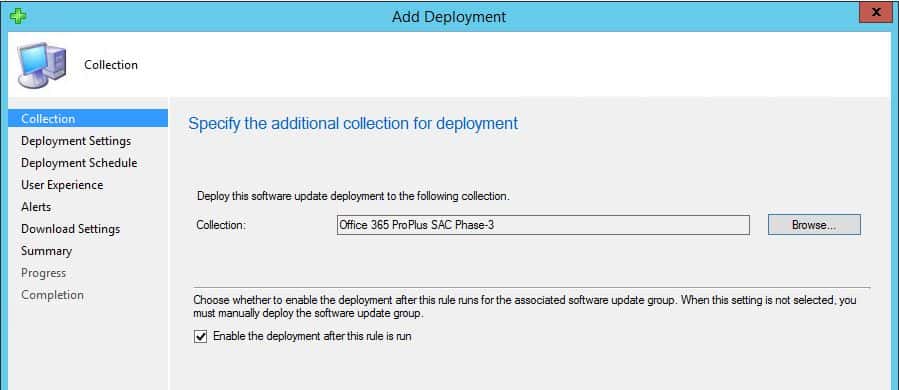
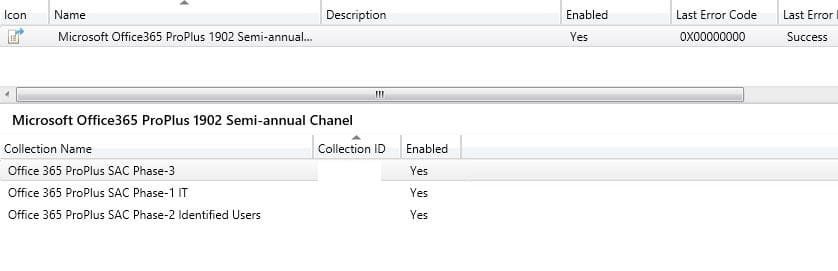
Add additional deployments
Now we have an ADR created and deployed on Phase-1 IT users to test Office 365 and its new features; the next action is to deploy the updates on Phase-2 Pilot users and then all production users.
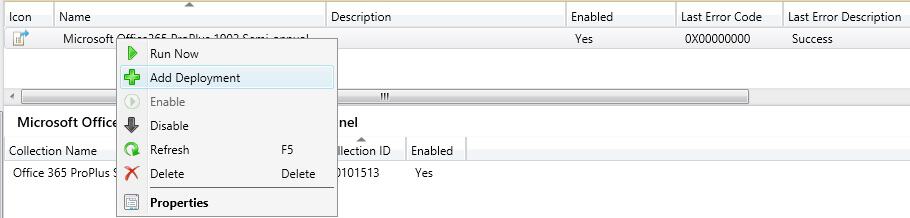
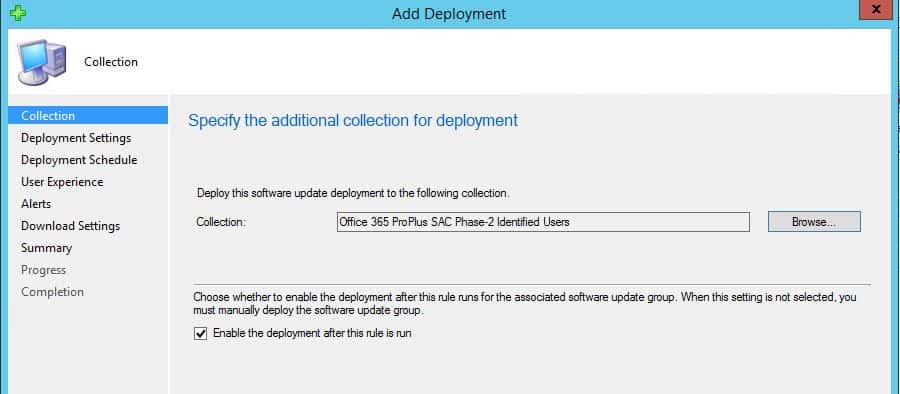
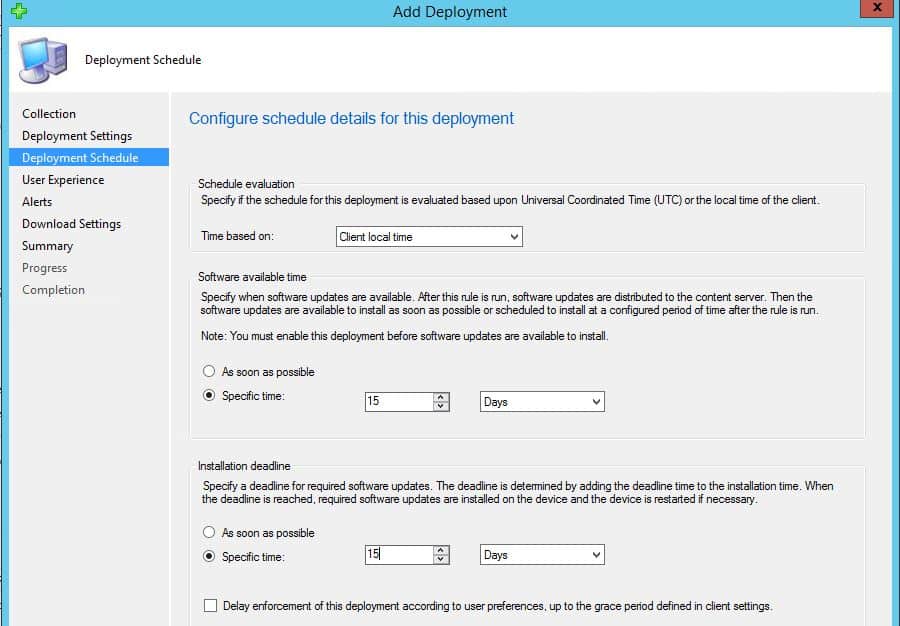
User Experience
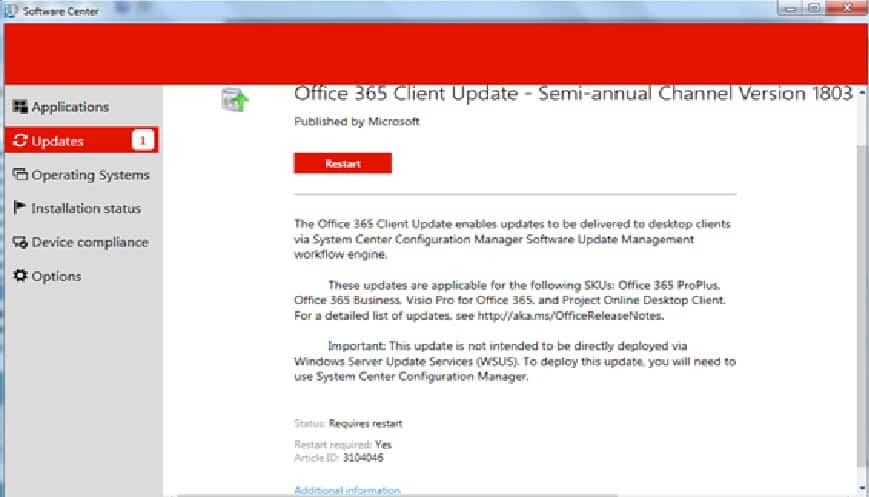
The default user experience behavior is Hide in Software Center and all notifications. There are loads of granularity options for setting up the deadline behavior and device restart behavior.
So I hope that the above process will help simplify the deployment of Office 365 updates as much as possible.
Resources
- How to Install Office 365 ProPlus Client Package
- How to Change Office 365 Update Channel with SCCM Run Script
- SCCM to Deploy and Install Office 365 ProPlus Updates
We are on WhatsApp. To get the latest step-by-step guides and news updates, Join our Channel. Click here –HTMD WhatsApp.
Author
Sharad Singh has been working in the industry since 2007. Since starting, he’s worked with Active Directory, Group Policy, SCCM SCOM, MS Intune, and PowerShell. Sharad currently works as a Senior consultant in Japan. Most recently his focus has been in SQL reporting for SCCM, MS Intune and SCCM migration.




What all policies needs to be enabled in Office 365 Template to apply the policy through GPO