






Manually Sync macOS Device with Intune
In this post, you will learn how you can Manually Sync macOS device with Intune. By initiating a force sync macOS, you can ensure that any changes made in Intune are promptly applied. Manual sync of a macOS device with Intune allows you to proactively update and synchronize device policies, configurations, and settings.
The Intune Company Portal app is required to sync a Mac managed from Intune, The Sync remote device action in Intune also enables you to trigger an immediate check-in with Intune for the selected device. When a device performs a check-in, it promptly receives any pending actions or policies that have been assigned to it.
The capability to perform manual sync is particularly valuable as it allows you to quickly validate and troubleshoot the assigned policies without having to wait for the next scheduled check-in. Intune makes three more attempts if a device doesn’t check in to get the policy or profile after the first notification.
An offline device, such as turned off, or not connected to a network, may not receive the notifications. In this case, the device gets the policy or profile on its next scheduled check-in with the Intune service. The same applies to checks for non-compliance, including devices that move from a compliant to a non-compliant state.

Once the macOS device is enrolled with the Intune app Company Portal, the device can securely gain access to all the work-related resources, files, and apps. You can check more details, on how you can enroll macOS In Intune With Step By Step Guide
- Check Out Device Restriction Settings For MacOS Offered By Intune
- Best Guide To Deploy MacOS Web App Using Intune
Advantages of Manual Force Sync macOS Device with Intune
There are several benefits to manually syncing macOS device with Intune. When a device checks in, it promptly receives any pending actions or policies assigned to it. This manual action offers the following advantages to sync macOS Device:
- Immediate updates: By manually sync macOS device, you can ensure that any changes or updates made in Intune are immediately applied to the device. This can be useful in situations where you need to enforce a new policy or configuration quickly.
- Test scenarios: Manual syncing to macOS allows you to troubleshoot and test specific policies or configurations on a device. You can make changes in Intune, sync the device, and observe the impact of those changes in real-time.
- Offline scenarios: In some cases, a macOS device may not have a constant internet connection or may be in a restricted network environment. In such situations, manual syncing allows you to update the device when it is online, ensuring that it receives the latest policies and configurations.
- Compliance and security: Manual syncing can be helpful in enforcing compliance and security measures on the device. By initiating a manual sync macOS device, you can ensure that the device is up to date with the latest security patches, software updates, and compliance policies defined in Intune.
Steps to Manually Sync macOS Device with Intune
You can access the Company Portal app at any time to check for policy or profile updates immediately. Here’s how you can perform the manual sync macOS Device.
Launch the Company portal app to see your devices. If you only have one device, you will go directly to the device details screen, If you have multiple devices, you will see all devices inline at the top of the page.
Select the device that you are currently using. You can see the message, This is the device you are currently using. Here you can see MDM authority details on the top, along with various tabs such as Devices, Apps, and Support.
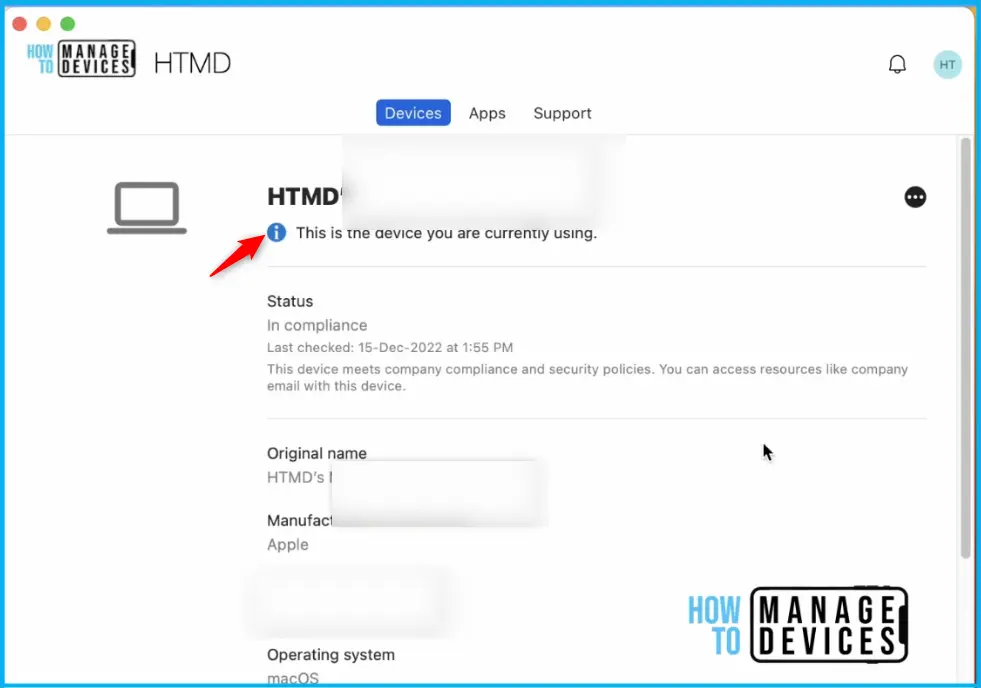
The sync be done by navigating to the Check status option within the Intune company portal app, After initiating the sync, please wait while the Company Portal synchronizes your device.
You can see the message appeared here, There was an error while checking status. Your status may not be up to date. Try checking again. It happens if the device doesn’t sync with Intune recently or if there is any issue with the network.
Note – By performing a manual sync, your macOS device will update any pending changes, policies, or configurations set by your organization through Intune.
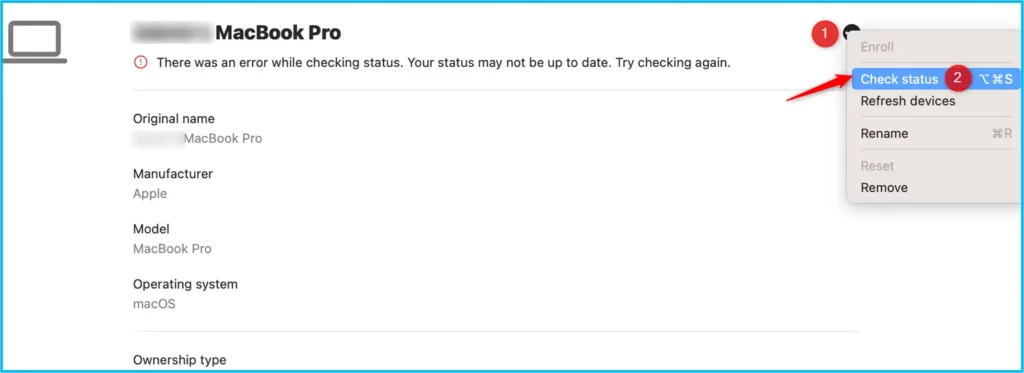
Wait while Company Portal checks your device, and confirms your device status. The status will update onscreen to tell you whether or not you meet your organization’s security requirements.
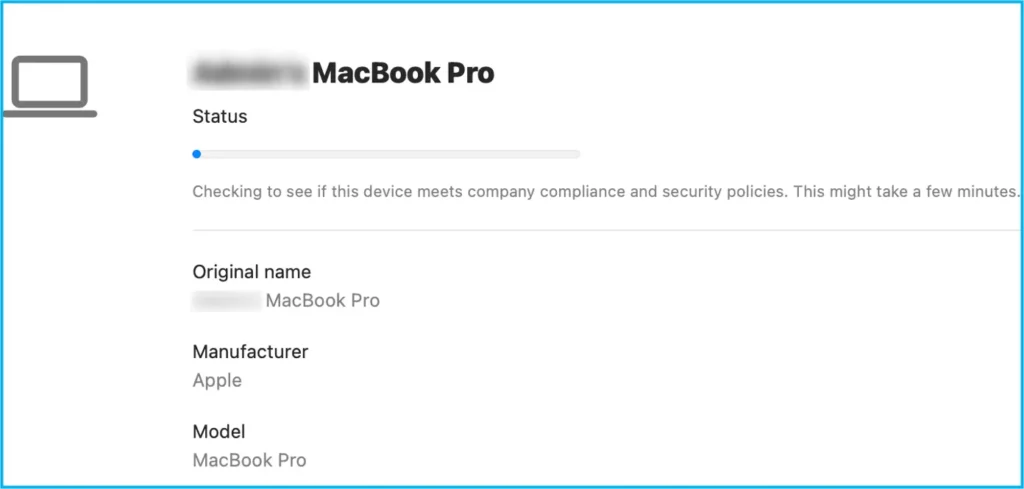
This process may take a few minutes. Once completed, the screen will display the timestamp indicating the successful completion of the last sync.
During a status check, the Company Portal app examines your device to ensure that it meets the requirements set by your organization. After the check, your device settings status changes to In Compliance or Not in Compliance. This check is conducted to verify compliance with the necessary policies and configurations.
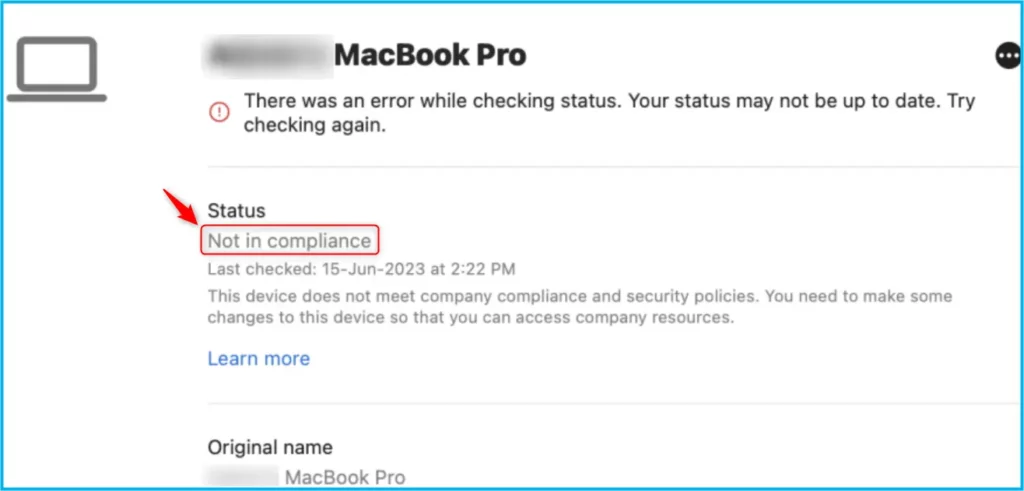
If your device fails to meet these requirements, your organization may enforce limitations or restrictions on the device’s access to work resources. To regain access, you will need to make the necessary changes to bring your device into compliance with your organization’s requirements.
By default, when Intune detects a device that isn’t compliant, Intune immediately marks the device as noncompliant, More details Configure MacOS Compliance Policy In Intune For Devices
Policy Refresh Intervals for macOS Device
Policy refresh intervals for macOS devices in Intune can vary depending on specific configuration and settings. However, by default, macOS devices typically have about every 8 hours policy refresh intervals.
If you are worried about the time taken to sync Intune policies specific to macOS devices, Admins can also initiate a manual sync or force a policy refresh on macOS devices when necessary to ensure immediate updates.
When devices are recently enrolled, the frequency of compliance, non-compliance, and configuration check-ins increases. These check-ins occur more frequently during this initial period. The exact intervals for these check-ins are estimated as follows:
| Device Platform | Default Intune Policy Refresh Intervals | Policy Refresh Frequency |
|---|---|---|
| macOS | Every 8 Hours | Every 15 minutes for 1 hours, and then around every 8 hours. |
Author
About Author – Jitesh, Microsoft MVP, has over six years of working experience in the IT Industry. He writes and shares his experiences related to Microsoft device management technologies and IT Infrastructure management. His primary focus is Windows 10/11 Deployment solution with Configuration Manager, Microsoft Deployment Toolkit (MDT), and Microsoft Intune.


Discussion