






Enable Media Recommendations Policy for User Engagement and Content Discovery in Google Chrome using Intune
Let’s discuss Enable Media Recommendations Policy for User Engagement and Content Discovery in Google Chrome using Intune. Media recommendations core function of many Google services and other websites you access through the browser, such as YouTube.
With Enable Media Recommendations policy in Intune you can easily, personalize your experience to discover new things. Examples of Media Recommendation in Google Products are YouTube, Google News/Discover etc.
Basically, media recommendation is a type of algorithm that suggests content (like videos, articles, or music) that it predicts you will find interesting. A recommendation system that helps to create this algorithm to provide personalization experience.
By enabling this policy users can easily discover content according with their interest. By showing relevant content upfront, uses can save their time. The recommendations provide a richer, more dynamic, and intuitive user interface.

Table of Contents
Enable Media Recommendations Policy for User Engagement and Content Discovery in Google Chrome using Intune
Media Recommendations also provide many advantages for Admins and organization. This policy provides granular control for admins. The policy supports the broader goals of an organization by aligning the technology environment with its specific needs and values. The following table shows the different suggestion analyzed to create media recommendations.
| Different Suggestion |
|---|
| Your viewing/listening history |
| Your search history |
| Your interactions |
| User demographics |
| Aggregate user behavior |
- Enable Zstd Content Encoding Policy In Microsoft Edge To Improve Web Compression Using Intune
- Block Password Manager on Google Chrome Browser using Microsoft Intune Policy Settings Catalog
- Enable Disable Google Cast in Google Chrome with Intune Settings Catalog Policy
- Best Guide to Install Google Chrome Extensions using Intune Policy
How to Start Media Recommendations Policy in Intune
The primary benefit of enabling this policy is to enhance the user experience by providing a personalized and engaging environment. With Microsoft Intune admin center, you easily configure the policy. To start the Policy Creation, open the Microsoft Intune Admin center. Then go to Devices > Configuration > Create > New Policy.
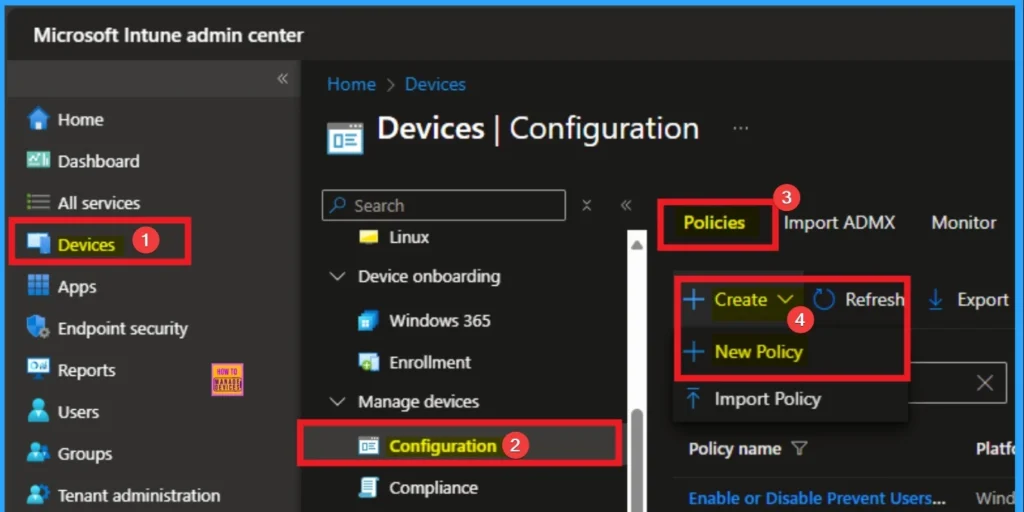
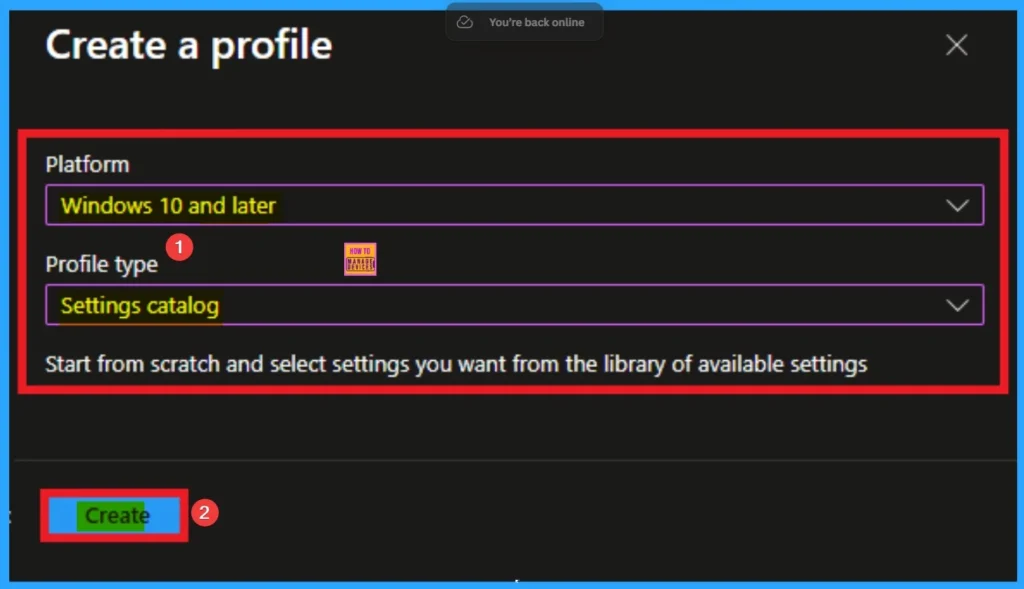
Selecting Profile and Platform
After selecting New policy from create button, you can select platform and profile. This is necessary to configure the policy to appropriate platform. Here I selected Windows 10 and later as the Platform and Settings catalog as the profile type. Then click on the Create button.
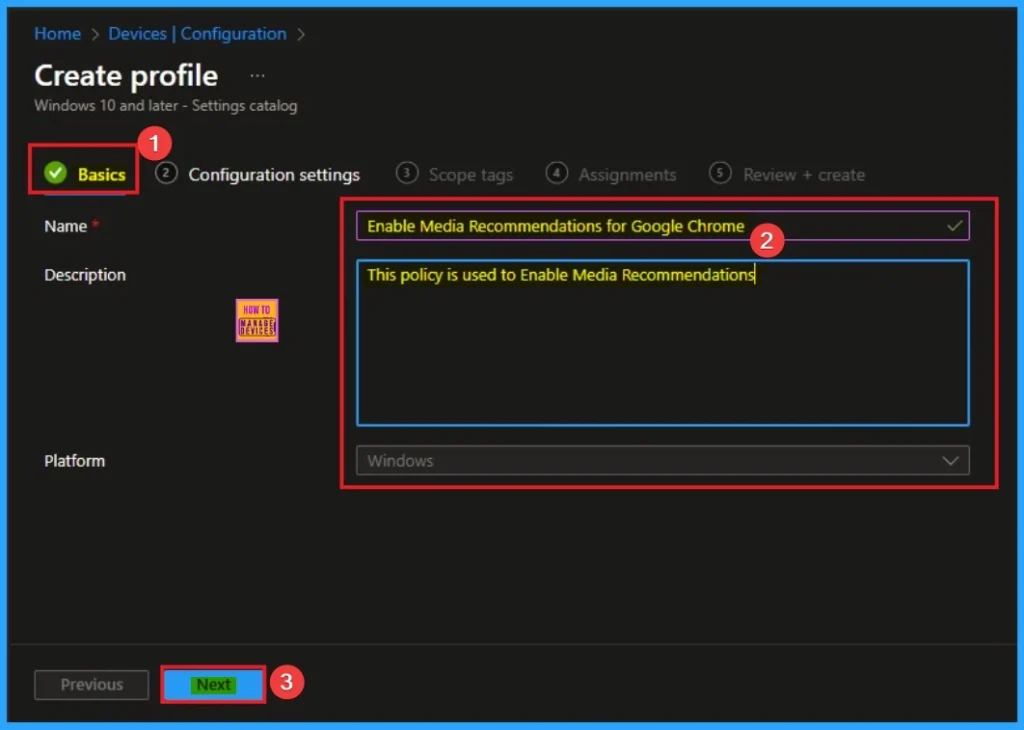
Beginning Step
To begin the policy creation, you have to add Name and Decription for the policy. It is necessary to identify later. Here Name and Description can be added and Name is mandatory field and description is optional. After adding this click on the Next button.
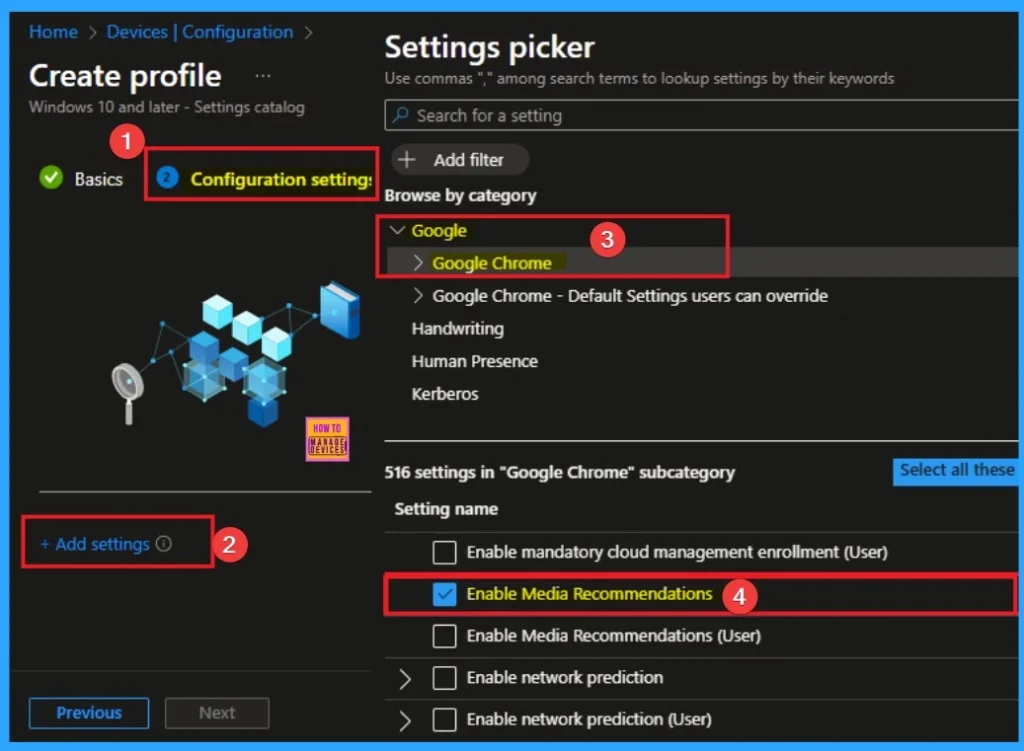
Configuration Settings
After that, you will get Configuration Settings to select specific settings. To select a setting, click on the +Add settings hyperlink. Then you will get Settings Picker. After clicking on the +Add settings, you will get the Settings Picker.
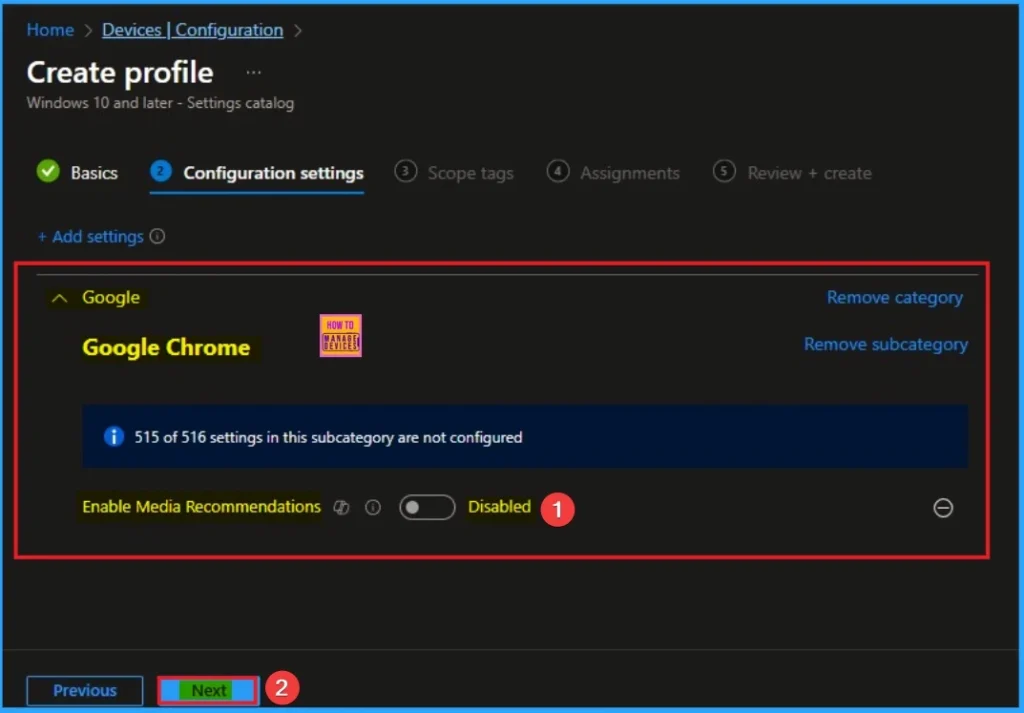
Here you can select a particular setting by searching or browsing by category. Here, I would like to select the settings by browsing by Category. I choose Google and choose Google Chrome. From this sub-category, I choose Enable Media Recommendations settings.
Disable Recommendation
Setting this policy to Disabled will result in these recommendations being hidden from the user. The purpose of enabling or disabling this policy is to control the functionality that allows Chrome to interact with and stream content to external devices. If you want to disable this feature, click on the Next button.
Enable Recommendations
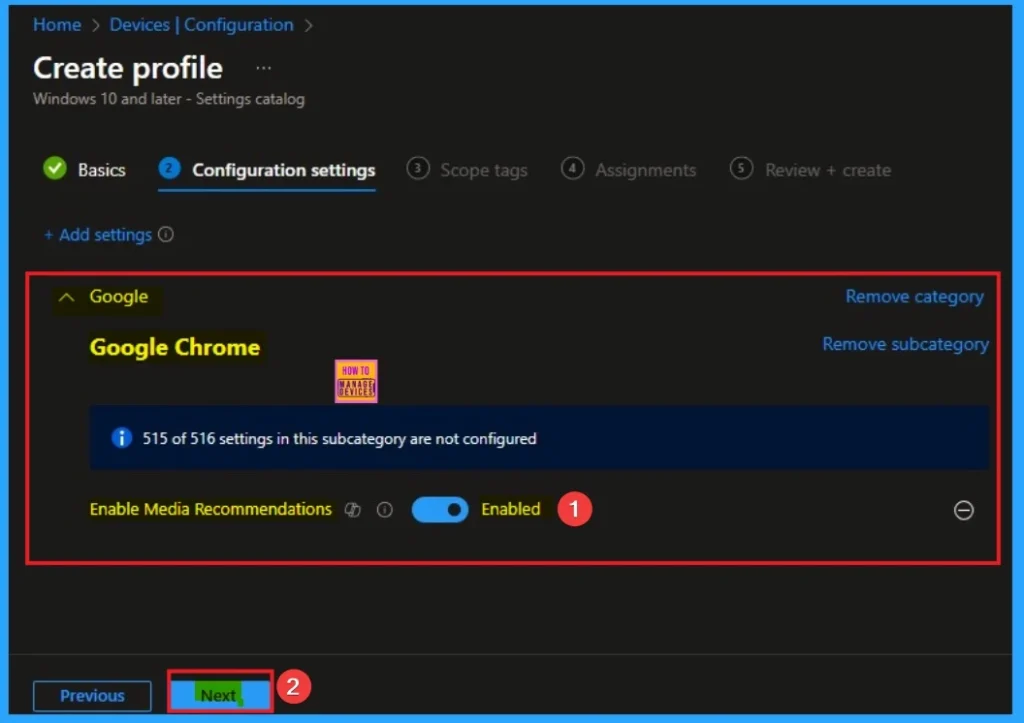
It allows you to control the playback of the media on the remote device (e.g., play, pause, volume control) from within Chrome. Here I would like to Enable Media Recommendations for Google Chrome.
Scope Tags
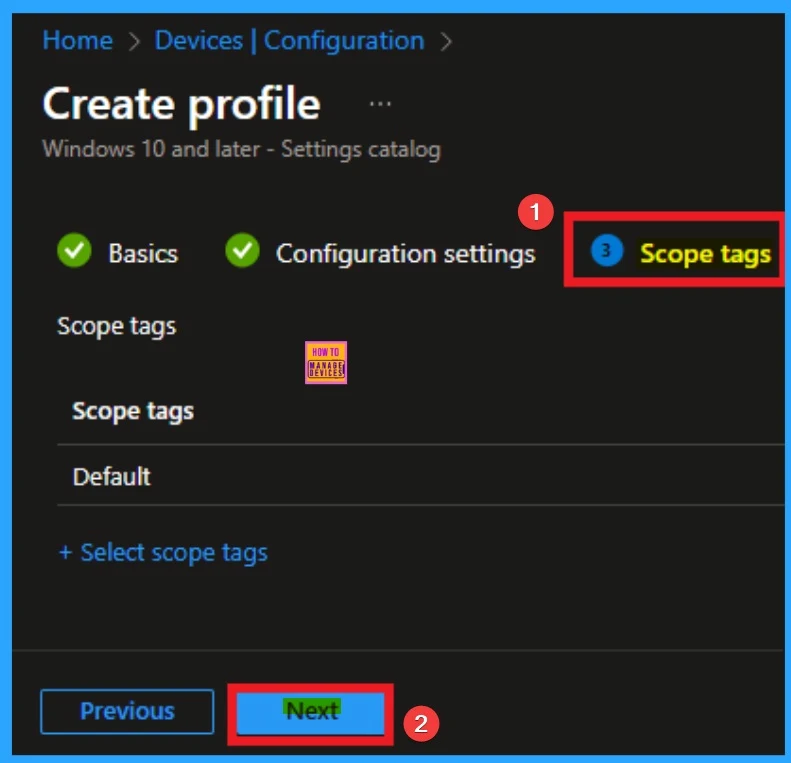
With scope tags, you create restriction to visibility of the Media Recommendations for Google Chrome. It helps to organise resources as well. Here I would like to skip this section, because it is not mandatory. Click on the Next button.
Assignment Tab for Selecting Groups
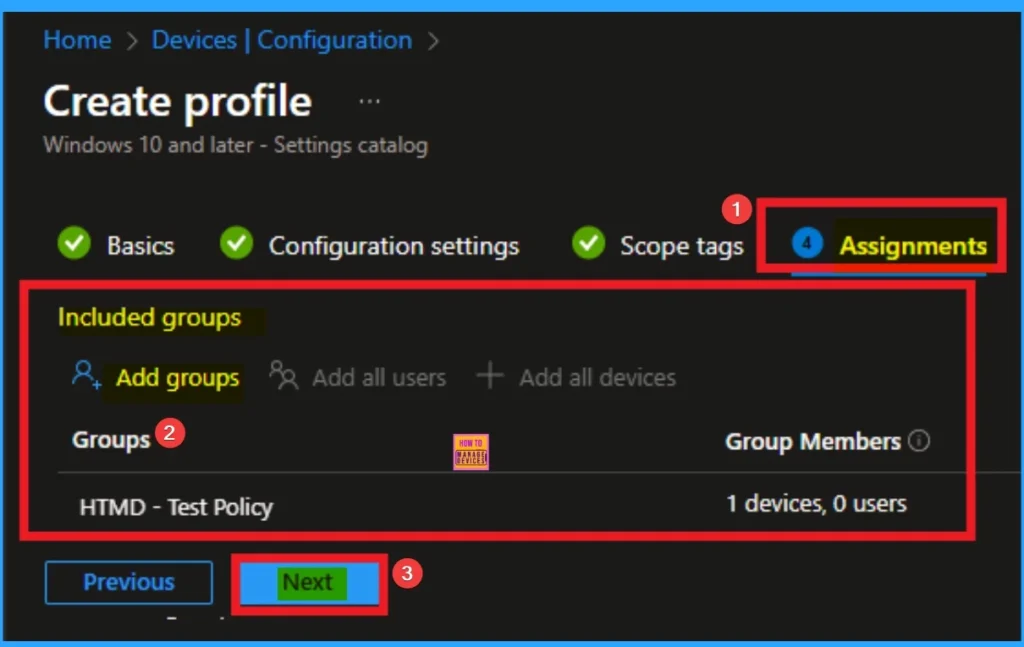
To assign the policy to specific groups, you can use the Assignment Tab. Here I click, +Add groups option under Included groups. I choose a group from the list of groups and click on the Select button. Again, I click on the Select button to continue.
Completing Policy Creation
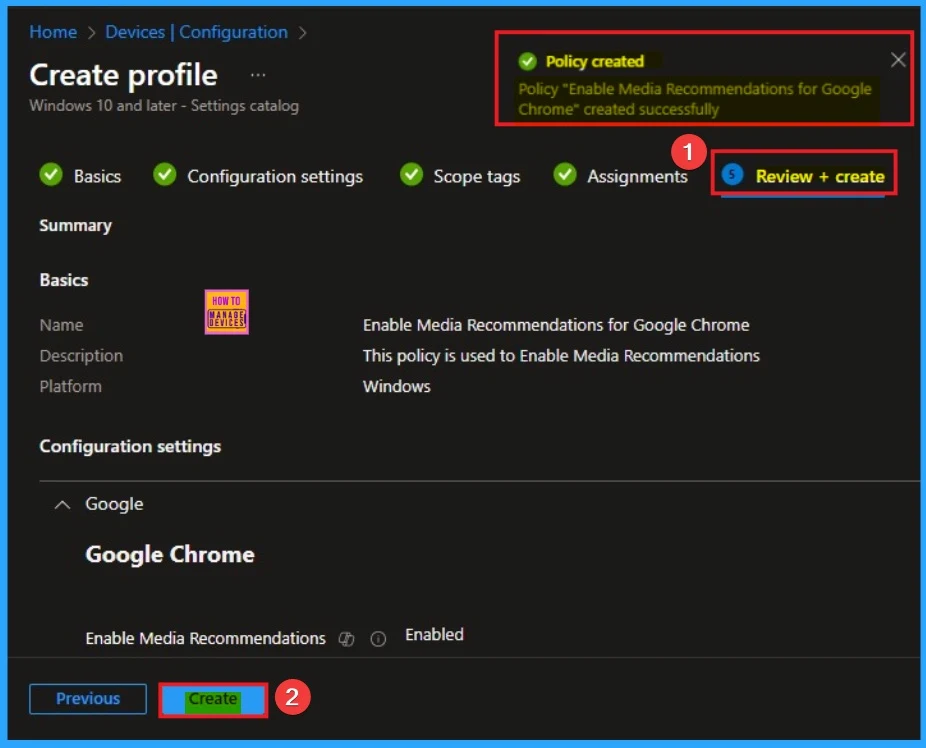
Before complete the policy creation, you cannreview each tab to avoid misconfiguration or policy failer. After verifying all the details, click on the Create Button. After creating the policy, you will get a success message.
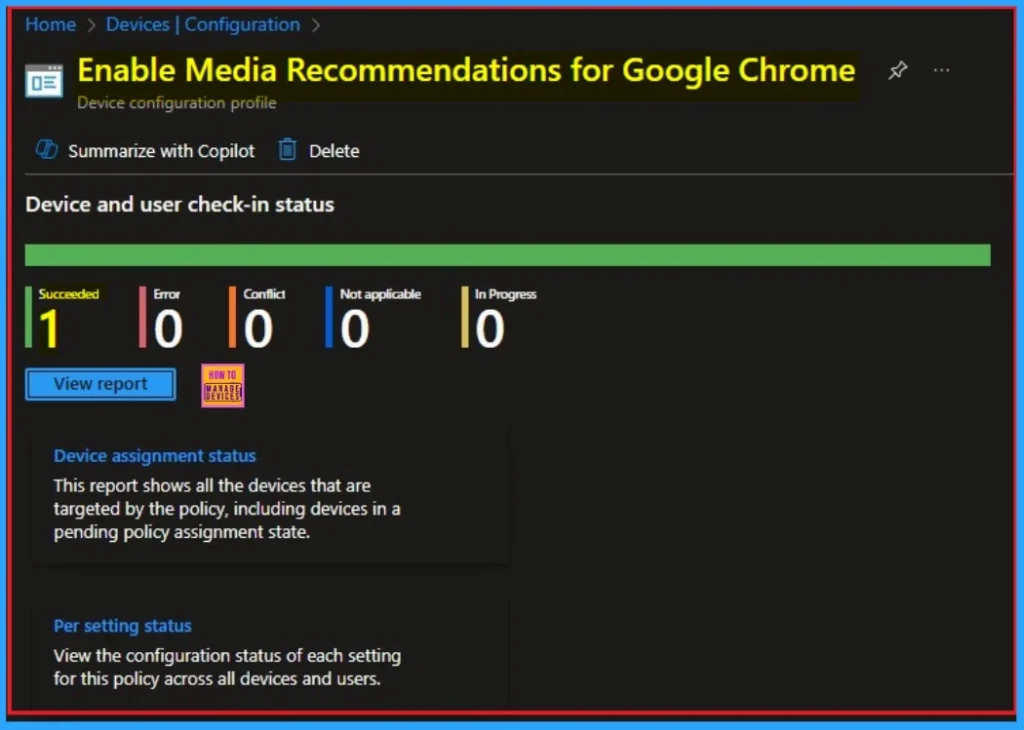
Device Check-in Status
The Monitoring Status page shows if the policy is succeeded or not. o quickly configure the policy and take advantage of the policy sync the assigned device on Company Portal. Open the Intune Portal. Go to Devices > Configuration > Search for the Policy. Here, the policy shows as succeeded.
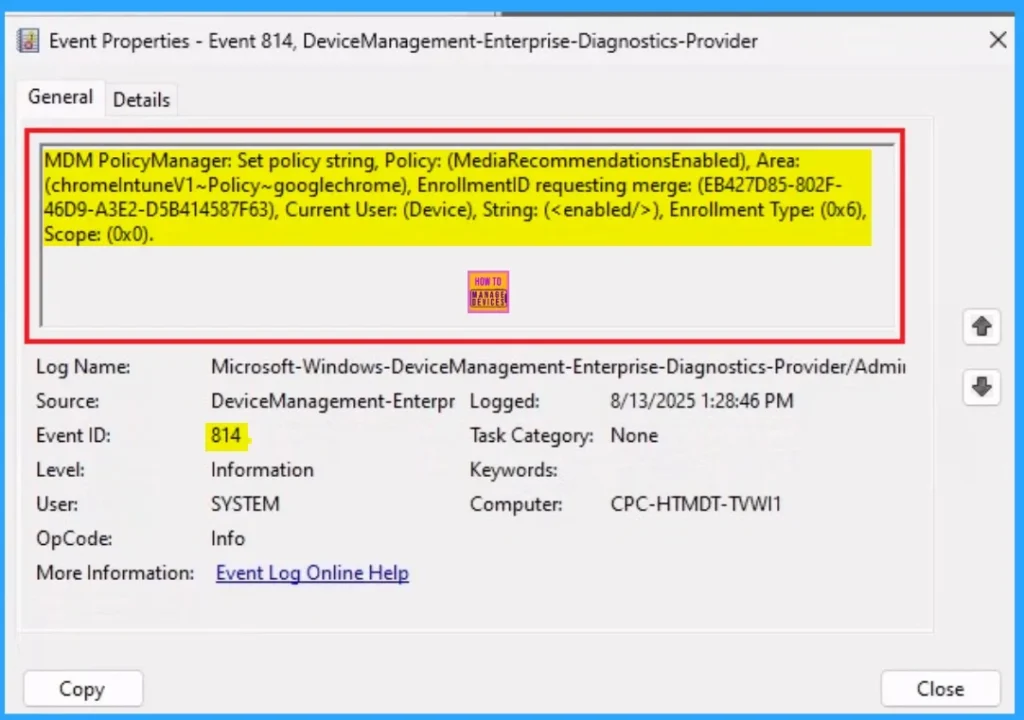
Event Viewer Details
Event Viewer helps you to check the client side and verify the policy status. Open the Client device and open the Event Viewer. Go to Start > Event Viewer. Navigate to Logs: In the left pane, go to Application and Services Logs > Microsoft > Windows > DeviceManagement-Enterprise-Diagnostics-Provider > Admin.
- Filter for Event ID 814: This will help you quickly find the relevant logs.
MDM PolicyManager: Set policy string, Policy: (MediaRecommendationsEnabled), Area:
(chromelntuneV1~Policy~googlechrome), EnrollmentID requesting merge: (EB427D85-802F-
46D9-A3E2-D5B414587F63), Current User: (Device), String: (), Enrollment Type: (0x6),
Scope: (0x0).
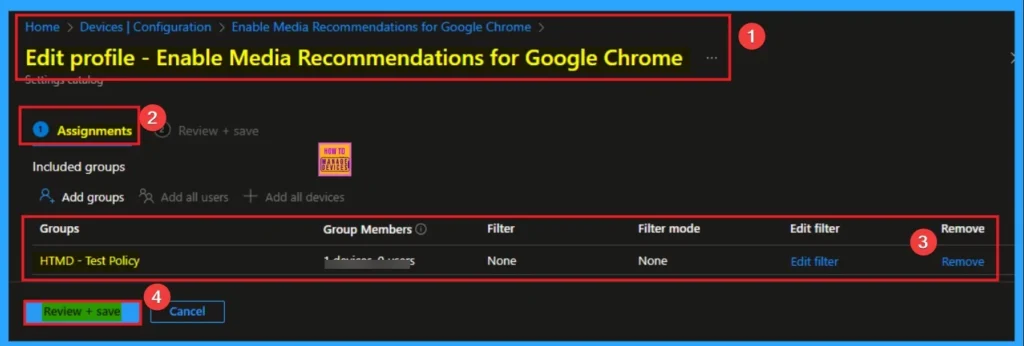
Removing the Assigned Group from this Settings
If you want to remove the Assigned group from the policy, it is possible from the Intune Portal. To do this, open the Policy on Intune Portal and edit the Assignments tab and the Remove Policy.
To get more detailed information, you can refer to our previous post – Learn How to Delete or Remove App Assignment from Intune using by Step-by-Step Guide.
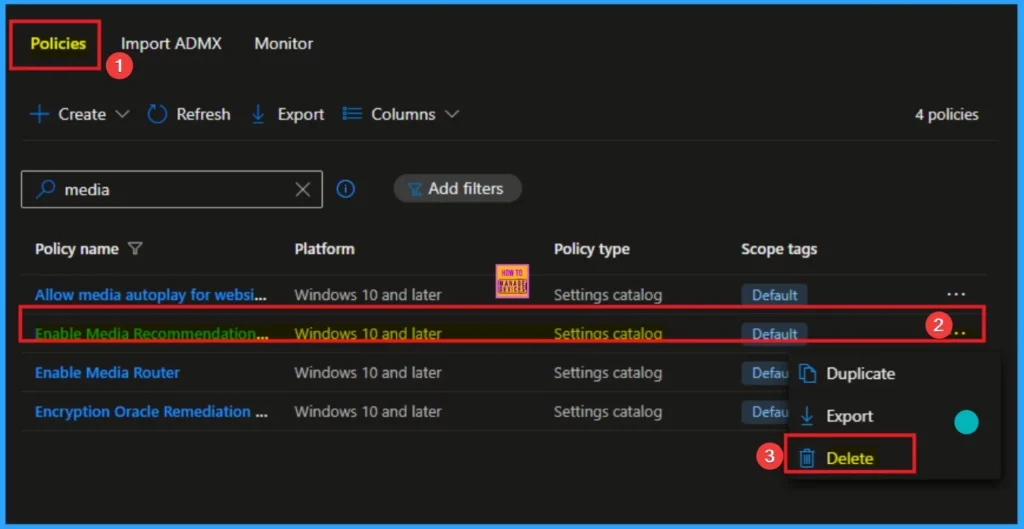
How to Delete Disable Edge Performance Detector Settings
You can easily delete the Policy from the Intune Portal. From the Configuration section, you can delete the policy. It will completely remove from the client devices.
For detailed information, you can refer to our previous post – How to Delete Allow Clipboard History Policy in Intune Step by Step Guide.
Need Further Assistance or Have Technical Questions?
Join the LinkedIn Page and Telegram group to get the step-by-step guides and news updates. Join our Meetup Page to participate in User group meetings. Also, Join the WhatsApp Community to get the latest news on Microsoft Technologies. We are there on Reddit as well.
Author
Anoop C Nair has been Microsoft MVP for 10 consecutive years from 2015 onwards. He is a Workplace Solution Architect with more than 22+ years of experience in Workplace technologies. He is a Blogger, Speaker, and Local User Group Community leader. His primary focus is on Device Management technologies like SCCM and Intune. He writes about technologies like Intune, SCCM, Windows, Cloud PC, Windows, Entra, Microsoft Security, Career, etc.


Discussion