






How to Enable or Disable Memberships Details Autosave Policy in MS Edge Browser using M365 Admin Center
Let’s discuss how to enable or disable the Memberships Details Autosave policy in MS Edge Browser using the M365 Admin Center. This policy lets users decide if Microsoft Edge saves their membership information for autofilling forms.
This policy lets you control whether users can automatically save their membership information, like the program name and membership number, to fill out forms in Microsoft Edge. Users can choose to enable or disable this feature by default.
If you enable the Autofill Memberships policy, users can automatically save their membership information. This information will be used to fill in form fields while they use Microsoft Edge. If you do not configure this policy, users can opt to save their membership information. This information can then be used to fill out forms in Microsoft Edge automatically.
If you disable this policy, users will not have their membership information saved automatically. This means that it would not be used to fill out form fields in Microsoft Edge. This blog post provides a step-by-step instruction on how to enable or disable the Autofill Memberships Policy in Microsoft Edge using the Microsoft 365 Admin Center.

Table of Contents
What is the Purpose of Enabling or Disabling the Autofill Memberships Policy in MS Edge Browser?
Enabling the Autofill Memberships policy restricts users to only have their membership information automatically saved and utilized for form fields within Microsoft Edge. Conversely, if this policy remains unconfigured, users are provided with the flexibility to decide whether their membership details are automatically saved and used for form autofill in Microsoft Edge.
Enable Memberships Details Autosave Policy in MS Edge
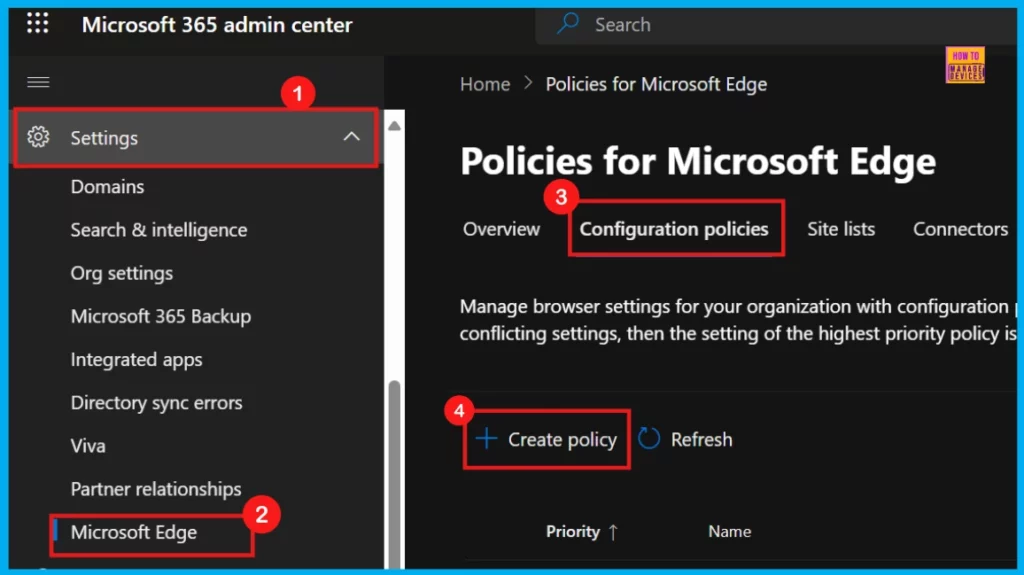
We can configure this policy by signing in to the Microsoft 365 Admin Center. Once logged in, head to Settings, select Microsoft Edge, and then click on Configuration Policies. Within Configuration Policies, simply choose + Create Policy to get started.
- Enable Autofill For Addresses In MS Edge Browser Using Microsoft 365 Admin Center Policy
- Enable Or Disable Password Prompt For Autofill In The MS Edge Browser Using Intune Policy
- Enable Disable Web Search Suggestions Policy In MS Edge Browser Using M365 Admin Center
Basics
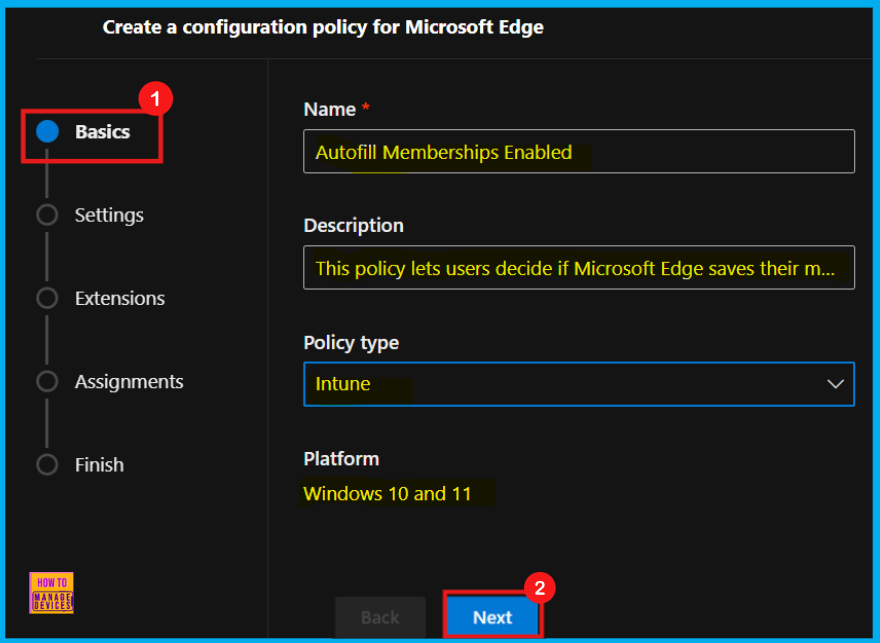
In the Basic section, we can give the policy name and description to the policy that we are creating. This is the first step in creating a policy in the 365 admin center. The Name field is mandatory, while the Description field is optional. The profile type and platform will be added automatically. Once we have entered the necessary information, click the Next button.
| Name of the Policy | Description | Policy Type | Platform |
|---|---|---|---|
| Autofill Memberships Enabled | This policy lets users decide if Microsoft Edge saves their membership information for autofilling forms. | Intune | Windows 10 and 11 |
Settings
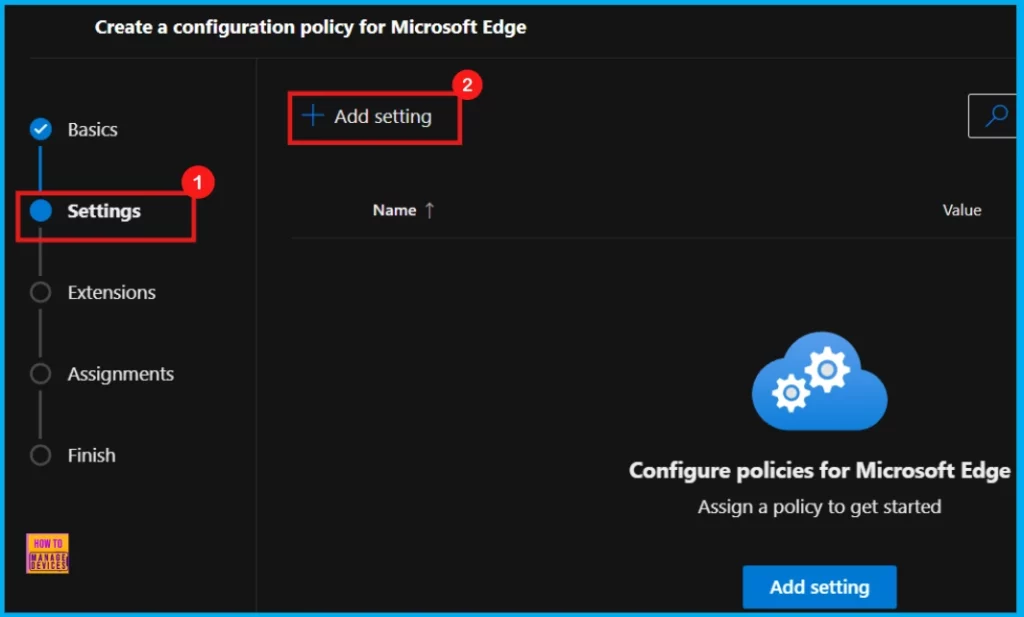
The Settings section is essential for creating a configuration policy for Microsoft Edge. In the window below, click Add setting to configure the desired policy.
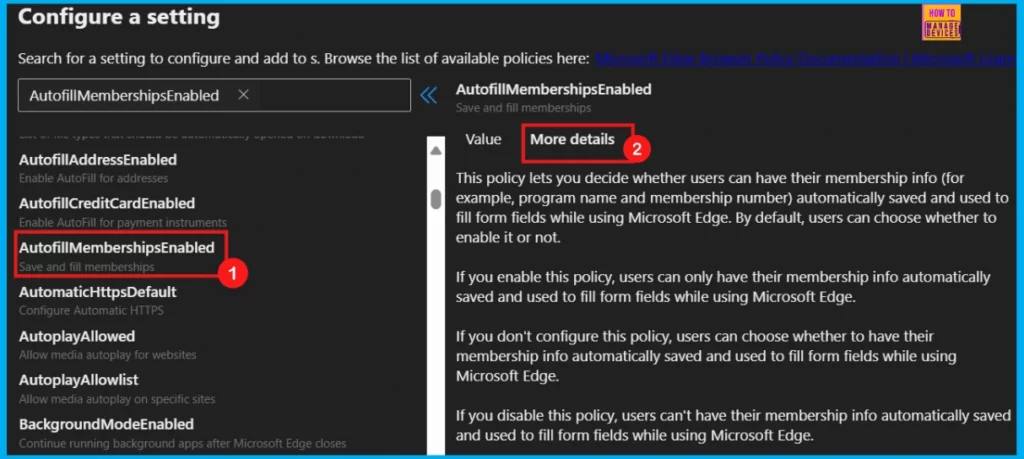
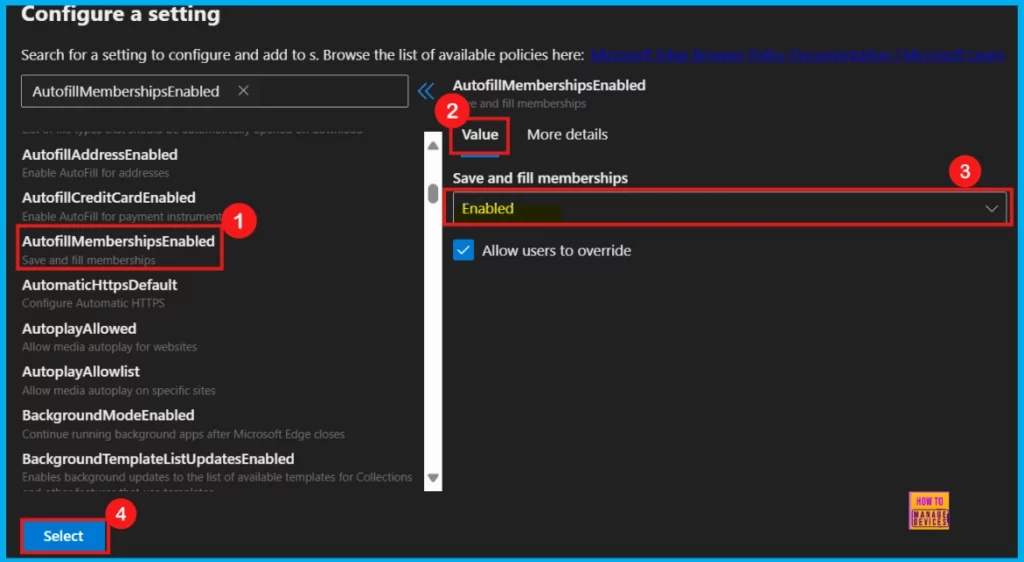
Upon clicking Settings, we are taken to the Configure a setting page. Here we can find various categories for settings. For instance, I’m choosing Additional Settings and then AutofillMembershipsEnabled. Each policy has two main sections. The first section lets you change the settings (Value). The second section provides more details.
More Details
The More Details, next to the Value tab, shows specifics of the chosen policy. This section provides key information about the policy, including whether it is outdated. Always check it before clicking Select to set up the policy.
Value
In the Value tab, a dropdown menu allows you to enable, disable, or choose a specific feature for this policy. For this setting, the policy offers two values that let us either enable or disable it.
- Here, I choose “Enabled” because I want to automatically save and autofill my membership details in Microsoft Edge.
- Click Select to configure the Autofill Memberships Enabled policy.
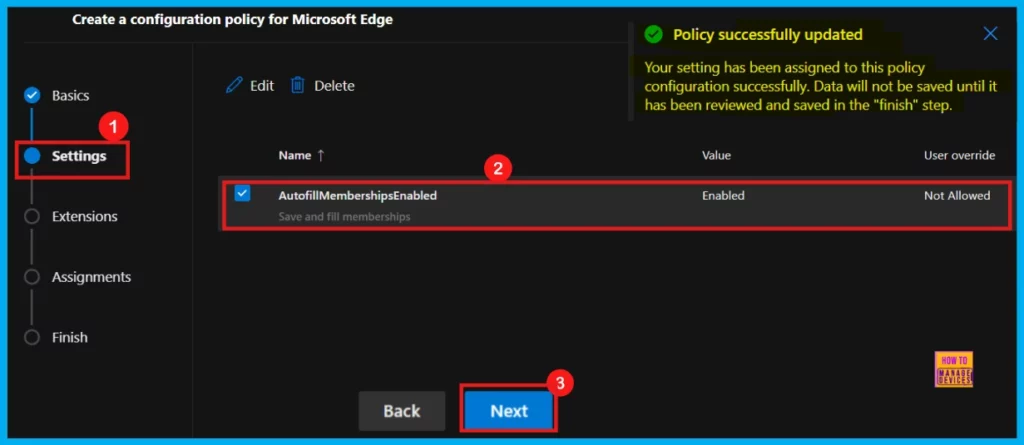
Once we click Select, we will see a confirmation that the policy was successfully applied. The new policy will then show up in the list on the Settings page. Just check the box next to its name and click Next to proceed.
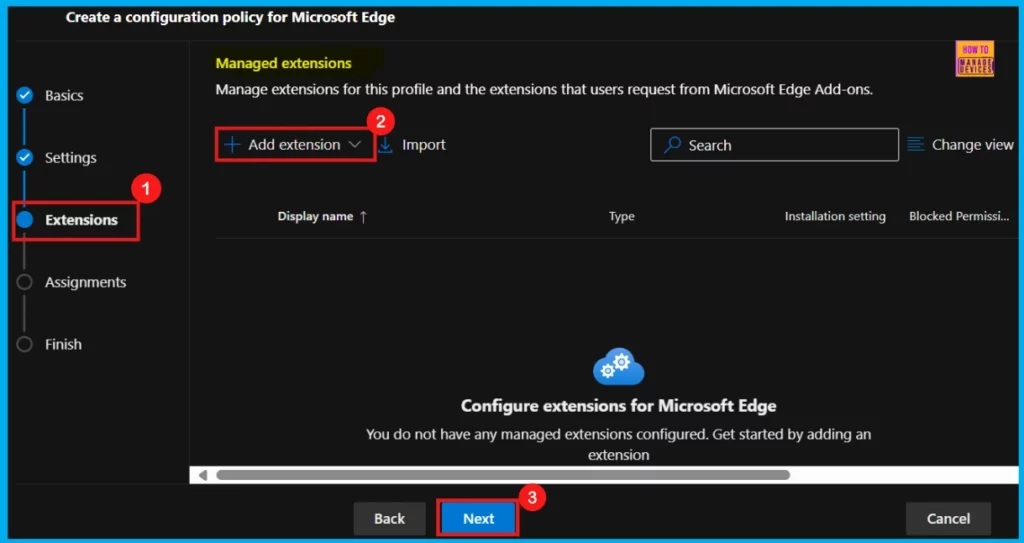
Extensions
The Extensions tab allows you to add Edge Add-ons and sidebar apps to your policy. This step is optional and not required for managing browser features. If we want to manage extensions, including those from the Microsoft Edge Add-ons store, click Add Extension.
- For this guide, I will skip this step and click Next to proceed with the policy settings.
Assignments
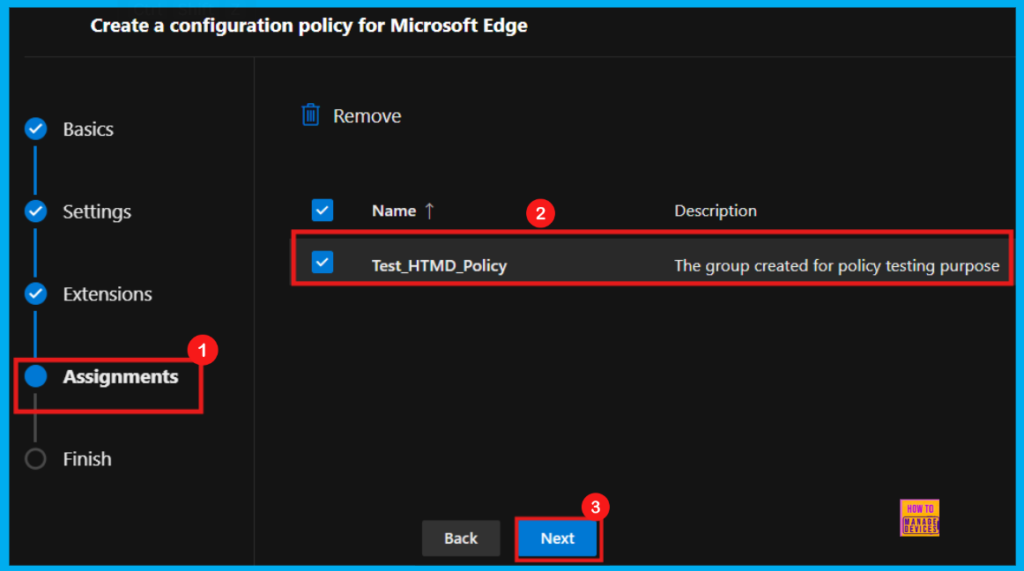
The Assignments tab is crucial for determining which Microsoft Entra groups will receive this policy. Click + Select group and choose your desired group(s). For this example, the group Test_HTMD_Policy was selected.
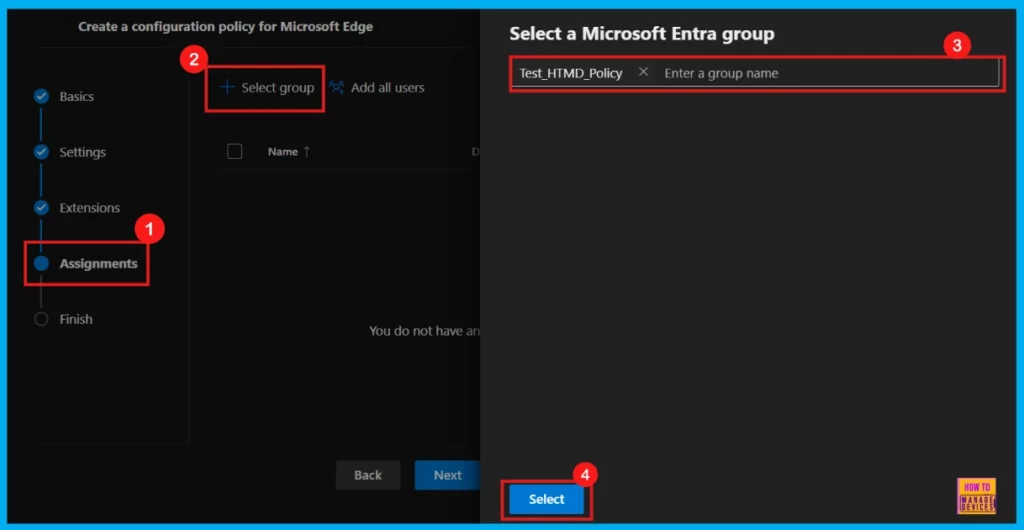
After selecting the group, we will see a success notification on the portal, stating that the Group has been updated. But data would not be saved until we complete the Finish step. The chosen group will now appear on the Assignment tab with the description of the group created for policy testing purposes.
- Click Next to proceed.
Finish
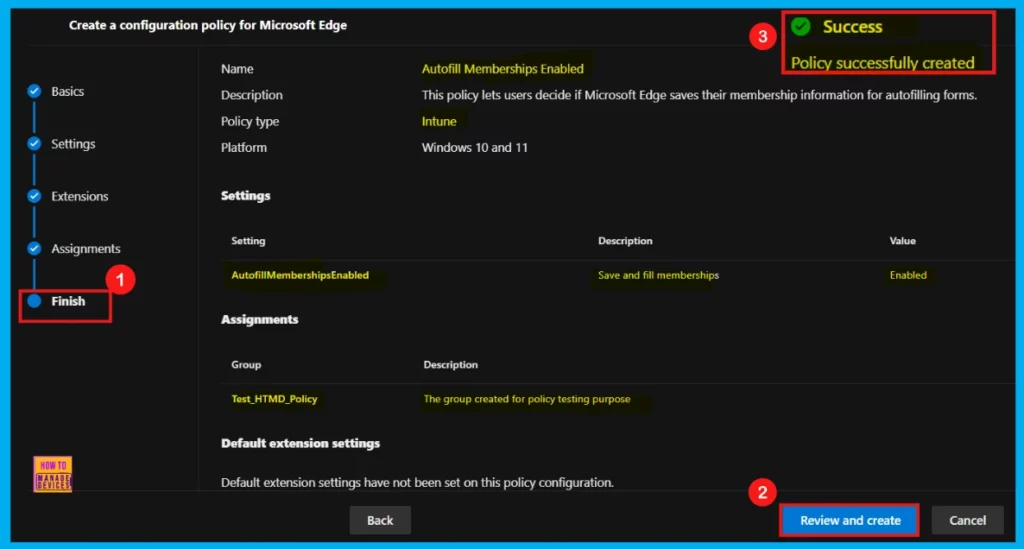
The Finish section provides a summary of all the information entered in the previous steps. It allows us to quickly review and make any necessary changes. Use the Back button if we need to edit any information. After confirming the details, click the Review and Create button.
- After clicking Review + Create, a confirmation message will appear, indicating that the policy was successfully created.
Device and User Check-in Status
We can find the new policy in the Configuration Policies list. To see it, go to Settings > Microsoft Edge > Configuration Policies and look for the policy name.
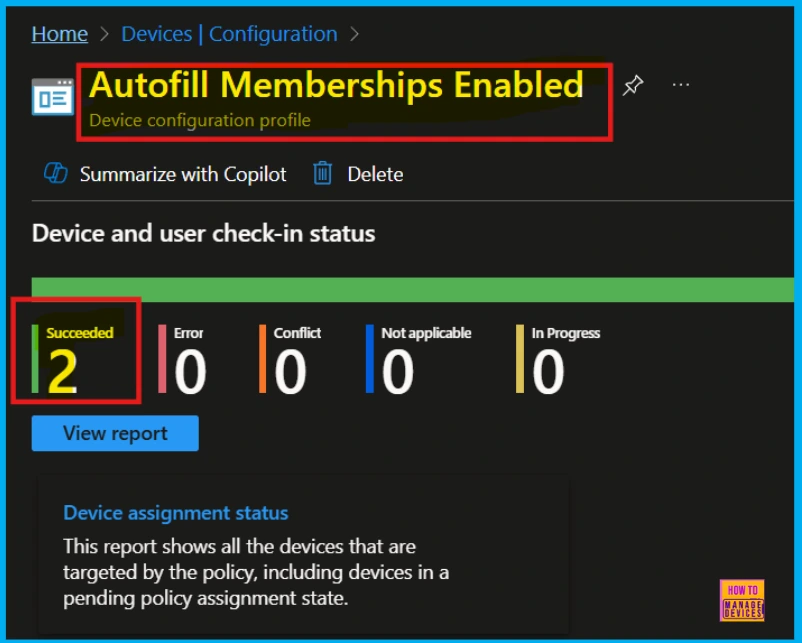
To ensure the policy is applied to devices, we must manually sync through the Company Portal. After syncing, the policy will show up in Microsoft Intune. To check if it was implemented successfully, go to the Intune Portal and navigate to Devices > Configuration.
- Find the Autofill Memberships Enabled policy in the Policies tab and click on it
- Its status says succeeded (2).
Client Side Verification – Event Viewer
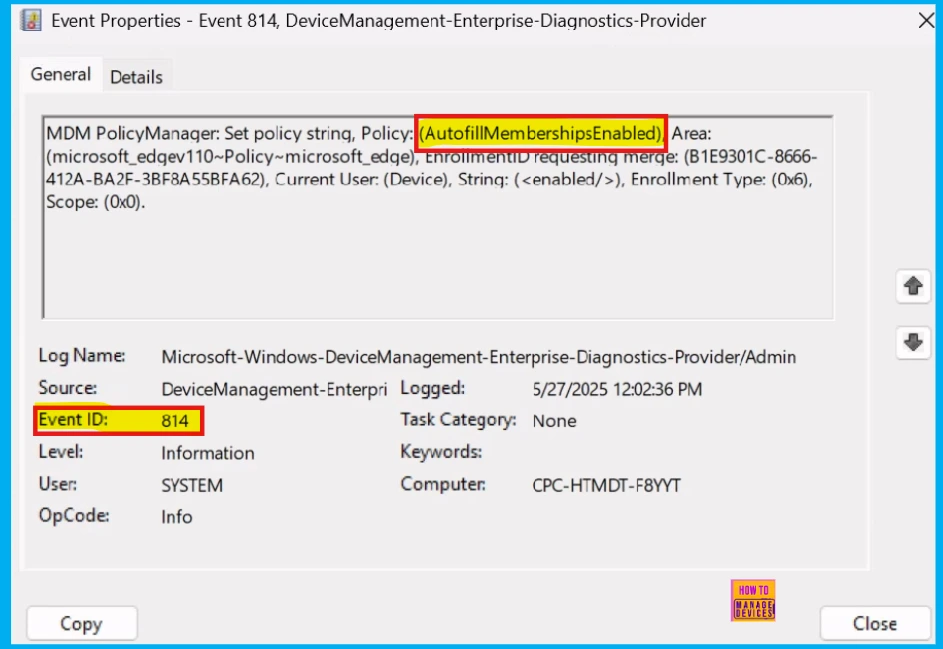
After creating the policy, we should verify it on the client side using Event Viewer. To open it, click the Start Menu, search for Event Viewer, and then click Yes on the User Account Control window.
- On the Event Viewer Navigate > Applications and Services Logs > Microsoft > Windows > DeviceManagement- Enterprise-Diagnostics-Provider > Admin
- The successful result is visible under Event ID 814.
MDM PolicyManager: Set policy string, Policy: (AutofillMembershipsEnabled), Area: (microsoft_edge~Policy~microsoft_edge~Startup), EnrollmentID requesting merge: (B1E9301C-8666-412A-BA2F-3BF8A55BFA62), Current User: (Device), String: (<enabled/>), Enrollment Type: (0x6), Scope: (0x0).
Need Further Assistance or Have Technical Questions?
Join the LinkedIn Page and Telegram group to get the latest step-by-step guides and news updates. Join our Meetup Page to participate in User group meetings. Also, Join the WhatsApp Community to get the latest news on Microsoft Technologies. We are there on Reddit as well.
Author
Anoop C Nair has been Microsoft MVP for 10 consecutive years from 2015 onwards. He is a Workplace Solution Architect with more than 22+ years of experience in Workplace technologies. He is a Blogger, Speaker, and Local User Group Community leader. His primary focus is on Device Management technologies like SCCM and Intune. He writes about technologies like Intune, SCCM, Windows, Cloud PC, Windows, Entra, Microsoft Security, Career, etc.




Discussion